User Management
This section describes how to manage users, including manually creating users, synchronizing users on a schedule, and deleting or editing users. The user management page is shown below.
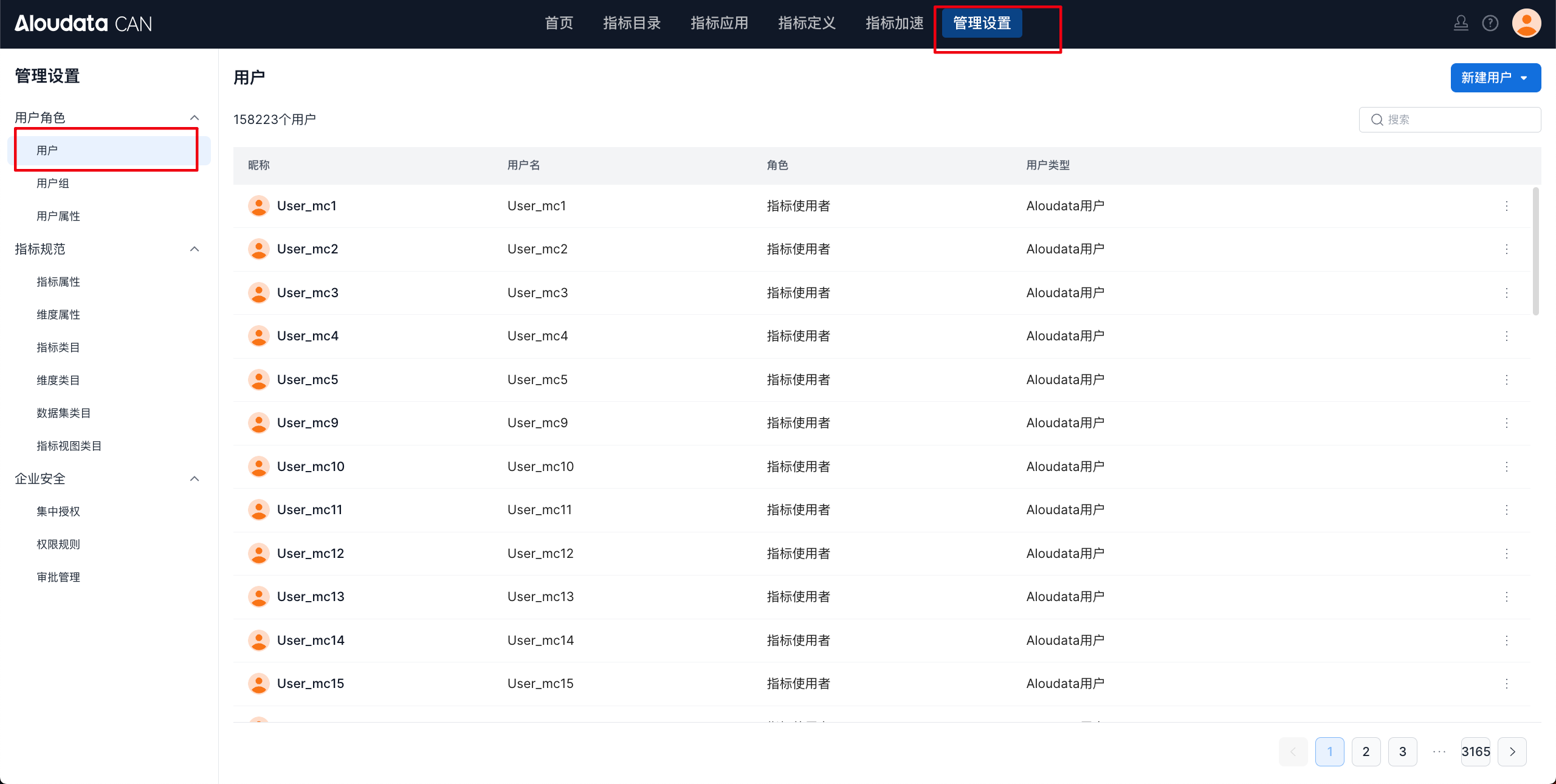
Manually Create a User
Administrators can create users manually. In the upper-right corner of the user page, click Create User, select Create Manually, and the create user window opens, as shown below.
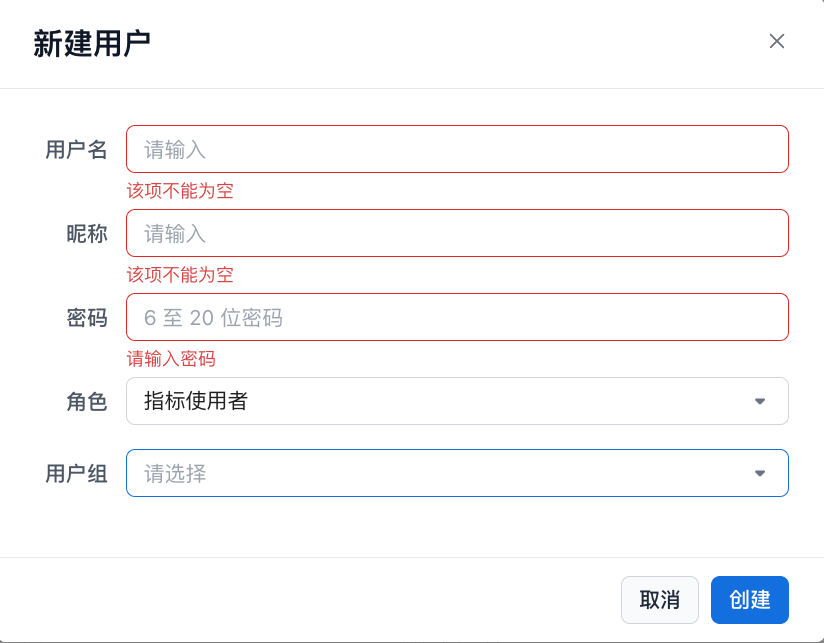
| Parameter | Description |
|---|---|
| Username | Required. |
| Nickname | Required. |
| Password | Required. |
| Role | Super Administrator: Generated during platform initialization and cannot be granted to users.Administrator: Granted by a Super Administrator. Administrators can manage users, metric categories, and dimension categories, and can access and manage all assets in the metric platform.Metric Definer: Granted by an Administrator or Super Administrator. Metric Definers can create data sources, datasets, dimensions, and metrics, and can perform data analysis in analysis workbooks. When using data assets, they must first be authorized by the asset owner.Metric Consumer: Granted by an Administrator or Super Administrator. Metric Consumers can perform data analysis in analysis workbooks and analysis views. |
| User Group | Optional. |
Synchronize Users on a Schedule
- Administrators can configure scheduled user synchronization. In the upper-right corner of the user page, click
Create User, selectScheduled Synchronization, and the create user window opens, as shown below.
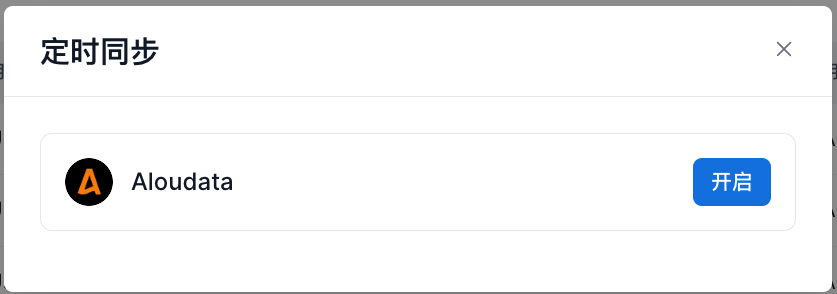
- Scheduled synchronization syncs Aloudata users. Enable this feature as needed.
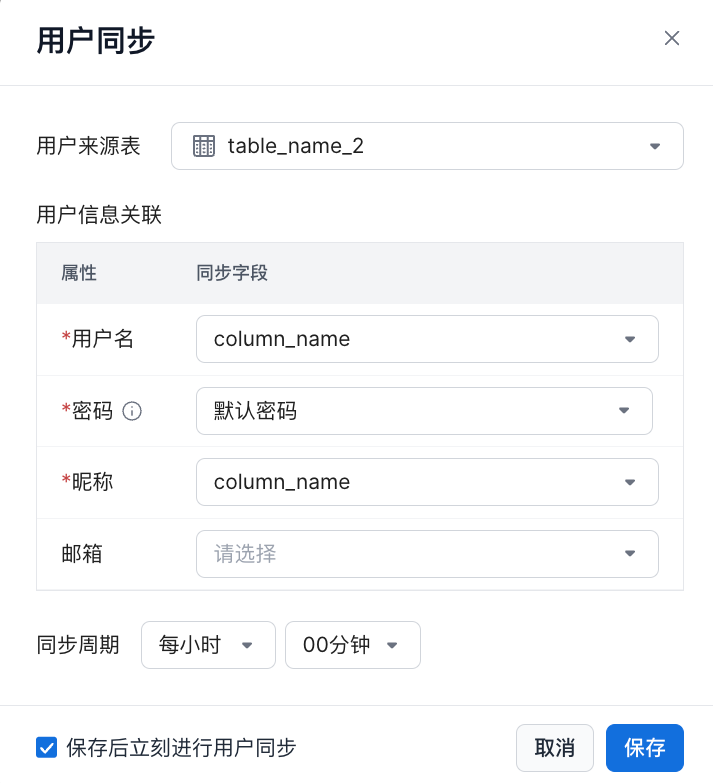
| Configuration Item | Description |
|---|---|
| User Source Table | Select a table from the data source. |
| User Information Mapping | - Username: Required. Select a text field. - Password: Required. Select a text field. - Optional setting: Use the default password. A default password prompt is displayed next to the password field. - Nickname: Required. Select a text field. - Email: Optional. |
| Synchronize Users Immediately After Saving | After the plan is saved, user synchronization runs once immediately. |
| Synchronization Cycle | - Hourly: Synchronize at minute N of every hour. - Daily: Synchronize at hour N every day. - Weekly: Synchronize on day N of the week at the specified hour and minute. |
User Synchronization Mechanism
-
The system periodically polls the specified fields in the specified table to synchronize users. After it obtains the latest user list, it applies the following processing:
-
The system evaluates users within the specified user type.
-
Users with the Super Administrator role are not synchronized.
-
If a user is not included in the current synchronization list, the user is deleted and the related asset transfer logic is processed.
-
If a user is newly added in the current synchronization, the system adds the user and assigns the Metric Consumer role.
-
If a user already exists, the system skips the user and does not modify any user information.
-
-
If the query fails, user synchronization is not performed.
Scheduled Synchronization Details
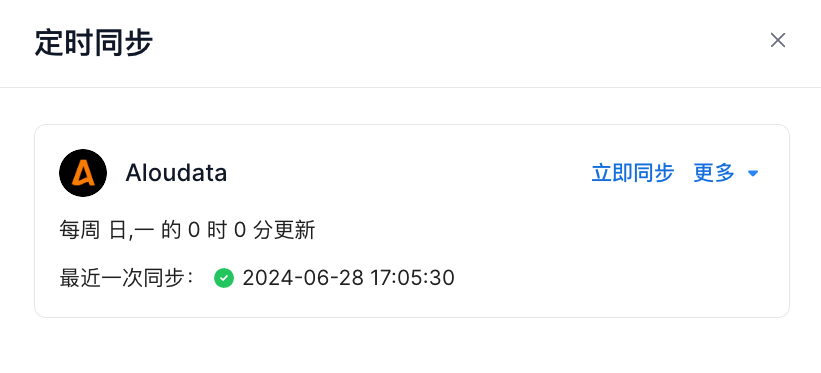
| Item | Description |
|---|---|
| Synchronization Time | Specifies the scheduled synchronization cycle. |
| Last Synchronization Time | Records the most recent synchronization time. |
| Synchronize Now | Starts user synchronization immediately. |
Edit Scheduled Synchronization
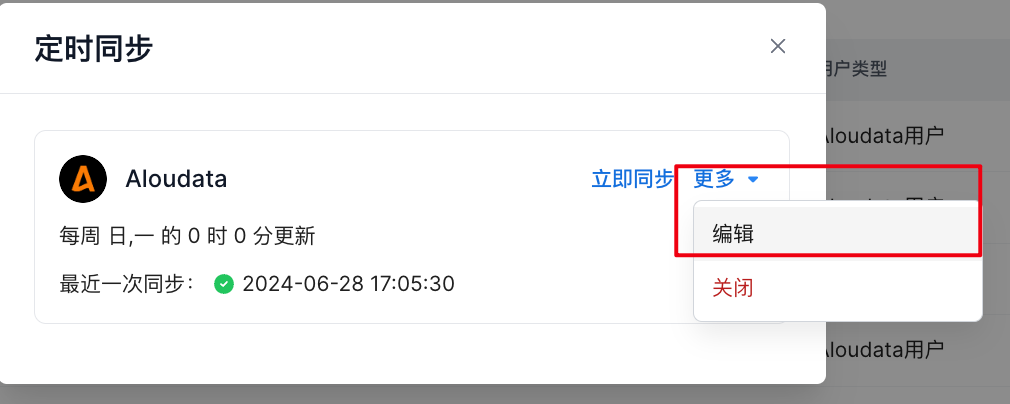
The edit state is basically the same as the create state. The current configuration is prefilled for editing.
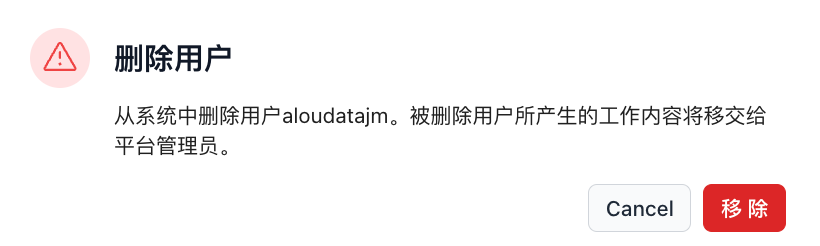
Delete a User
- On the user list page, click the
...button on the right side of the user, and then click Delete, as shown below.
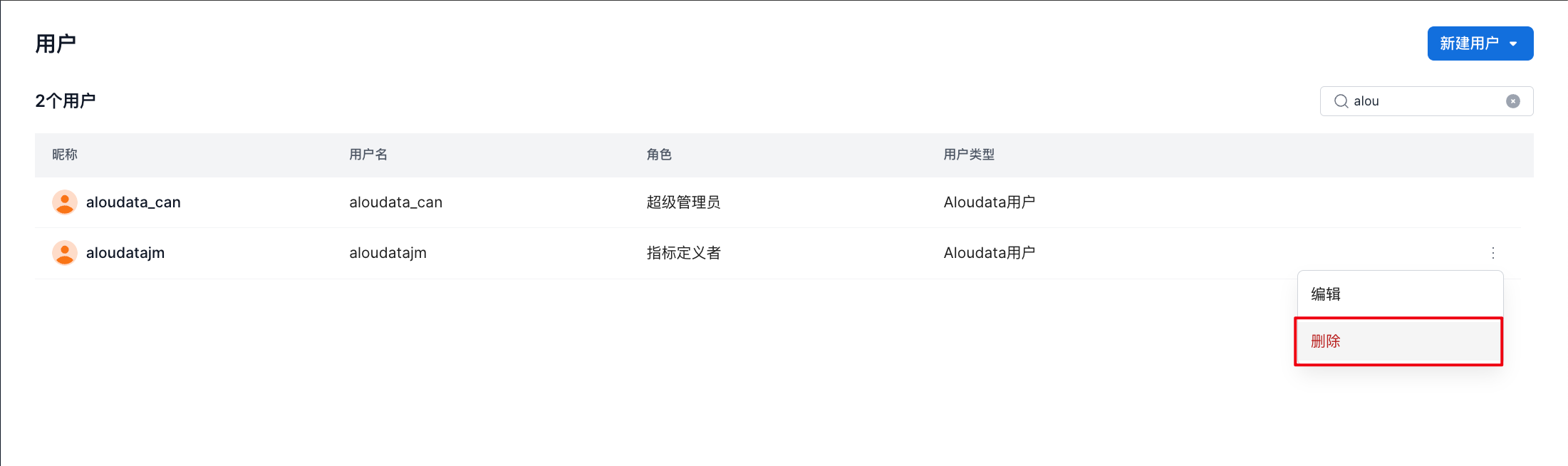
- Work created by the deleted user is transferred to the platform administrator.
Edit a User
- On the user list page, click the
...button on the right side of the user, and then click Edit, as shown below.

- On the edit user page, fill in or modify the basic information.
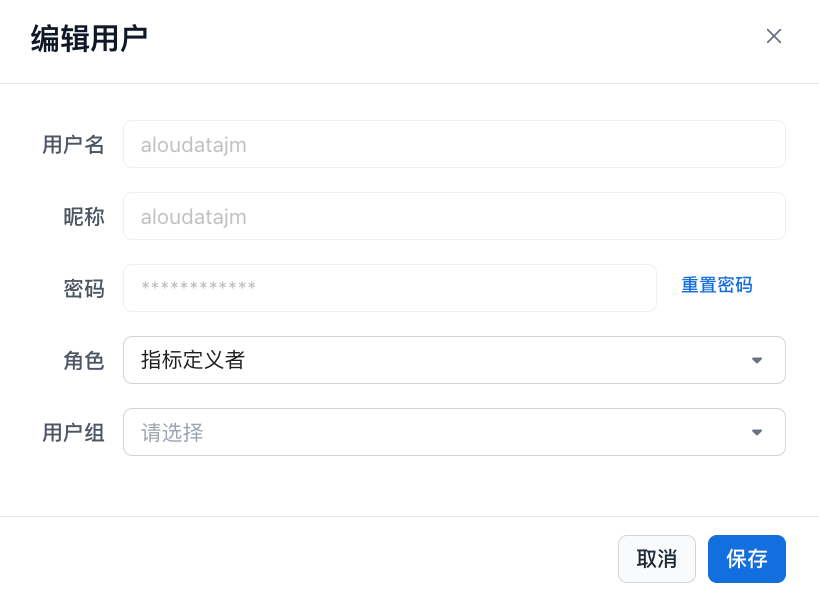
| Parameter | Description |
|---|---|
| Username | Cannot be modified. |
| Nickname | Cannot be modified. |
| Password | Click Reset Password, and then enter the new password in the text box. |
| Role | You can change the user's role.Super Administrator: Generated during platform initialization and cannot be granted to users.Administrator: Granted by a Super Administrator. Administrators can manage users, metric categories, and dimension categories, and can access and manage all assets in the metric platform.Metric Definer: Granted by an Administrator or Super Administrator. Metric Definers can create data sources, datasets, dimensions, and metrics, and can perform data analysis in analysis workbooks. When using data assets, they must first be authorized by the asset owner.Metric Consumer: Granted by an Administrator or Super Administrator. Metric Consumers can perform data analysis in analysis workbooks and analysis views. |
| User Group | Specify the user group that the user belongs to. |