Manage Datasets
Overview
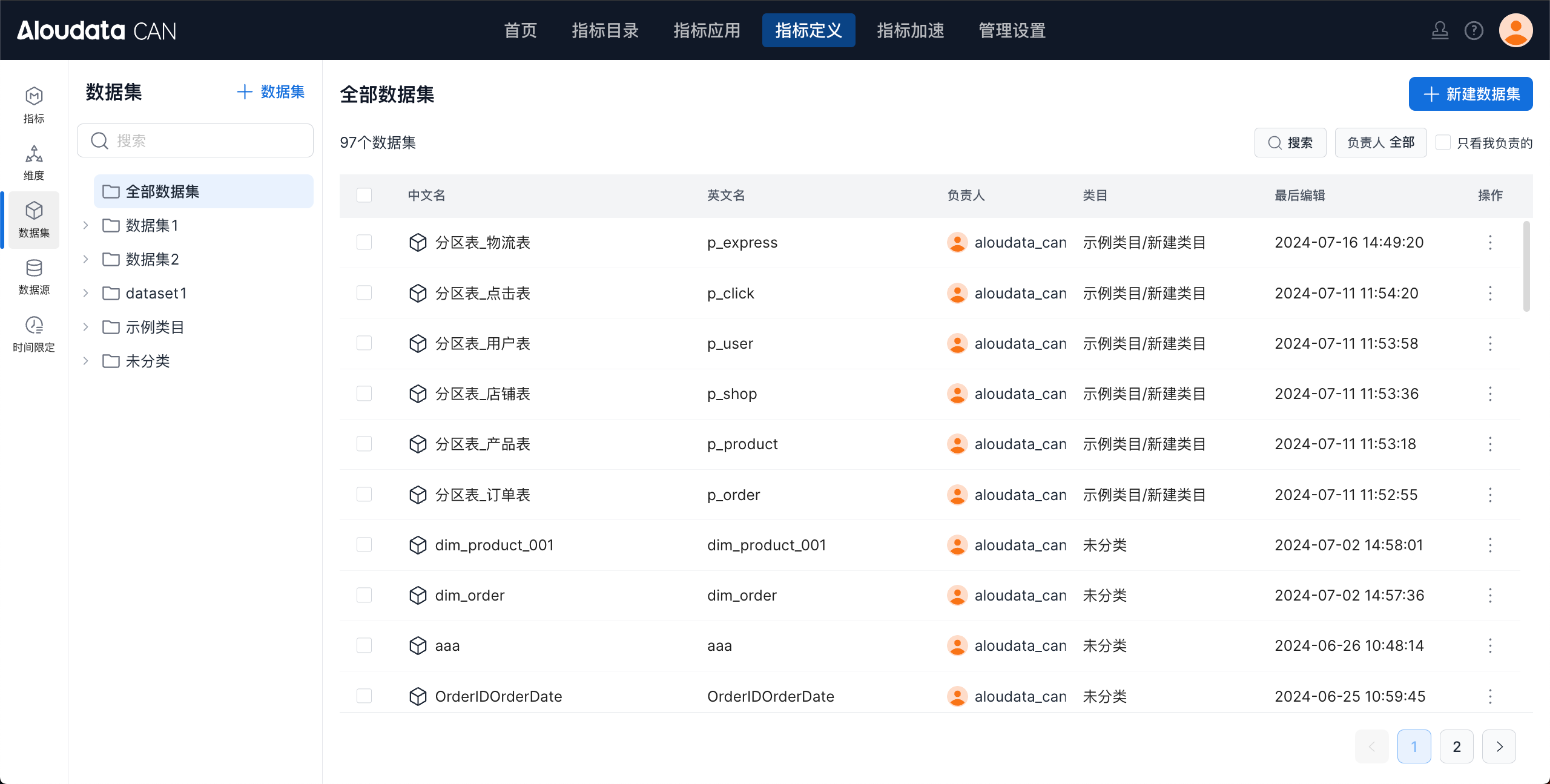
The dataset page provides a complete workspace for viewing and managing datasets. You can review dataset status, manage fields and dimensions, configure relationships, view lineage, manage acceleration and update settings, and edit or delete datasets.
Search for Datasets
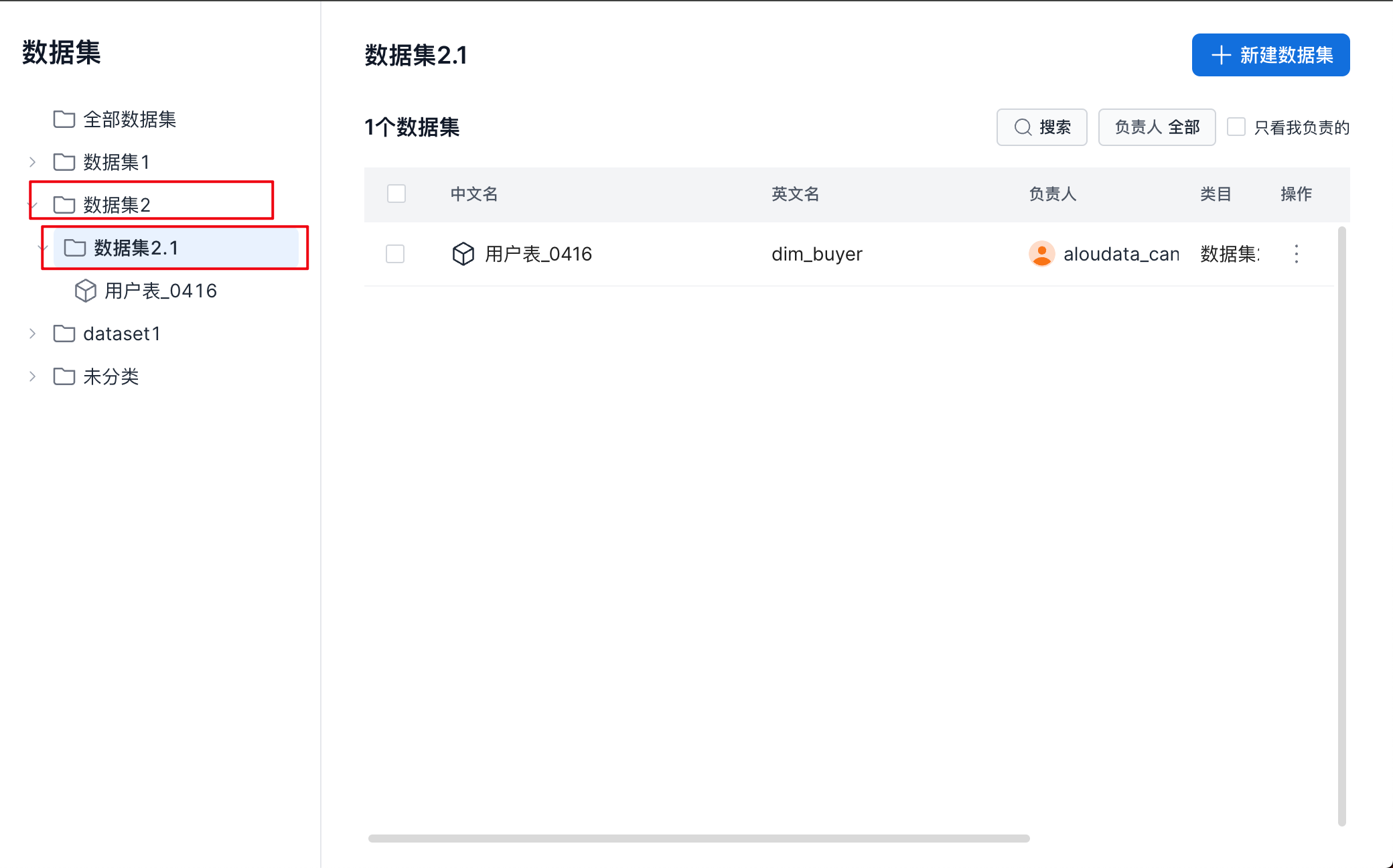
- View only datasets in the selected category
In the top navigation bar, select Metric Definition -> in the left navigation bar, select Datasets. Click a dimension category to view all datasets in that category, as shown below.
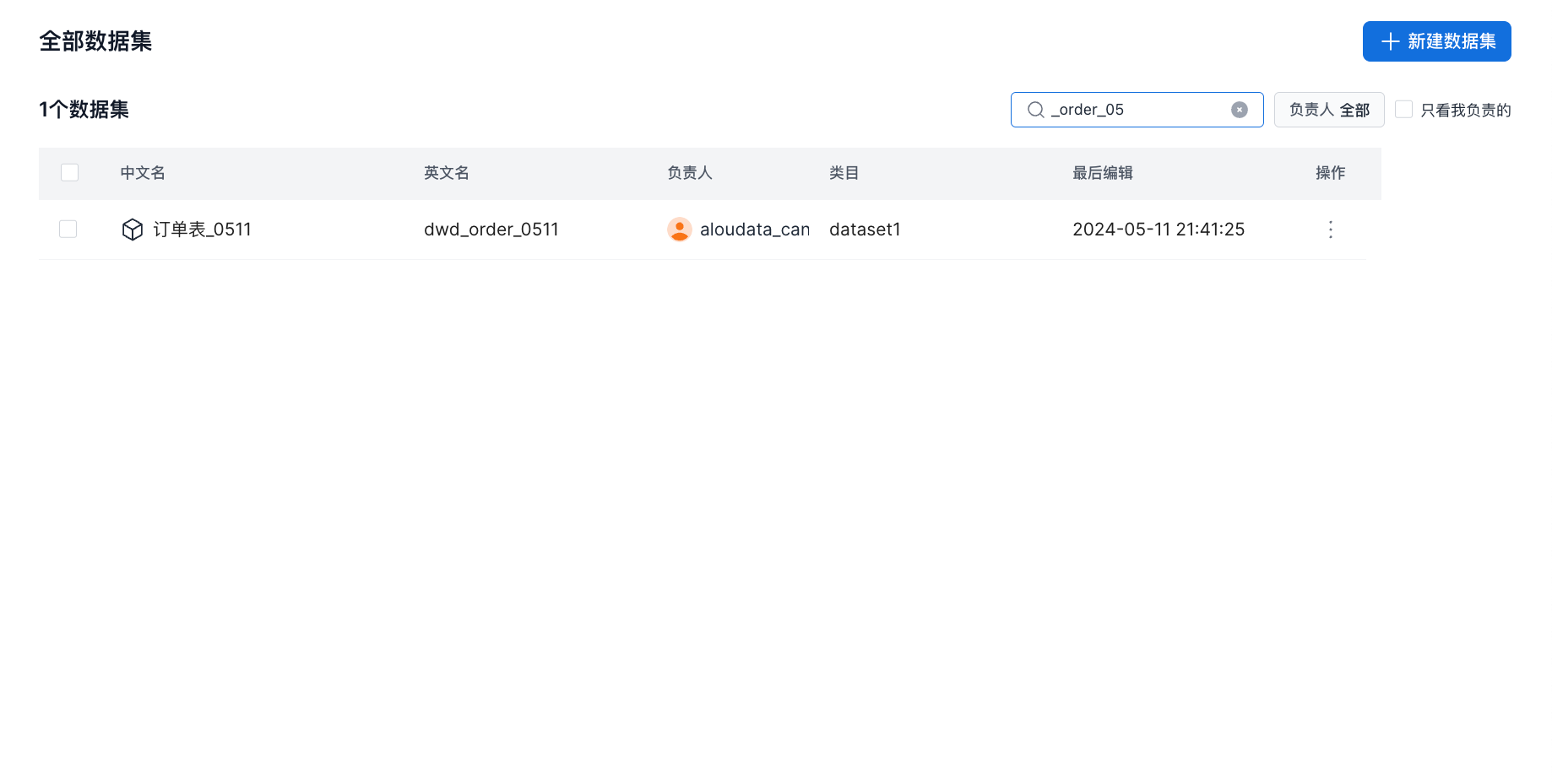
- Search datasets by name
In the top navigation bar, select Metric Definition -> in the left navigation bar, select Datasets. Enter text in the search box to fuzzy search by the dataset Chinese name or English name, as shown below.
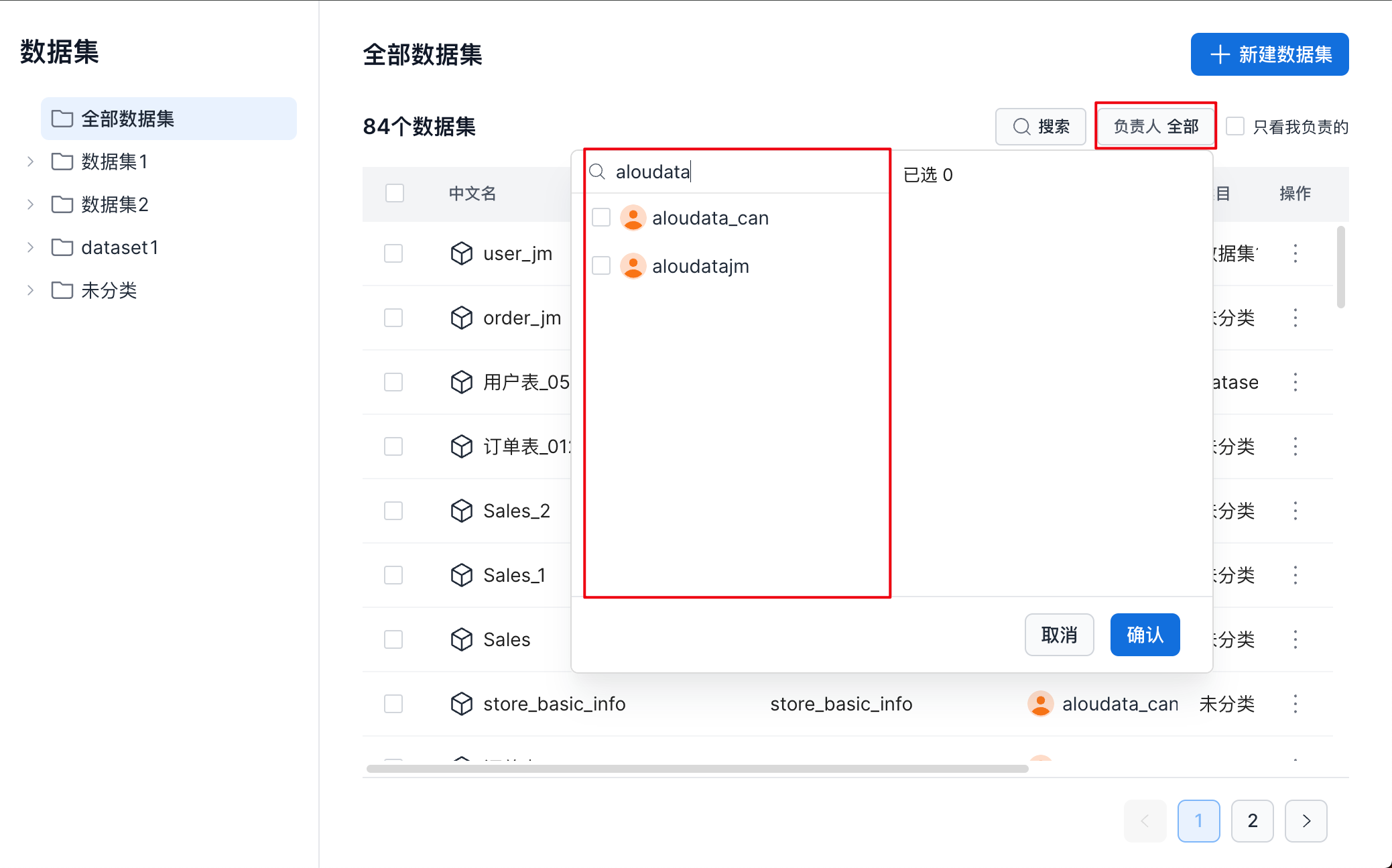
- View datasets created by a specific owner
In the top navigation bar, select Metric Definition -> in the left navigation bar, select Datasets. In the owner drop-down list on the right, select a user to view all datasets owned by that user, as shown below.
- View only datasets I own
In the top navigation bar, select Metric Definition -> in the left navigation bar, select Datasets. Select Only show datasets I own to view datasets created by the current user, as shown below.
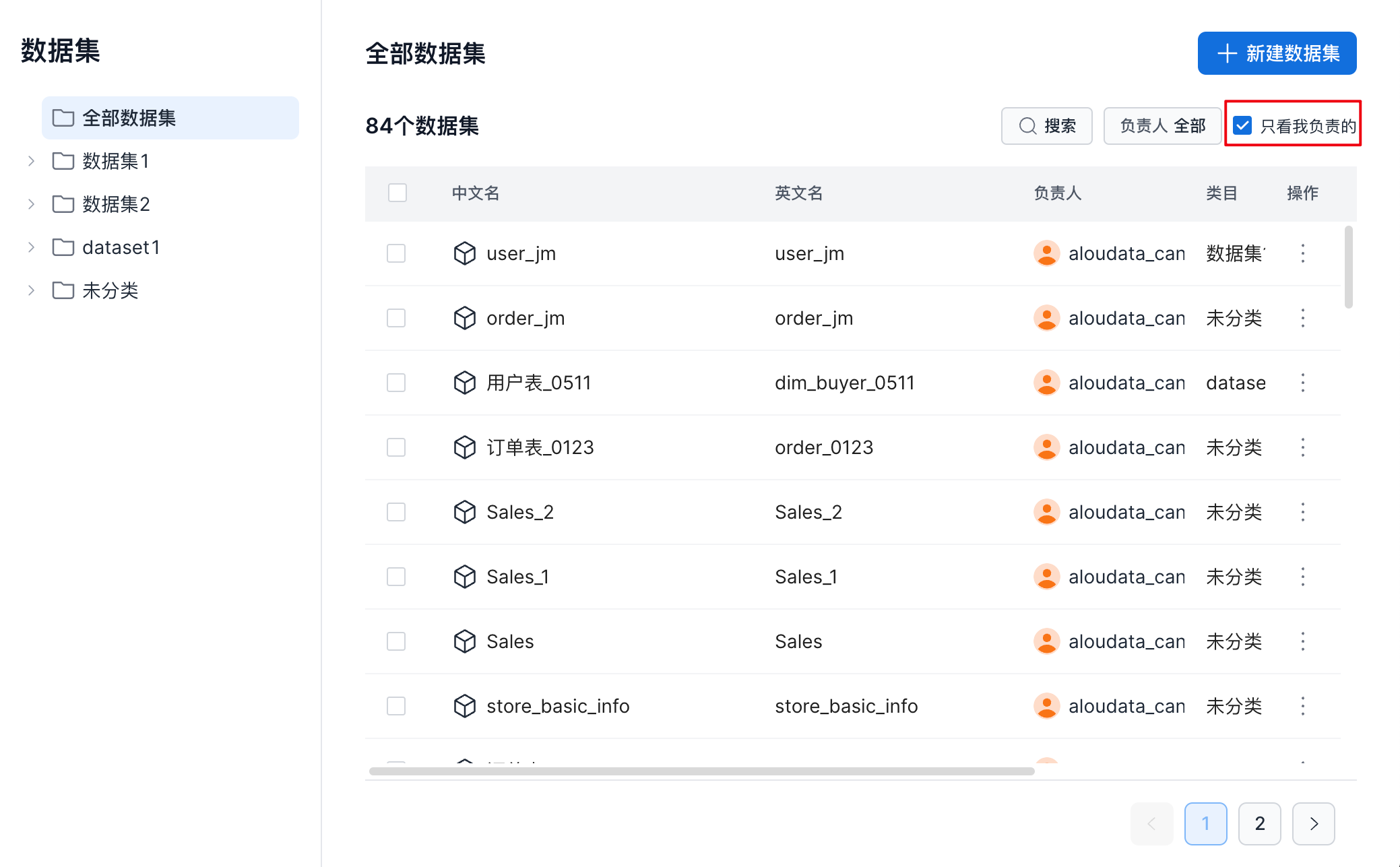
Tip
The Data Owner and Only show datasets I own filters are mutually exclusive.
When you select Only show datasets I own, the Data Owner selection is cleared and only the current user is selected.
When you change the selected owner in the Data Owner field, Only show datasets I own is not selected.
View Dataset Details
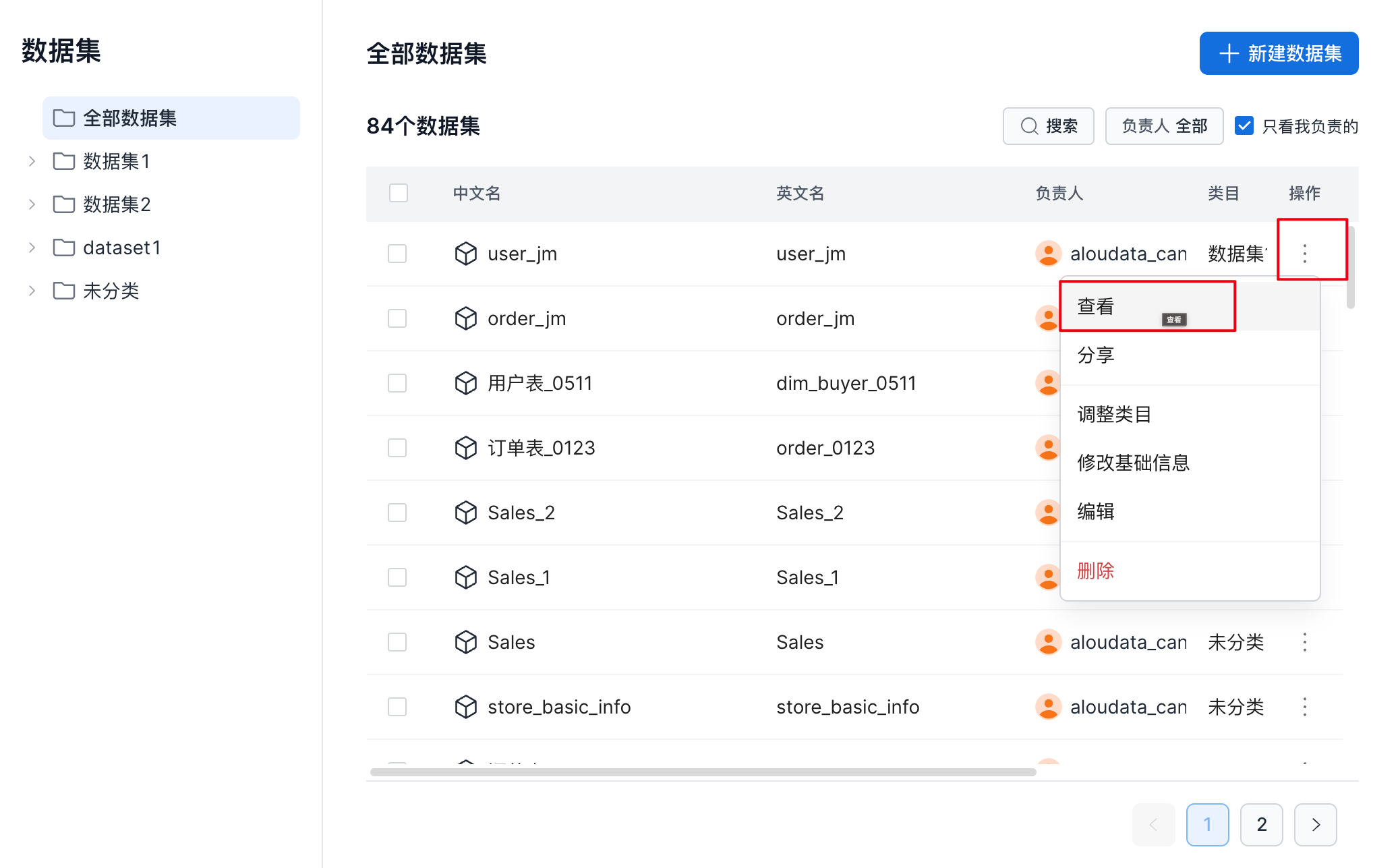
On the dataset management page, follow the guide shown below to view dataset details.
The following image shows the dataset details page.
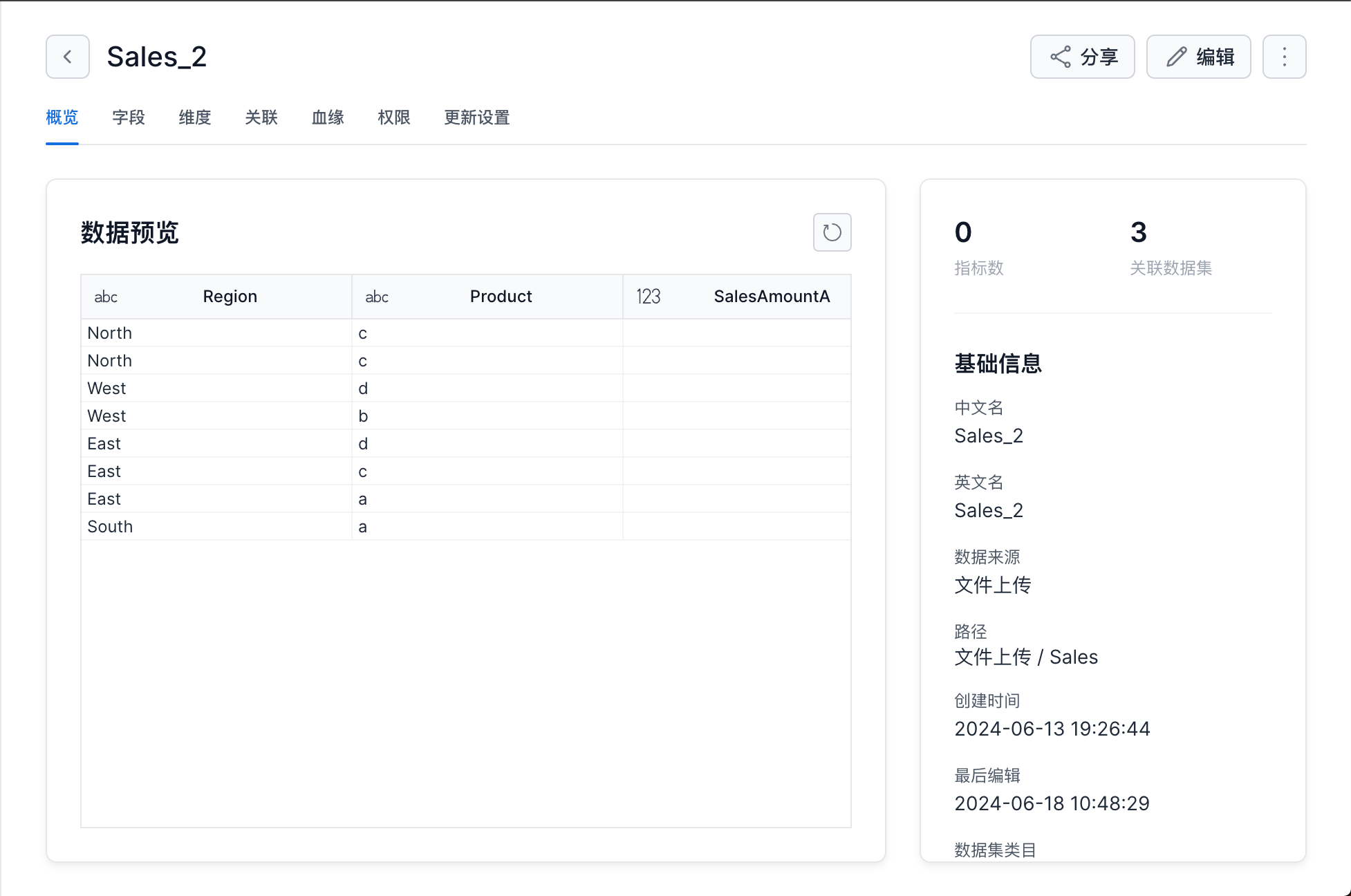
The dataset details page includes the following modules: Overview, Fields, Dimensions, Relationships, Lineage, Permissions, and Update Settings.
Overview
This page shows sample data, an information summary, and basic information for the dataset.
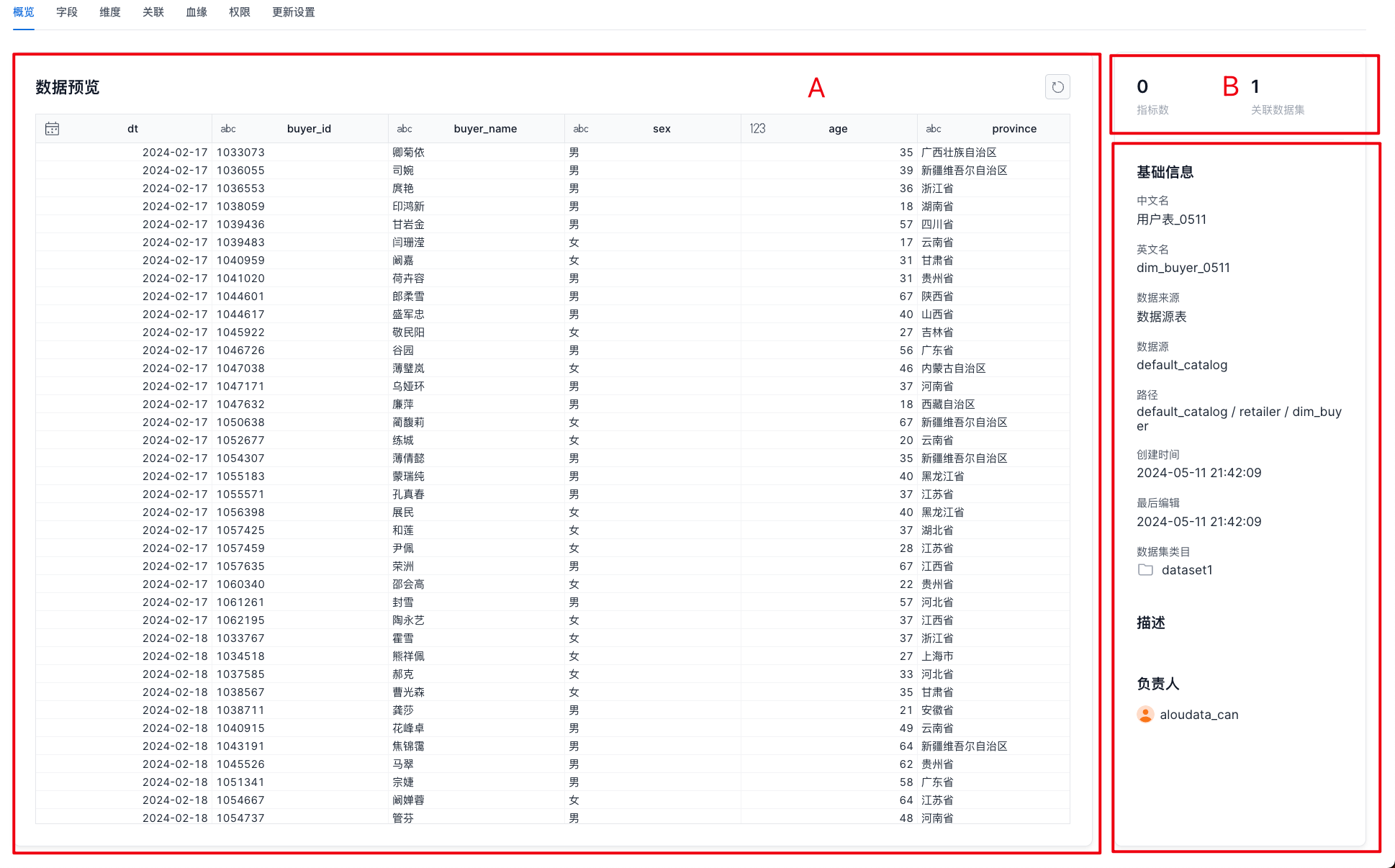
| Item | Description |
|---|---|
| A Data preview | Shows data from the current dataset. |
| B Information summary | Summarizes dataset information. * Metrics: Counts all downstream metrics for the dataset, including basic metrics, derived metrics, and composite metrics. * Related datasets: Counts datasets that the current dataset relates to and datasets that relate to the current dataset. |
| C Basic information | * Basic information: Shows basic dataset information. You can adjust this information while editing the dataset. * Description: Description of the dataset. * Owner: Owner of the dataset. Permission requests and dataset definition changes can be handled by the owner or by users with management permissions. |
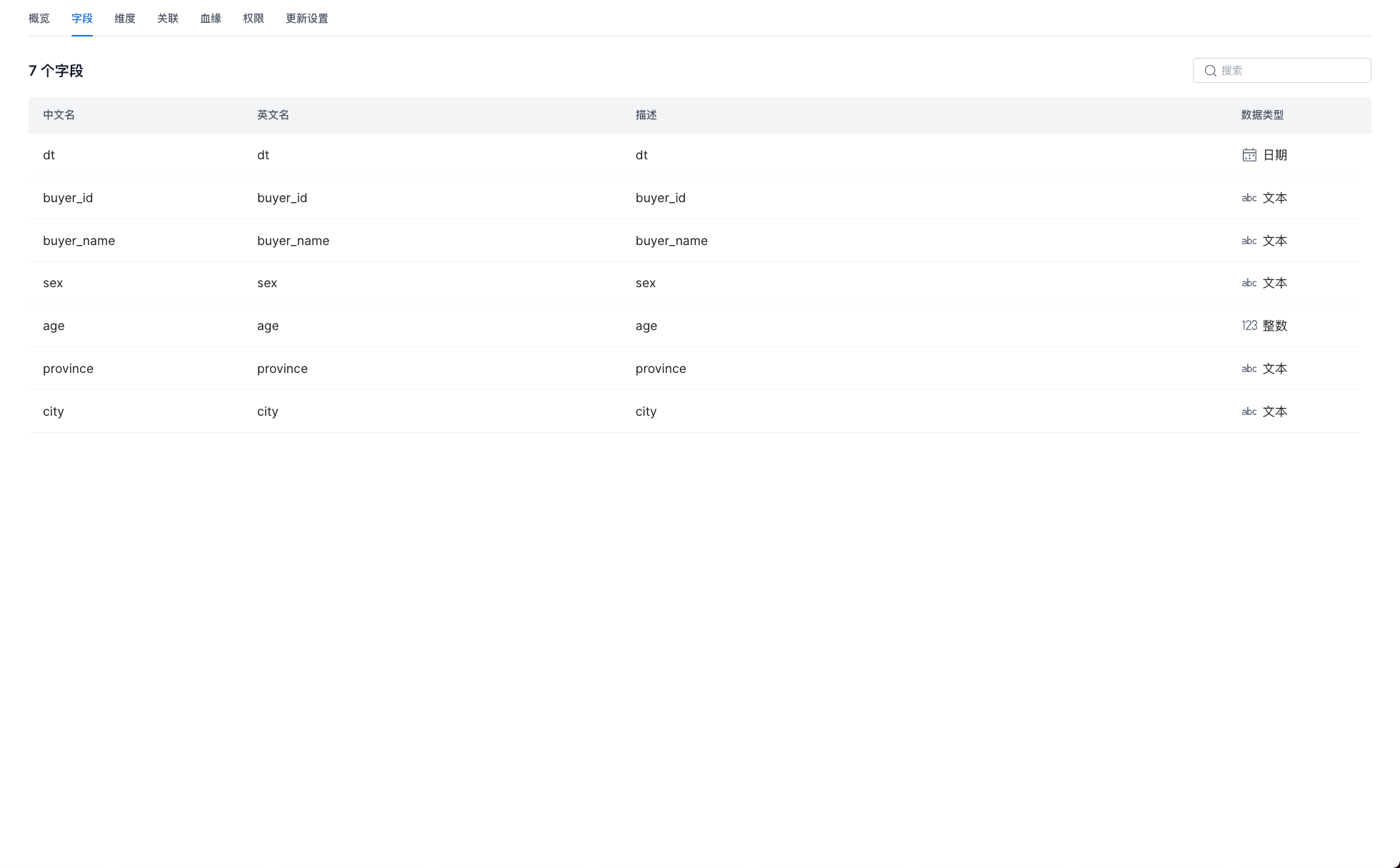
Fields
This page shows field details in the dataset, including Chinese name, English name, description, and data type.
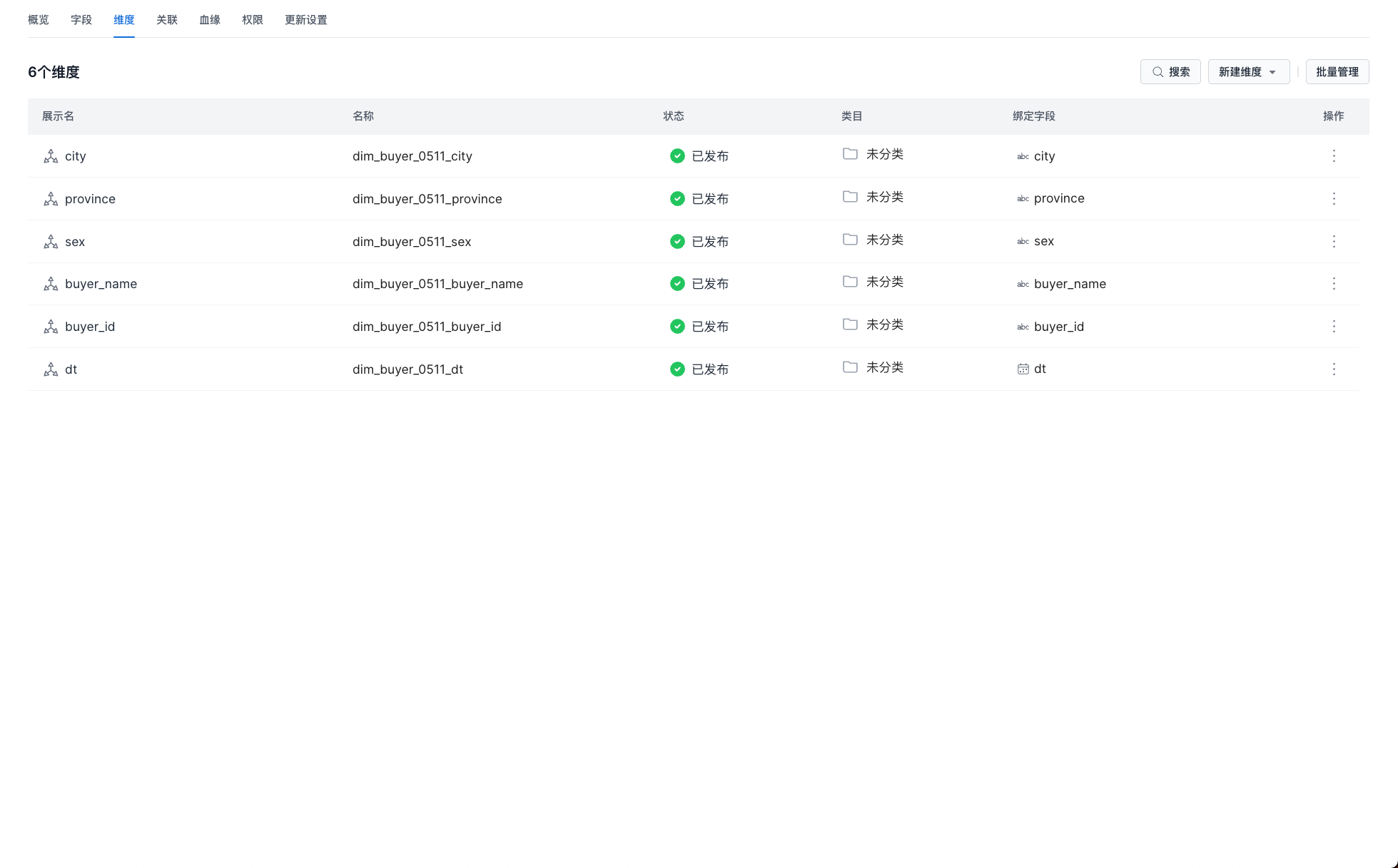
Dimensions
This page shows dimension information and provides dimension management features. For details, see Manage Dimensions.
Relationships
This page shows relationships between datasets and provides an entry point for creating dataset relationships. For details, see Configure Dataset Relationships.
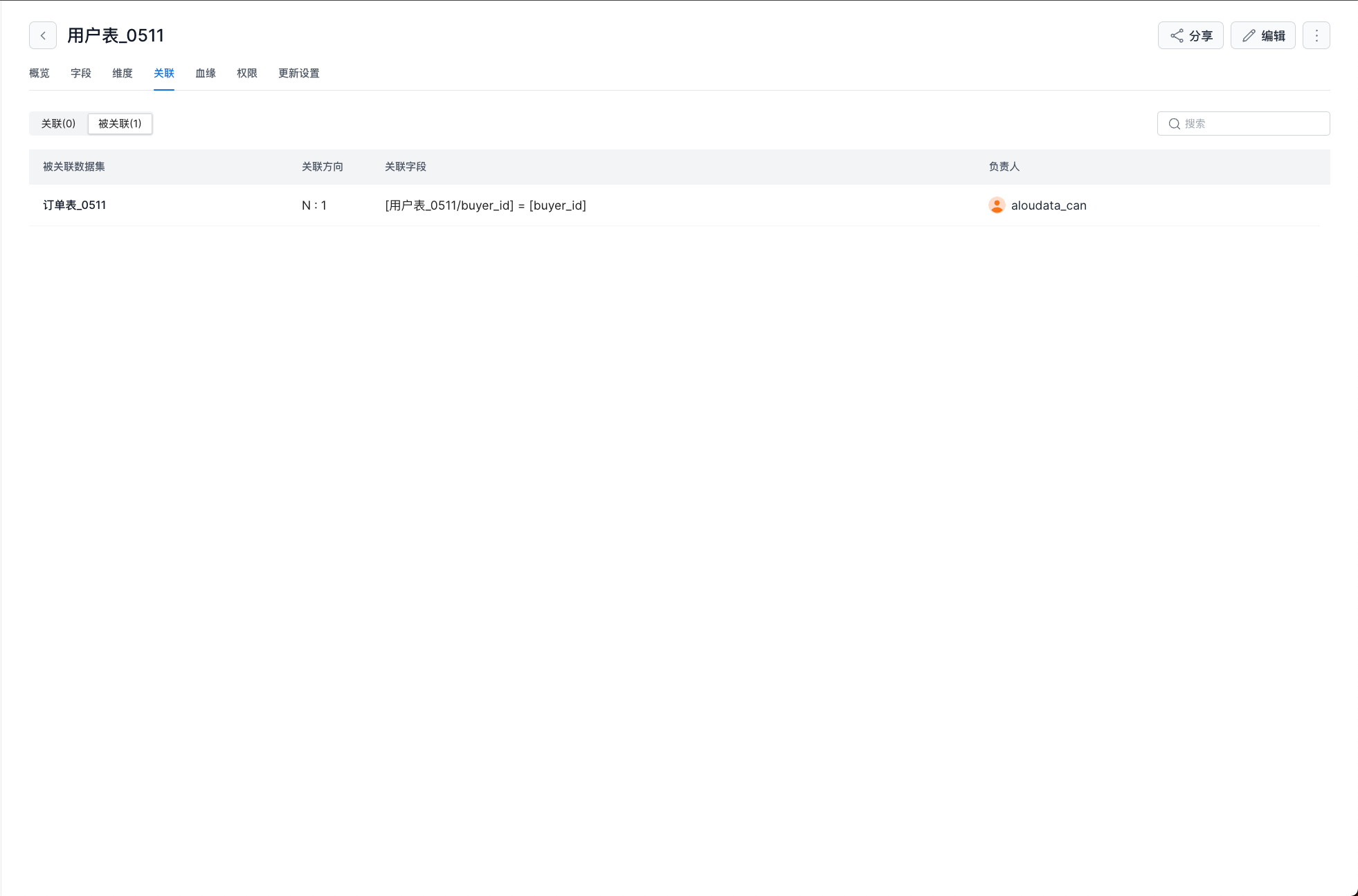
- Relationship list
- The Relationships page shows relationships created by the current dataset and relationships where the current dataset is referenced.
- Create relationship
-
When creating a relationship on a dataset, you can only add a one-side dimension table for the current dataset.
Tip
Relationship creation currently only supports adding a one-side dimension table to the current table.
Lineage
This page shows lineage relationships between datasets.
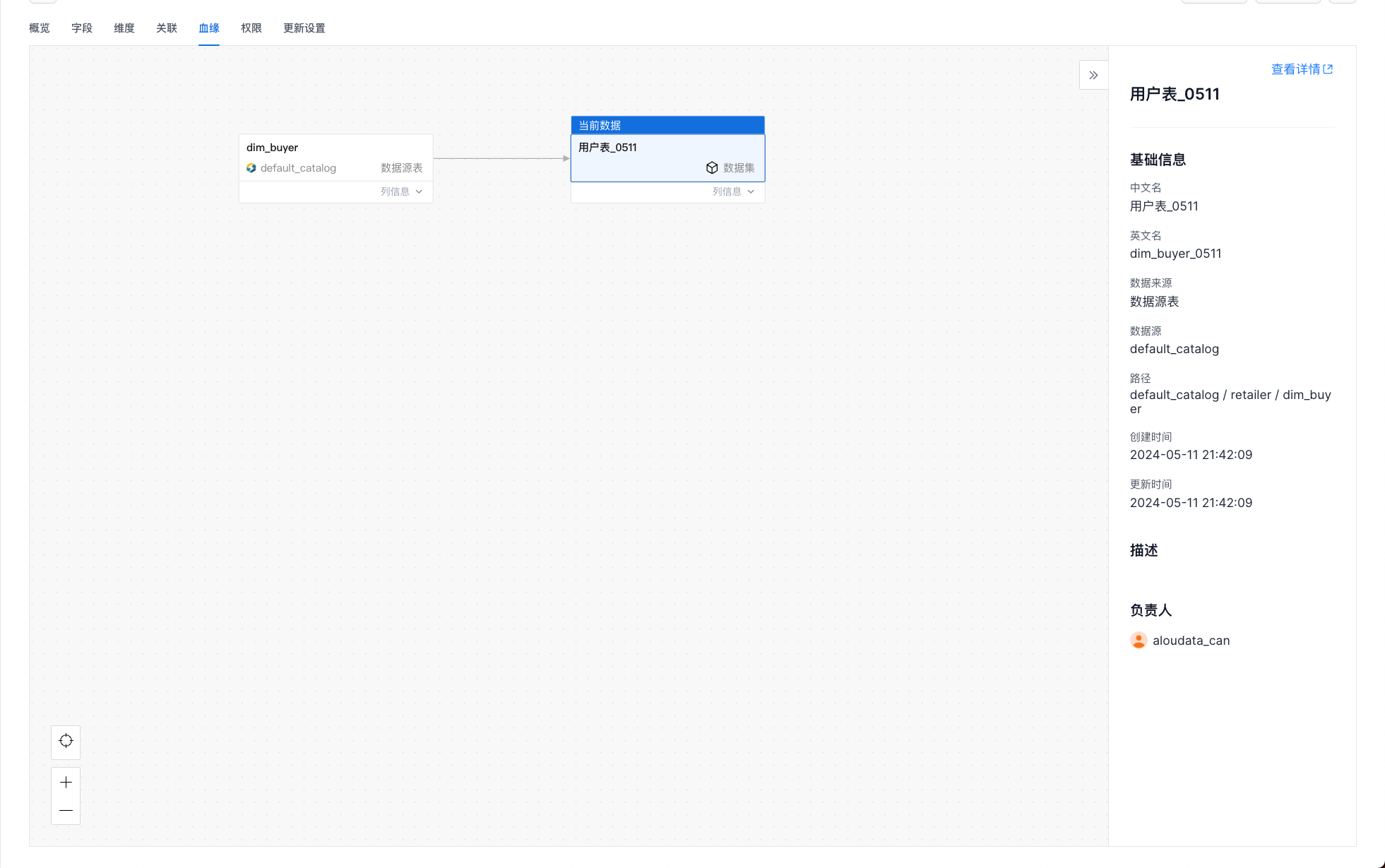
| Item | Description |
|---|---|
| Expand or collapse lineage | Click + or - on an asset node to expand or collapse upstream and downstream lineage. 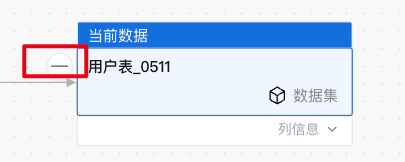 |
| Asset details | Click an asset to view its basic information in the side panel. Click View Details to open the corresponding dataset or metric details page. 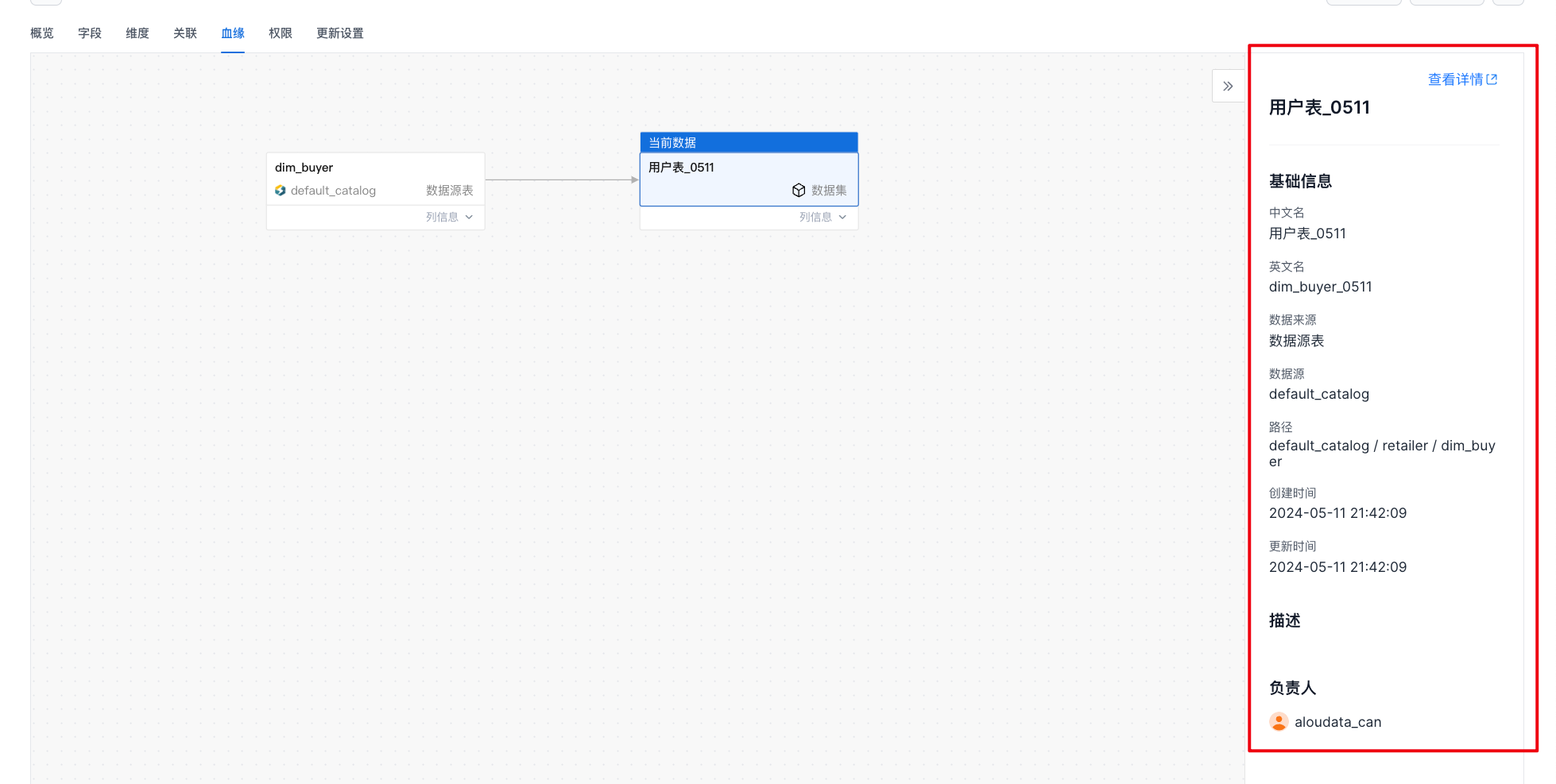 |
Permissions
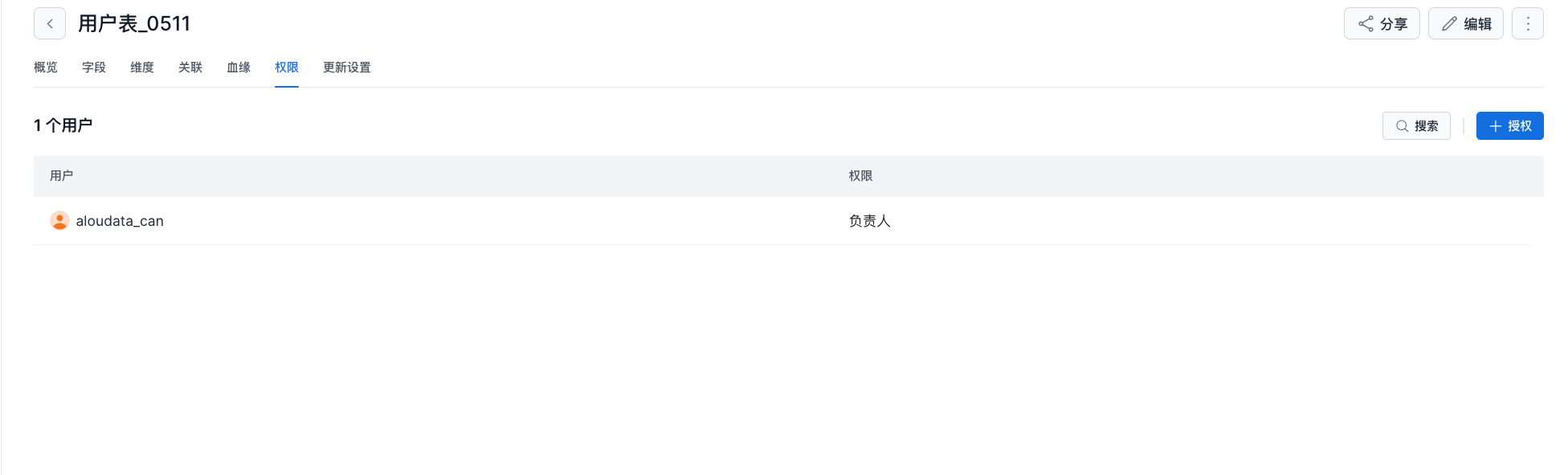
This page shows users who have permissions on the dataset and provides dataset permission management features.
| Item | Description |
|---|---|
| Add authorization | 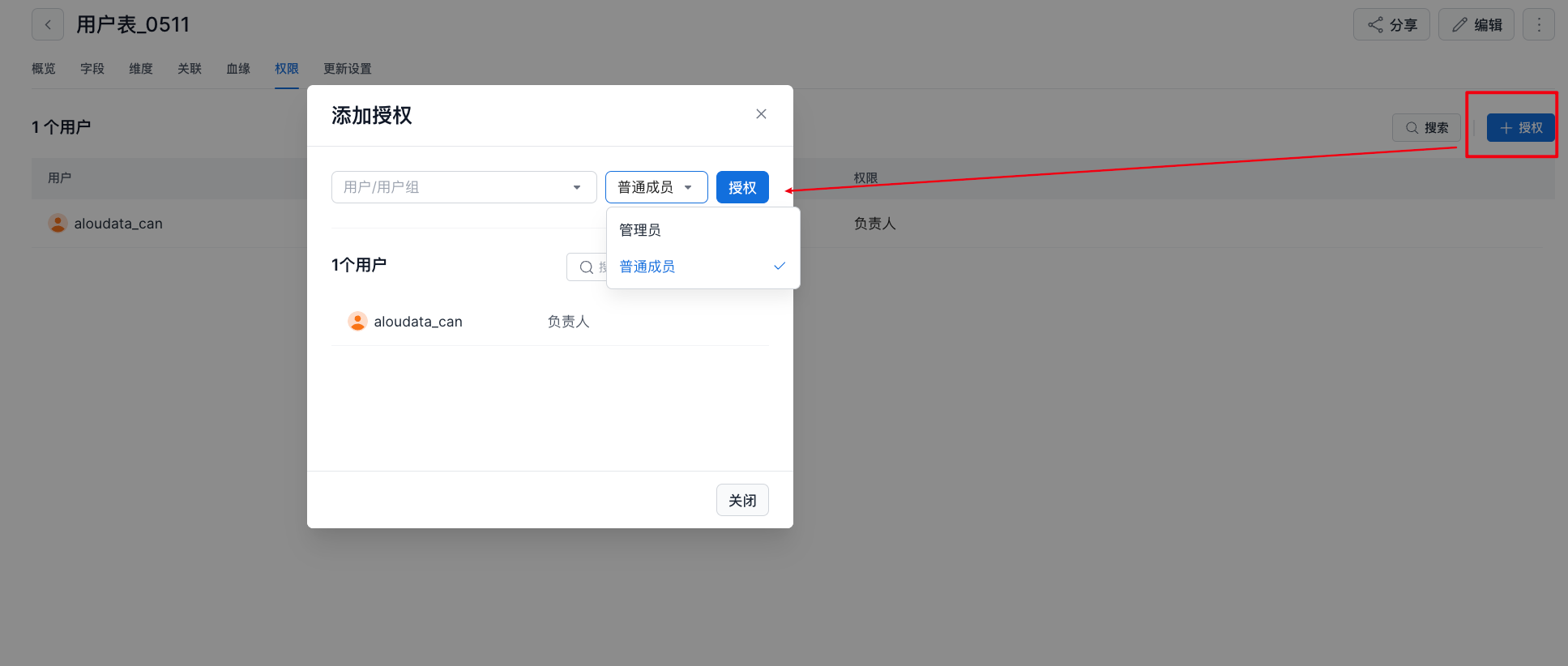 Metrics include three built-in roles: Owner, Administrator, and Member. * Owner: Cannot be granted to other users. The owner is the dataset creator. * Administrator: Granted by the owner. Administrators can edit the dataset definition and grant the dataset to other users. * Member: Can use the dataset to create metrics and dimensions. Metrics include three built-in roles: Owner, Administrator, and Member. * Owner: Cannot be granted to other users. The owner is the dataset creator. * Administrator: Granted by the owner. Administrators can edit the dataset definition and grant the dataset to other users. * Member: Can use the dataset to create metrics and dimensions. |
| Adjust or revoke authorization | 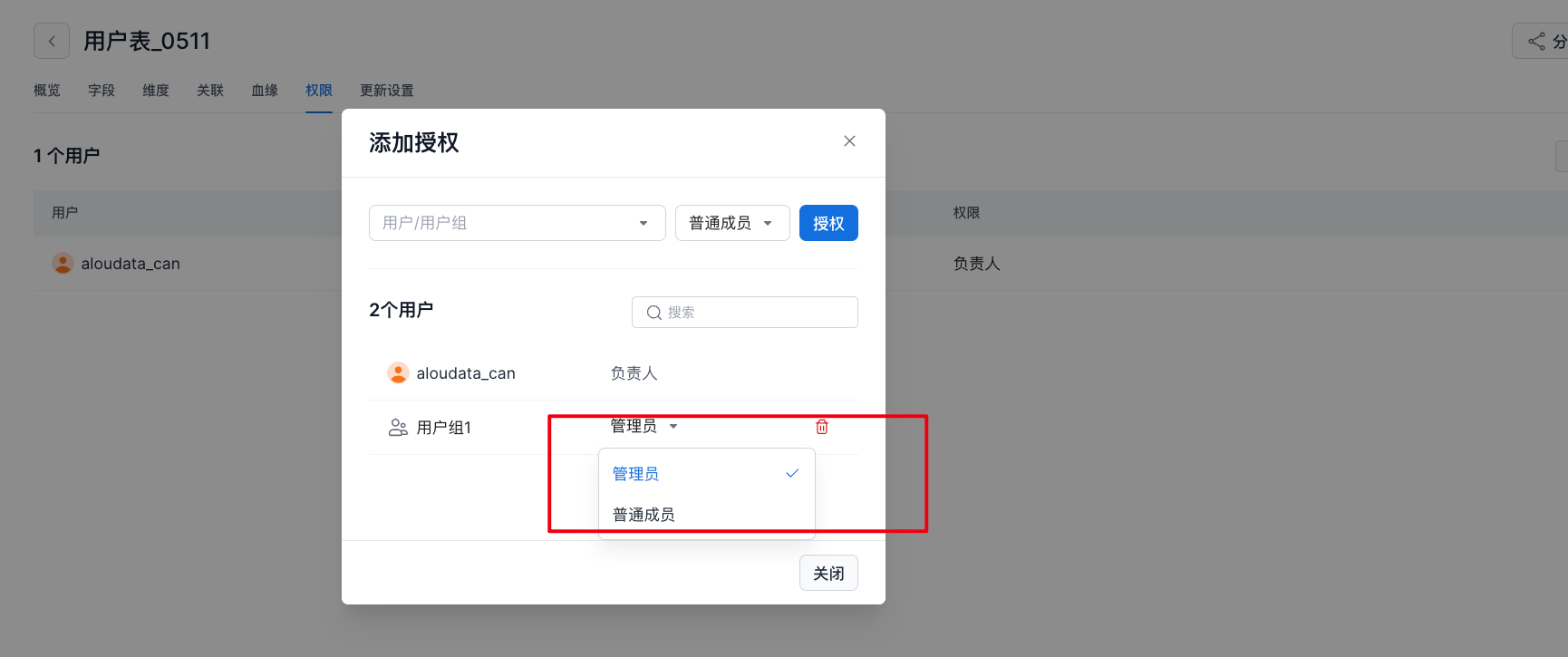 Select a user whose permissions need to be changed. You can modify or revoke that user's permissions. Select a user whose permissions need to be changed. You can modify or revoke that user's permissions. |
Update Settings
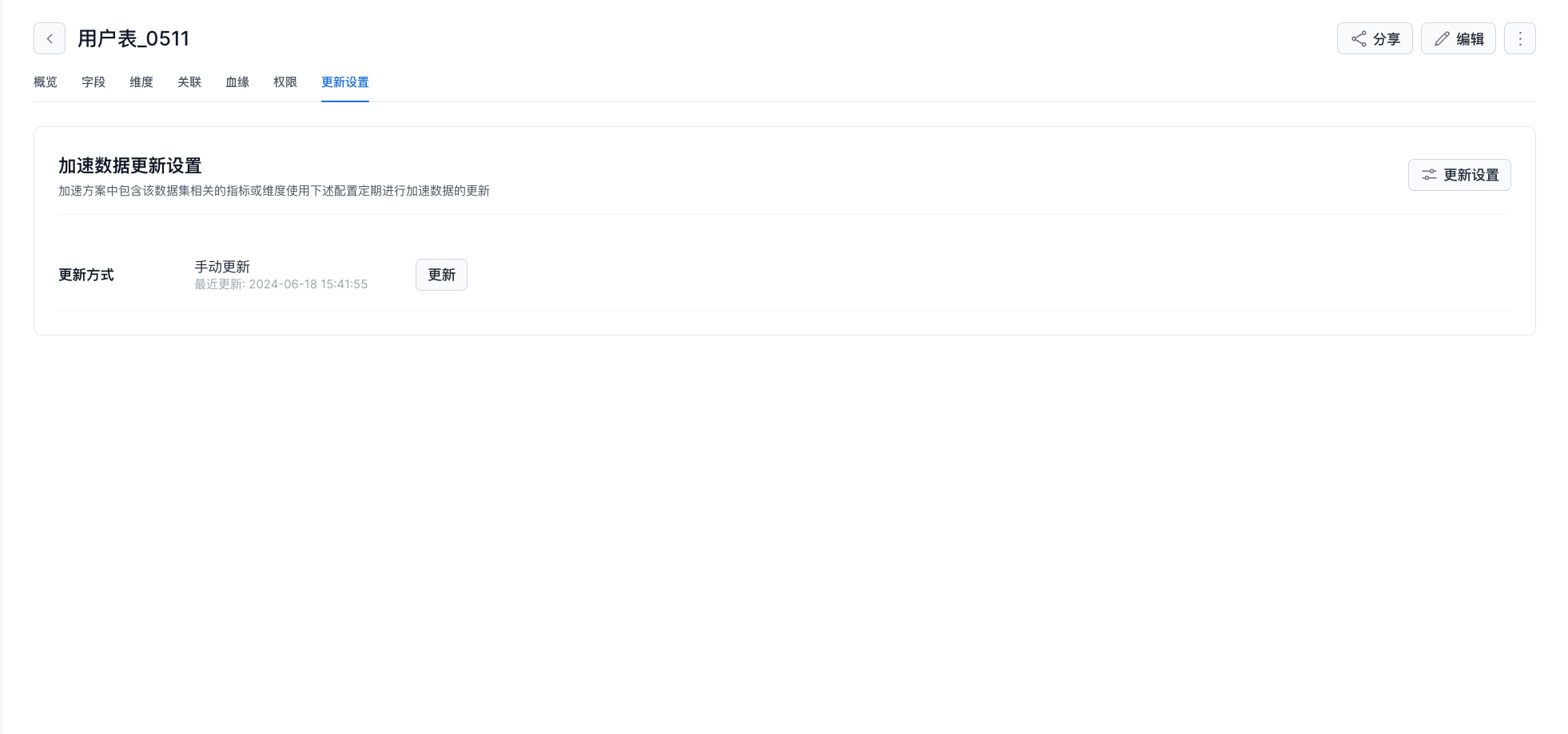
Partition update : !!! note "Tip" Partition updates are currently supported in the StarRocks engine version of CAN.
For datasets with a partition field configured, updates can be performed incrementally by partition.

The system determines whether the acceleration plan can dynamically perform incremental updates by partition, reducing resource usage.
Update cycle : - Manual update: In manual update mode, acceleration jobs created under this dataset are not scheduled for automatic updates. - Scheduled update: The system schedules automatic updates. Daily, weekly, and monthly update frequencies are supported.
Share a Dataset
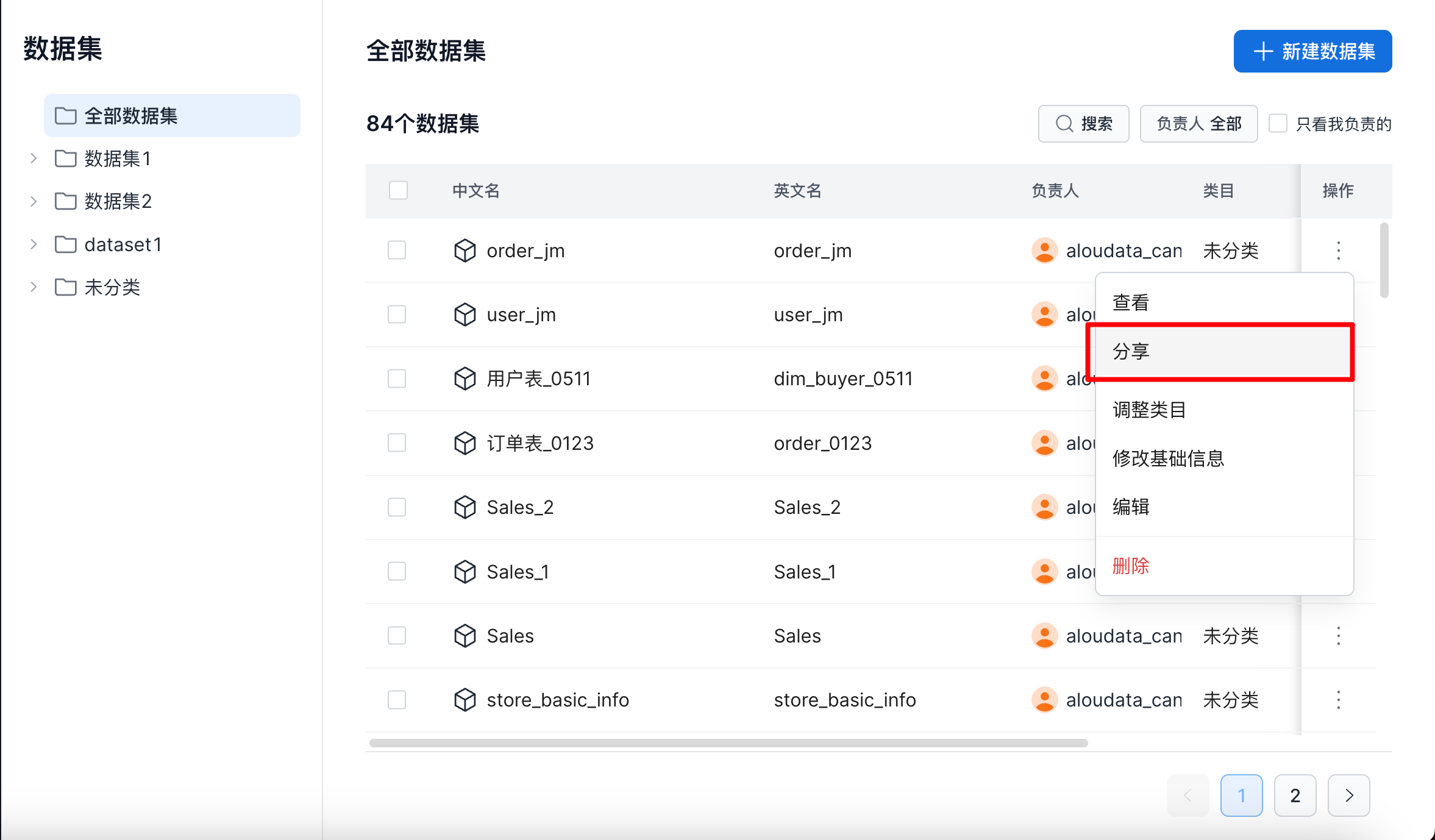
On the dataset management page, follow the guide shown below and click Share to open the sharing page.
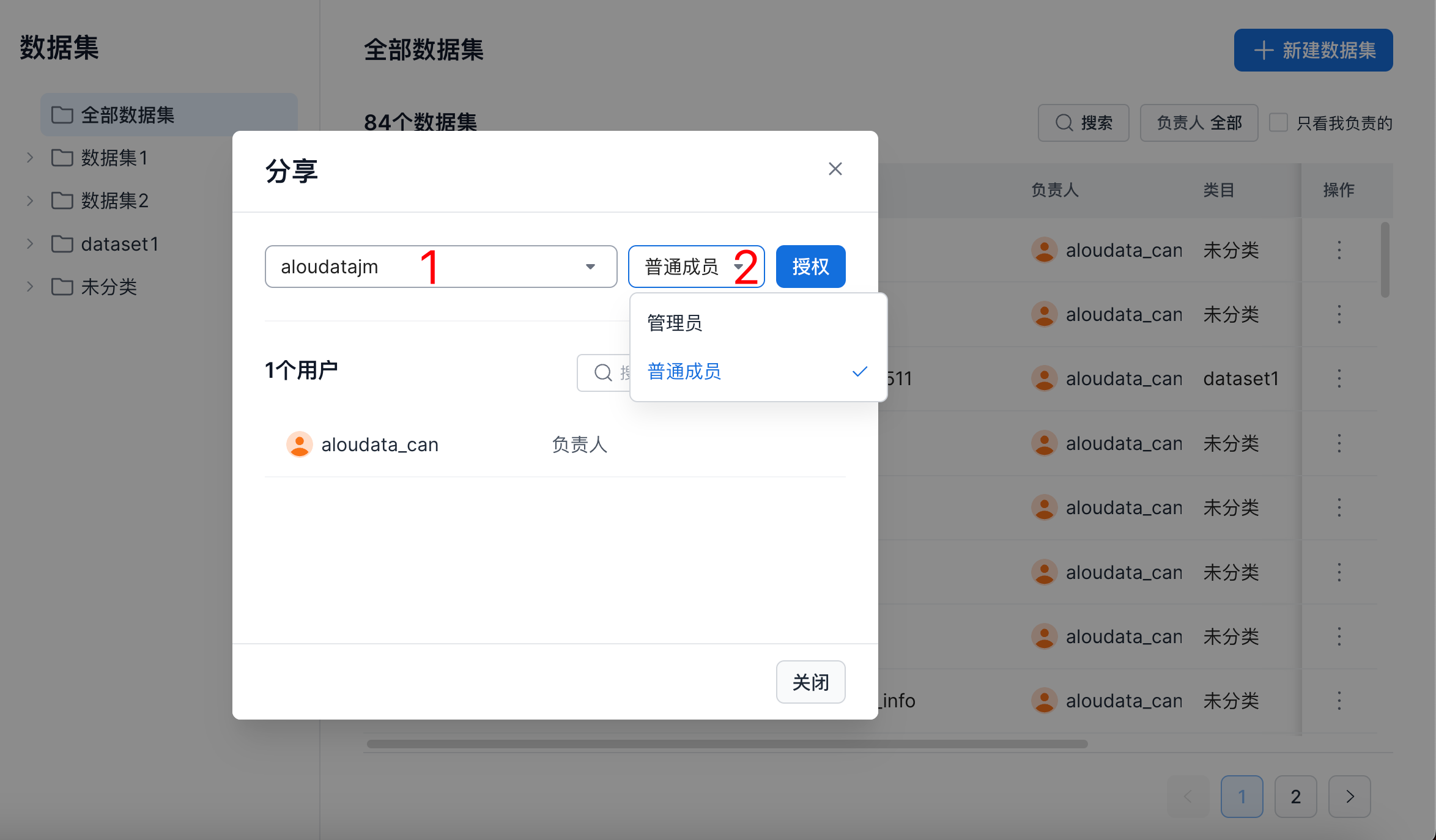
As shown below, use option box 1 to select the users to share the dataset with. Use option box 2 to add each user as an administrator or member.
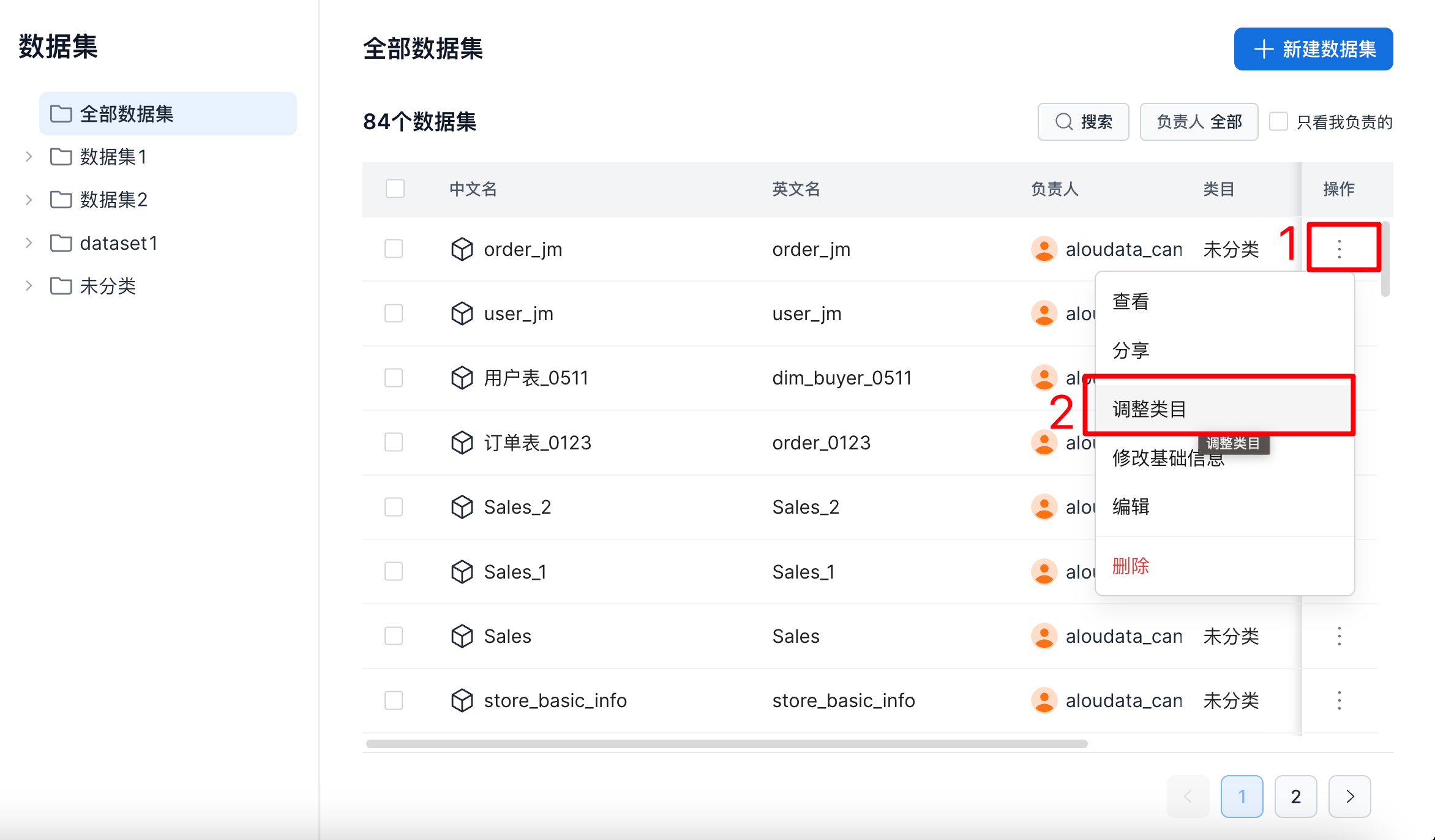
Change Category
On the dataset management page, follow the guide shown below and click Change Category to open the category change window.
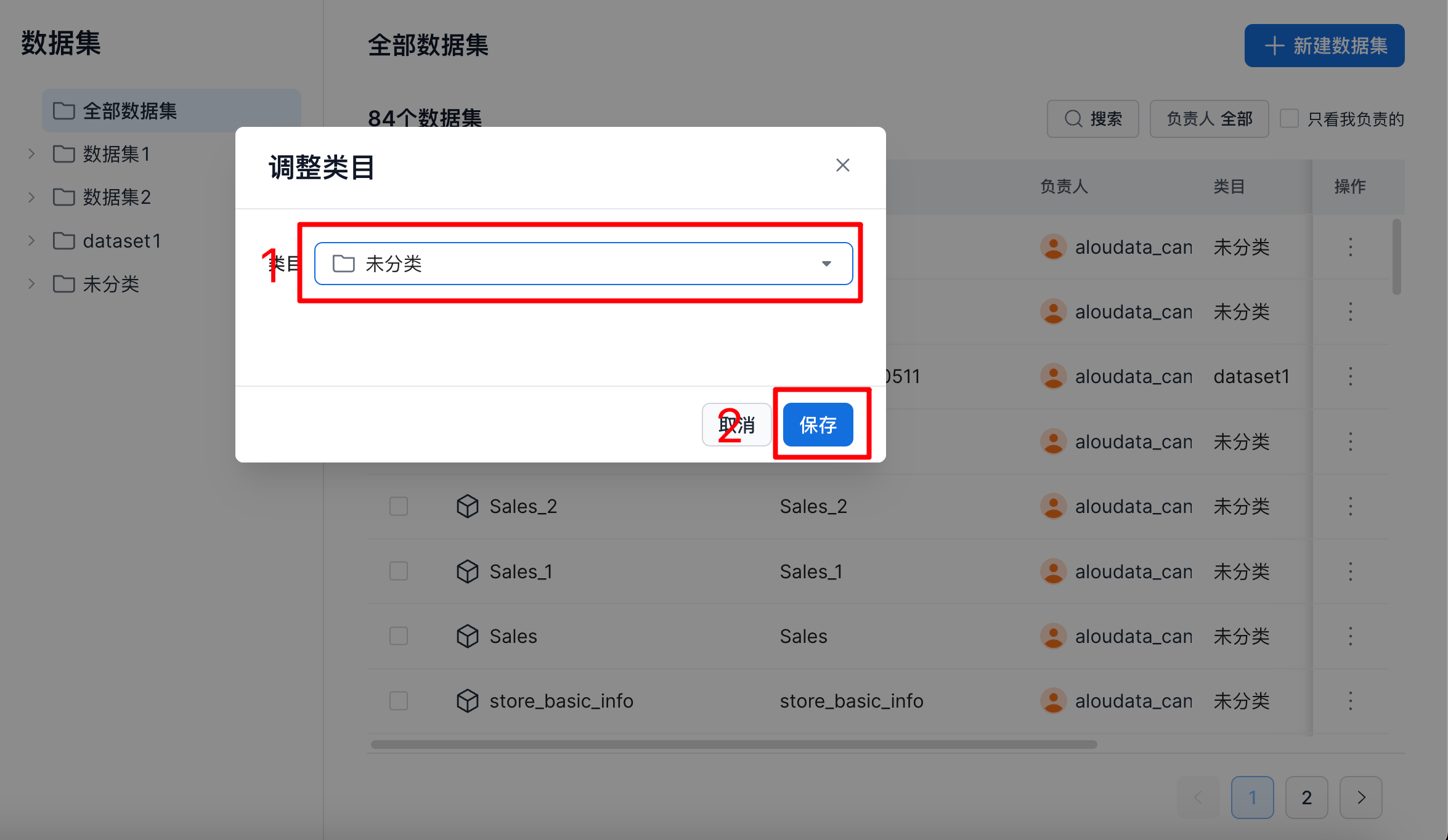
As shown below, select the target category in option box 1, then click Save to apply the change.
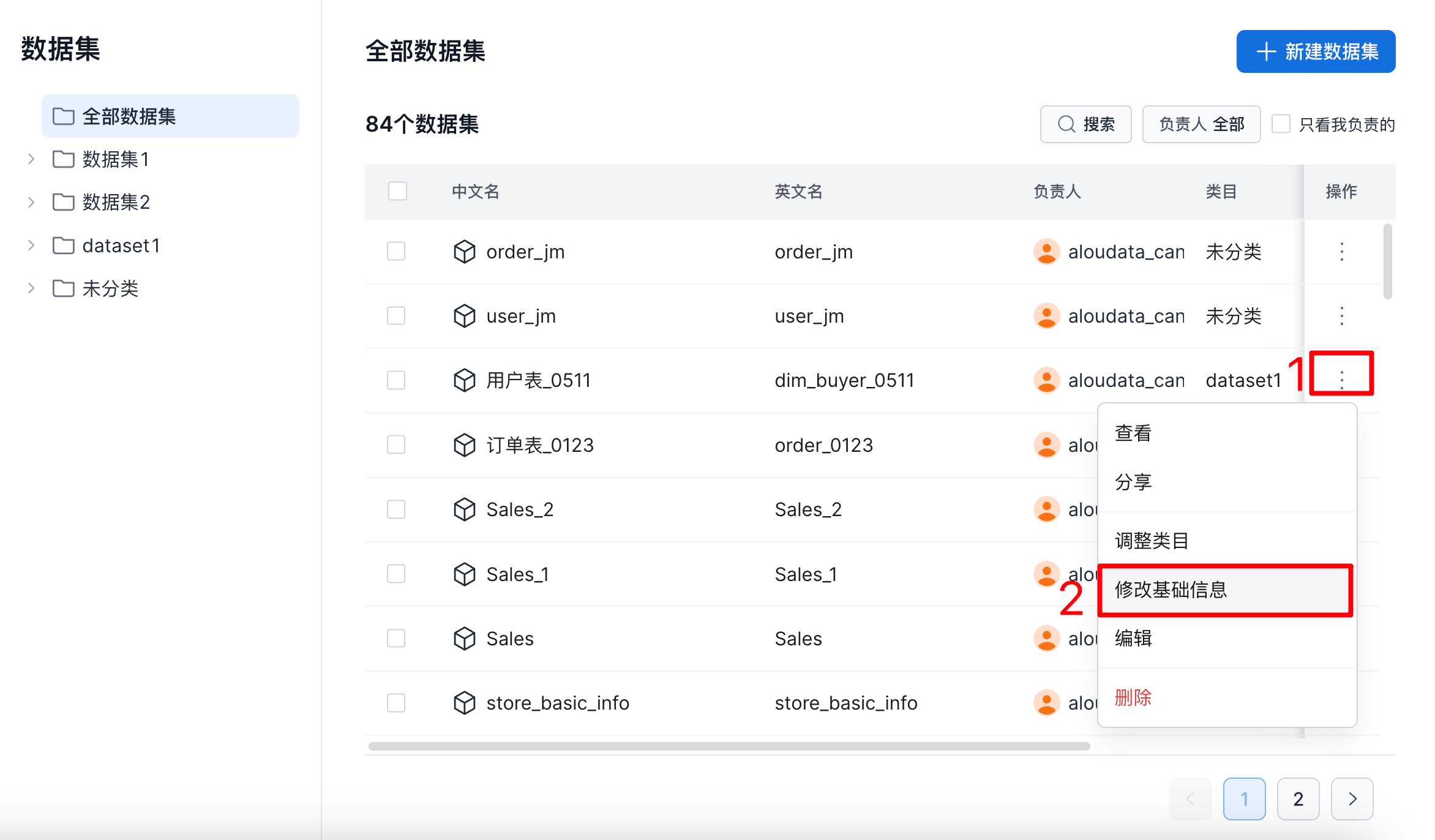
Edit Basic Information
On the dataset management page, follow the guide shown below and click Edit Basic Information to open the basic information window.
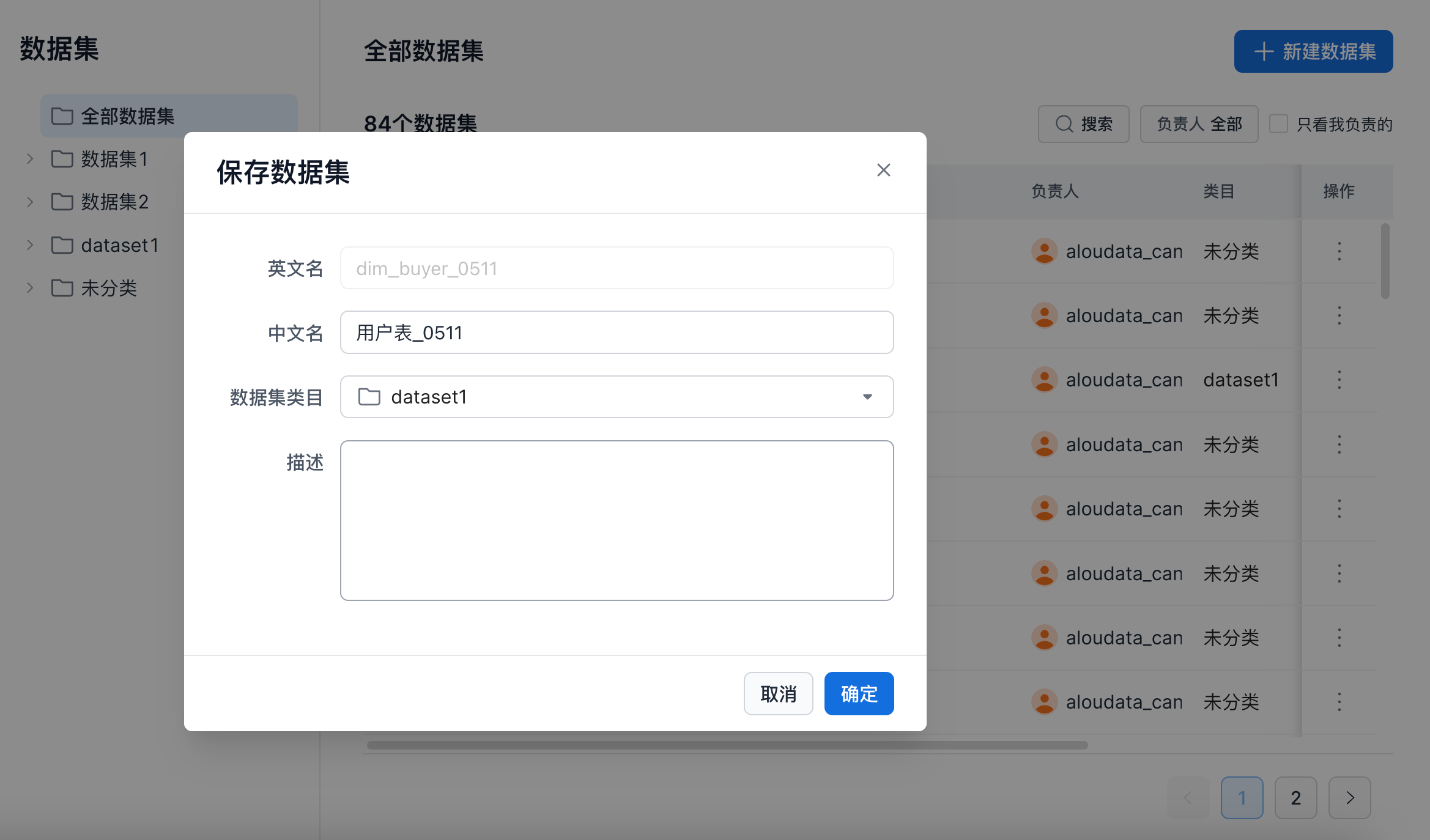
| Item | Description |
|---|---|
| English name | The English name cannot be changed. |
| Chinese name | Must be unique within the dataset and no longer than 50 characters. |
| Data category | Select the category where the dataset will be stored from the drop-down list. |
| Description | Field description, up to 300 characters. |
Transfer Asset
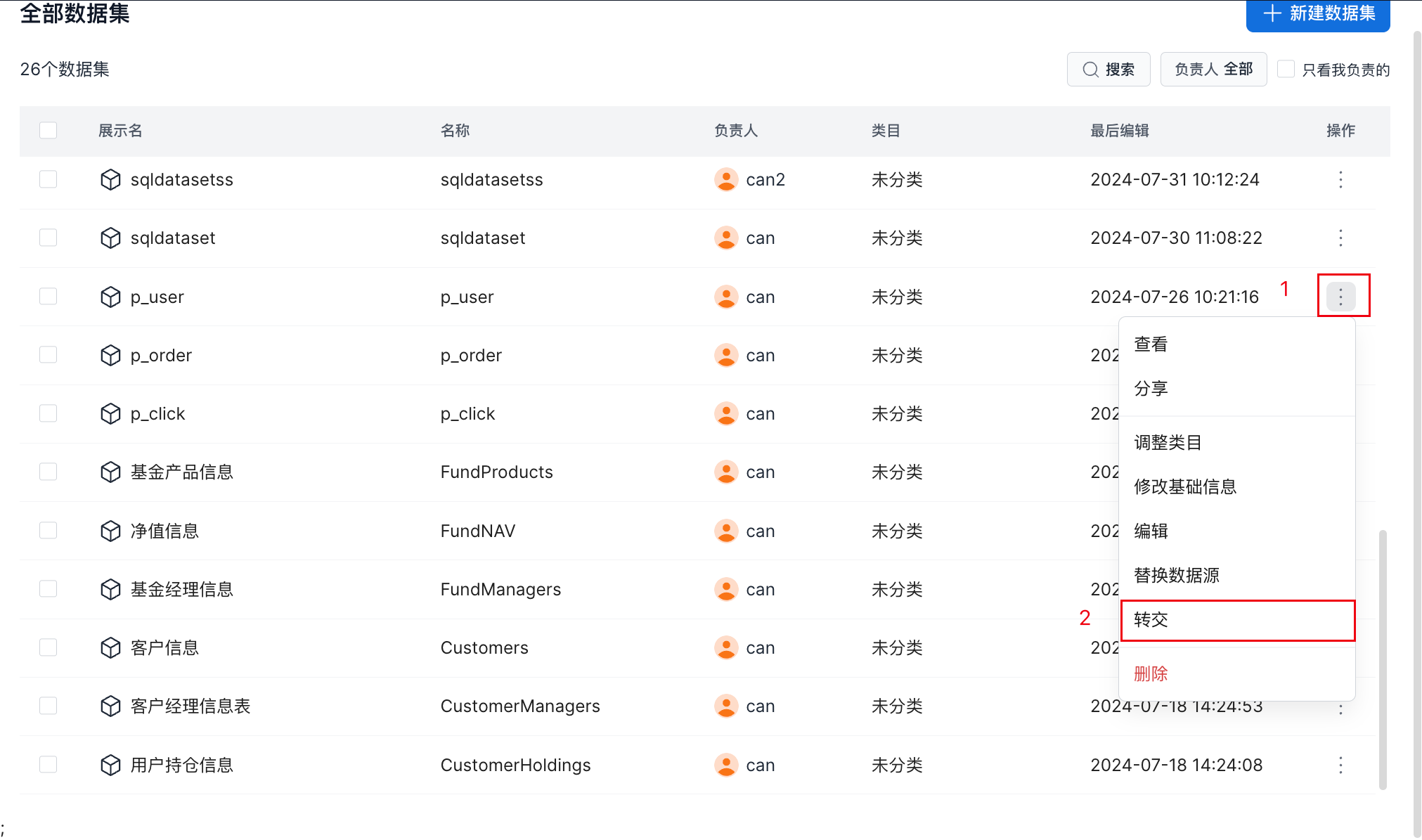
On the dataset management page, follow the guide shown below and click Transfer to open the dataset transfer window.
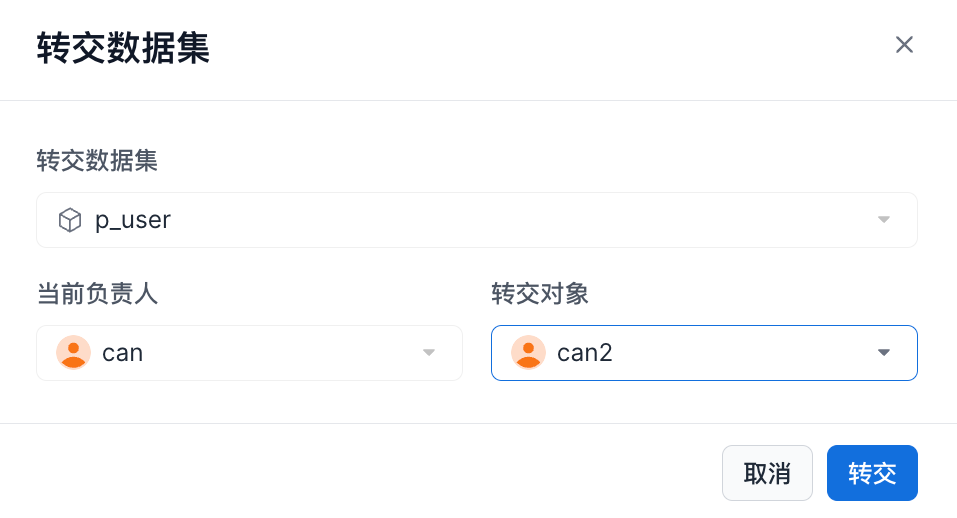
In the transfer window, select the target user. After making the selection, click Transfer to complete the asset transfer.
Edit a Dataset
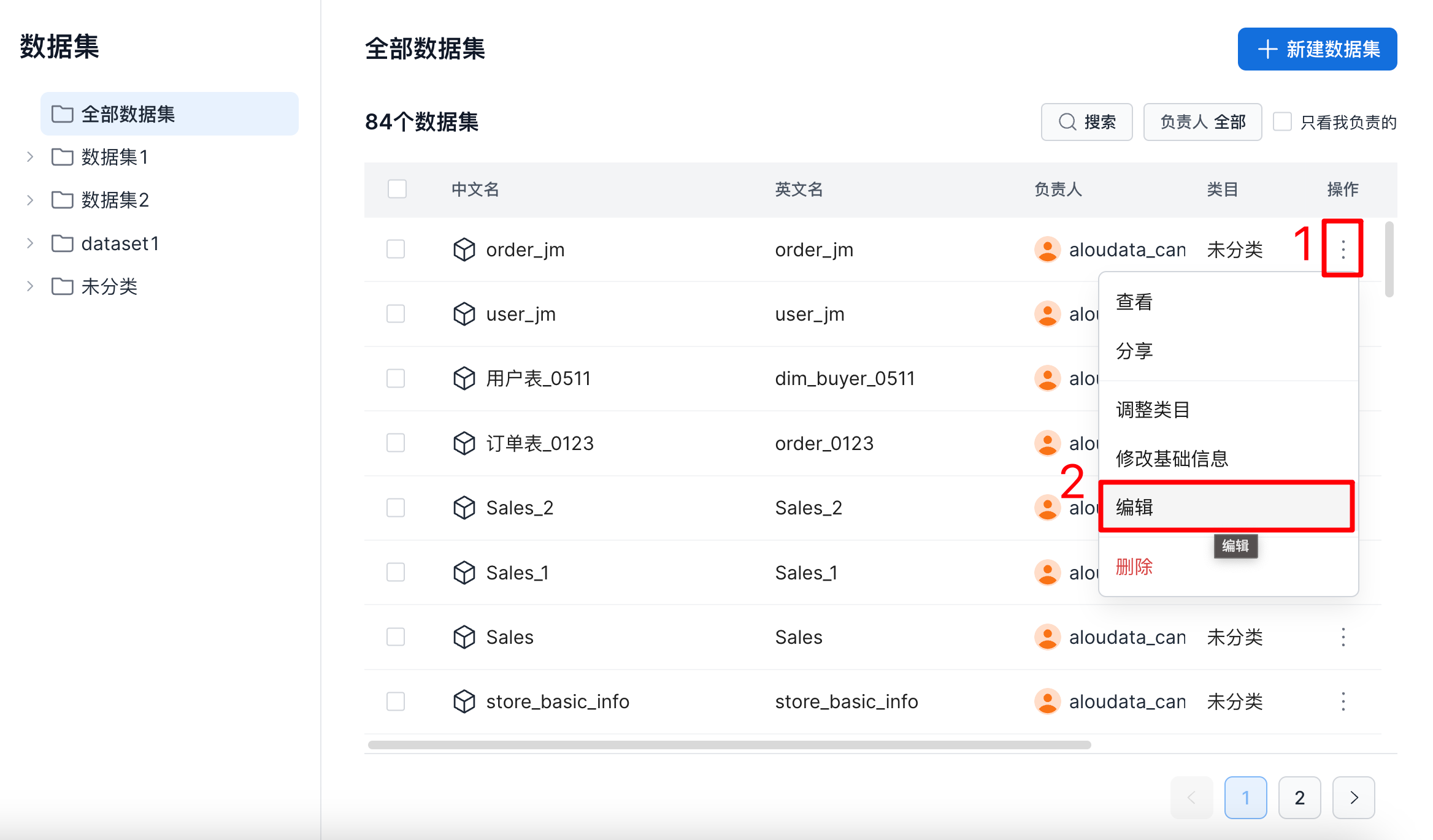
On the dataset management page, follow the guide shown below and click Edit to open the dataset editing window.
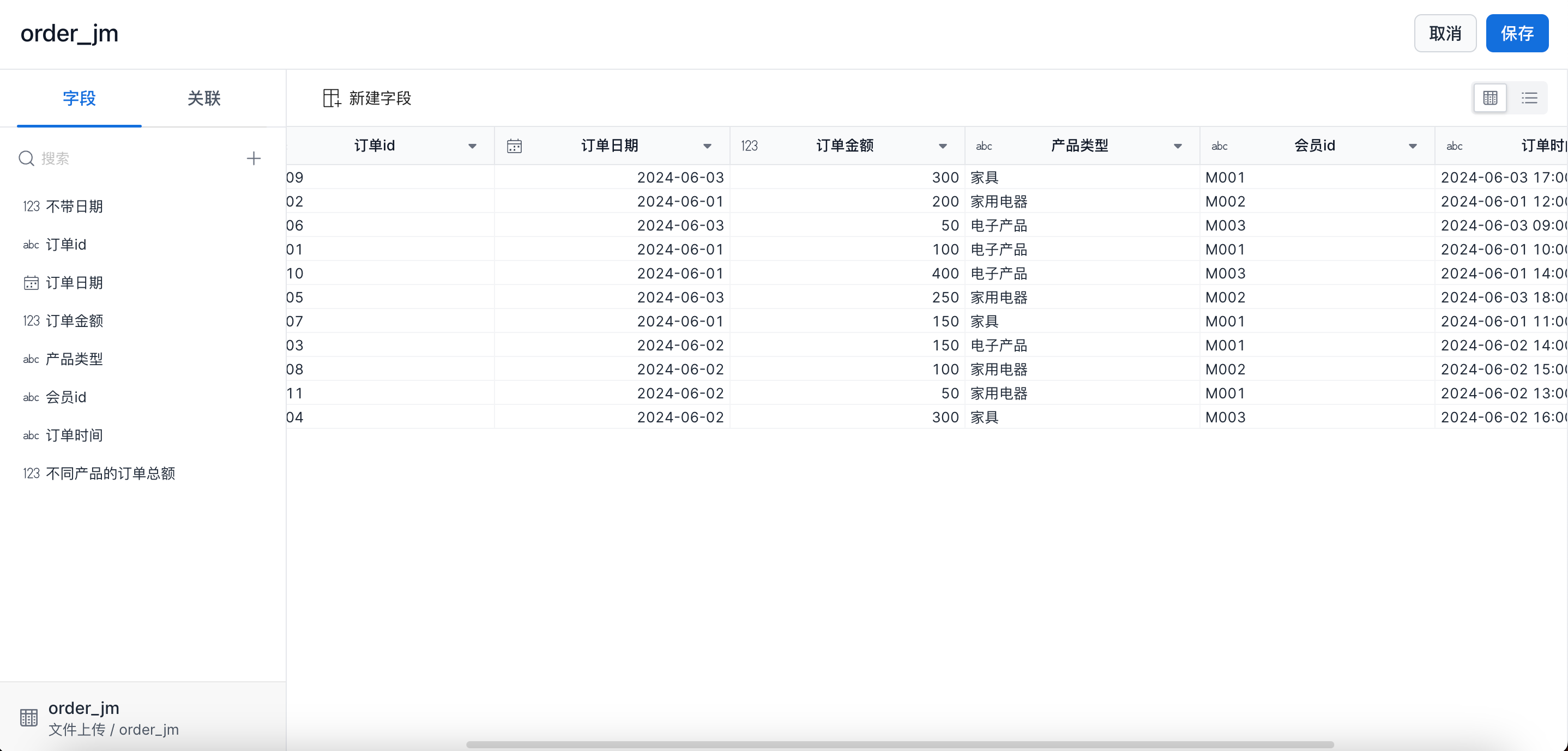
Feature Overview
- Fields
-
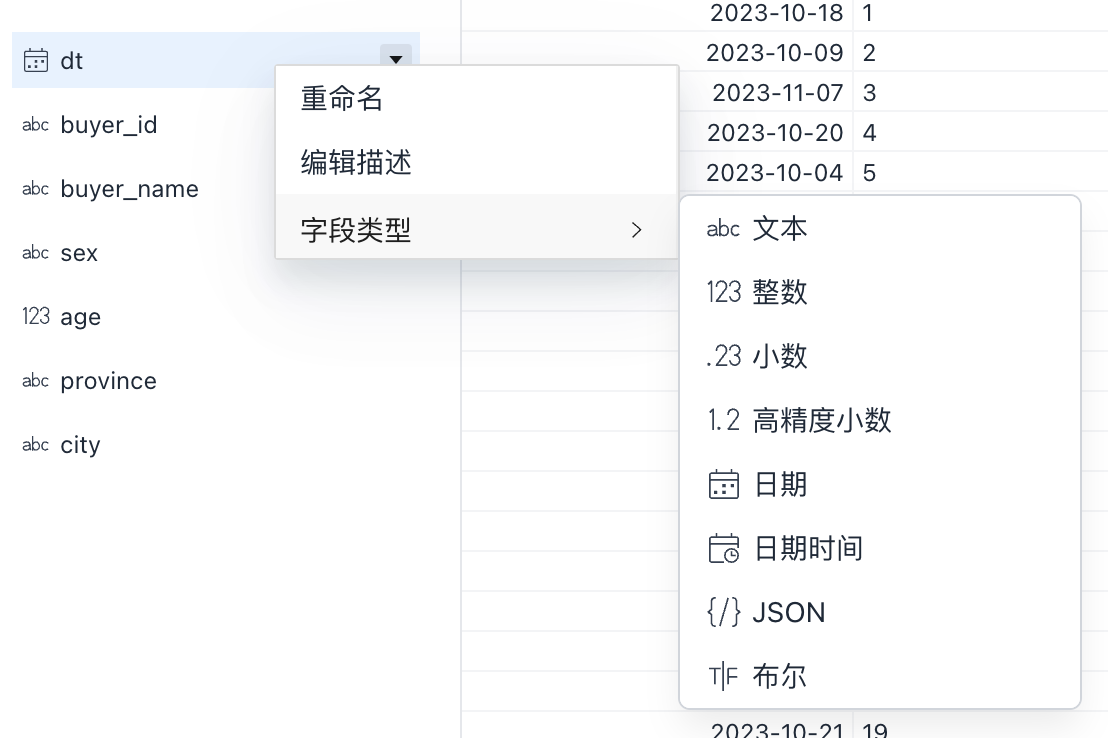
Right-click a field name to rename the field, edit its description, or change its data type. When you change a field to a date type, select the date format.
Tip
The date format is the format of the original field value, not the target output format.
For example, if the original field is a text (
TEXT) field and the column value is20230520, selectyyyyMMddwhen converting the field to a date type. - Relationships
-
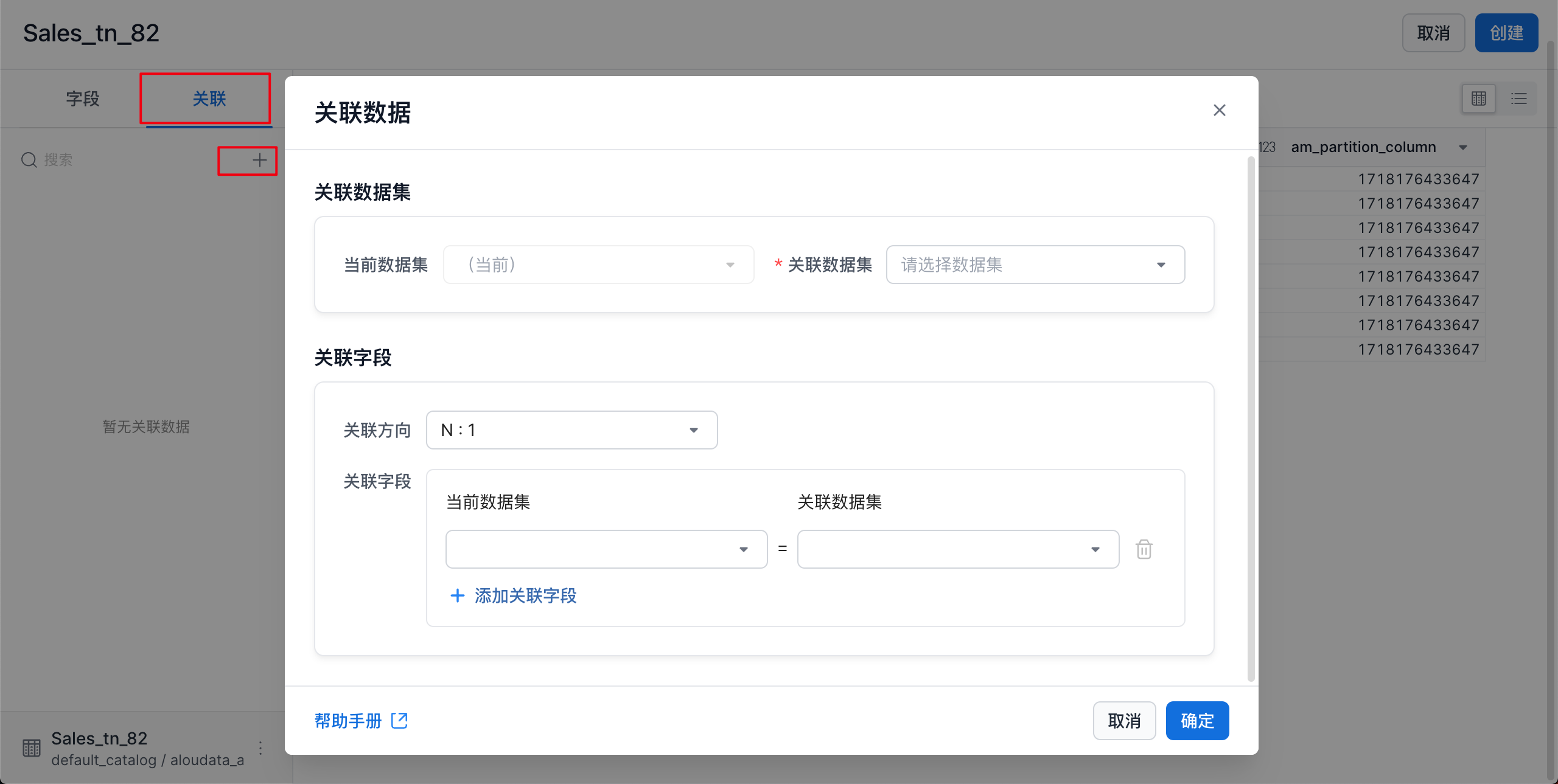
Open the relationships pane and click
+at the bottom to add a dataset relationship. - B Source data
-
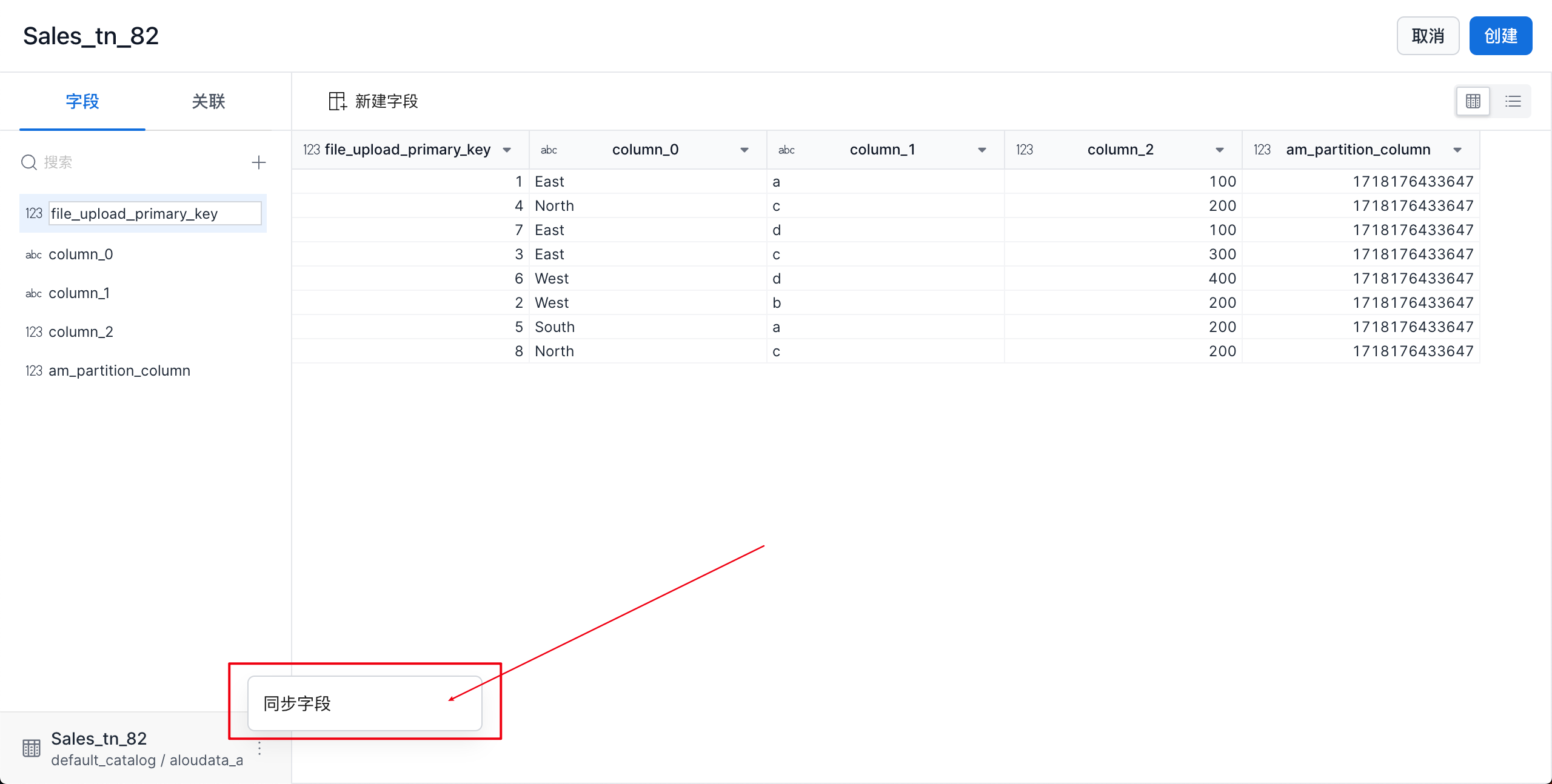
When fields in the source table change, the dataset does not detect the changes automatically. Click sync manually to immediately retrieve the latest source table metadata.
- C Create field
-
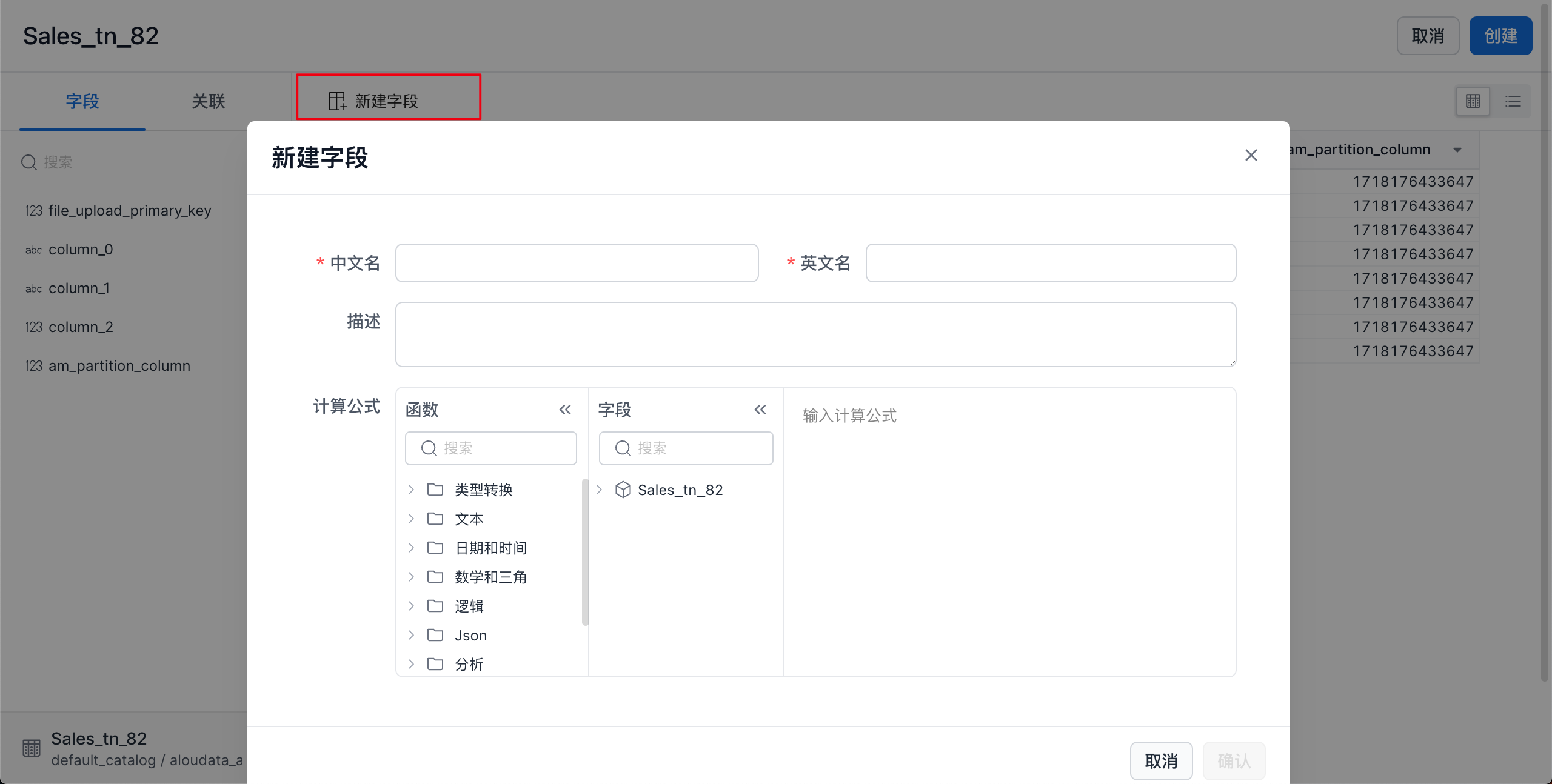
- Chinese name: Must be unique within the dataset and no longer than 50 characters.
- English name: Supports letters, numbers, and underscores (
_). Must be unique within the dataset and no longer than 50 characters. - Description: Field description, up to 300 characters.
- Calculation formula: Formula for the field. A new field can only reference fields in the current dataset.
- D Switch views
-
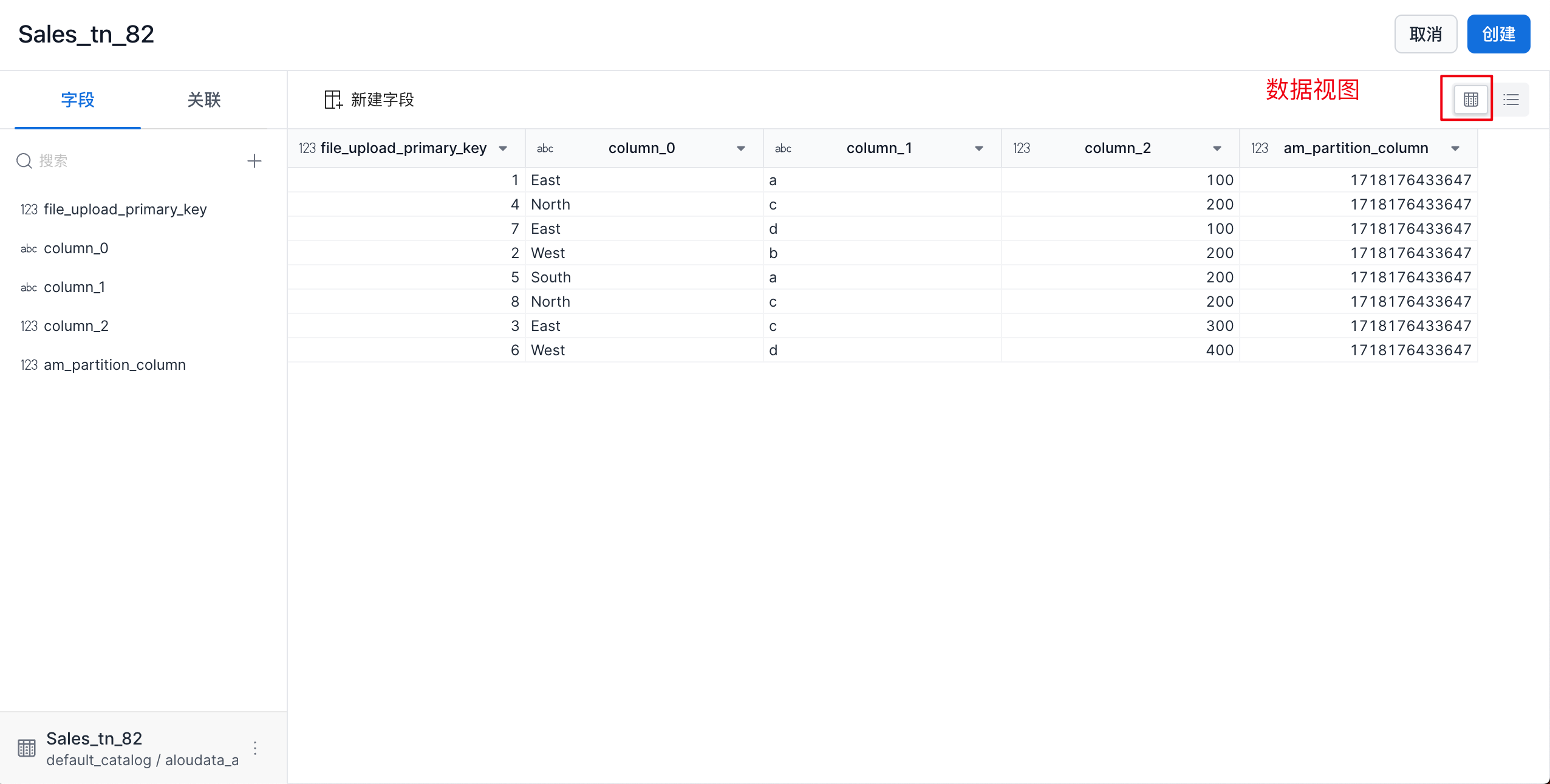
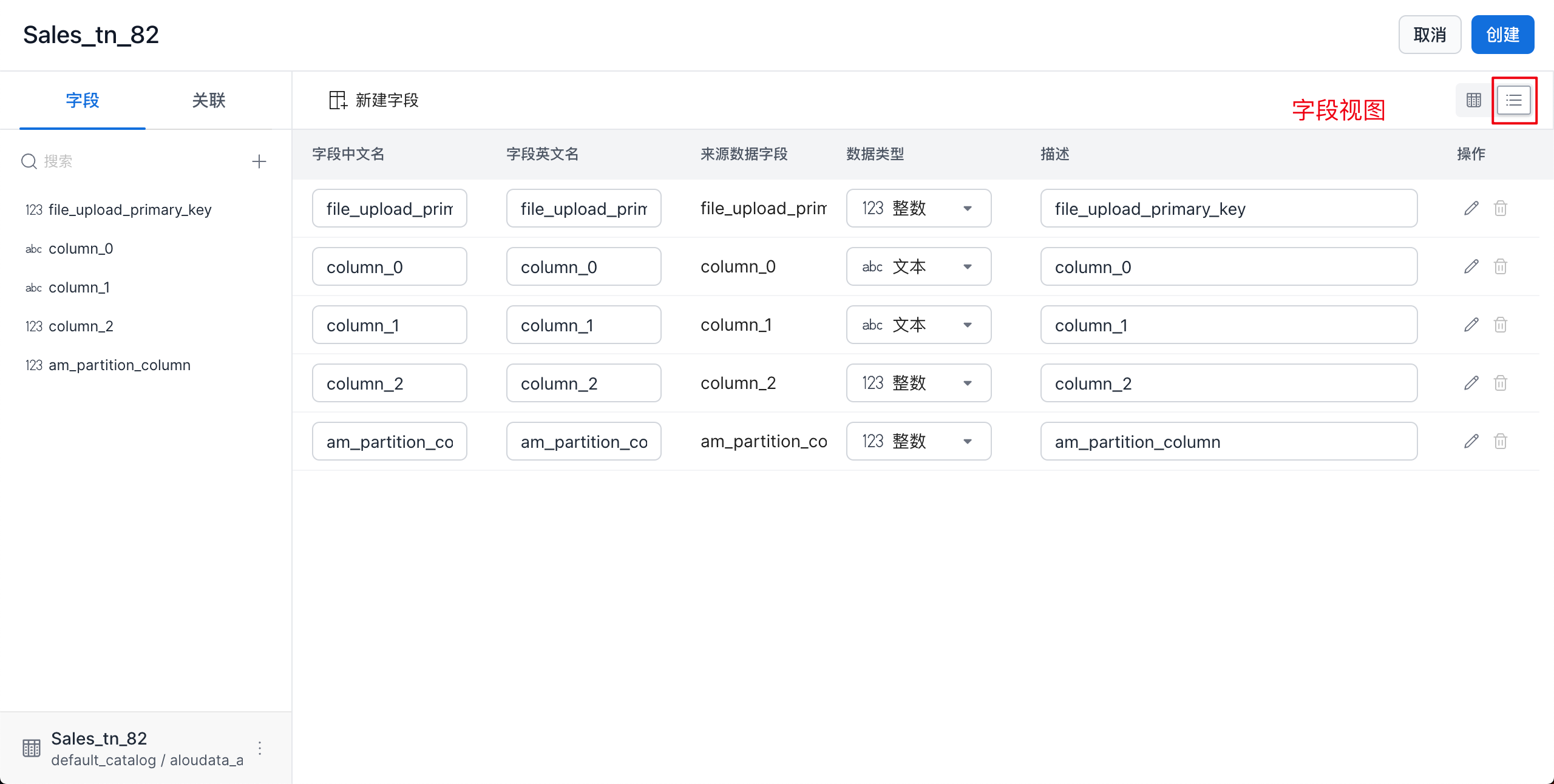
Data can be displayed in two view modes:
- Data view: Shows the data content more clearly.
- Field view: Shows field configuration more clearly.
Delete a Dataset
In the dataset list, click ⋮ in the actions column, then click Delete to open the dataset deletion window, as shown below.
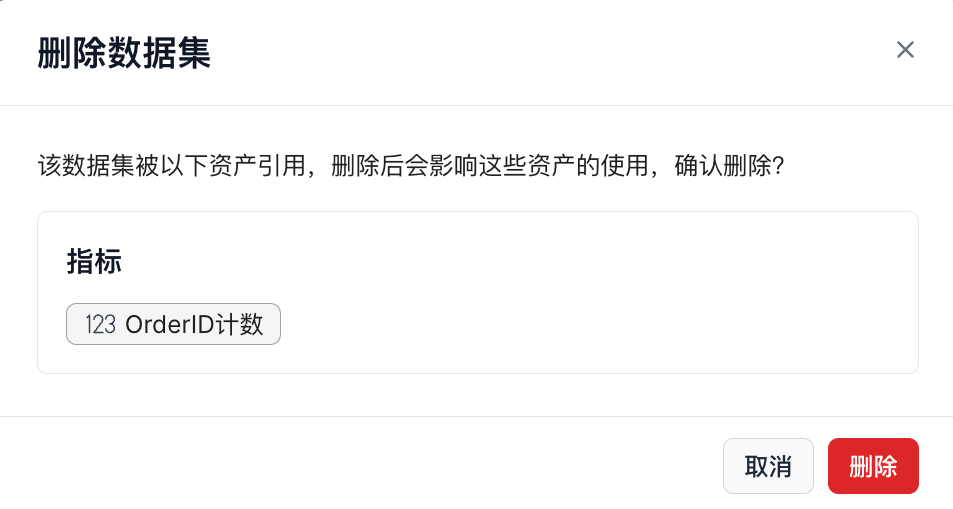
Click Delete to delete the current dataset. If metrics depend on this dataset, the deletion prompt lists those dependencies.