Permission Rules
Permission rules automatically assign access permissions to the corresponding users or user groups based on specified metric or dimension attributes when metrics and dimensions are created or modified.
Prerequisites
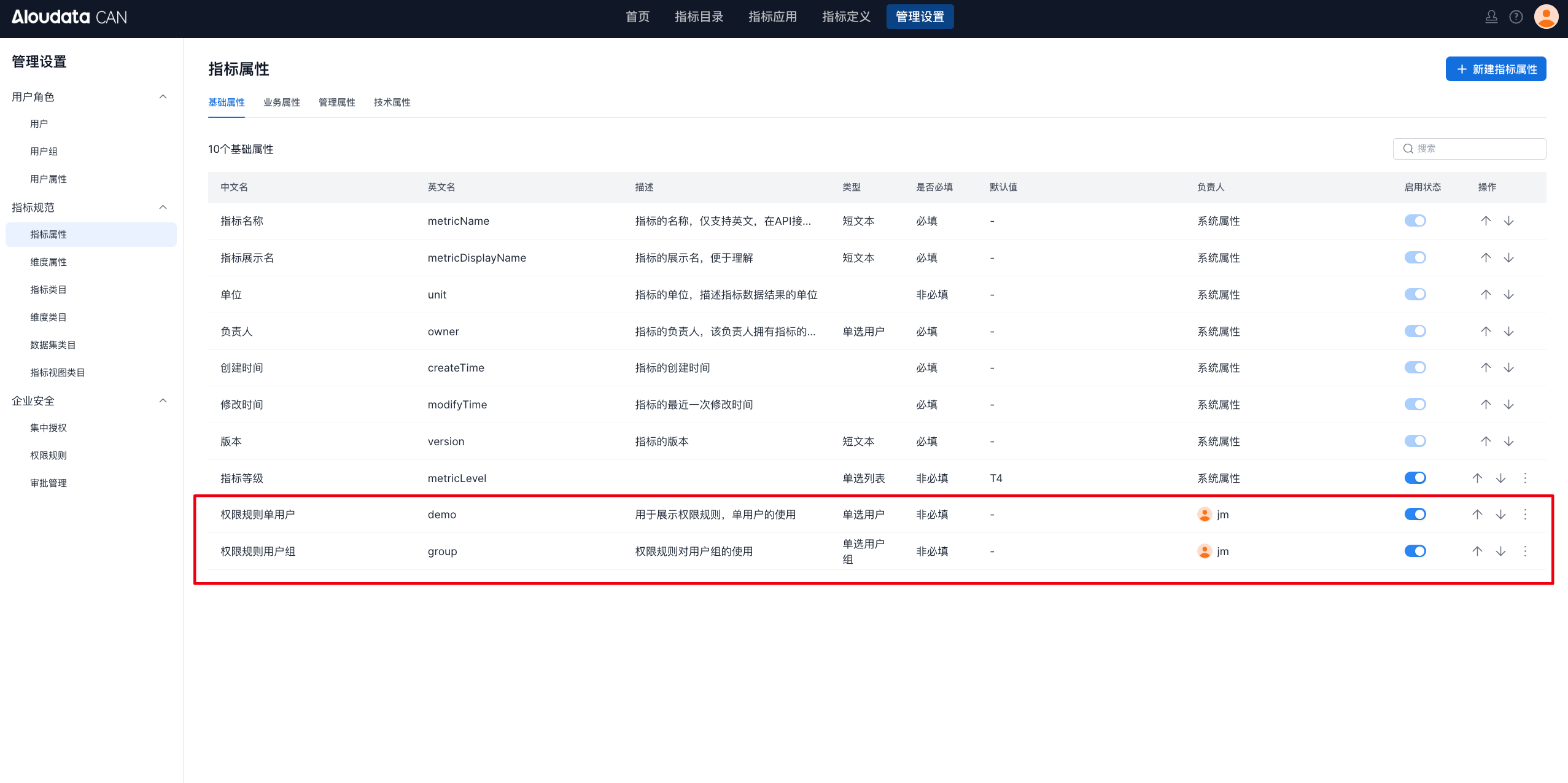
Make sure custom attributes have been configured in Metric Attribute Management and Dimension Attribute Management. These custom attributes must use the Single-select User Group or Single-select User type. There are no specific restrictions on the attribute category. For details about creating metric and dimension attributes, see Metric Attribute Management and Dimension Attribute Management.
Procedure
Metric permission rules and dimension permission rules use similar configuration steps. The following section uses metric permission rules as the example.
Entry Point
In the top navigation bar, click Management Settings. In the left navigation menu, under Enterprise Security, select Permission Rules, as shown below:
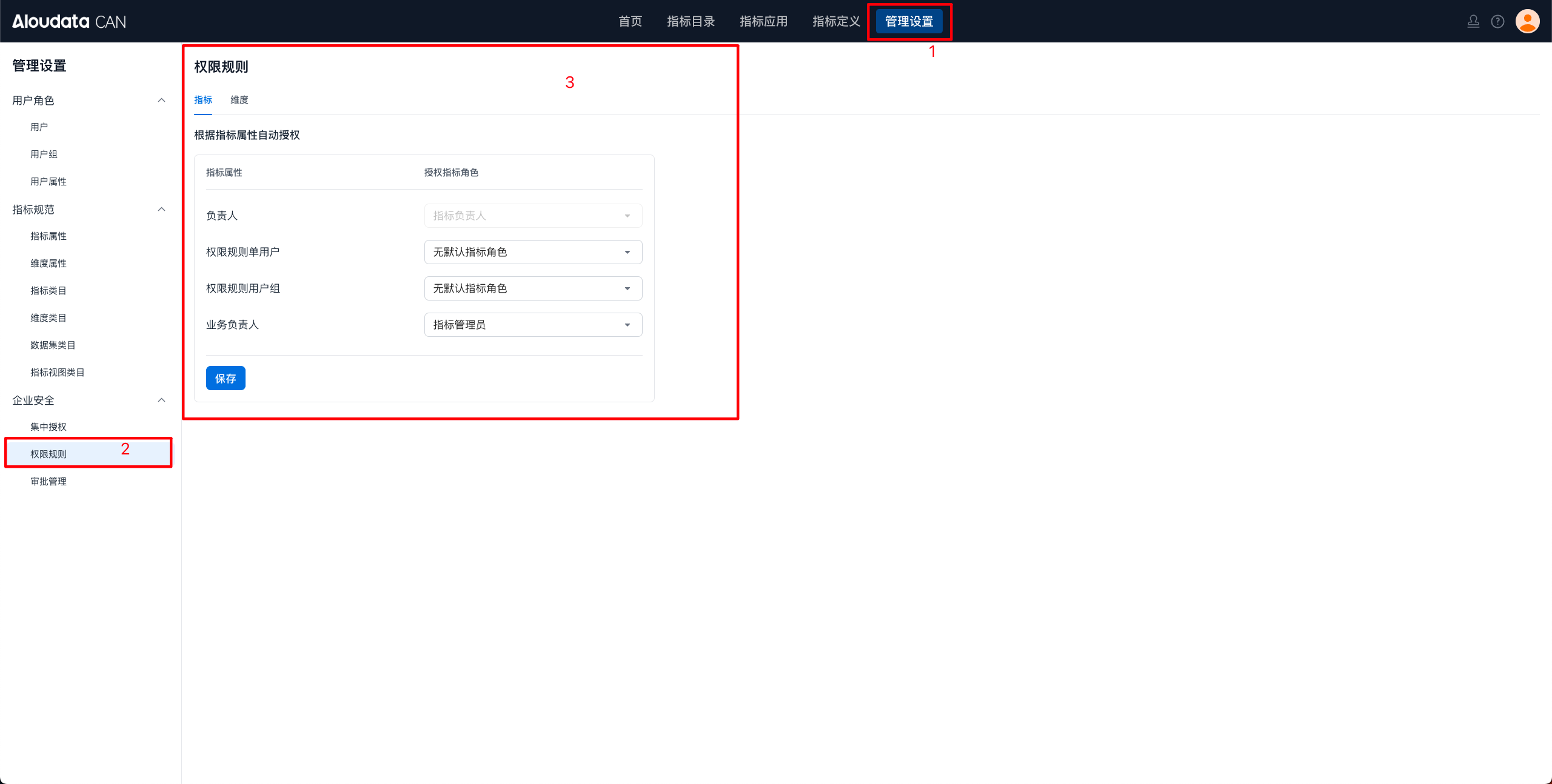
This page displays all created metric attributes that can be used in permission rules, including but not limited to Permission Rule Single User and Permission Rule User Group.
Rule Configuration
| Item | Description |
|---|---|
| Metric Attribute | Includes system preset attributes, such as Owner and Business Owner, and user-defined attributes. Permission changes for system attributes have specific restrictions: Owner permissions cannot be modified, while Business Owner and other custom attributes support flexible role authorization. |
| Authorized Metric Role | - No default management role: No preset permission is granted for the metric. - Metric Administrator: - Can edit the metric definition. - Can grant or revoke Use or Manage permissions for other users or user groups. Owners have full permission control, while non-owner permission changes are limited. - Can adjust the metric category. - Metric Consumer: Can only view and use the metric, and cannot edit it or assign permissions. |
Save the Rule
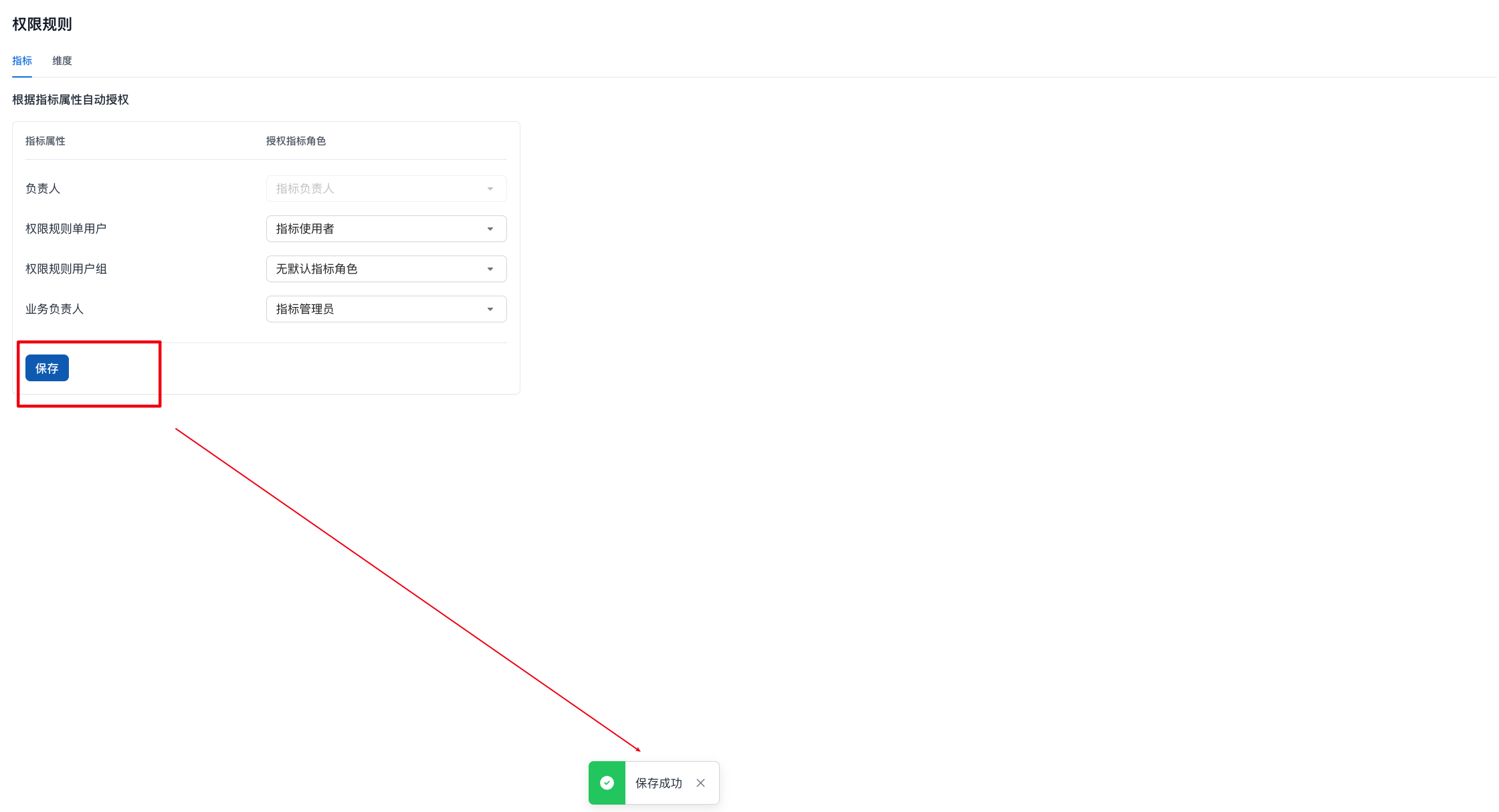
After configuring the rule, click Save to confirm the changes. The system immediately returns the save status. A Saved successfully message appears at the bottom of the page, indicating that the permission rule has taken effect.
Permission Verification
-
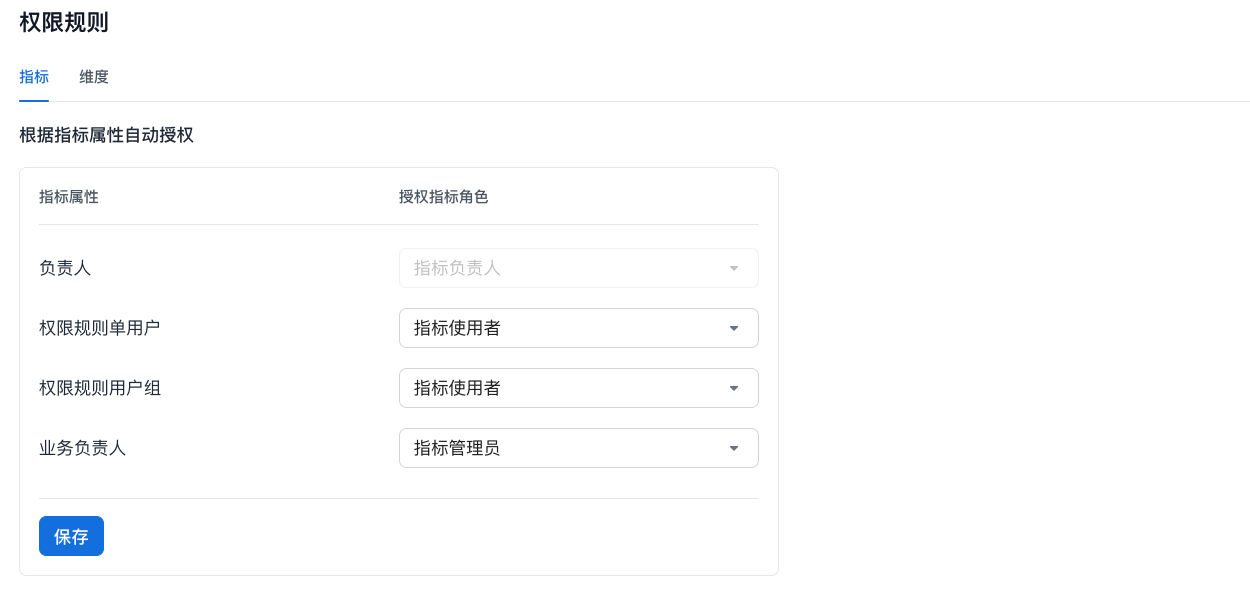
Configure a permission rule and set the authorized role for the metric attribute, as shown below.
-
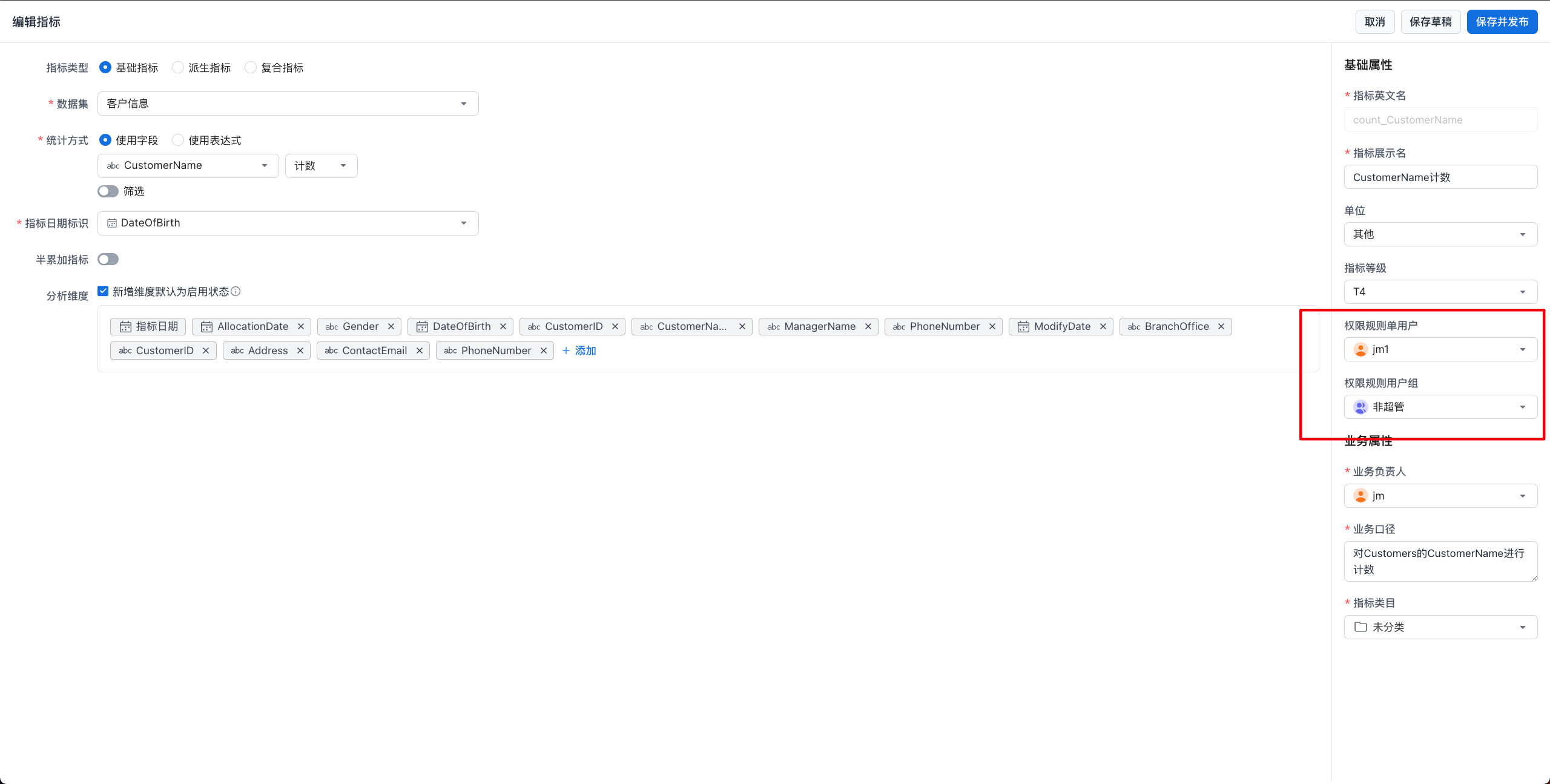
Create a metric and specify Permission Rule Single User and Permission Rule User Group in the basic attributes, as shown below.
- View the metric use permissions, as shown below.
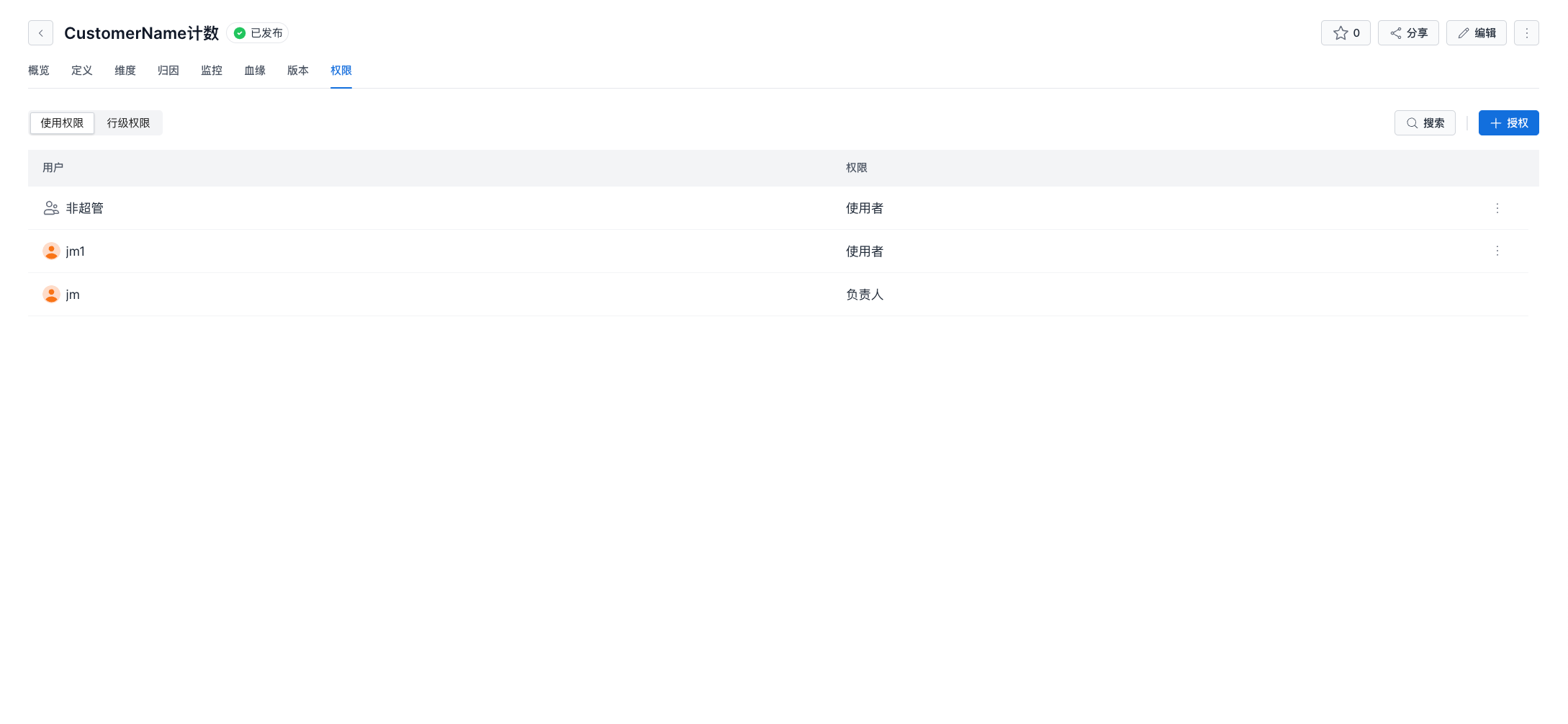
The users and user groups are granted the corresponding permissions as expected.