Feishu App Integration
This guide walks administrators through integrating Feishu with the office software system to enable the following capabilities:
- User information synchronization
- Single sign-on (SSO) authentication
- Monitoring message push notifications
1. Prerequisites
- Administrator permissions You must have administrator permissions for the target office software system.
- Feishu developer account You must have enterprise administrator or developer permissions on the Feishu Open Platform so you can create an app and obtain integration credentials.
- Network connectivity Make sure the office software server can access the internet and the Feishu API services.
2. Obtain Feishu Integration Credentials in the Feishu Open Platform
1. Sign in to the Feishu Open Platform
Go to https://open.feishu.cn/ and sign in with an enterprise administrator or developer account.
2. Create an app
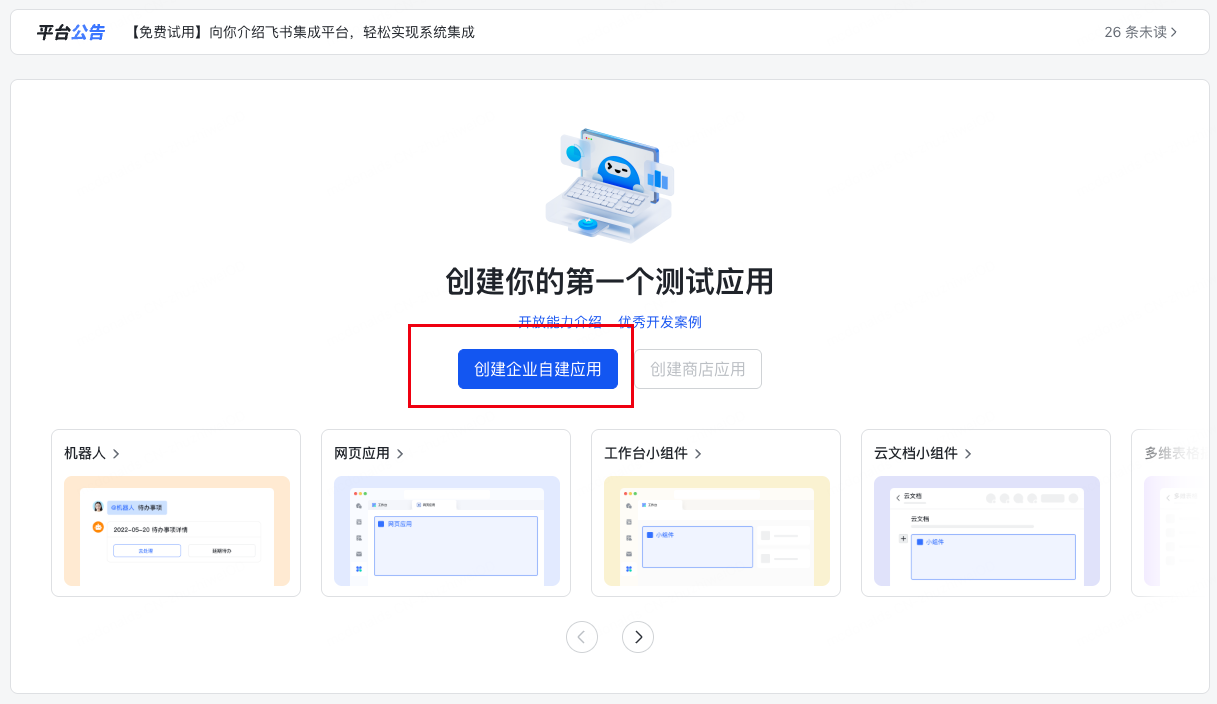
- In the console, select Create Enterprise Self-built App (recommended) or Create Store App.
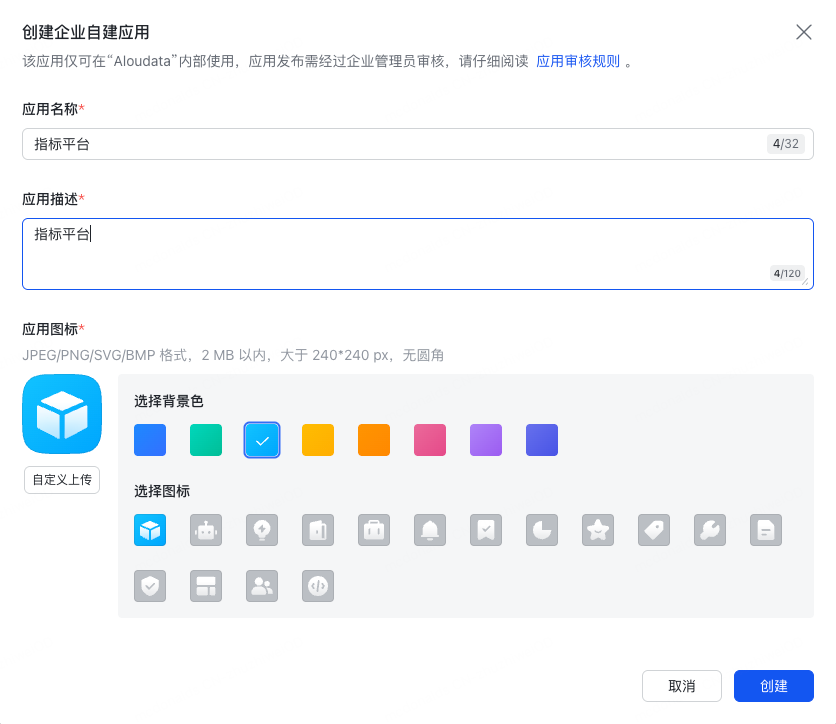
- Enter the app name, description, and other required information, then save the app.
3. Configure app permissions
On the Permission Management page, add the following permissions as needed. Different features require different permissions:
- Get user ID
- Get user mobile number
- Get user email information
- Send messages as the app
- Authorized login
⚠️ Some sensitive permissions must be reviewed and approved by an enterprise administrator in the Feishu Admin Console.
4. Obtain credential information
On the Credentials and Basic Information page, record the following key information:
- App ID
The unique identifier of the app. Example:
cli_a8c029e757e6500b - App Secret
The app secret. Keep it secure. Example:
Gnn5WOGqsorJEz5s2OPaYbNRnjXOn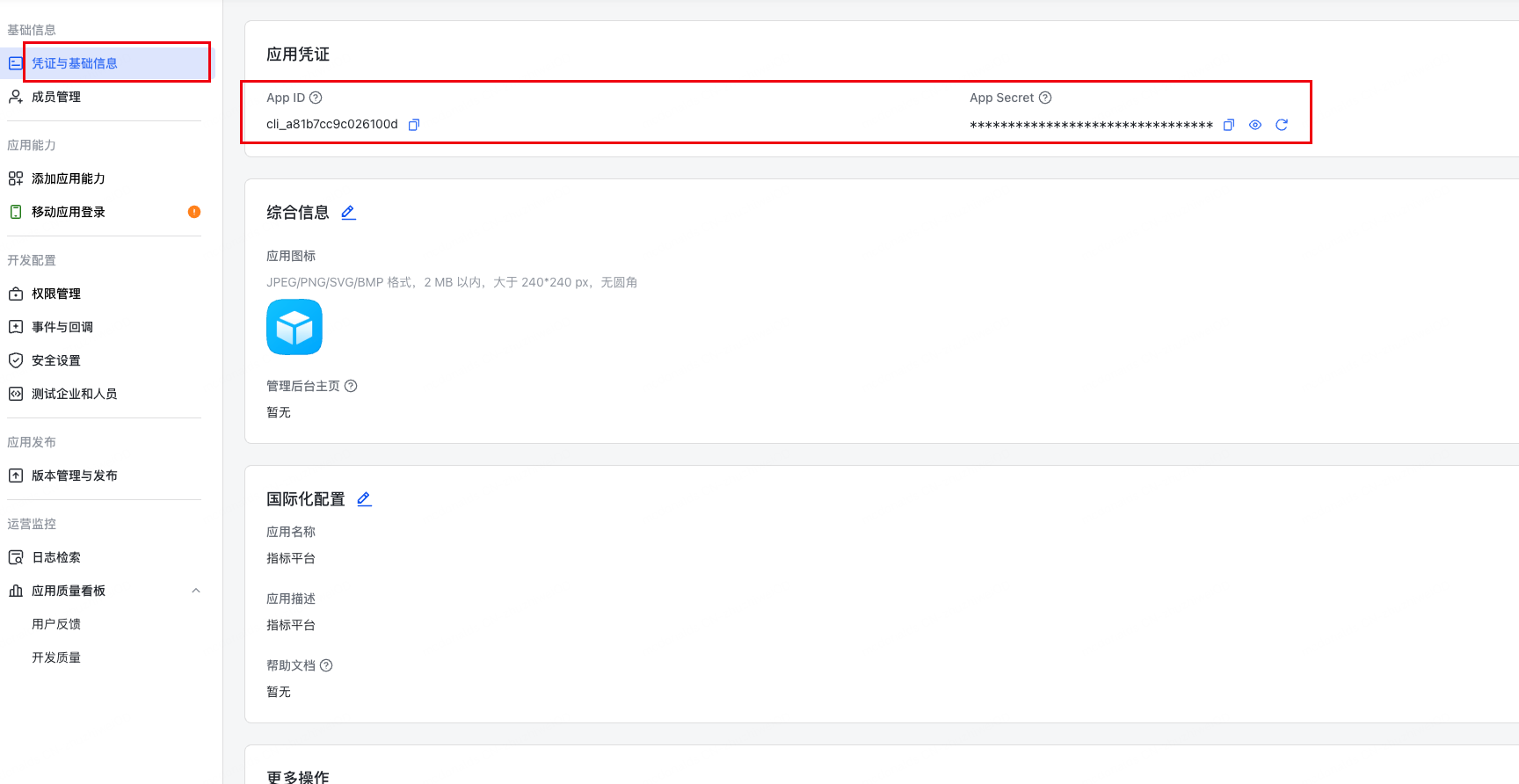
3. Configure Feishu Integration in the Office Software System
1. Enable Feishu integration
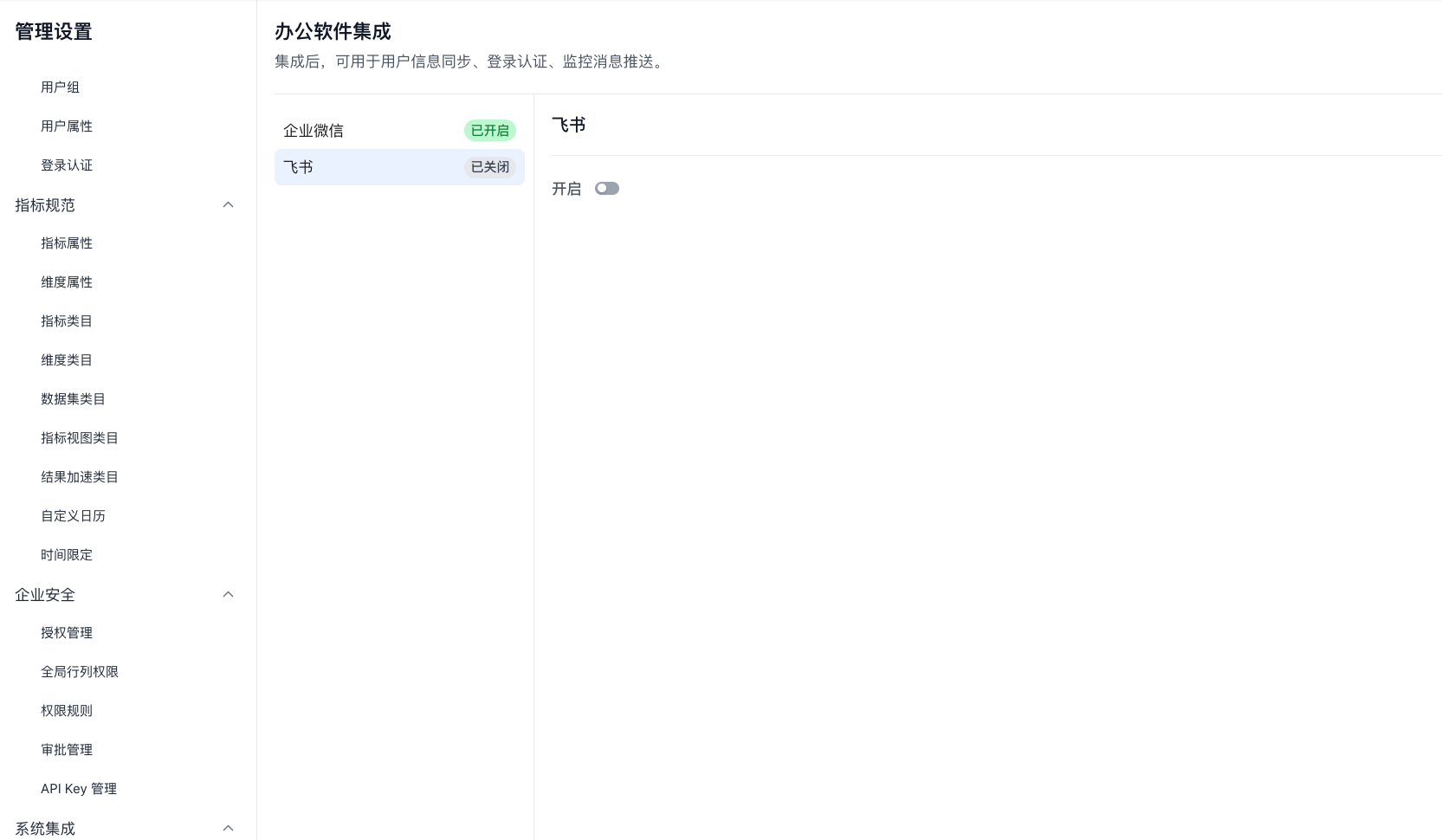
- Sign in to the Aloudata CAN home page.
- Go to Management Settings > Office Software.
- Locate Feishu Integration and enable it.
2. Confirm the Feishu integration status
-
In Available Integration Apps, locate Feishu.
-
Confirm that the toggle is blue (enabled). If it is gray, click the toggle to enable it.
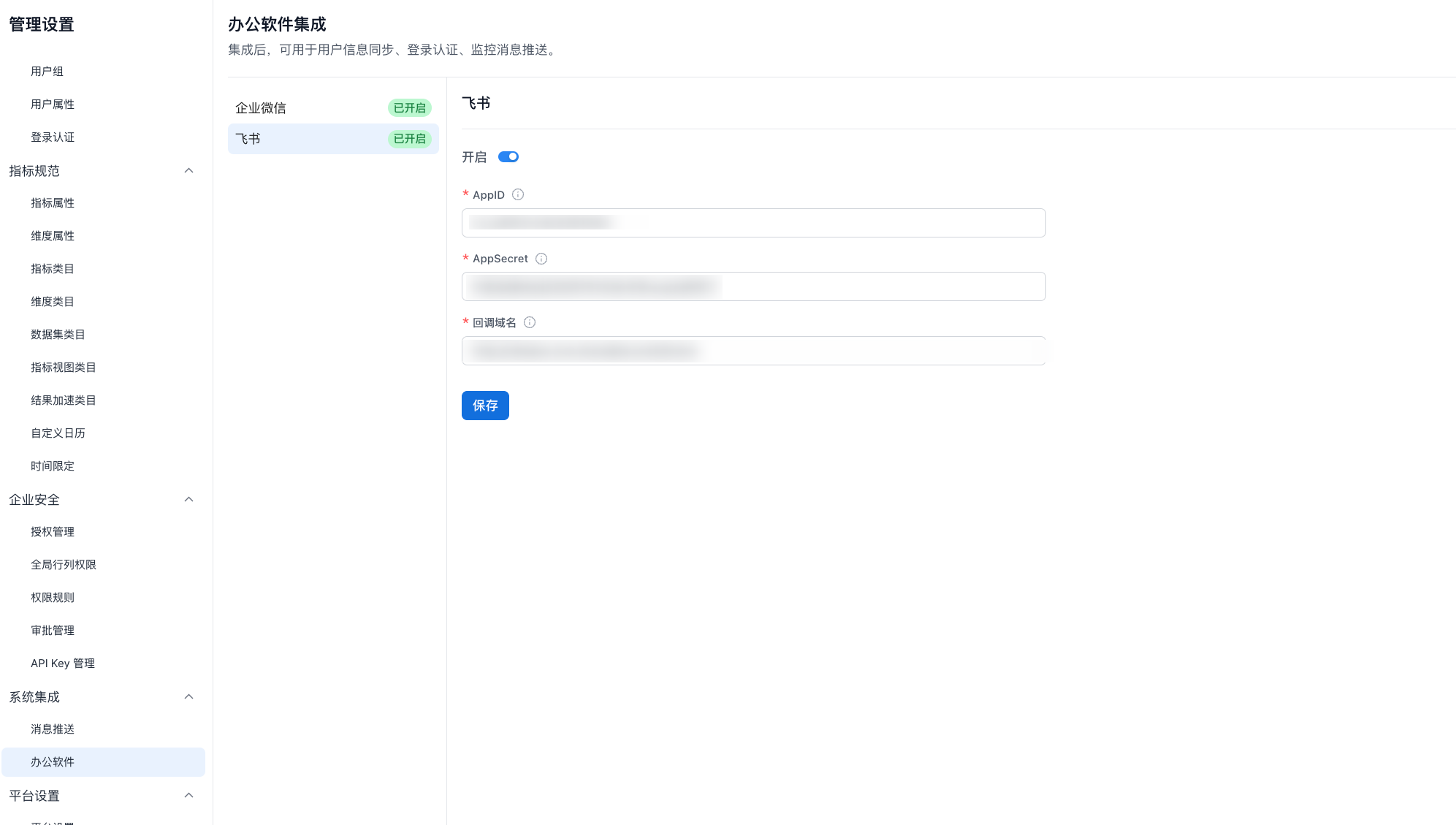
3. Enter Feishu credential information
On the configuration page, enter the following information:
- App ID: The App ID obtained from the Feishu Open Platform. Example:
cli_a8c029e757e6500b - App Secret: The App Secret obtained from the Feishu Open Platform. Example:
Gnn5WOGqsorJEz5s2OPaYbNRnZnsjXOn - Callback domain: The SSO callback address provided by the office software system. Example:
ttp://release.can.aloudata.work/user/softLogin
4. Save the configuration
- Confirm that all information is correct.
- Click Save at the bottom of the page.
- When Saved successfully or a similar message appears, the configuration is complete.