Asset Import and Export
Overview
Asset import and export is a platform feature for managing and migrating data assets and asset information. It supports precise filtering and flexible export configuration, helping you preserve and reuse data resources efficiently. It is suitable for scenarios such as retaining data analysis results and synchronizing data across environments.
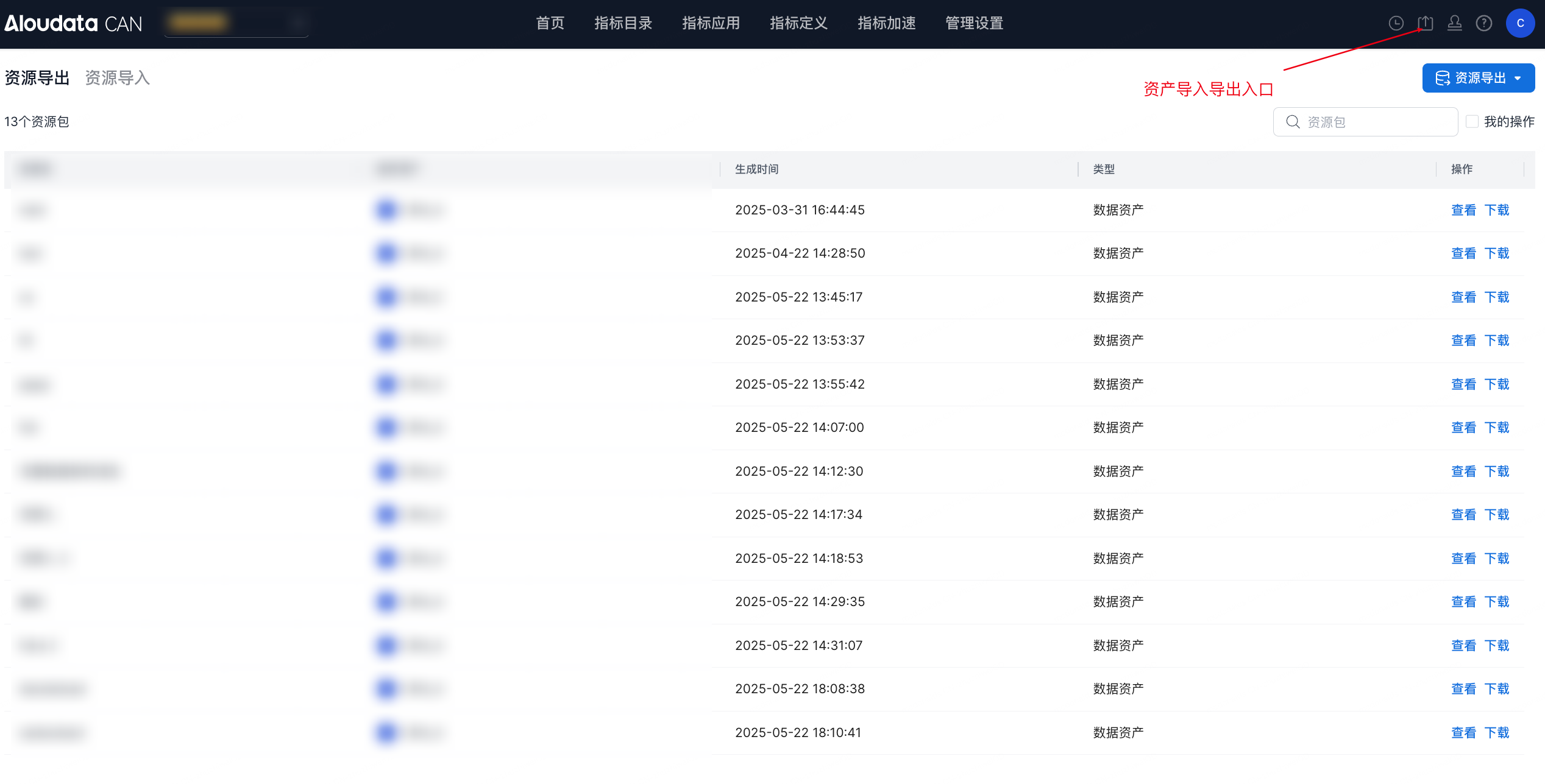
Asset Import and Export Process
Asset Export
-
On the Resource Import and Export page, click Resource Export to open the export page.
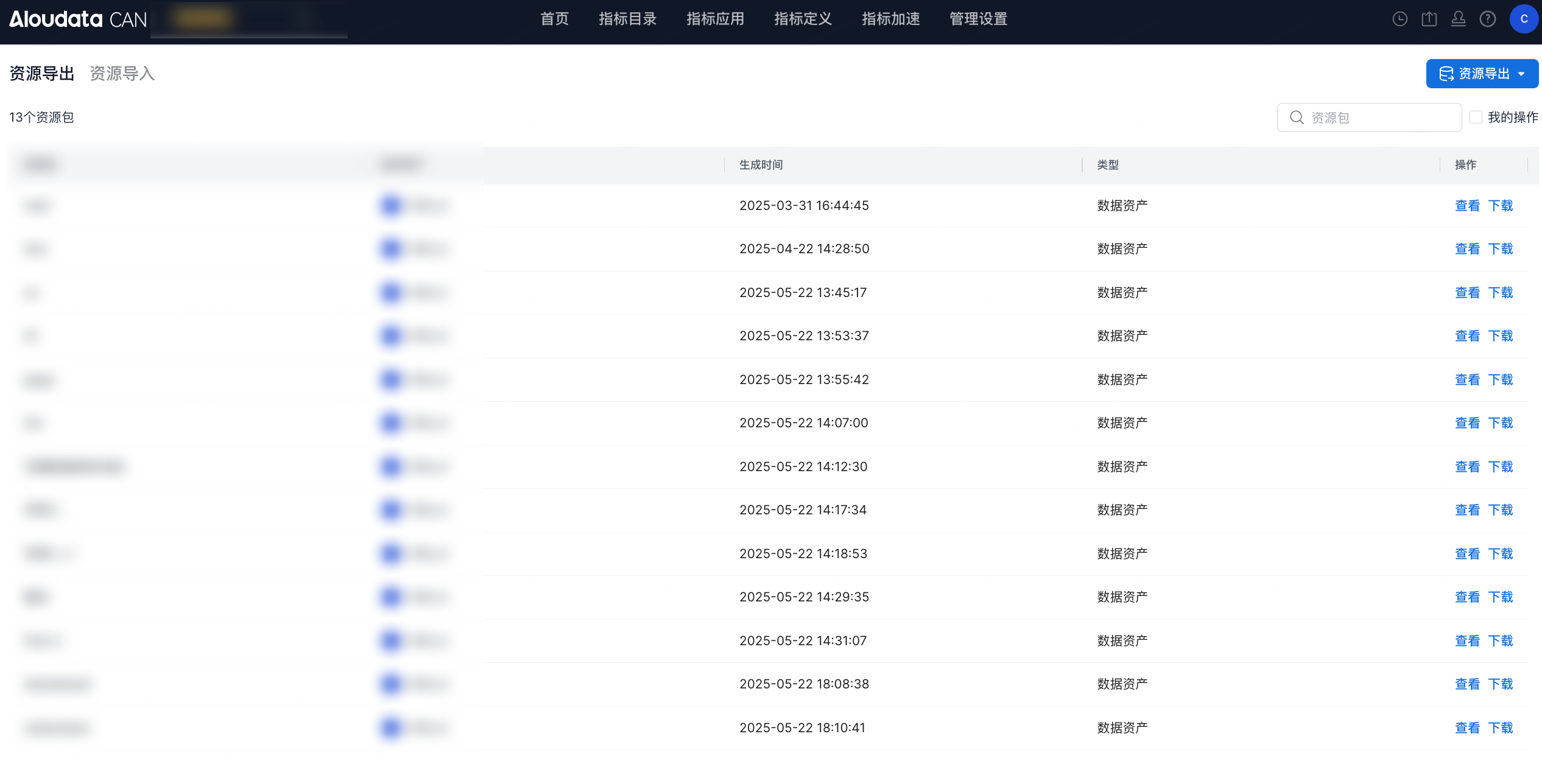
-
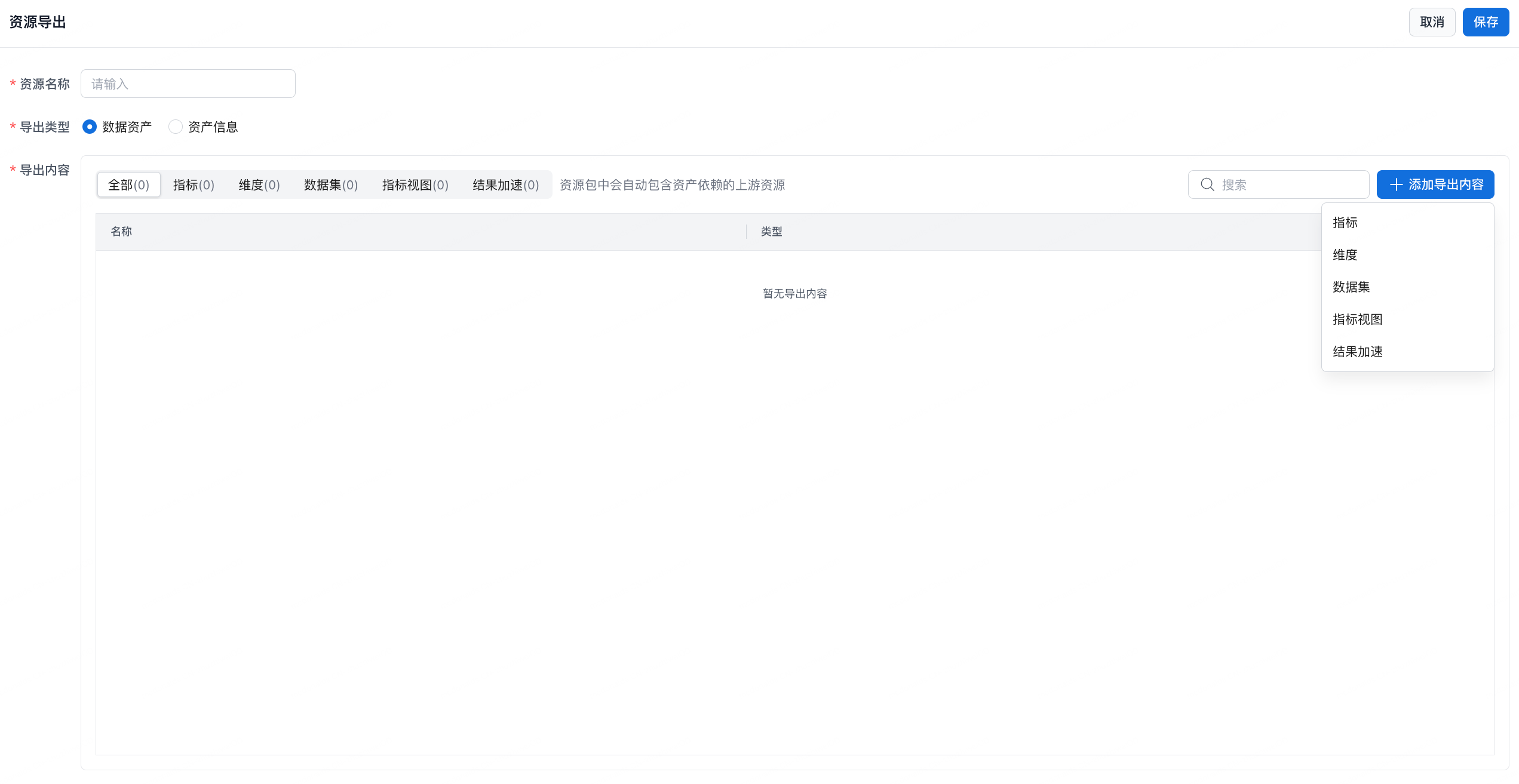
Enter the resource name
In the Resource Name field, enter an identifying name for the exported resource package. -
Select the export type
Data assets: Exports the data itself and its business logic, such as metric calculation rules and dimension relationships. Use this option when migrating analytical data assets that downstream analysis can reuse directly.
Asset information: Exports only resource metadata, such as data sources and field descriptions, plus descriptive information. Use this option to synchronize resource definitions quickly without exporting actual business data. -
Configure export content
Use category filters. The page provides All, Metrics, Dimensions, Datasets, Metric Views, and Result Acceleration category tabs: -
All: Displays all exportable resource types on the platform for a quick overview.
-
Metrics: Filters business metrics, such as sales amount or conversion rate, so you can focus on core analytical measures.
-
Dimensions: Filters dimensions used to slice and aggregate data, such as time dimension or region dimension.
-
Datasets: Selects base datasets to export as analytical data sources.
-
Metric Views: Exports configured metric combination views while preserving the analysis perspective.
-
Result Acceleration: Exports precomputed and accelerated result data as needed.
-
Click + Add Export Content to open the resource selection dialog.
In the dialog, locate target resources by category or search, then select the items to export. If a resource has upstream dependencies, such as metrics that depend on dimensions or datasets, the system automatically selects the related upstream resources to keep the export package complete and usable.
After selection, the resources are displayed in the list below with their Name and Type. You can delete incorrectly selected resources from the Actions column. -
Use search
In the Search box, enter keywords such as a resource name or code to quickly filter the resource list and locate the target resource. -
Run the export
Save: After confirming that the configuration is correct, click Save in the upper-right corner. The system starts packaging and exporting the resource package.
Cancel: Click Cancel to discard the current configuration and return to the previous page without exporting.
Resource Import
Entry Point
-
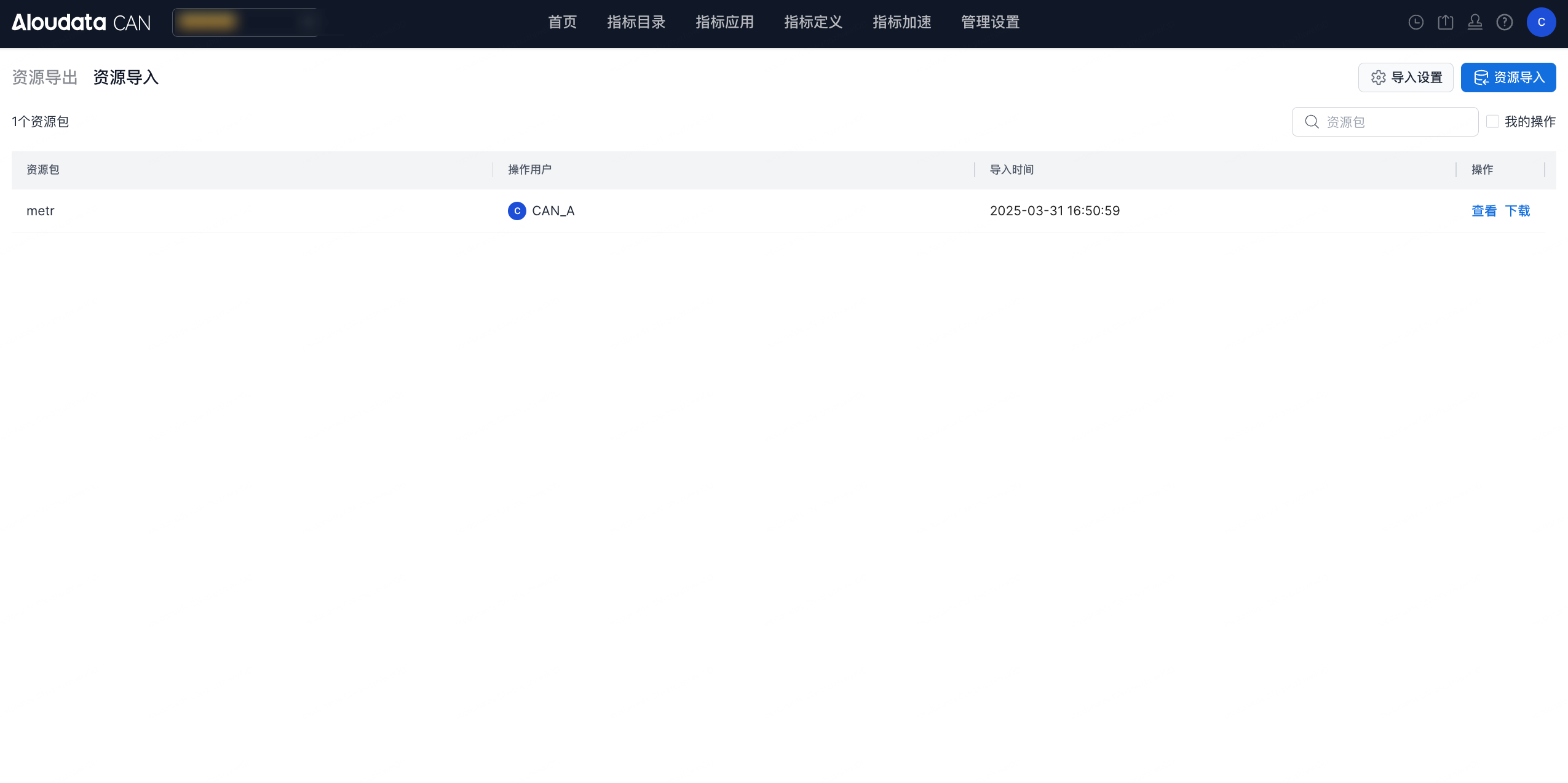
Path: From the upper-right corner of the Metrics page, go to the Resource Import and Export page. Click Resource Import in the top navigation bar to open the import page.
-
Page overview:
-
Displays the list of imported resource packages, including the resource package name, operator, import time, and other information.
-
Supports View and Download operations on resource packages.
Procedure
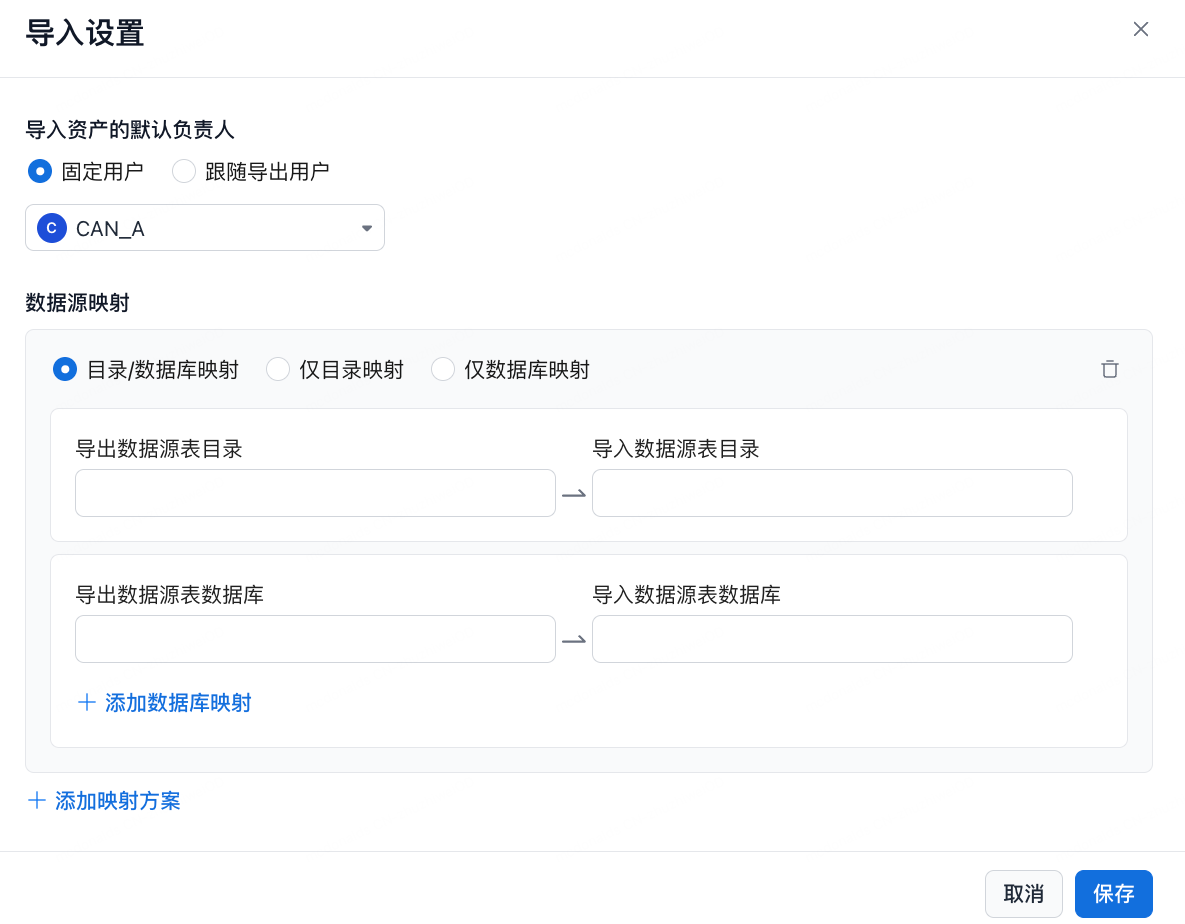
Before importing a resource package, configure Import Settings. Path: Resource Import -> Import Settings.
-
Default asset owner
-
Fixed user:
-
Manually specify the owner of imported assets by selecting a member from the user list.
-
Follow export user: Automatically reuse the owner information from when the resource package was exported. This option is suitable for asset migration scenarios.
-
Data source mapping (optional)
-
If the resource package involves data connections, such as database tables, click Add Mapping Plan to configure data source mappings.
-
Click Save after configuration to apply the settings.
-
Prepare the resource package
For example, use a resource package exported through Resource Export.
-
Run the import
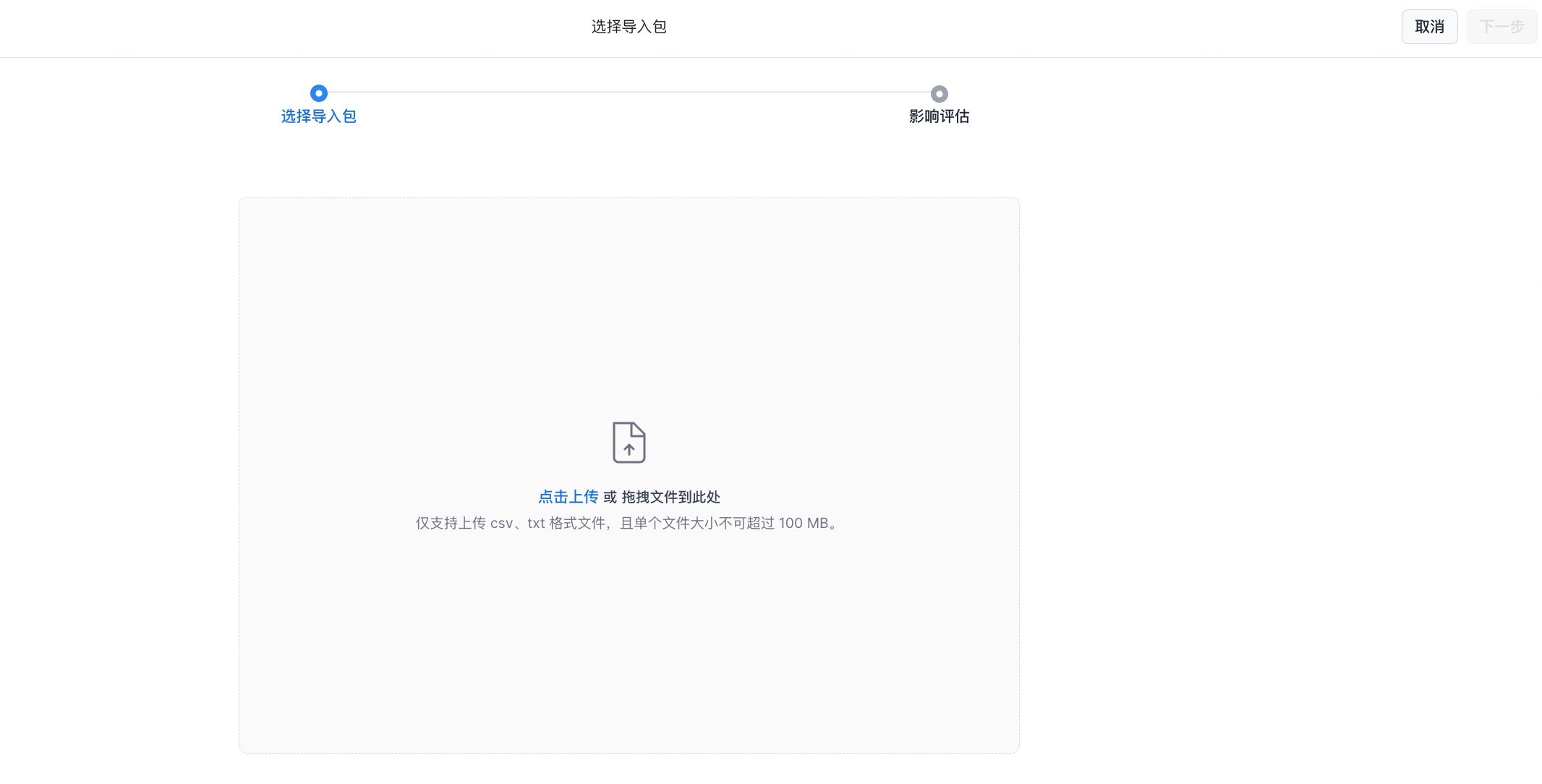
-
On the Resource Import page, drag the resource package into the upload area or click to upload it.
-
In the file selection window, select the prepared local resource package and click Open to start uploading.
-
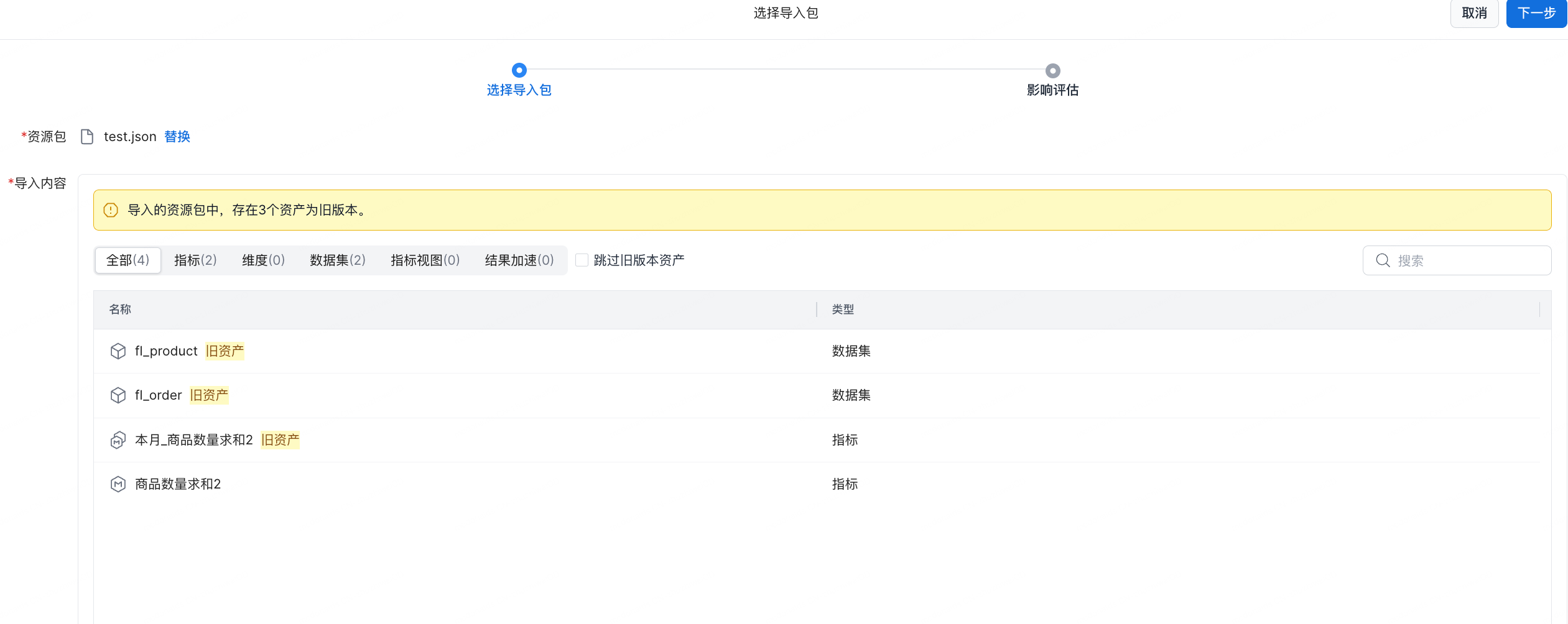
Review the uploaded content and choose how to handle existing assets: 1. Skip existing assets; 2. Overwrite existing assets.
-
Review the impact assessment
-
Click Save to complete the upload.