Feishu App Push
This guide explains how to use a Feishu app for message push in Aloudata CAN, including app configuration, push binding, and message template customization.
1. Use Cases
-
Metric monitoring alert push: Automatically send a Feishu message when a metric exceeds the alert threshold.
-
Metric acceleration task alert push: Send a push notification when an acceleration task fails, is delayed, or succeeds.
-
Approval message push: Automatically synchronize new approval requests to Feishu messages.
💡 Tip: When pushing messages to an individual, the system uses the user's account as the parameter to match the Feishu contact (user_id).
2. Prerequisites
Before using Feishu message push, make sure Feishu has already been integrated in the platform. For configuration details, see Feishu Integration.
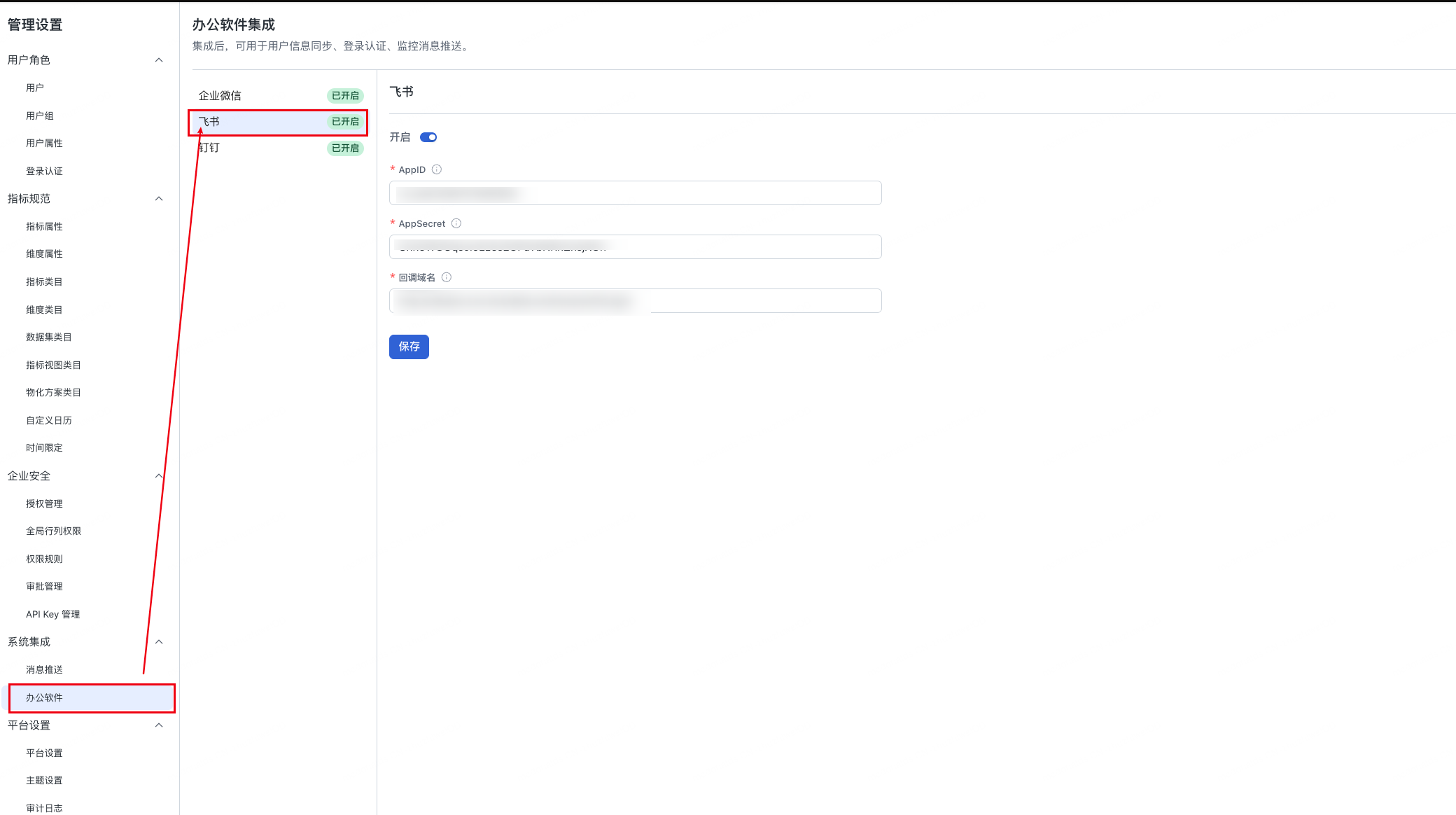
Make sure the Feishu app has permissions such as sending messages and sending urgent messages.
3. Message Push Configuration
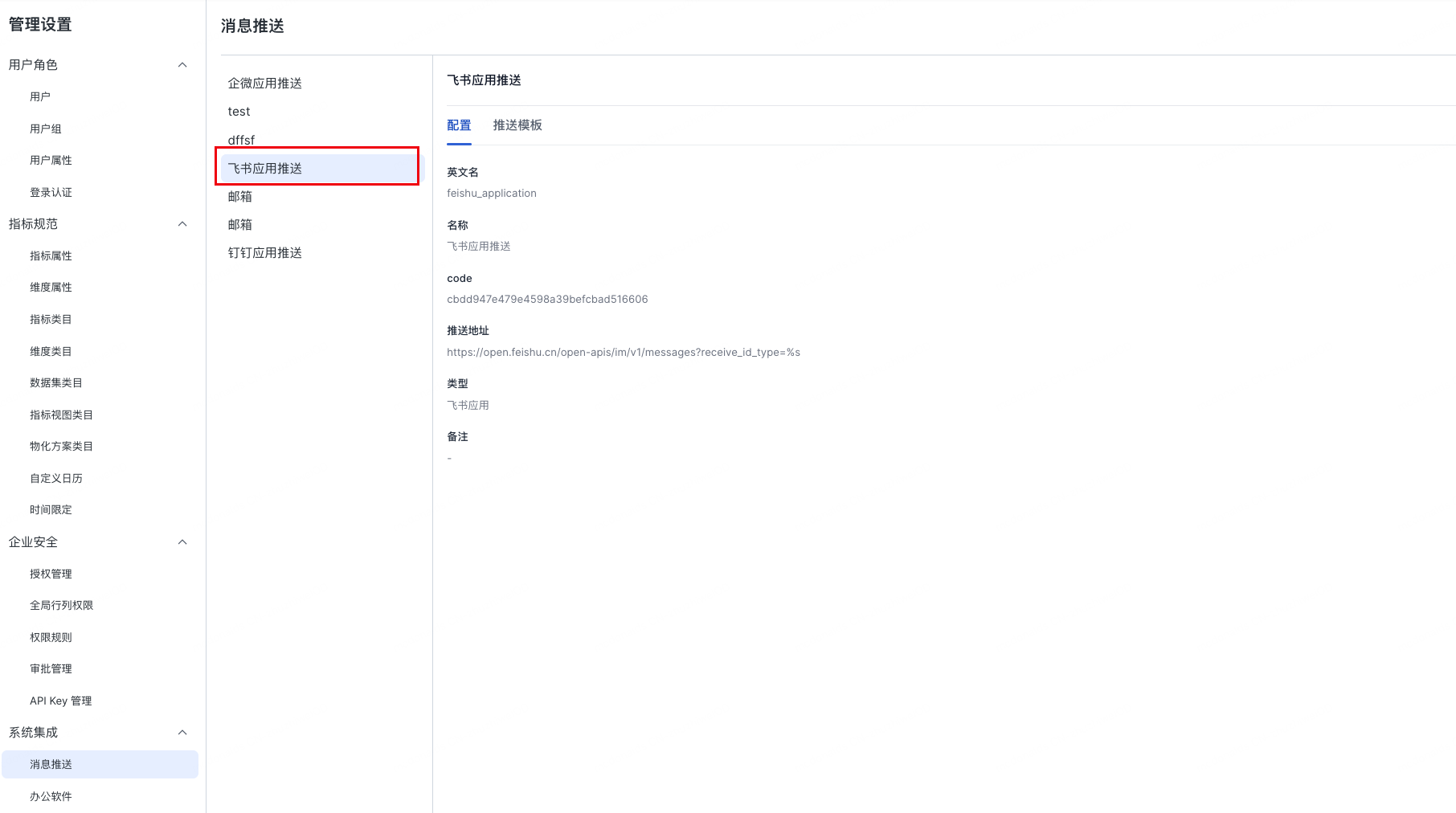
After Feishu app integration is complete, a Feishu app configuration item is automatically added on the message push configuration page in Aloudata CAN.
Users can select Feishu push as the message notification channel for different business scenarios:
4. Message Template Configuration
The system provides multiple default templates and supports Markdown format and variable substitution.
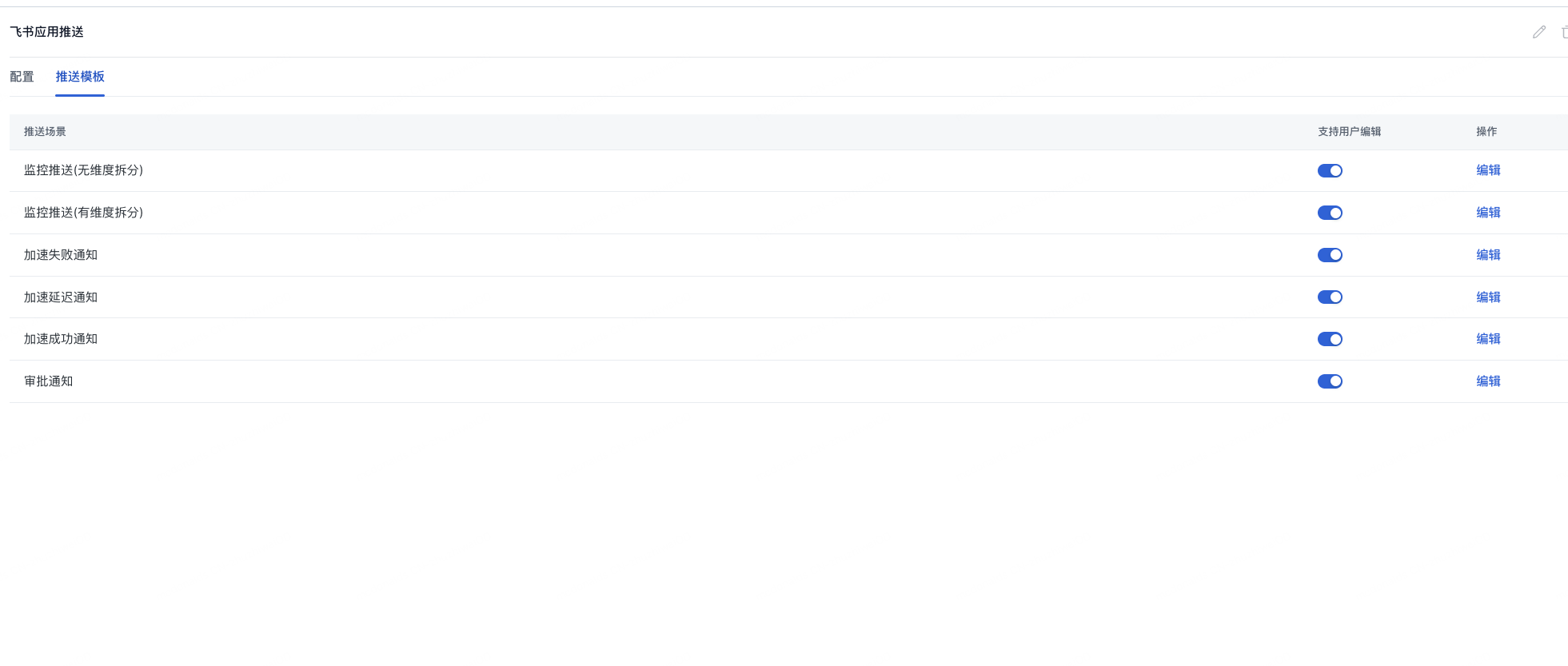
You can customize template content for your business scenario and insert default parameters provided by the system as needed. Example:
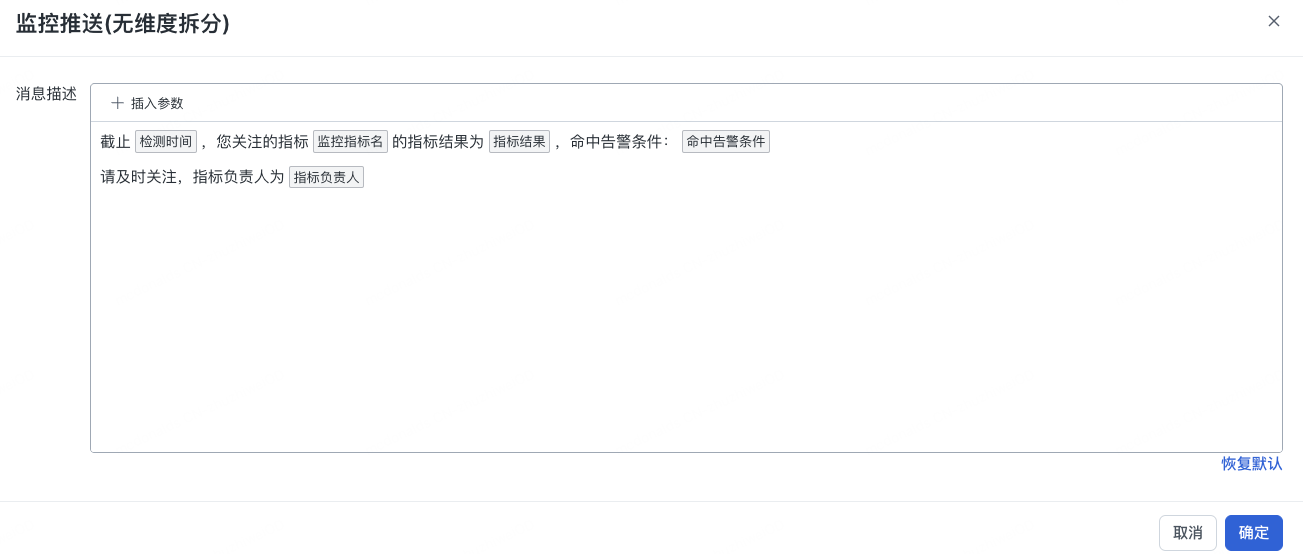
As of [Detection Time], the result of the metric [Monitoring Metric Name] that you follow is [Metric Result], and the alert condition matched is: [Matched Alert Condition].
Please review it promptly. The metric owner is [Metric Owner].
5. Push Channel
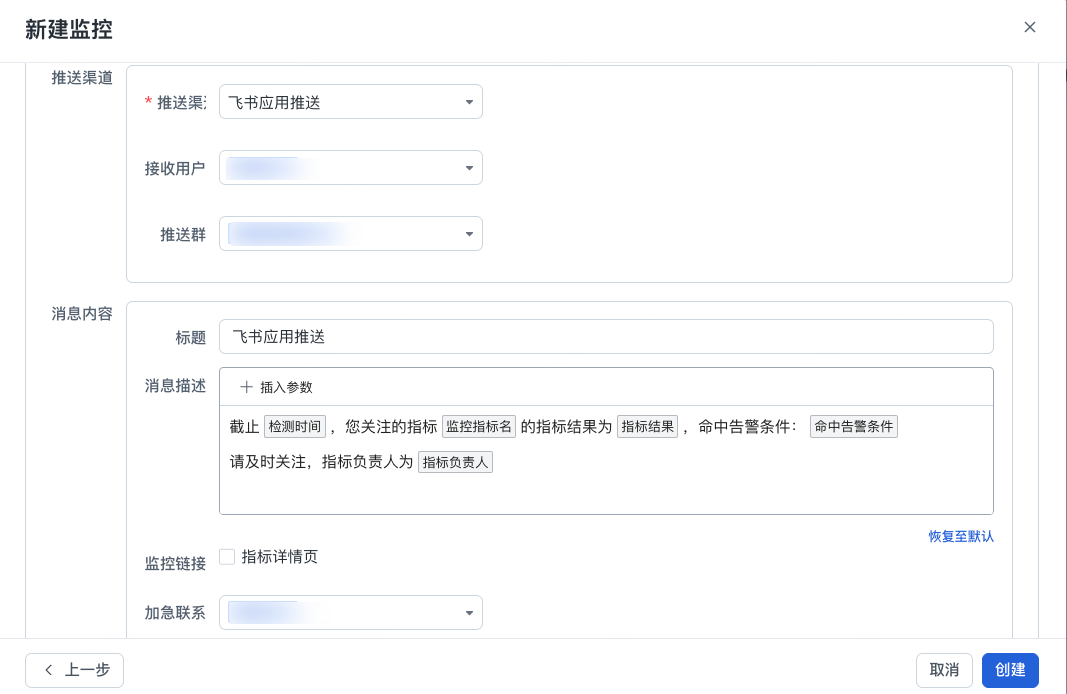
5.1 Configuration Item Details
5.1.1. Push Channel
Select Feishu App Push from the drop-down menu. This means alert messages will be sent through the integrated Feishu app account.
5.1.2. Receiving Users & Push Groups
These two options are used to precisely specify the recipients of alert messages.
Receiving users: Specify the individuals who should receive alerts. Multiple users can be selected.
Push groups: Specify the group chats that should receive alerts. Multiple groups can be selected.
5.1.3. Message Content
- Title
You can modify this title to make it more meaningful for your business, such as "[Production] Order Service Exception Alert".
-
Message description
-
Description: The body of the alert message, which provides alert details. The system provides a template that includes variables.
-
Instructions:
You can edit the description directly in the text box.
Click + Insert Parameter above the description box to view and insert more available system variables and enrich the message content.
-
5.1.4. Additional Feature Configuration
- Monitoring link
-
Configuration item name: Monitoring link
-
Description: This option determines whether the Feishu alert message includes a link that takes users directly to the metric details page. After it is selected, users can click the link to quickly view the metric's historical data, charts, and analysis page, making it easier to locate the issue.
-
Urgent contact
Select the contacts who should receive urgent notifications from the drop-down list.
5.1.5. Action Buttons
After configuration is complete, use the buttons in the lower-right corner of the page for the final action:
-
Previous: Return to the previous configuration step.
-
Cancel: Discard all current configuration and do not create the monitor.
-
Create: After confirming that all configuration information is correct, click this button to create the monitor. After creation succeeds, the monitor takes effect immediately.
6. Push Result
Feishu messages are displayed as cards:
