Query Routing
This document explains the concept and use cases of query routing, and describes how to create, configure, and delete query routing rules.
1. Concept
Query routing distributes query requests to specified query resource queues based on request characteristics.
With query routing, you can implement:
-
Query resource isolation for different users
-
Isolation for different query sources, such as page queries and API queries
2. Entry Point
Navigation path: Management Settings → Query Routing → New Query Routing
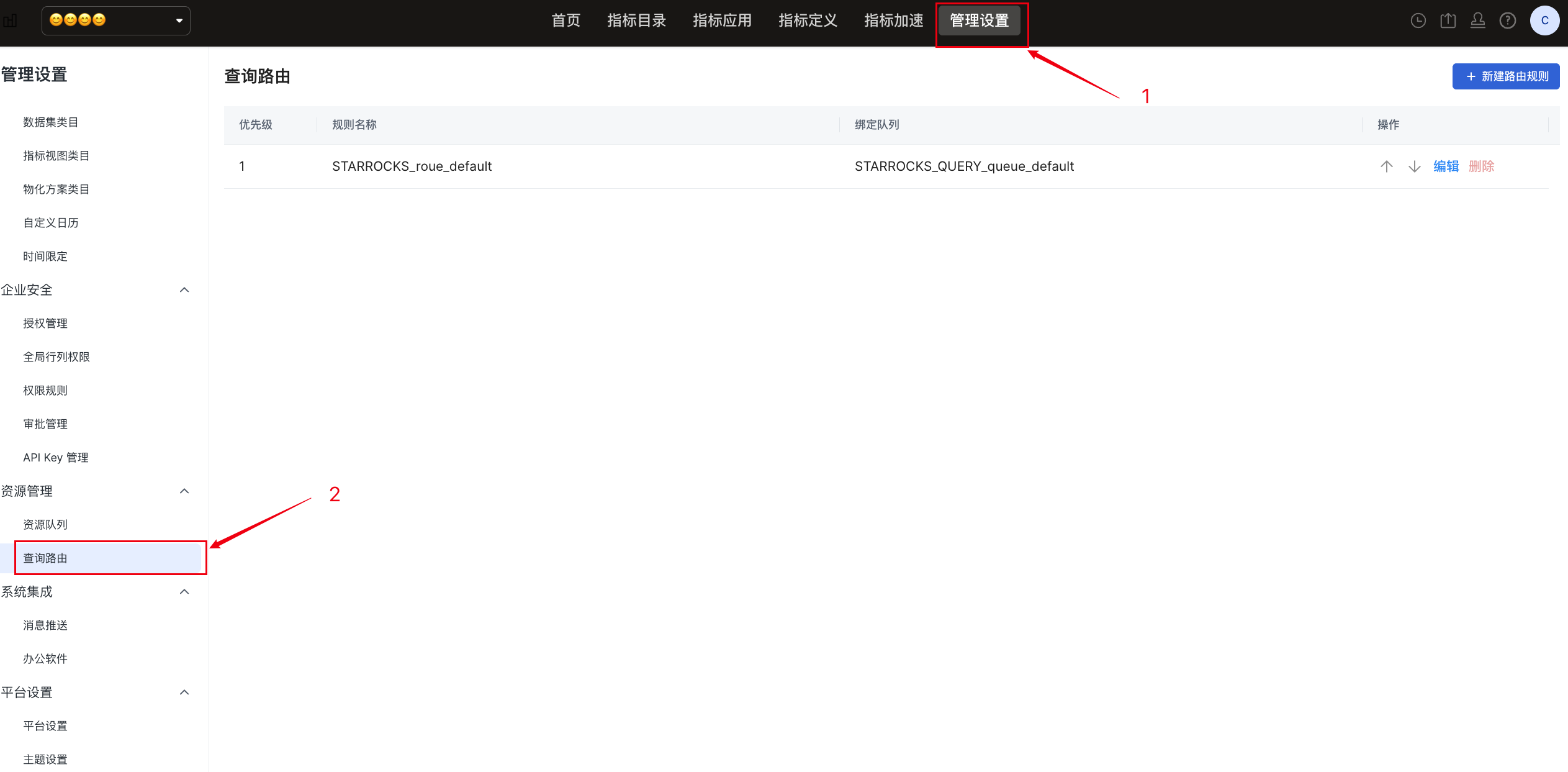
On the query routing list page, click New Query Routing to open the configuration dialog.
3. Create Query Routing
Query routing is created in a dialog and contains three main parts:
-
Rule name
-
Query conditions
-
Resource queue
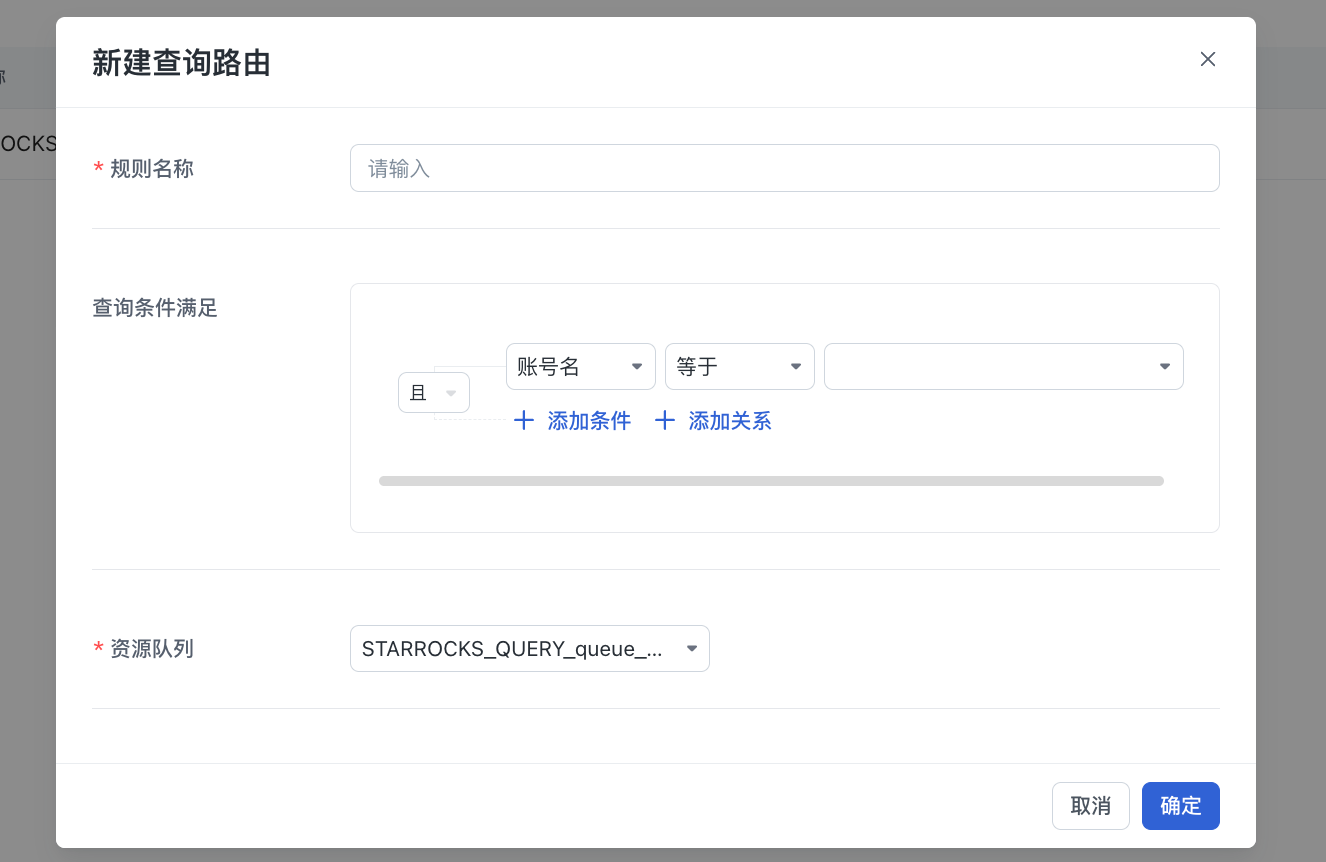
The following table describes each configuration item.
| Configuration Item | Description | Example |
|---|---|---|
| Rule Name | The name of the query routing rule. It is used only for management and identification and does not affect the actual matching logic. | Page_Query_Default_Route, API_Query_Route |
| Query Conditions | Defines which query requests can match this routing rule. The following condition fields are currently supported: account name, which indicates the login account that initiated the query; and query method, which indicates the query source type. Query method values include product interface (page query) and query API (API query). | 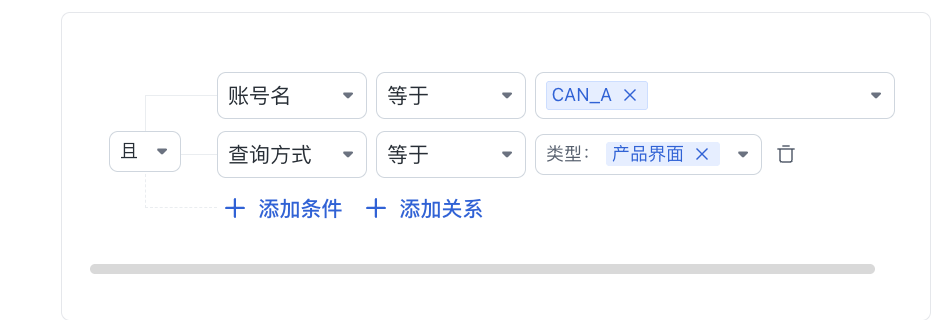 |
| Resource Queue | Specifies the query resource queue that matched queries enter. Only resource queues of the Query type can be selected. |
Query Conditions
Condition Relationship
Multiple conditions can be combined with AND:
- The rule takes effect only when all conditions are met.
Example:
Matching Methods
For string conditions, the following matching methods are supported:
-
Equals / Does not equal
-
Contains / Does not contain
-
Starts with / Does not start with
-
Ends with / Does not end with
-
Is empty / Is not empty
-
Field match
These matching methods help describe routing rules more flexibly.
Add and Delete Conditions
-
Click + Add Condition to add a condition.
-
Use the delete button on the right side of a condition to remove it.
4. Save
-
After you click OK, the query routing rule takes effect immediately.
-
The new rule participates in routing matching for all subsequent query requests.
5. Edit Query Routing
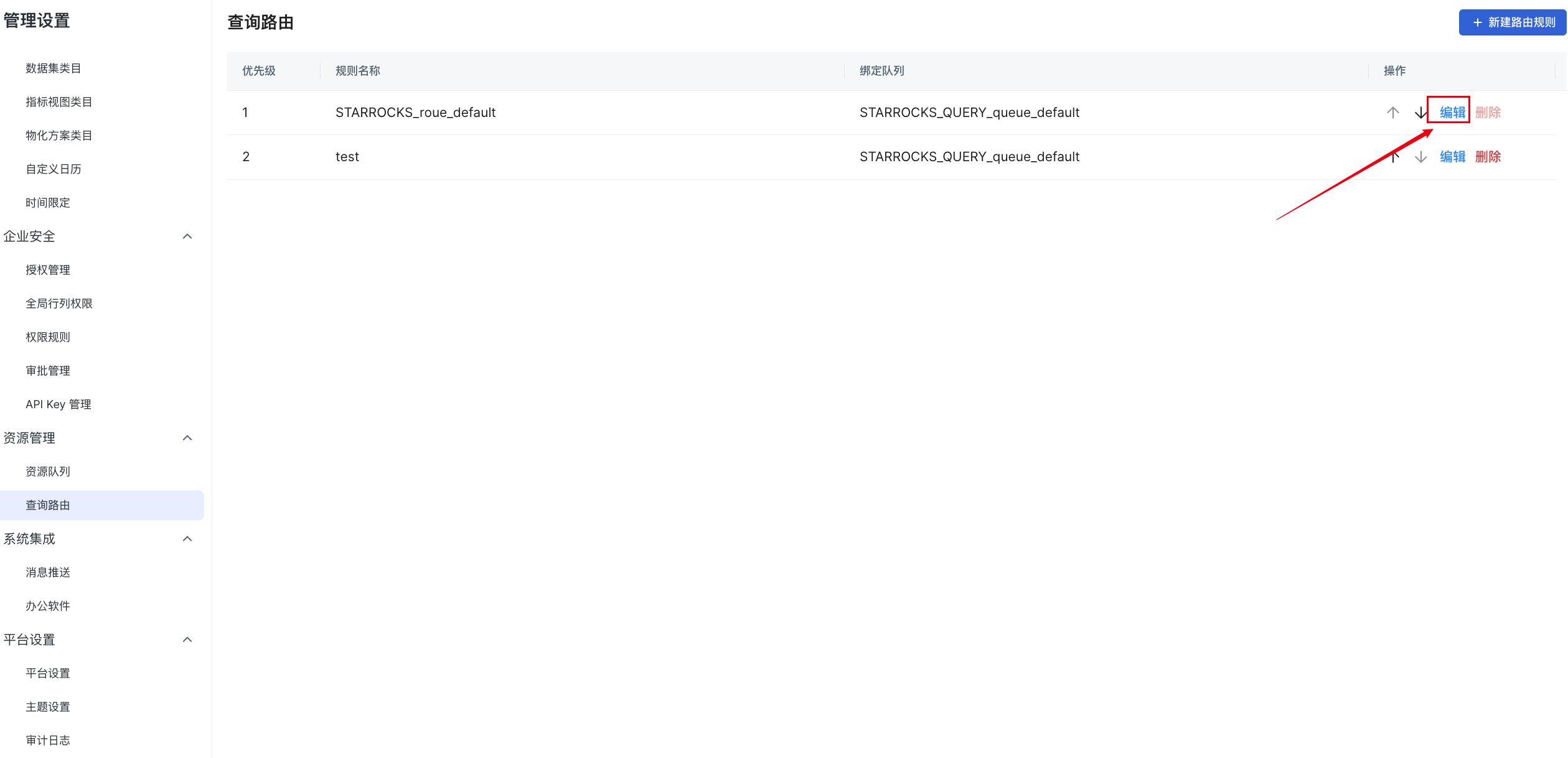
Edit Entry Point
In the query routing list, click Edit in the corresponding rule row.
6. Delete Query Routing
Delete Entry Point
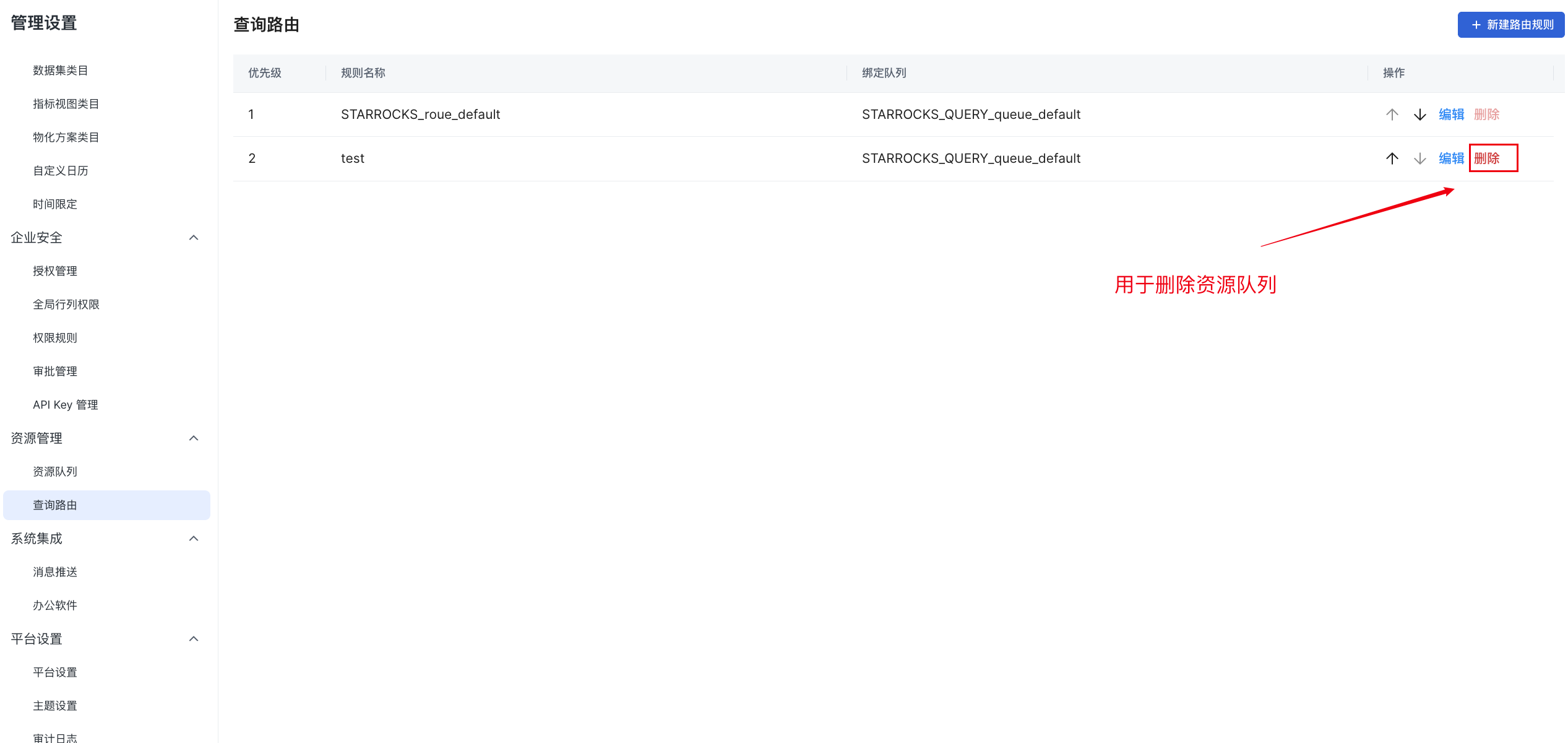
In the query routing list, click Delete in the corresponding rule row.