Create a Metric Tree
A metric analysis tree is designed for complex business analysis scenarios, such as attributing multiple dimensions and metrics at the same time, or chaining several attribution capabilities together. If the analysis scenario is simple, such as dimension attribution for one core metric, a metric tree may be enough.

Create a Metric Tree
In the top navigation bar, choose Metric Applications -> Metric Tree. In the upper-right corner of the metric tree list, click Create Metric Tree to open the creation page.

Configure the Metric Tree
Node Configuration
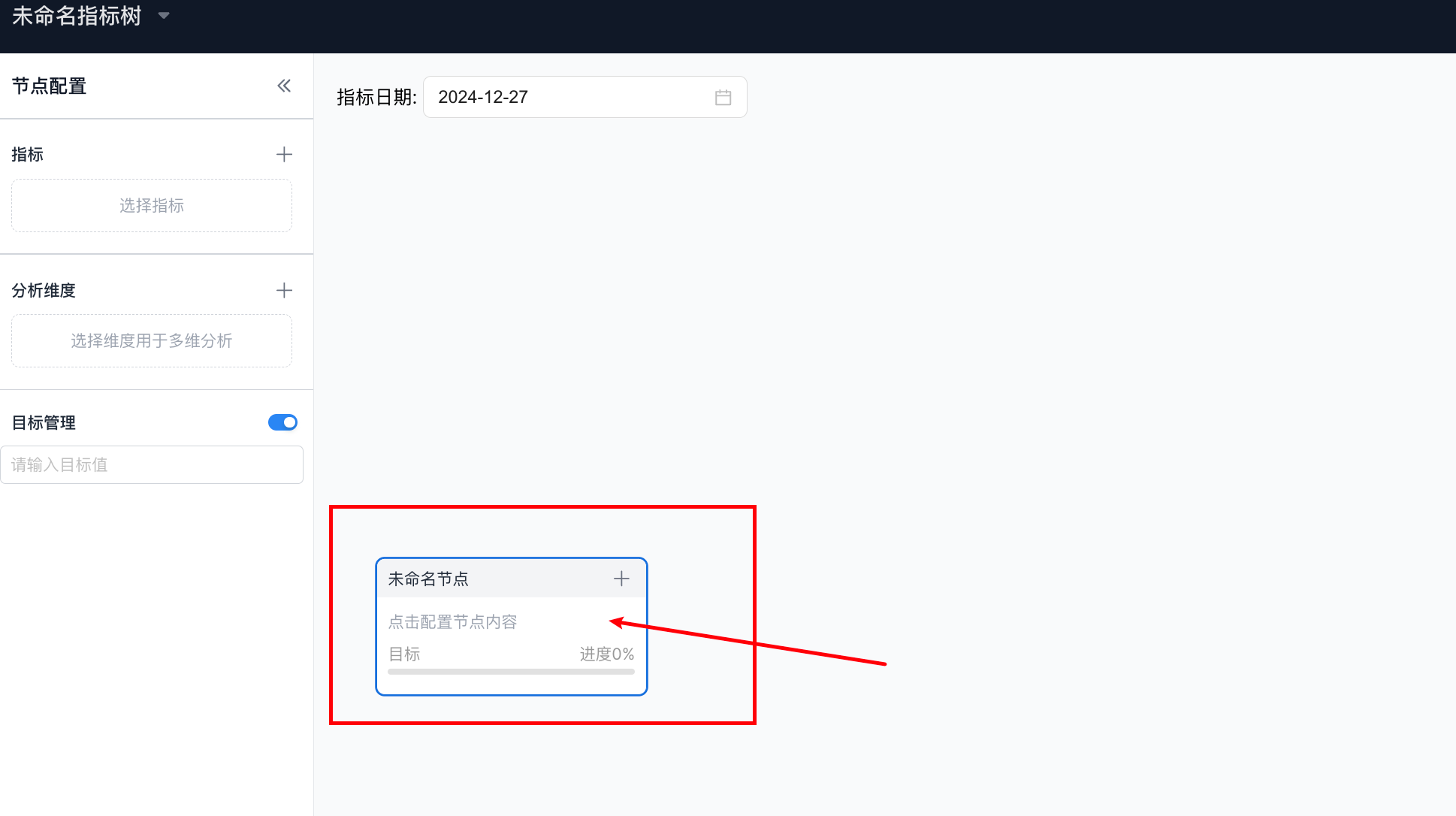
In the current metric tree, click "Unnamed Node", select the metric and analysis dimension, and enable target management as needed.
Node Breakdown
The current node can be broken down by metric breakdown or dimension breakdown, as shown below:

Global Configuration
Comparison Data
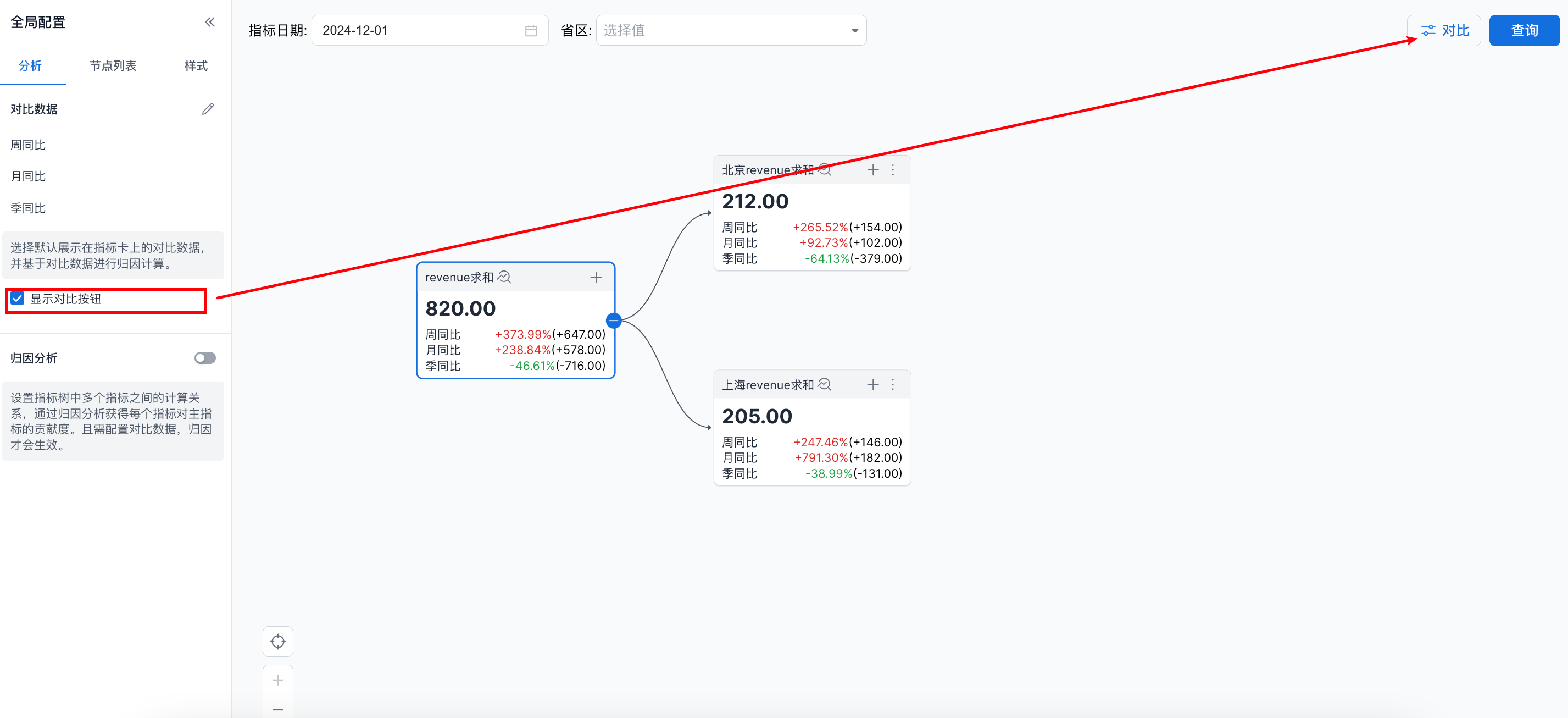
Click the button indicated below to select dates for comparison data. Multiple dates are supported.

An example calculation result is shown below:

Show Comparison Button
Attribution Analysis

Configure Calculation Nodes
When performing attribution analysis on metric data, configure the calculation relationship between each node. The entry point for calculation relationship configuration is indicated by the arrow below.

On the attribution analysis settings page, click a parent node on the left to configure the calculation relationship for its child nodes.

An attribution calculation example is shown below:

Node List
You can adjust the order of child nodes in the node list.

Style
In the style settings, you can adjust the tree expansion direction. Vertical and horizontal directions are currently supported, as shown below:


Filter Configuration
Add a Filter
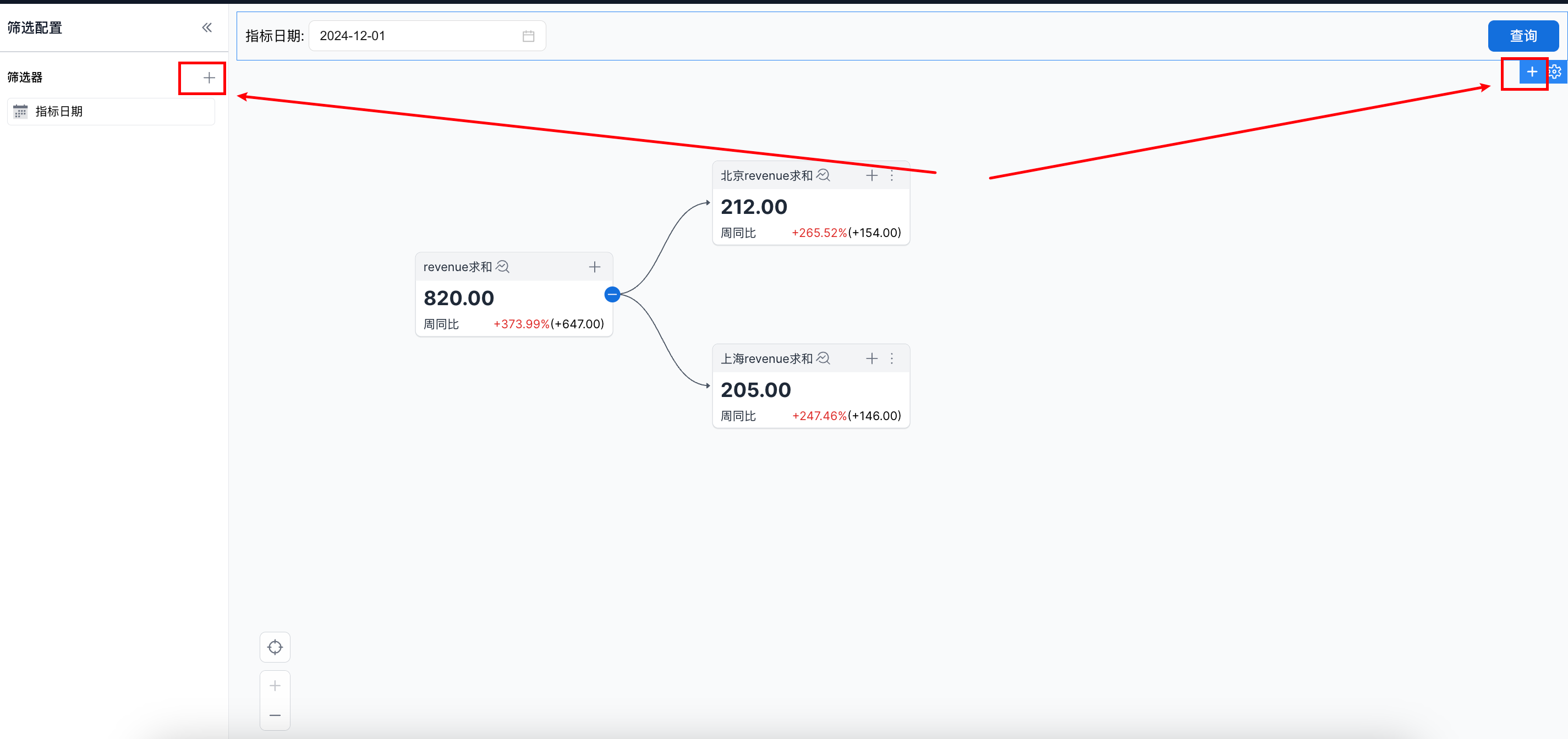
Click the button indicated below to add a filter. Date filters and drop-down filters are currently supported.
Filter Settings
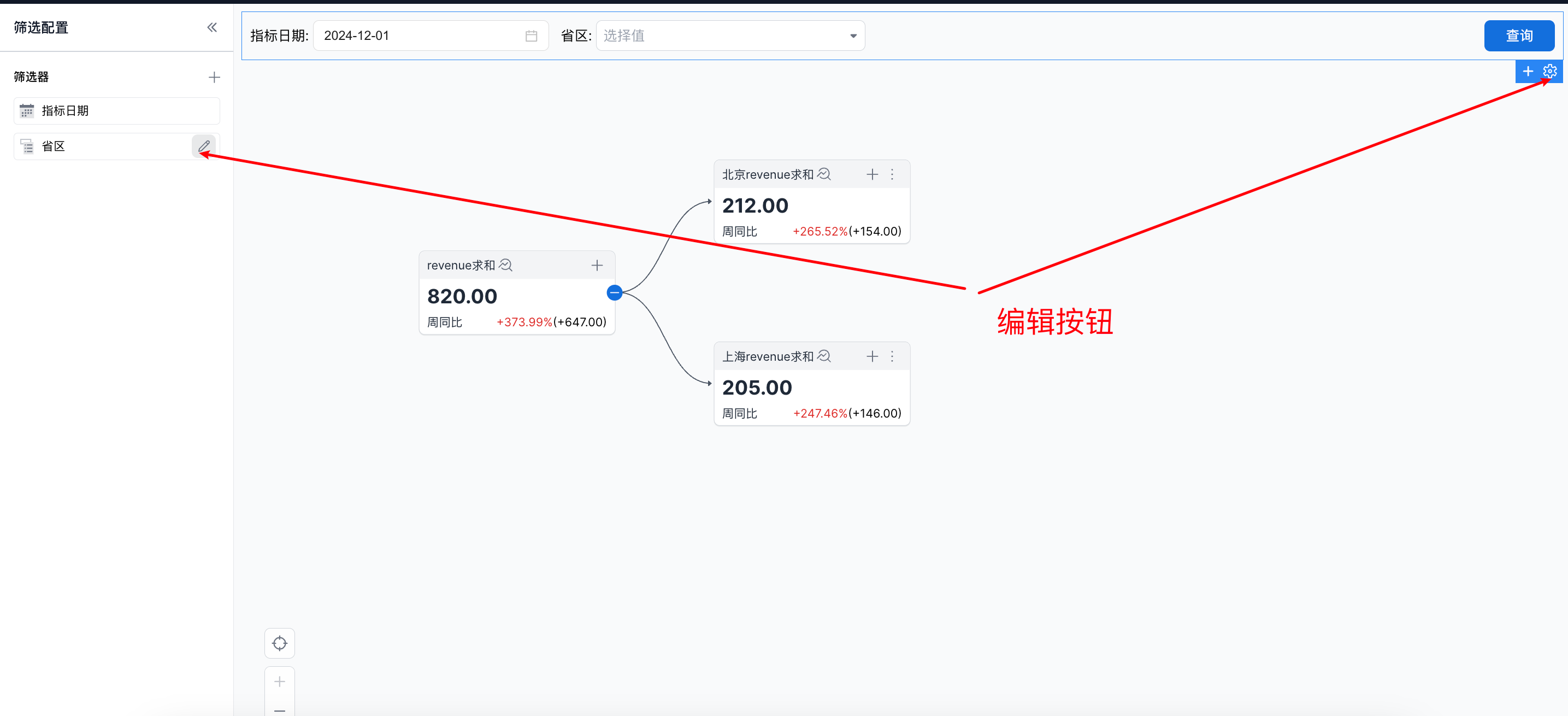
Click the button indicated below to edit a filter.