Create a Dimension
1. Dimension Overview
Dimensions are key elements used to classify, group, and filter data. They let you slice data into meaningful views so complex datasets are easier to understand and analyze. Dimensions are usually descriptive fields, such as date, product category, region, or customer. This topic describes how to create dimensions in Aloudata CAN.
2. Create a Dimension
2.1 Open the Dimension Management Page
-
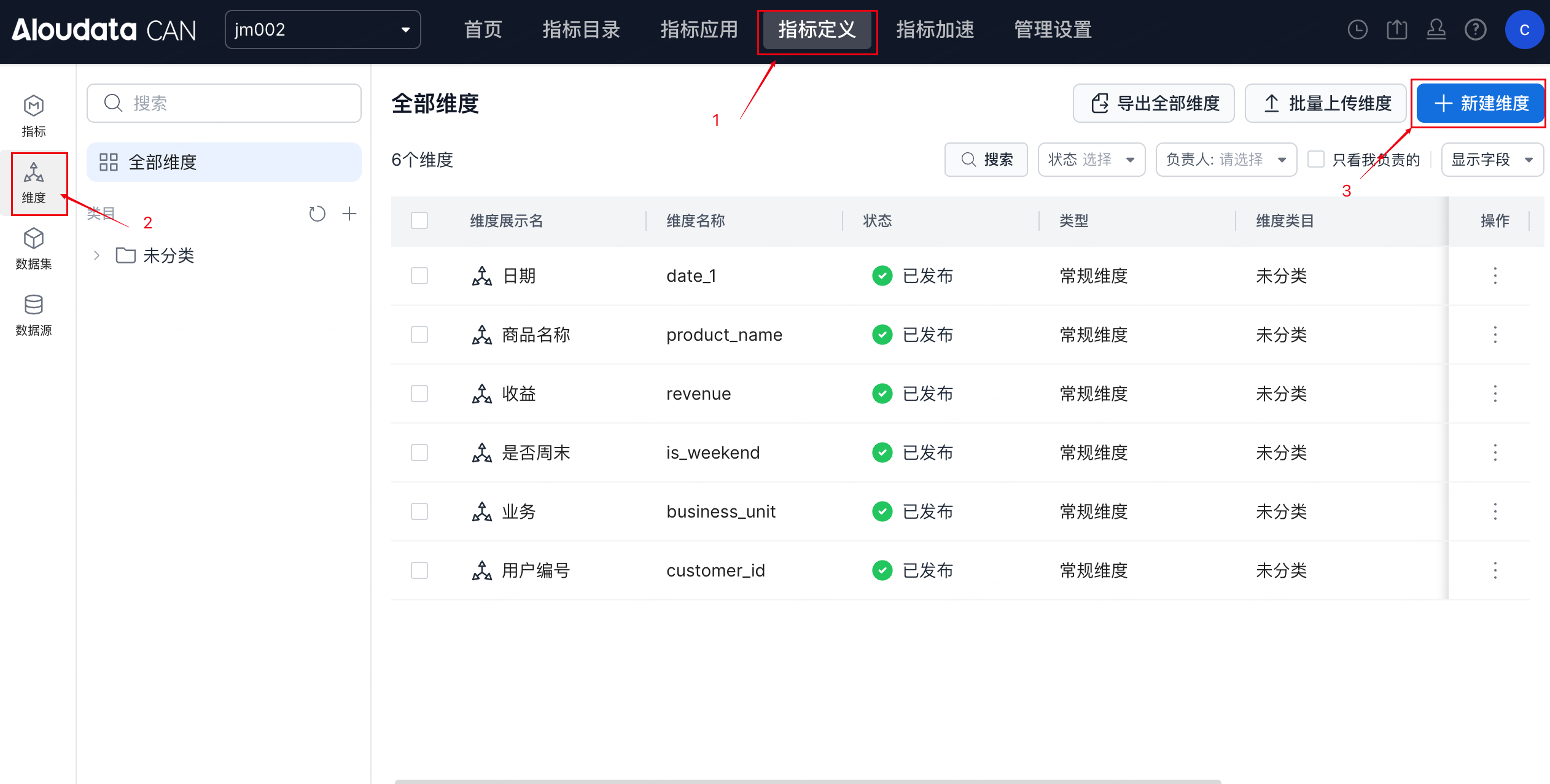
In the top navigation bar, click Metric Definition.
-
In the left navigation bar, select Dimensions to open the dimension management page.
-
The page displays the list of created dimensions, including display name, dimension name, status, type, and other information, as shown below.
2.2 Create a Regular Dimension
Steps
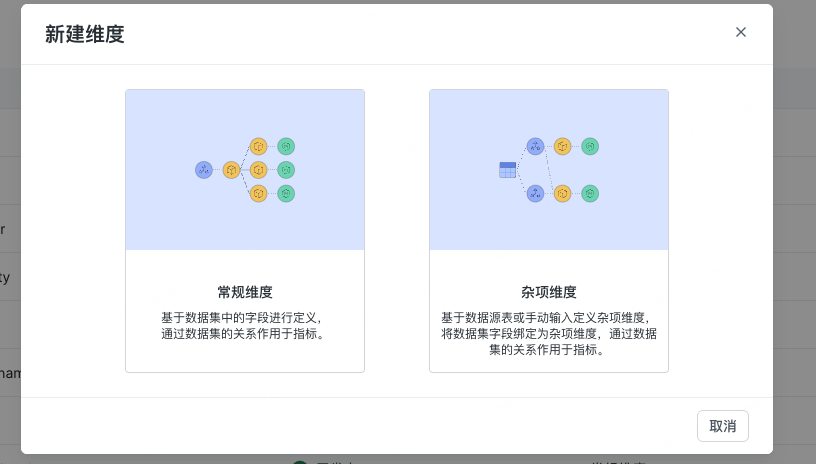
- Click + New Dimension in the upper-right corner, then select Regular Dimension.
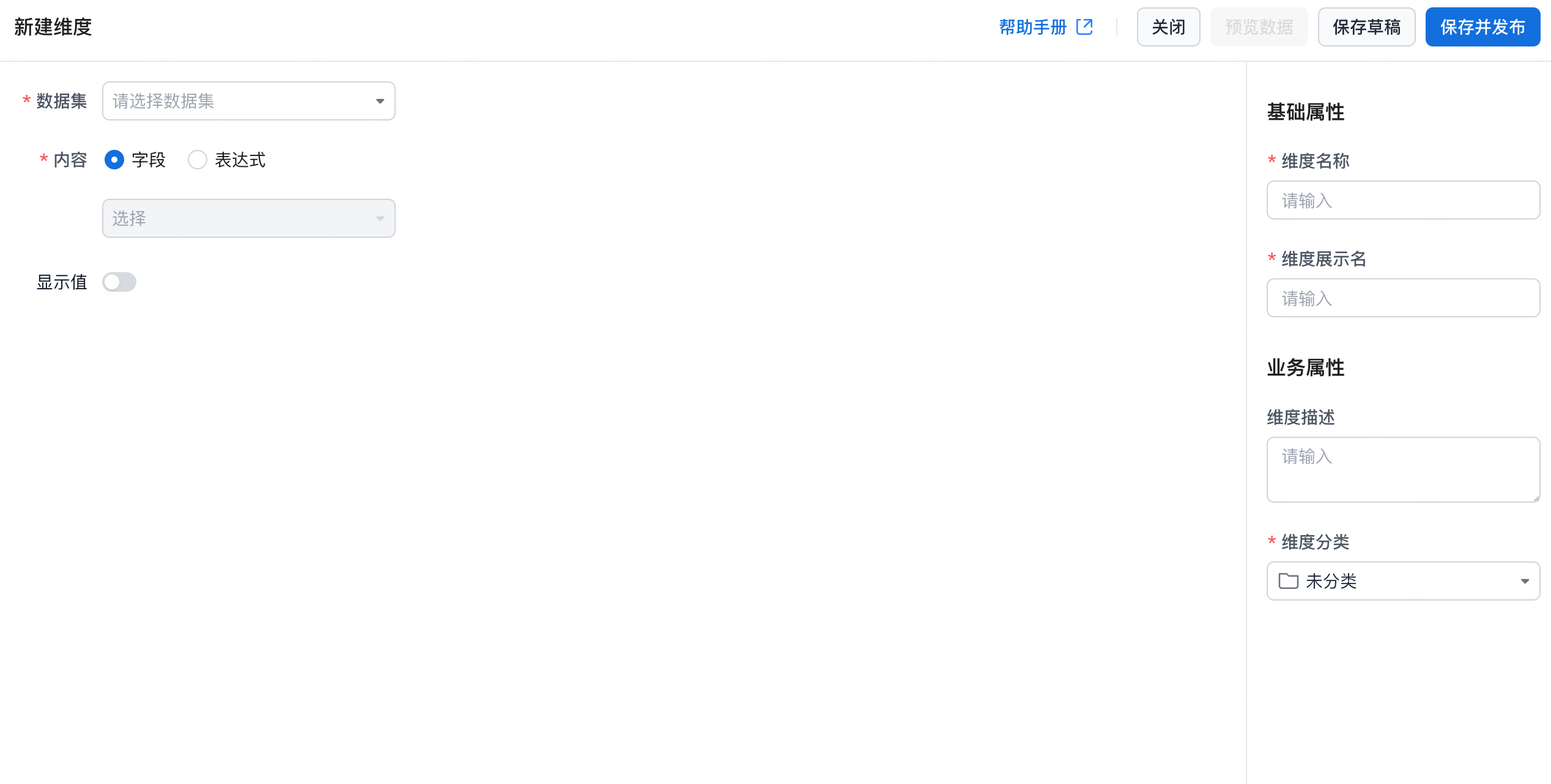
- Fill in the dimension properties.
| Property Group | Property | Required | Description |
|---|---|---|---|
| Basic Properties | Dataset | Yes | Select the dataset that contains the dimension field. |
| Basic Properties | Field / Expression | Yes | Select a field from the dataset, or enter a custom expression to calculate the dimension. |
| Basic Properties | Dimension Name | Yes | The unique identifier used by the system. |
| Basic Properties | Dimension Display Name | Yes | The name shown to business users. |
| Business Properties | Dimension Description | No | Describes the meaning of the dimension in detail. |
| Business Properties | Dimension Category | Yes | Select the category that the dimension belongs to. |
- Action buttons:
| Button | Description |
|---|---|
| Preview Data | View sample data for the current dimension. |
| Save Draft | Temporarily save the dimension creation information so you can continue editing later. Unpublished dimensions remain in Draft status. |
| Save and Publish | Finish creating the dimension and make it effective. After publishing, the dimension status changes to Published and the dimension can be used in the system. |
| Close | Exit the dimension creation page. Unsaved changes will be discarded. |
2.3 Create a Miscellaneous Dimension
Key Characteristics
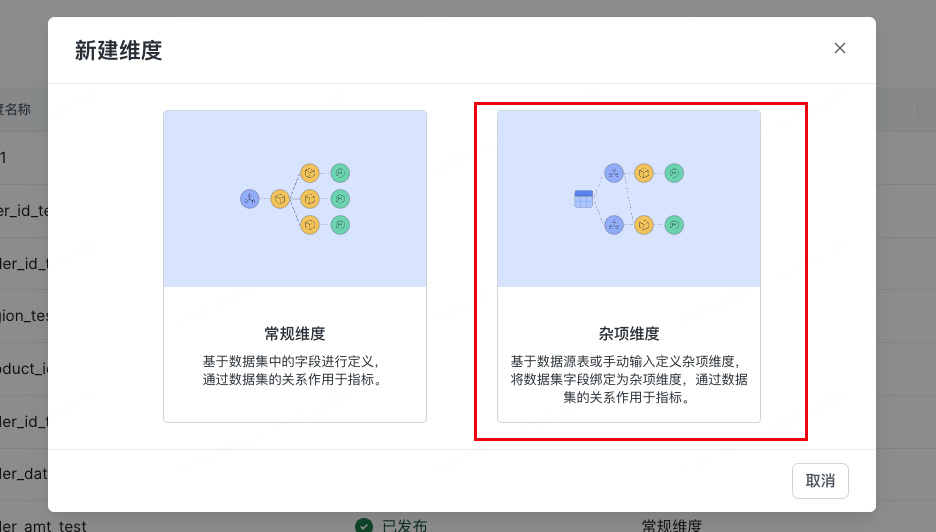
A miscellaneous dimension is defined from a source table. It can bind fields from multiple datasets to multiple dimensions in the same table.
Steps
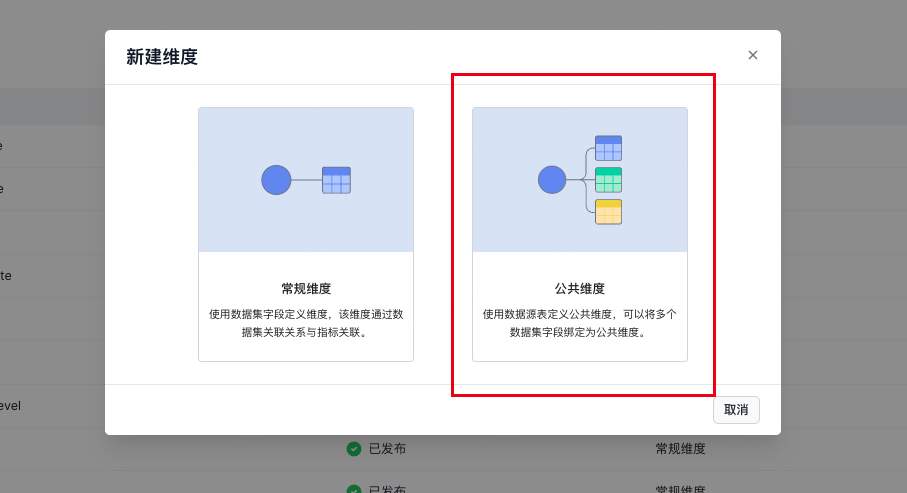
- Click + New Dimension, then select Miscellaneous Dimension.
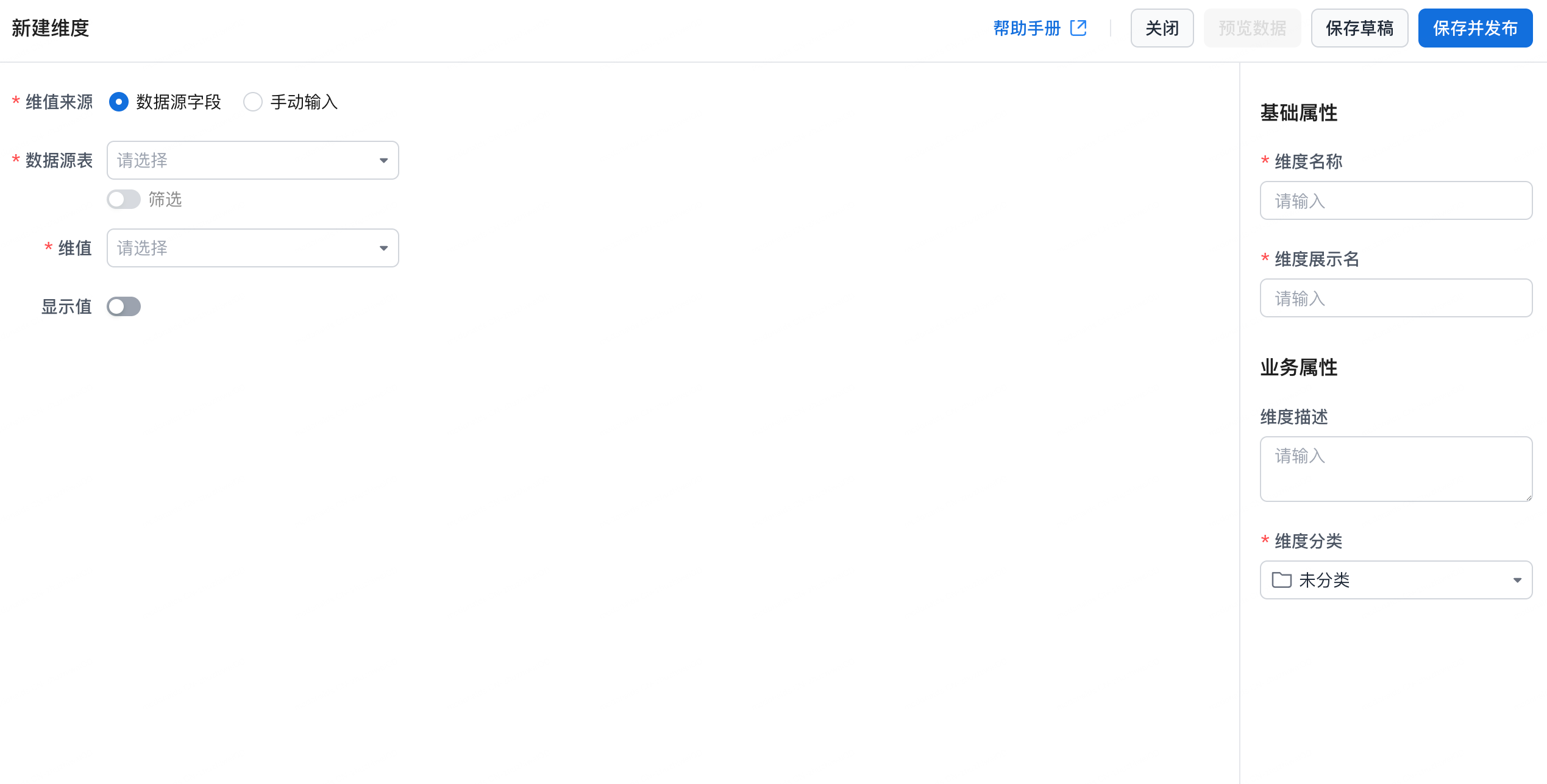
- Create from fields in a data source table.
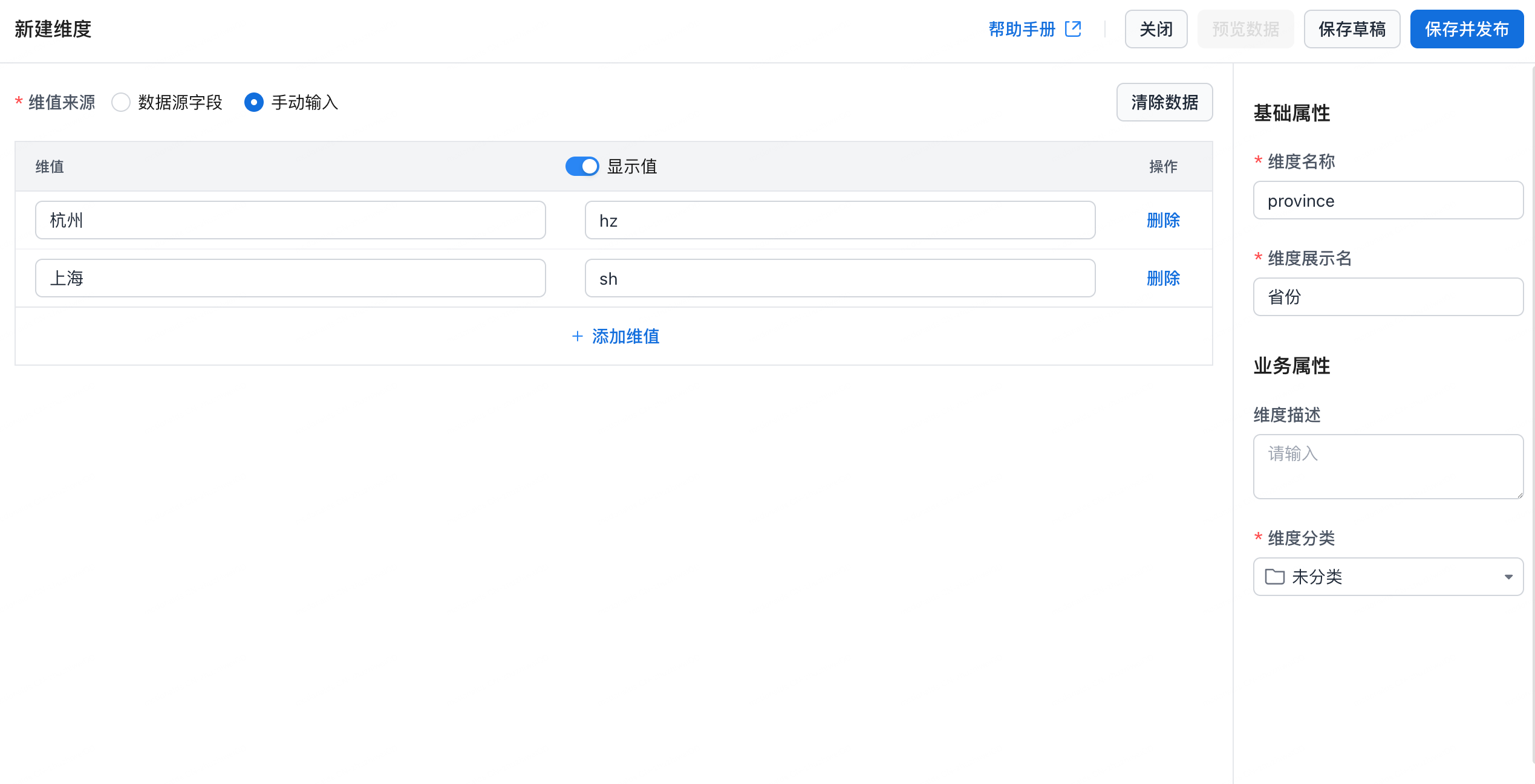
- Create by manual input.
- Fill in the dimension properties.
| Property Group | Property | Description |
|---|---|---|
| Dimension Value Source | Data Source Table | Select fields from a data source. |
| Manual Input | Manually enter dimension values. In display-value scenarios, if a dimension value is a code such as dept_01, you can map it to a display value such as Sales Department 1 so business users can understand it more easily. |
|
| Data Source | Data Source Table | Select the data source table. |
| Filter | Configure filters on fields in the reference table. | |
| Dimension Value | Dimension Value | Select the core field in the reference table that defines the dimension, such as Product ID or User Code. |
| Display Value | After enabled, you can set a field as the display alias. For example, if the dimension value is prod_001, you can set the display value to Product A. |
|
| Basic Properties | Dimension Name | The system-wide unique identifier. |
| Dimension Display Name | The display name of the dimension. | |
| Business Properties | Dimension Description | The dimension description. |
| Dimension Category | Select the category that the dimension belongs to. |
- Dimension actions:
| Button | Description |
|---|---|
| Preview Data | View sample data for fields in the bound dataset. |
| Save Draft | Temporarily save the shared dimension definition so you can add dataset bindings or update properties later. |
| Save and Publish | Publish the shared dimension so it can be referenced by multiple datasets as a globally shared dimension definition. |
| Close | Exit the creation page. Unsaved shared dimension settings will not take effect. |
Example
- Table design
Assume the source table is dim_misc.
| type_name | code | display_value |
|---|---|---|
| Department | 1 | Department A |
| Department | 2 | Department B |
| Department | 3 | Department C |
| Channel | 0 | Taobao |
| Channel | 1 | Tmall |
| Channel | 2 | PDD |
- Miscellaneous dimension definition
A miscellaneous dimension must filter values by type_name.
In the metric platform, you can split the table into multiple dimensions:
-
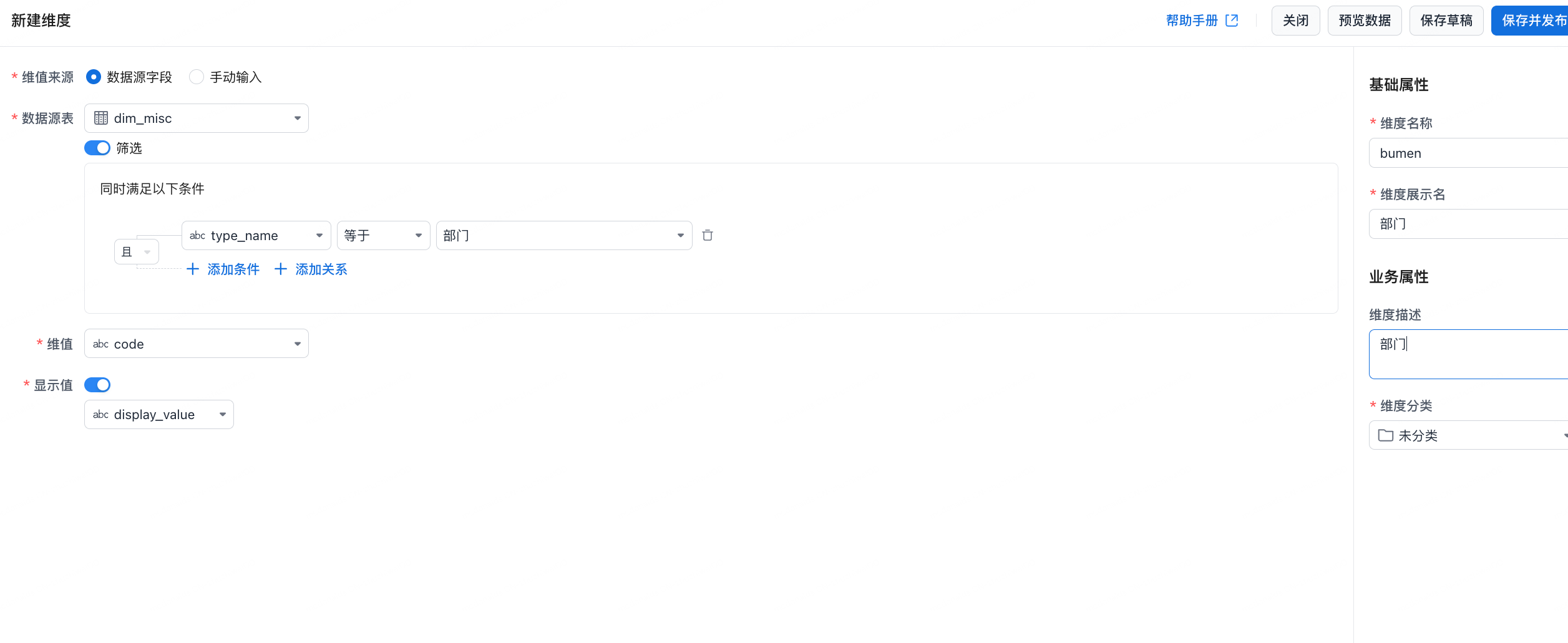
Department Dimension: filter conditiontype_name = 'Department' -
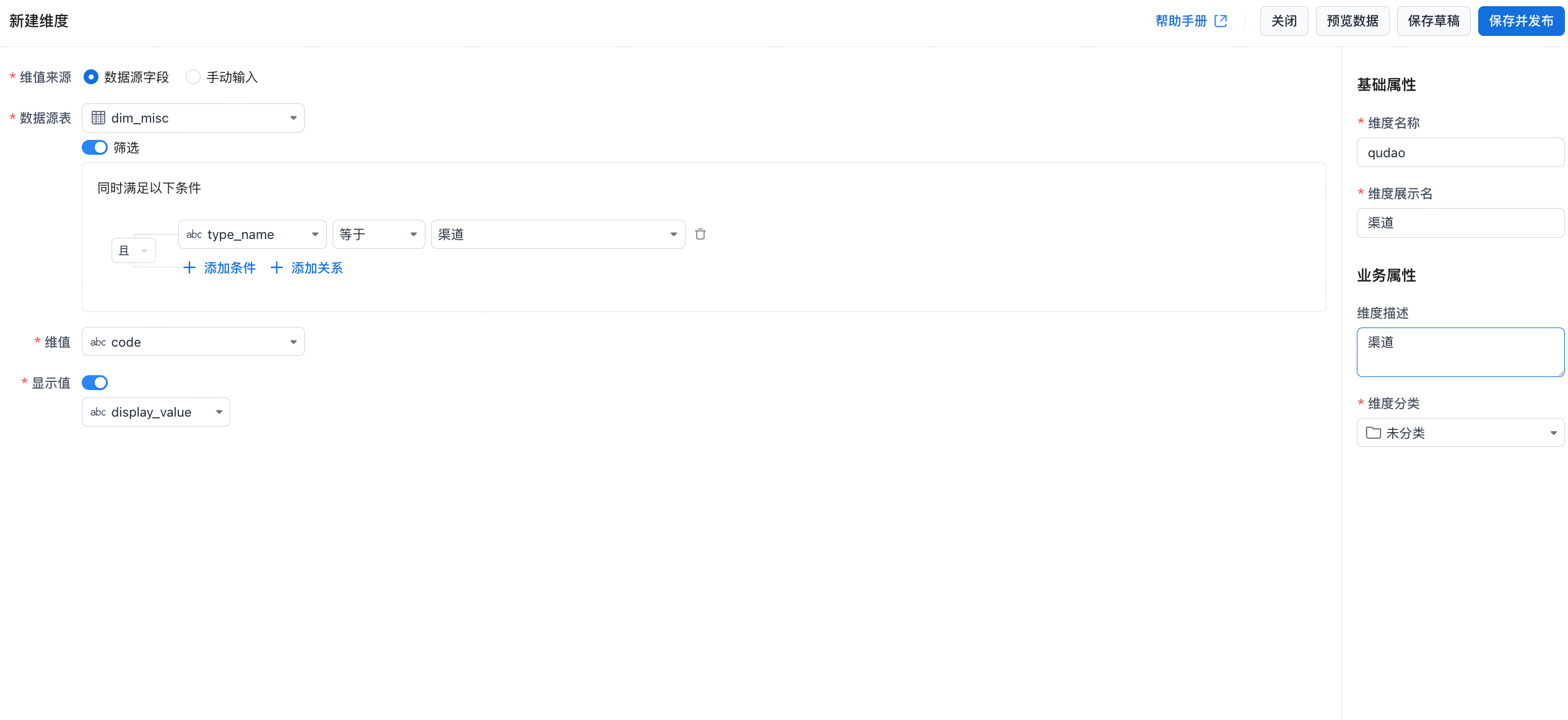
Channel Dimension: filter conditiontype_name = 'Channel' -
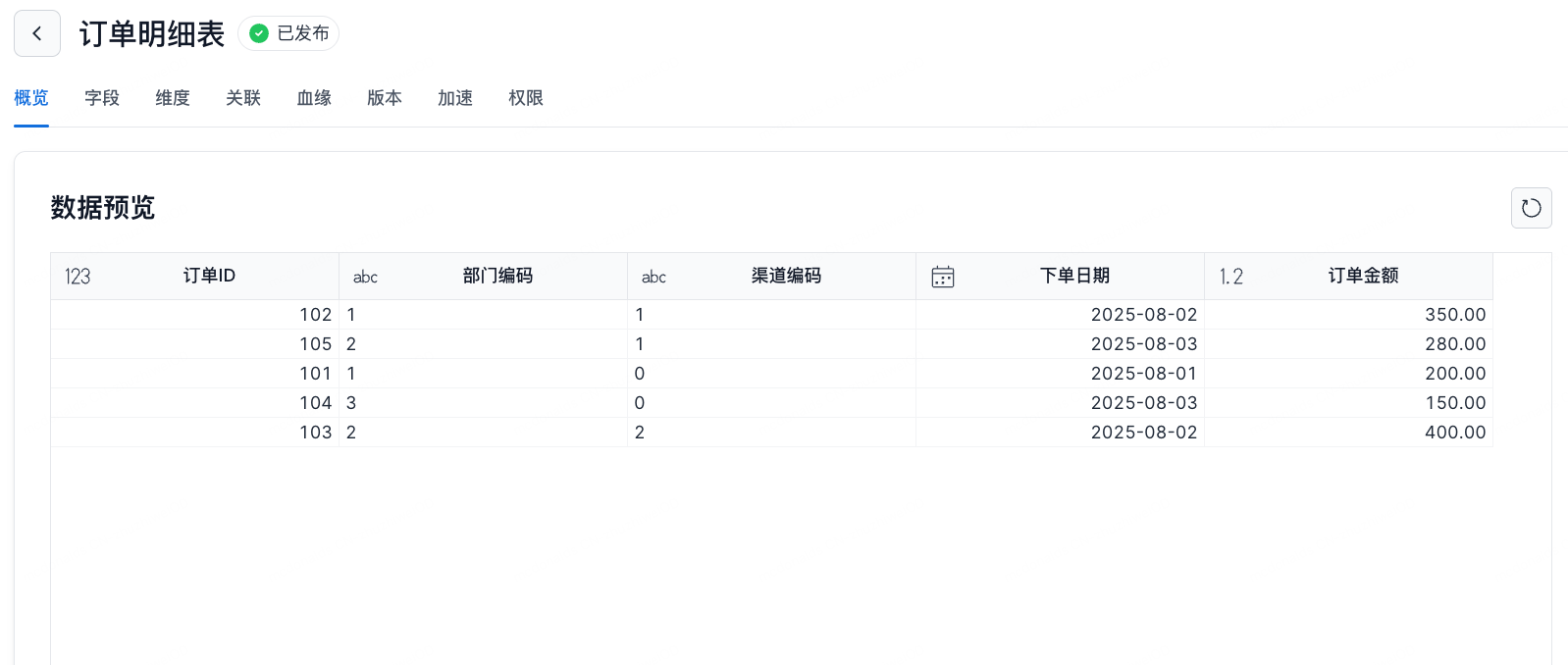
Assume you have the following fact table:
Usage Example
-
Create a miscellaneous dimension.
-
Create a Channel dimension from the dimension table.
-
Create a Department dimension.
-
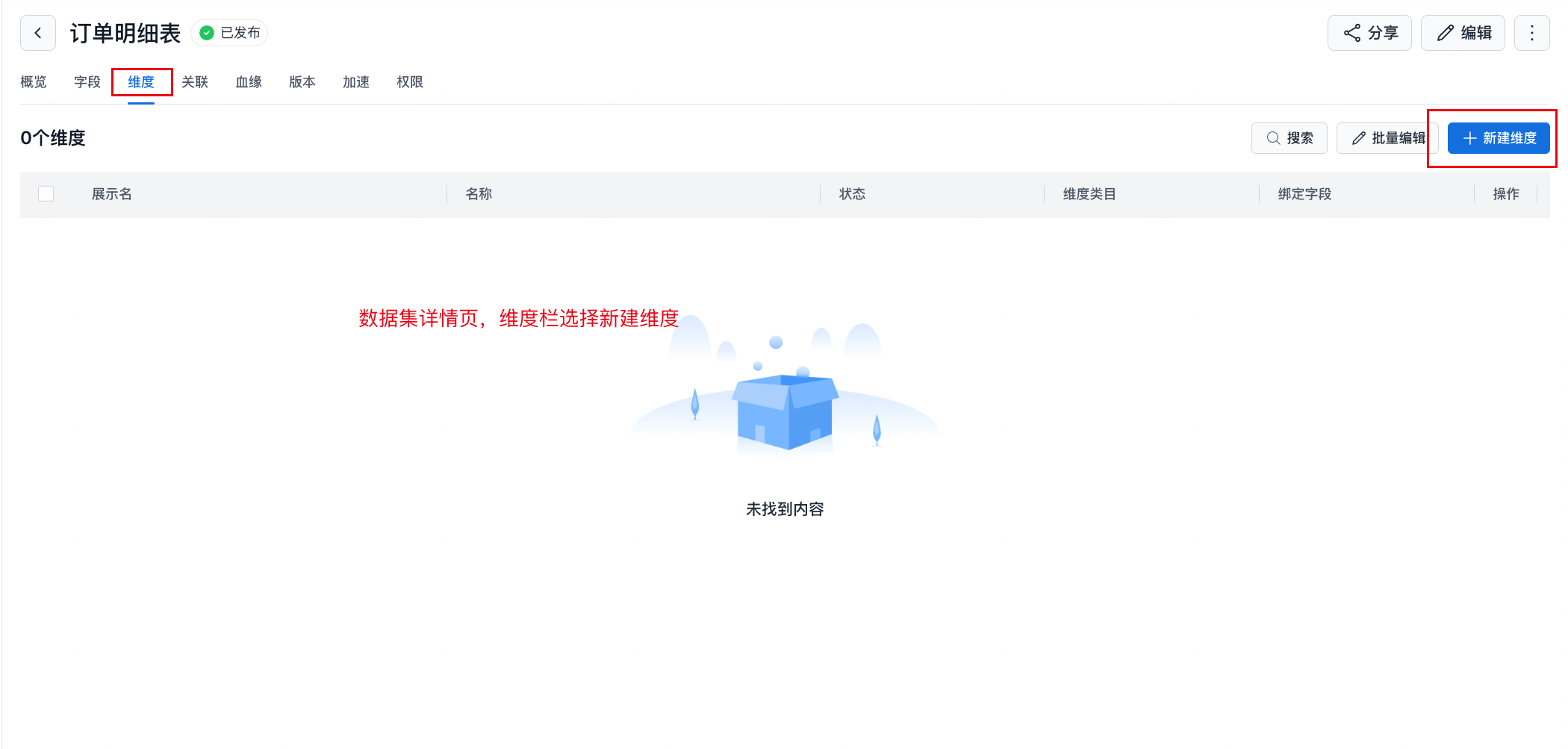
Bind the miscellaneous dimension.
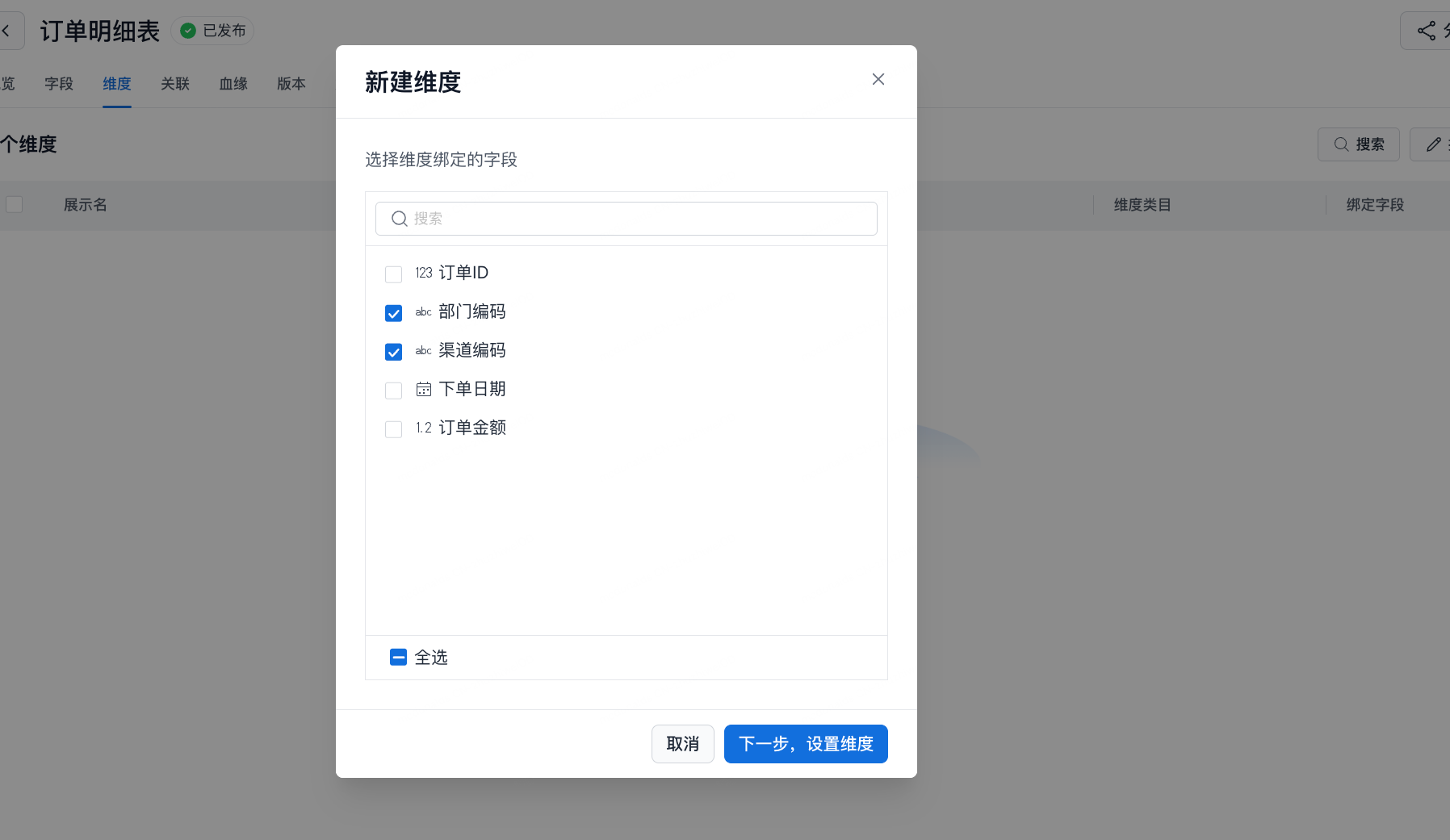
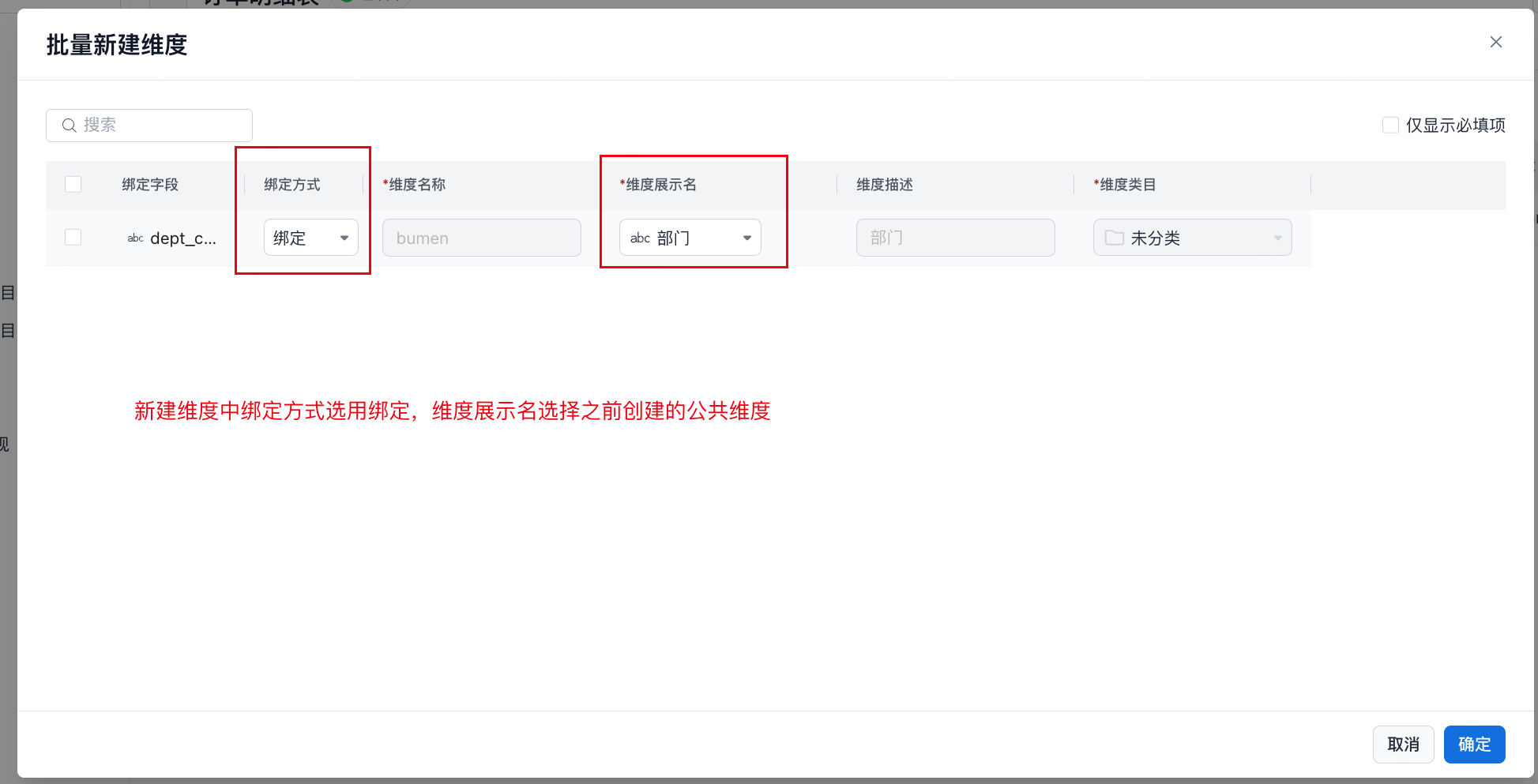
-
Preview dimension details.
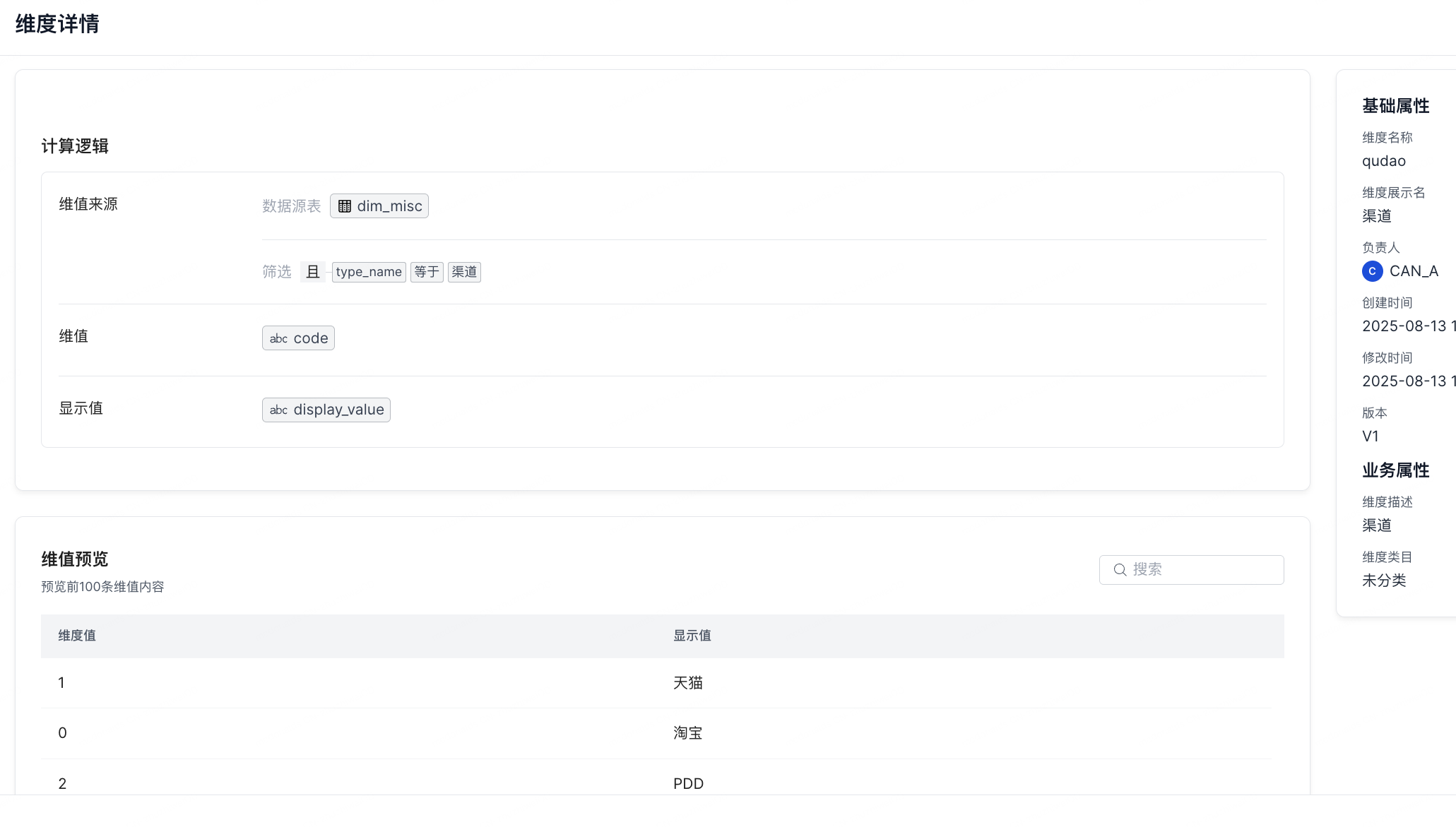
-
View binding information.
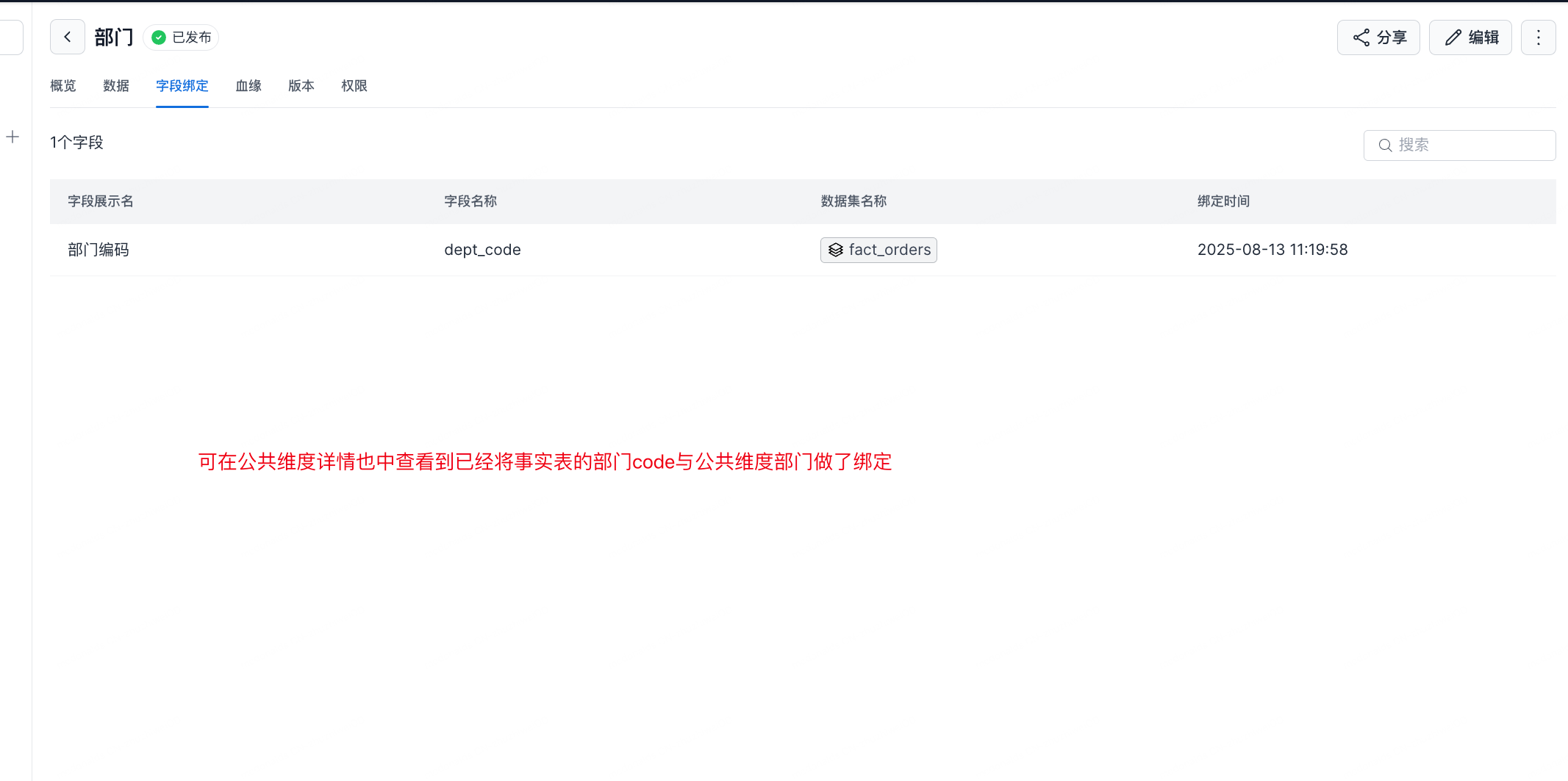
-
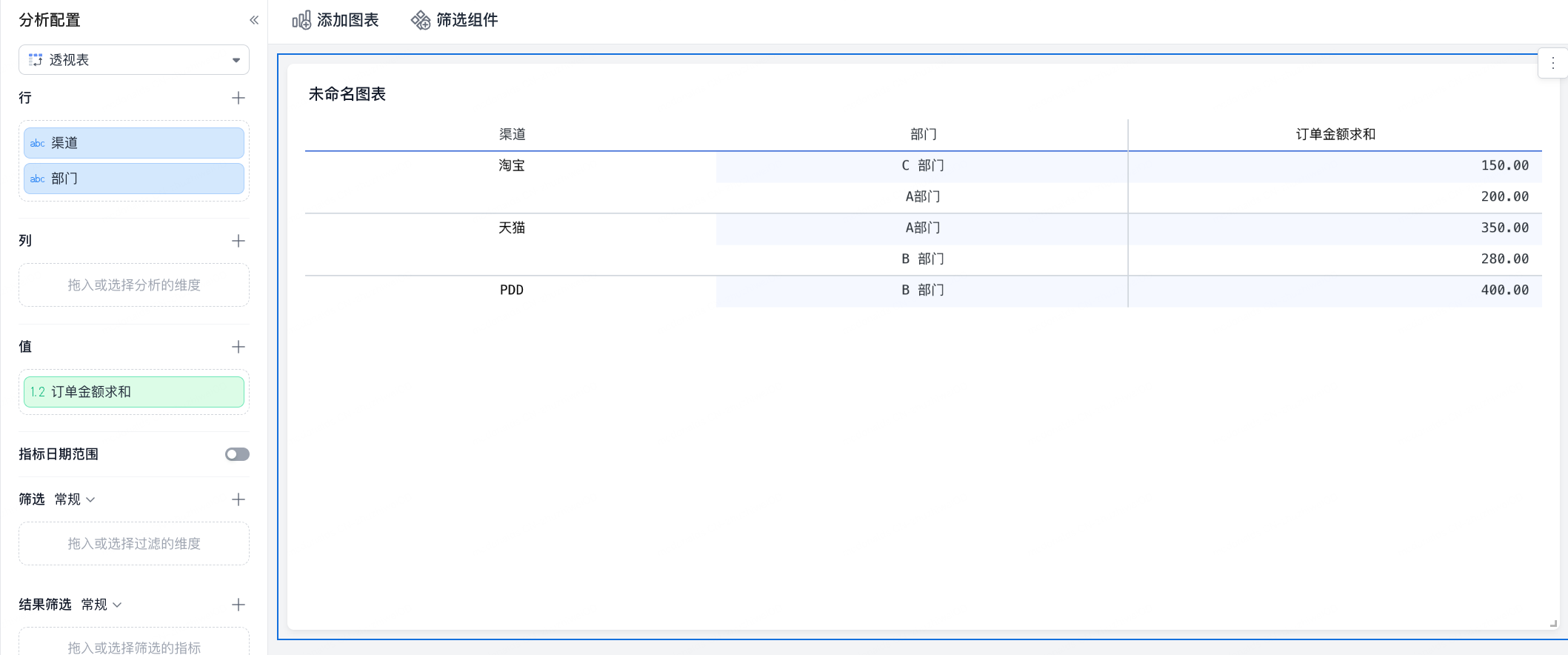
View the query display result.