User Attribute Management
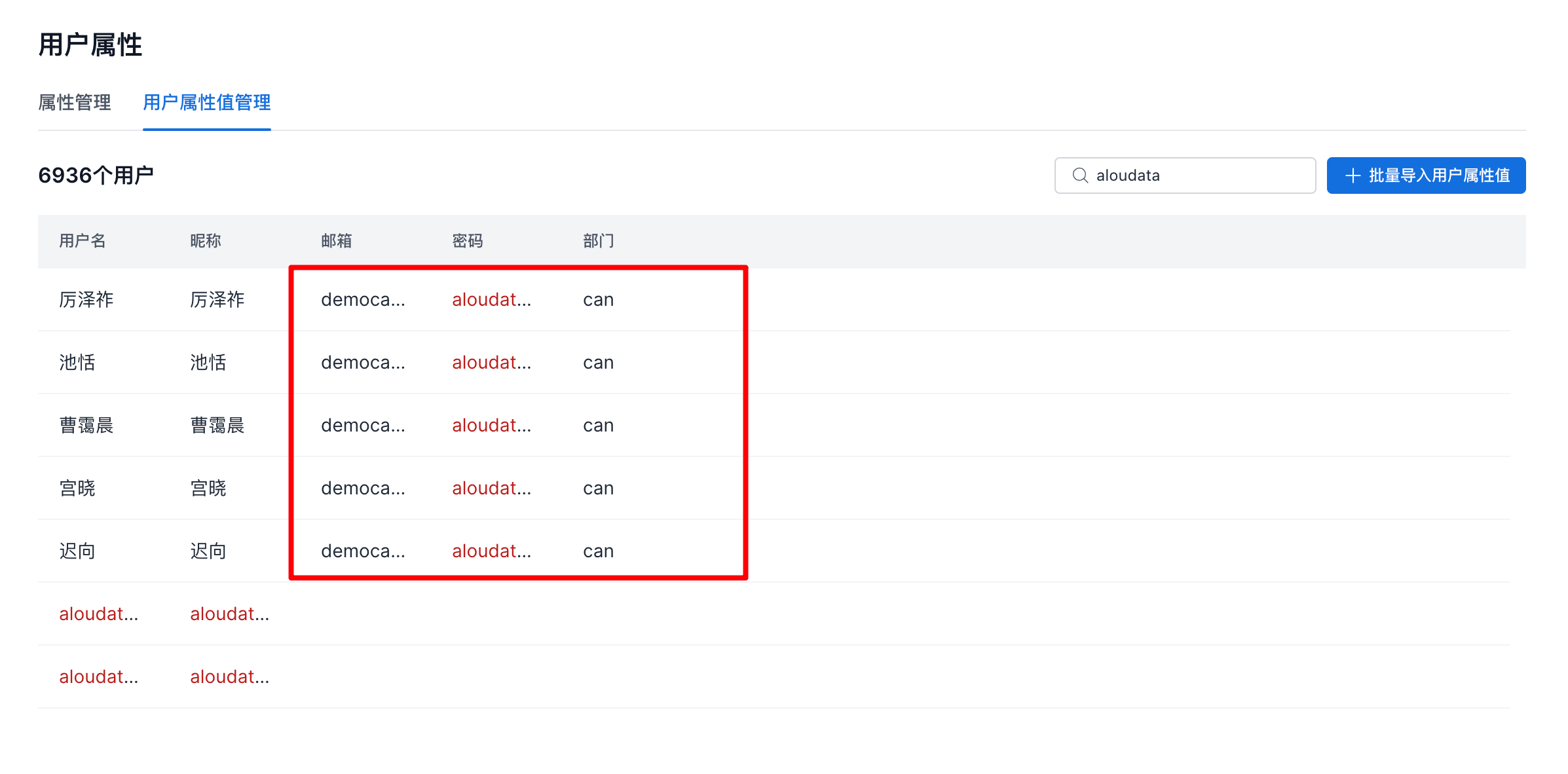
This section describes how to manage user attributes, including adding, editing, and deleting user attributes, and batch updating user attribute values.
Attribute Management
User attributes are used as filter conditions when configuring row-level permissions.
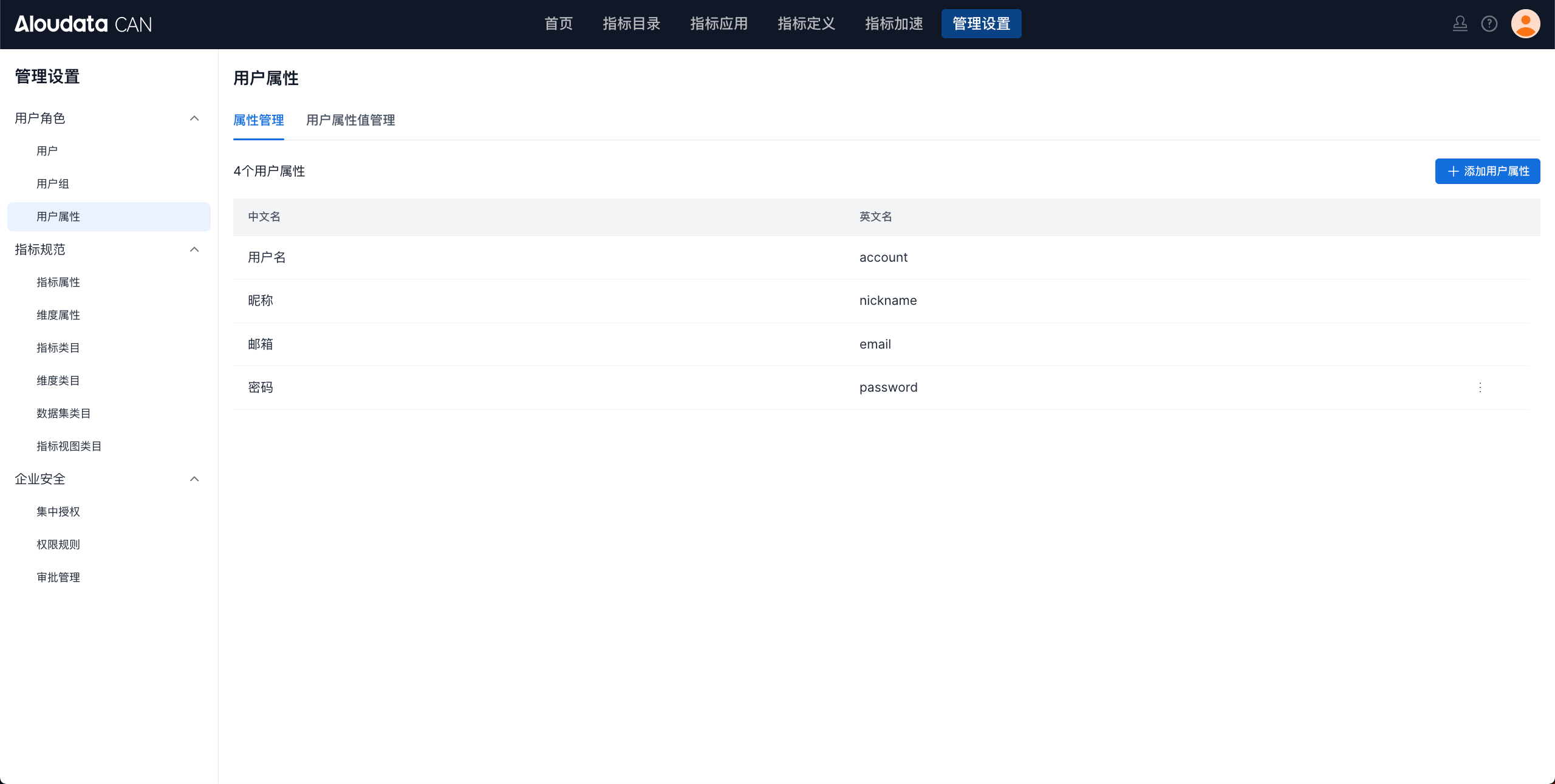
The page displays the user attribute list. The system includes two built-in attributes: username and nickname.
Add a User Attribute
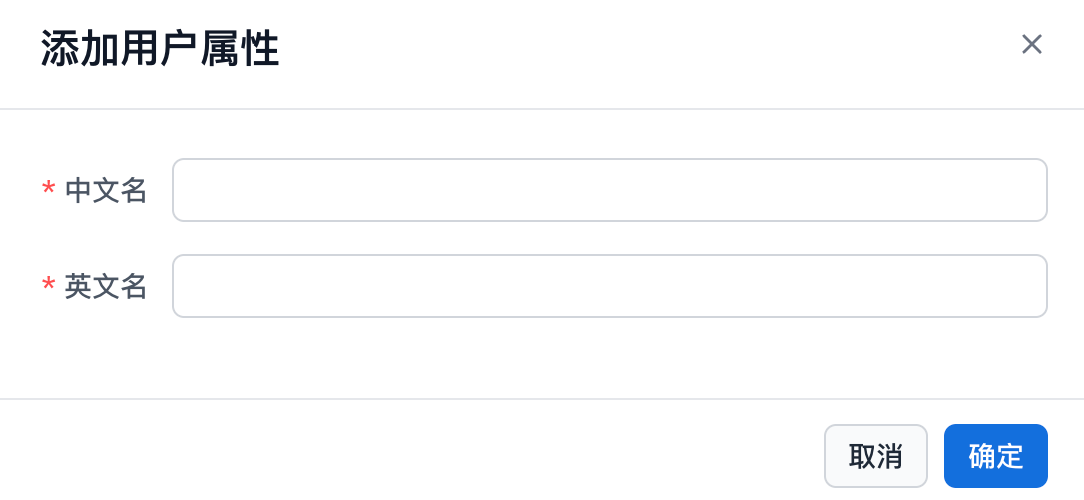
On the user attribute page, click Add User Attribute in the upper-right corner to open the add user attribute window, as shown below.
Edit a User Attribute
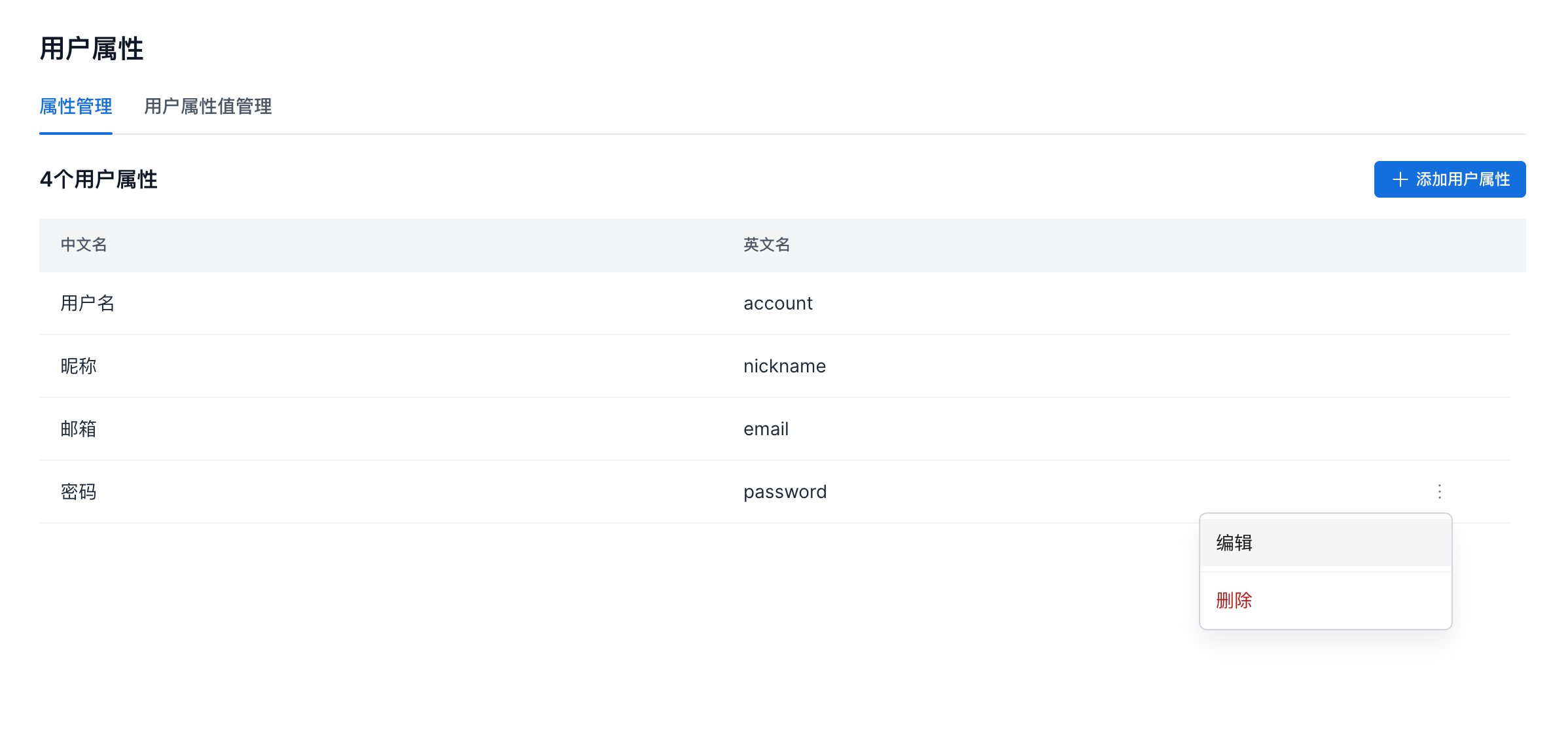
- On the attribute management page, click
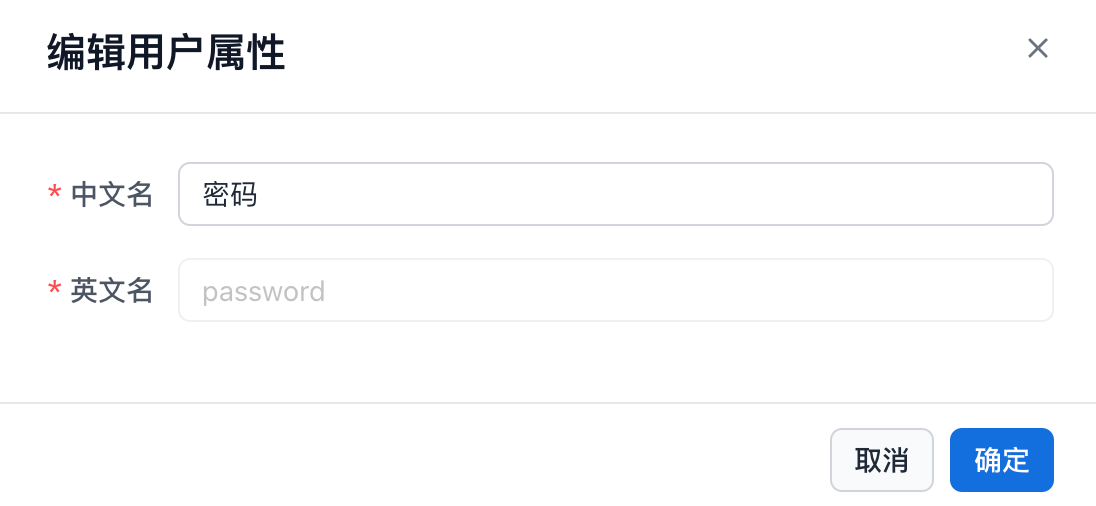
...on the right side of the attribute information, and select Edit, as shown below.
- In the edit attribute dialog, modify the attribute information as needed. Currently, only the display name of a user attribute can be changed.
Delete a User Attribute
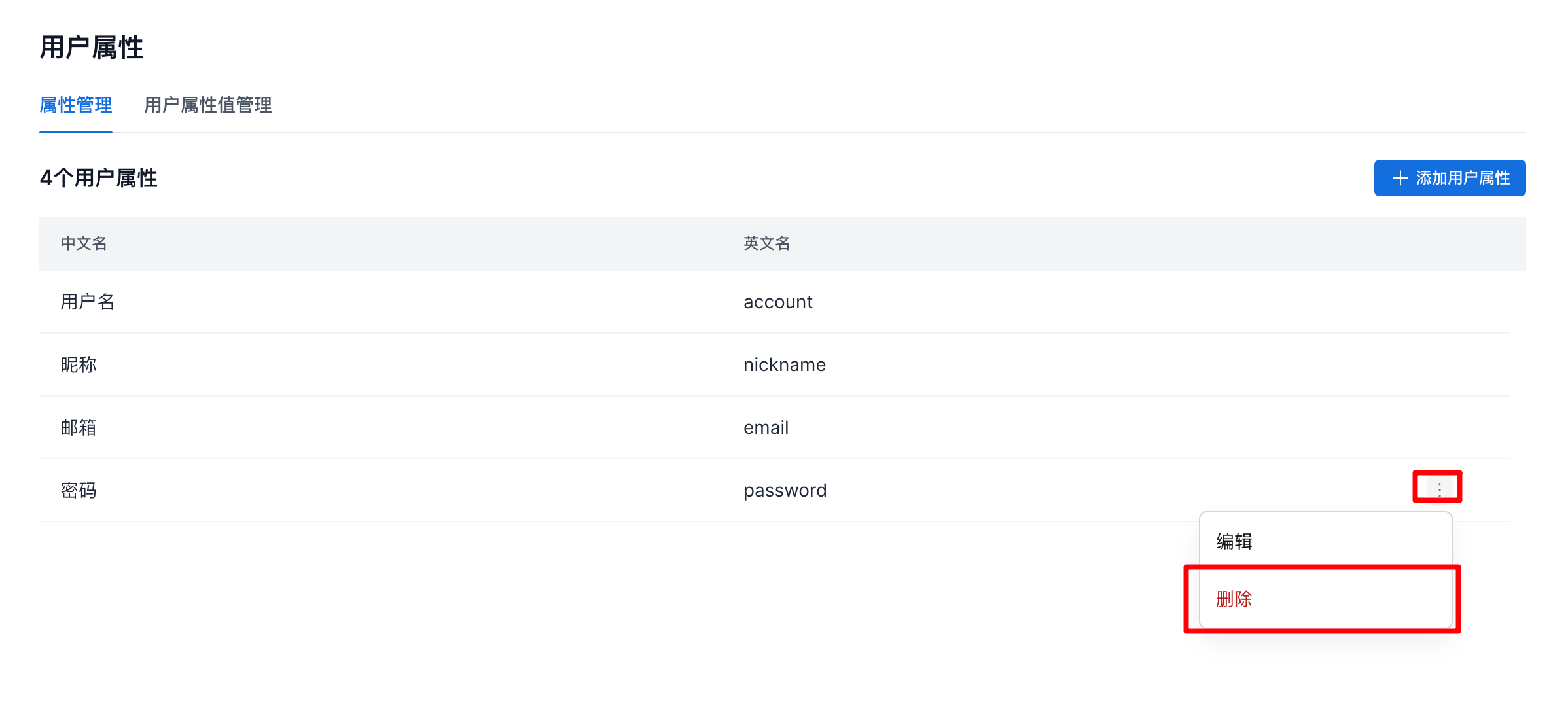
On the attribute management page, click ... on the right side of the attribute information, and select Delete, as shown below.
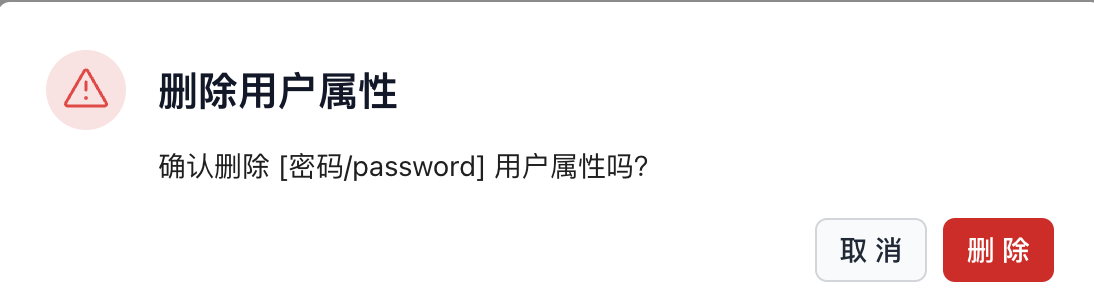
In the dialog, click Delete to delete the attribute, as shown below.
User Attribute Value Management
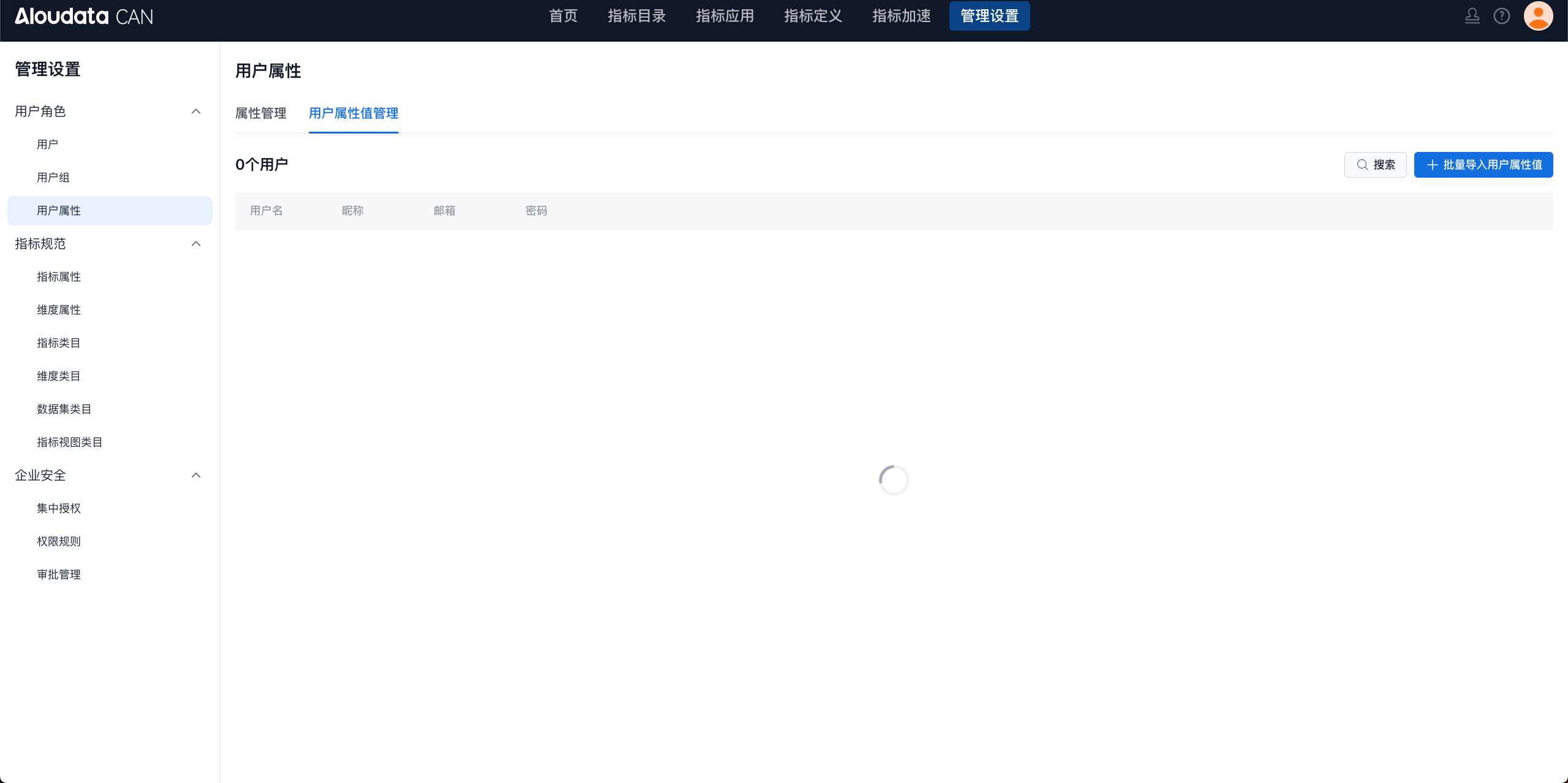
Batch Update User Attribute Values
- On the user attribute management page, click
Batch Import User Attribute Values, as shown below.
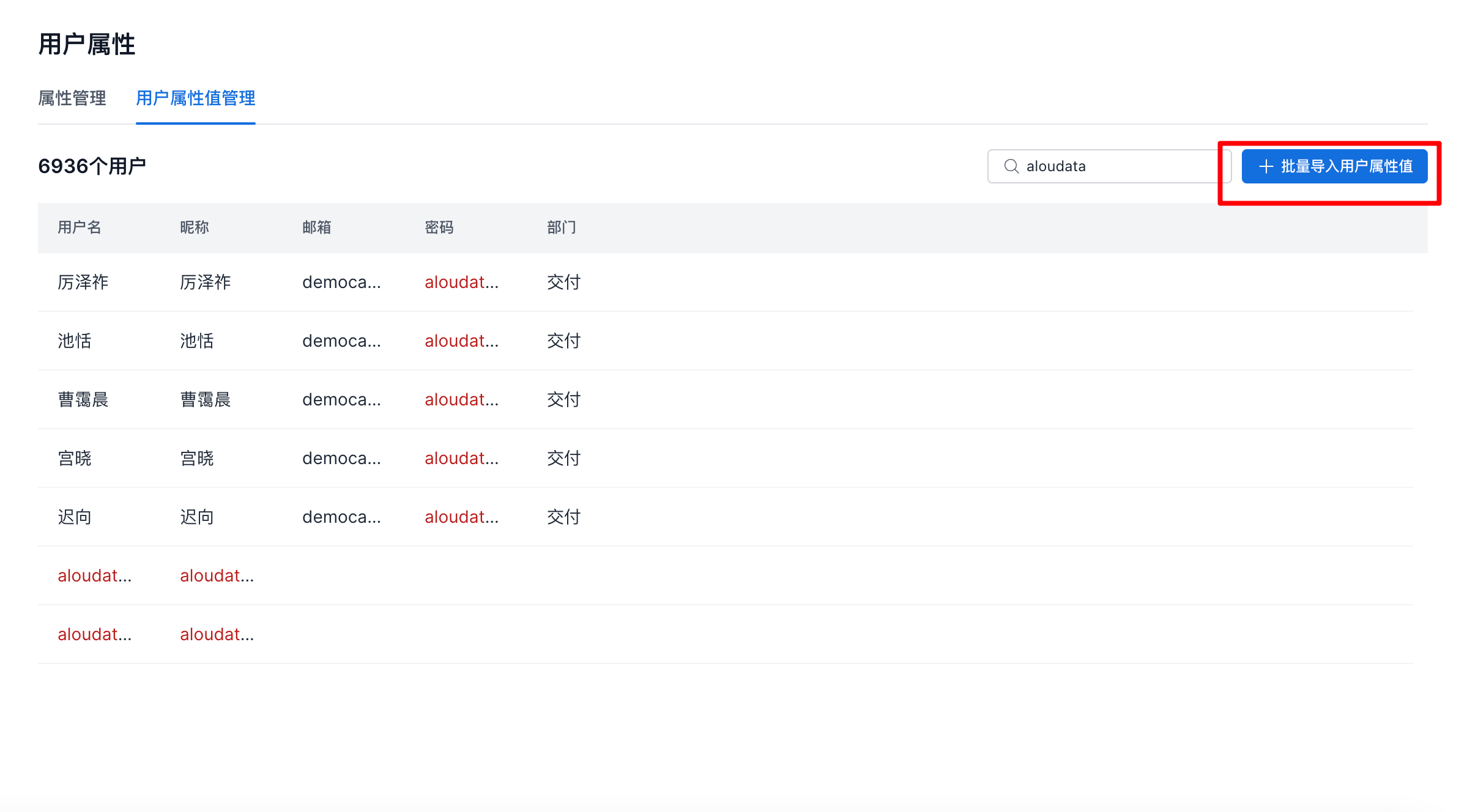
- Download the current attribute file. The downloaded XLS file contains all current user attributes, as shown below.
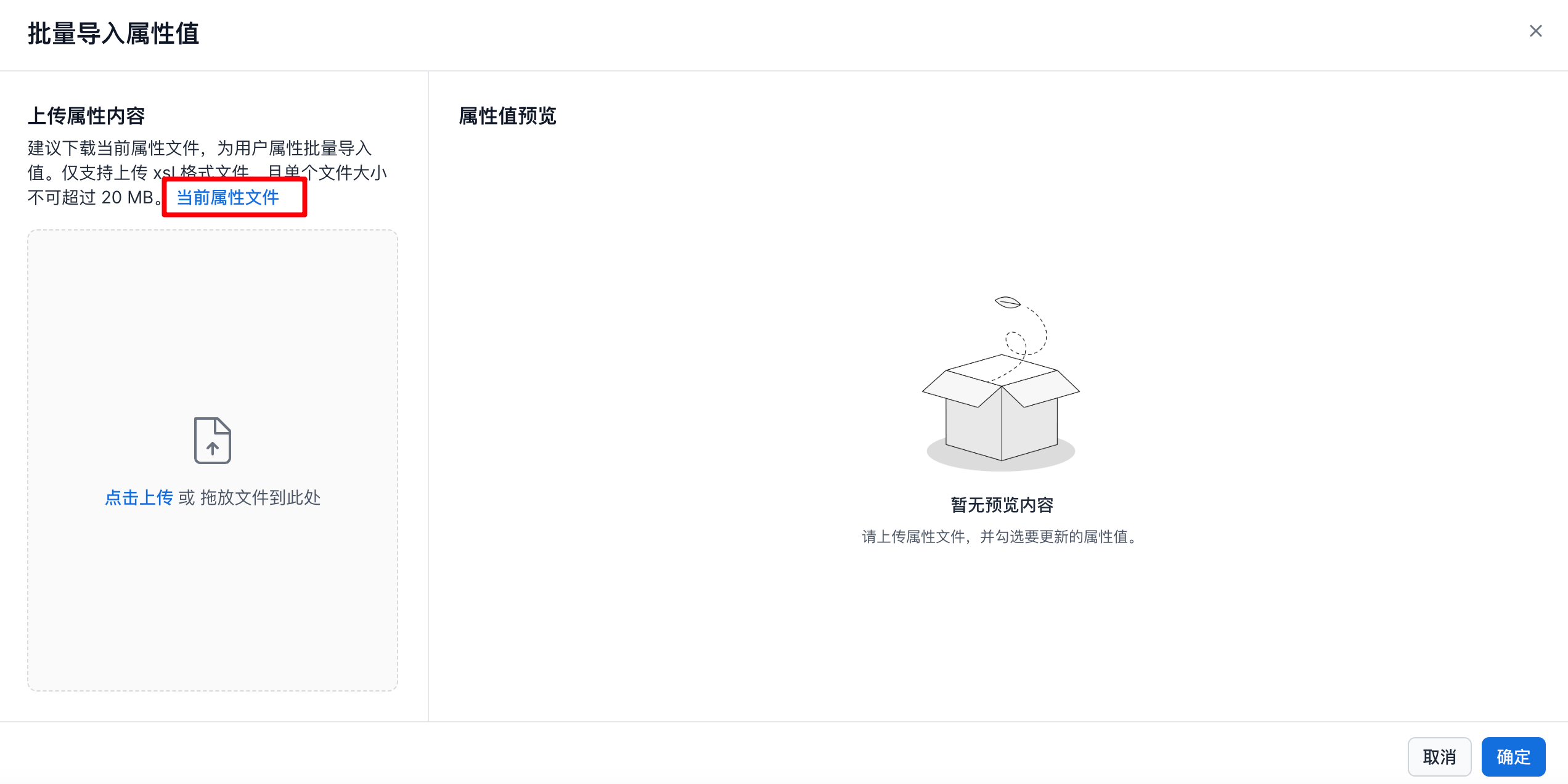
- Update the attribute values in the file as needed. An example is shown below.
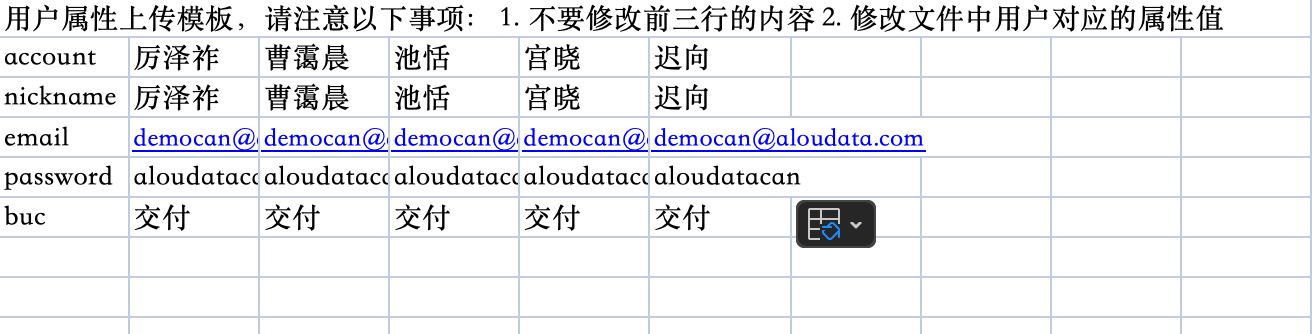
-
After the user uploads the file, the system parses the file content. Select the user attribute values to update. In the example below,
passwordandbucare selected. -
Attributes are matched by their English names.
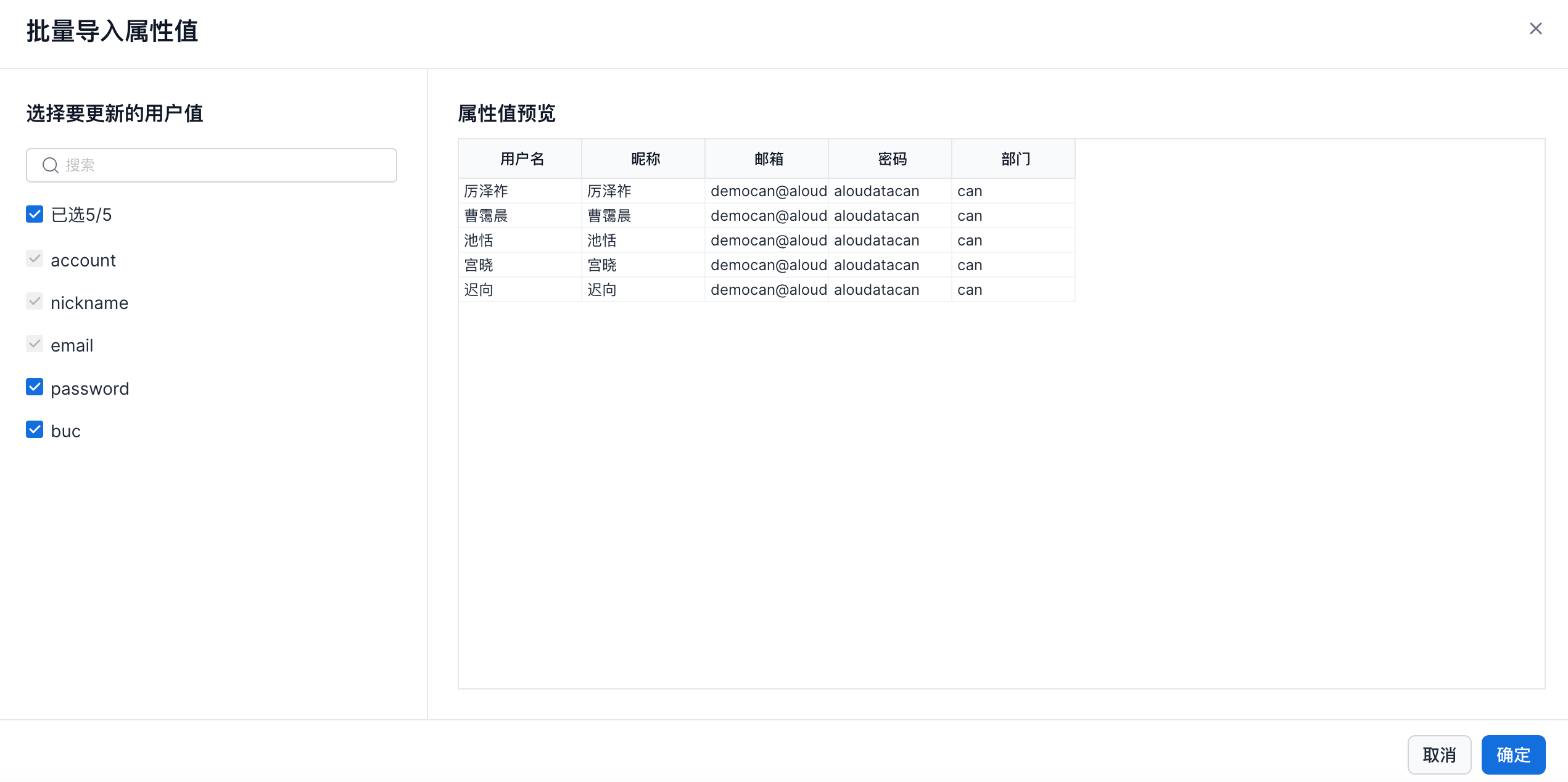
- Click Confirm to update the selected users' attribute values, as shown below.