Upload Local Files
This page explains how to upload local files into the metric platform. Currently, only csv and text files are supported. Excel files are not supported.
Upload Entry
In the top navigation, select Metric Definition -> Data Source. In the data source list, click File Upload. On the file upload list page, click Upload File in the upper-right corner.
Format Requirements
- Supported file types:
csvandtext. - Encoding:
utf-8andgbk. - Delimiters: comma, vertical bar, tab, space, and semicolon.
Upload Steps
-
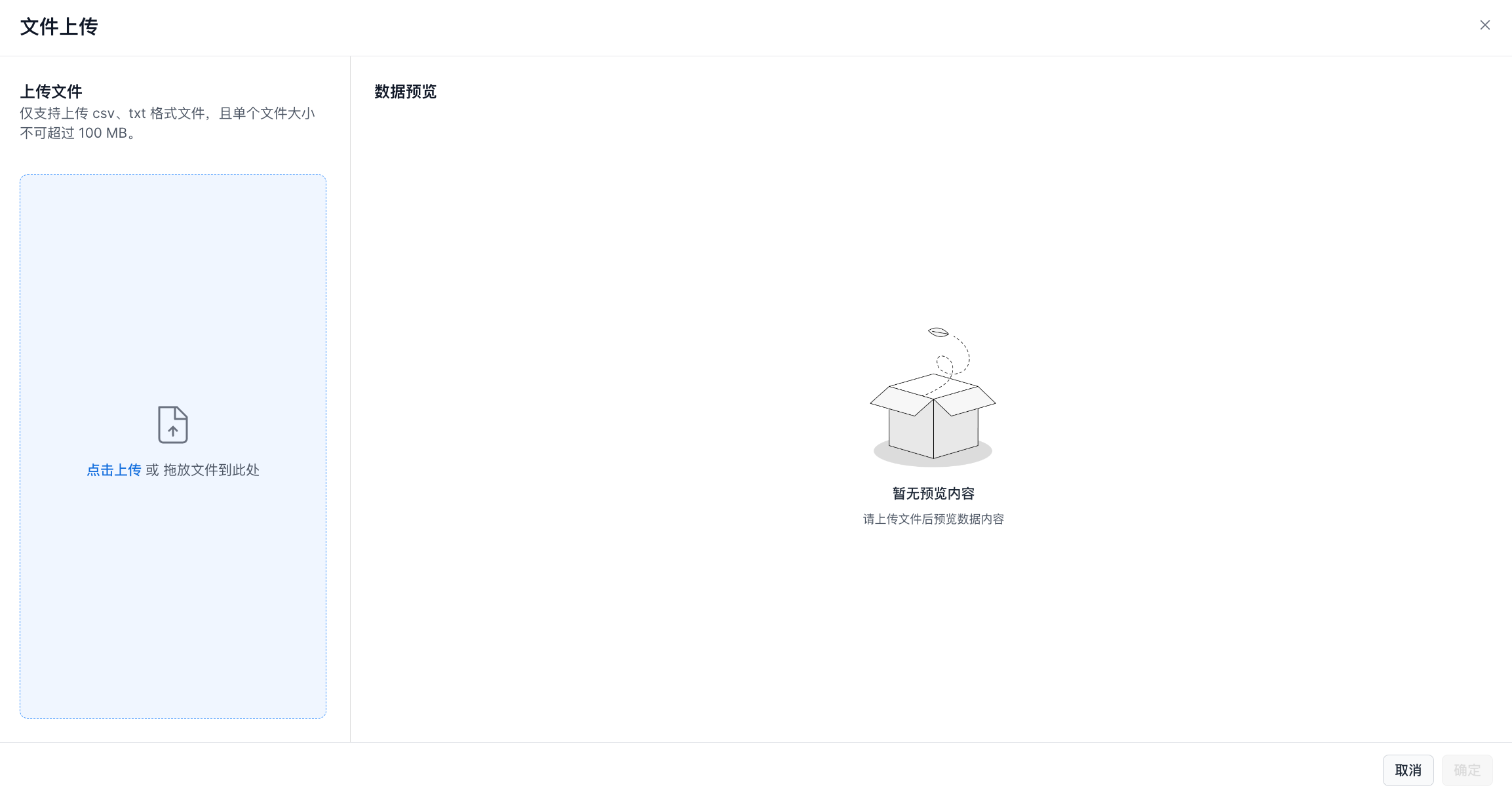
In the upload window, click Click to upload or drag files here, then select a local file in the dialog.
-
Select the delimiter, encoding, and whether the first row should be used as field display names. You can preview the data on this page.
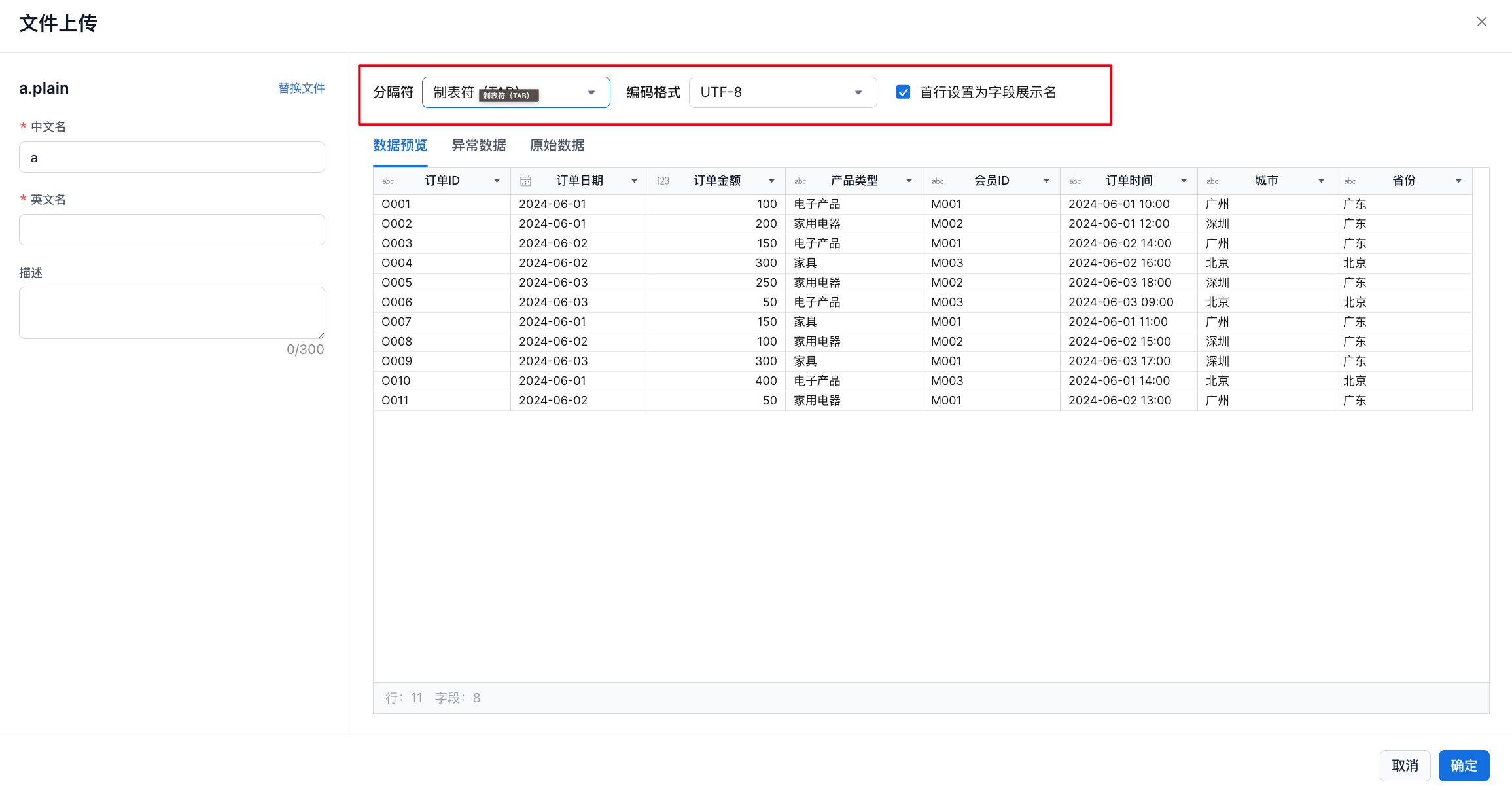
- Fill in the Chinese name, English name, and description, then click OK to complete the upload. The uploaded file appears in the list.
File Upload List
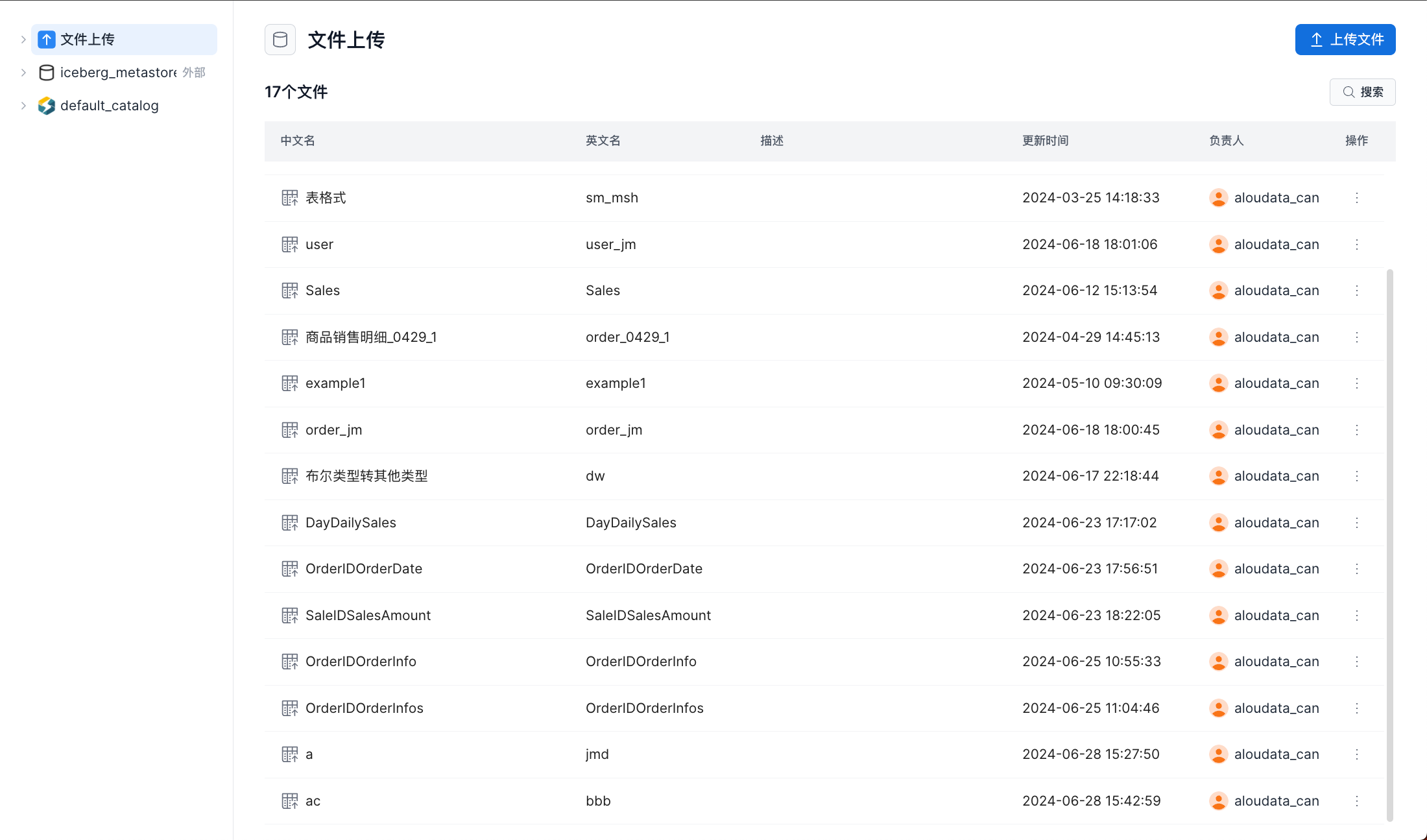
The Data Source module contains a File Upload section. Click the section to open the file list.
| Field | Description |
|---|---|
| Chinese name | The Chinese name of the file. |
| English name | The English table name created in the database for the file. |
| Description | File description. This information is not written to the database. |
| Updated at | The update time of the file, based on the table update time. This changes when a file is appended or deleted. |
| Owner | The user who created the uploaded file. |
Users with access to this module can view the full file list. When creating a dataset, the list only shows files that the user has permission to use.
File Details
Click a file name in the file list to open the file details page.
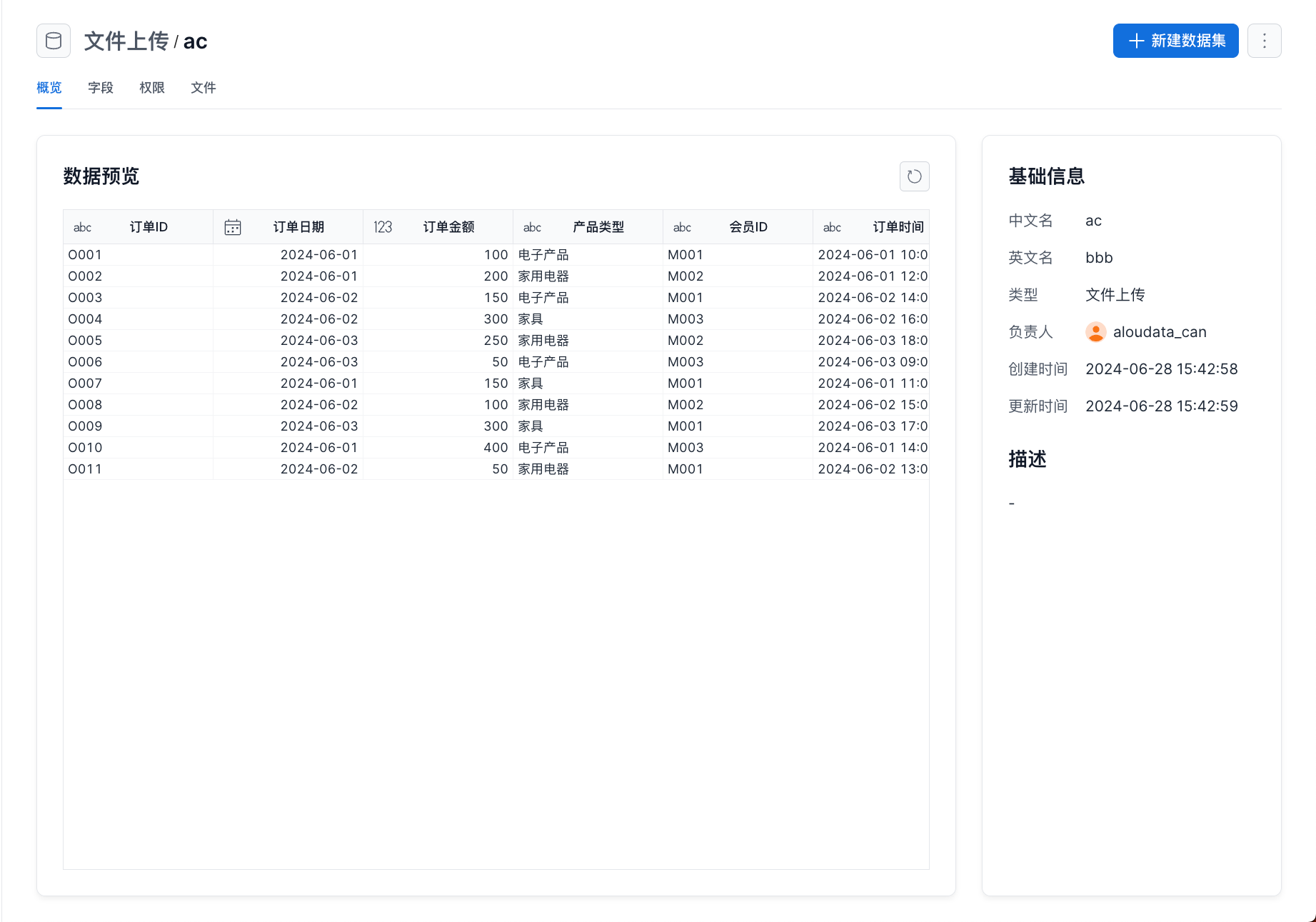
| Tab | Description |
|---|---|
| Overview | Data preview. If the user does not have permission to use the file, the user cannot view data in the preview. |
| Fields | Shows the uploaded file's field list, including field display names and data types. |
| Files | Shows the list of uploaded files.  |
| Permissions | Administrators can append or delete files and update the Chinese name or description. Users can use the file's table to create datasets. |
Append Files
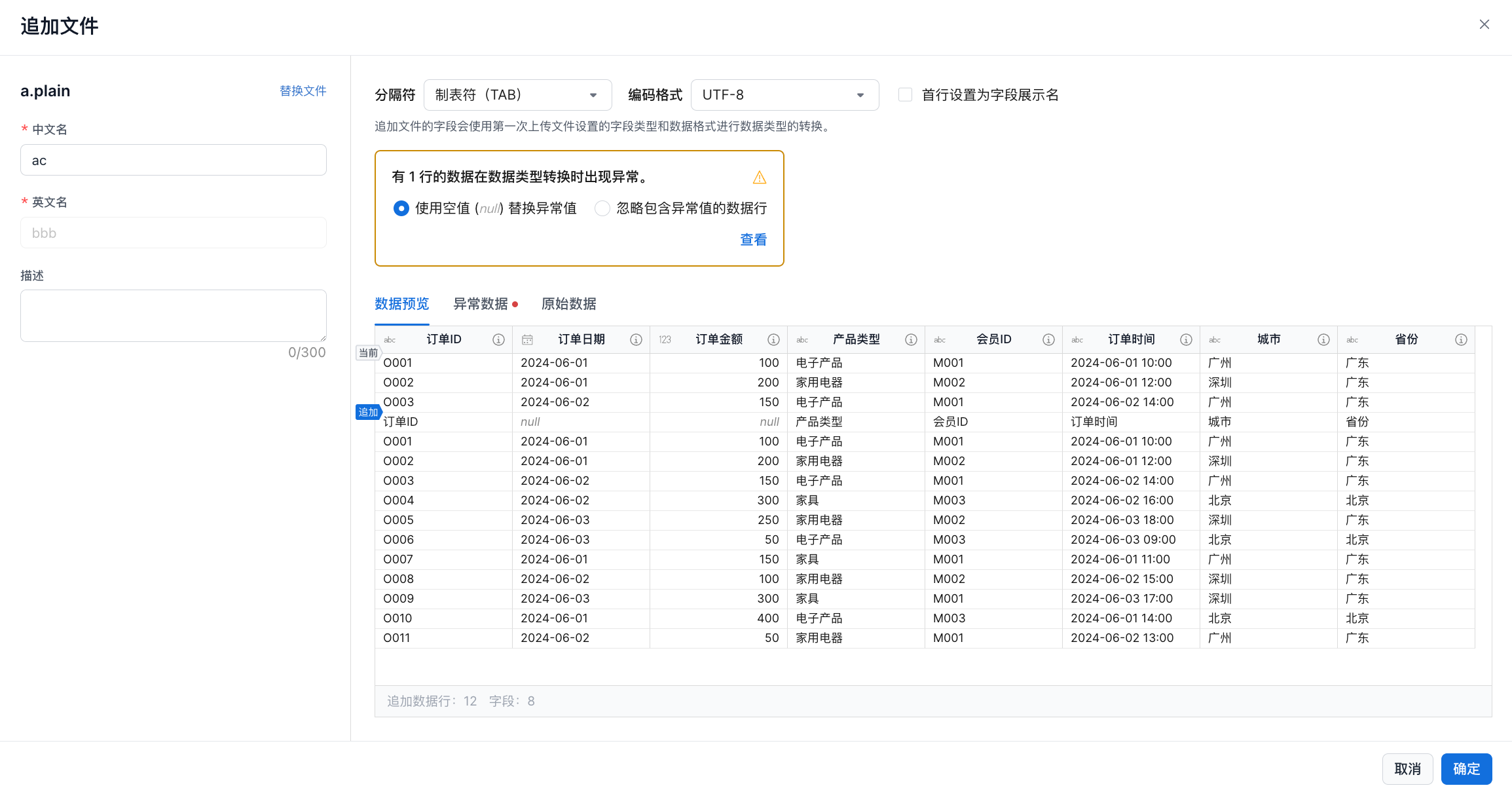
On the file details page, select Files, then click Append File. In the dialog, select the file you want to upload.
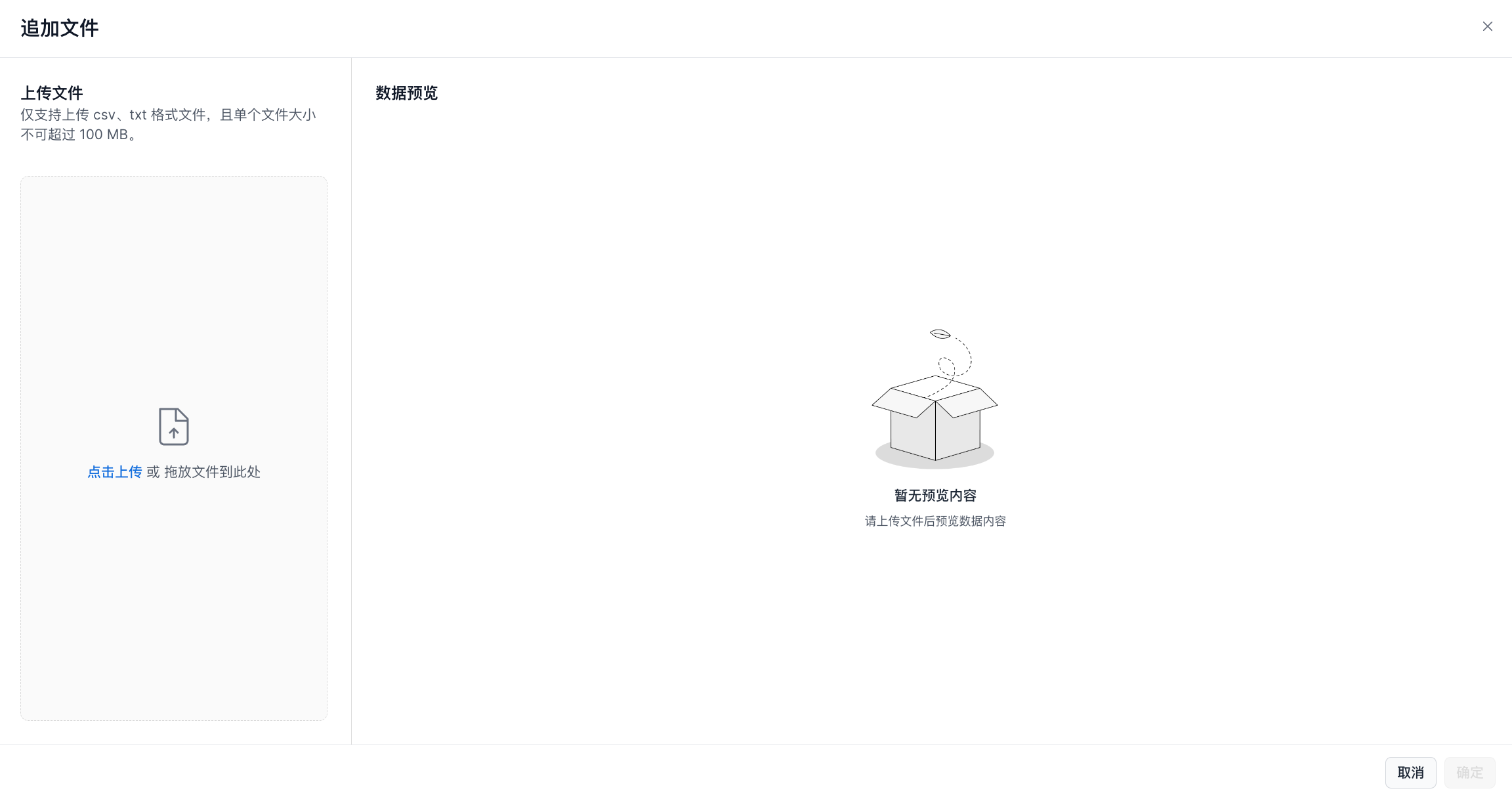
After adding the appended file, you can update the Chinese name, delimiter, and encoding. These settings only apply to the file being appended. Select Use first row as field display name if needed.