Bulk Upload Metrics
Aloudata CAN supports importing metrics from Excel, so you can create metrics in bulk. This topic describes how to import metrics.
Steps
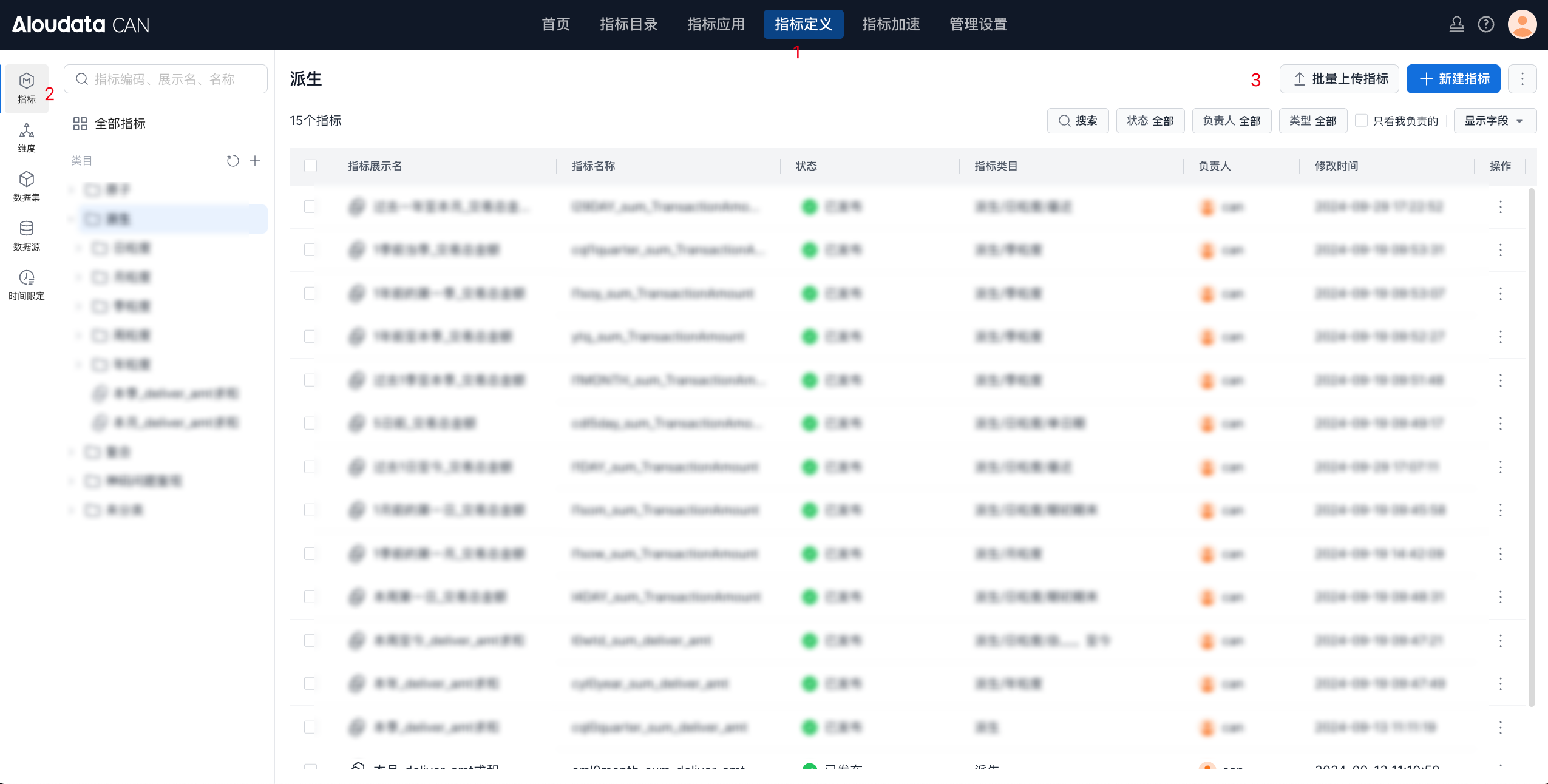
On the Aloudata CAN home page, click Metric Definition in the top navigation bar, then select Metrics in the left menu. In the upper-right corner, click Bulk Upload Metrics.
Download the Template
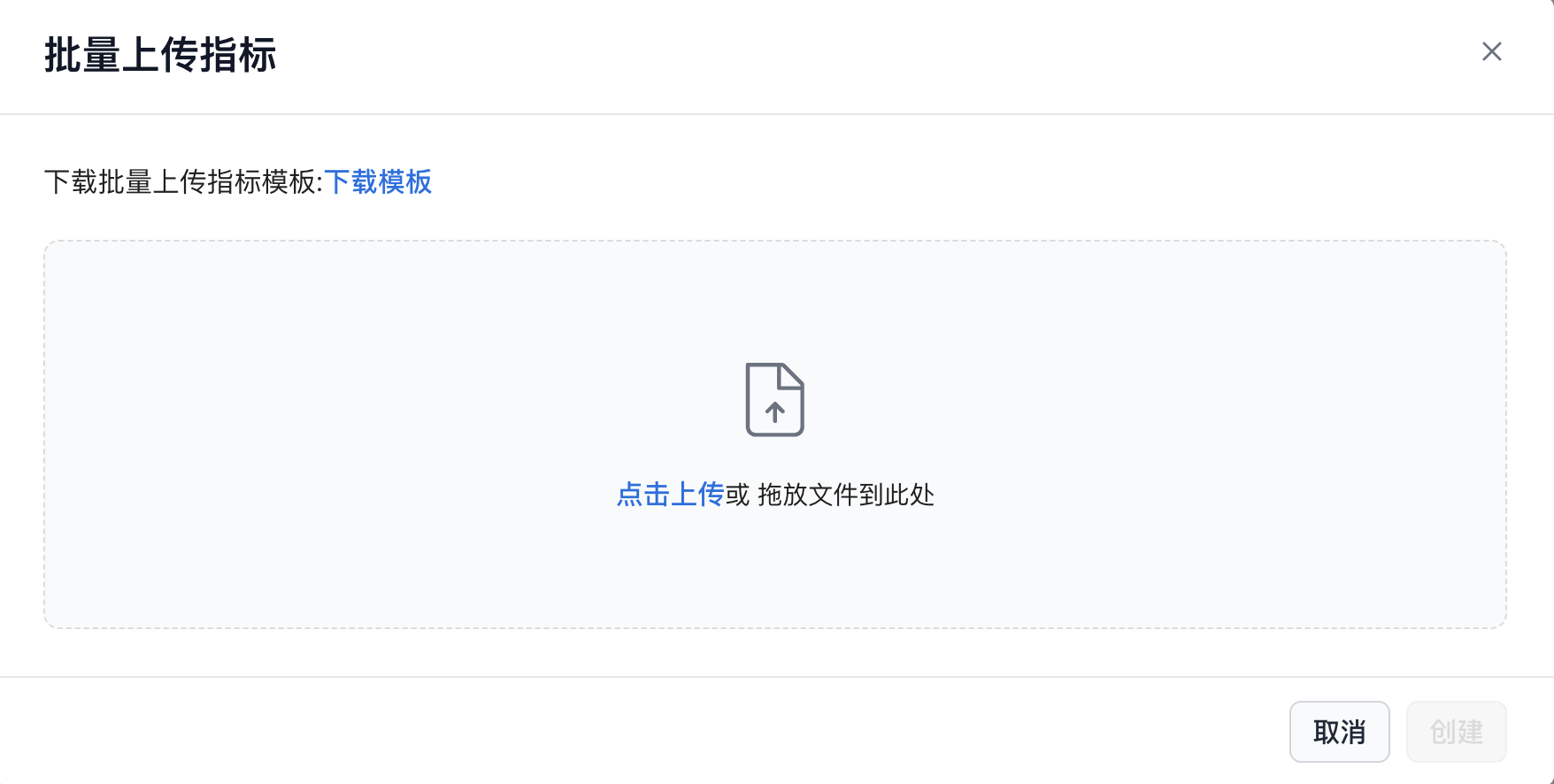
In the Bulk Upload Metrics window, click Download Template as shown below to download the template locally.
Fill in the Template
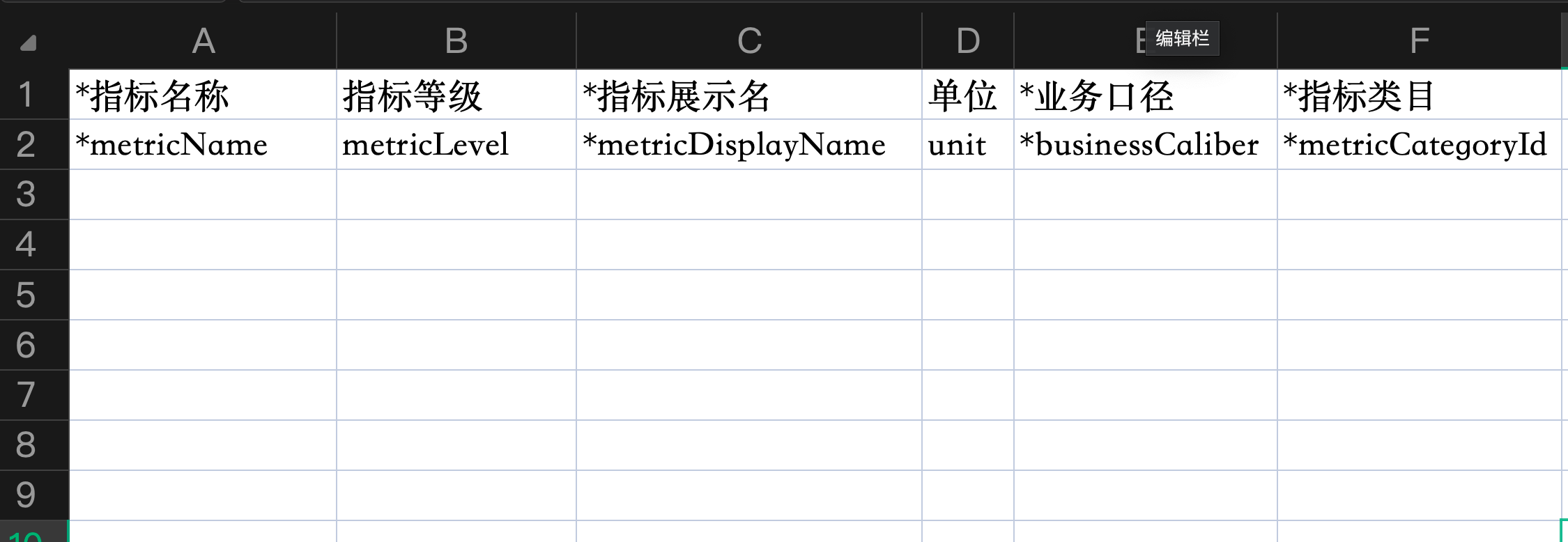
Enter data in the downloaded template, starting from the third row.
Tip
For Metric Category, specify the name of a category that already exists in the platform. You only need to provide the category name and do not need to include the multi-level category path. If multiple categories have the same name, the system randomly assigns the metric to one matching category.
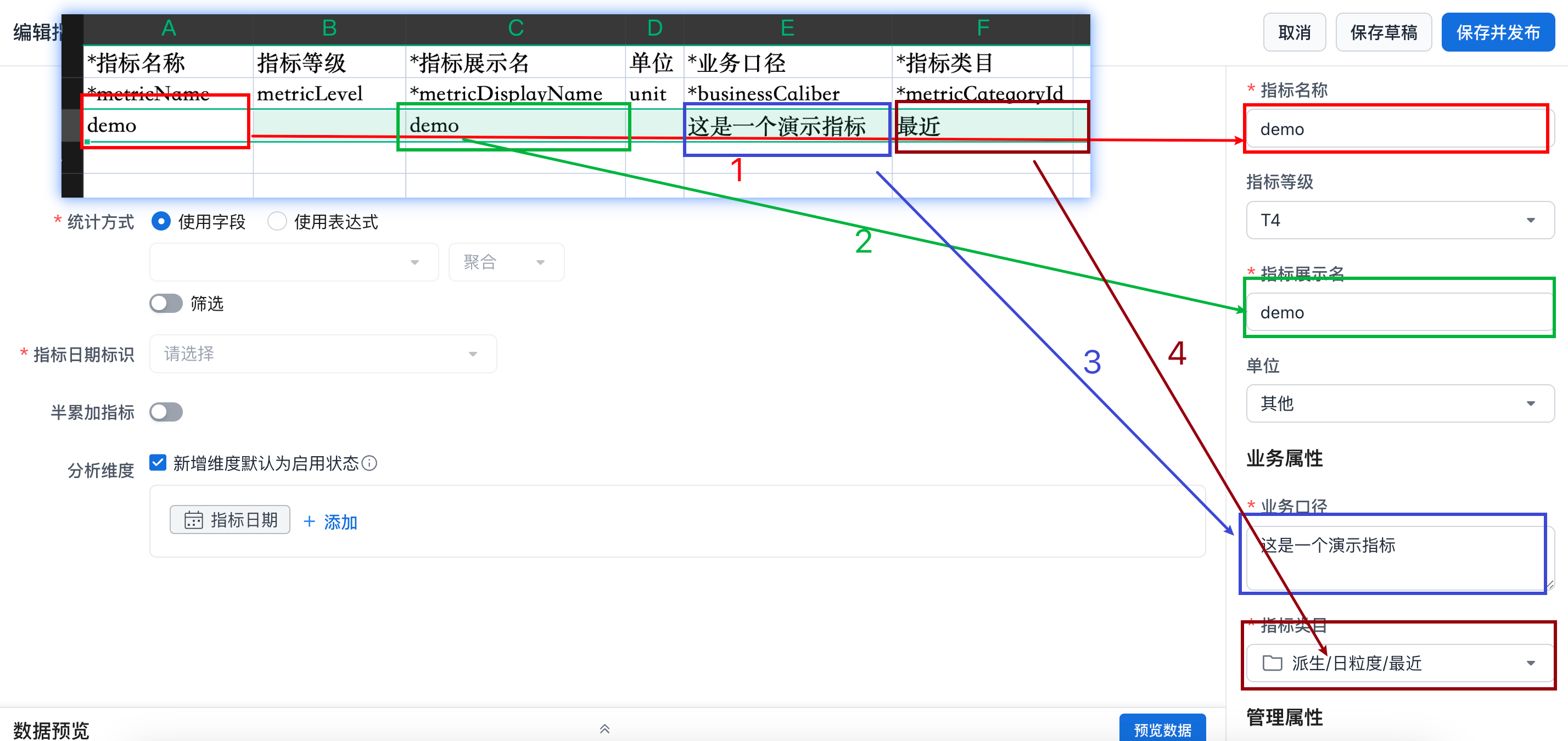
The mapping between template fields and metric properties is shown below. Properties marked with an asterisk are required.
Upload Metrics
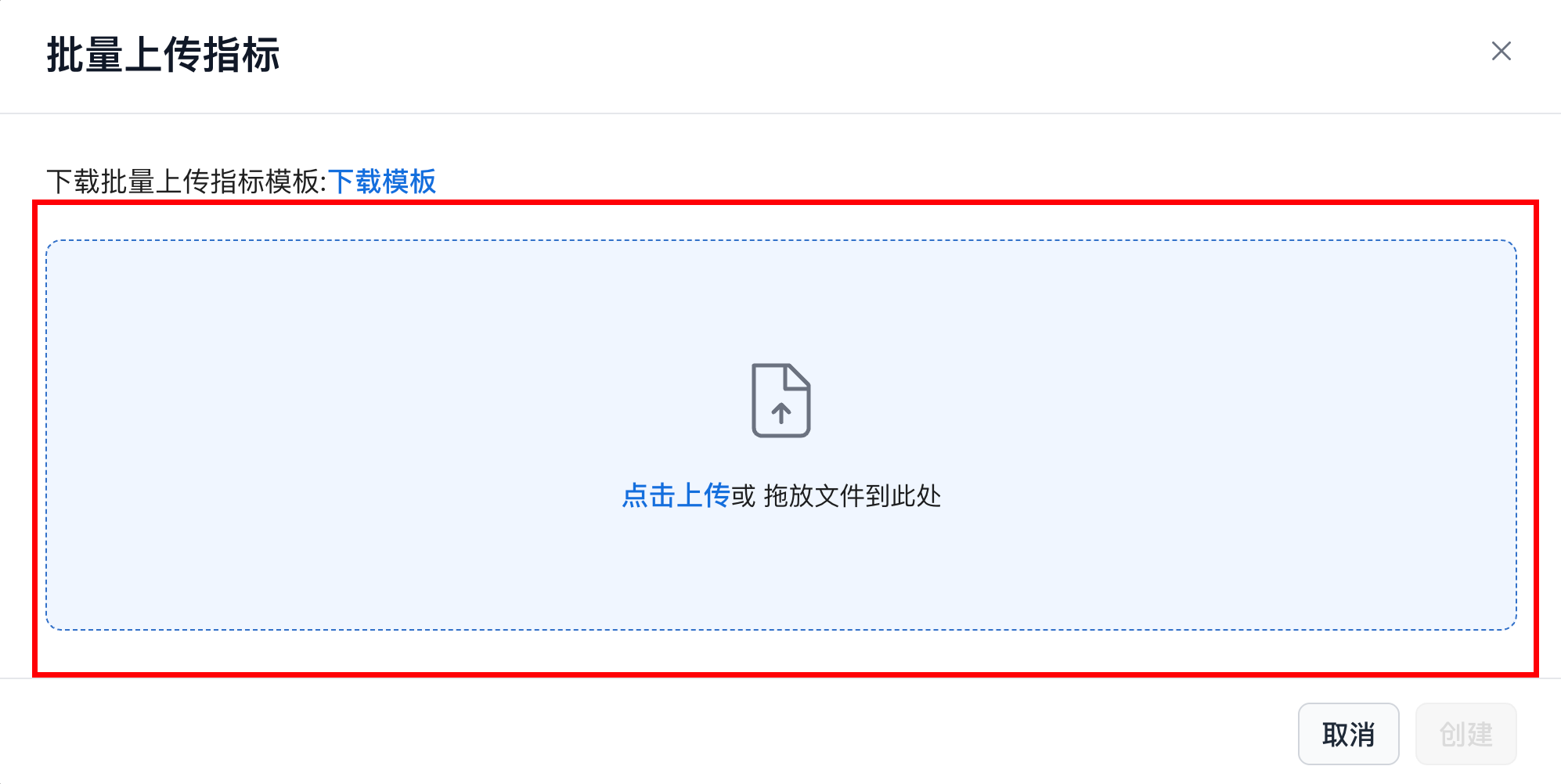
In the Bulk Upload Metrics window, upload the file by clicking the upload area or dragging the file into it.
Complete Creation
After the metrics are recognized successfully, click Create in the lower-right corner to complete the upload.

After creation, the newly created metrics are displayed in the metric list. At this point, each metric is in Draft status. Edit and publish the metrics before making them available online. For more details, see Create a Metric.