Configure Dataset Relationships
Overview
In Aloudata CAN, you can define relationships between datasets to expand the dimensions available for fact table analysis or to support shared-dimension analysis across multiple fact tables.
Key Concepts
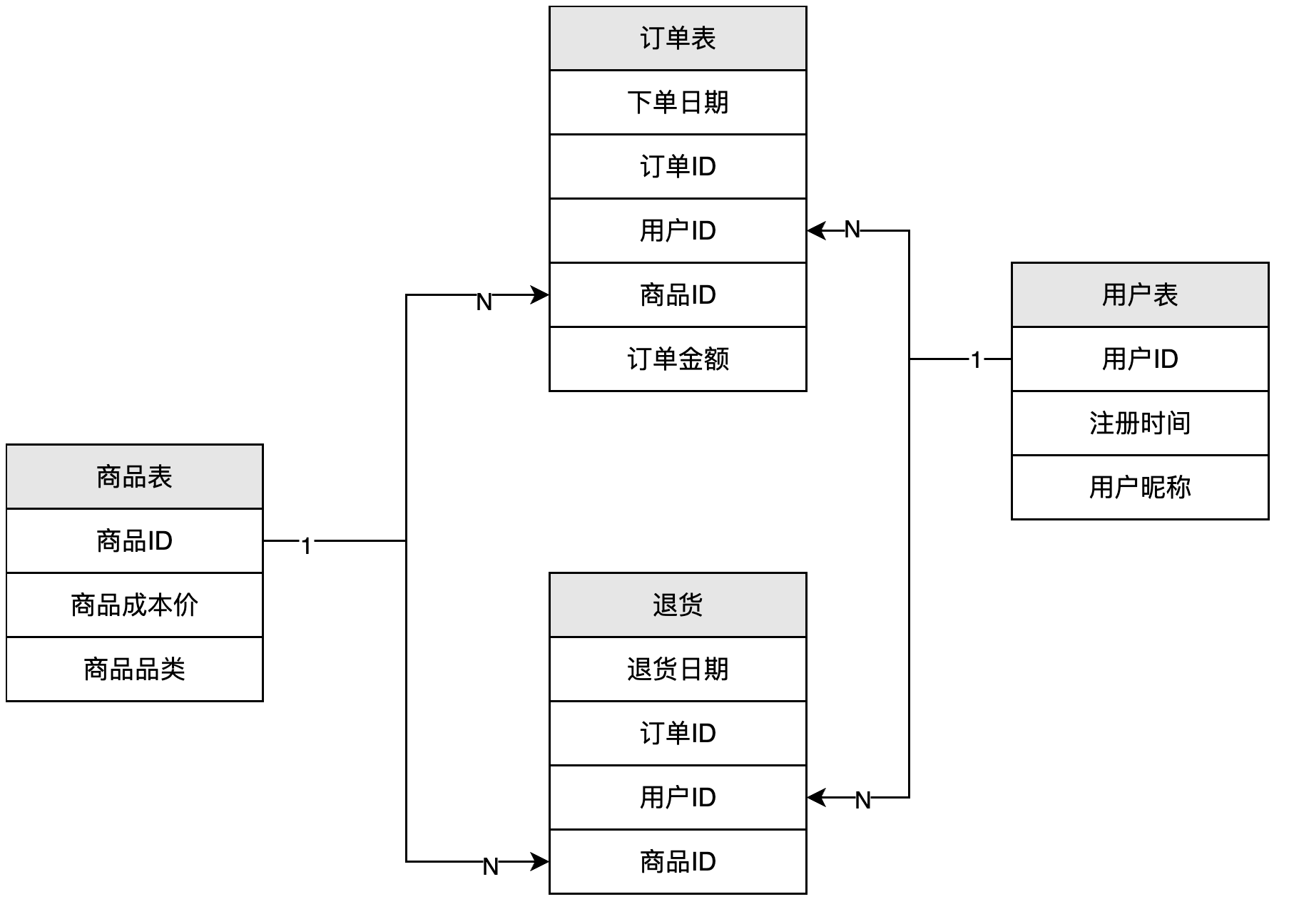
The example above shows a relationship between [Product Table] and [Order Table].
-
Relationship key: The relationship key between the Product Table and the Order Table is [Product Table/Product ID] = [Order Table/Product ID].
-
Cardinality: Cardinality describes how the relationship keys match between two datasets. In the example, the relationship between [Product Table/Product ID] and [Order Table/Product ID] is 1:N.
-
Each [Product Table/Product ID] value in the Product Table can match multiple [Order Table/Product ID] values in the Order Table.
-
Each [Order Table/Product ID] value in the Order Table can match only one [Product Table/Product ID] value in the Product Table.
-
Direction: The relationship between [Product Table] and [Order Table] is [Product Table] -> [Order Table]. The arrow indicates that fields from [Product Table] can be used directly by [Order Table]. Direction is transitive. For example, if [Product Category] -> [Product Table] -> [Order Table], fields from [Product Category] can be used directly in [Order Table].
-
One-side dataset: [Product Table] is the one-side dataset of [Order Table].
-
Many-side dataset: [Order Table] is the many-side dataset of [Product Table].
Procedure
Entry Point
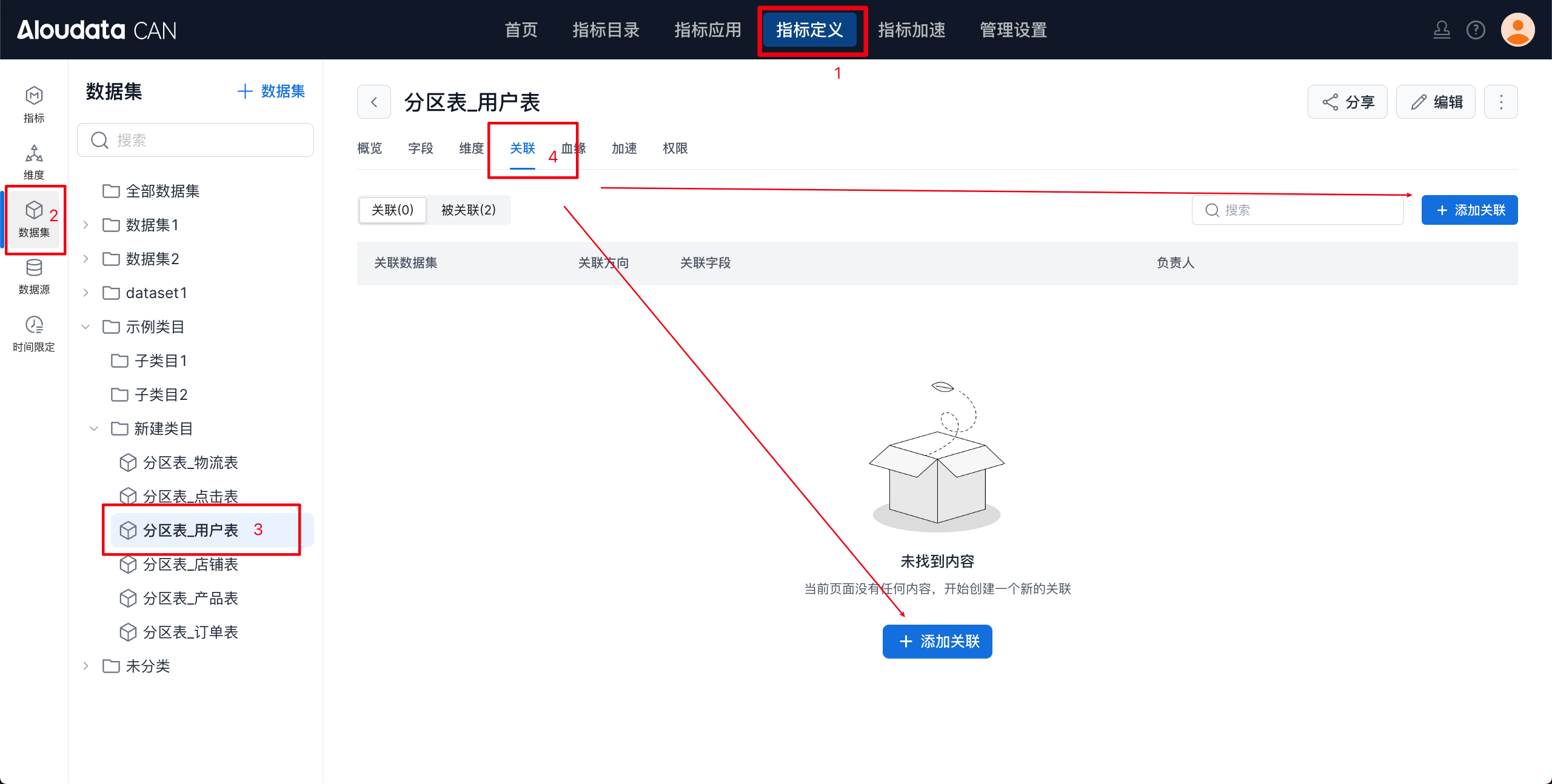
Open the dataset relationship management page as shown below.
Create a Relationship
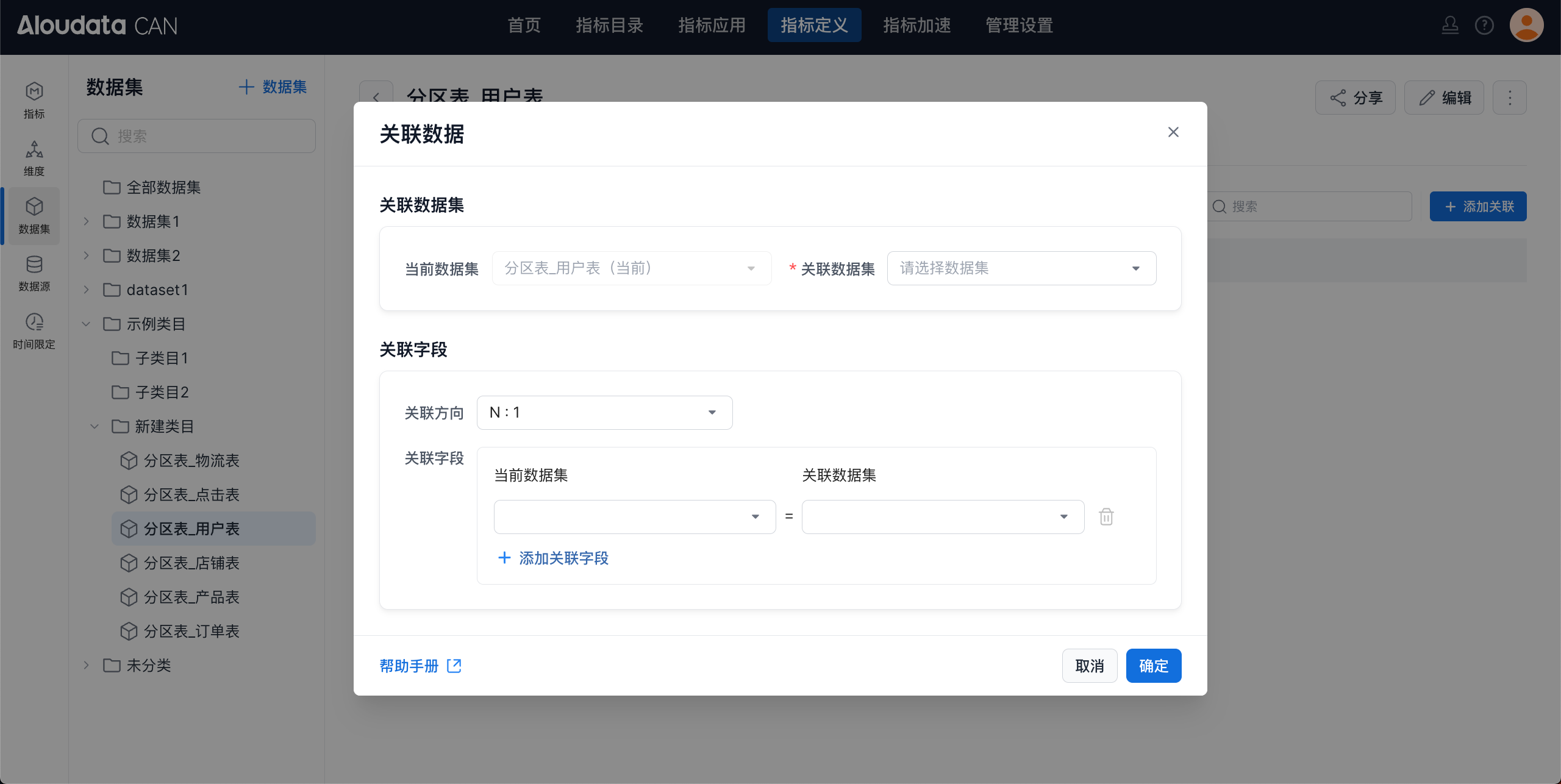
| Item | Description |
|---|---|
| Related datasets | Select the datasets to relate: * Current dataset: The current dataset. Users cannot change this value. * Related dataset: The dataset that will be related to the current dataset. |
| Relationship fields | Configure the relationship between the two datasets: * Relationship type: * N:1: The current dataset is the many-side dataset, and the related dataset is the one-side dataset. The current dataset relationship key maps N:1 to the related dataset relationship key. * 1:1: The current dataset and the related dataset are both one-side datasets. The current dataset relationship key maps 1:1 to the related dataset relationship key. * Relationship fields: Configure the relationship keys for the datasets. You can add multiple pairs of relationship fields. |
Important
When configuring relationships between datasets, consider the following limits and constraints to keep relationships accurate and query performance reliable.
Data type matching
Limit: Relationship fields must have matching data types.
Description: For example, you cannot relate an integer field to a string field.
Uniqueness constraints
Limit: For one-to-one (1:1) and many-to-one (N:1) relationships, the relationship field on the one side should be unique.
Description: For example, in a customer table, the customer ID should be unique so each order maps to one customer.
Circular dependencies
Limit: Avoid circular dependencies.
Description: Circular dependencies can make data relationships ambiguous and affect data processing and query performance. If a circular dependency exists, relationship validation fails.
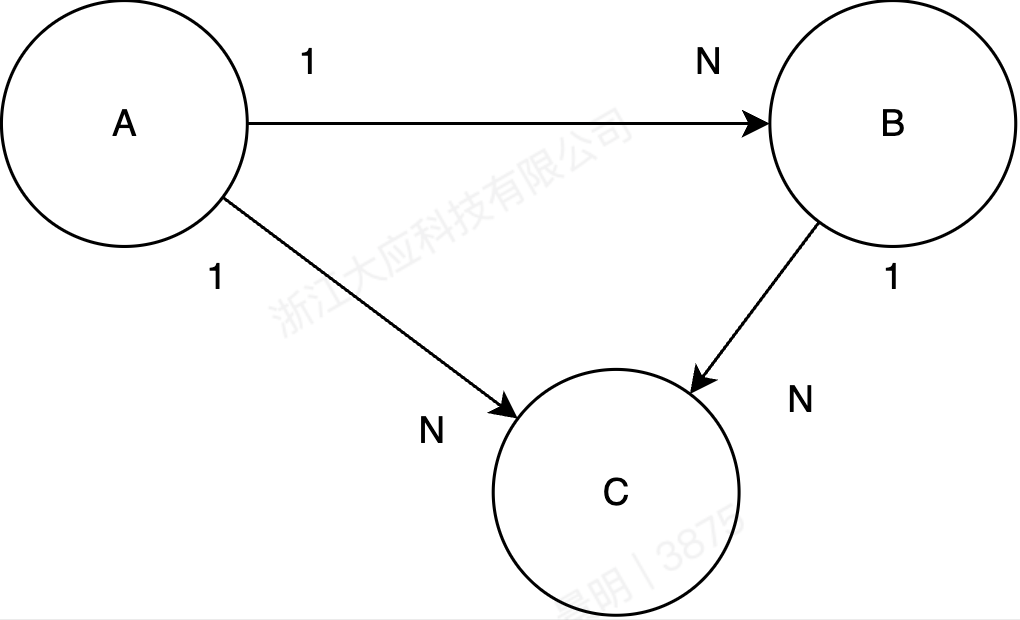
Multiple paths (see Figure 1)
Limit: Avoid multiple paths in relationships.
Description: If multiple paths can reach the same dataset, metric results may be calculated incorrectly.
Figure 1: Multiple paths
Save
Click OK in the lower-right corner of the relationship window to save the relationship.
Manage Relationships
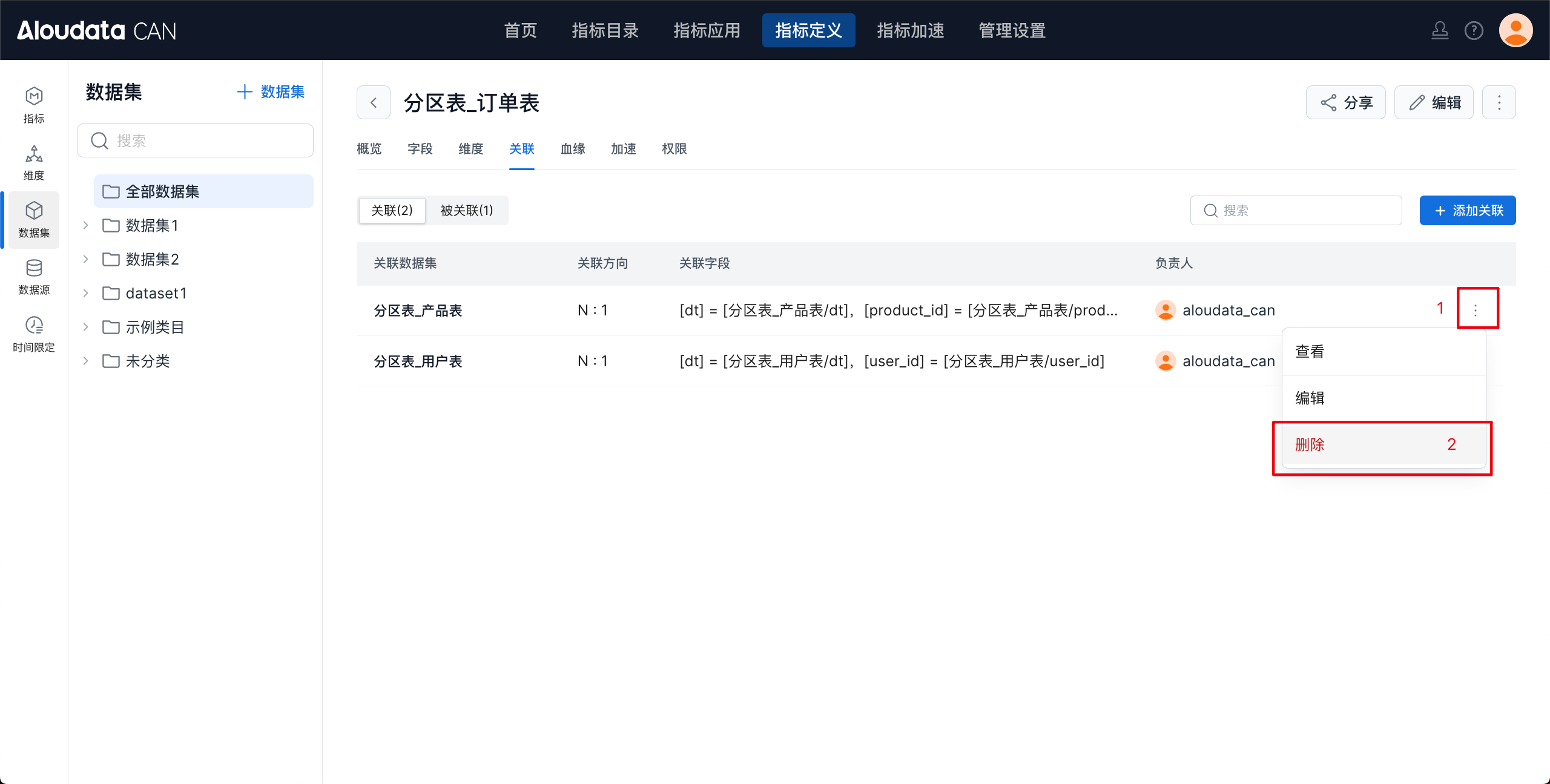
After the relationship is created, the datasets are connected. You can edit or delete the relationship later based on your business needs.
Edit a Relationship
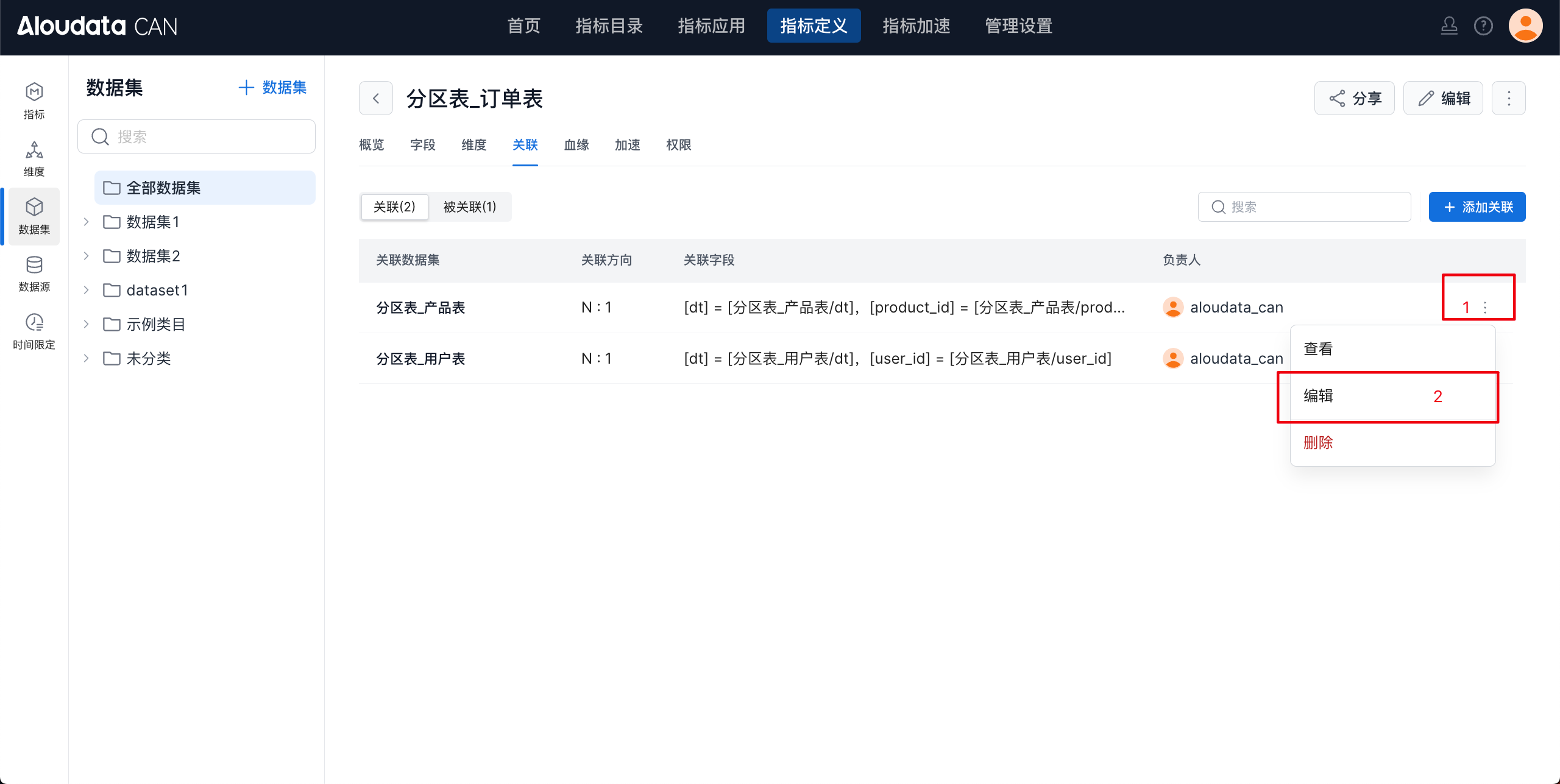
On the dataset details page, click ⋮ on the right side of the relationship list, then click Edit to update the relationship.
Delete a Relationship
On the dataset details page, click ⋮ on the right side of the relationship list, then click Delete. In the confirmation window, click Confirm to delete the relationship.