Manage Metric Dashboards
Overview
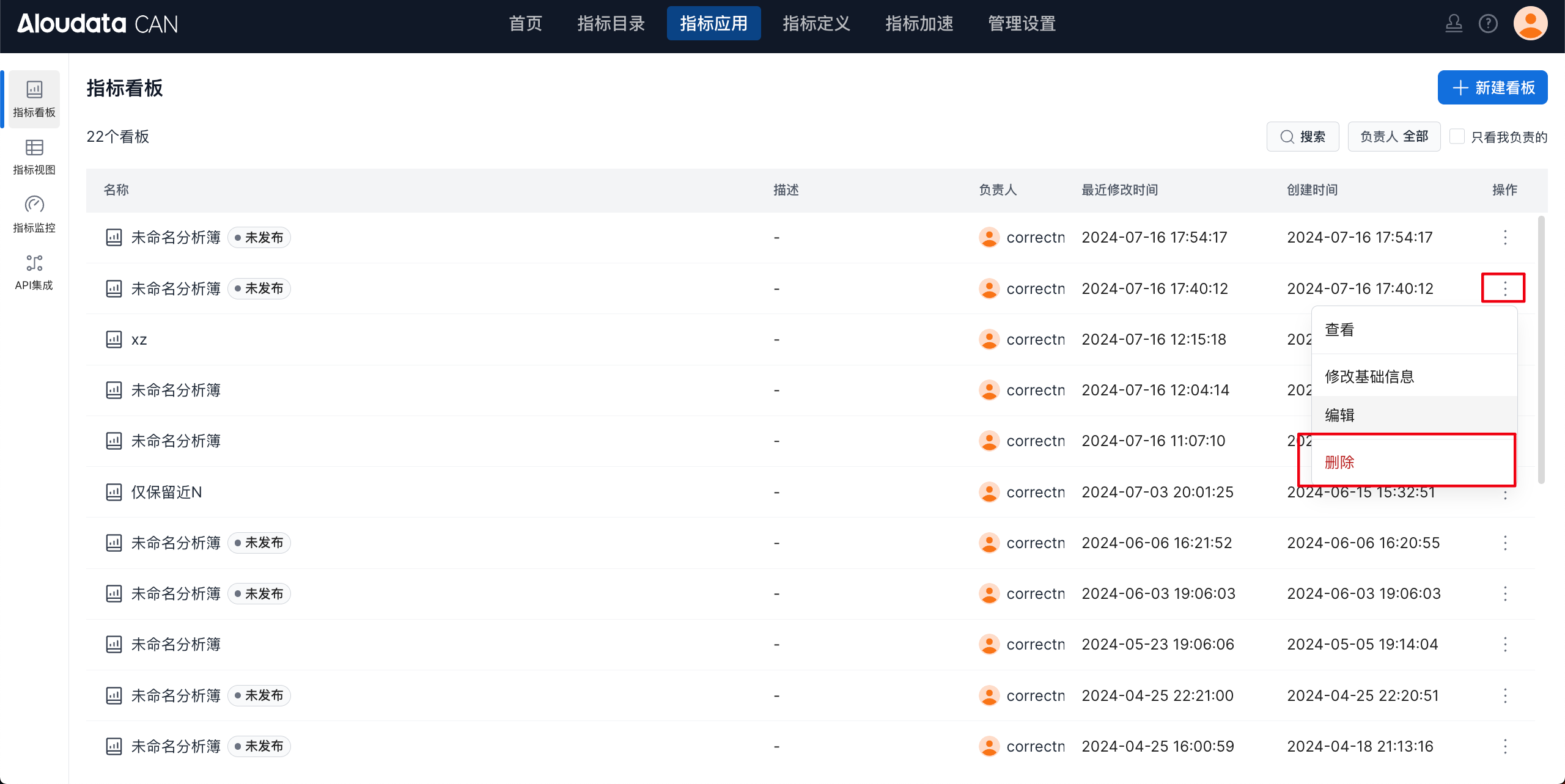
The following figure shows the Metric Dashboards page. On this page, you can view the list of all current metric dashboards, view workbook content, grant permissions, modify basic information, edit dashboards, and delete dashboards.
Search Metric Dashboards
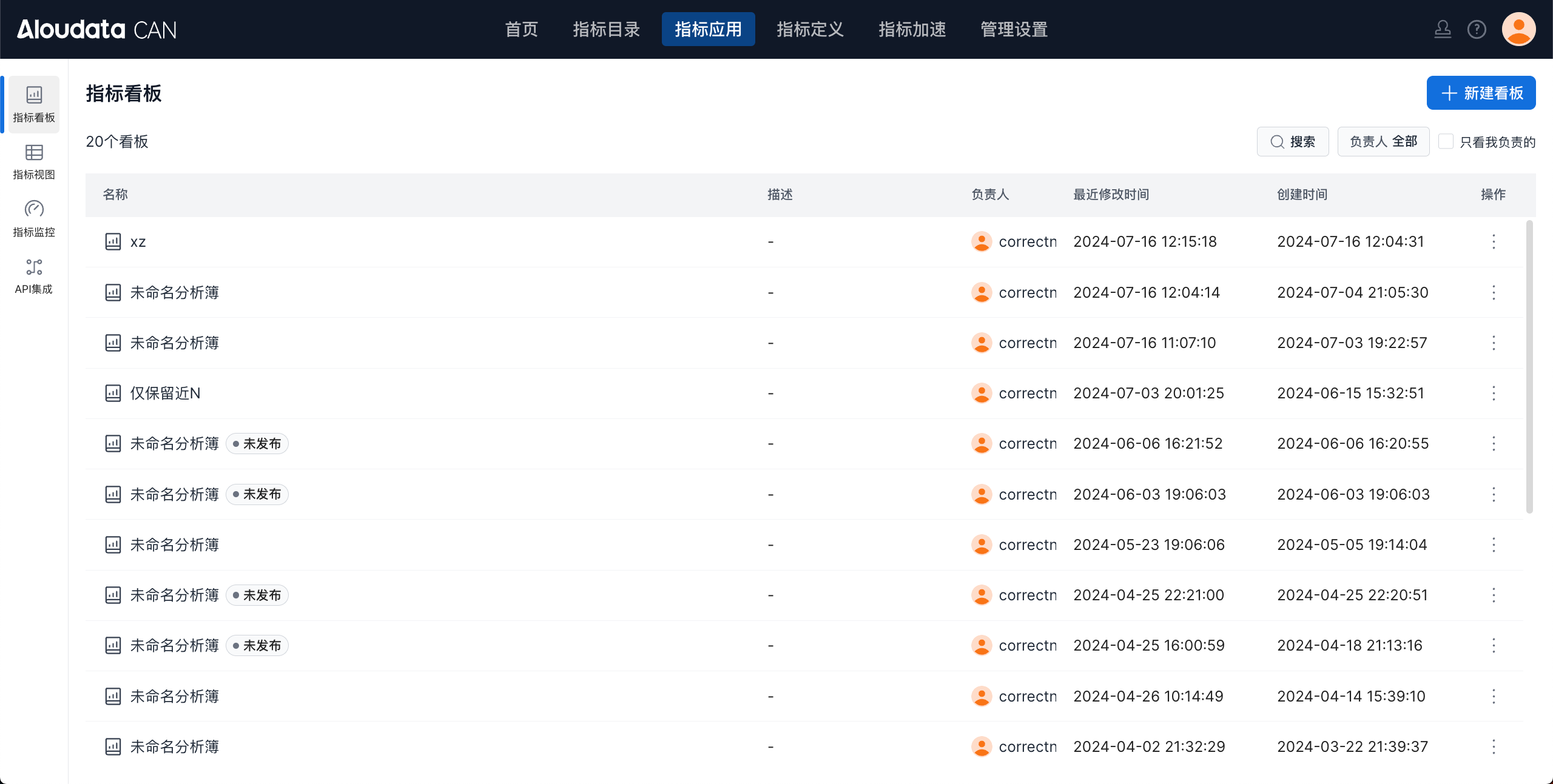
- Search metric dashboards by name
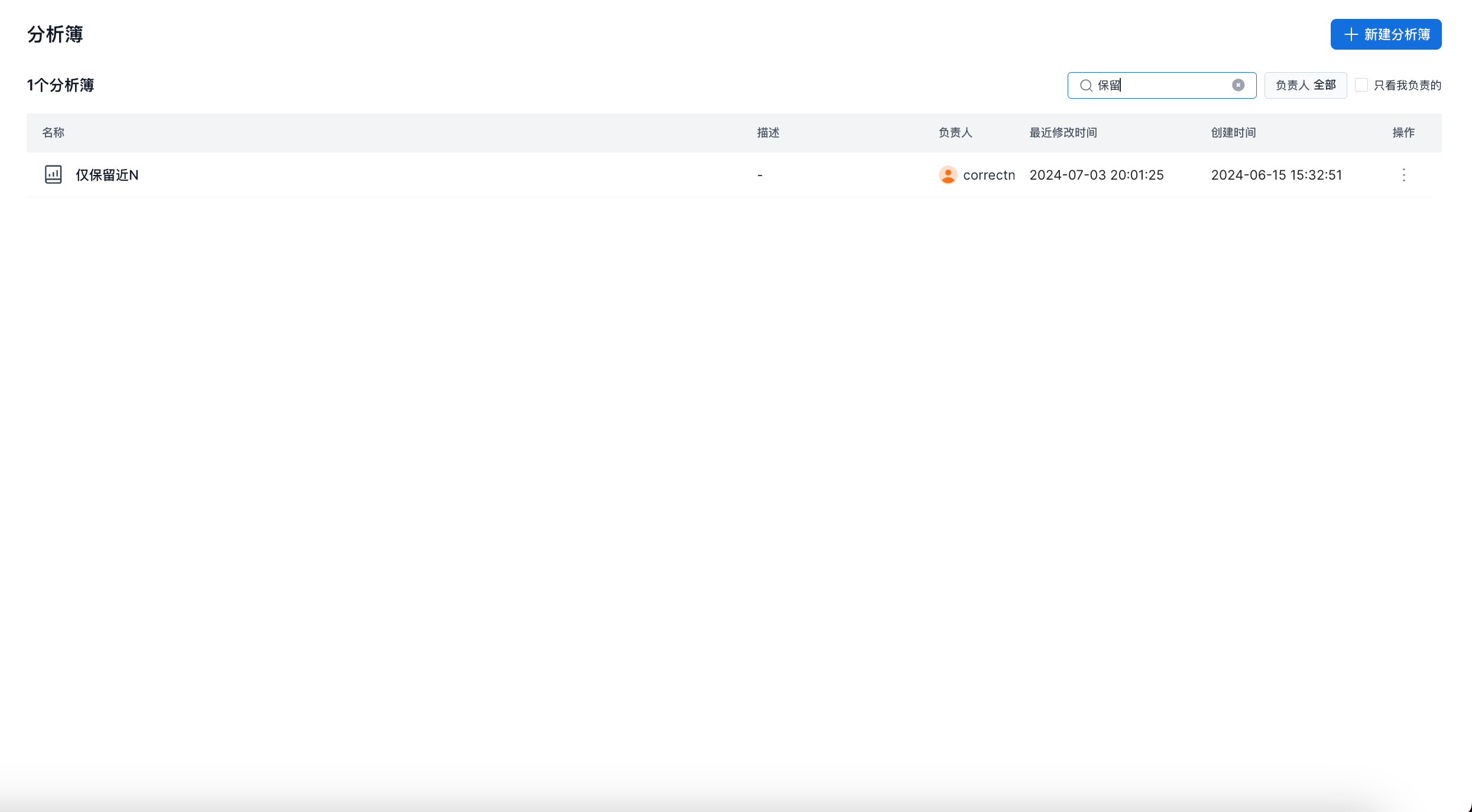
In the top navigation bar, choose Metric Applications -> Metric Dashboards in the left navigation bar. Enter a query in the search box to fuzzy-search by the Chinese or English name of a metric dashboard, as shown below:
- View metric dashboards created by a specified owner
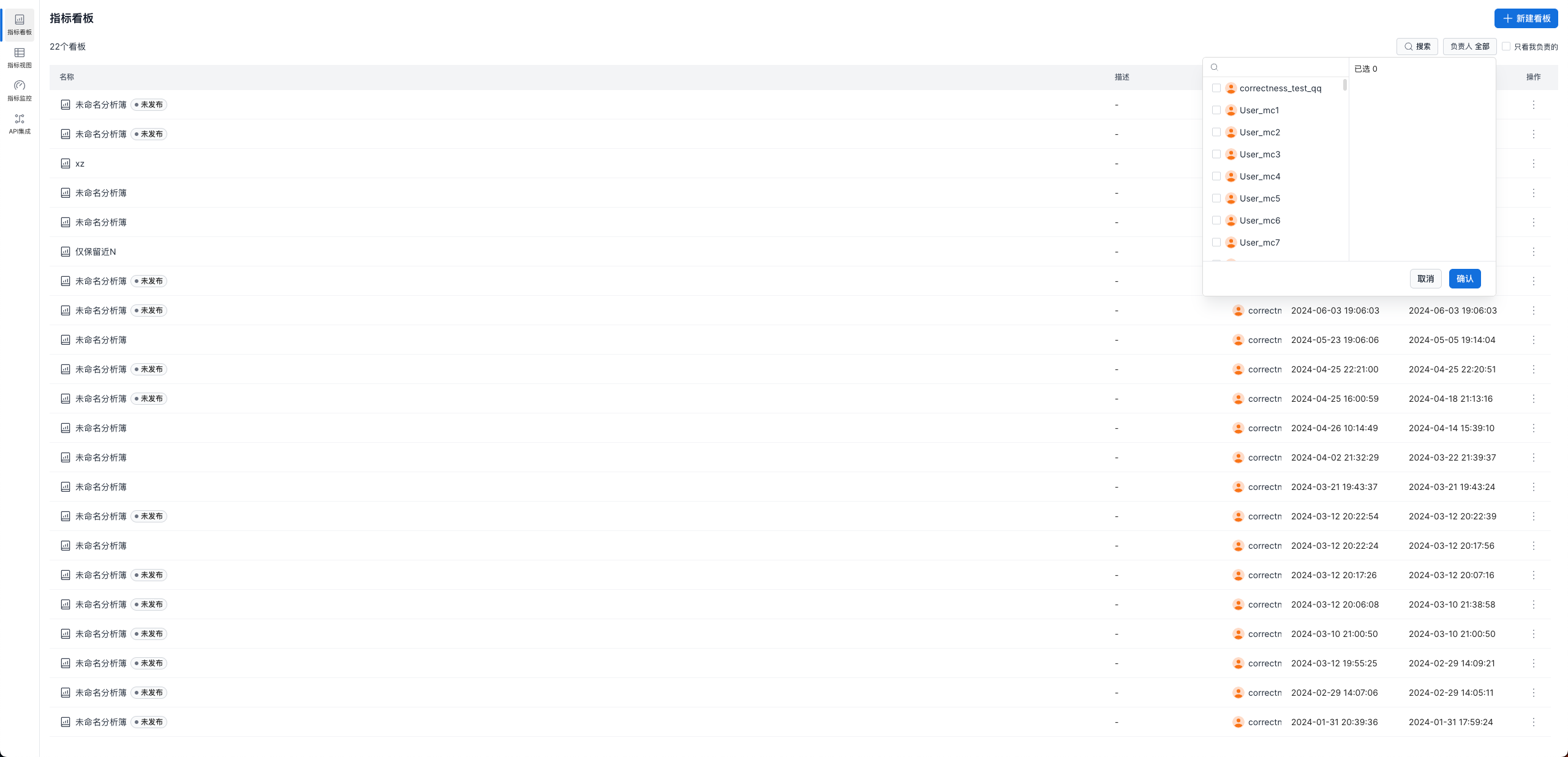
In the top navigation bar, choose Metric Applications -> Metric Dashboards in the left navigation bar. In the owner drop-down list on the right, select a user to view all metric dashboards owned by that user, as shown below:
- View only metric dashboards created by me
In the top navigation bar, choose Metric Applications -> Metric Dashboards in the left navigation bar. Select Only Mine to view metric dashboards created by the current user, as shown below:
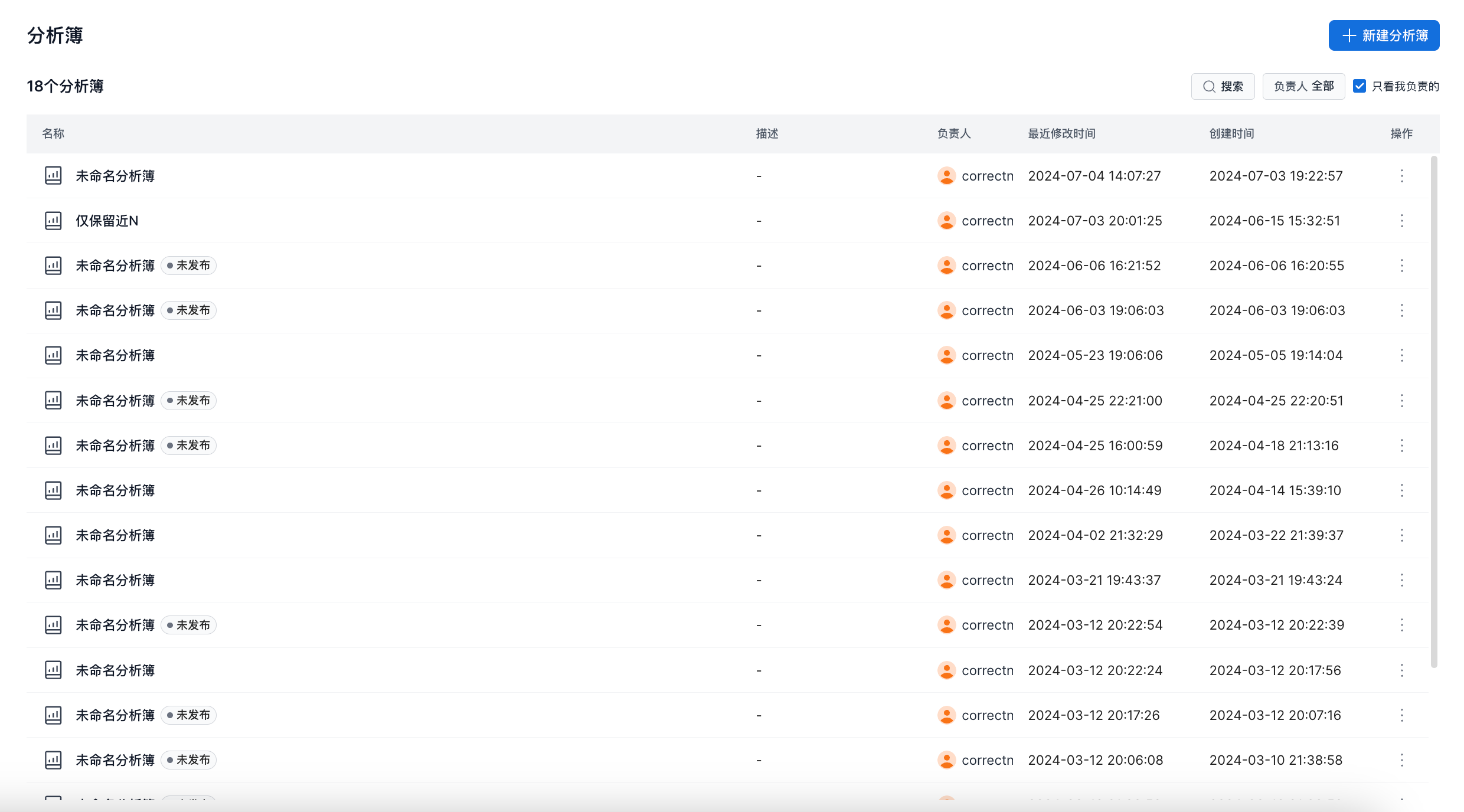
Note
The Data Owner and Only Mine component options are mutually exclusive.
When you select Only Mine, the Data Owner selection is cleared and only the current user is selected.
When you change the owner in the Data Owner field, Only Mine is deselected.
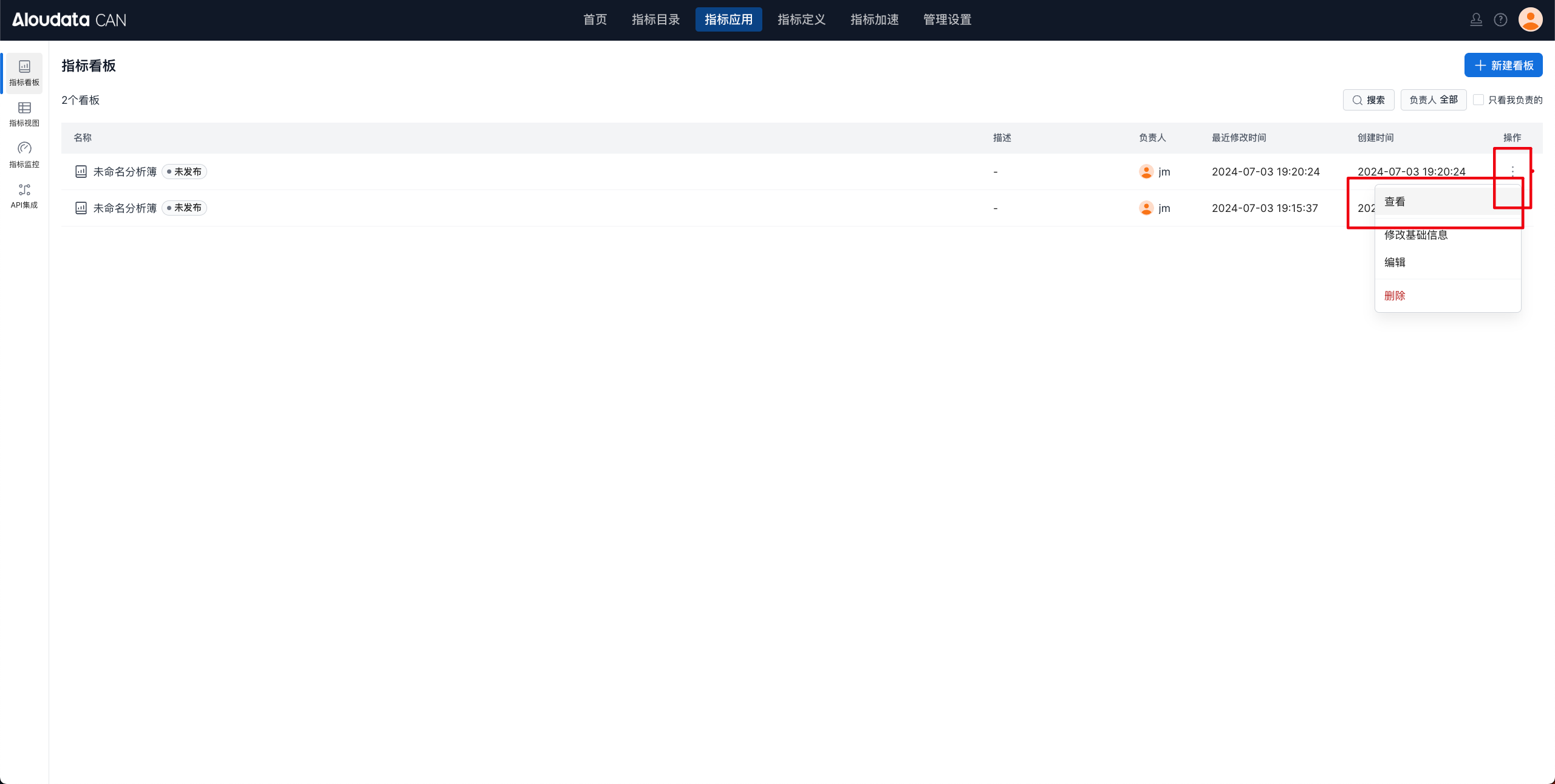
View a Metric Dashboard
On the metric dashboard list page, follow the guidance in the figure below to view metric dashboard details.
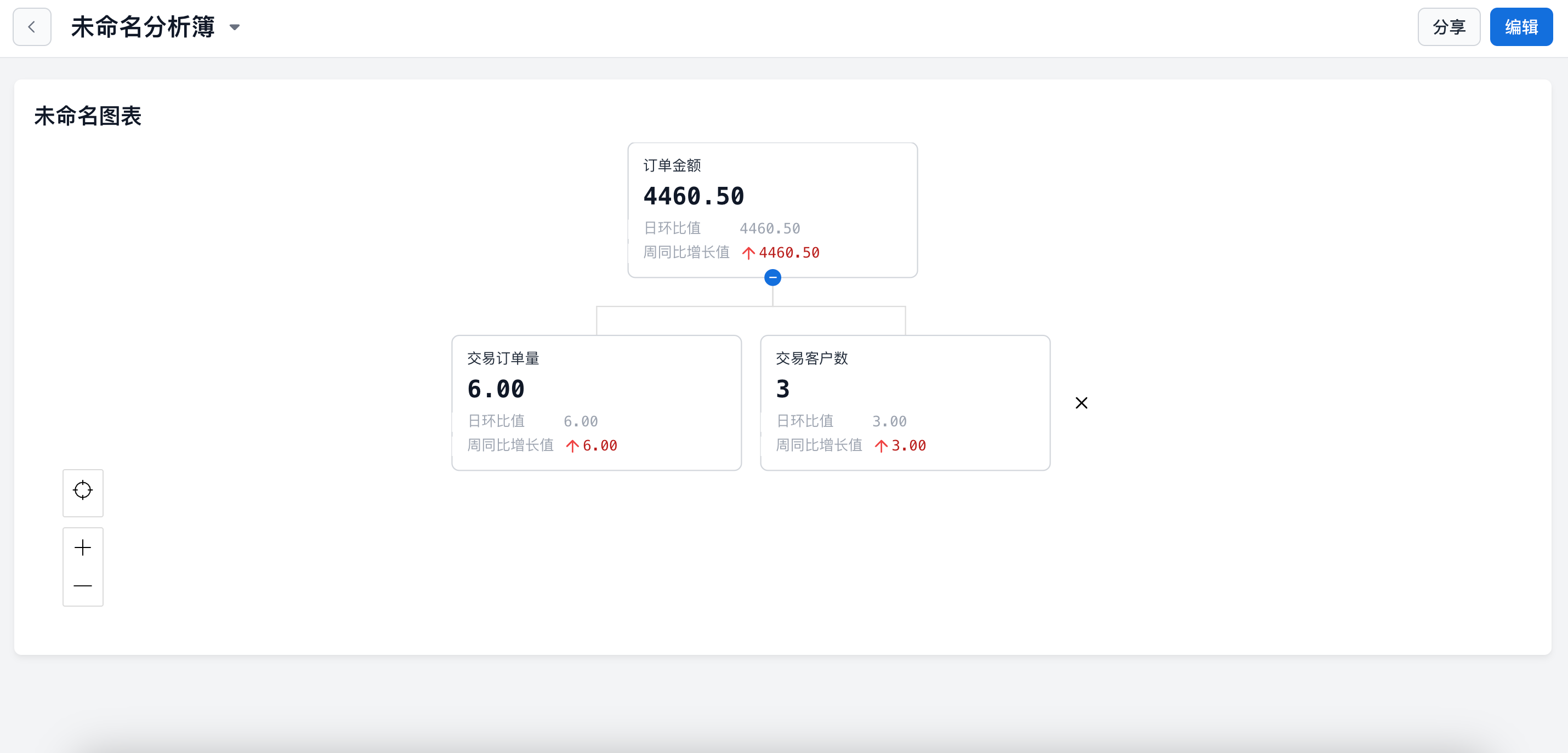
The following figure shows the metric dashboard details page.
Modify Basic Information
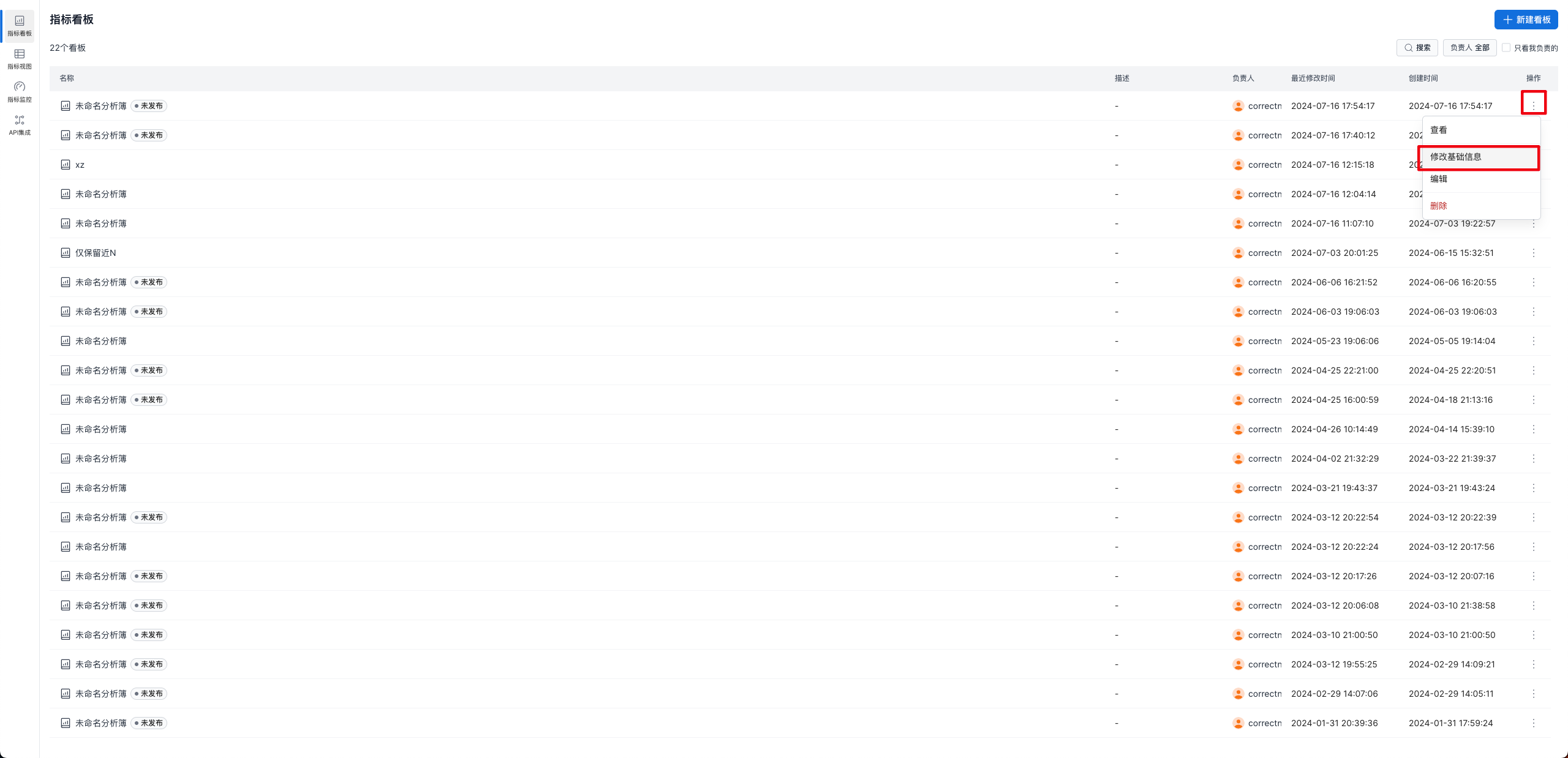
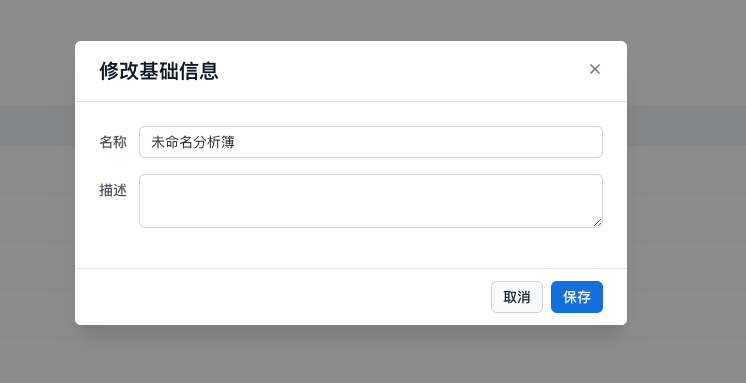
On the metric dashboard management page, follow the guidance in the figure below and click Modify Basic Information. A dialog box for modifying basic information appears.
In the dialog box, you can modify the name and description of the metric dashboard, as shown below:
Edit a Metric Dashboard
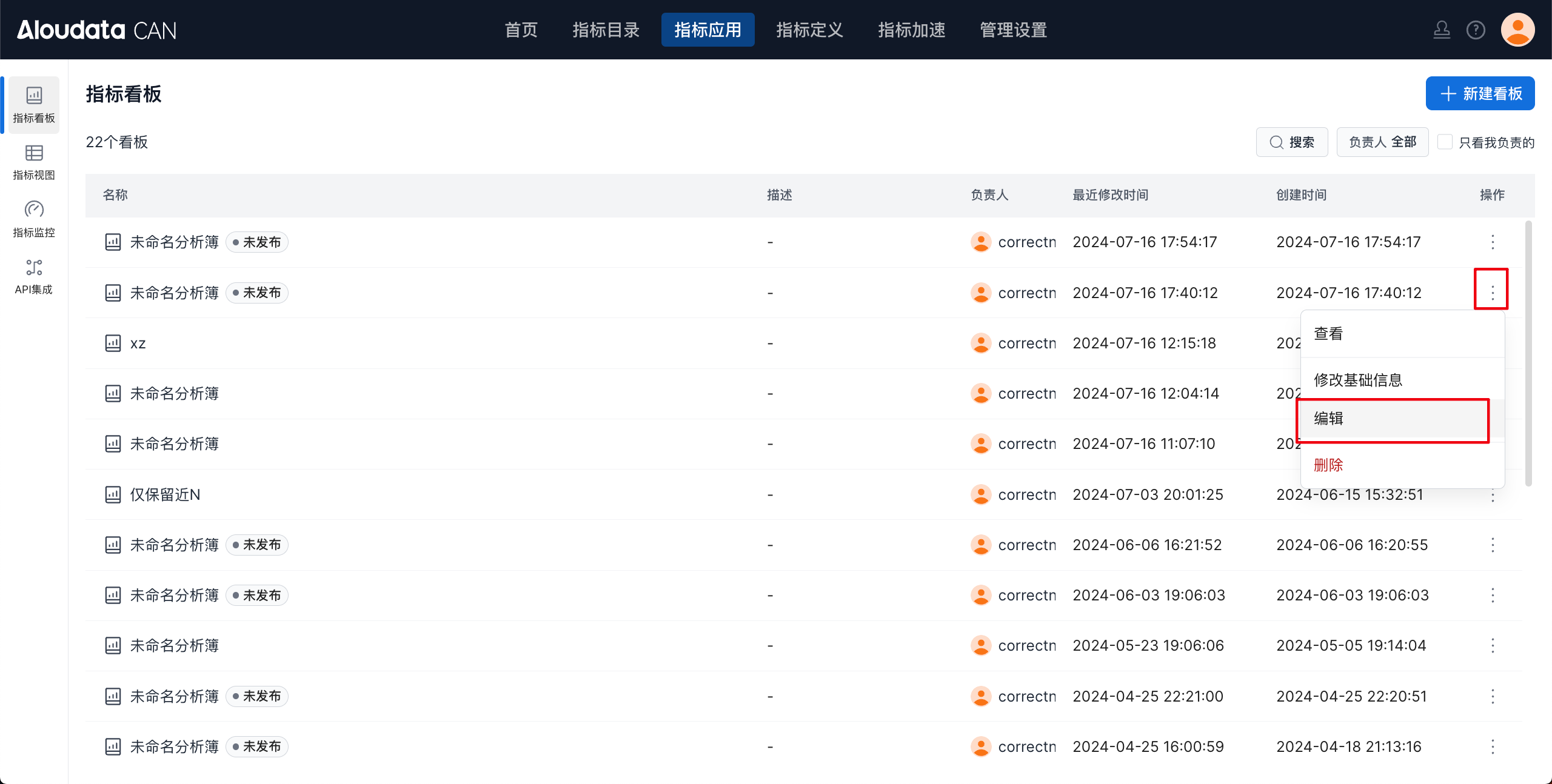
On the metric dashboard list page, follow the guidance in the figure below and click Edit to go to the metric dashboard editing page.
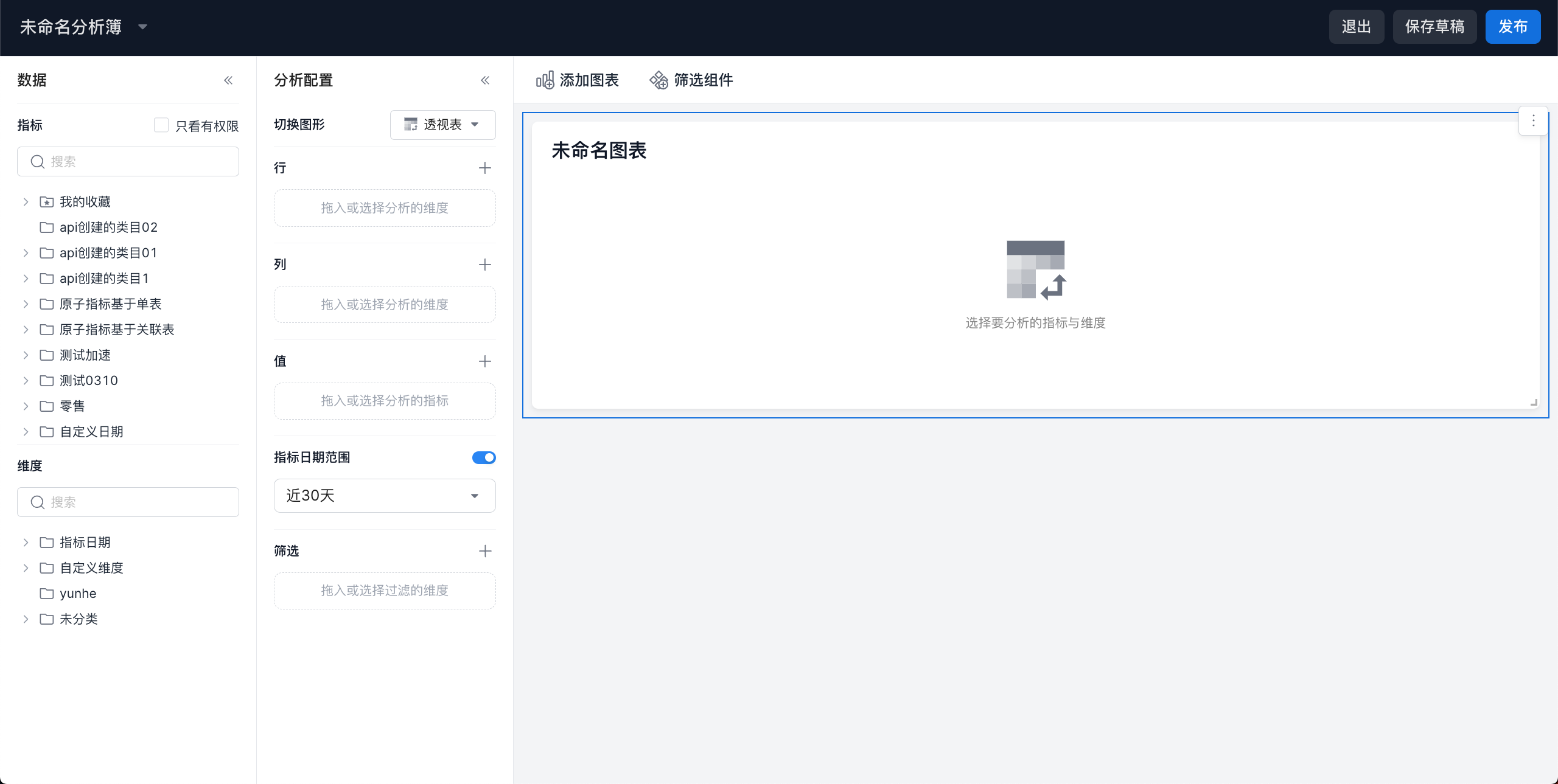
Edit the metric dashboard as shown below. For detailed editing operations, see Create a Dashboard.
Copy a Metric Dashboard
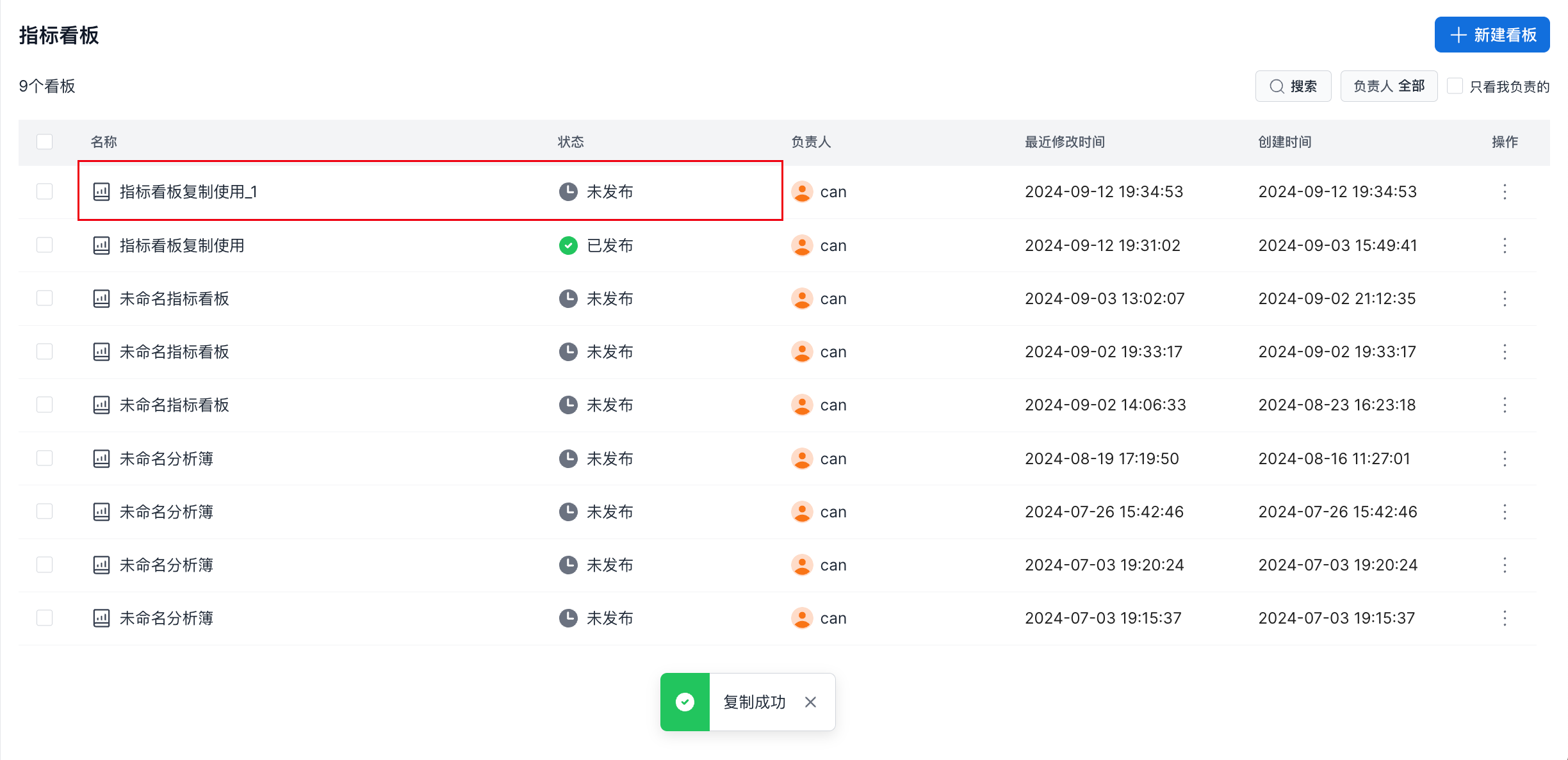
On the metric dashboard list page, click the ⋮ button under Actions, and then click Copy, as shown below:
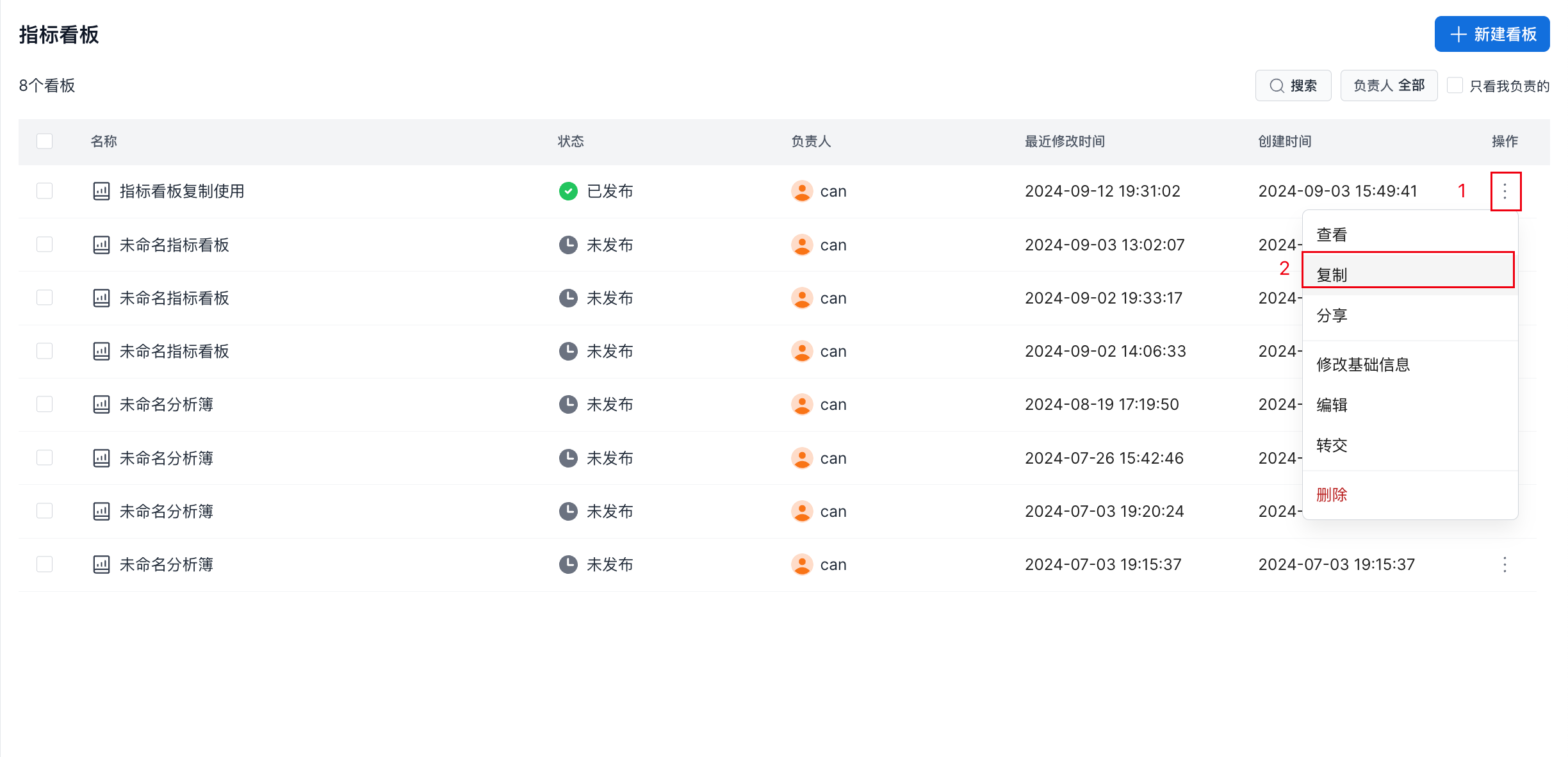
After you click Copy, a new unpublished metric dashboard is immediately generated in the metric dashboard list. It uses the same logic as the original metric dashboard but has a different name.
Transfer a Metric Dashboard
On the metric dashboard list page, click the ⋮ button under Actions, and then click Transfer, as shown below:
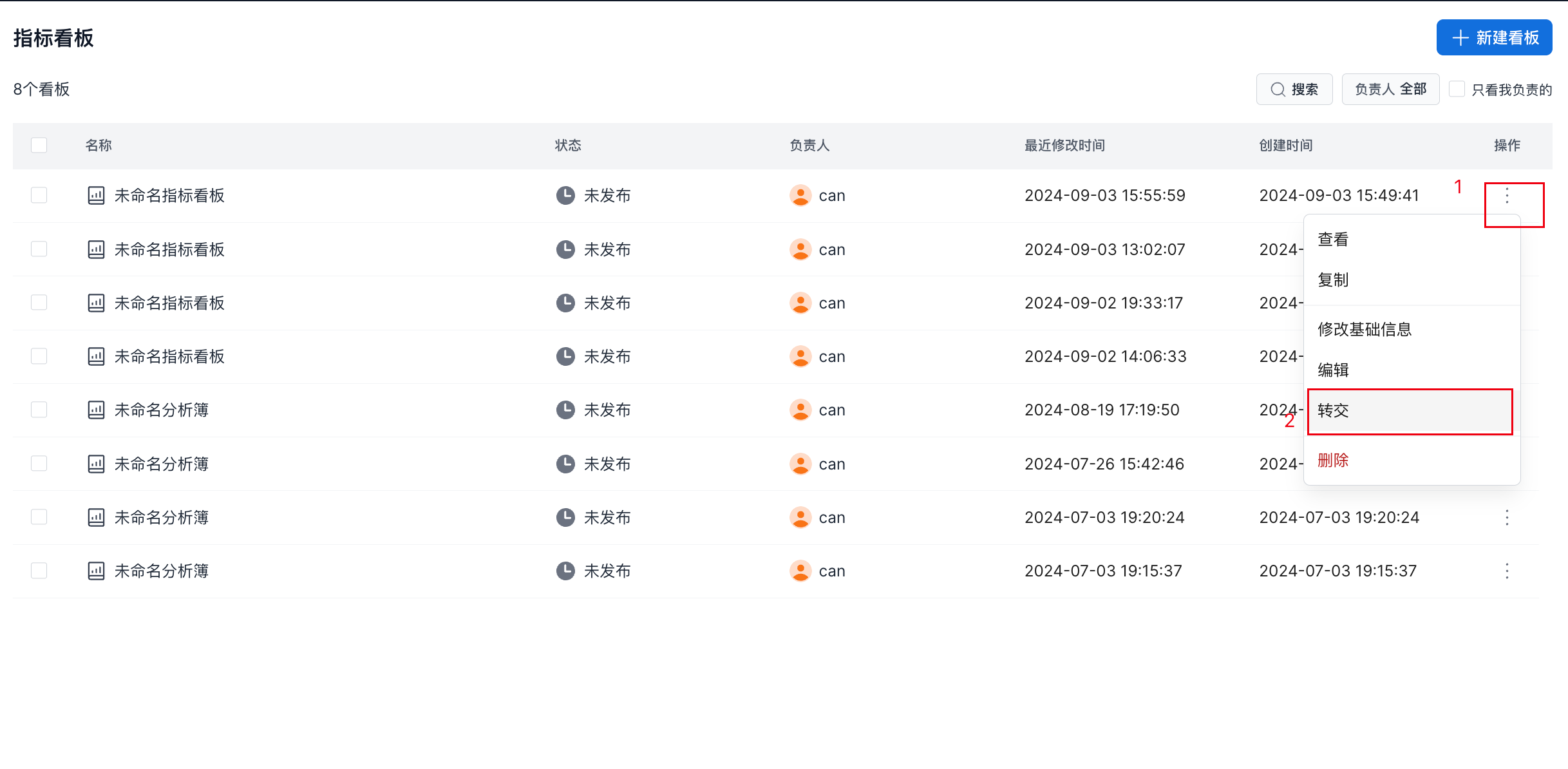
In the Transfer Metric Dashboard dialog box, select the user to whom you want to transfer the asset, and then click Transfer to complete the transfer.

Share a Metric Dashboard
On the metric dashboard list page, click the ⋮ button under Actions, and then click Share, as shown below:
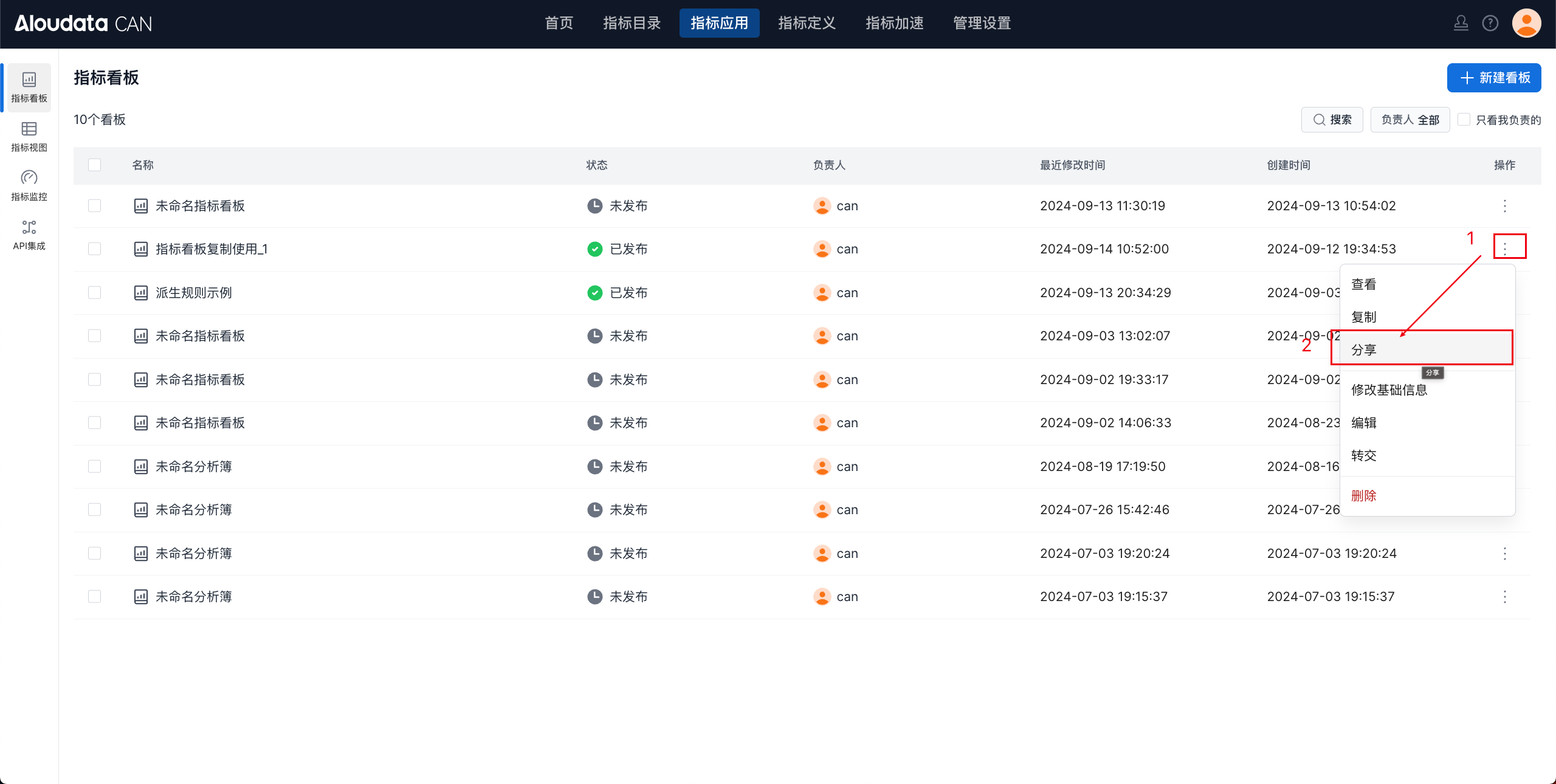
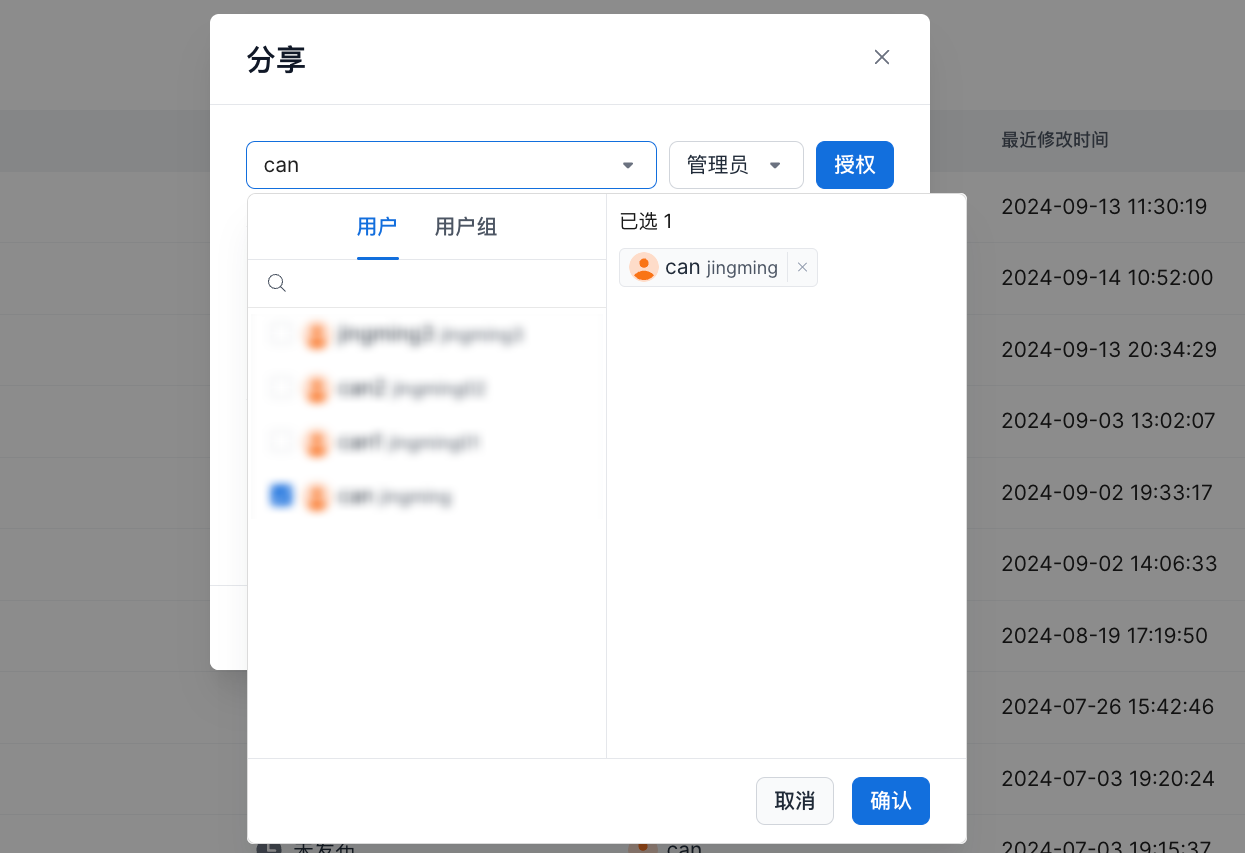
Select the users or user groups to share with, and select their roles.
Delete a Metric Dashboard
On the metric dashboard list page, follow the guidance in the figure below and click Delete. In the confirmation dialog box, click Confirm to delete the dashboard.