Create a Dataset
Overview
In the metric platform, data modeling is the foundation for building metrics. This includes defining datasets and the relationships between datasets. You can create datasets from source tables or from custom SQL. After a dataset is defined and managed in Aloudata CAN, it can be used to calculate and analyze basic metrics, derived metrics, and composite metrics.
Aloudata CAN supports two dataset creation methods:
-
Create a dataset from a source table
-
Create a dataset from custom SQL
Create a Dataset
Entry Points
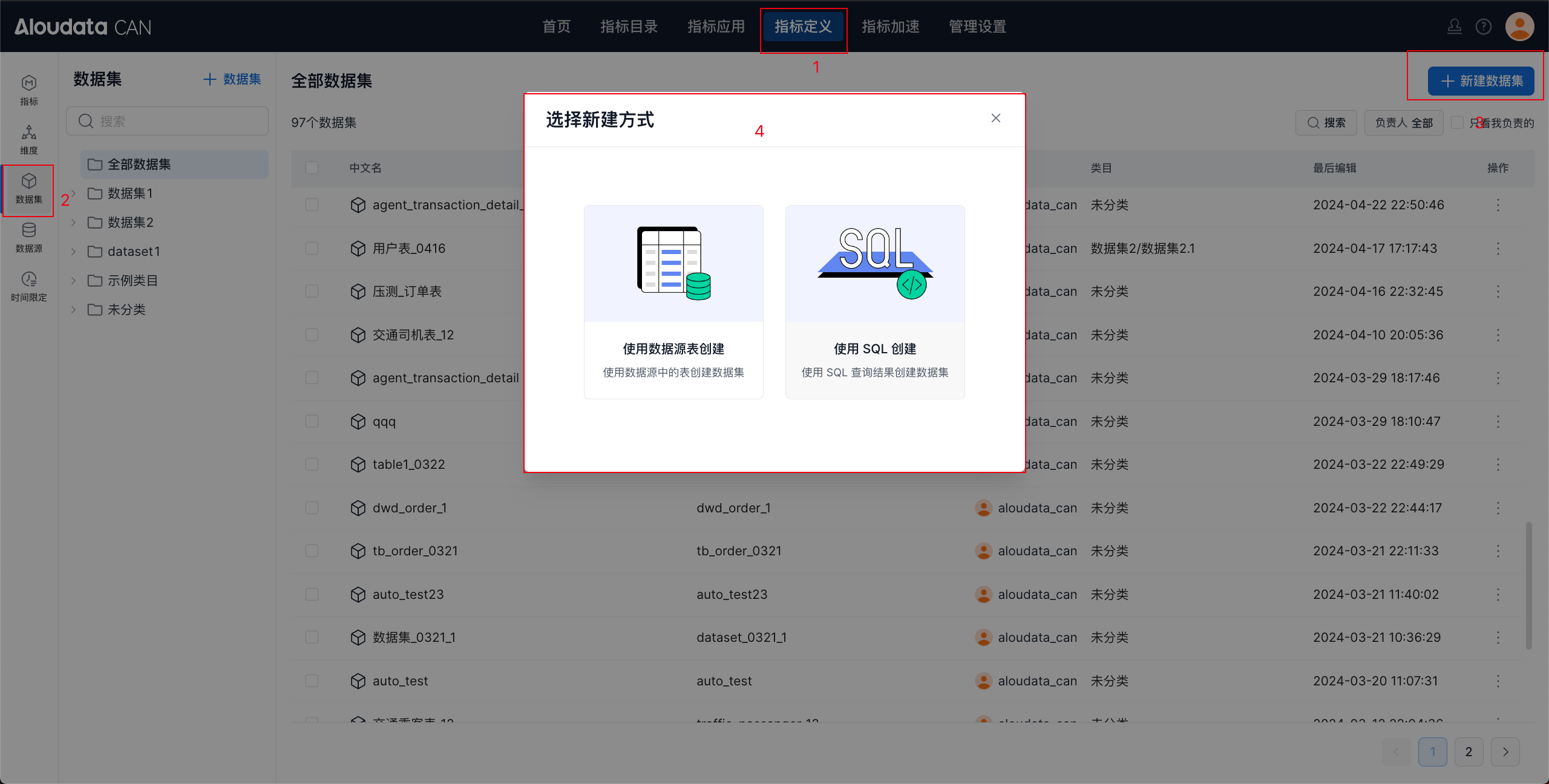
- Entry point 1: In the top navigation bar, select
Metric Definition. In the left navigation bar, clickDatasets. In the upper-right corner of the dataset page, click+ New Dataset, then select a creation method in the pop-up window.
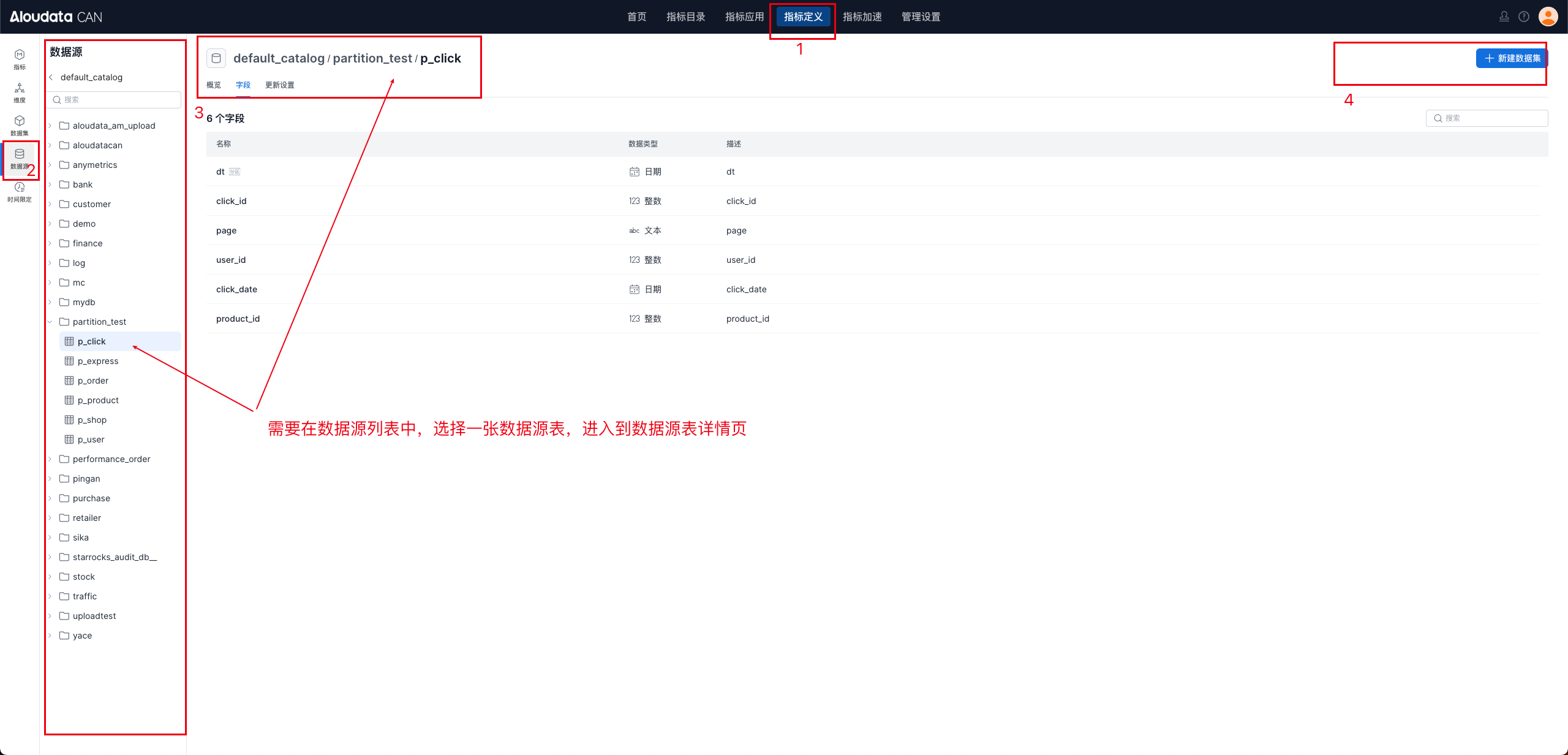
- Entry point 2: In the top navigation bar, select
Metric Definition. In the left navigation bar, selectData Sources. Choose a source table from the data source list, then click+ New Datasetin the upper-right corner of the source table details page.
Create a New Dataset
Create from a Source Table
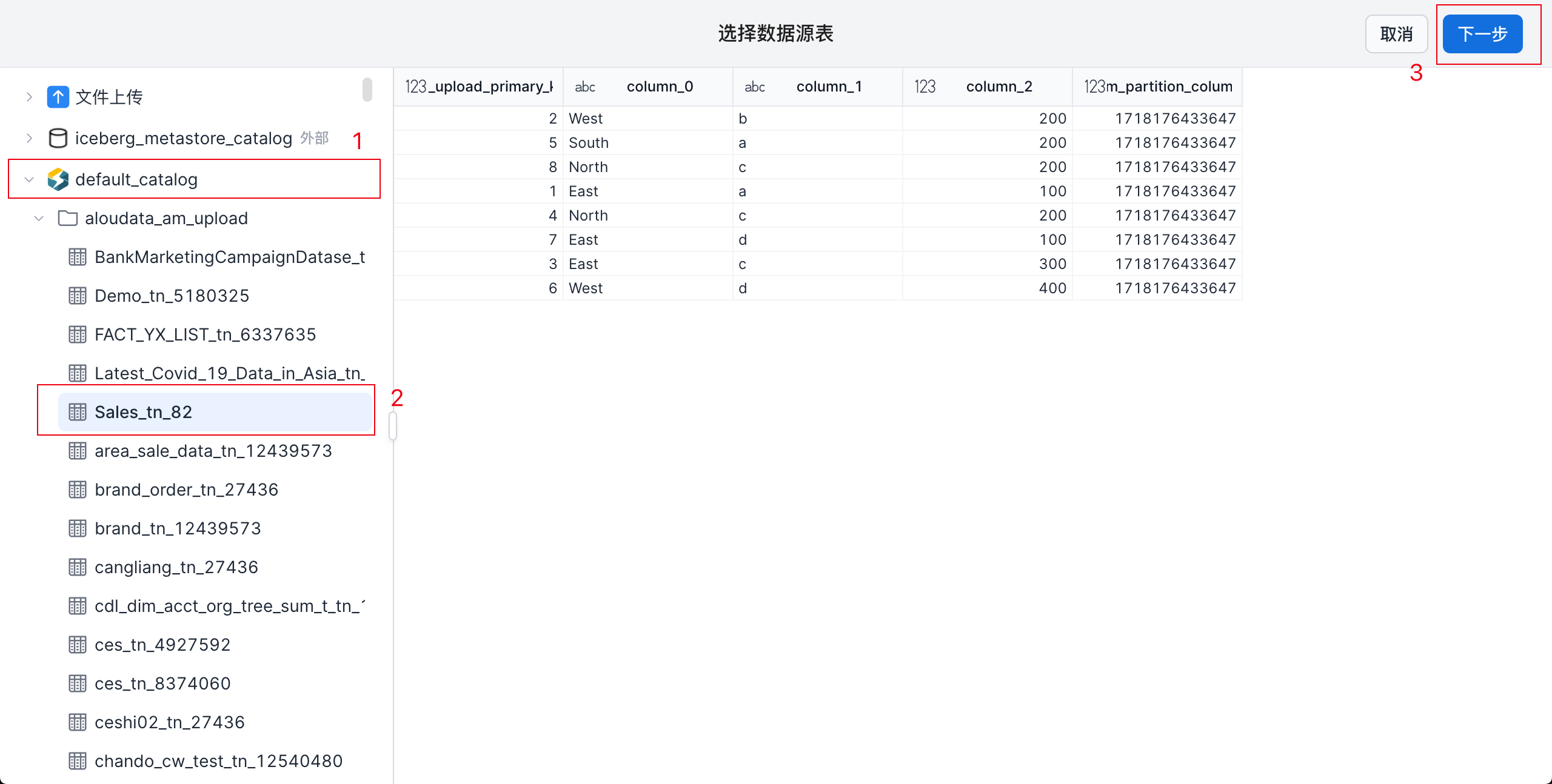
Select a table from the data sources on the left, then click Next in the upper-right corner to go to Dataset Editing.
Create from SQL
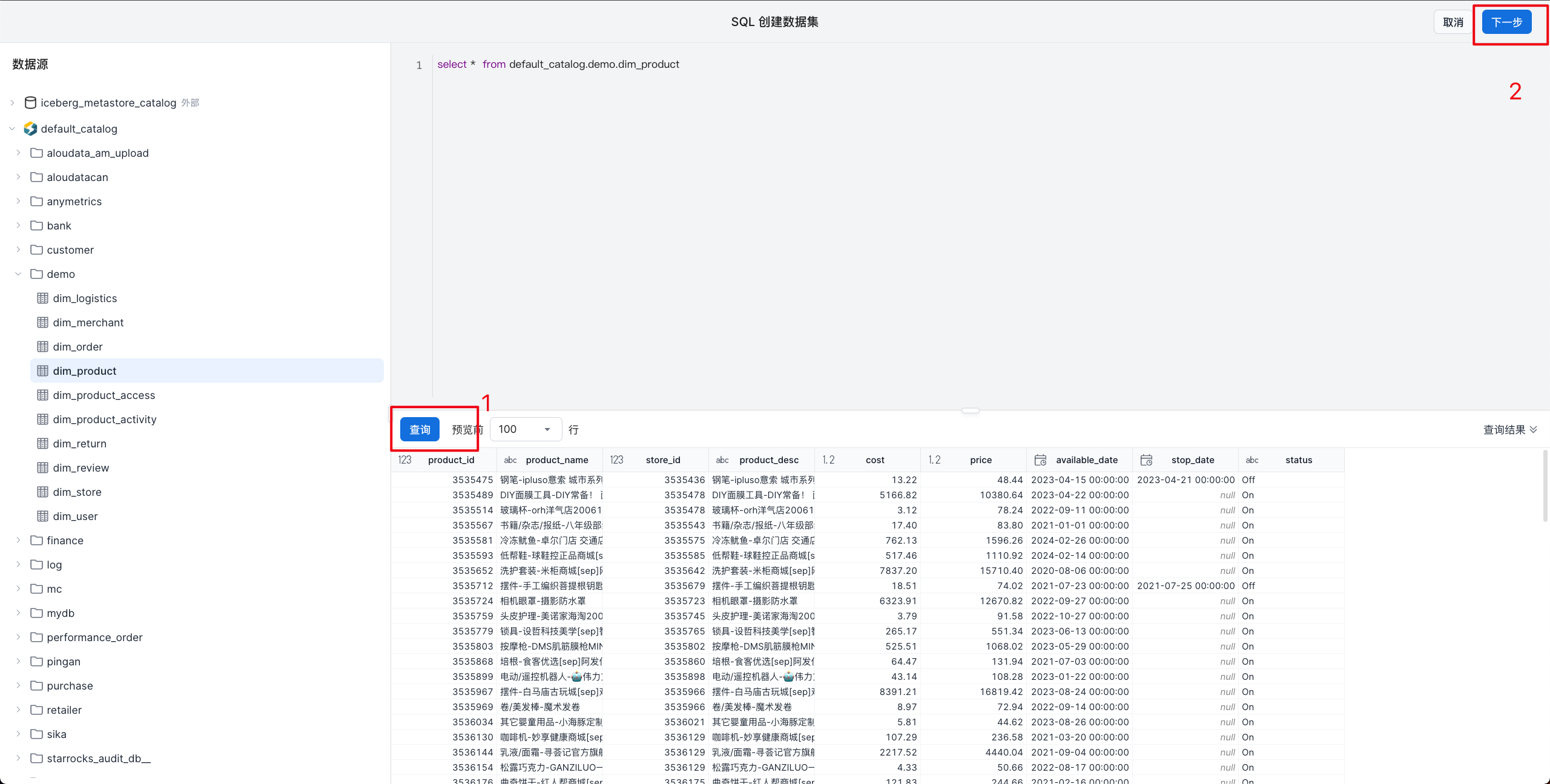
Enter the SQL statement and click Query to preview the data. After the preview is generated, click Next in the upper-right corner to go to Dataset Editing.
Dataset Editing
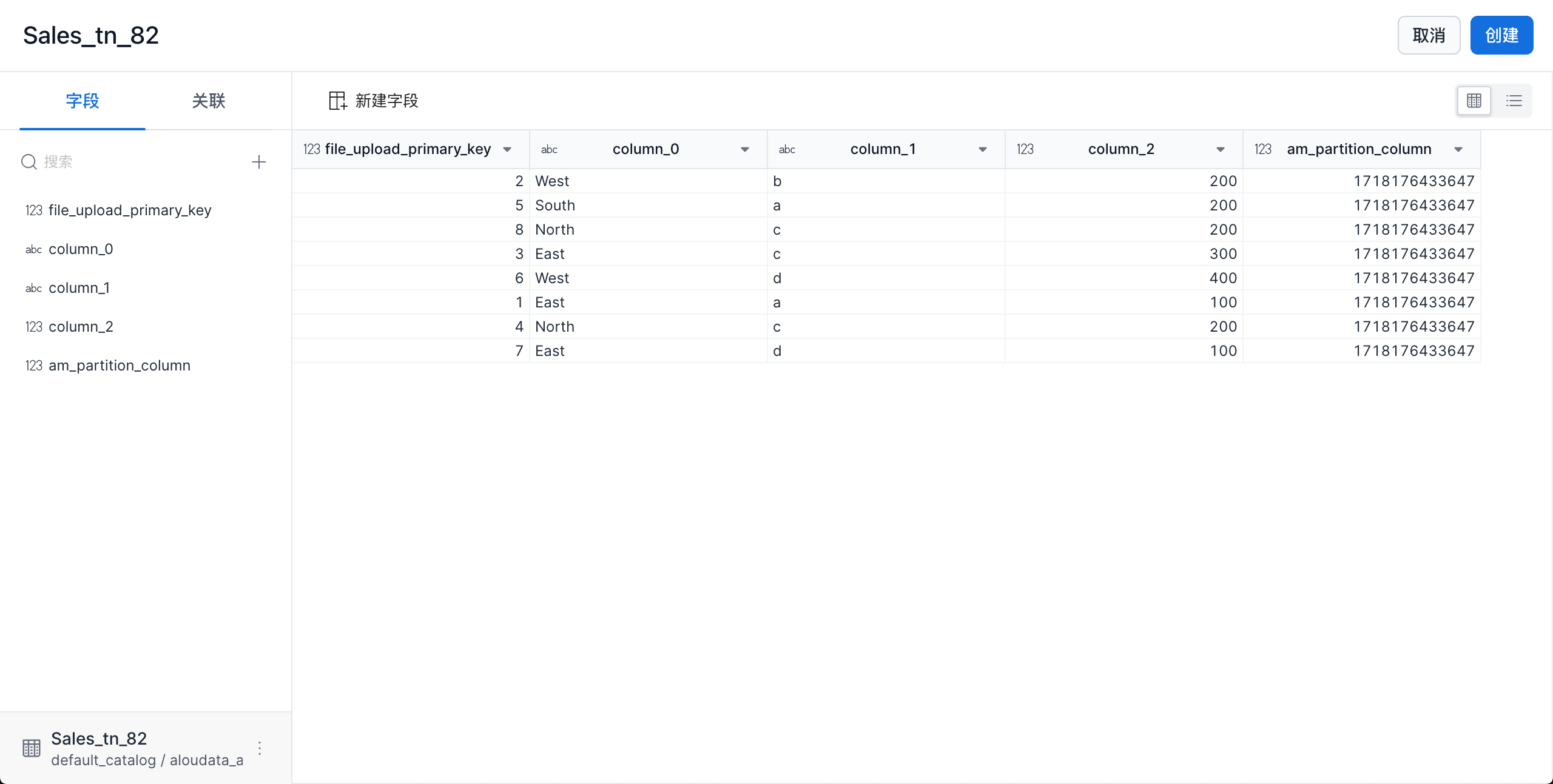
| Feature | Description |
|---|---|
| Field editing | 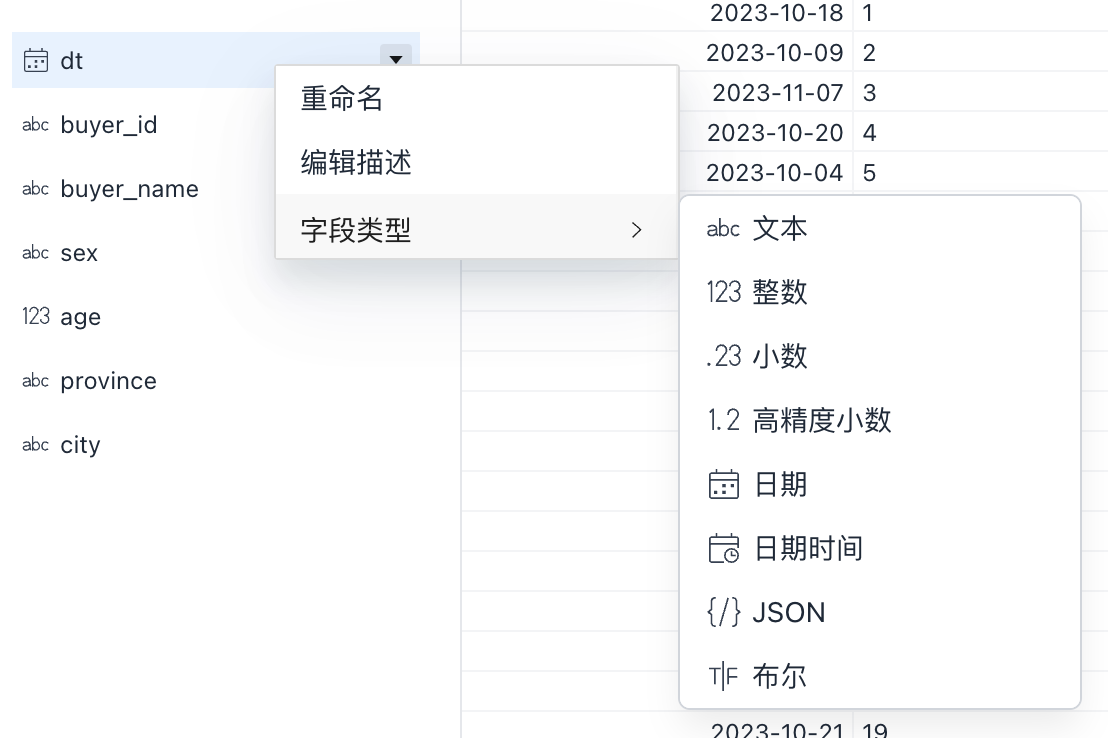 Right-click a field name to rename the field, edit its description, or change its data type. When you change a field to a date type, select the date format that matches the original field value. Right-click a field name to rename the field, edit its description, or change its data type. When you change a field to a date type, select the date format that matches the original field value. |
| Relationships | 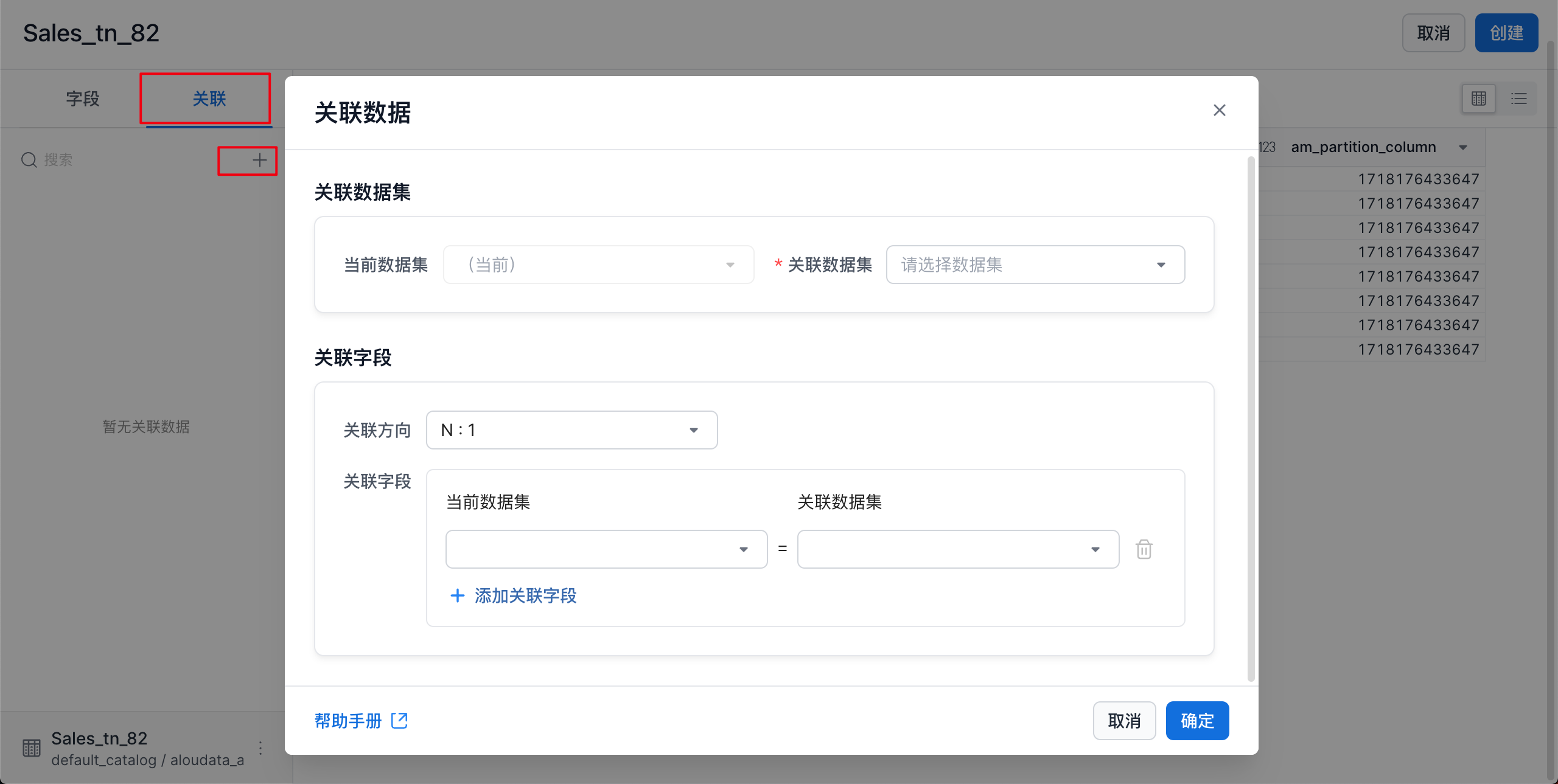 Open the relationships pane and click Open the relationships pane and click + at the bottom to add a dataset relationship. |
| Sync fields | 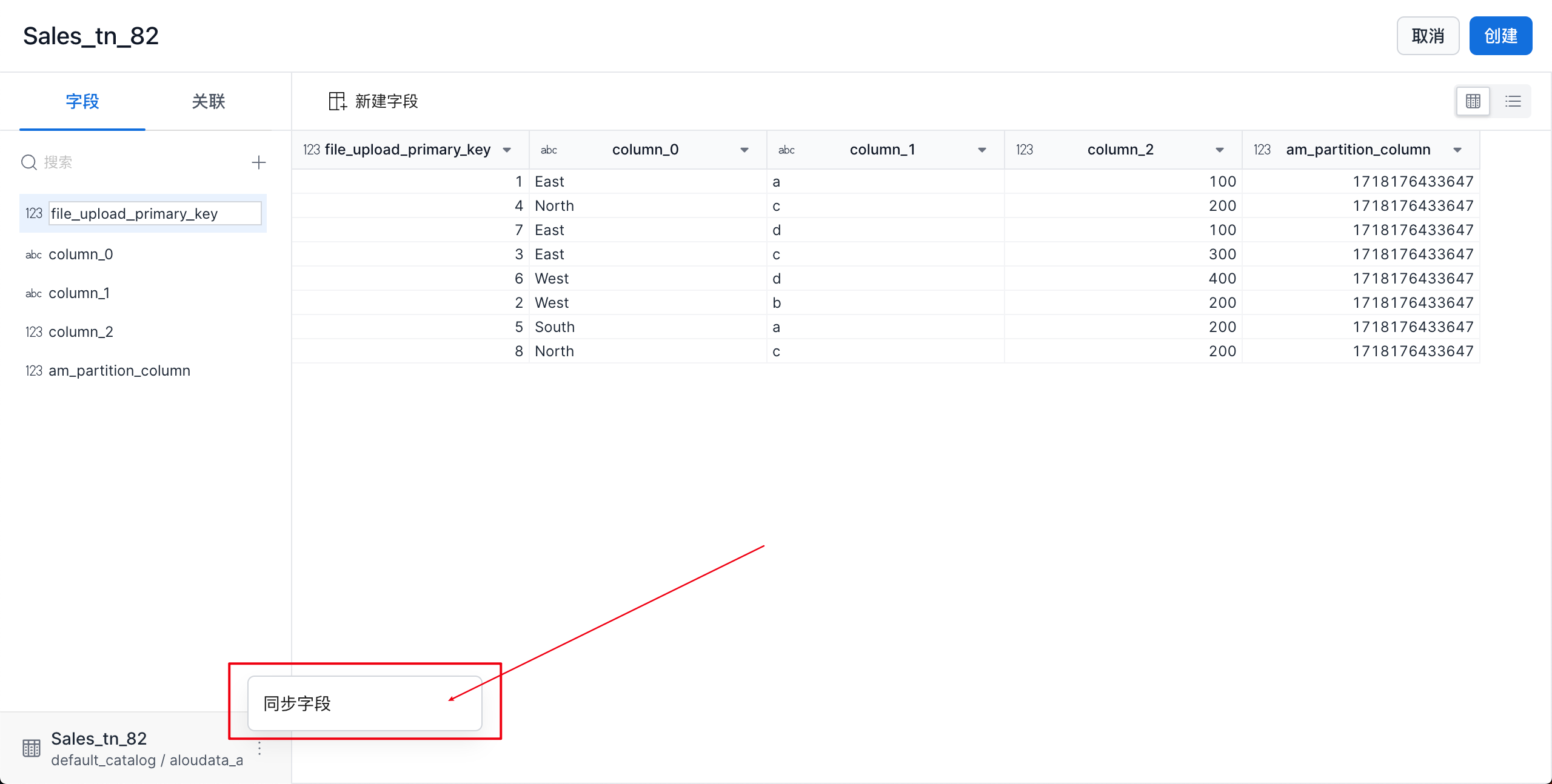 When fields in the source table change, the dataset does not detect the changes automatically. Click sync manually to immediately retrieve the latest source table metadata. When fields in the source table change, the dataset does not detect the changes automatically. Click sync manually to immediately retrieve the latest source table metadata. |
| Create field | 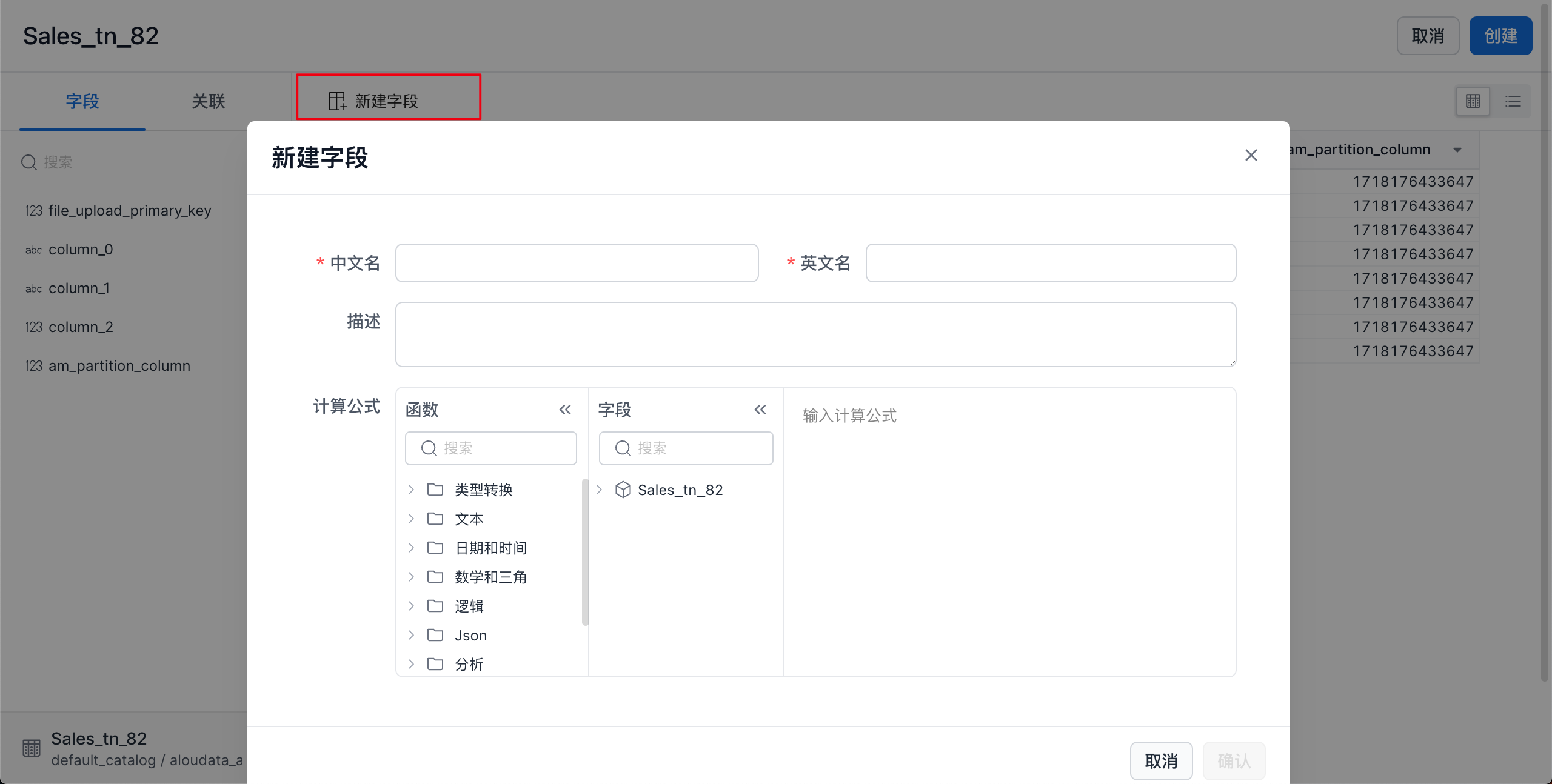 * Chinese name: Must be unique within the dataset and no longer than 50 characters. * English name: Supports letters, numbers, and underscores ( * Chinese name: Must be unique within the dataset and no longer than 50 characters. * English name: Supports letters, numbers, and underscores (_). Must be unique within the dataset and no longer than 50 characters. * Description: Field description, up to 300 characters. * Calculation formula: Formula for the field. A new field can only reference fields in the current dataset. |
| Switch views | Data can be displayed in two view modes: * Data view: Shows the data content more clearly. 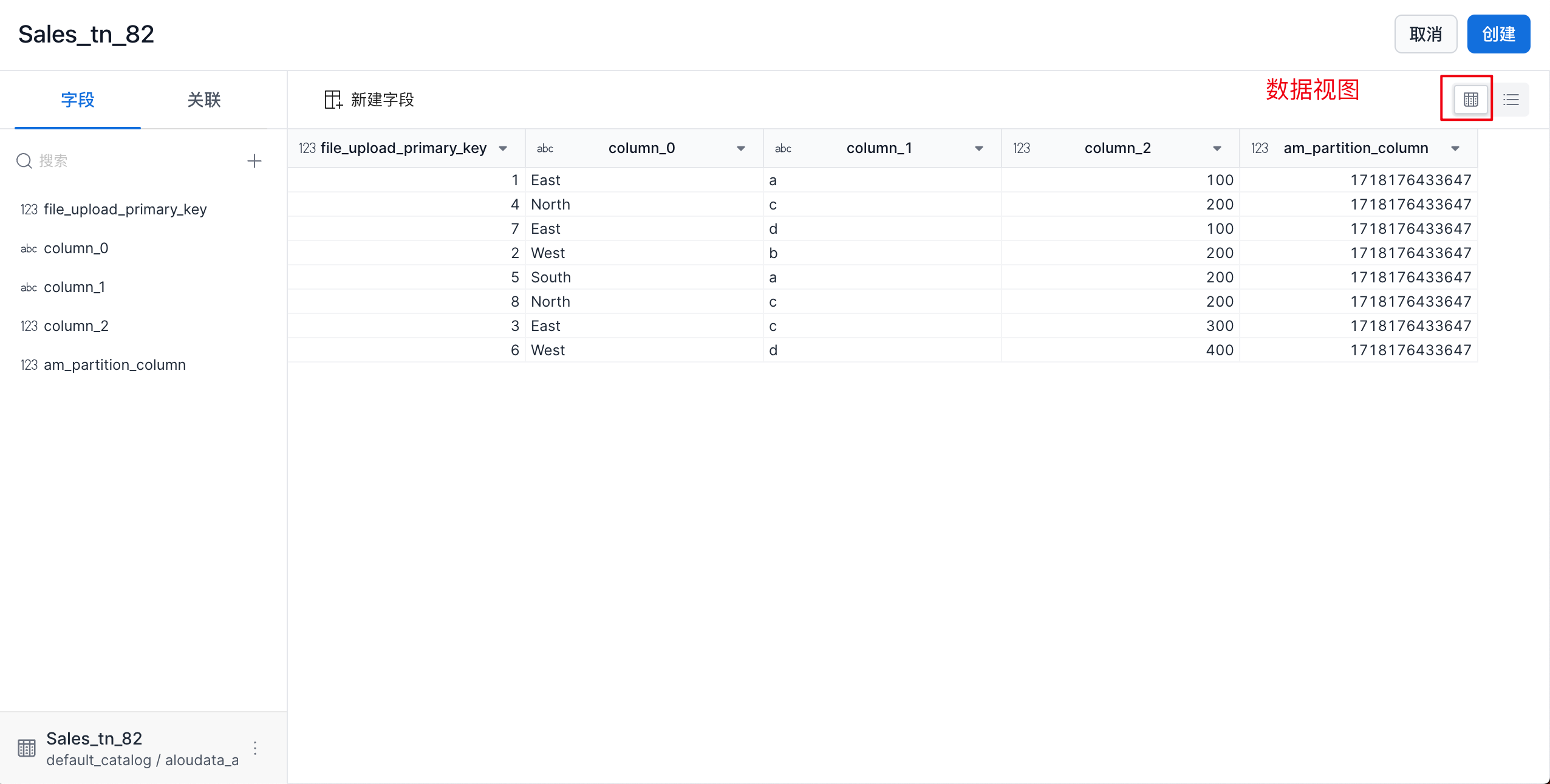 * Field view: Shows field configuration more clearly. * Field view: Shows field configuration more clearly. 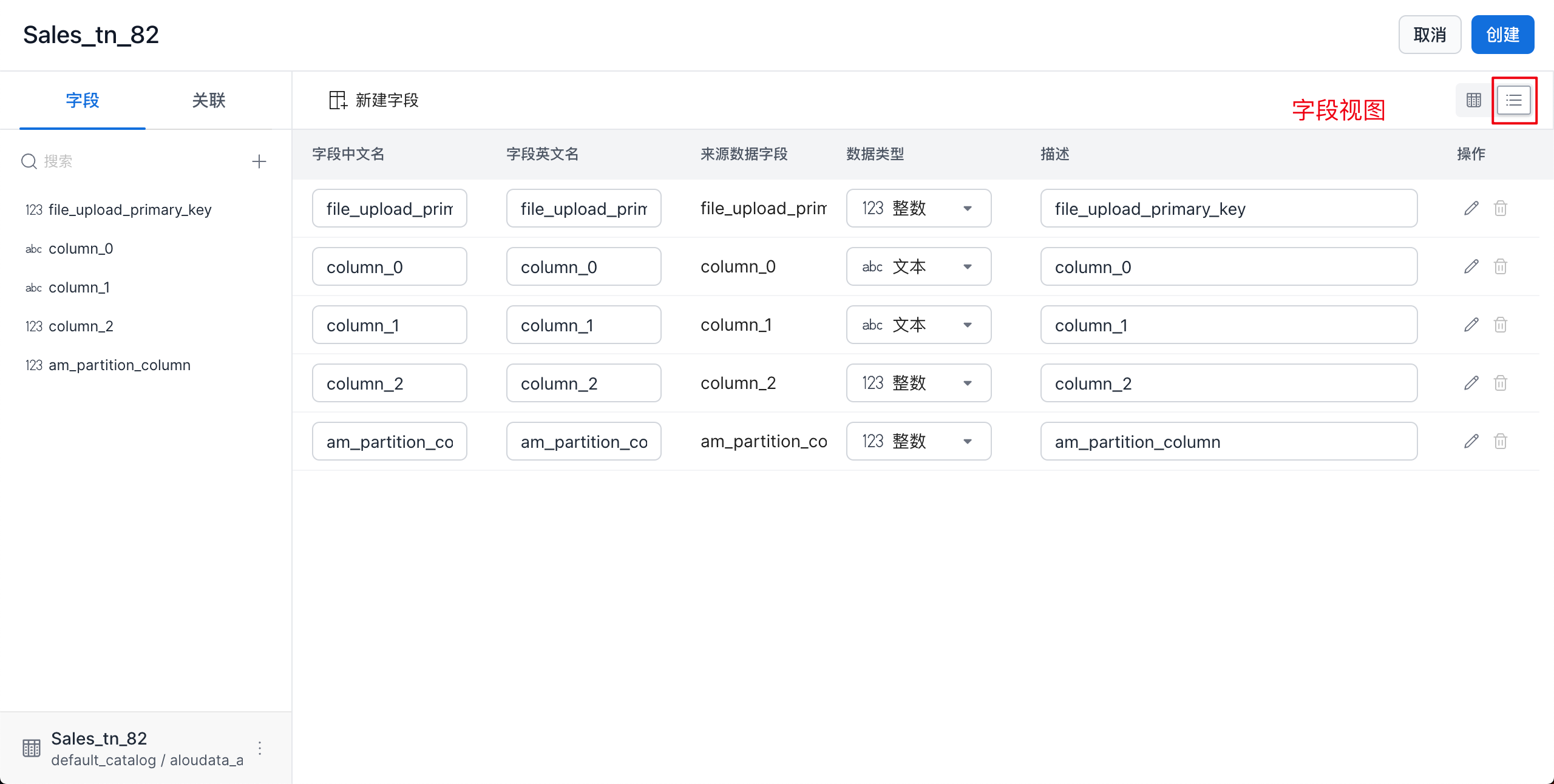 |
Important
The date format is the format of the original field value, not the target output format. For example, if the original field is a text (TEXT) field and the column value is 20230520, select yyyyMMdd when converting the field to a date type.
Finish Creating the Dataset
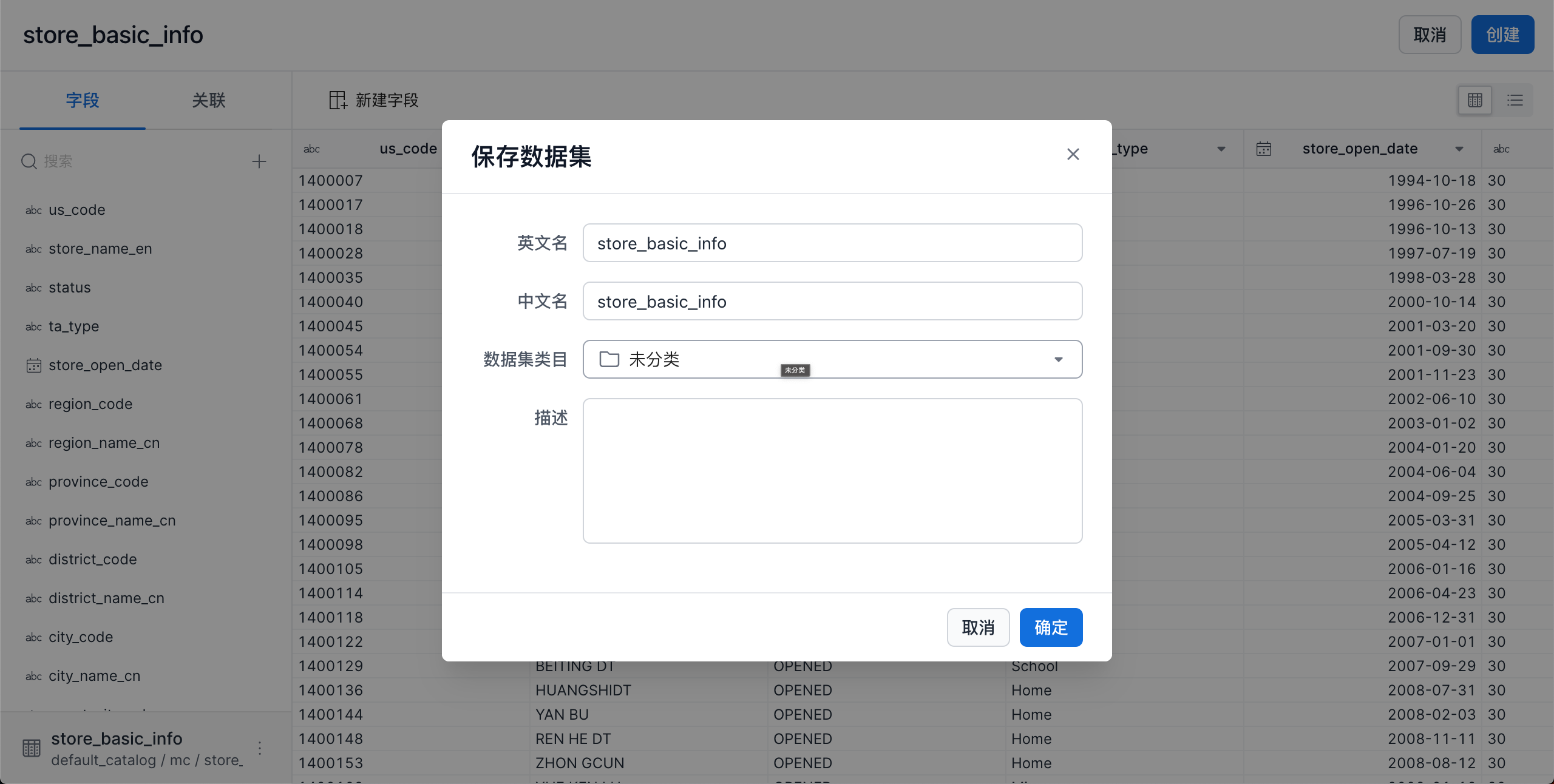
Click Create in the upper-right corner. In the save dataset window, enter the basic dataset information.
| Item | Description |
|---|---|
| English name | Supports letters, numbers, and underscores (_). Must be unique within the dataset and no longer than 50 characters. |
| Chinese name | Must be unique within the dataset and no longer than 50 characters. |
| Data category | Select the category where the dataset will be stored from the drop-down list. |
| Description | Dataset description, up to 300 characters. |