Create Metric Monitoring
This section introduces metric monitoring and explains how to create metric monitoring.
Tip
Super administrators, administrators, metric definers, and metric users can all create monitoring. Monitoring can be created for metrics on which the user has Manage permission.
Each user can view monitoring that they created and monitoring pushed to them. Super administrators can view all monitoring.
Feature Description
Monitoring List
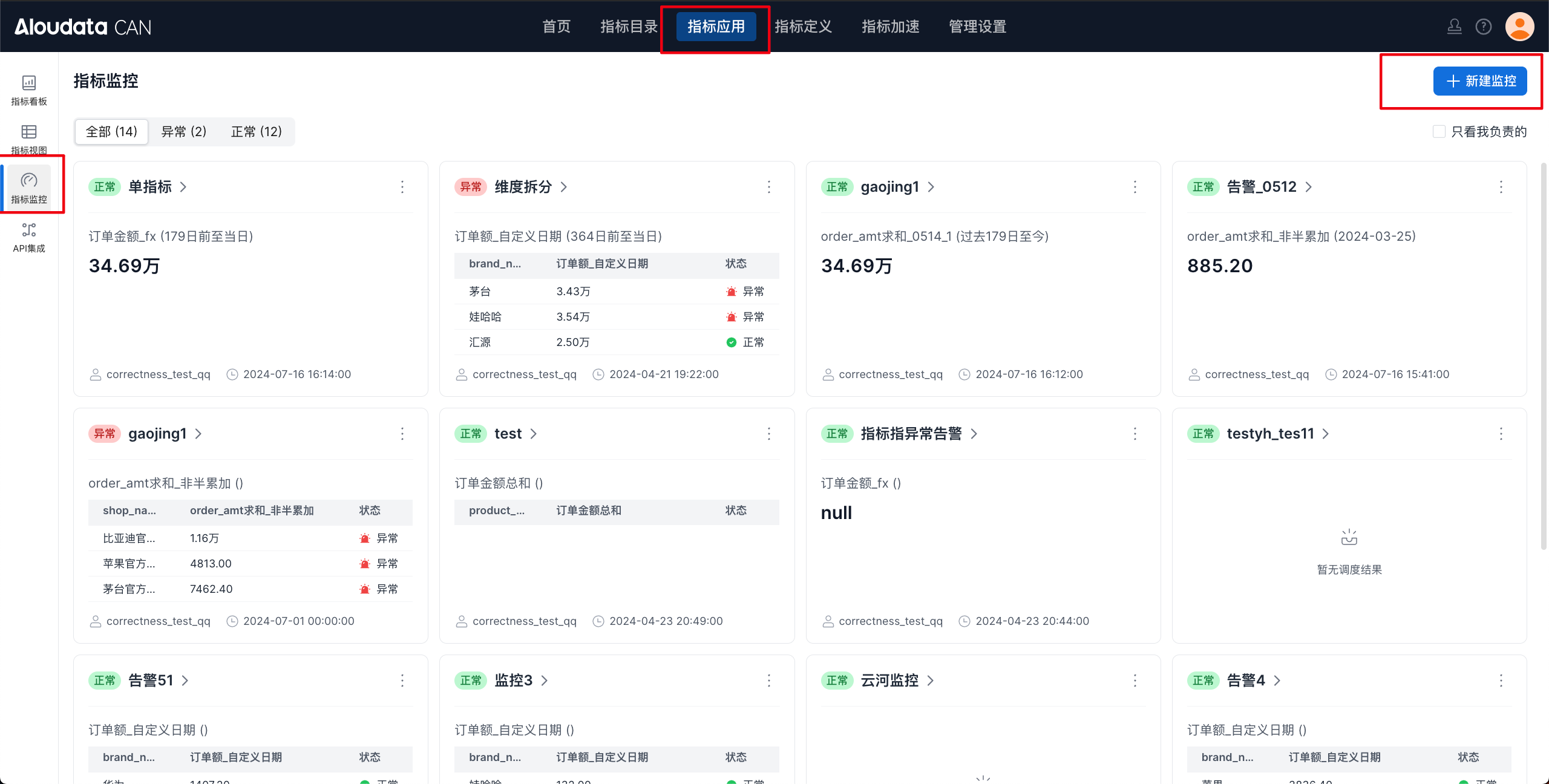
Monitoring content is displayed as cards:
-
Displays monitoring that
I createdand monitoring for whichI am a push recipient. -
The list is sorted by
Modified Time, with the most recently modified items first.
Create Monitoring
Entry Point
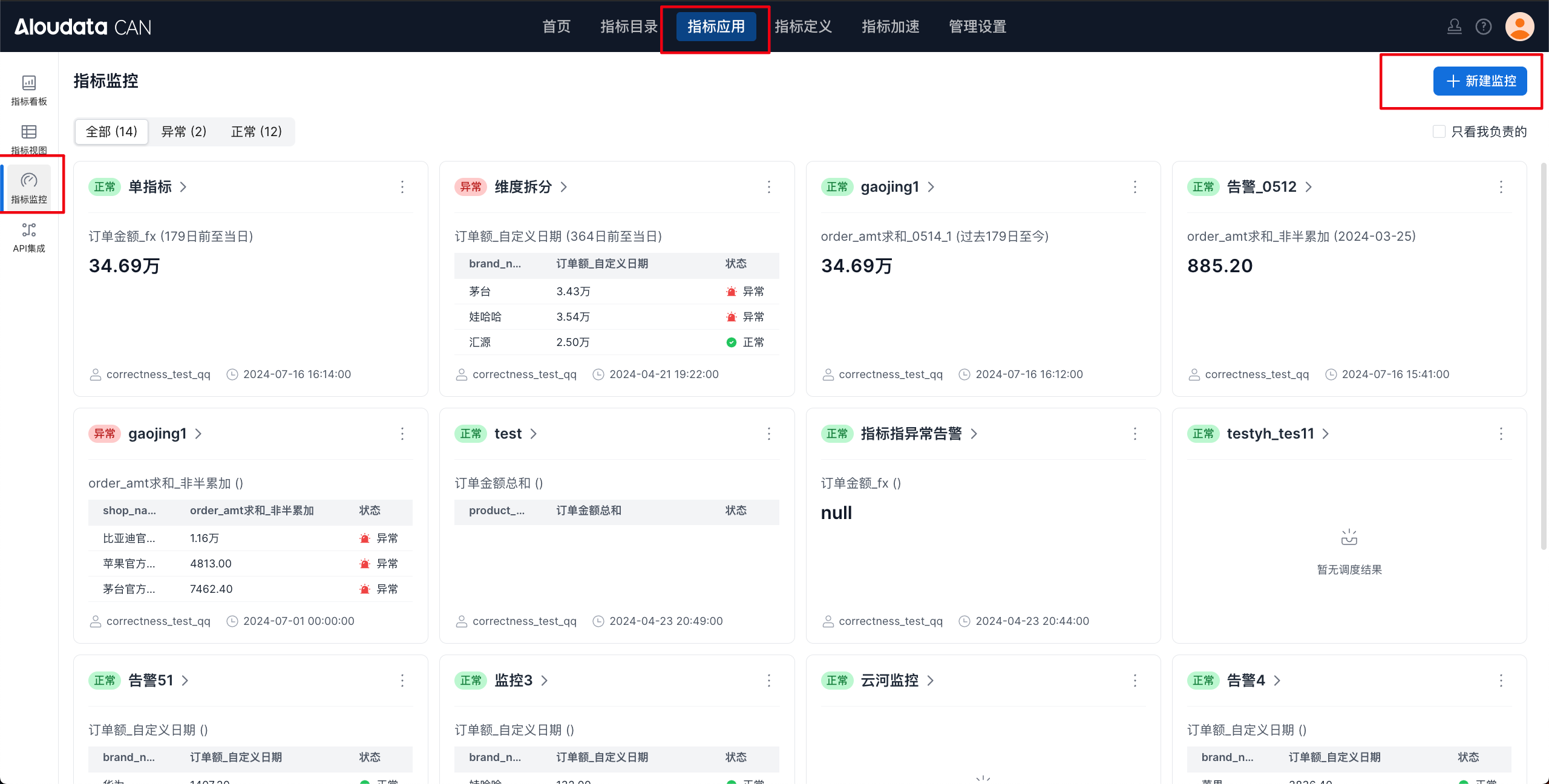
In the top navigation bar, choose Metric Applications, and then click Metric Monitoring in the left navigation bar. In the upper-right corner of the metric monitoring page, click Create Monitoring, as shown below:
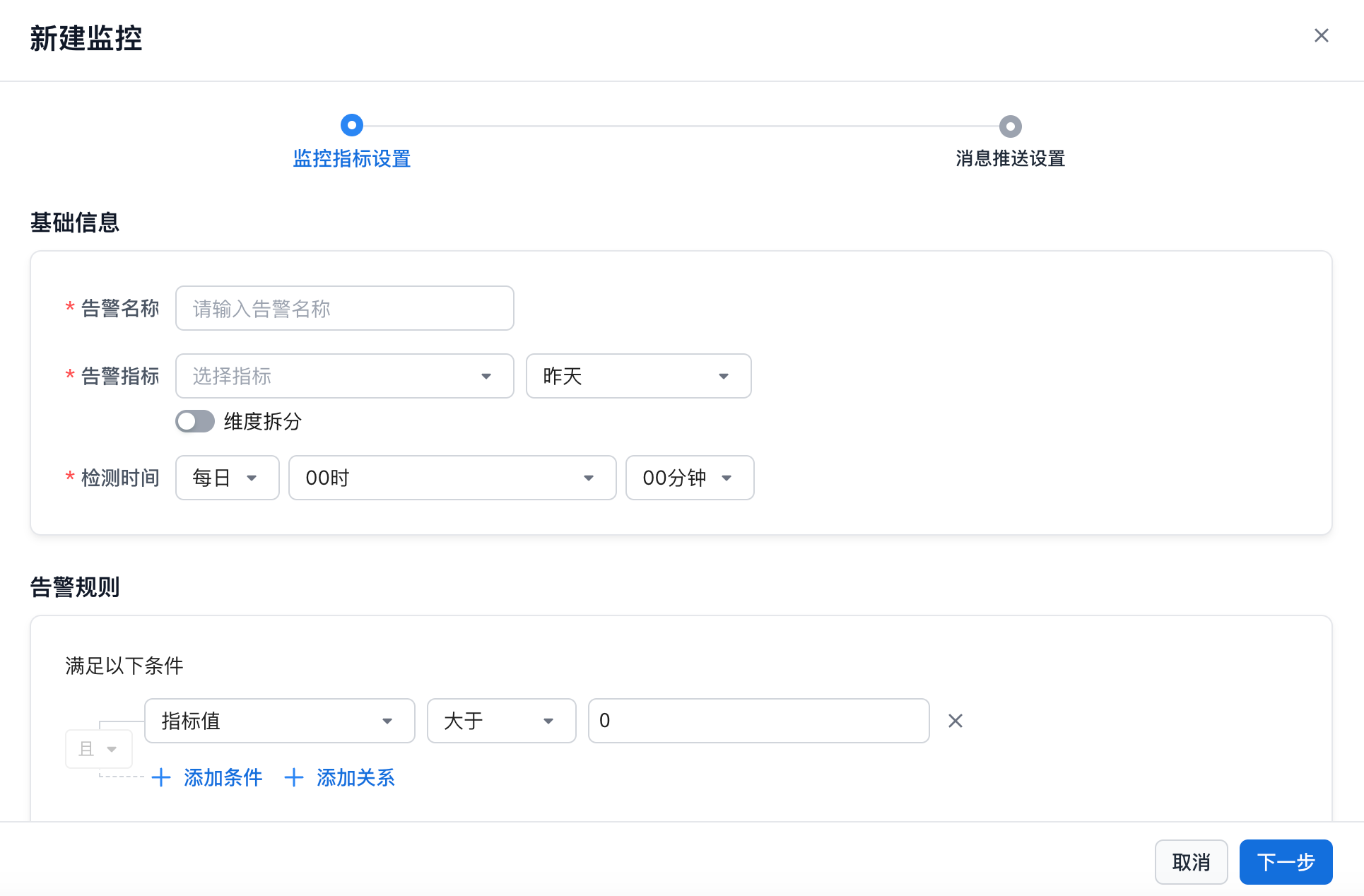
Monitoring setup is completed in two modules: monitored metric settings and message push settings. You can switch between the two modules freely without losing entered configuration. The full configuration is validated when you submit it.
Monitored Metric Settings
| Configuration Item | Description |
|---|---|
| Alert Name | Any characters within 50 characters. Duplicate names are allowed. |
| Alert Metric | Select a metric on which you have Manage permission. Only metrics whose monitoring result is numeric are supported. If the user's Manage permission is revoked, the alert is marked as Abnormal. |
| Dimension Split | Metrics can be split by dimension. After splitting, the metric result is calculated for each dimension value. 1. Only one dimension can be used for splitting. 2. You can manually select which dimension values to monitor, and manual dimension value input is supported. |
| Detection Time | - Hourly: N minutes past every hour - Daily: M hours and N minutes each day  - Weekly: L day of each week at M hours and N minutes  - Monthly: day L of each month at M hours and N minutes  |
| Alert Rules | - Supports nested multi-level AND/OR relationships.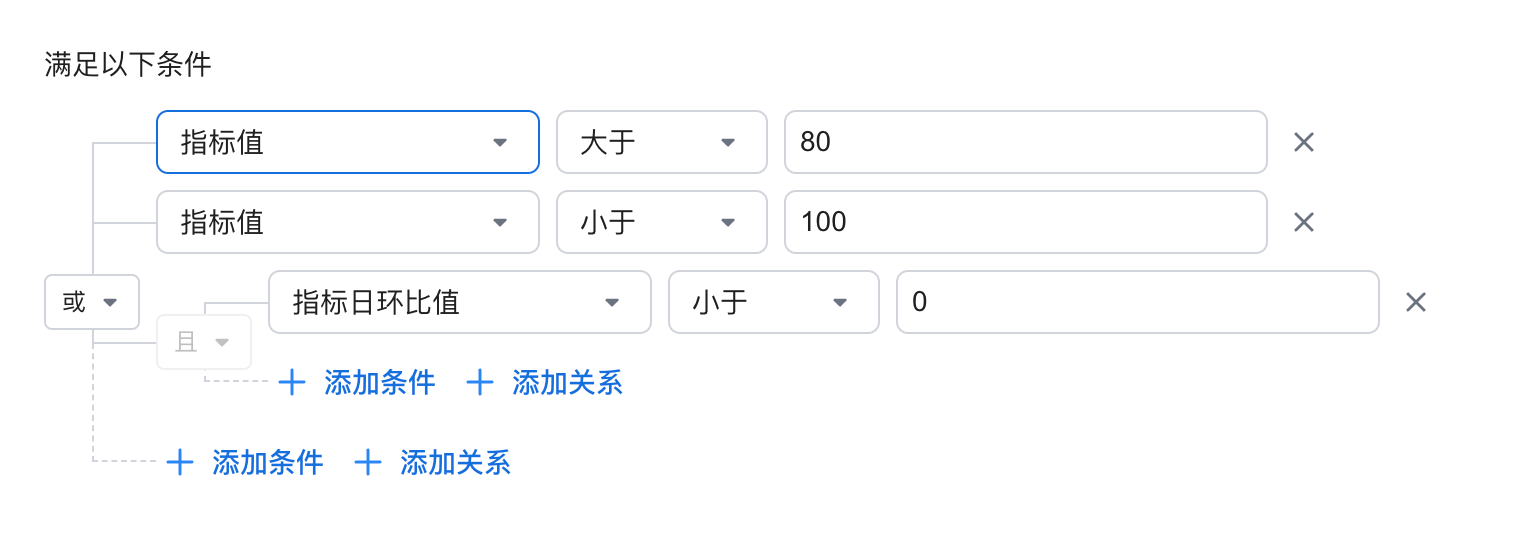 - Supported metric entities: - Metric value; metric day-over-day growth value/growth rate; metric week/month/quarter/year year-over-year growth value/growth rate - Operators: - Equals - Not equal to - Greater than - Greater than or equal to - Less than - Less than or equal to - Between - Outside range - When a rate is selected, the system automatically adds %. |
Calculation Principle
The metric is calculated at the scheduled time.
If dimension split is configured, the metric result is calculated for each dimension.
The metric result is applied to the alert rules. Each rule must be fully checked, and the triggered rule is marked.
If no alert is triggered during the current check, no push notification is sent.
Message Push Channel Settings
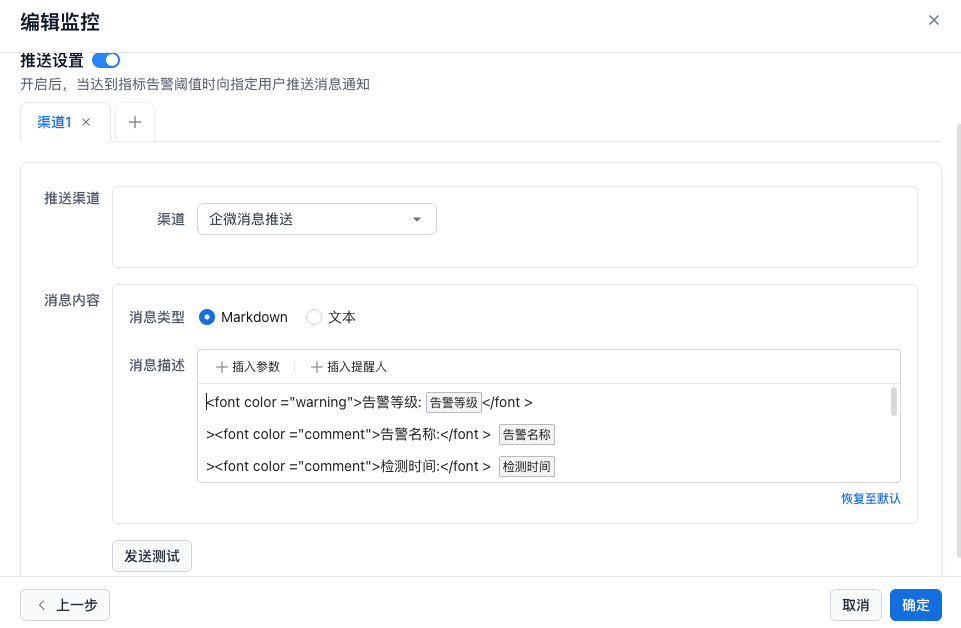
| Configuration Item | Description |
|---|---|
| Push Channel | Supported push channels currently include WeCom app push, WeChat bot, Lark app push, Lark bot, DingTalk app push, DingTalk bot, and custom webhook push. For details, see Message Push Overview. |
| Message Content | Title: email title. Message description: the following is the default push content: As of Detection Time, the metric result of Split Dimension Value Monitored Metric Name that you follow is Metric Result, and it matches the alert condition: Matched Alert Condition. Please pay attention promptly. The metric owner is Metric Owner. An example is shown below: 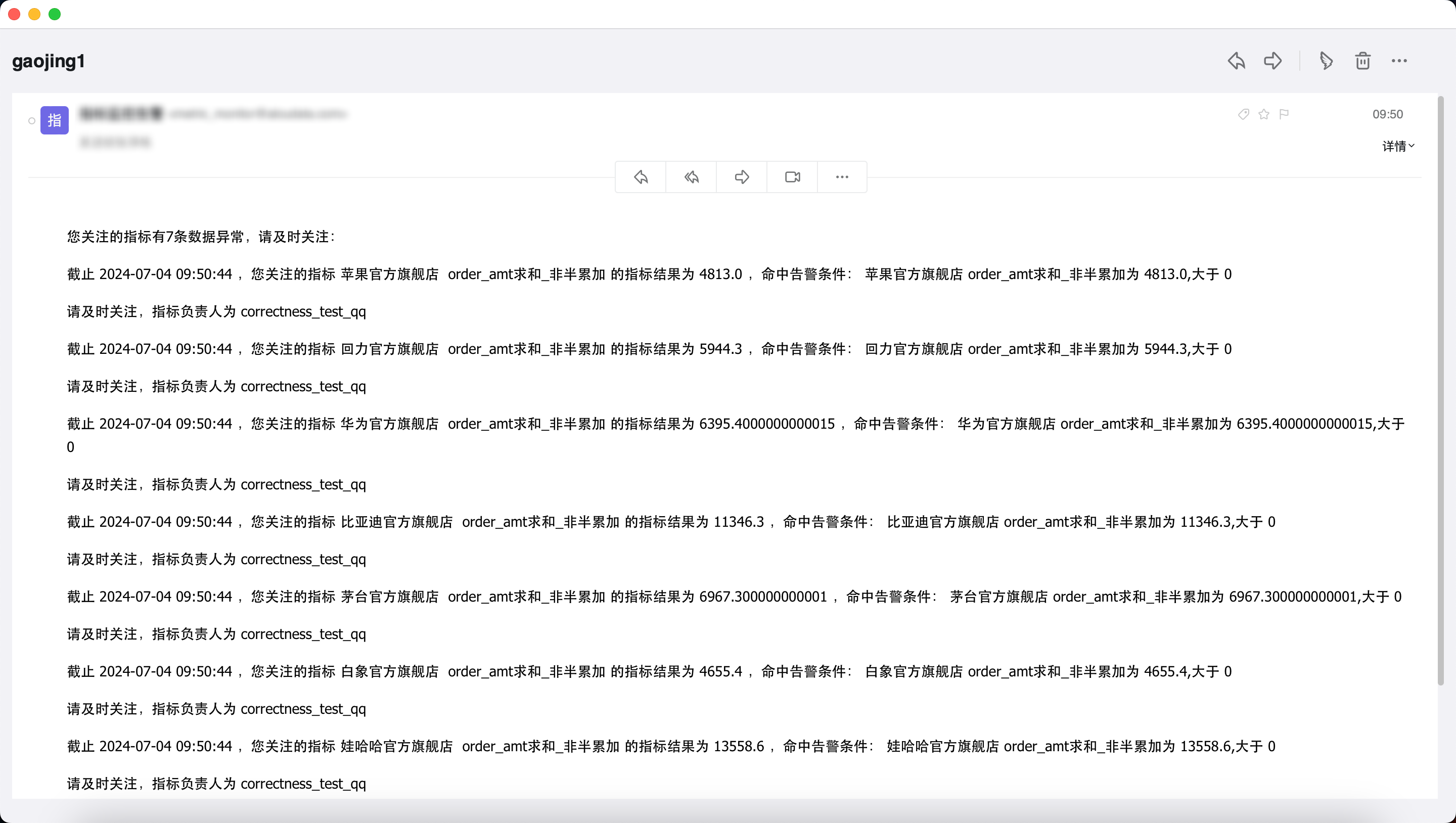 |
| Push Test | Sends a test message to the added channel. |
Push Content
When you select the WeCom bot, two message push types are supported.
Text Type
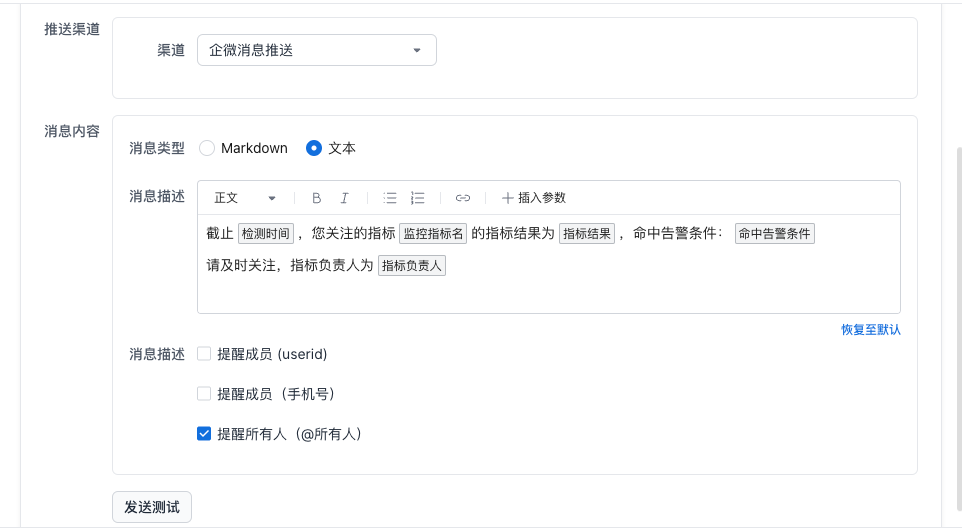
For text-type message pushes, you can add @ reminders for specified members at the end of the message.
Markdown Type
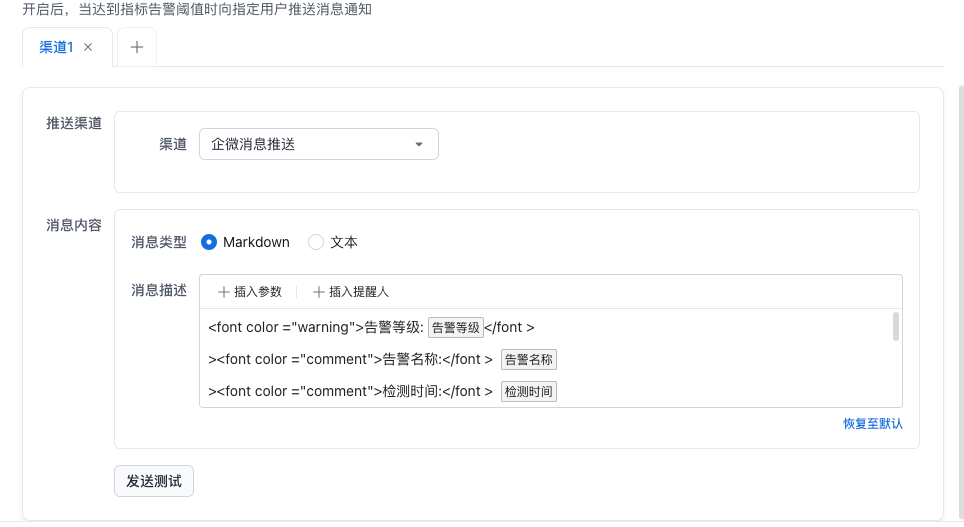
For markdown-type message pushes, the system provides a push message template. Users can adjust the content and style as needed.