Manage Metric Views
This page explains metric view operations, including adding, deleting, editing, authorizing, and viewing lineage for metric views.
Add a Metric View
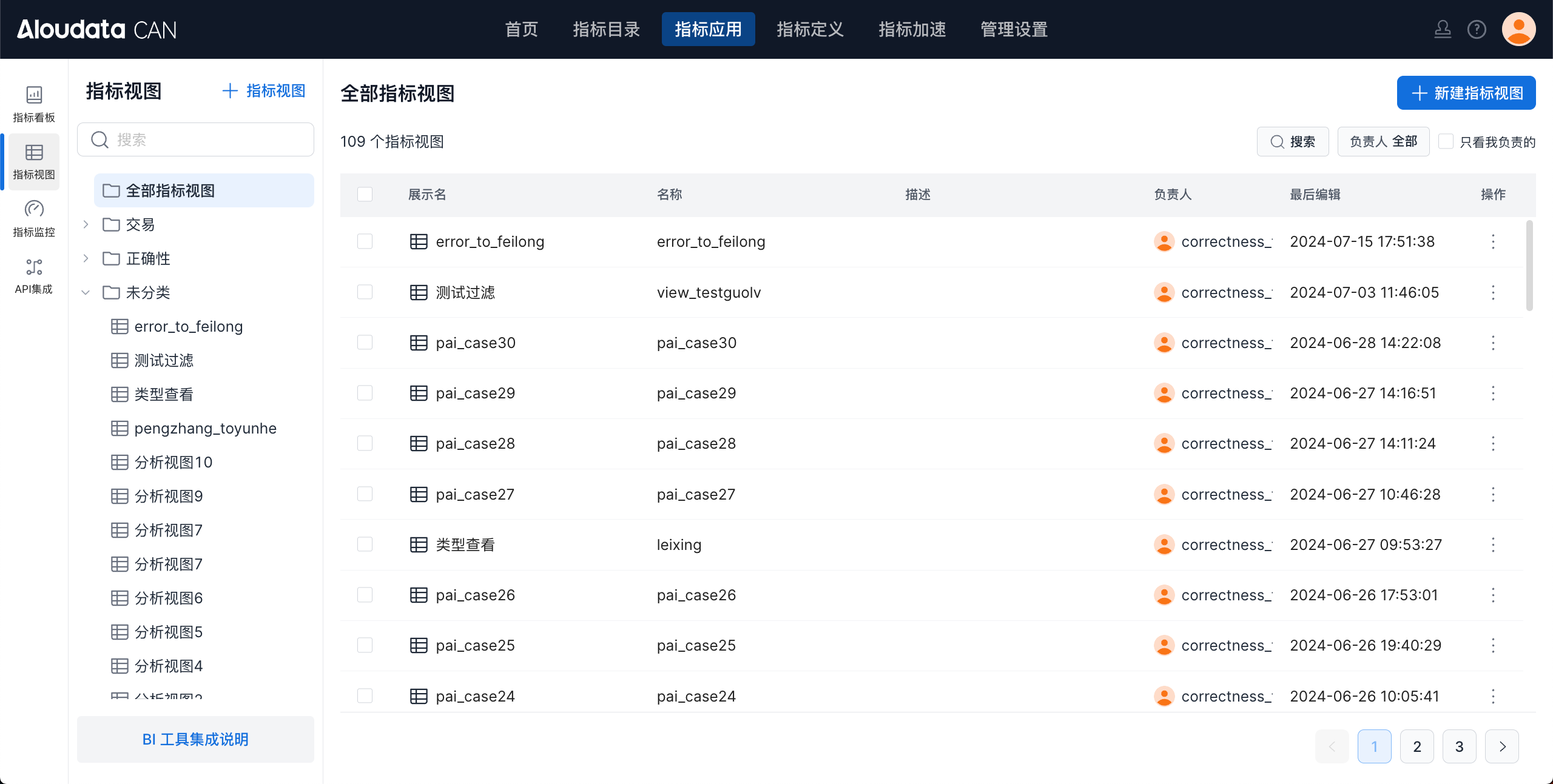
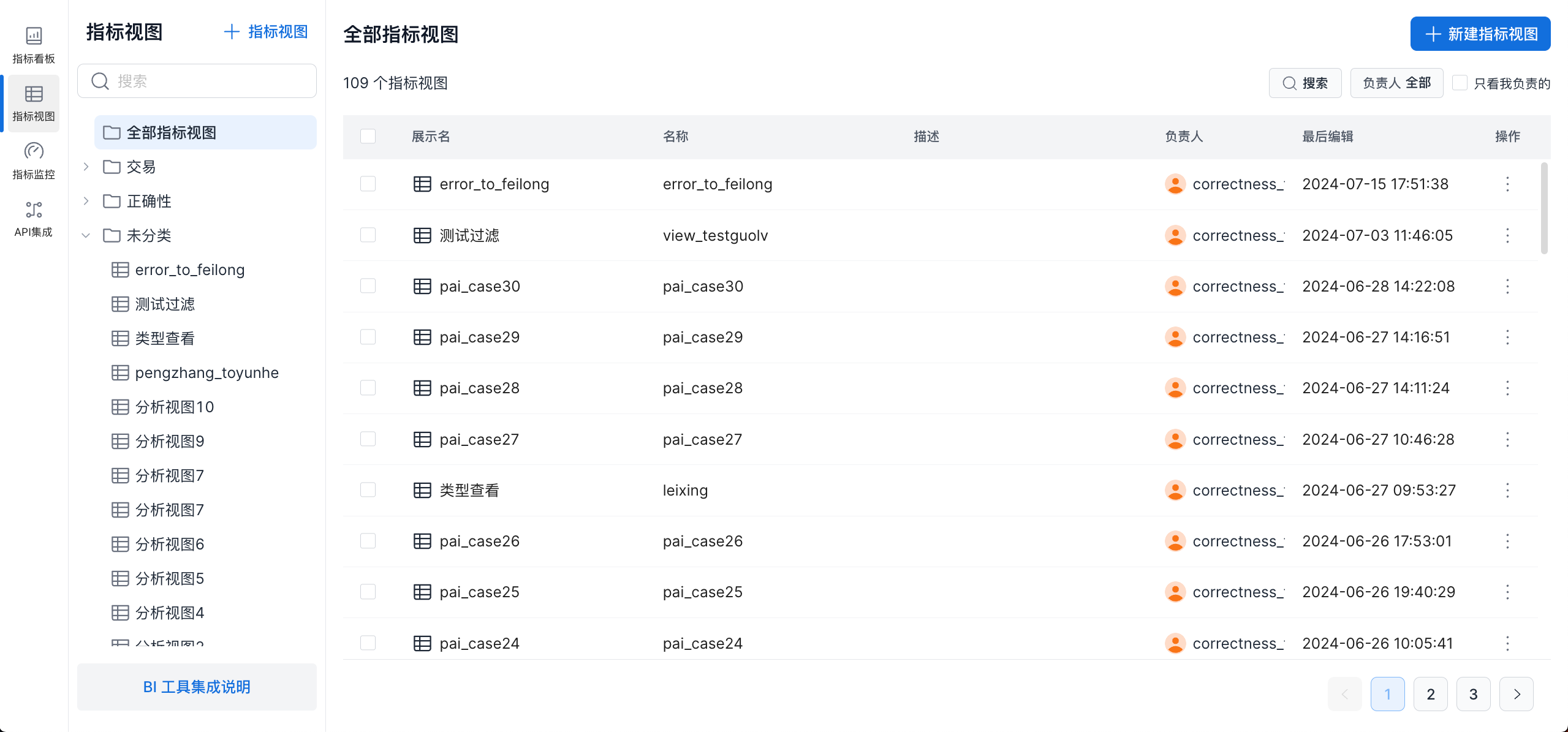
In the top navigation bar, choose Metric Applications, then choose Metric Views in the left navigation bar. In the upper-right corner of this page, click Add Metric View. For detailed steps, see Create a Metric View.
Delete a Metric View
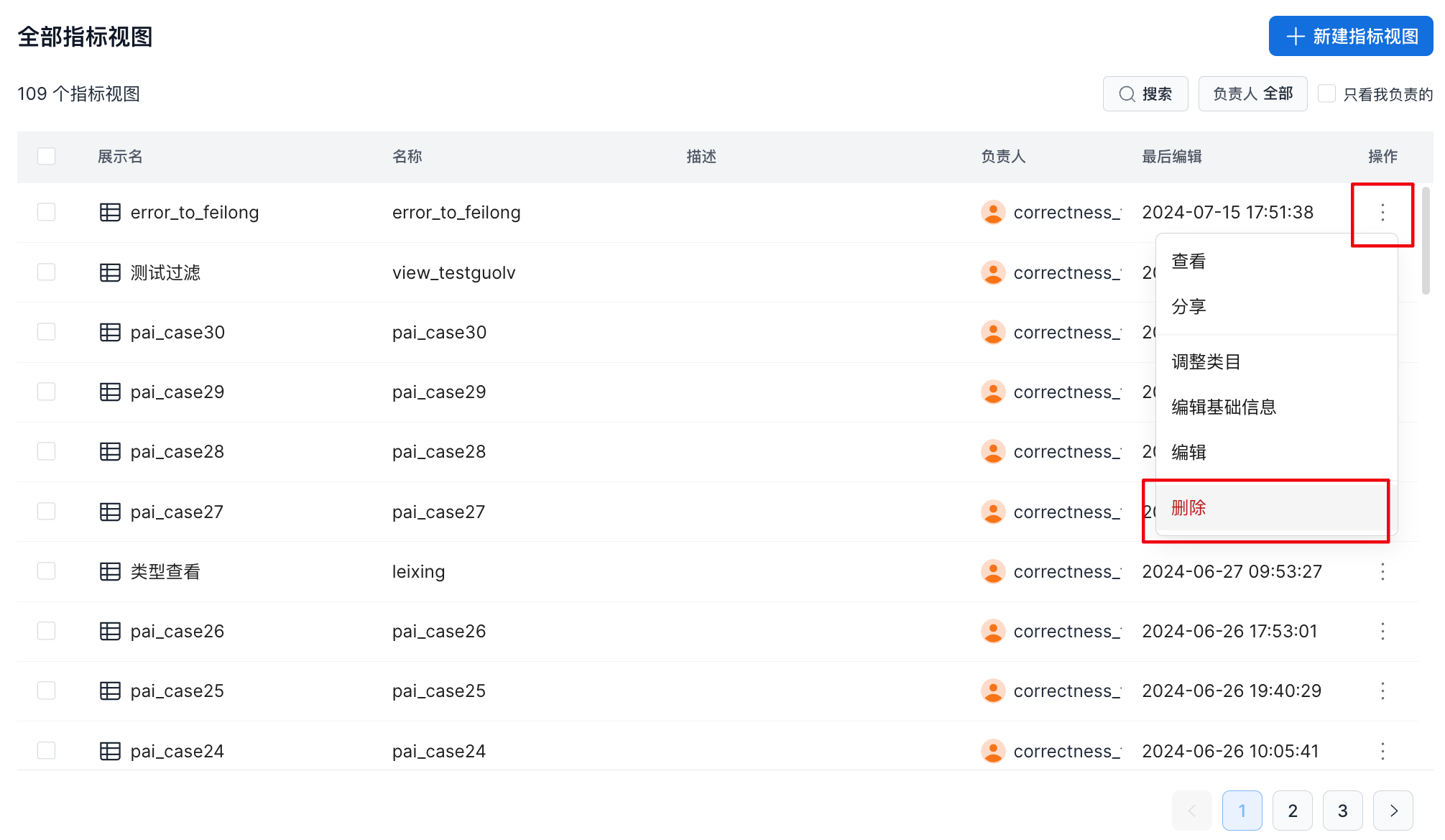
On the metric view list page, click the ... button on the right side of the metric view, click Delete, and then click Confirm Delete in the pop-up window.
Edit a Metric View
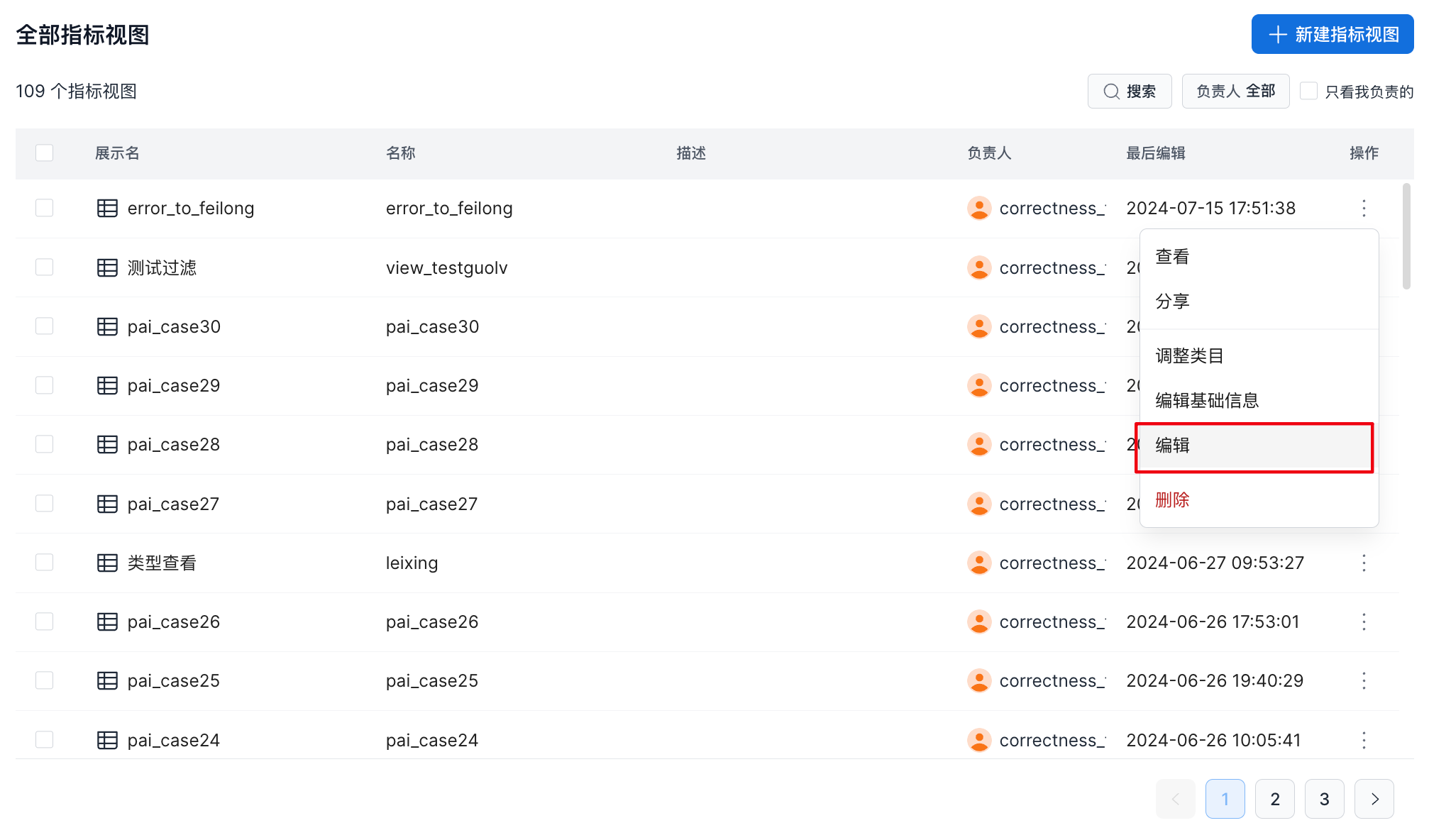
On the metric view list page, click the ... button on the right side of the metric view, and then click Edit to open the metric view editing page. Editing is similar to creating a metric view. For details, see Create a Metric View.
Copy a Metric View
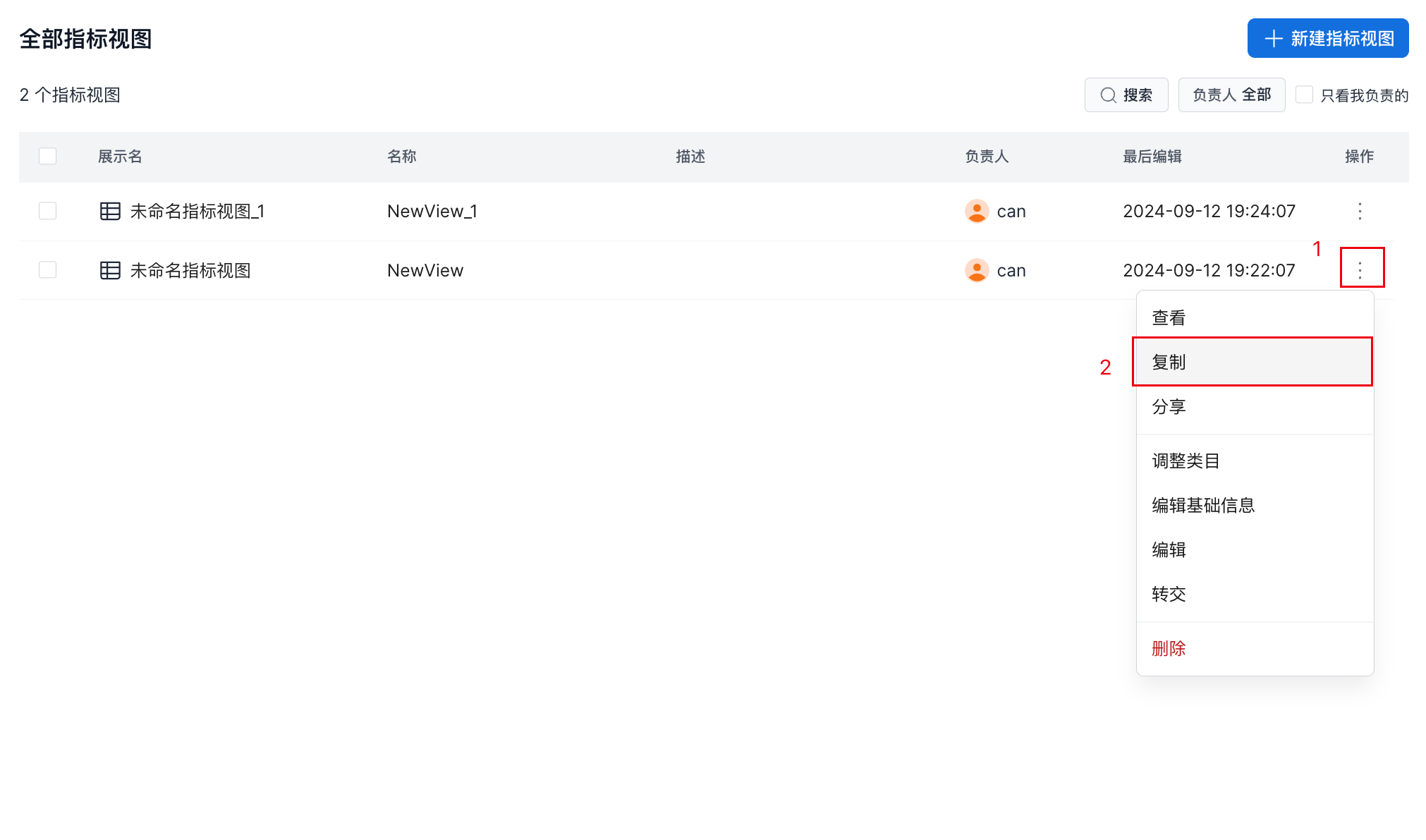
On the metric view list page, click the ... button under Actions, and then click Copy, as shown below:
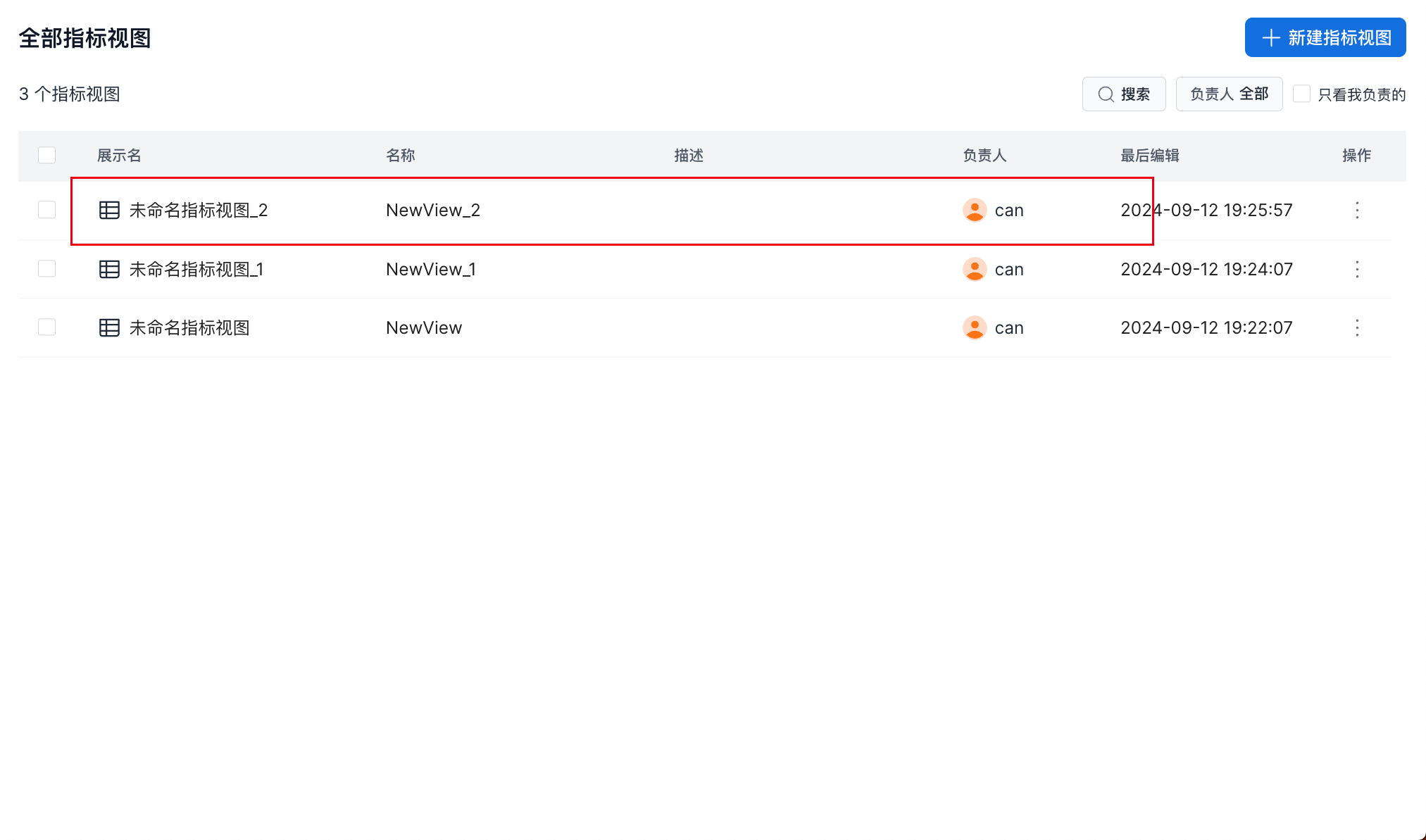
After you click Copy, a new metric view with the same logic and a different name is immediately generated in the metric view list.
Transfer a Metric View
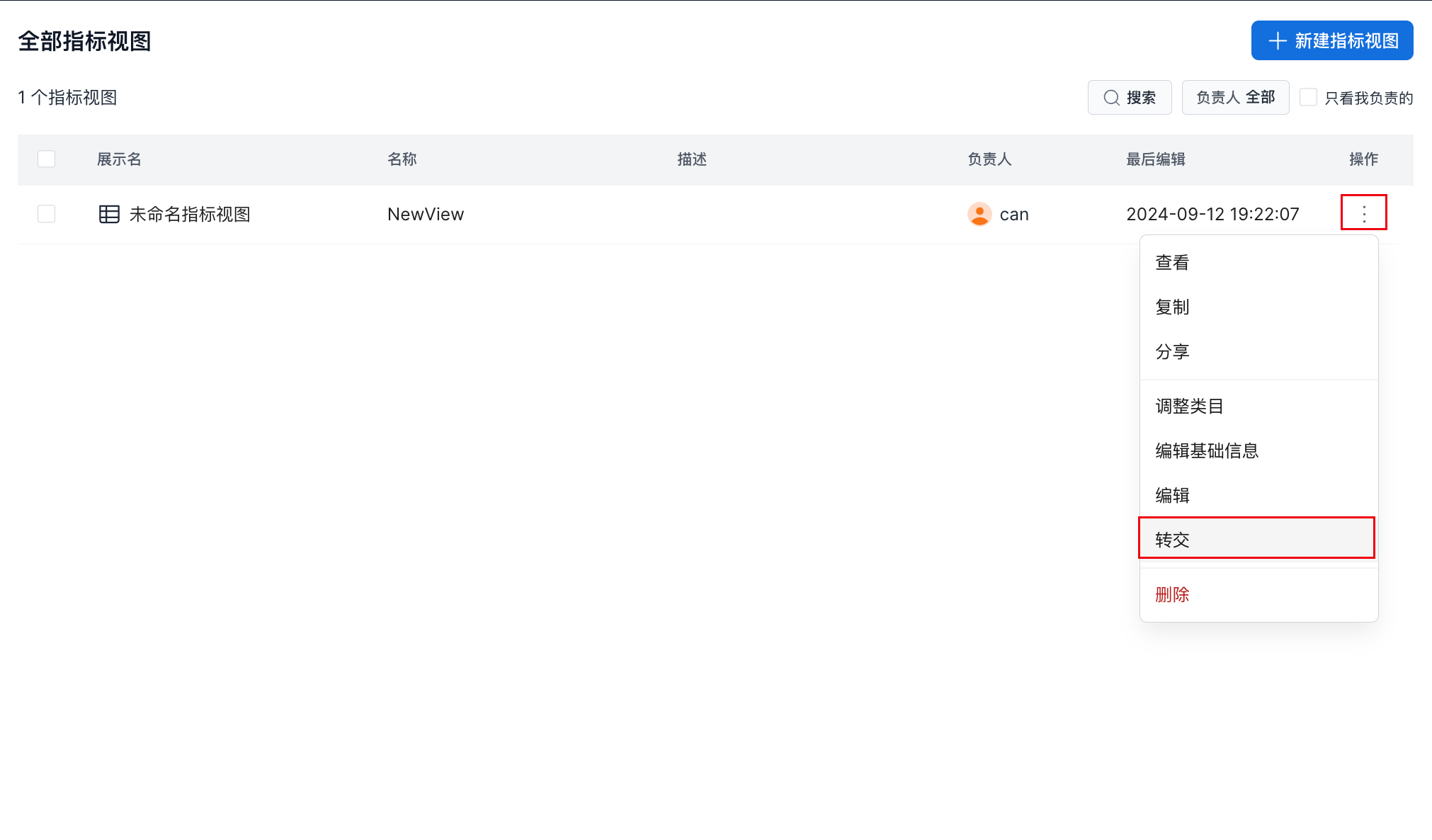
On the metric view list page, click the ... button under Actions, and then click Transfer, as shown below:
In the transfer window, select the user to whom you want to transfer the asset, and then click Transfer to complete the transfer.

Share a Metric View
- In the metric view list, click the
...button on the right side of the metric view and select Share. The authorization page appears.
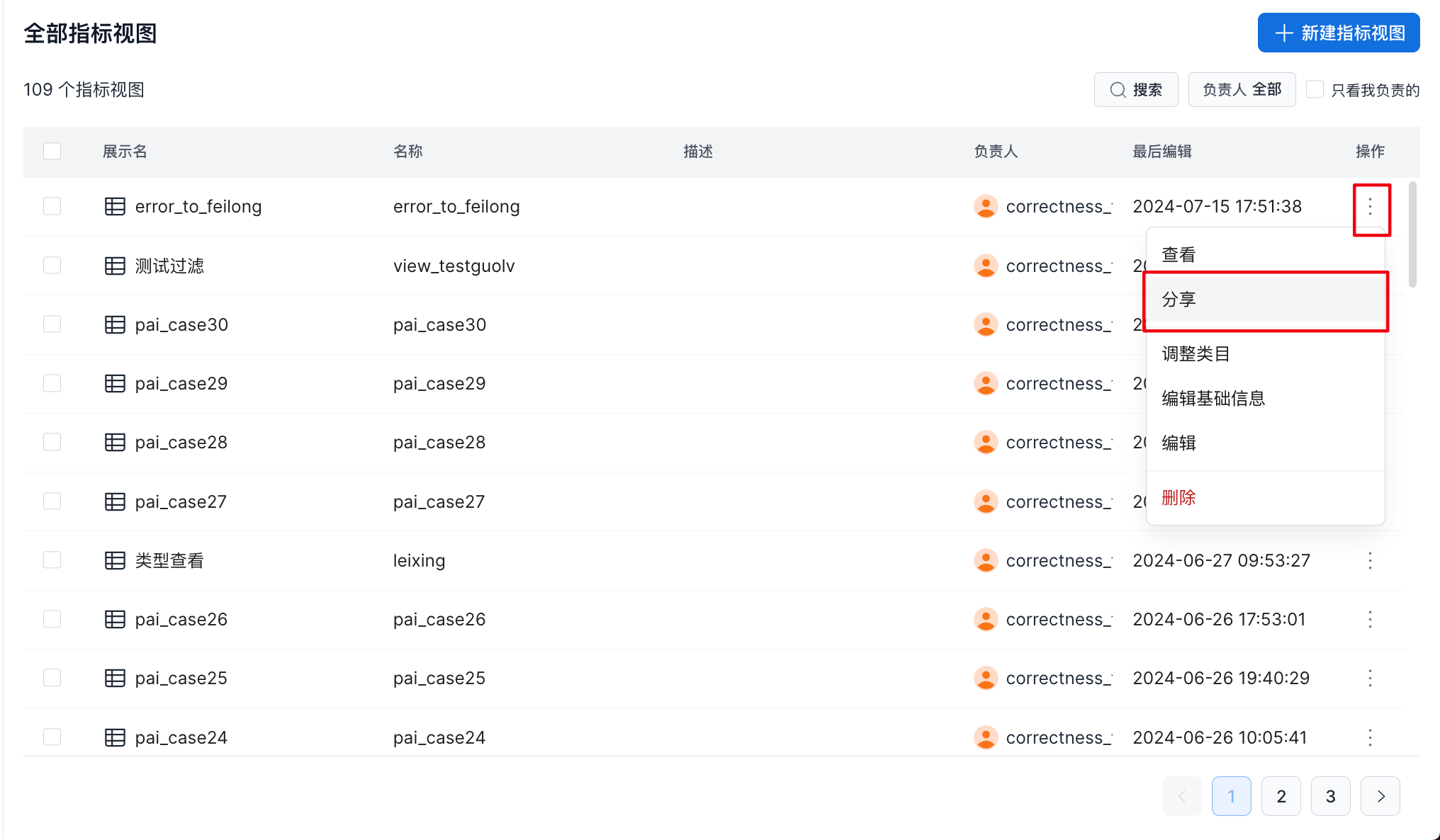
- Grant permissions to specified users or user groups.

| Configuration Item | Description |
|---|---|
| User/User Group | Select the user group or user to share with from the drop-down list. |
| Role | 1. Administrator 1. Can edit the metric view definition. 2. Can grant metric view permissions to other users or user groups. 1. The owner can grant administrator and user permissions. 2. Non-owners can grant user permissions. 3. Can revoke permissions from other users or user groups. 1. The owner can revoke administrator and user permissions. 2. Non-owners cannot revoke users or user groups that have administrator permissions. 2. User 1. Has permission to use the metric view. |
Adjust the Metric View Category
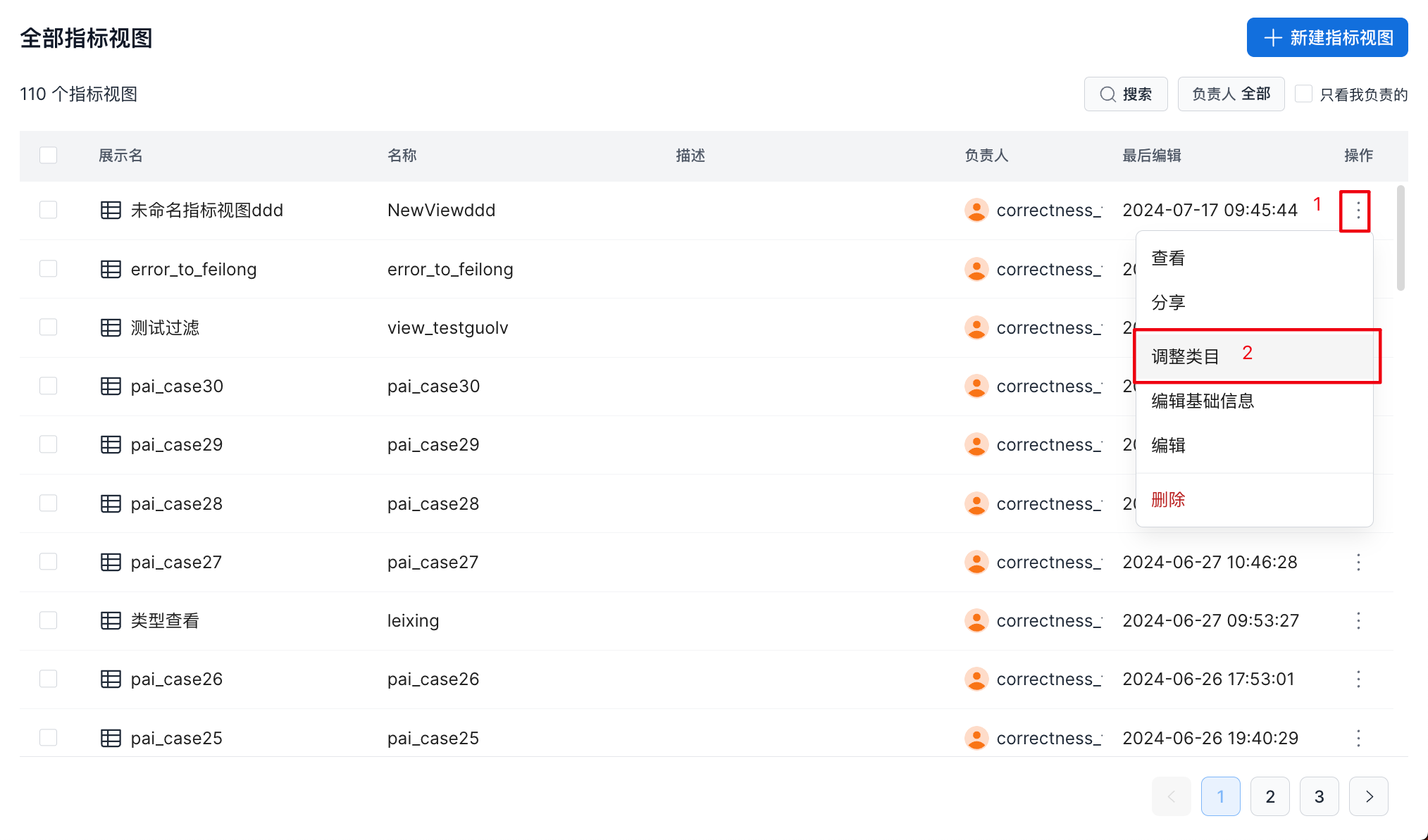
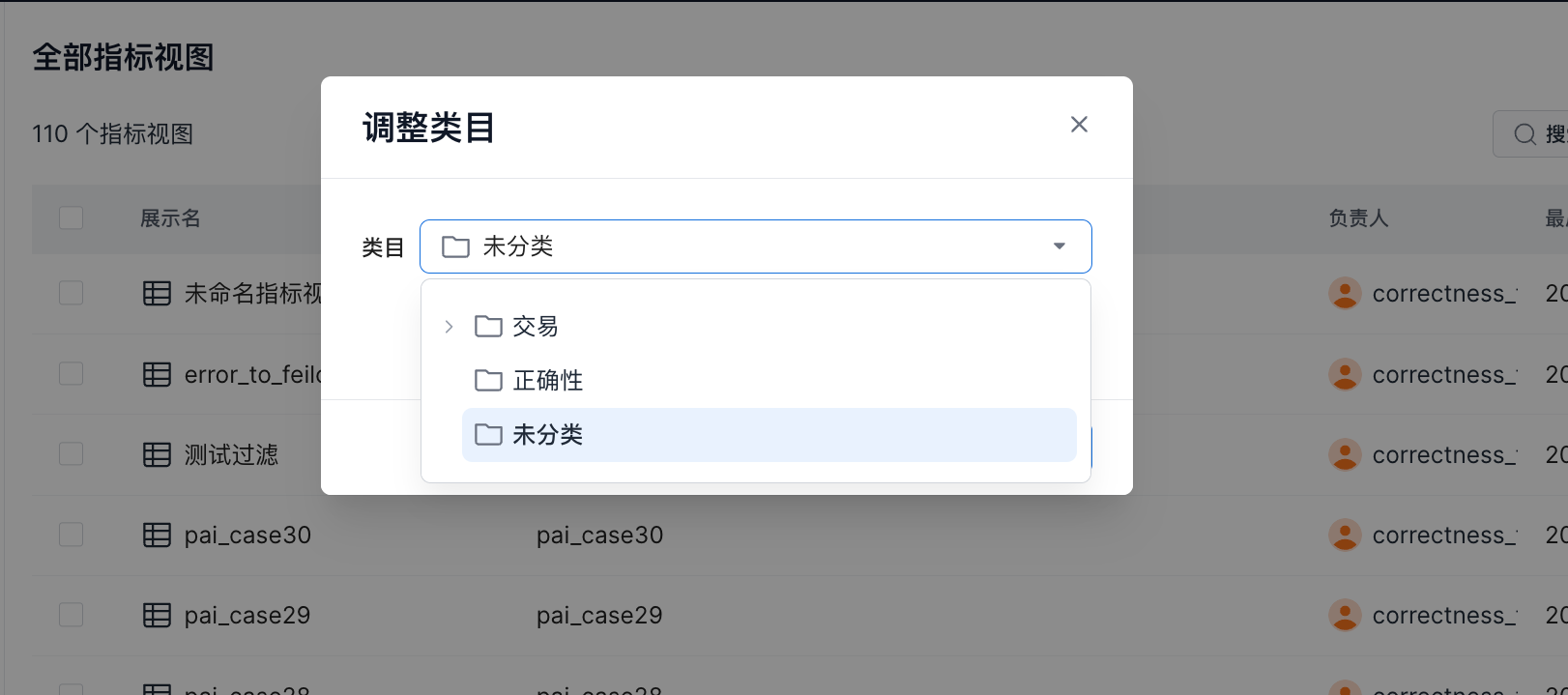
In the metric view list, click the ... button on the right side of the metric view and select Adjust Category. The category adjustment window appears.
As shown below, select the target category in the option box, and then click Save to complete the adjustment.
Edit Basic Metric View Information
In the metric view list, click the ... button on the right side of the metric view and select Edit Basic Information. An editing window appears.
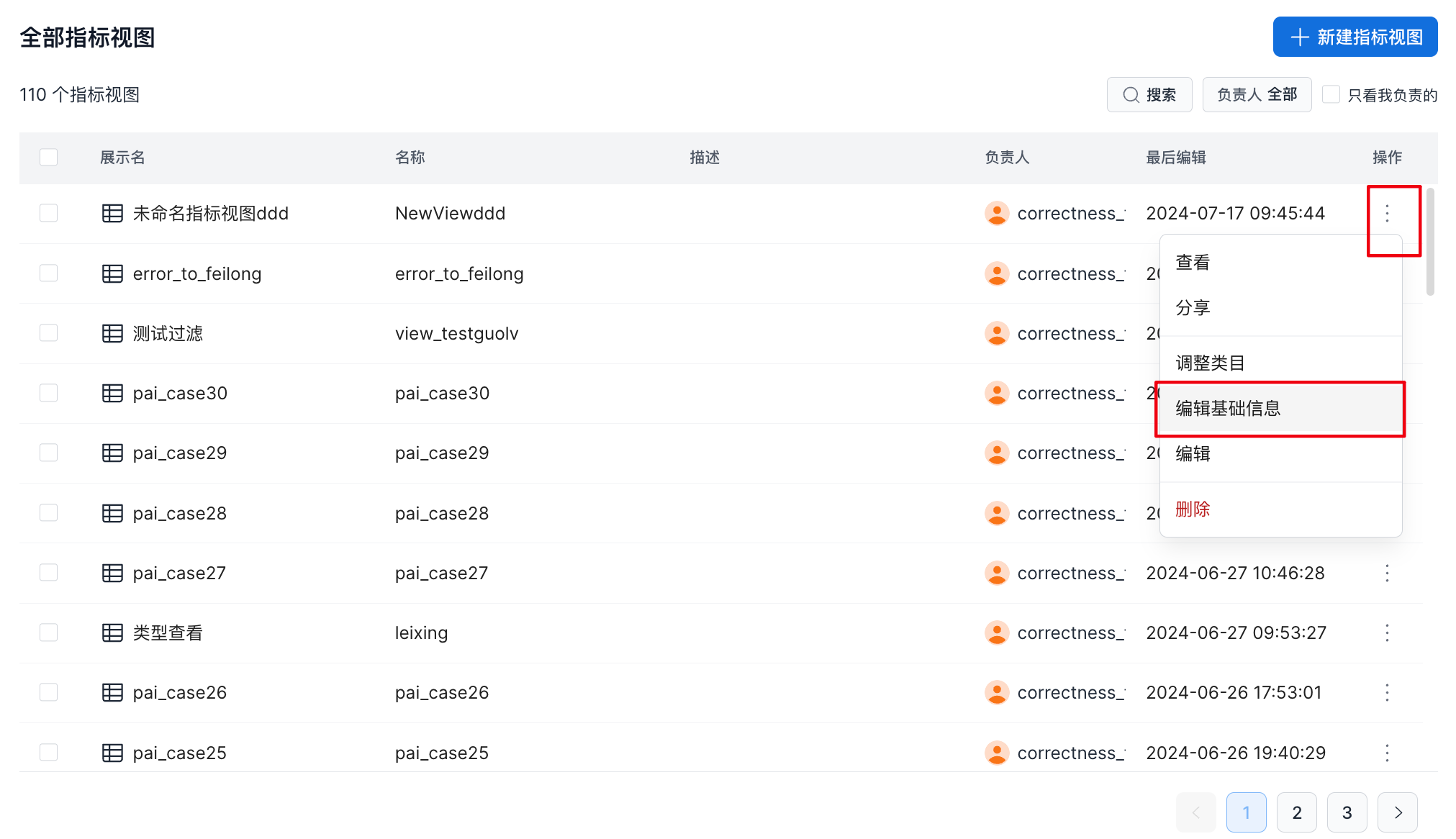
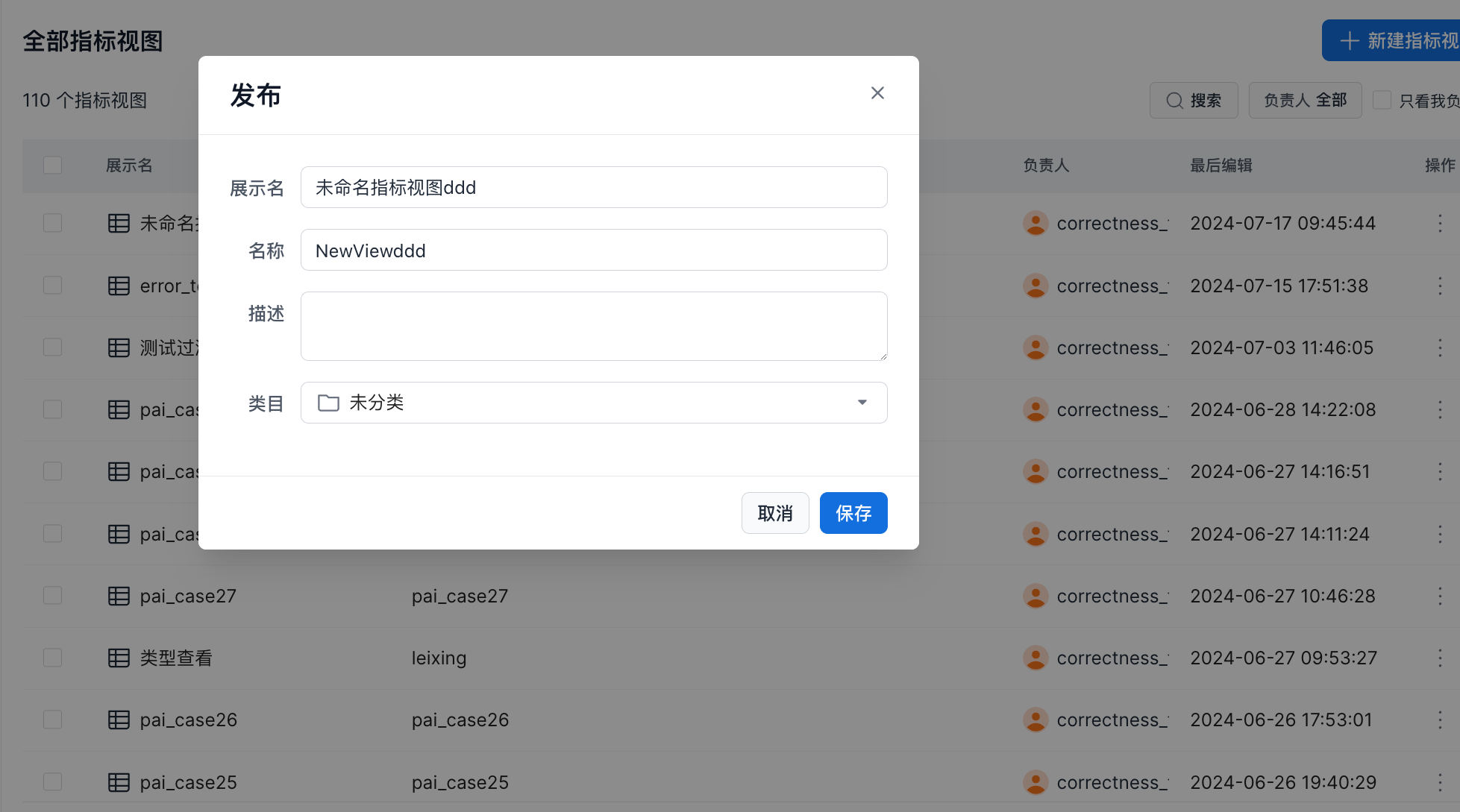
In the Edit Basic Information window, you can modify the metric view display name, name, description, and category.