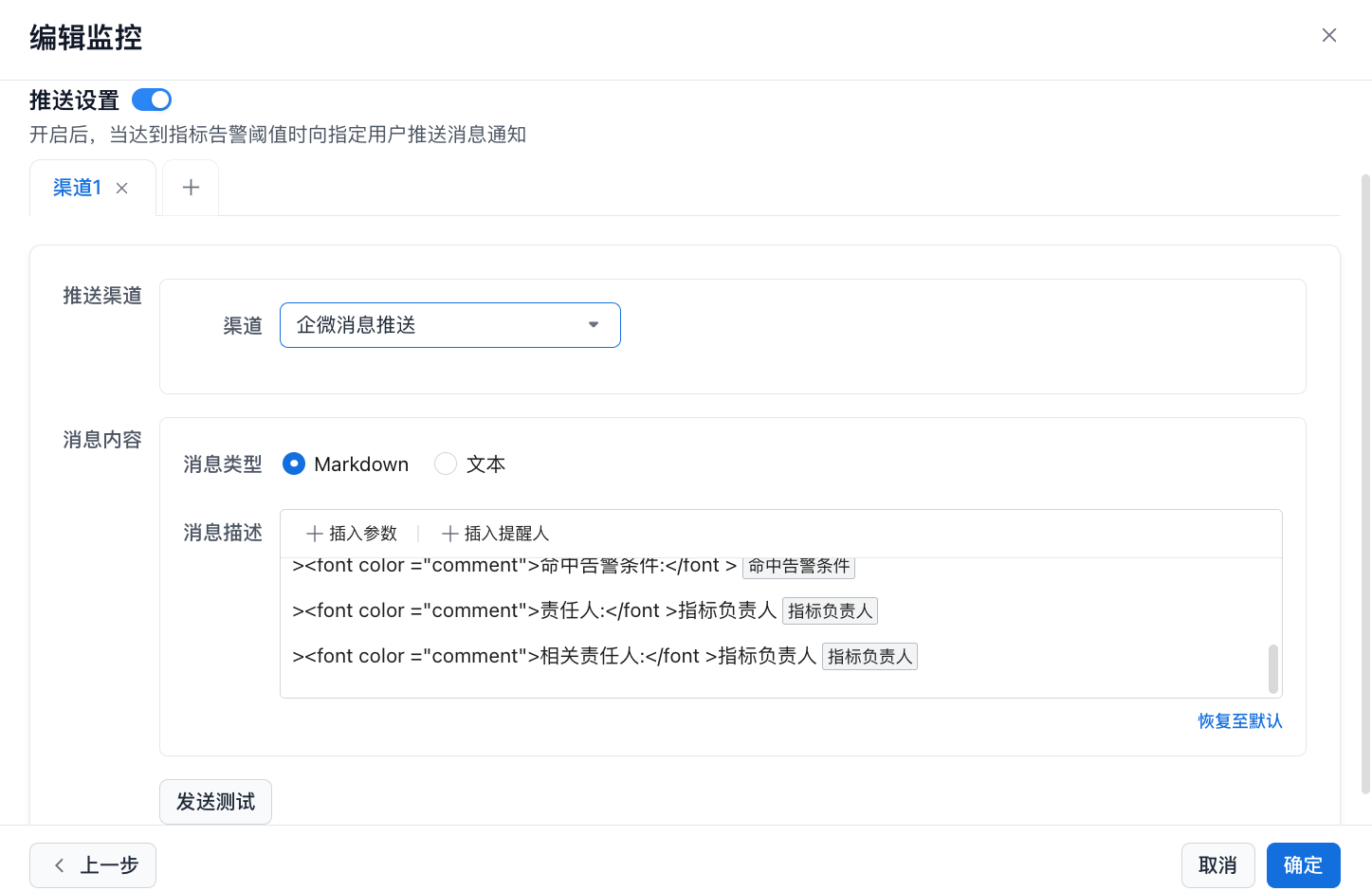
WeChat Bot
When configuring message push in Aloudata CAN, you can choose notification channels such as email or WeCom. WeCom supports group bot mode. This guide explains how to use a group bot to send notifications to a WeCom group.
Use Cases
- Alert message push
Add a Group Bot
WeCom Group Bot
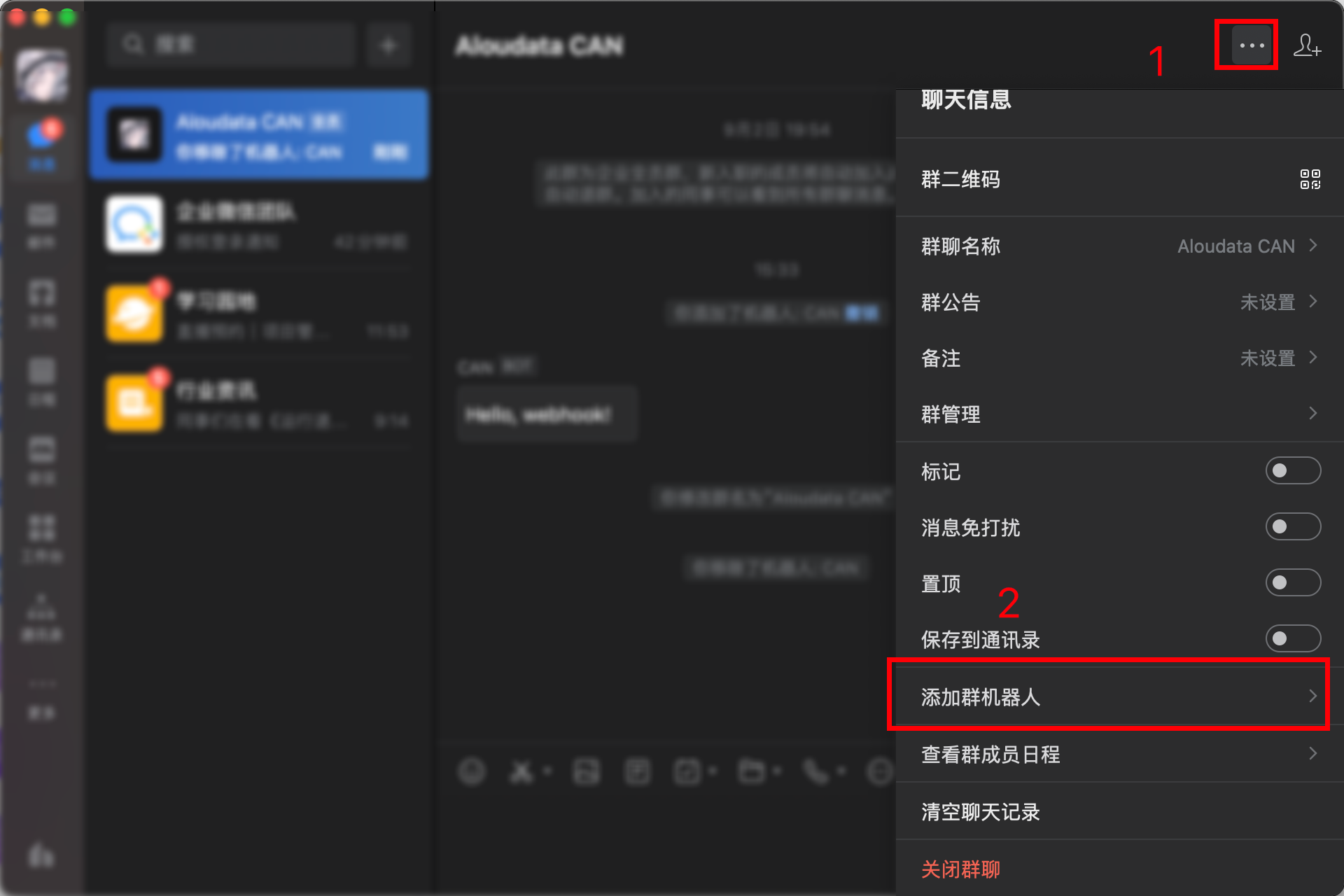
In the WeCom desktop client, open group chat settings, click Settings, and select Add Group Bot.
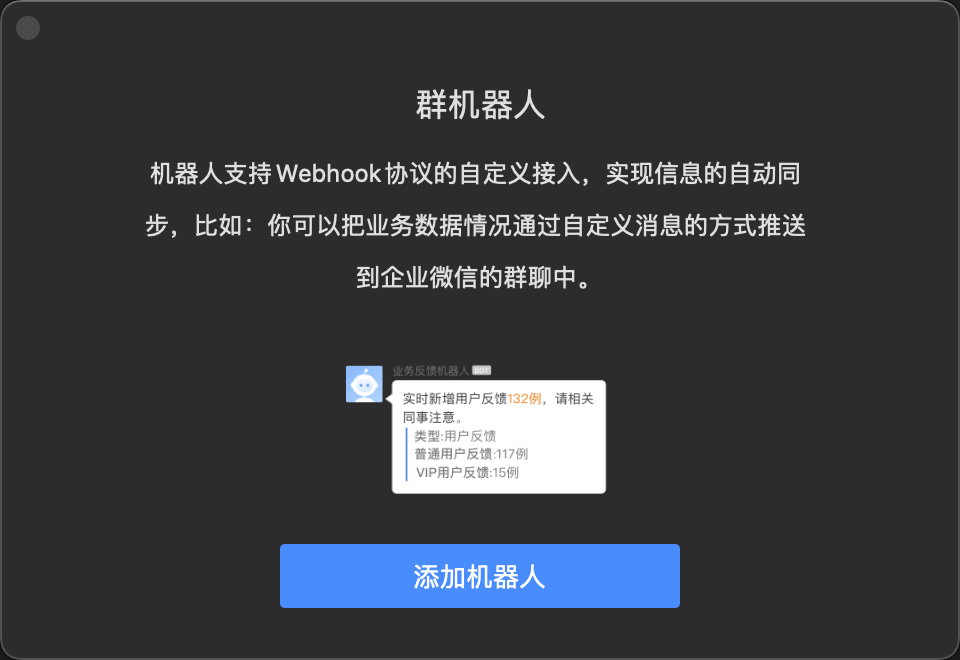
In the dialog, click Add Bot to proceed to the next step.
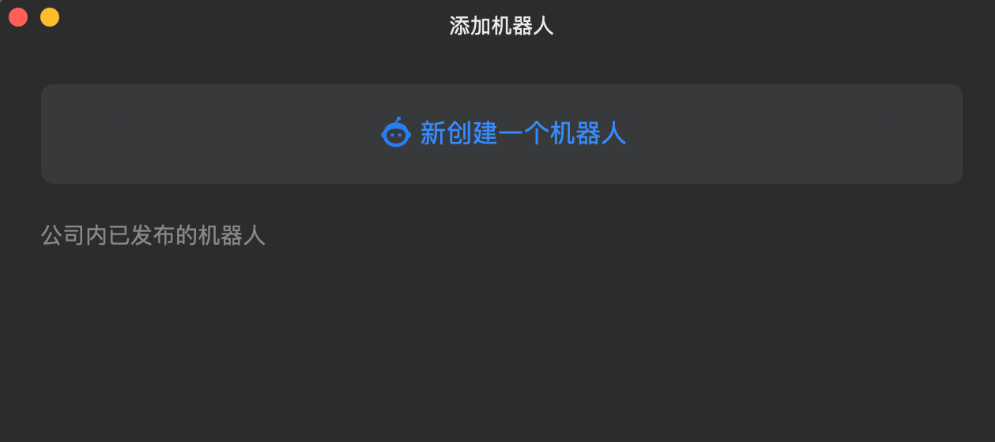
Click Create a New Bot to proceed to the next step.
On the Add Group Bot page, edit the bot avatar and name, then click Add Bot to complete the setup.
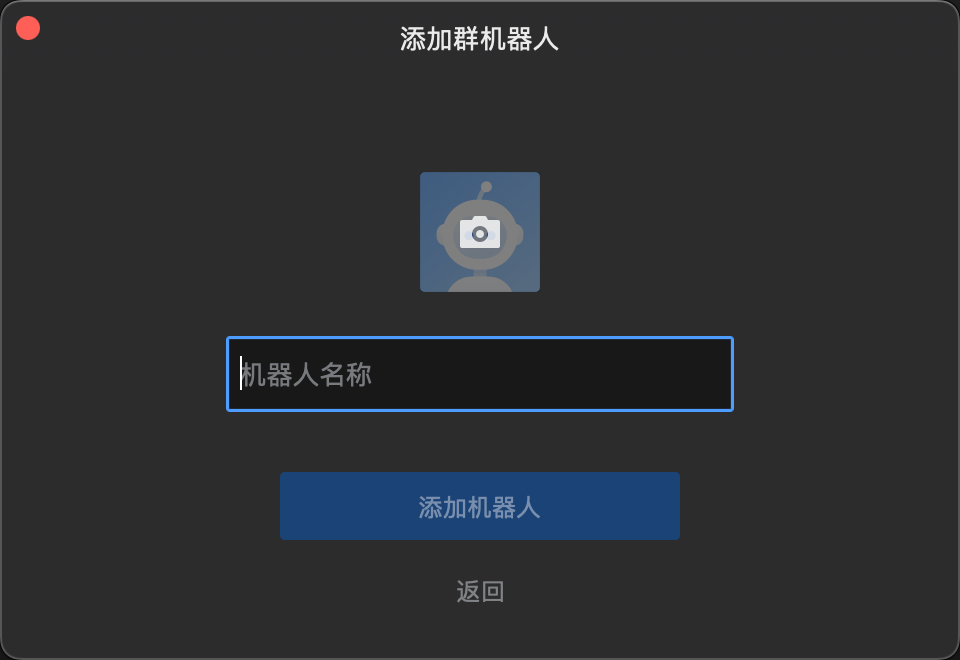
After the bot is added, obtain the Webhook URL, as shown below:
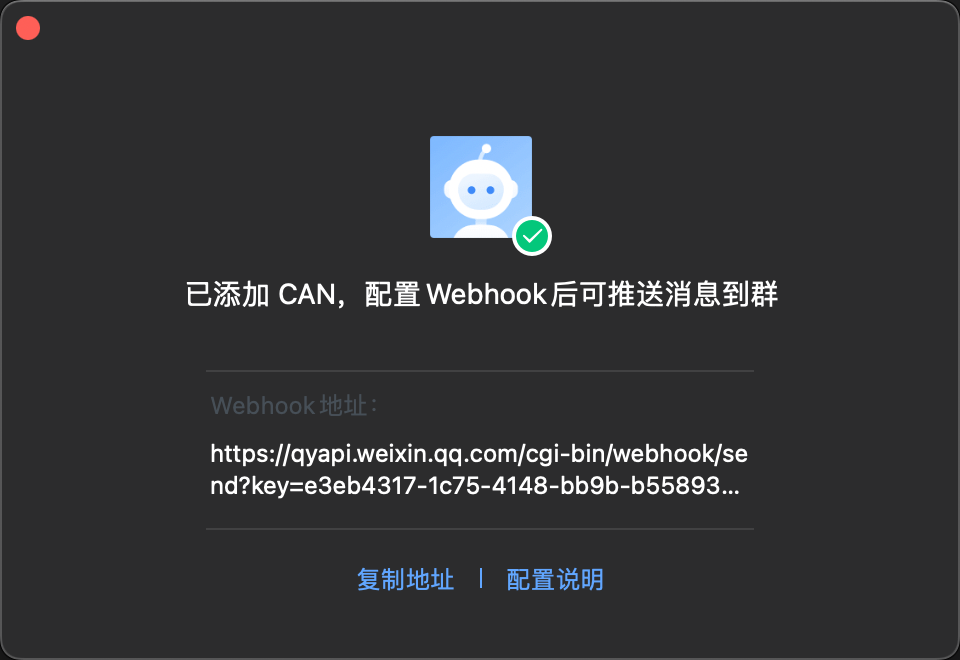
Configure the Notification Channel
Add Message Push
On the Aloudata CAN home page, click Management Settings at the top. In the left menu, select Message Push under System Integration. In the upper-right corner of the Message Push page, click Add Message Push.
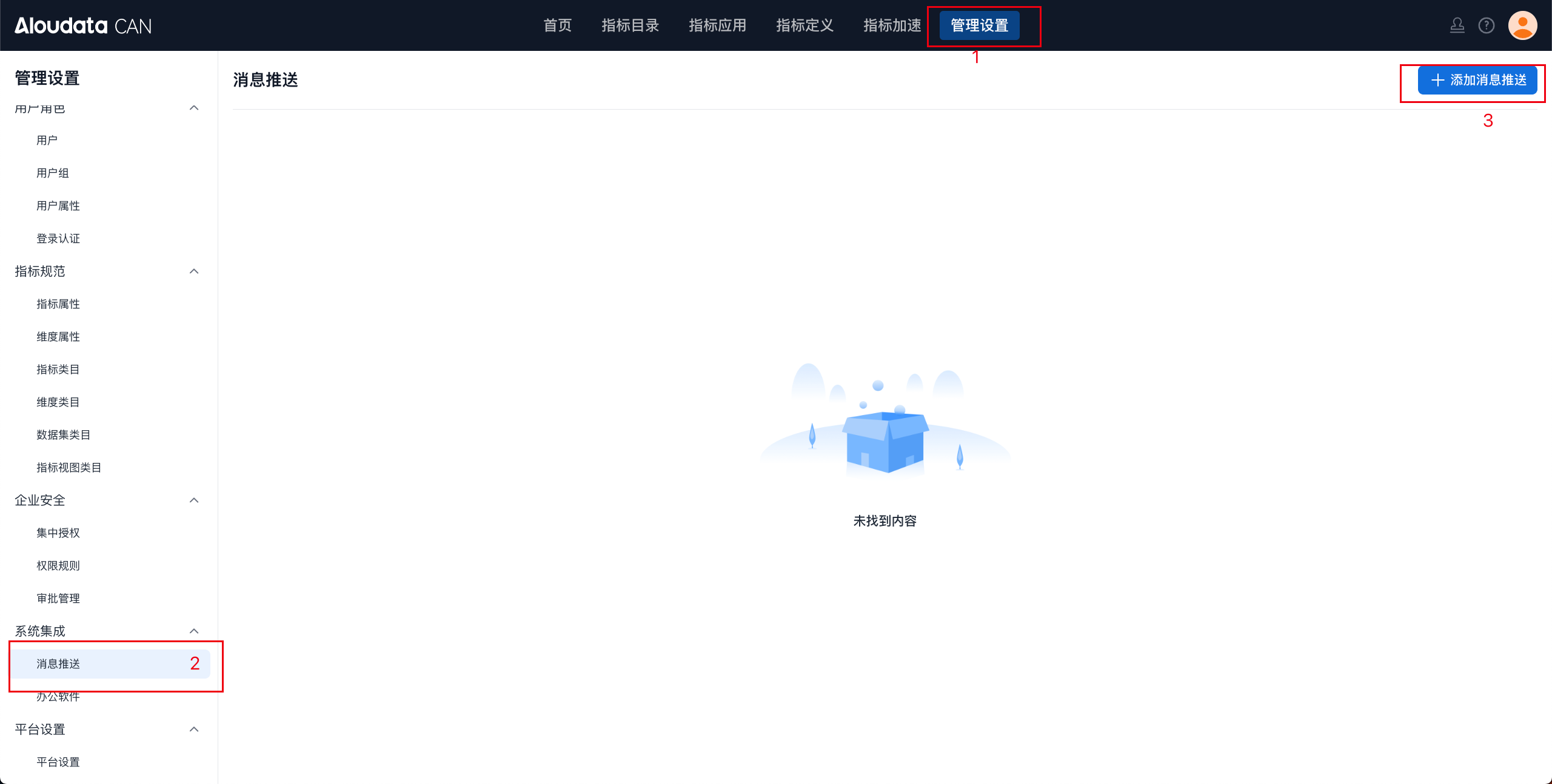
Message Push Configuration
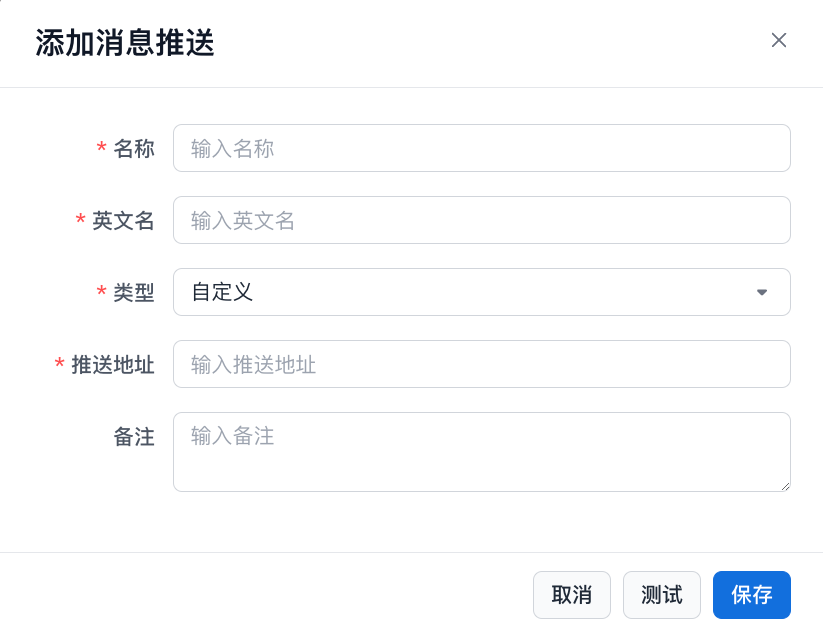
| Parameter | Description |
|---|---|
| Name | Supports any characters |
| English Name | Supports English letters, numbers, and underscores |
| Type | Select Custom or WeCom |
| Push URL | Enter the Webhook URL obtained in the previous step, then save |
Connection Test
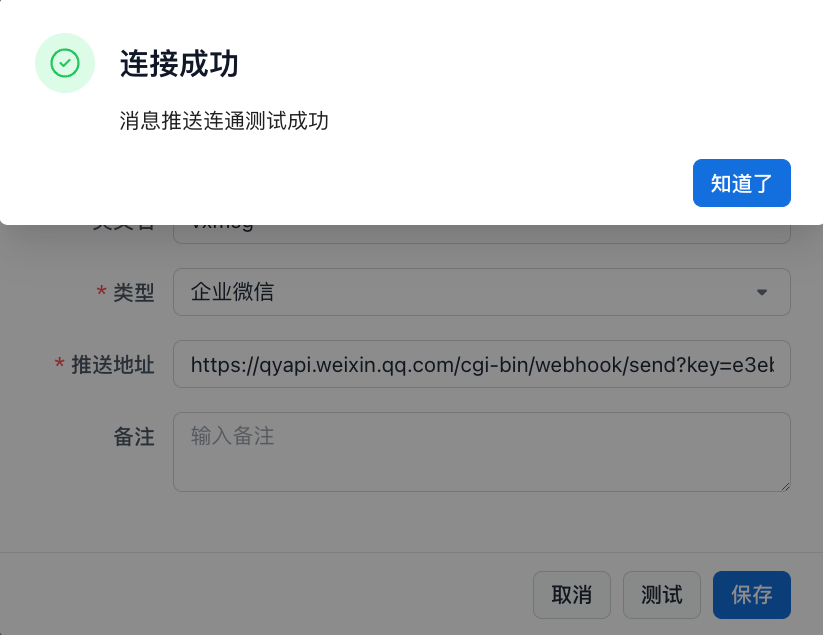
After completing the parameter configuration, click Test at the bottom of the configuration page to test connectivity.
Application Scenario
Monitoring alert message push