Manage Dimensions
Overview
The Dimensions page provides a complete interface for viewing and managing dimensions. You can create dimensions, view dimension details, update publishing status, adjust categories, edit dimensions, and delete dimensions.
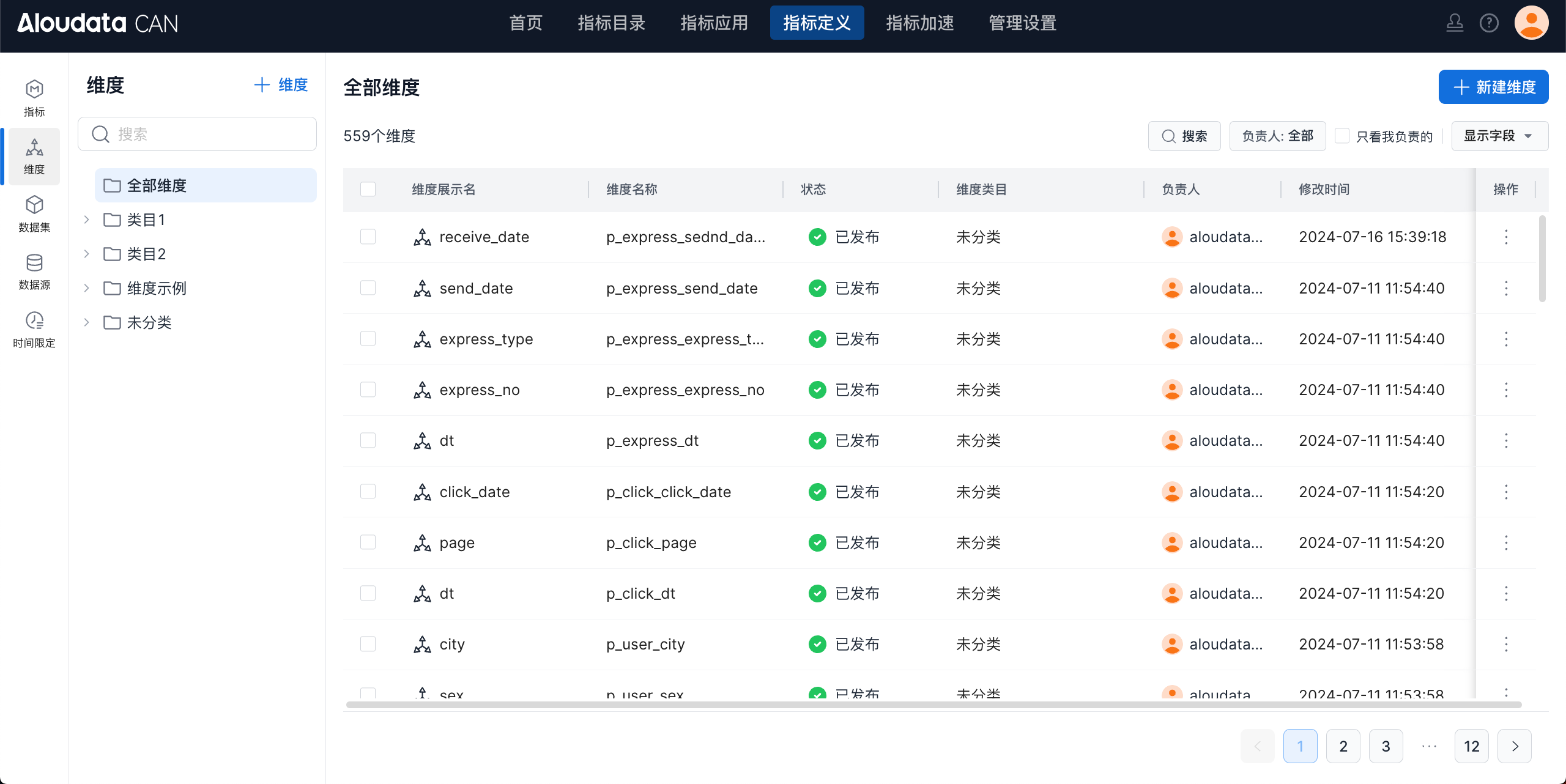
Filter the Dimension List
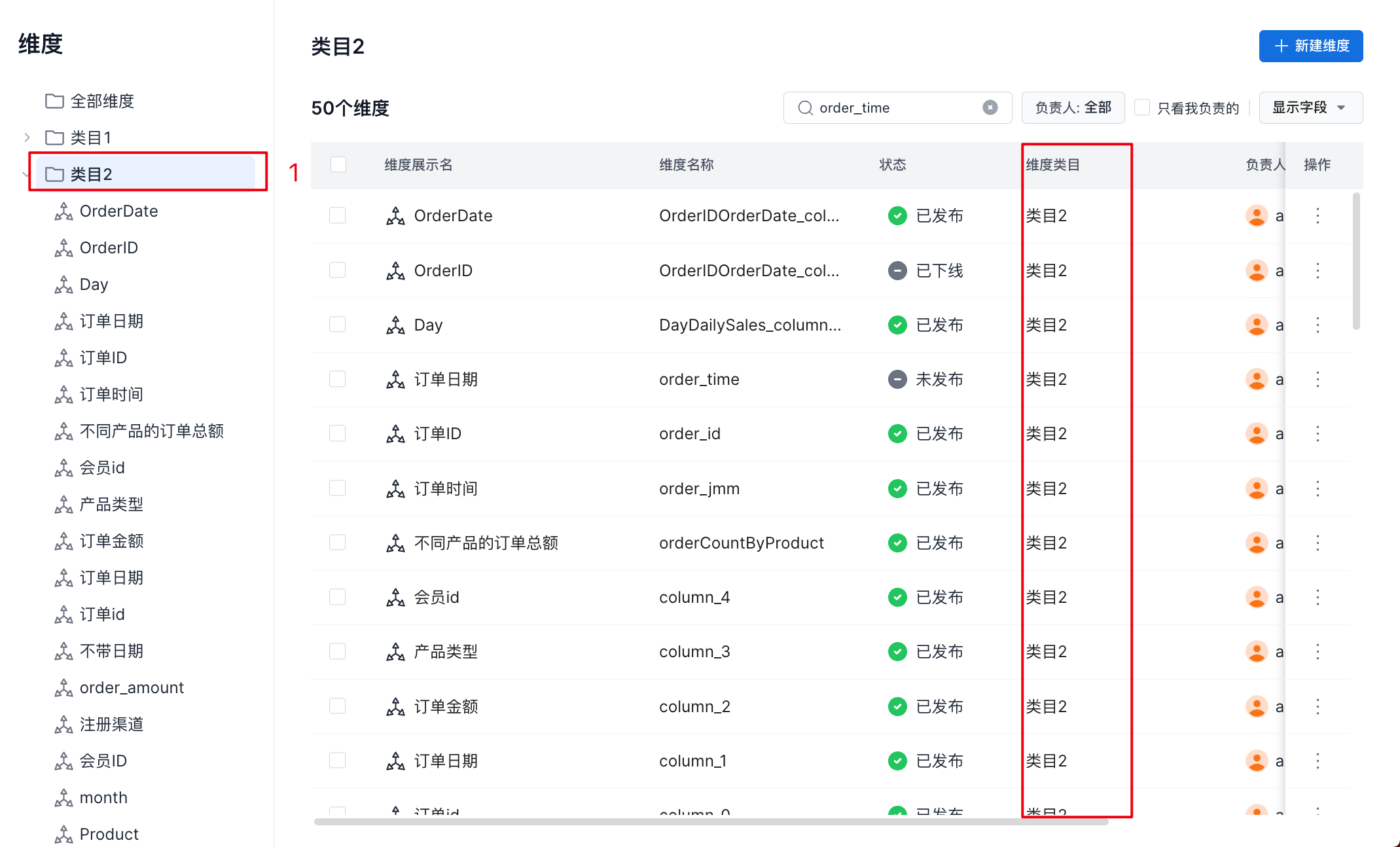
- View dimensions in a specific category
In the top navigation bar, select Metric Definition -> in the left navigation bar, select Dimensions. Click a dimension category to view all dimensions under that category, as shown below.
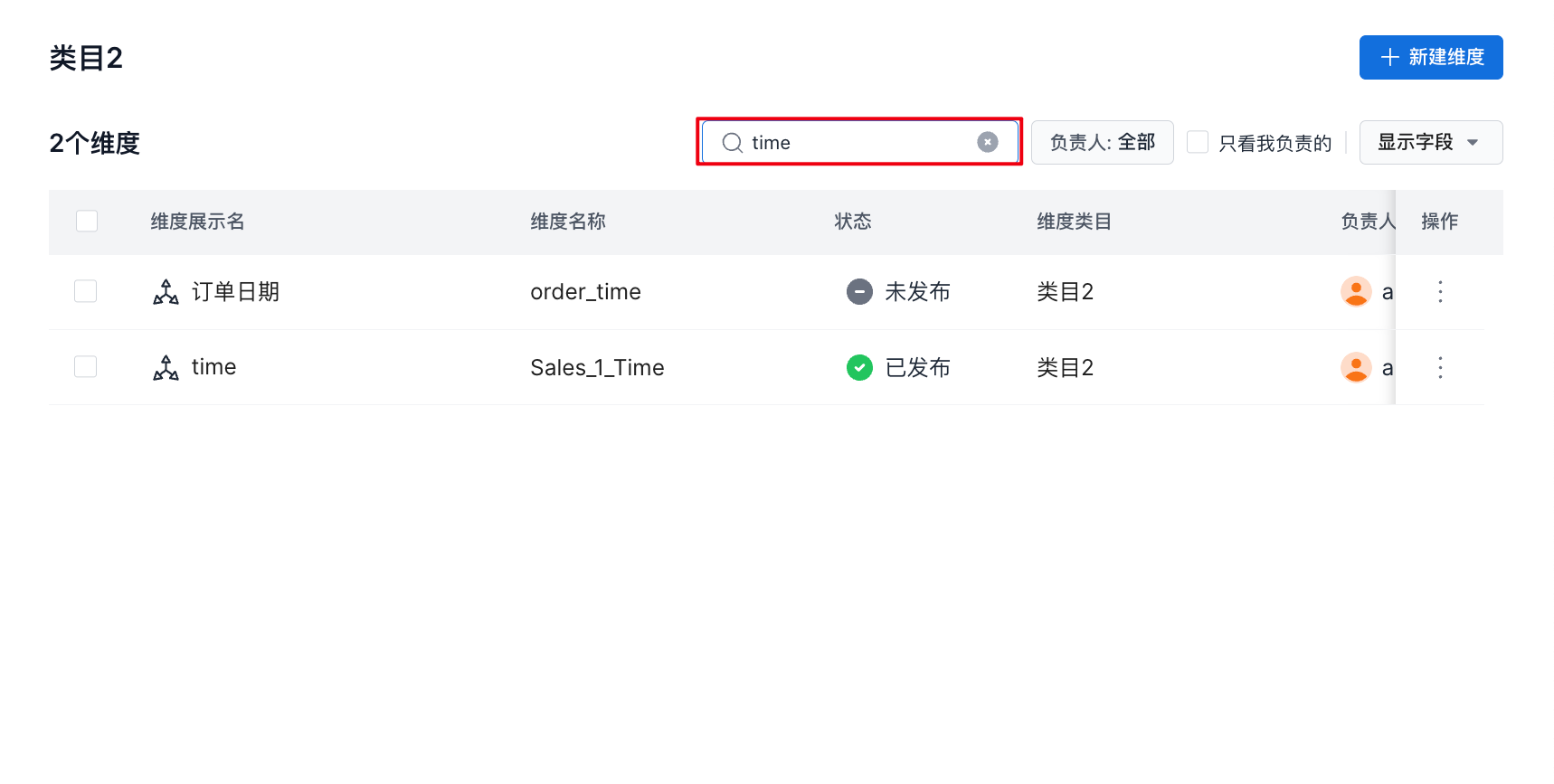
- Search dimensions by name
In the top navigation bar, select Metric Definition -> in the left navigation bar, select Dimensions. Enter a keyword in the search box to perform a fuzzy search by dimension display name or dimension name, as shown below.
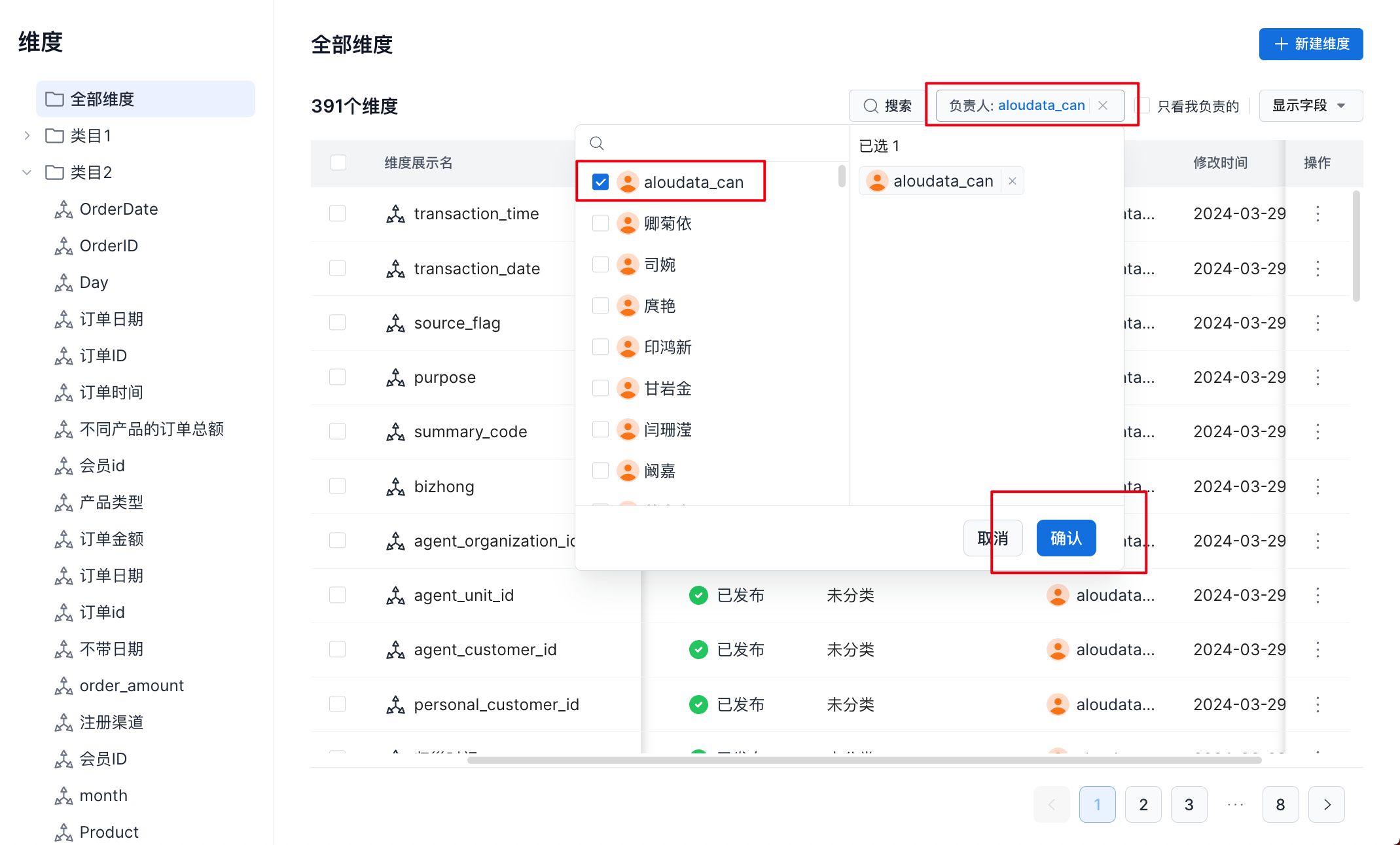
- View dimensions created by a specific user
In the top navigation bar, select Metric Definition -> in the left navigation bar, select Dimensions. Select a user from the owner drop-down list to view dimensions created by that user, as shown below.
- View dimensions I created
In the top navigation bar, select Metric Definition -> in the left navigation bar, select Dimensions. Select Only show items I own to view dimensions created by the current user, as shown below.
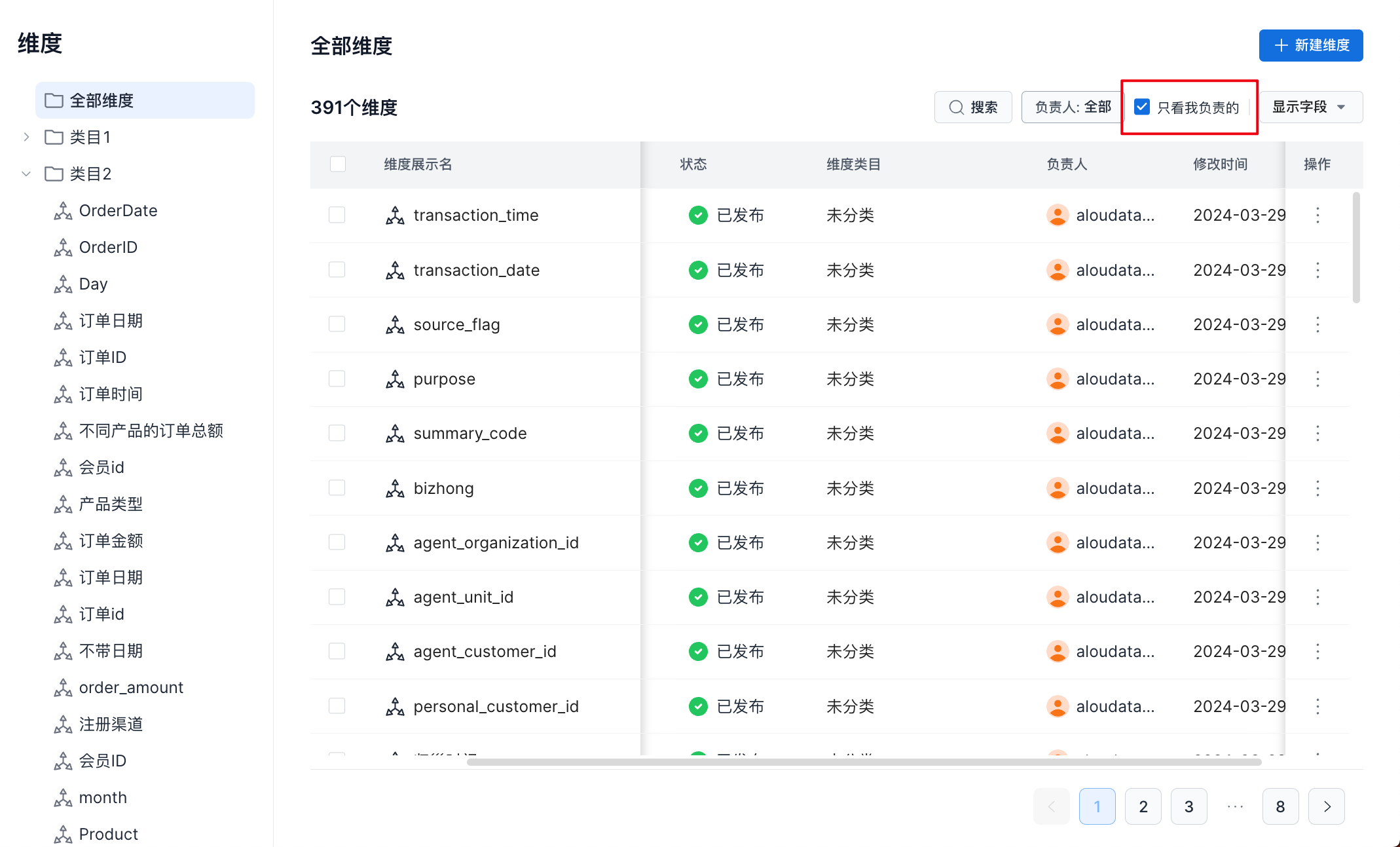
Data Owner and Only show items I own are mutually exclusive.
When you select Only show items I own, the system clears the Data Owner selection and selects only the current user.
When you change the selected user in the Data Owner field, Only show items I own is cleared.
Create a Dimension
In the top navigation bar, select Metric Definition -> in the left navigation bar, select Dimensions, then click New Dimension in the upper-right corner, as shown below.
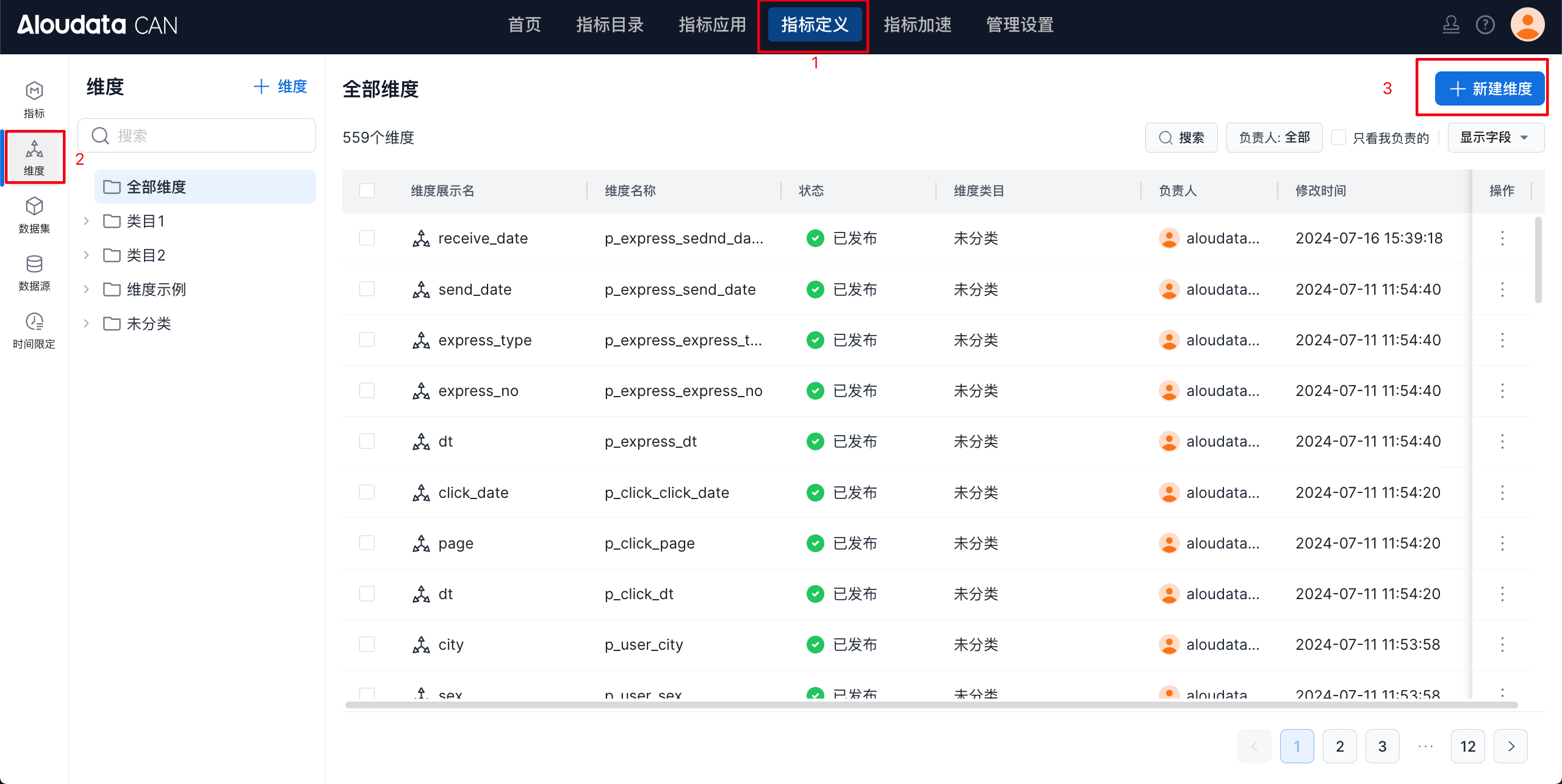
For detailed instructions, see Create a Dimension.
View a Dimension
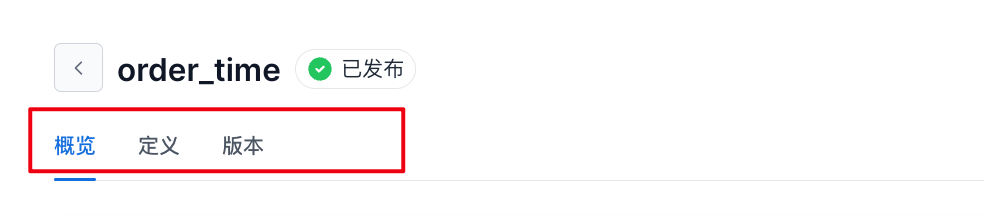
On the dimension list page, click the ⋮ button in the Actions column, then click View to open the dimension details page. This page includes the Overview, Definition, and Versions sections.
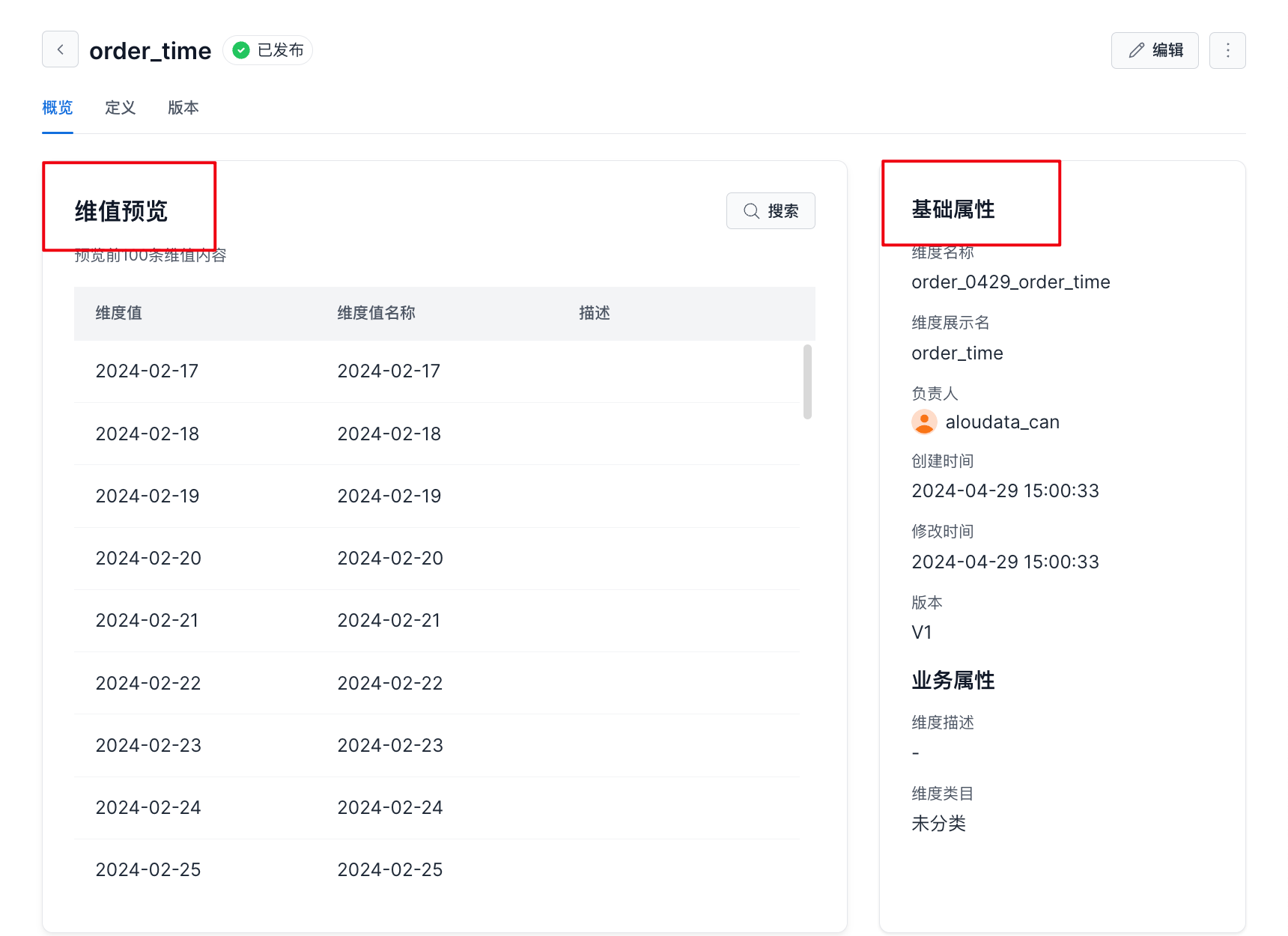
Overview
On the Overview page, you can preview dimension values and view basic dimension information.
Definition
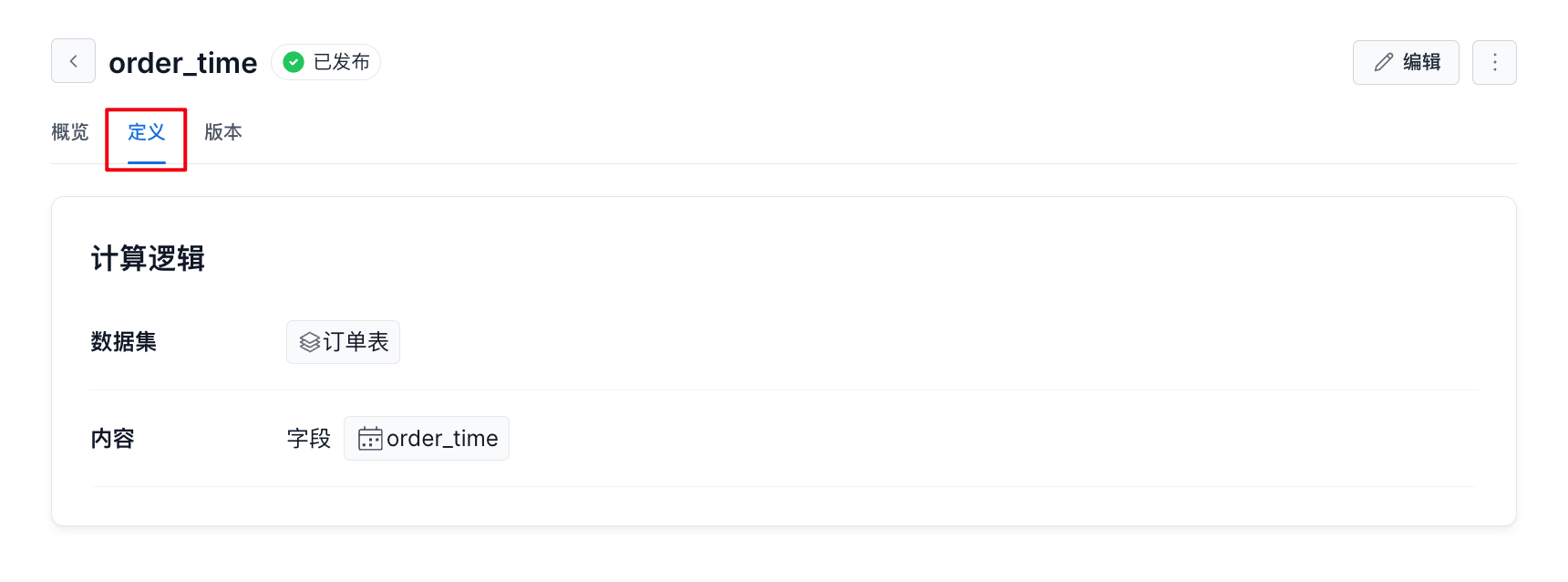
On the Definition page, you can view the dimension source, including the source dataset and source field, as shown below.
Versions
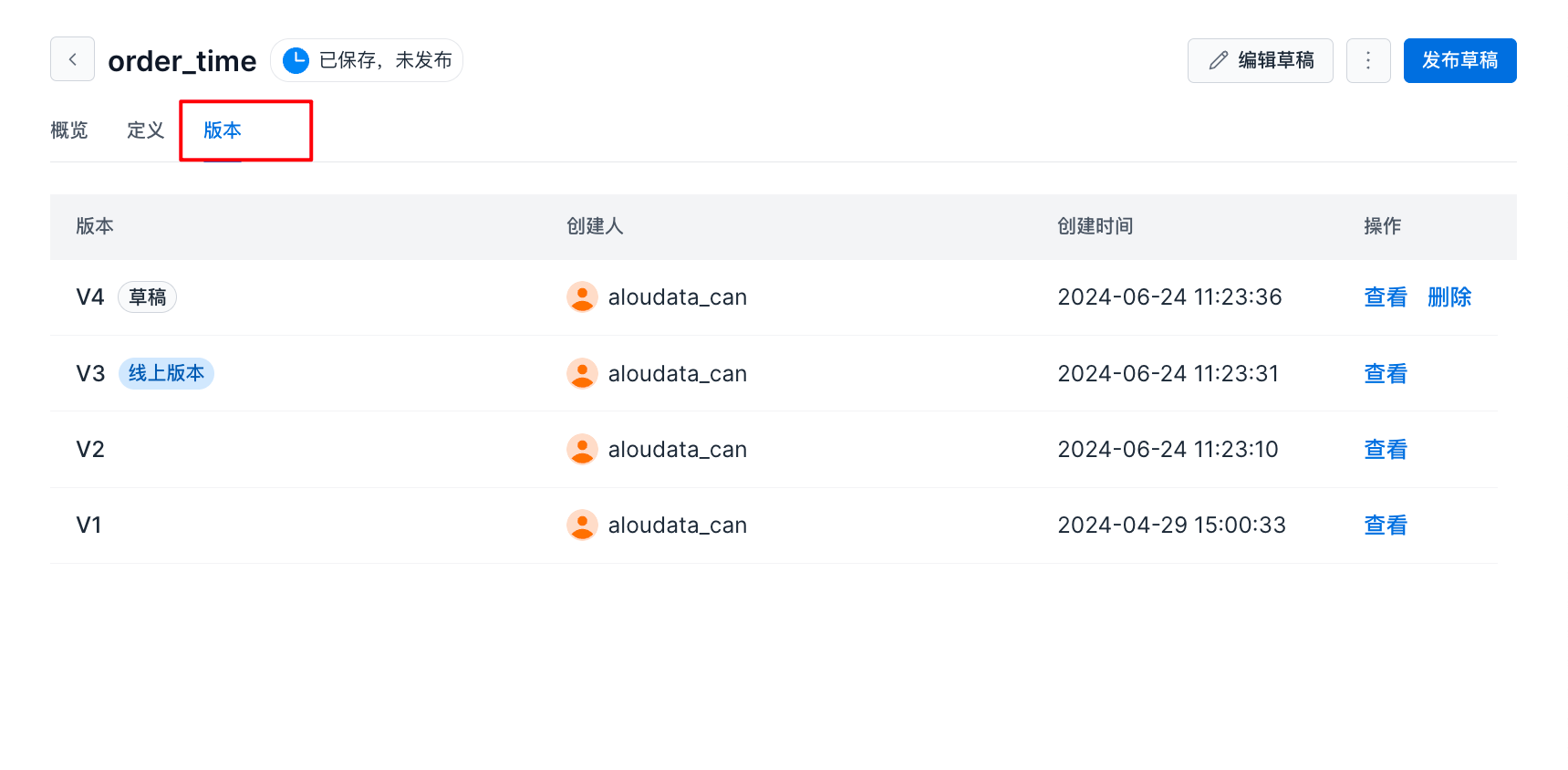
On the Versions page, you can view published version information for the dimension, as shown below.
Version Status
| Status | Legend | Description |
|---|---|---|
| Unpublished |  |
An unpublished dimension has only one version record and cannot be viewed. The dimension list displays this status as Unpublished. |
| Published | 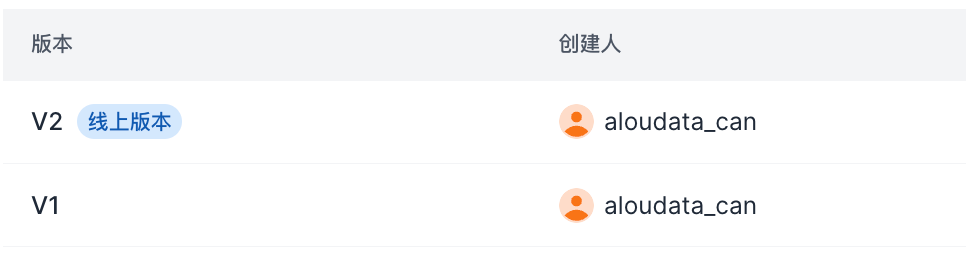 |
A published dimension can have multiple versions, and one version is always marked as the current version. Historical versions can be viewed but cannot be deleted. The dimension list displays this status as Published. |
| Draft | 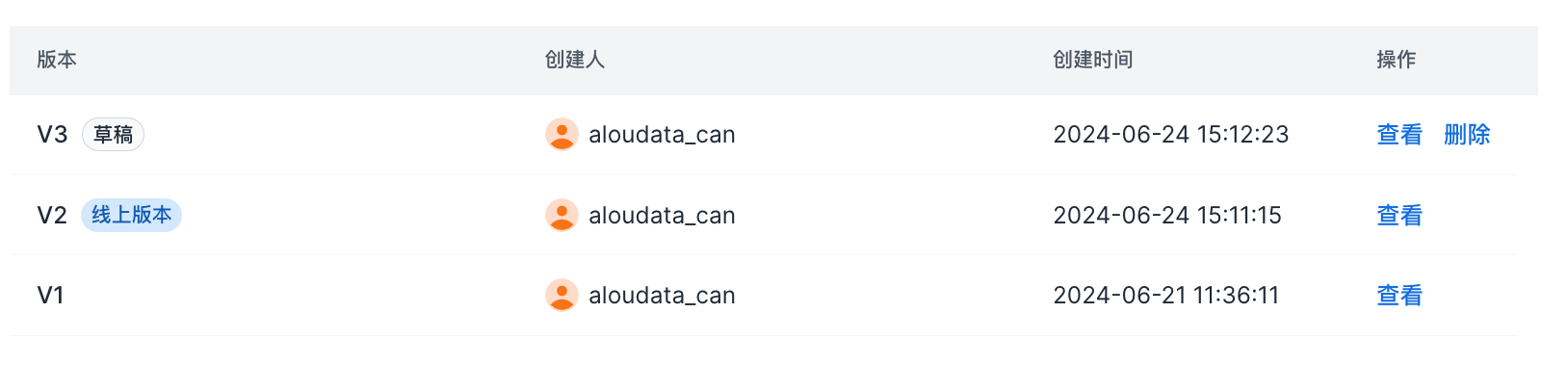 |
If a draft exists, the version is marked as Draft, and the draft can be deleted. The dimension list displays this status as Saved, Not Published. |
Version Details
In the dimension version list, click the View button on the right to open the version details page. Available actions differ by version status:
| Status | Legend | Actions |
|---|---|---|
| Online Version | 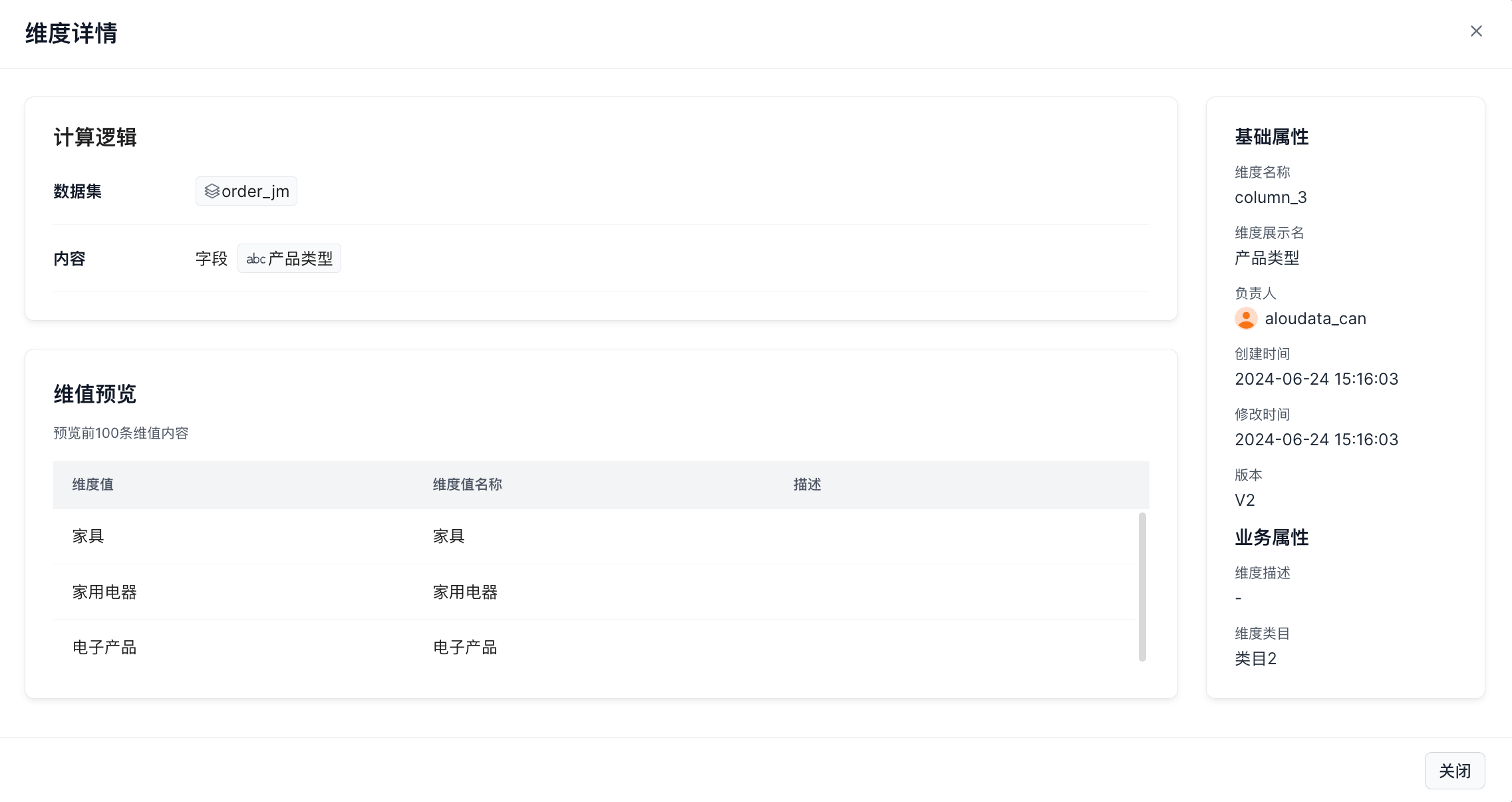 |
View dimension calculation logic, dimension value preview, and basic information. |
| Draft Version | 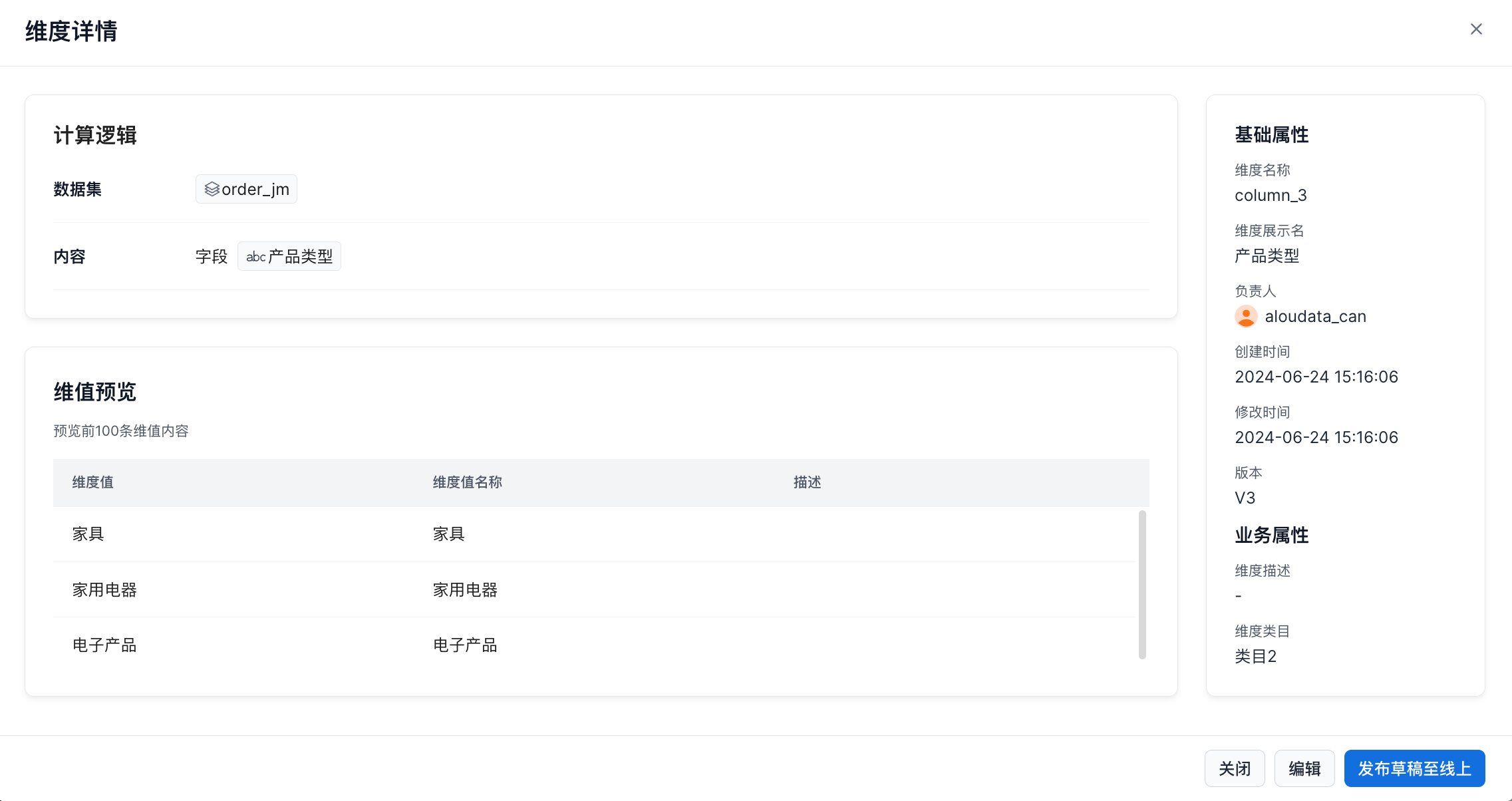 |
View dimension calculation logic, dimension value preview, and basic information. Edit the draft version or publish the draft online. |
Adjust Category
On the dimension list page, click the ⋮ button in the Actions column, then click Adjust Category. In the dialog, you can update the category that the dimension belongs to, as shown below.
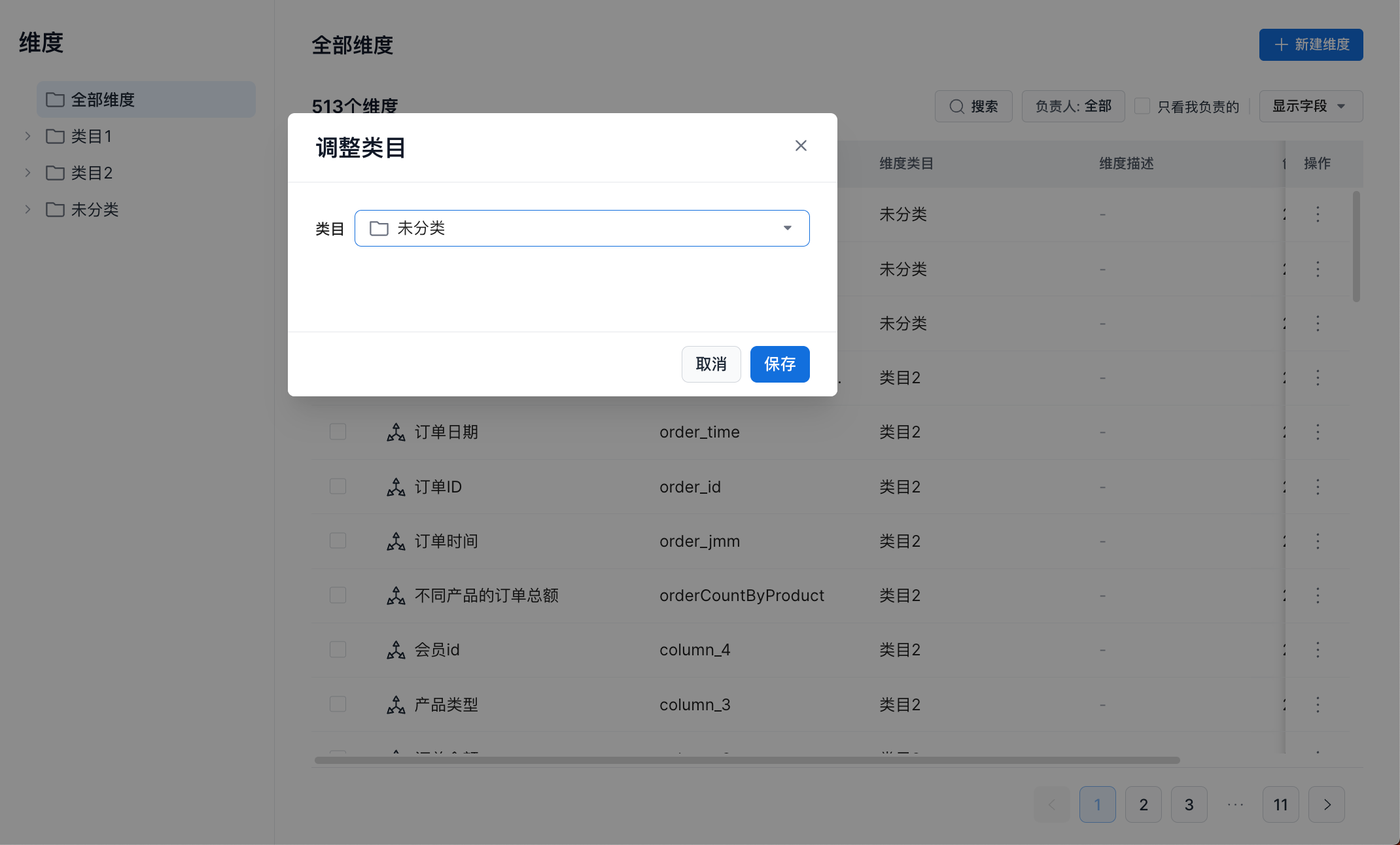
Select the target category from the category drop-down list, then click Confirm to complete the category update.
Edit a Dimension
On the dimension list page, click the ⋮ button in the Actions column, then click Edit to open the dimension editing page, as shown below.
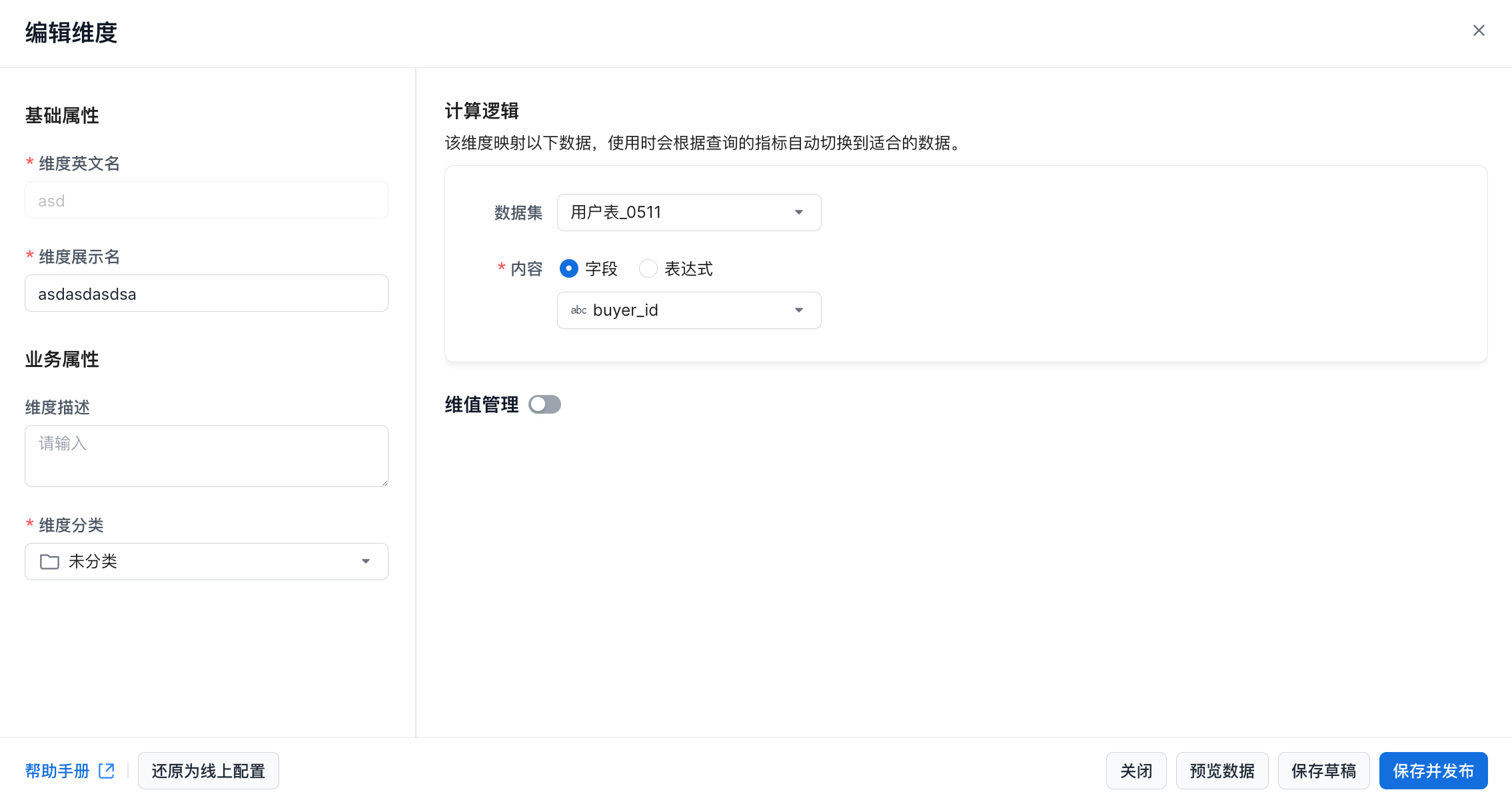
| Section | Description |
|---|---|
| Basic Properties | 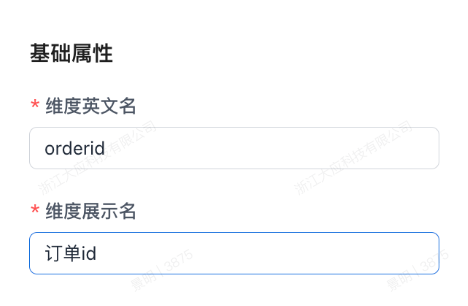 Dimension name: supports letters, numbers, and underscores ( Dimension name: supports letters, numbers, and underscores (_), must be globally unique, and can contain up to 50 characters. Dimension display name: can contain up to 50 characters. |
| Business Properties | 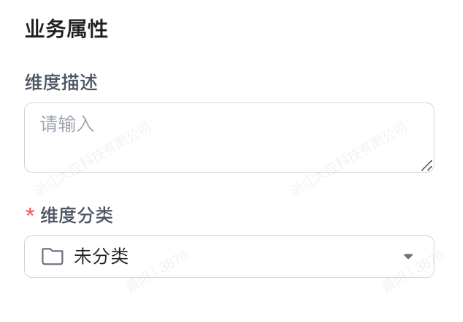 Dimension description: up to 300 characters. Dimension category: the category that the dimension belongs to. Dimension description: up to 300 characters. Dimension category: the category that the dimension belongs to. |
| Dataset | 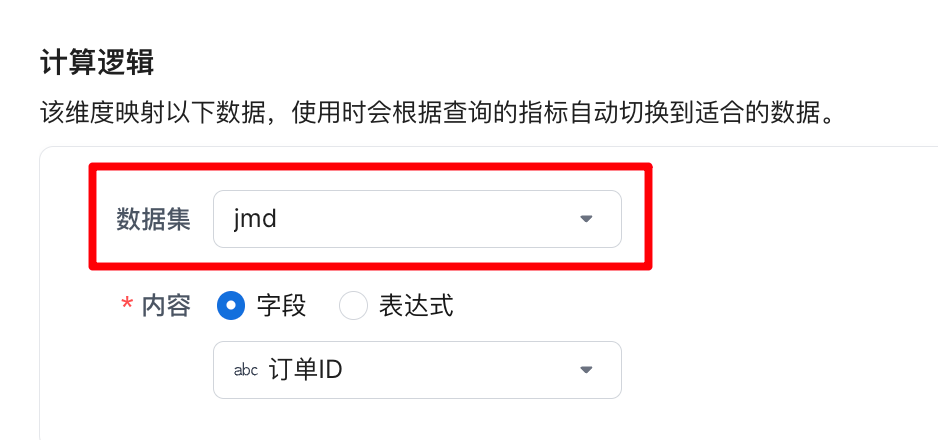 |
| Content | 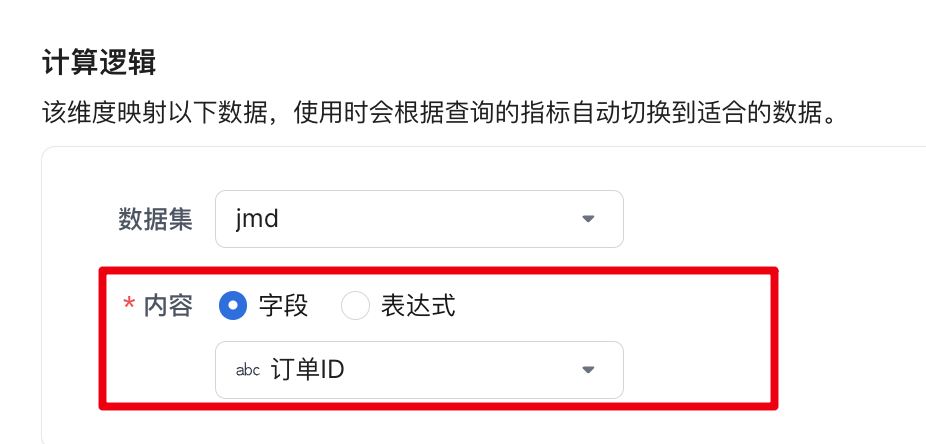 Field: mark the field value as the dimension. --- Field: mark the field value as the dimension. --- 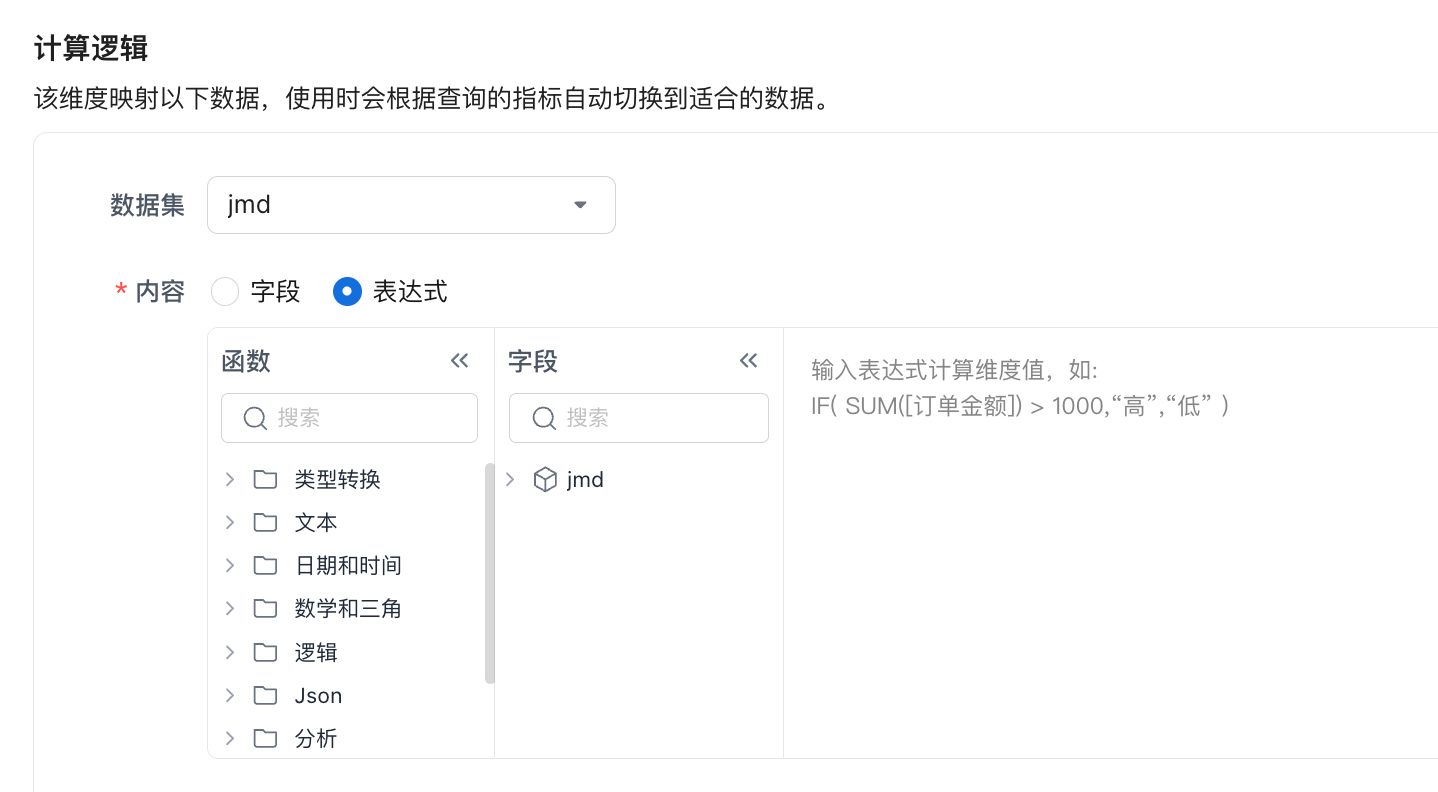 Function: for supported functions, see Functions. Field: fields from the current dataset and from related datasets. For details about creating relationships, see Configure Relationships. Expression: use model relationships to write an expression that generates dimension values, such as Function: for supported functions, see Functions. Field: fields from the current dataset and from related datasets. For details about creating relationships, see Configure Relationships. Expression: use model relationships to write an expression that generates dimension values, such as if(sum([Order Amount])>1000,"High","Low"). |
| Dimension Value Management | 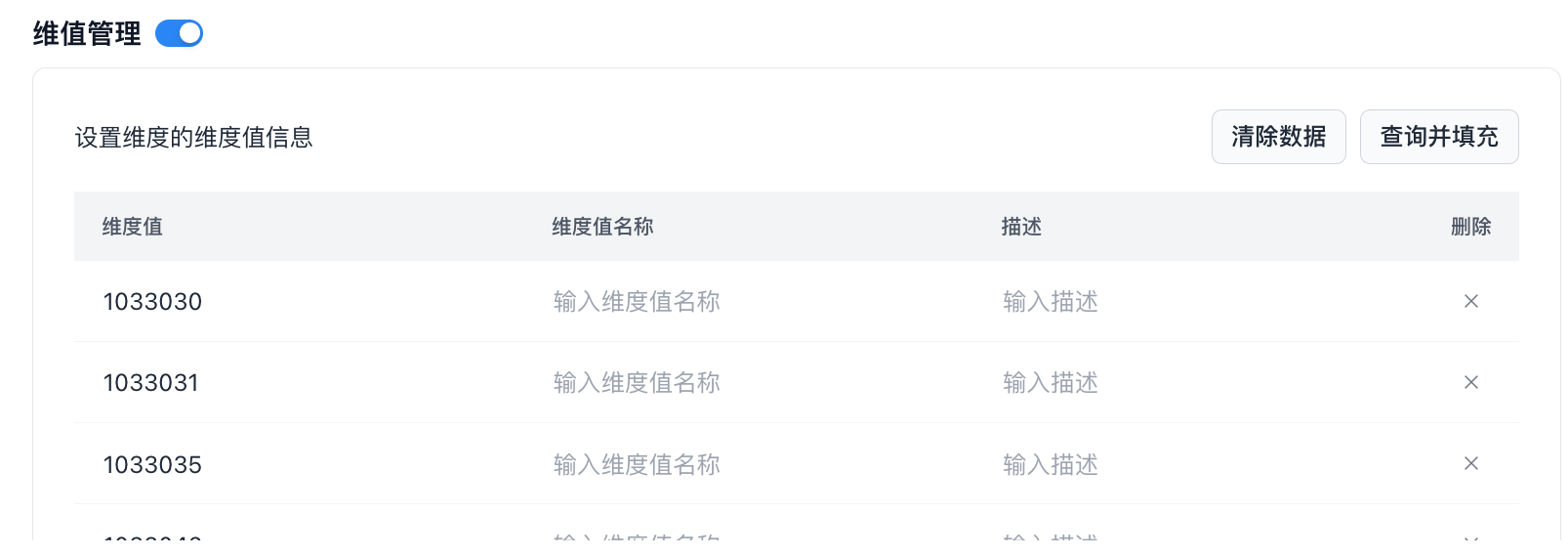 Dimension value management is disabled by default. For details, see Manage Dimension Values. Dimension value management is disabled by default. For details, see Manage Dimension Values. |
| Restore Online Configuration | 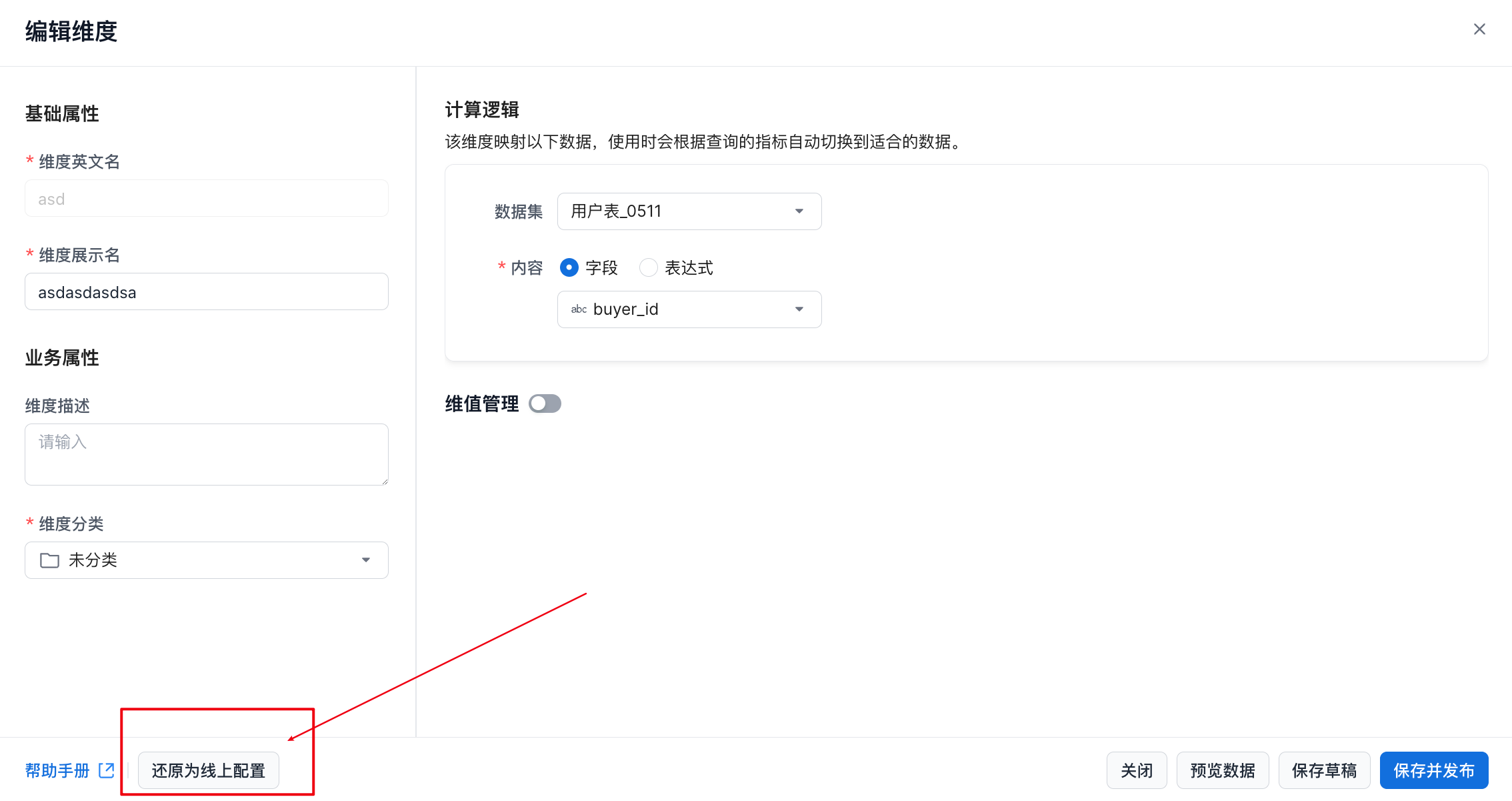 After you click Restore Online Configuration, the system clears the current draft and reloads the configuration from the online version for editing. After you click Restore Online Configuration, the system clears the current draft and reloads the configuration from the online version for editing. |
| Preview Data | In the lower-right corner of the New Dimension window, click Preview Data to view dimension value details. The dimension values created in this operation are highlighted in blue, as shown below. 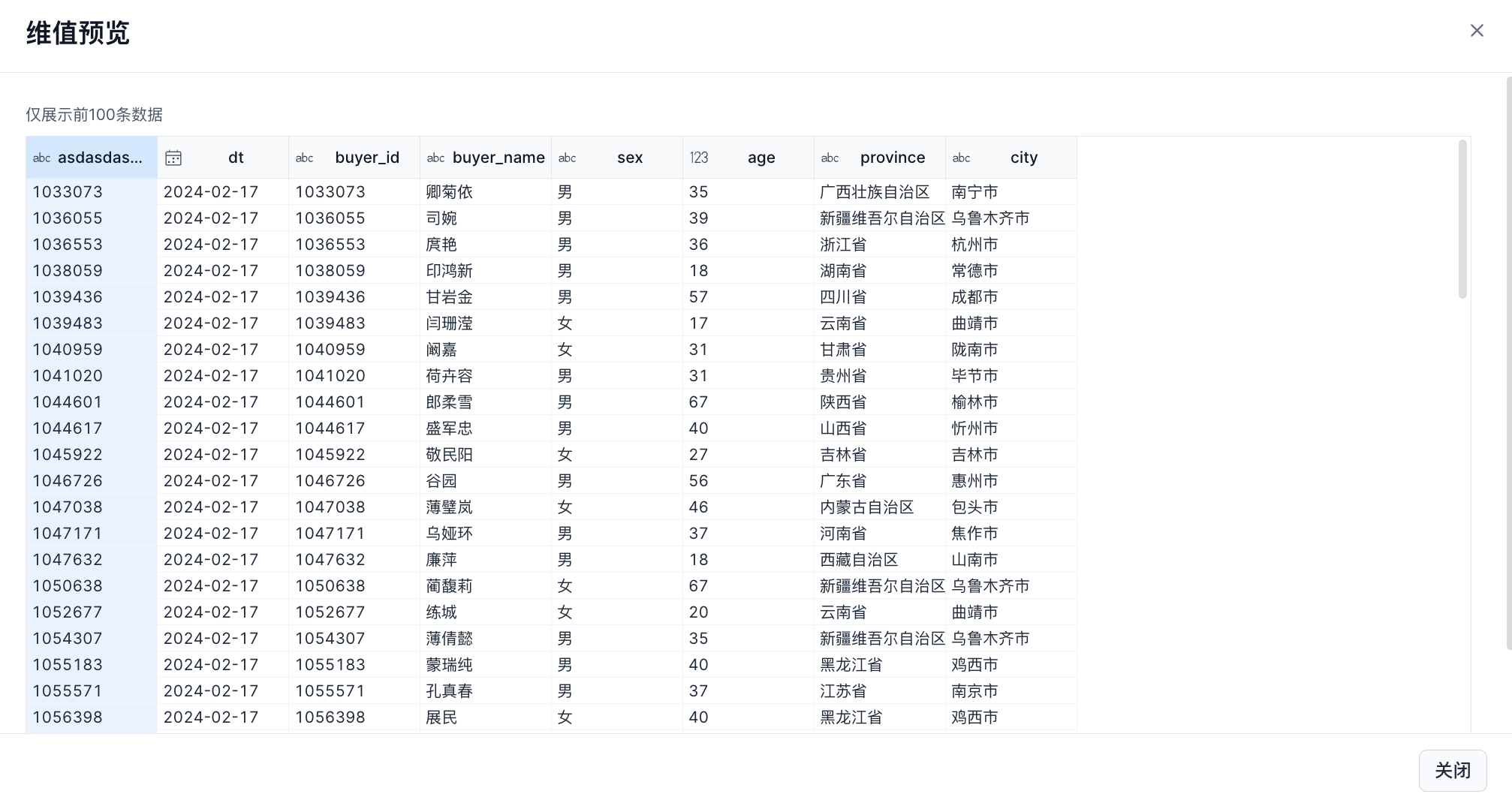 |
| Save Draft | 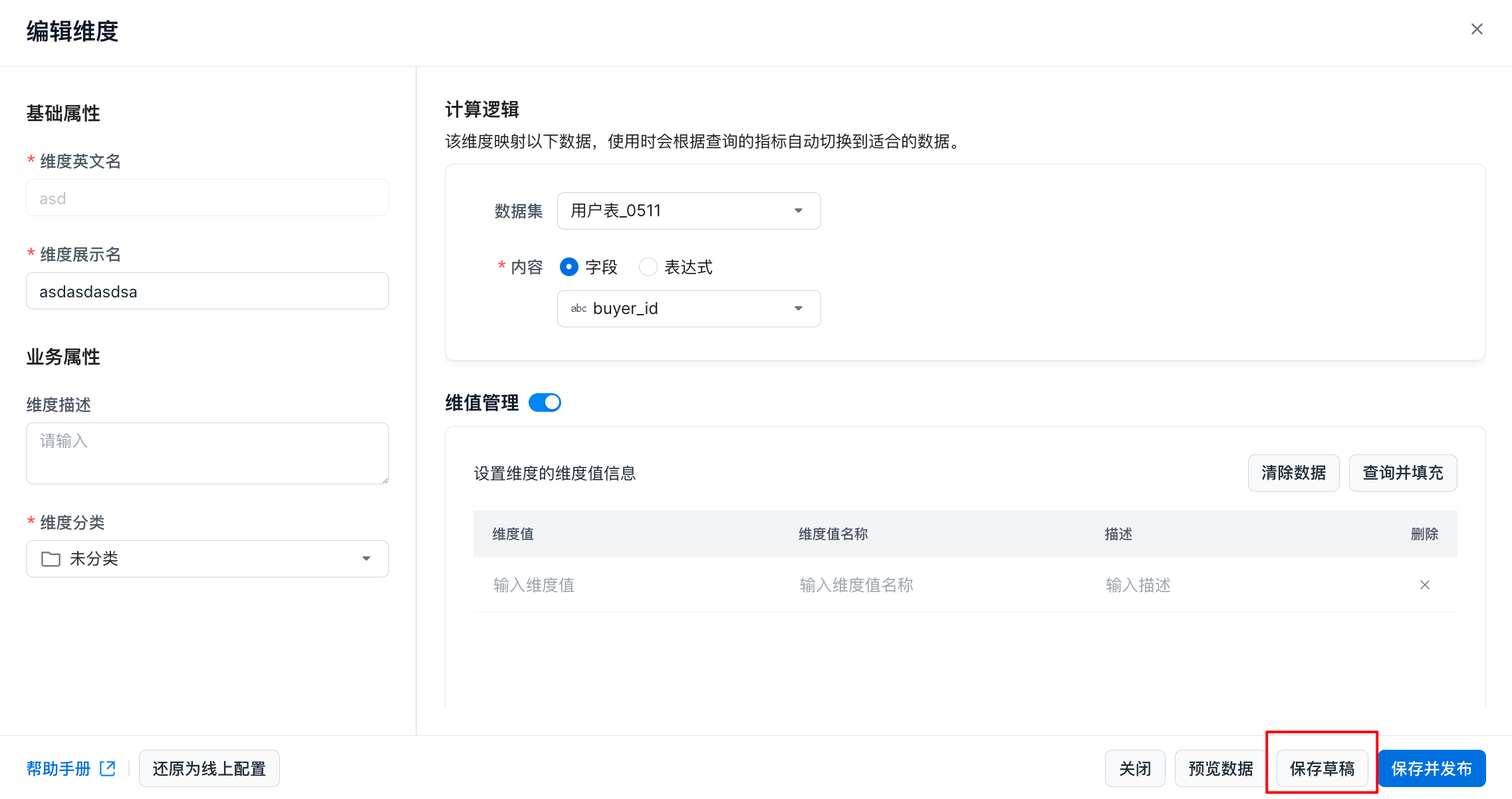 Create an unpublished version. Create an unpublished version. |
| Save and Publish | 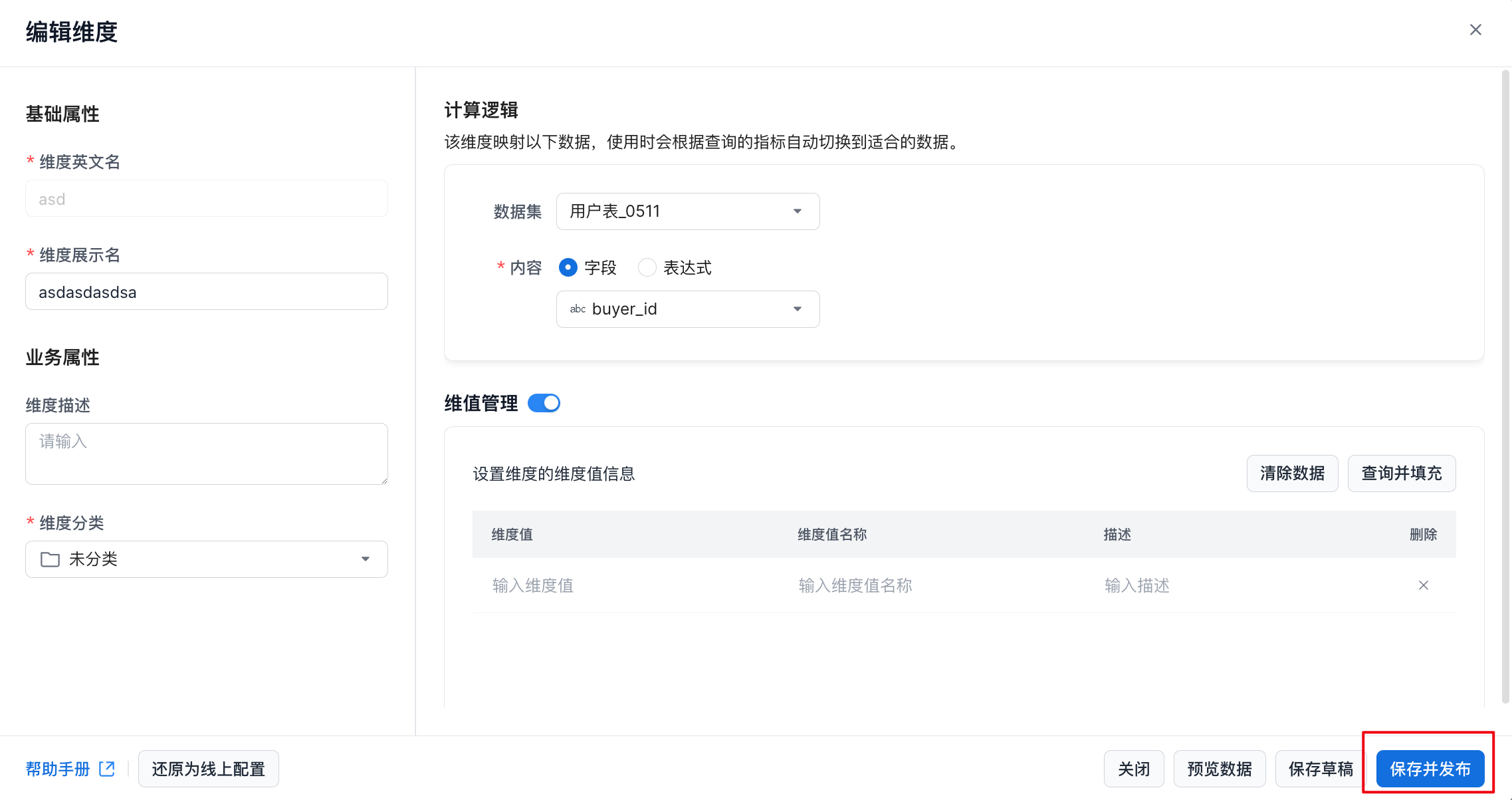 Create an online version. Create an online version. |
Transfer Asset
On the dimension list page, click the ⋮ button in the Actions column, then click Transfer, as shown below.
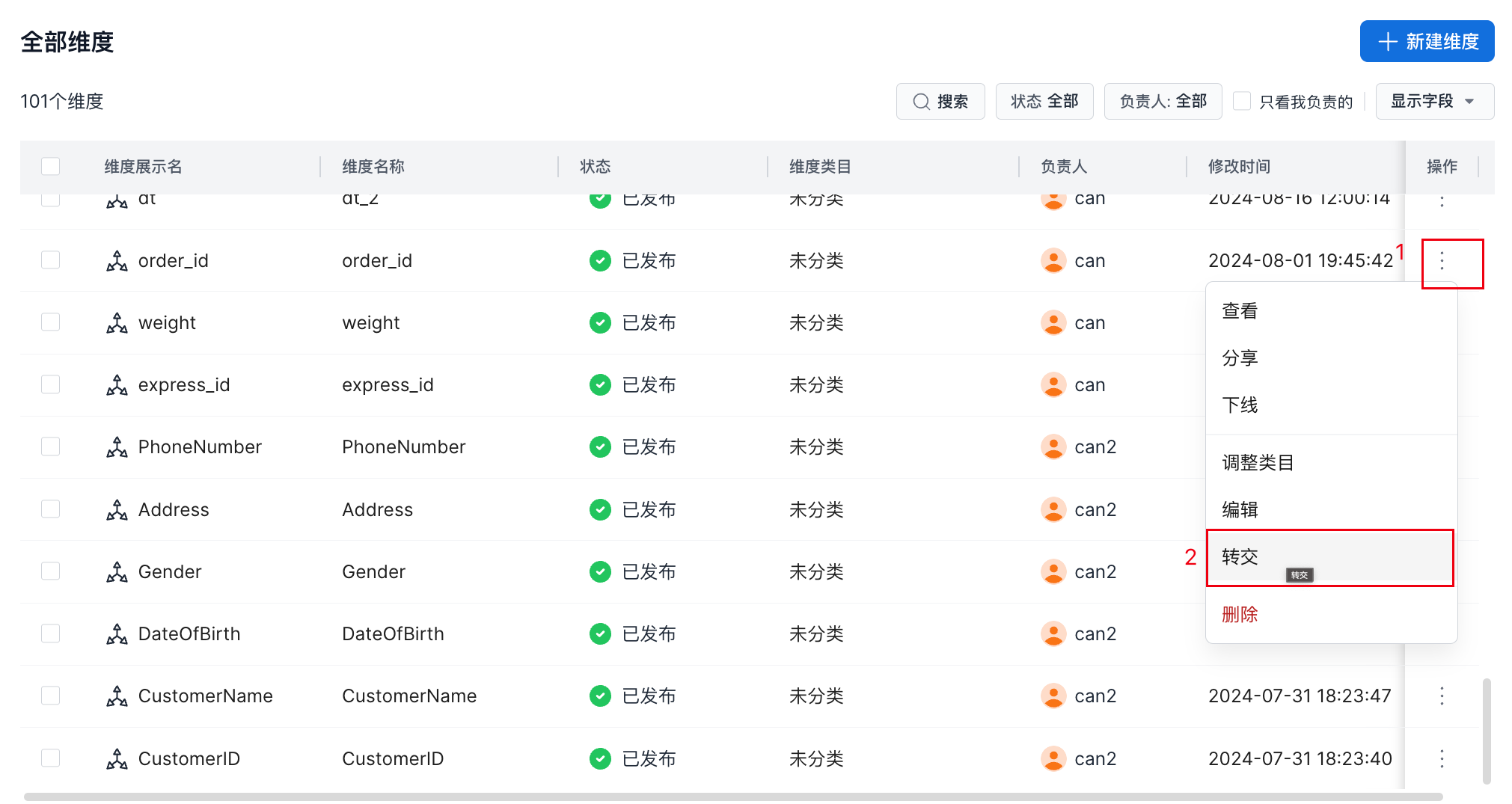
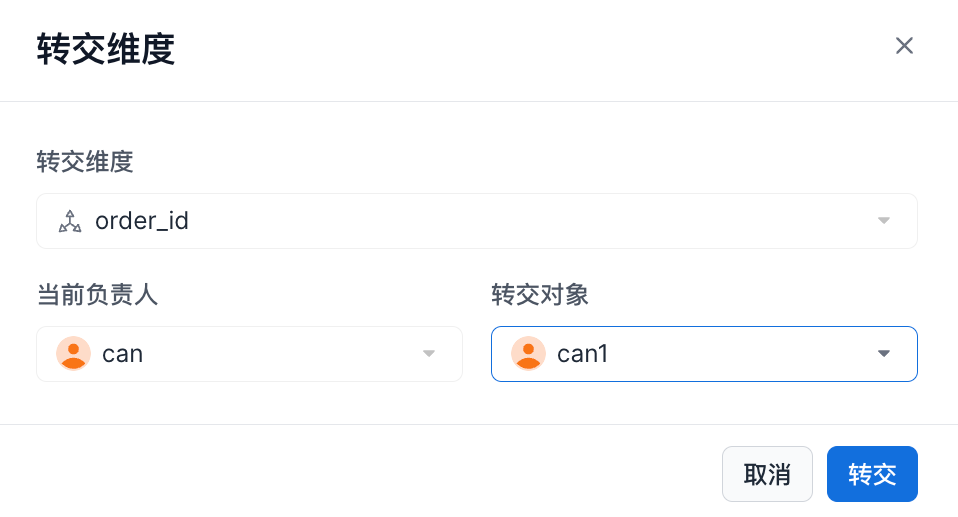
In the Transfer Dimension dialog, select the user to transfer the asset to, then click Transfer to complete the ownership transfer.
Delete a Dimension
On the dimension list page, click the ⋮ button in the Actions column, then click Delete to open the deletion confirmation dialog, as shown below.
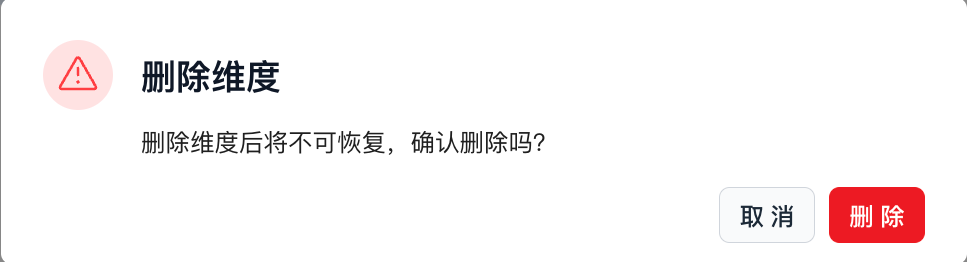
Click Confirm to delete the dimension.