Create a Materialization Plan
Overview
Materialization plans improve metric query performance. By precomputing results and storing them in materialized tables, the system reduces real-time calculation pressure and improves response speed. Aloudata CAN supports three modes:
-
Acceleration materialization: Generates metric and dimension combinations and supports dimension roll-up.
-
Regular materialization, standard mode: Uses a simple structure and is suitable for fixed reports or single-dimension-combination scenarios.
-
Regular materialization, CUBE mode: Supports multidimensional cross-combinations and hierarchical aggregation.
Choose the mode that best fits your business scenario.
1. Acceleration Materialization
1.1 Overview
Acceleration materialization is a performance optimization method for core metrics.
The system pre-generates result tables for metric and dimension combinations and supports step-by-step dimension roll-up, significantly reducing real-time query calculation pressure and improving response speed.
Use it for:
-
Frequently accessed core metrics, such as sales amount or active users.
-
Business reports that require cross-dimension comparison or hierarchical summaries.
-
Critical analysis scenarios with high performance and stability requirements.
1.2 Content Configuration
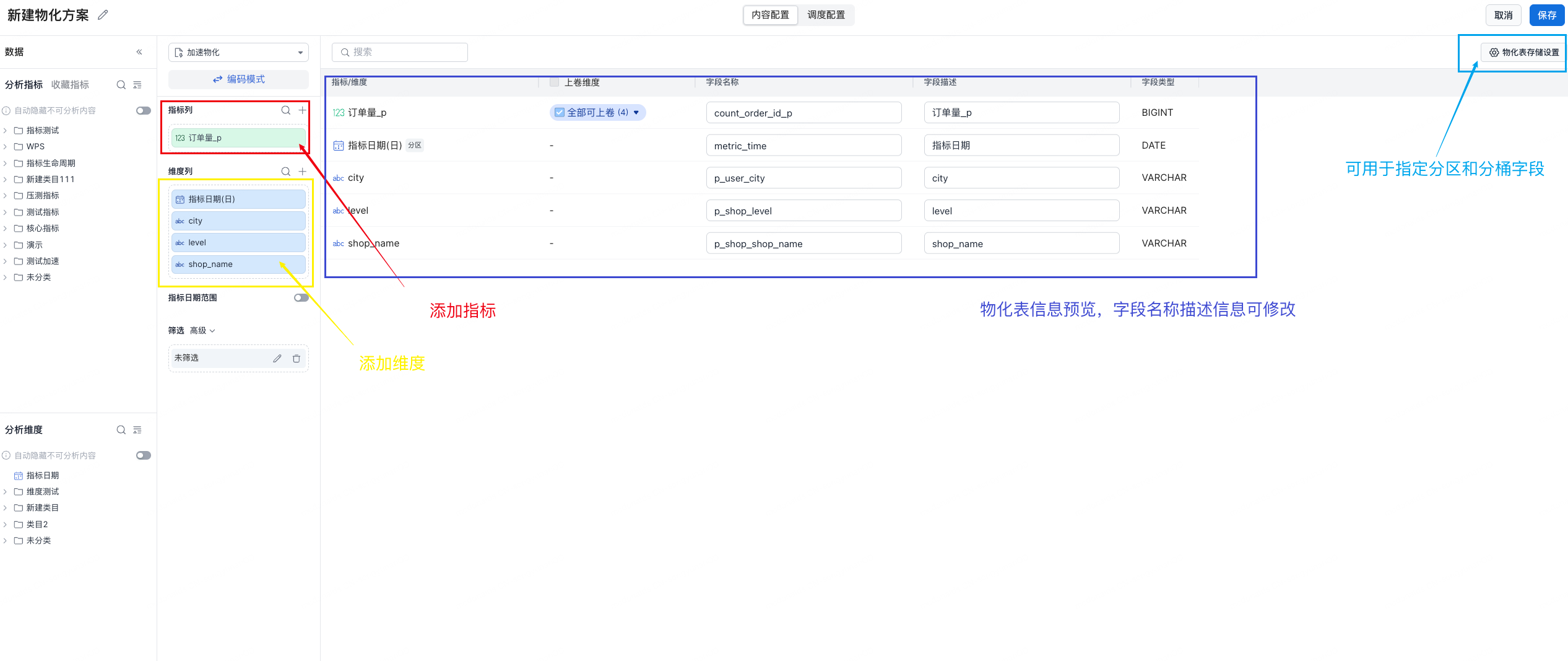
| Configuration Item | Description |
|---|---|
| Basic Information | Display name: the name shown in the UI for search and identification. System name: the internal unique identifier used to generate the corresponding materialized table. |
| Metrics and Dimensions | Select multiple metric and dimension combinations. The system validates the combinations automatically. You can select any authorized metric in the platform. |
| Metric Date Range Filter | Limit the metric data time range, such as the last 7 days, last 30 days, or by day, week, or month. |
| Data Filter | Filter data by public dimensions such as region, store, or business line. |
| Materialized Table Storage Settings | Partition field: usually the metric date field, so data can be incrementally updated by time. Bucket field: use a high-cardinality field such as user ID or store ID as the bucket key to reduce data skew. |
1.3 Scheduling Configuration
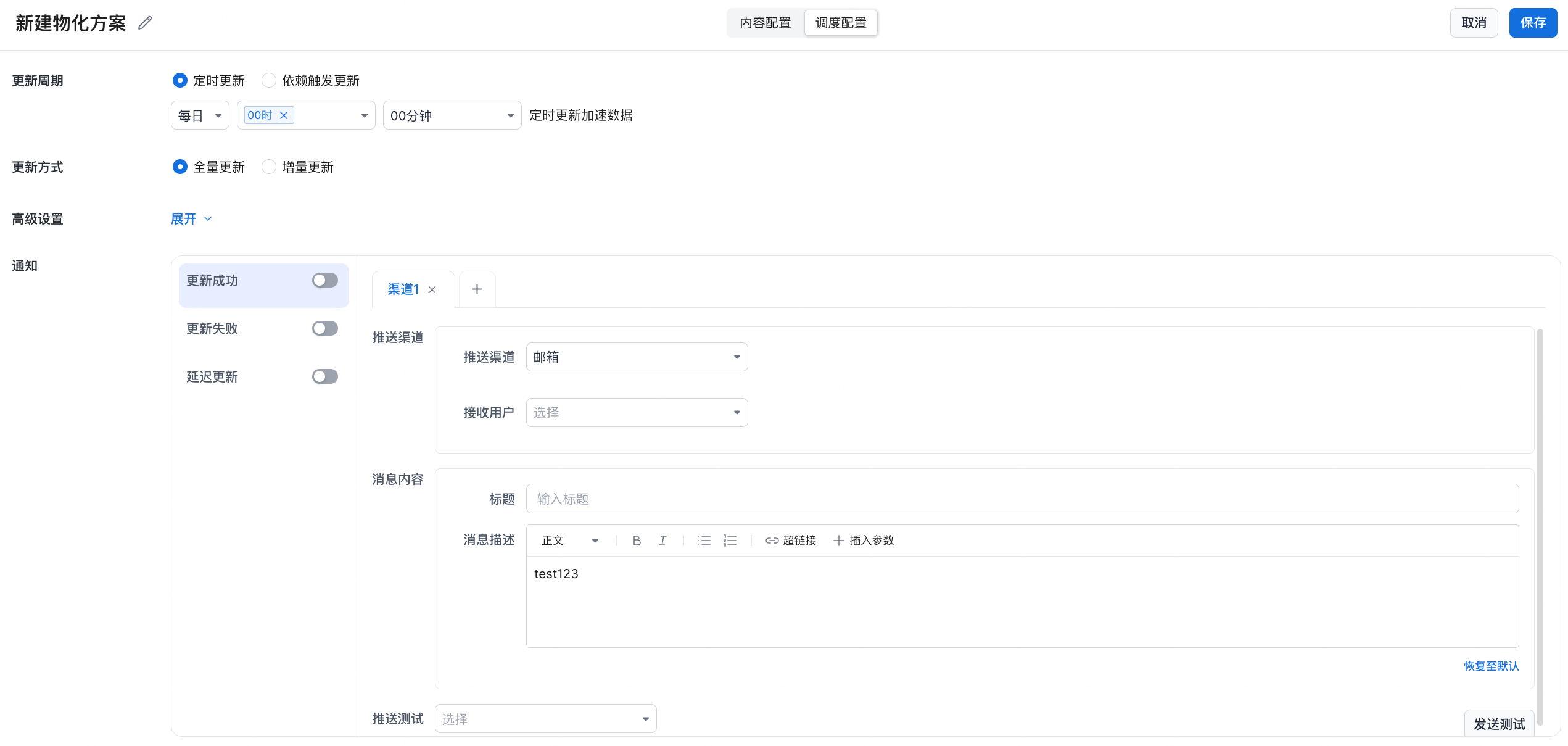
| Configuration Item | Description |
|---|---|
| Update Content | Full update: regenerate and overwrite materialized data based on scheduled time T. Incremental update: update only the latest partitions based on upstream table partition update time. |
| Update Cycle | Scheduled update: run at a fixed time, such as 08:00 every day. Dependency-triggered update: run automatically after upstream dependency tables finish updating. |
| Advanced Settings | Configure failure handling, including retry count. |
| Notification Settings | Configure success and failure notifications. Enable notifications for key business tasks so exceptions can be found quickly and owners can be notified. |
2. Regular Materialization, Standard Mode
2.1 Overview
Standard mode is suitable for fixed reports and simple metric analysis.
It stores metric calculation results at a scheduled point in time in a materialized table for downstream queries and BI display.
Typical scenarios:
-
Daily or monthly business snapshot reports, such as a daily sales report.
-
Persisting metric results for one dimension or a small number of dimension combinations, such as sales amount by date and city.
-
Long-term retention of metric results that should not change when source tables are updated.
Advantages:
-
Simple configuration and straightforward operation.
-
Fixed results with traceable historical snapshots.
-
Suitable for small to medium data volumes and fixed update frequency.
2.2 Content Configuration
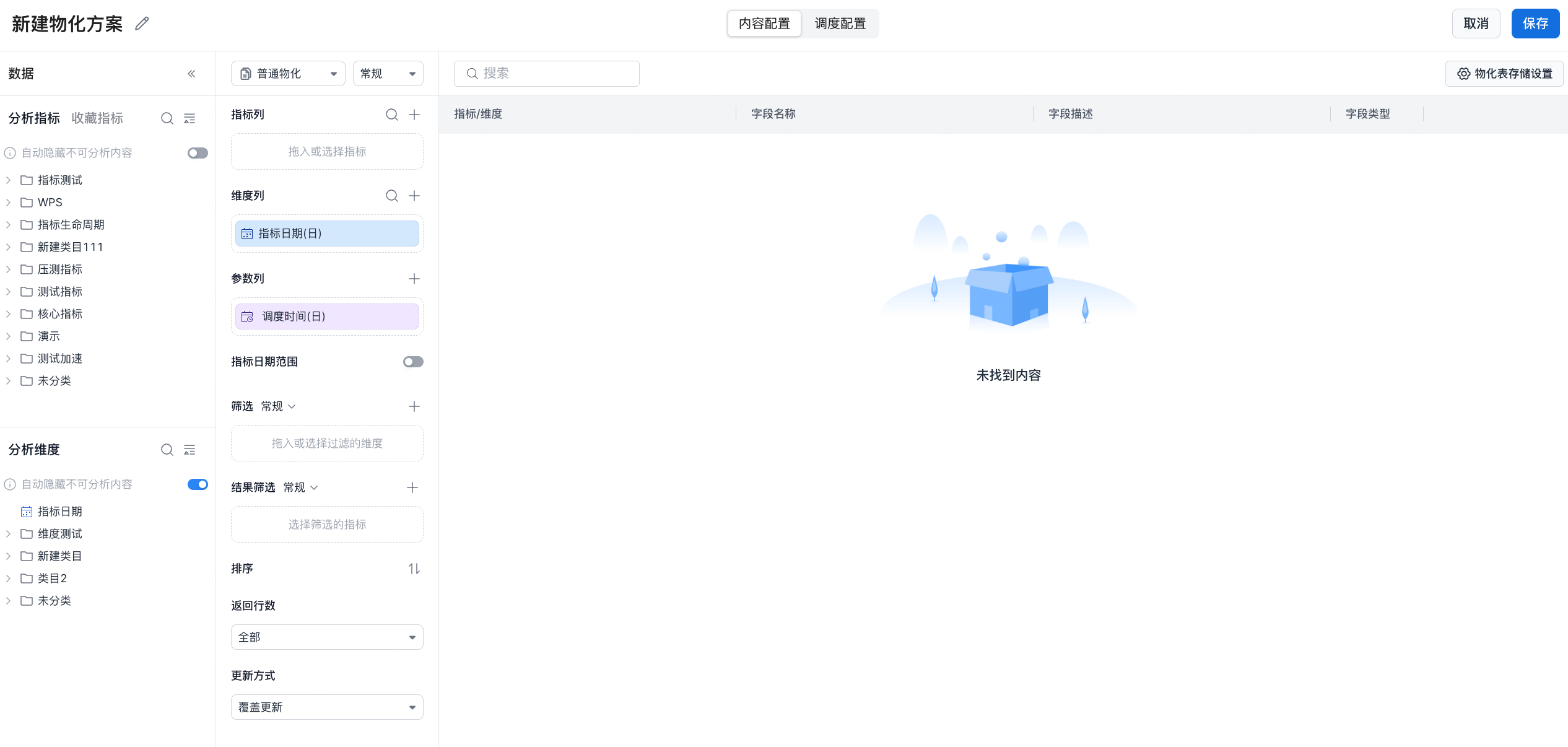
| Configuration Item | Description |
|---|---|
| Basic Information | Display name: the name shown in the UI for identification. |
| Metric Columns | Define metric fields shown in the result set, such as total transaction amount or outstanding amount. You can select multiple business metrics. |
| Dimension Columns | Define dimension fields in the result, such as metric date and city. |
| Parameter Columns | Configure variables that can be dynamically replaced during task execution. Parameterization lets a materialization plan adapt to different time ranges or scenarios. 1 day before schedule date (day): the day before the task schedule date. If the schedule date is 2025-10-21, the value is 2025-10-20. Schedule time (day): the task schedule date. If the schedule date is 2025-10-21, the value is 2025-10-21. Schedule time (seconds): the scheduled timestamp in seconds. Data write time (seconds): the timestamp when data is written to the storage table, such as 2025-10-21 08:02:35. |
| Metric Date Range | Limit the data range used for metric calculation, using schedule time in seconds as the base time, such as last 30 days or last 7 days. |
| Result Filter | Configure result filters, such as order_amount > 100. |
| Returned Rows | Limit returned rows to all results or Top N results, such as Top 10 cities. |
| Materialized Table Storage Settings | Partition field: usually the schedule date parameter column, making incremental updates and overwrite easier. Bucket field: optional, used for high-cardinality fields such as store ID to improve query performance for large data volumes. |
2.3 Scheduling Configuration
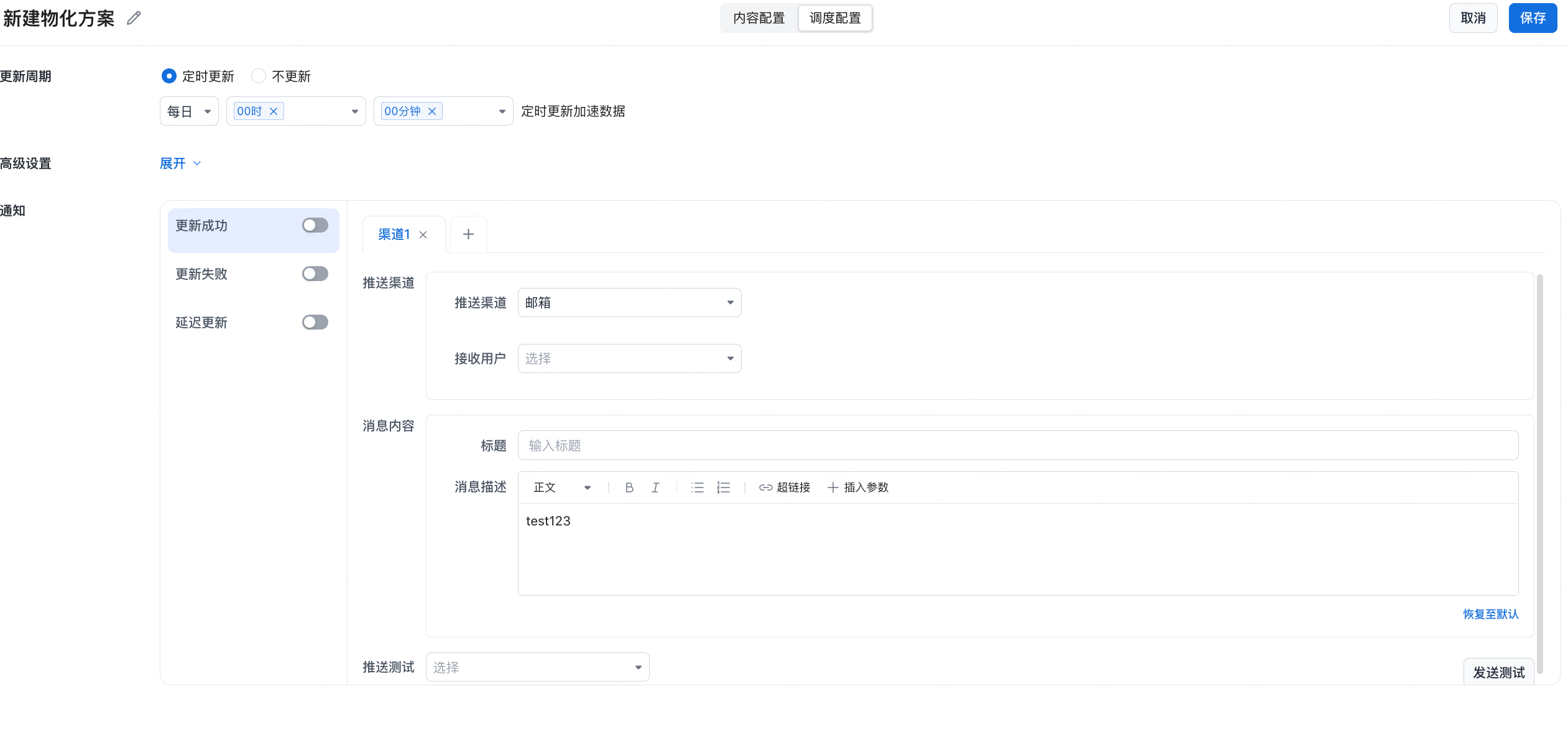
Configuration Details
| Configuration Item | Description |
|---|---|
| Update Cycle | Scheduled update: run at a specified time, such as daily, weekly, or monthly with hour and minute. No update: the materialized table does not actively update; use data backfill to refresh data. |
| Advanced Settings | Configure failure retry policies. |
| Notification Settings | Push task results, including update success, update failure, and delayed update. You can choose which notifications to enable. |
| Push Channel | Supports multiple channels, such as email, WeCom bot, and other custom interfaces such as Feishu. |
| Recipients | Configure one or more users to receive notifications. |
| Message Content | Customize the title and body. The body can include details, links, and parameter placeholders. |
| Push Test | Run a push test before saving to verify that notifications can be delivered. |
2.4 Example
Example SQL
select
  {$schedule_date} - 1 day as snapshot_date,
  metric_time(day),
  composite_demo,
  total_transaction_amount_demo,
  outstanding_amount_demo
from ...
where metric_time <= {$schedule_date}
  and metric_time >= {$schedule_date} - 29 day
group by metric_time(day);
Example Result Table
| Schedule Date (Hidden) | Schedule Date | Metric Date | Metric 1 | Data Insert Time |
|---|---|---|---|---|
| 2025-09-19 | 2025-09-18 | 09-19 | Metric value | 2025-09-19 00:00 |
| 2025-09-18 | 09-18 | Metric value | 2025-09-19 00:00 | |
| 2025-09-18 | 09-17 | Metric value | 2025-09-19 00:00 | |
| 2025-09-18 | 2025-09-17 | 09-18 | Metric value | 2025-09-19 12:00 |
2.5 Recommendations
-
Suitable scenarios
-
Periodic snapshot reports.
-
Simple metric and dimension combinations.
-
Scenarios that require long-term retention of historical results.
-
Configuration optimization
-
Control returned rows to avoid excessively large results.
-
Set the metric date range to the last 30 days or shorter to maintain performance.
-
Scheduling optimization
-
For full recalculation, use overwrite update.
-
For daily partition writes, use incremental update.
3. Regular Materialization, CUBE Mode
3.1 Overview
CUBE mode is a high-performance materialization method for multidimensional cross-analysis.
When building the materialized table, the system automatically generates all possible dimension combinations based on selected dimensions and precomputes aggregation results for each combination.
Use it for:
-
Reports that require free filtering and cross-analysis across multiple dimensions.
-
Multi-angle summaries for complex dimension hierarchies, such as region, product, and channel.
-
Scenarios that require high performance for multidimensional drill-down.
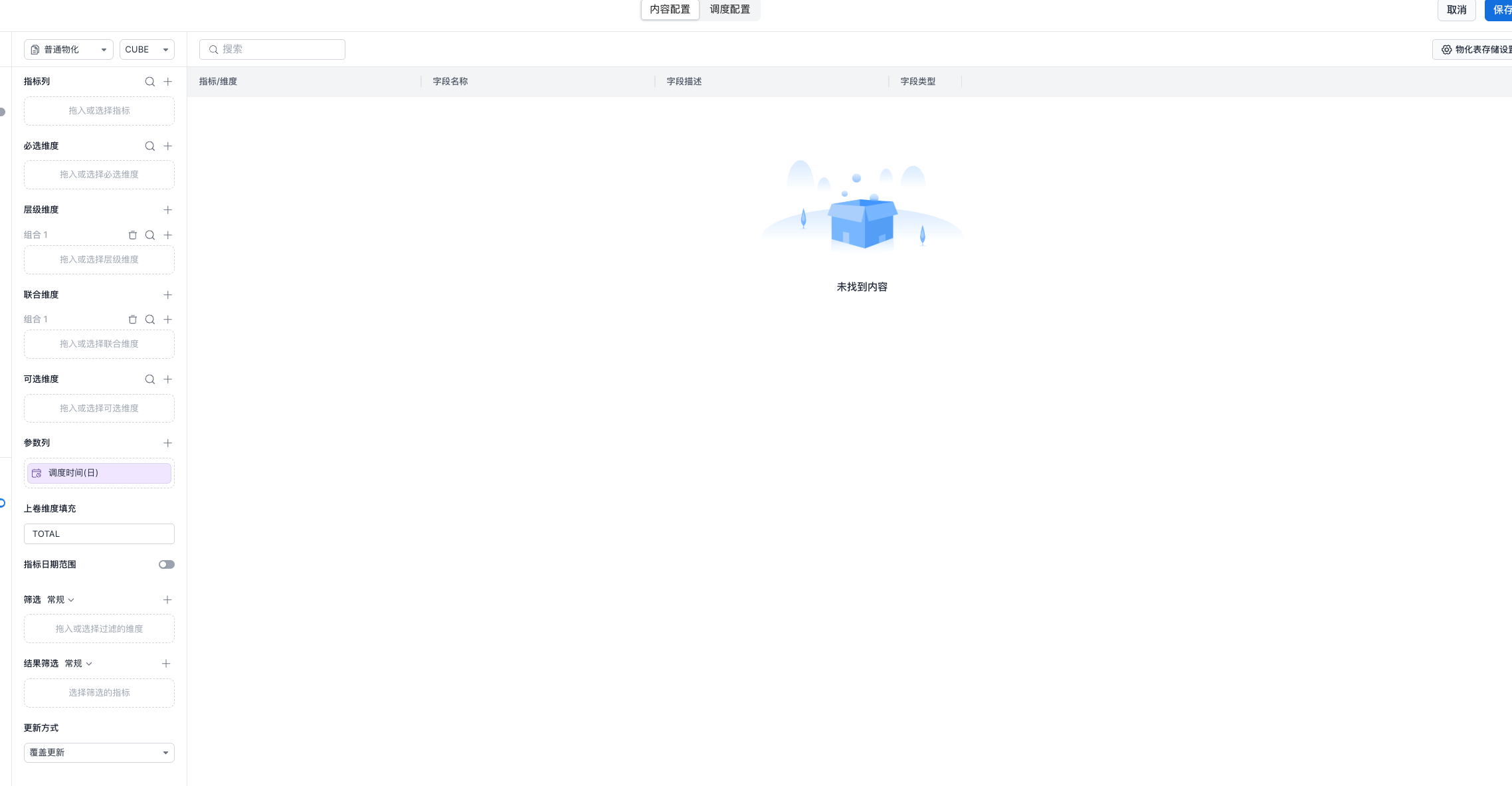
3.2 Content Configuration
3.2.1 Metric Configuration
| Configuration Item | Description |
|---|---|
| Metric Columns | Select one or more metric fields for aggregation. Atomic metrics, derived metrics, and composite metrics are supported. |
3.2.2 Dimension Configuration
Dimension configuration is the core of CUBE mode. It determines which dimension combinations and aggregation levels are generated during materialization.
By configuring different dimension types, the system can automatically generate multi-level aggregation results for fast filtering and drill-down in complex reports.
Purpose of Dimension Configuration
In standard mode, metric results are generated only for the selected dimension combination.
In CUBE mode, the system automatically generates cross-combinations of all configured dimension types, equivalent to the mathematical Cartesian combinations behind CUBE().
For dimensions A, B, and C, the system generates these aggregation levels: (A, B, C), (A, B), (A, C), (B, C), (A), (B), (C), and ( ).
Dimension Types
CUBE supports four dimension types. Each type controls combinations and aggregation levels differently.
1. Required Dimensions
| Feature | Description |
|---|---|
| Always included in all aggregation combinations and never trimmed. | Usually used for time dimensions or core analysis dimensions that must exist. |
| Not removed when other dimensions roll up. | Ensures all aggregation results retain a timeline or core identifier. |
Example:
Select Date as a required dimension. Other dimensions can vary, but every generated combination includes date.
| Date | Region | Channel | Sales Amount |
|---|---|---|---|
| 2025-09-18 | East China | Online | 1000 |
| 2025-09-18 | East China | TOTAL | 1800 |
| 2025-09-18 | TOTAL | TOTAL | 3500 |
2. Hierarchical Dimensions
| Feature | Description |
|---|---|
| Dimensions with parent-child hierarchy. | Examples: region -> province -> city, or category -> subcategory -> product. |
| The system automatically calculates aggregation results for each level. | Avoids manually creating multiple groups. |
| Multiple hierarchy fields can be selected. | The system generates combinations from top to bottom. |
Example:
Configure the hierarchy as Region -> Province -> City:
| Generated Hierarchy | Description |
|---|---|
| Region + Province + City | Finest-grain details |
| Region + Province | Province-level summary |
| Region | Region-level summary |
| TOTAL | All-region summary |
Example result:
| Date | Region | Province | City | Sales Amount |
|---|---|---|---|---|
| 2025-09-18 | East China | Zhejiang | Hangzhou | 500 |
| 2025-09-18 | East China | Zhejiang | TOTAL | 1500 |
| 2025-09-18 | East China | TOTAL | TOTAL | 2500 |
| 2025-09-18 | TOTAL | TOTAL | TOTAL | 8900 |
3. Linked Dimensions
| Feature | Description |
|---|---|
| Multiple fields appear together as a logical group. | The system always calculates these fields together and does not split them into separate combinations. |
| Typical scenarios include primary key and name, or code and description. | Ensures semantic consistency. |
Example:
Define Linked Dimension Group 1:
Product ID <-> Product Name
When the system generates combinations, these two dimensions always appear together:
| Date | Product ID | Product Name | Sales Amount |
|---|---|---|---|
| 2025-09-18 | P1001 | Phone | 2000 |
| 2025-09-18 | P1002 | Headphones | 600 |
| 2025-09-18 | TOTAL | TOTAL | 2600 |
4. Optional Dimensions
| Feature | Description |
|---|---|
| The system generates Cartesian combinations for all optional dimensions. | All cross-aggregation results are generated automatically. |
| This is the core capability of CUBE mode. | Supports free filtering and drill-down analysis. |
| Multiple optional dimensions can be configured. | Each added dimension doubles the number of combinations. |
Example:
Select optional dimensions Channel, Customer Type, and Payment Method.
The system automatically generates these aggregation combinations:
| Dimension Combination | Example |
|---|---|
| Channel + Customer Type + Payment Method | Online - Member - Alipay |
| Channel + Customer Type | Online - Member |
| Customer Type + Payment Method | Member - Alipay |
| Channel | Online |
| Payment Method | Alipay |
| Customer Type | Member |
| TOTAL | Summary across all combinations |
Complete CUBE Dimension Example
Scenario:
| Configuration Type | Selection | Description |
|---|---|---|
| Required Dimension | Date | Every result must include date. |
| Hierarchical Dimension | Province -> City | The system automatically generates province-level, city-level, and rolled-up TOTAL levels. |
| Optional Dimensions | Channel, Customer Type | The two dimensions are independent, so the system generates all subset combinations, 2^2 = 4. |
| Metric | Sales Amount | Aggregated field shown in results. |
Combination rules:
-
Hierarchical dimension combinations: 3, including province, city, and
TOTAL. -
Optional dimension combinations: 4, including empty set, channel, customer type, and channel + customer type.
-
Required dimension date: fixed at 1.
-
Final number of combinations: 3 x 4 x 1 = 12.
Full combination list:
| No. | Date (Required) | Hierarchy | Optional Dimension Subset | Final Dimension Structure | Example Result |
|---|---|---|---|---|---|
| 1 | Date | Province + City | Empty set | Date + Province + City | Summary for each city |
| 2 | Date | Province + City | Channel | Date + Province + City + Channel | Sales amount for each city by channel |
| 3 | Date | Province + City | Customer Type | Date + Province + City + Customer Type | Sales amount for each city by customer type |
| 4 | Date | Province + City | Channel + Customer Type | Date + Province + City + Channel + Customer Type | City by channel by customer type summary |
| 5 | Date | Province (rolled up) | Empty set | Date + Province | Province-level summary without channel or customer type |
| 6 | Date | Province (rolled up) | Channel | Date + Province + Channel | Province by channel summary |
| 7 | Date | Province (rolled up) | Customer Type | Date + Province + Customer Type | Province by customer type summary |
| 8 | Date | Province (rolled up) | Channel + Customer Type | Date + Province + Channel + Customer Type | Province by channel by customer type summary |
| 9 | Date | Roll-up (TOTAL) |
Empty set | Date | National summary without any dimension |
| 10 | Date | Roll-up (TOTAL) |
Channel | Date + Channel | National sales amount by channel |
| 11 | Date | Roll-up (TOTAL) |
Customer Type | Date + Customer Type | National sales amount by customer type |
| 12 | Date | Roll-up (TOTAL) |
Channel + Customer Type | Date + Channel + Customer Type | National summary by channel and customer type |
Example data:
The following shows part of the generated result. Values are illustrative.
| Date | Province | City | Channel | Customer Type | Sales Amount |
|---|---|---|---|---|---|
| 2025-09-18 | Zhejiang | Hangzhou | Online | Member | 1,200 |
| 2025-09-18 | Zhejiang | Hangzhou | Offline | Member | 900 |
| 2025-09-18 | Zhejiang | Hangzhou | TOTAL | TOTAL | 3,000 |
| 2025-09-18 | Zhejiang | TOTAL | TOTAL | TOTAL | 8,000 |
| 2025-09-18 | TOTAL | TOTAL | Online | Member | 18,500 |
| 2025-09-18 | TOTAL | TOTAL | TOTAL | TOTAL | 25,700 |
3.2.3 Parameter Configuration
| Configuration Item | Description |
|---|---|
| Parameter Columns | Set dynamic parameters such as schedule time and snapshot date to generate periodic results. |
| Roll-Up Dimension Fill Method | Defines how rolled-up dimensions are displayed. The default is TOTAL. For example, when the city dimension is aggregated, the result displays city = TOTAL. |
3.2.4 Result Filters and Limits
| Configuration Item | Description |
|---|---|
| Filter | Configure data filters so CUBE is generated only for specific dimension ranges, such as region = East China. |
| Result Limit | Control output range, such as Top N, specific categories, or excluding abnormal values. Expression filters are supported, such as sales_amount > 0. |
| Metric Date Range | Define the data time range for metric calculation, such as last 7 days, last 30 days, or this month. |
3.2.5 Update Method and Storage Settings
| Configuration Item | Description |
|---|---|
| Update Method | Overwrite update: fully recalculate each time and replace old results. Incremental update: update only new partition data, which is more efficient and suitable for daily tasks. |
| Partition Field | Usually a time field such as metric date, used for partition loading and incremental refresh. |
| Bucket Field | Optional high-cardinality field such as region ID or store ID, used for bucketing to improve query performance. |
3.3 Scheduling Configuration
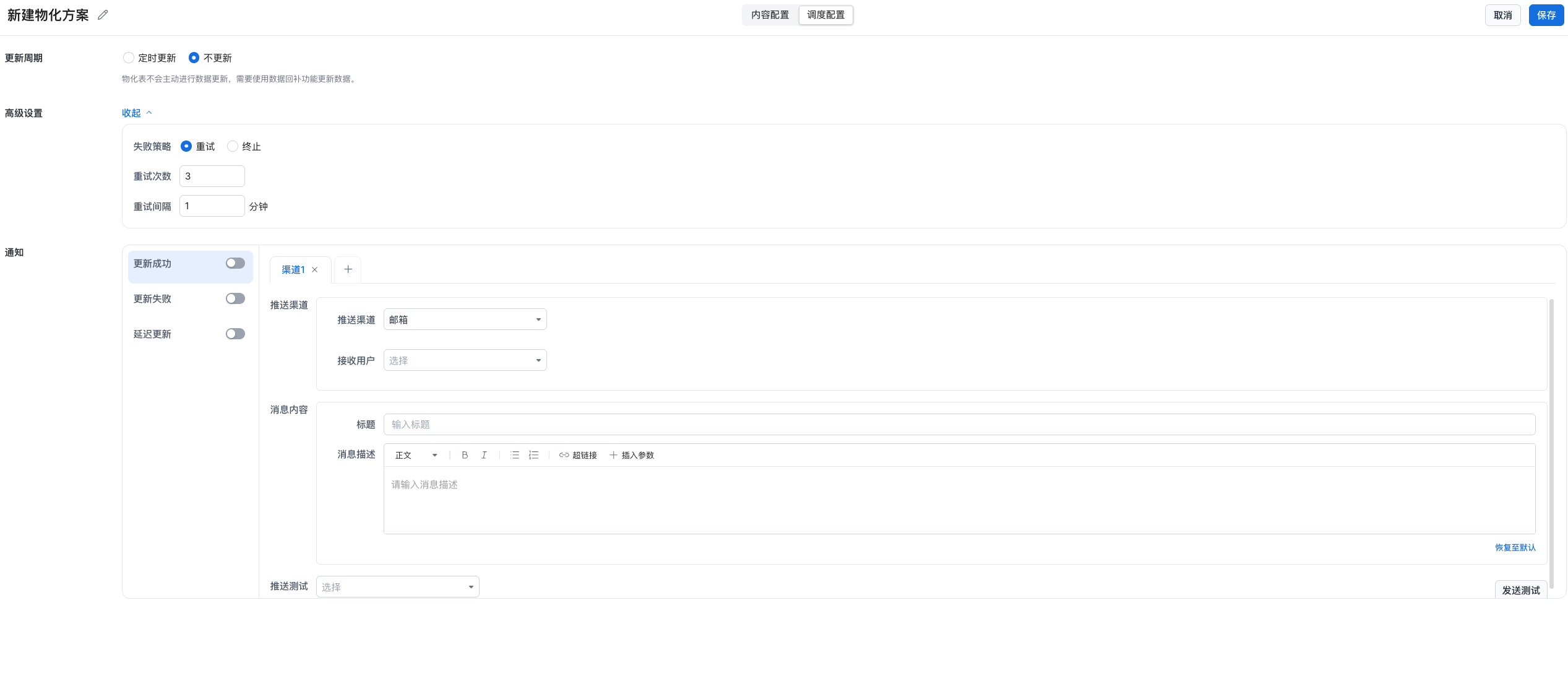
The scheduling logic for CUBE mode is the same as standard mode, with stronger emphasis on performance and task stability.
| Configuration Item | Description |
|---|---|
| Update Cycle | Scheduled update: run at a fixed time, such as 02:00 every day. No update: the materialized table does not actively update; use data backfill to refresh data. |
| Advanced Settings | Supports retry mechanisms and failure alert policies. |
| Notification Settings | Supports task result pushes for update success, update failure, and delayed update. Multiple channels are supported, including email, WeCom, and Webhook. |
| Push Channel | Add multiple notification channels, such as channel 1 for email and channel 2 for a WeCom bot. Each channel can have separate recipients, title, and content template. |
| Message Content | Customize the title and body. Rich text, links, and parameter variables such as ${task_name} and ${execution_time} are supported. |
| Push Test | Provides a send test feature to verify whether the message configuration works. |