Row-Level Permissions
Overview
Metric row-level permissions control metric query results so users can only view metric result values calculated from data rows within their permission scope.
- Global row-level permission rules: Administrator-type roles configure row-level permission restrictions at the top level. These are global governance constraints.
Basic Concepts
Row-level permissions are granted by permission rules. A permission rule consists of the following elements:
| Element | Description |
|---|---|
| Applicable Members | The members to whom the rule applies. Only users who belong to these applicable members are affected by the row-level permission rule. |
| Applicable Metrics | The metrics to which the rule applies. |
| Restriction Rule | When row-level permission restrictions are applied, this rule limits the data rows visible to users. |
| Rule for Non-applicable Members | Rules for non-applicable members include: - Do not apply row-level permission restrictions - Do not allow any data content to be visible Select one of these two rules. |
When users query metrics in the metric platform, row-level permissions take effect as shown below:

Where:
-
Global rules and metric rules take effect together.
-
Multiple rules within global rules use an OR relationship, which means the union of data rows is used.
-
Multiple rules within metric rules use an OR relationship, which means the union of data rows is used.
Global Row-Level Permissions
Configuration Entry Point
Platform administrators configure these permissions in Management Settings.
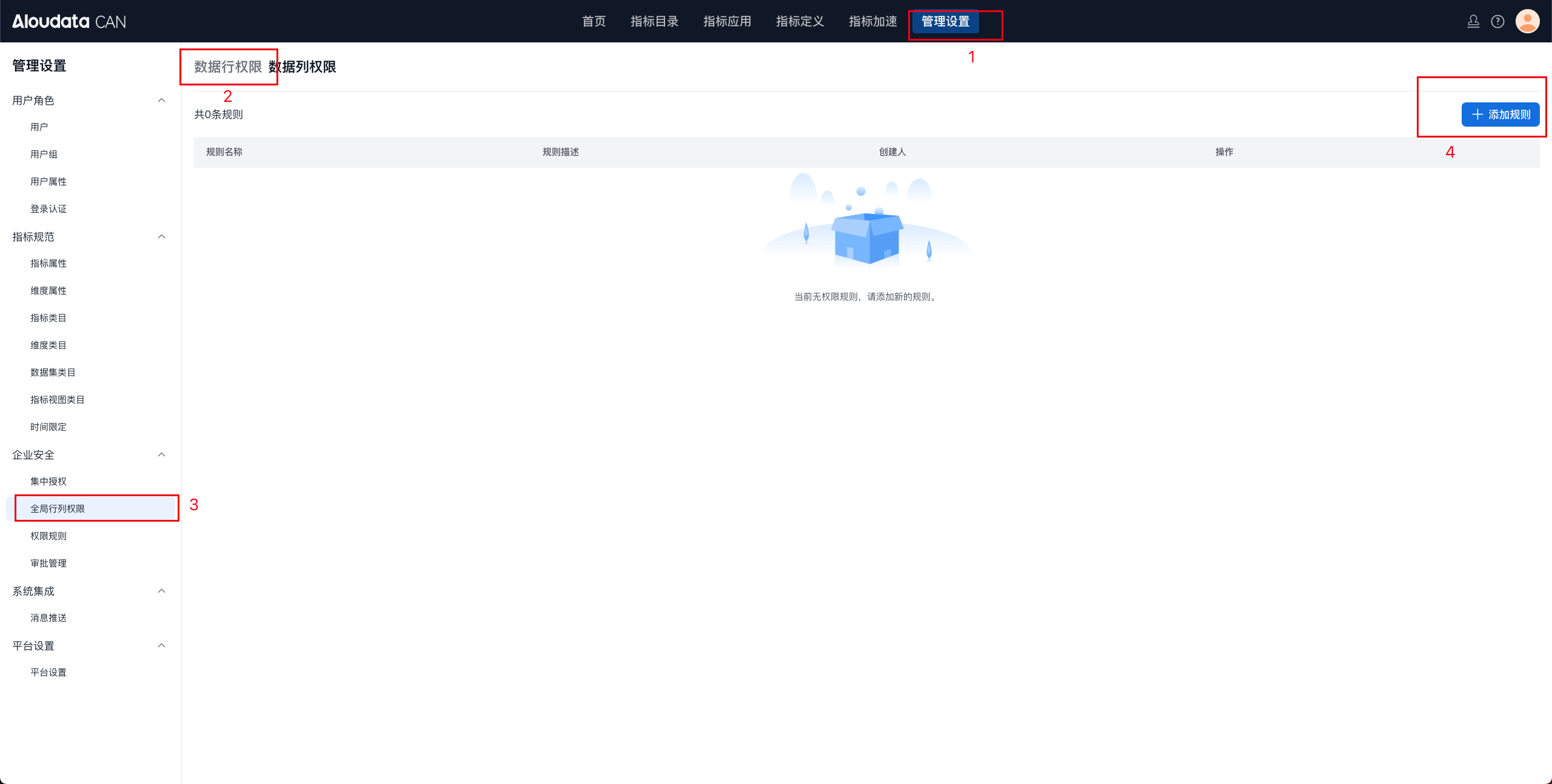
Global row-level permission configuration window
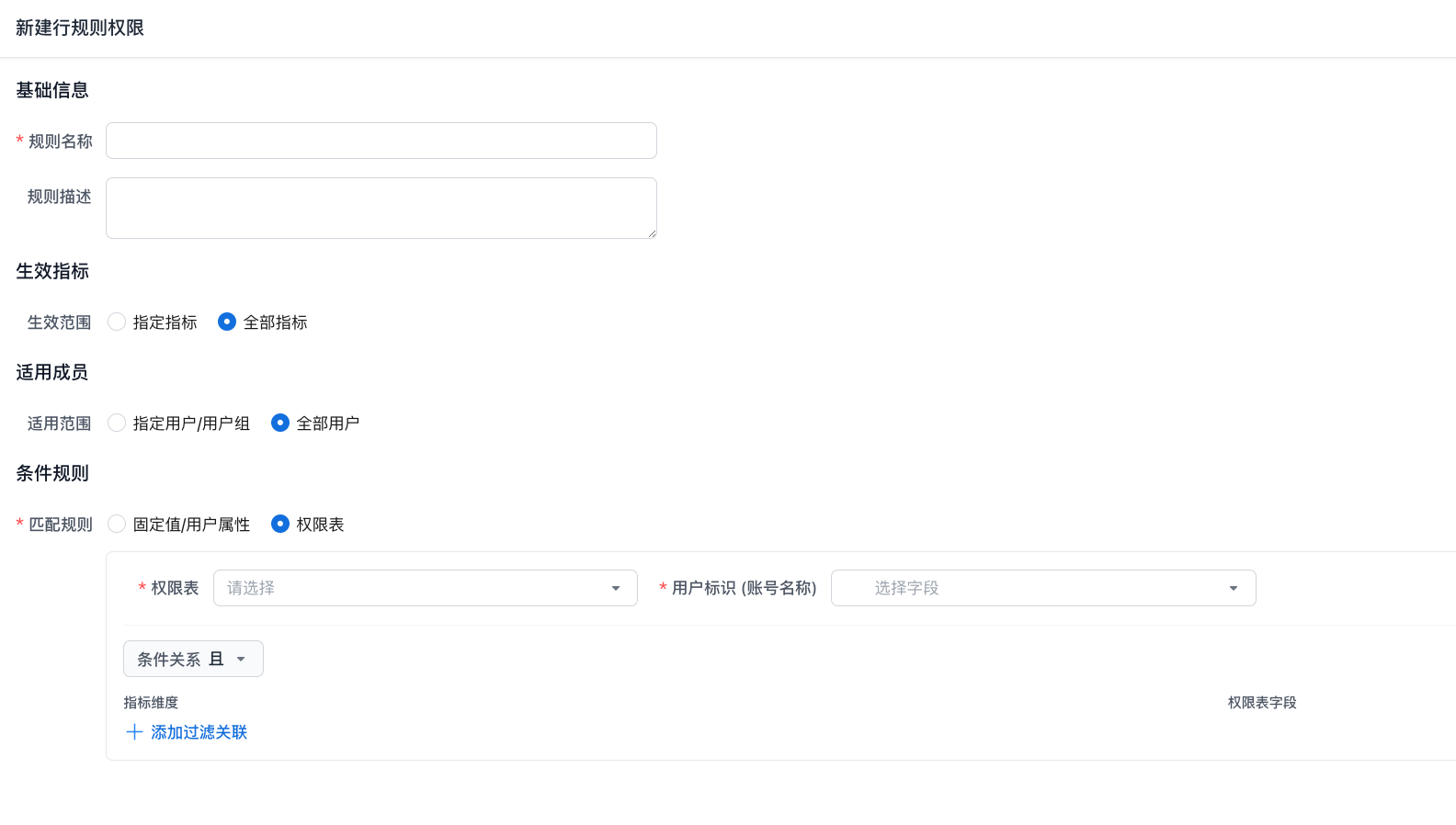
Permission Rules
Permission rules include four parts: basic information, effective metrics, applicable members, and condition rules.
Basic Information
In the basic information section, name the row-level permission rule and add a description to make future maintenance easier.
Effective Metrics
Metric selection methods:

-
Specified Metrics: Select metrics by metric name.
-
All Metrics: The permission rule applies to all metrics.
Applicable Members

You can select the user scope by username or user group.
Condition Rules
Fixed Value/User Attribute
In this mode, metric dimensions are matched against fixed values or queried user attribute values.
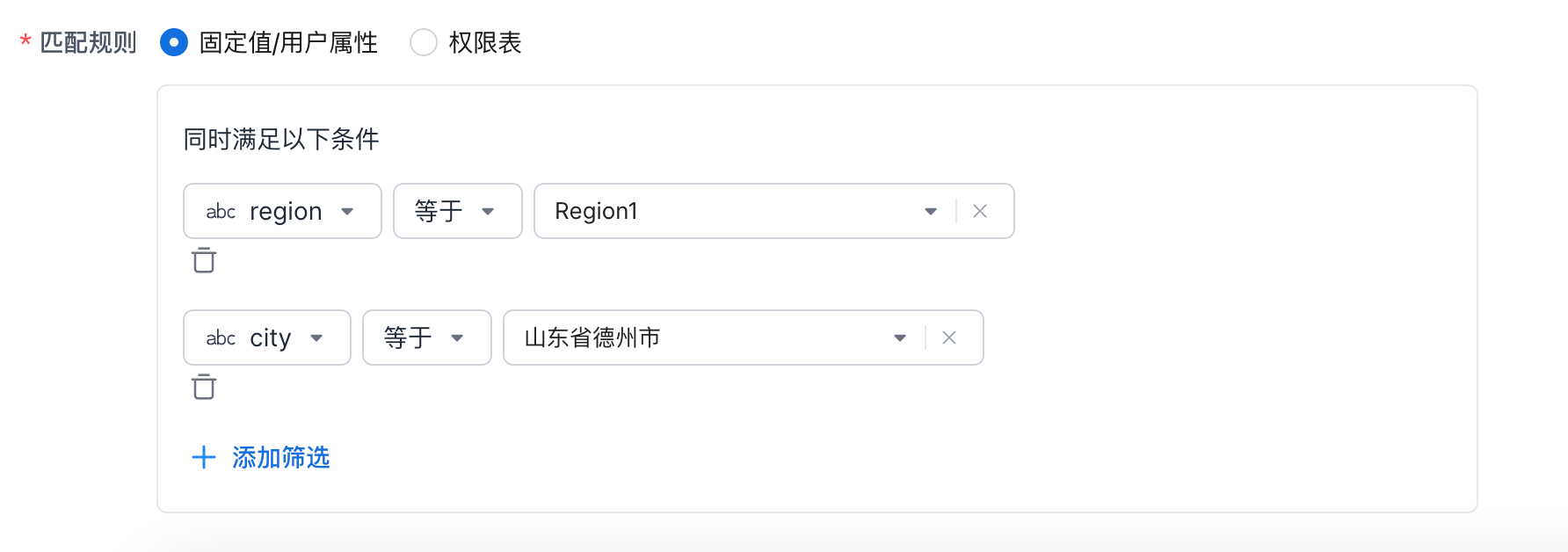
Supported matching operators:
| Dimension Type | |
|---|---|
| Text | - Equals/Excludes - Contains/Does not contain - Starts with/Does not start with - Ends with/Does not end with - Equals user attribute/Excludes user attribute - Contains user attribute/Does not contain user attribute |
| Numeric | - Equals/Excludes - Greater than/Greater than or equal to - Less than/Less than or equal to |
| Date | - Equals/Does not equal - Before/After |
Permission Table
In permission table mode, first select a permission table. You can filter data in the permission table and use only the retained data for row-level permission configuration.
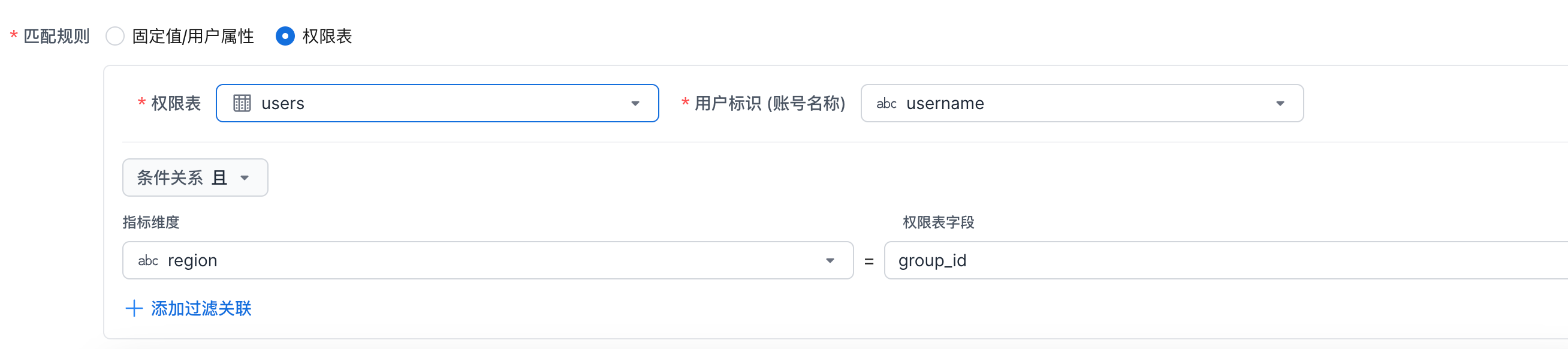
-
Specify User Identifier: Select a field that matches account names in the current metric platform. The system uses this field to identify the corresponding users.
-
Configure Matching Rules: Select metric dimensions and permission table fields. During queries, these rules are converted into filter conditions in the form Dimension = "Table.Field Value".
Note:
In permission table mode, if a user is within the applicable user scope but no corresponding data is found in the table, the user is considered unrestricted.