Derived Rules
This page explains how to analyze time-limited derived metrics in an Aloudata CAN metric dashboard, and how metric date and metric date range references work.
Prerequisites
-
Before analysis, make sure the basic, derived, or composite metrics have been clearly defined.
-
Define the dimensions required for metric analysis.
Query Example
Note
The metric date granularity used in dimensions and filters must be less than or equal to the date granularity defined for the metric.
The dimensions or filters must include metric date, and the date granularity used in dimensions and filters must be less than or equal to the date granularity defined for the metric.
Create a Derived Metric
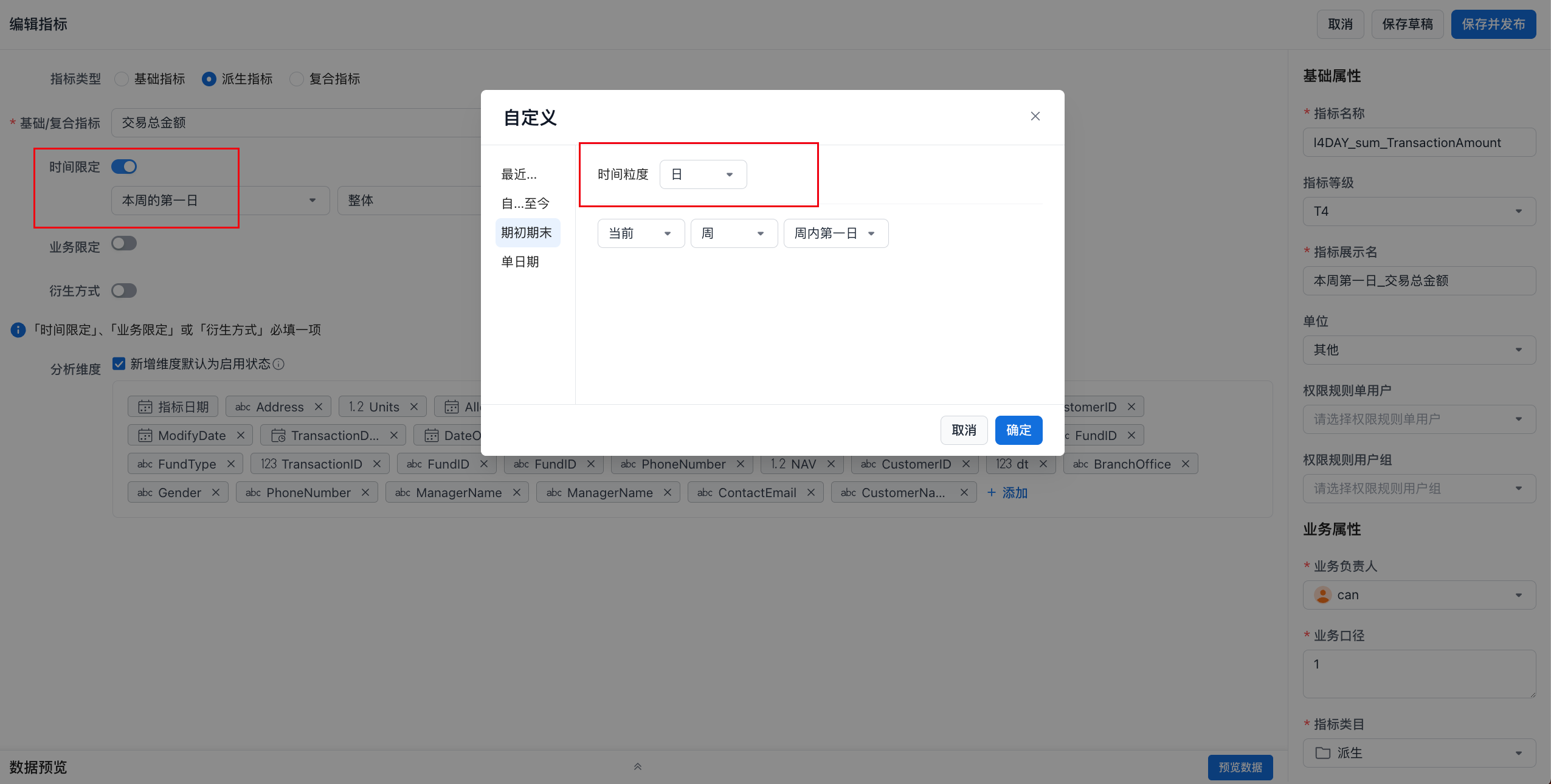
In this example, a derived metric is created from "Total Transaction Amount" using the time derivation "First Day of Current Week". The time granularity is day. As shown below, you can also confirm the time granularity of a time-limited derived metric in this way.
Create a Metric Dashboard
Drag in the derived metric created in the previous step, as shown below:
Description
The dimensions or filters must include metric date, and the date granularity used in dimensions and filters must be less than or equal to the date granularity defined for the metric.

Analyze the Metric
Add a metric date or specify a metric date range, as shown below.
Scenario 1: Add Only a Metric Date Dimension
Example 1: The Derived Metric Time Granularity Is Day
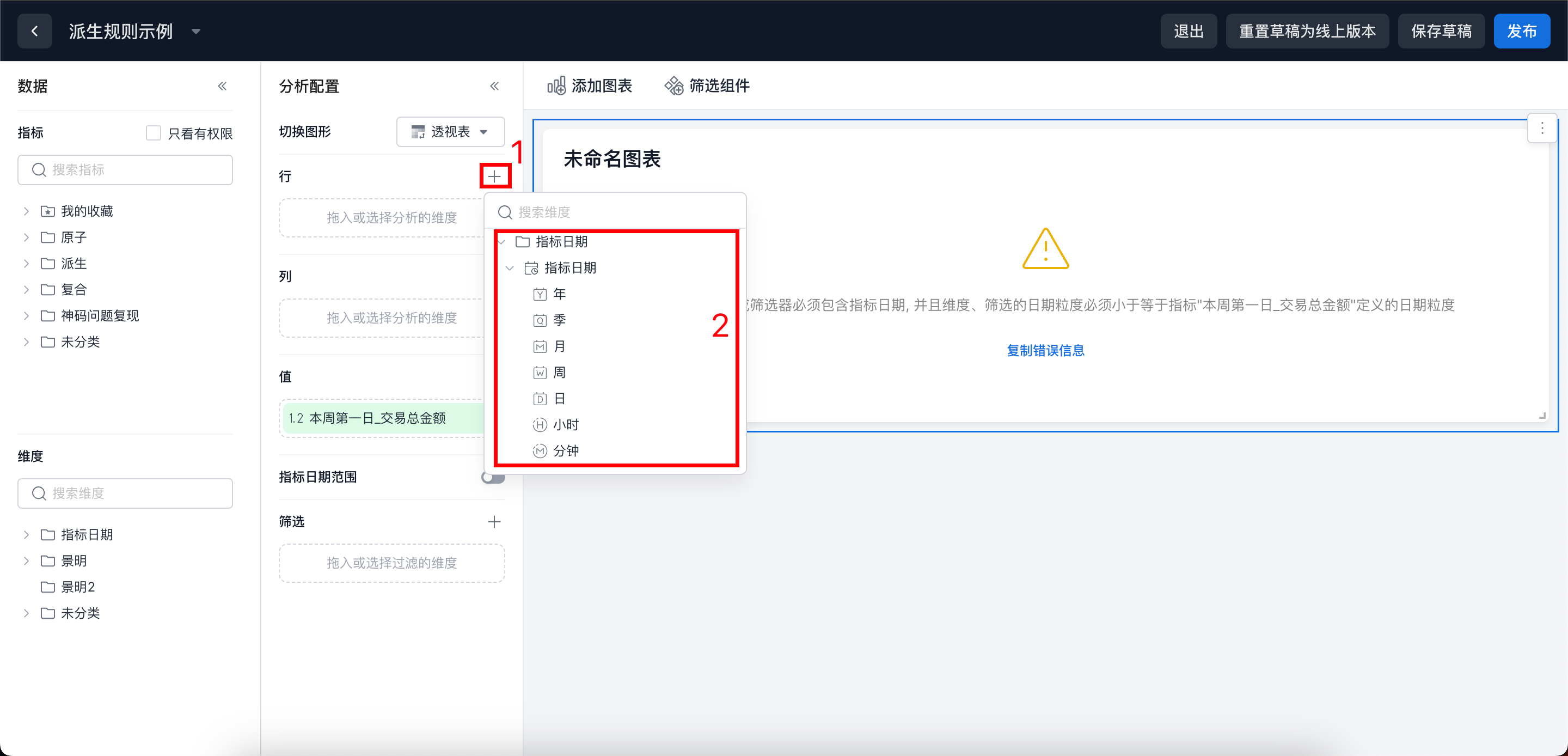
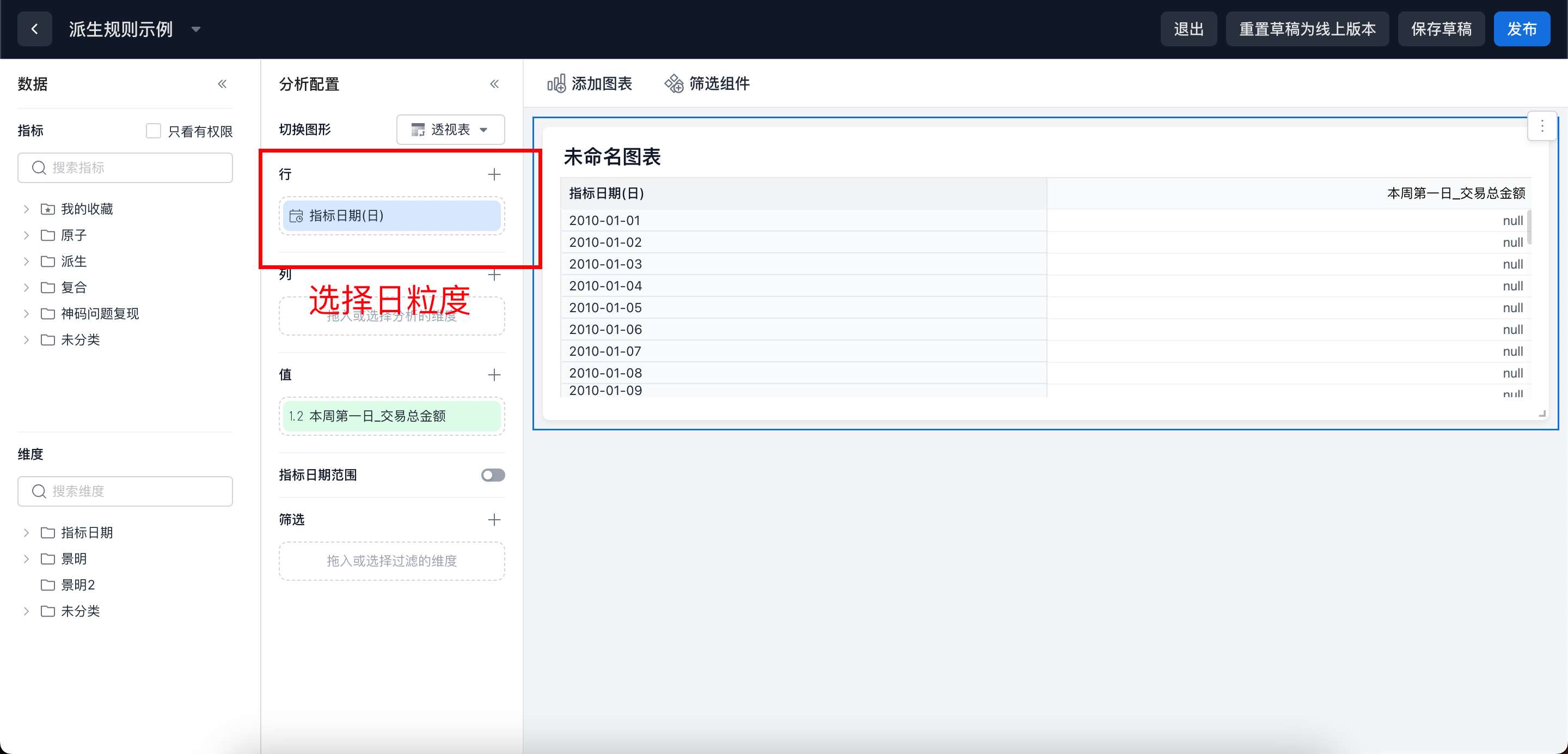
Correct Example:
Select a metric date granularity of day, which is less than or equal to the metric date granularity of day, as shown below:
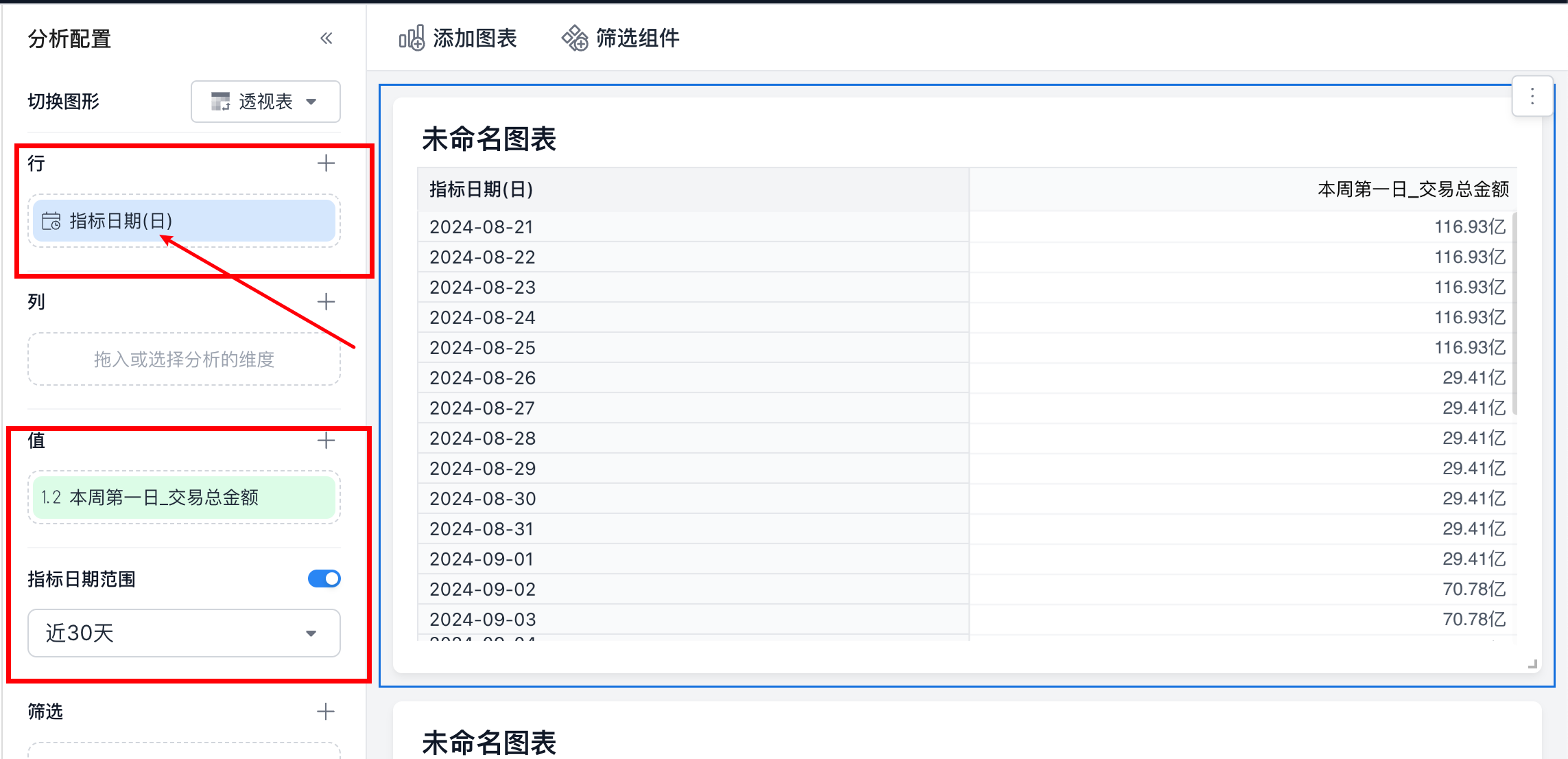
Specify a metric date range (optional):
When the metric date granularity is specified in "Rows", there is no special requirement for the metric date range. In the example below, the configuration displays all data from the beginning of last year through today at day granularity.
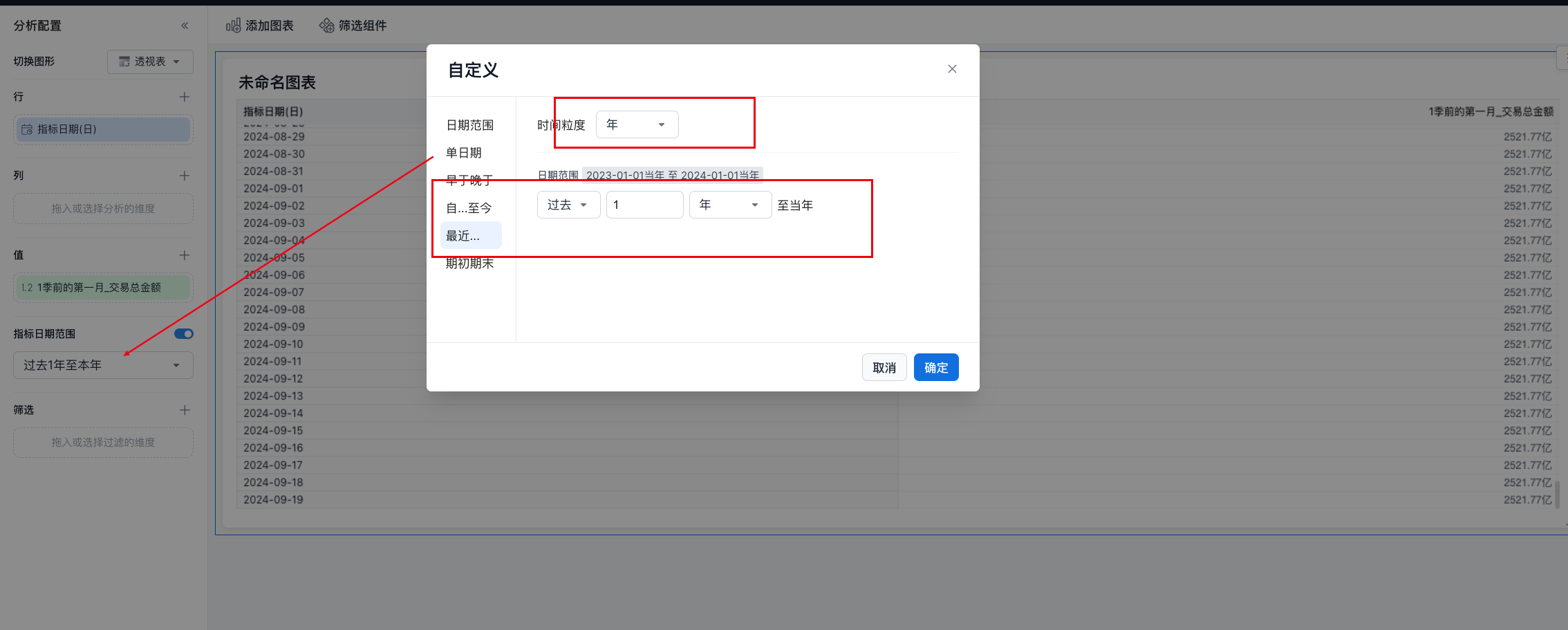
Incorrect Example:
Avoid selecting a date dimension with a granularity such as week, because it is coarser than the day granularity defined for the metric.
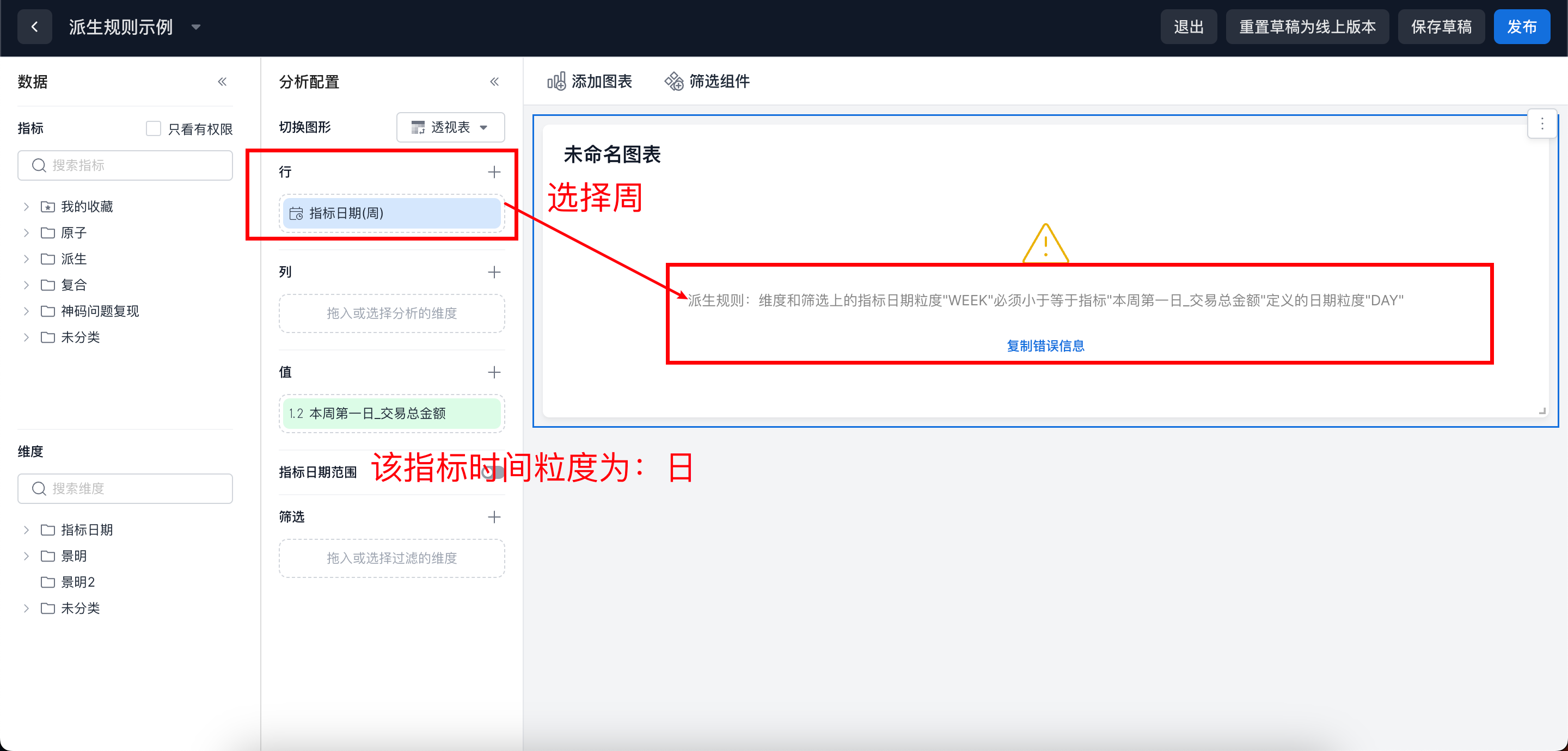
Example 2: The Derived Metric Time Granularity Is Month
Correct Example:
Select a metric date granularity that is less than or equal to the metric date granularity of month. Month or day can be selected, as shown below:
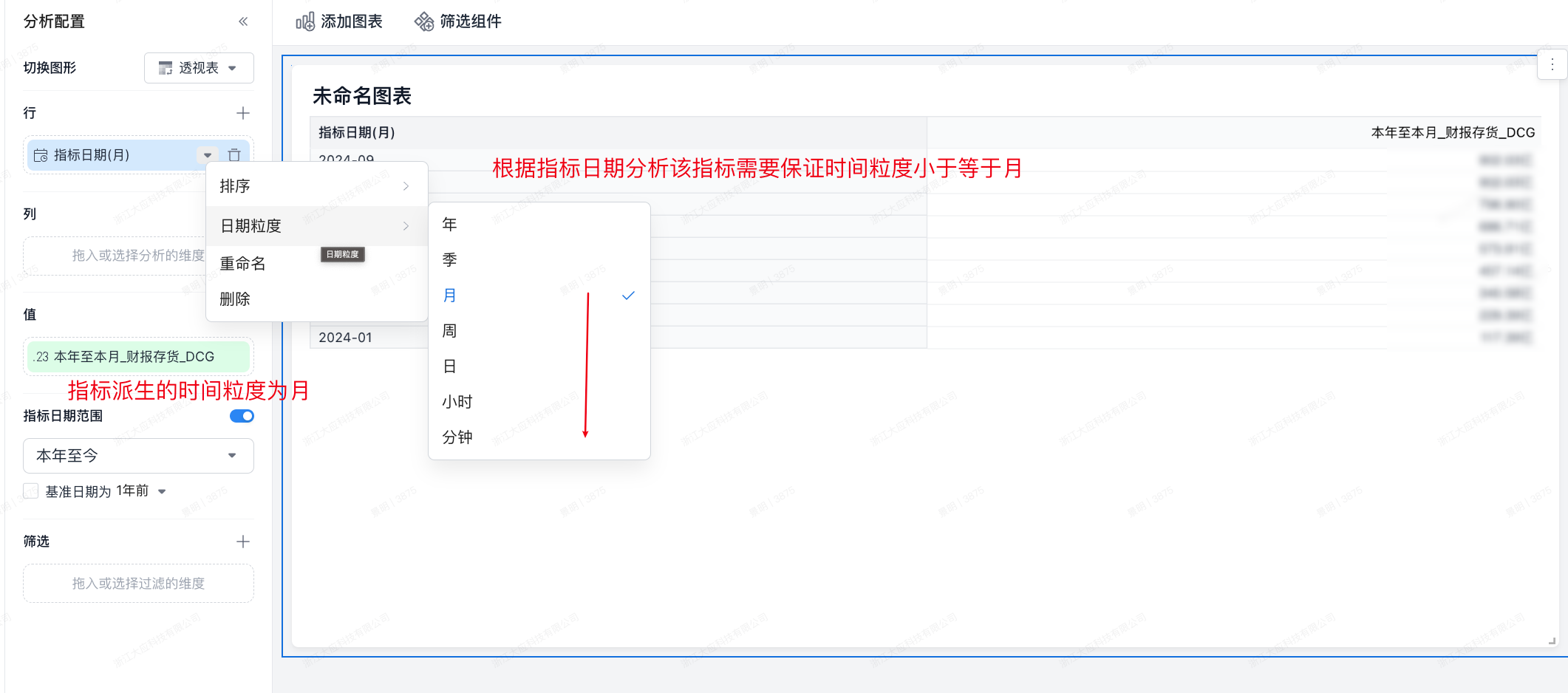
Specify a metric date range (optional):
When the metric date granularity is specified in "Rows", there is no time-granularity requirement for the metric date range. In the example below, the configuration displays all months from the beginning of this year through today at month granularity.
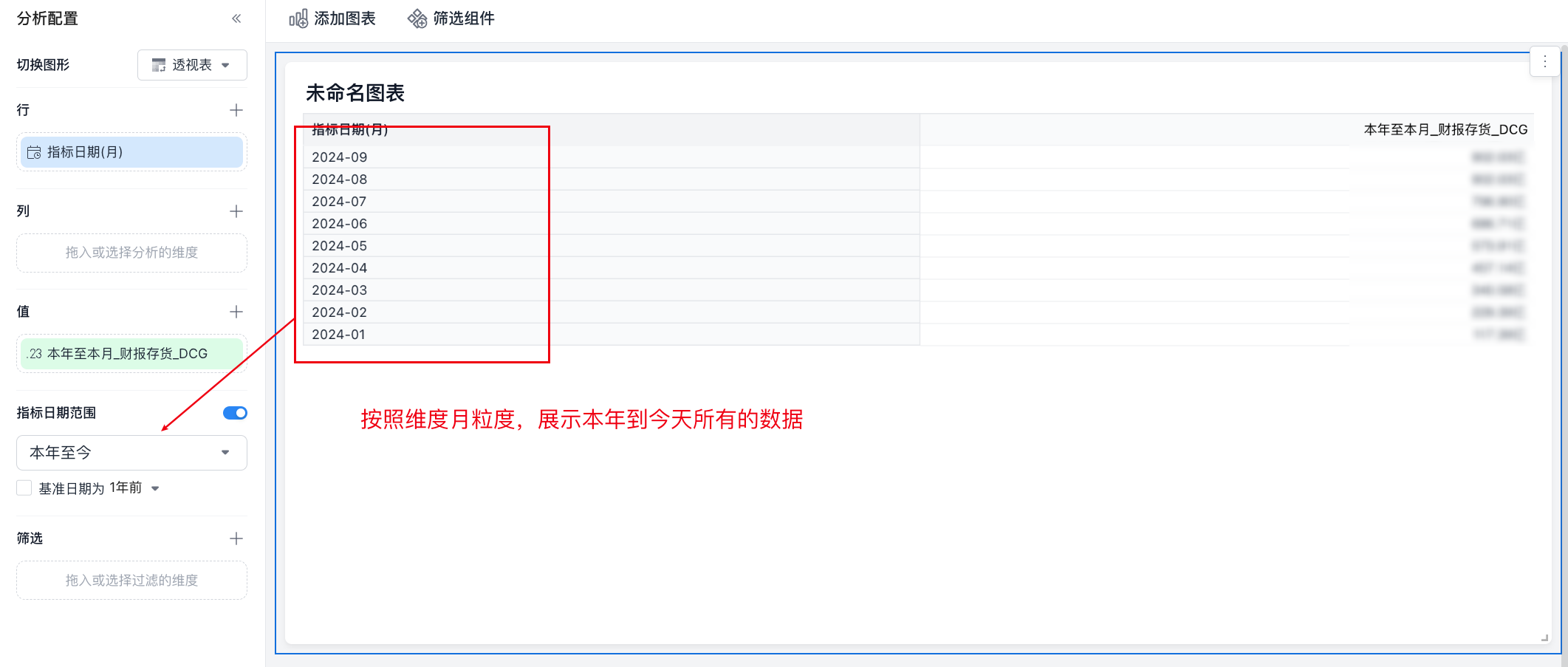
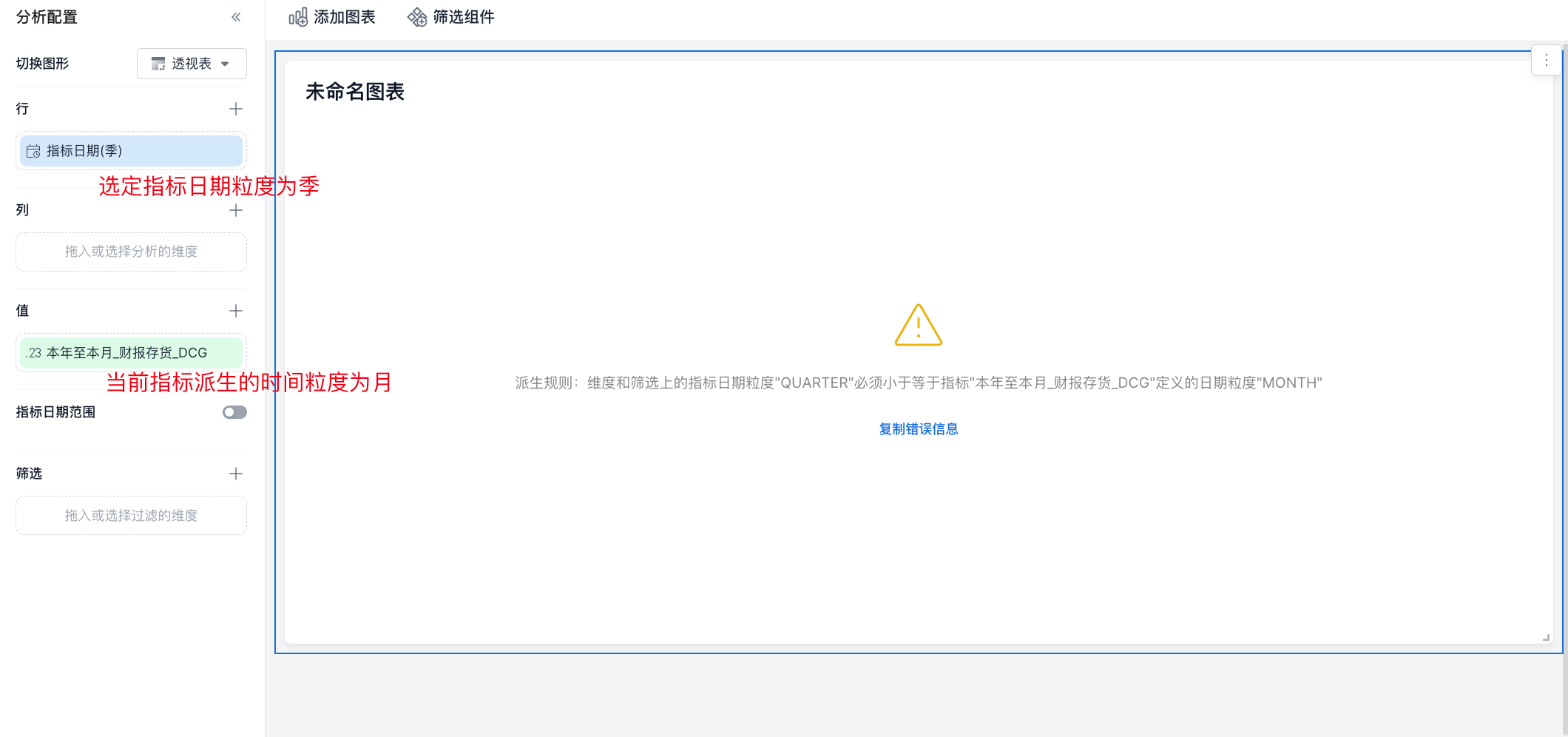
Incorrect Example:
Avoid selecting a date dimension with a granularity such as quarter, because it is coarser than the month granularity defined for the metric. See the example below.
Scenario 2: Specify Only a Metric Date Range
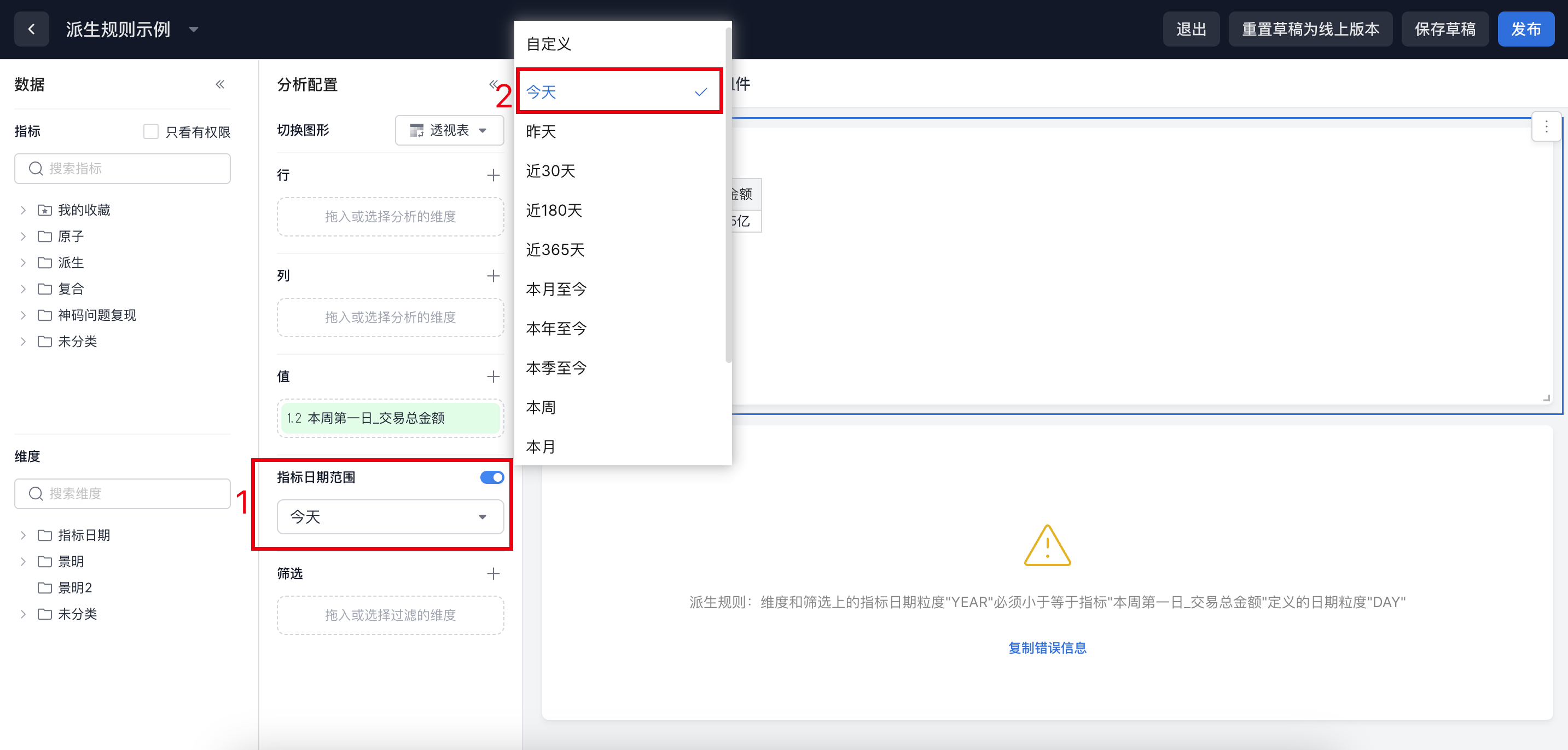
Correct Example:
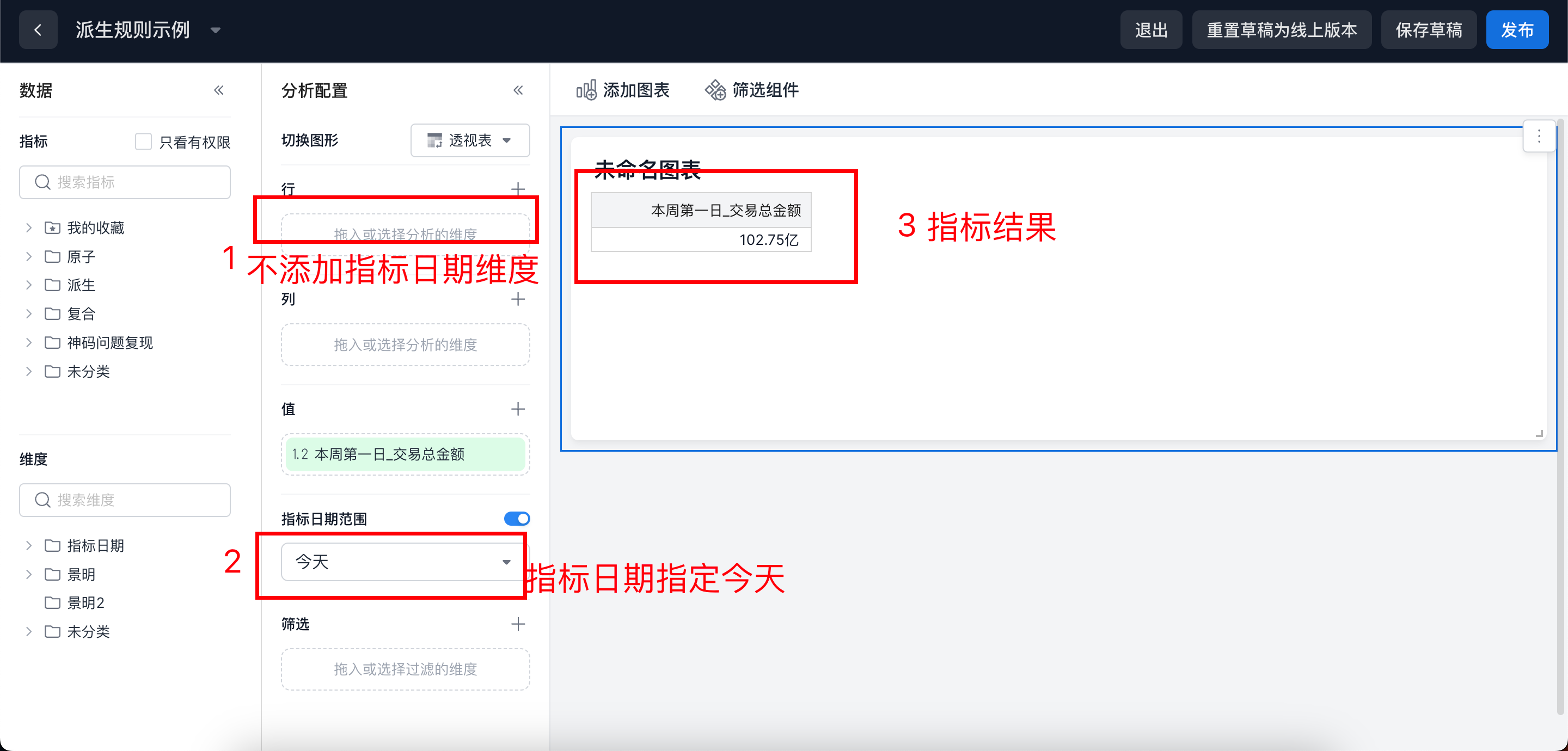
When no other date dimension is used, the metric date range should be limited to a single date selection rather than an interval. Make sure the selected date granularity does not exceed the date granularity defined for the metric, as shown below:
Example 1:
"First Day of Current Week_Total Transaction Amount" is a derived metric whose time-limited granularity is day. The metric date range granularity is also day, so the result is the total transaction amount for the first day of the week that contains today.
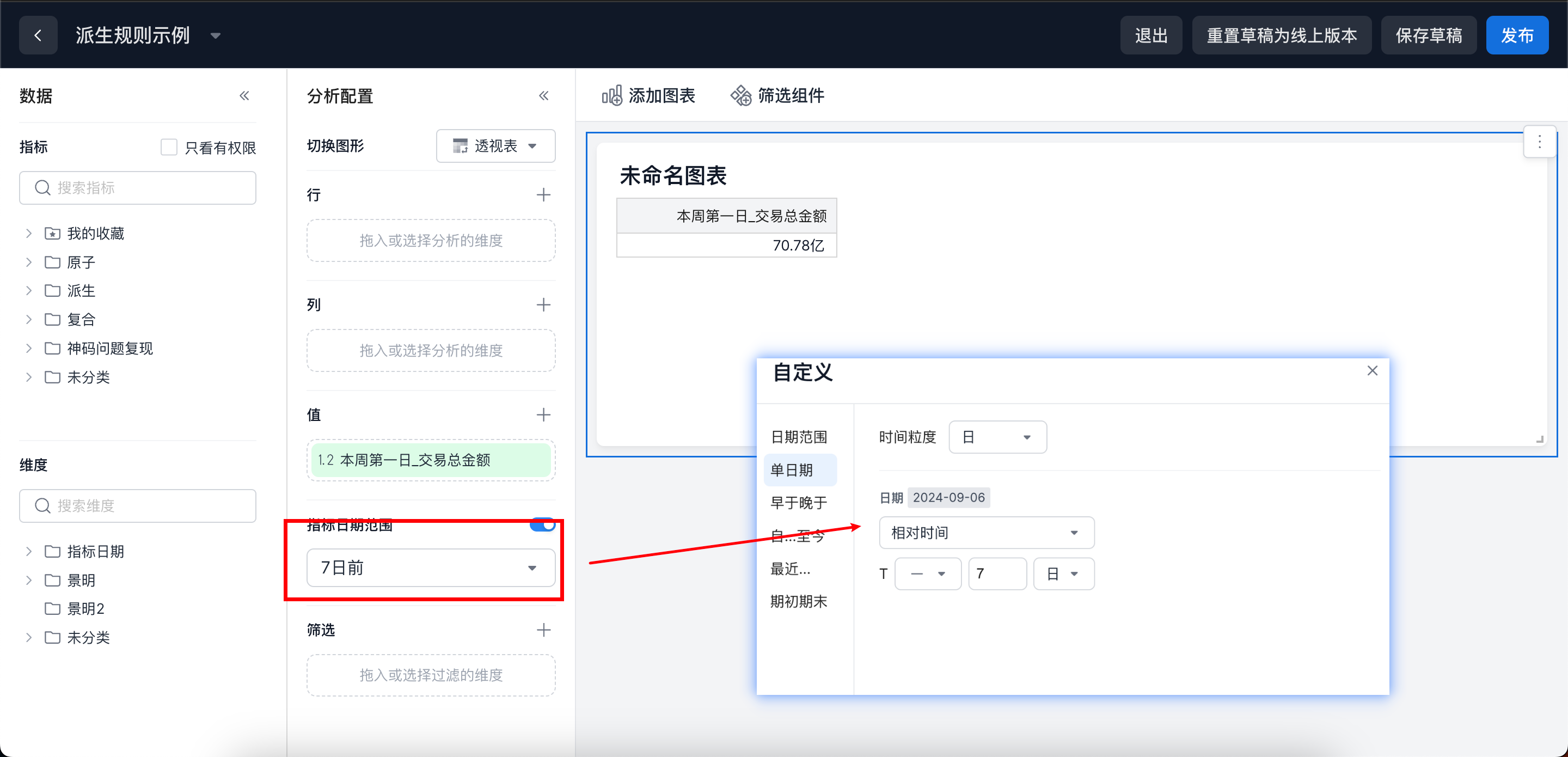
Example 2:
"First Day of Current Week_Total Transaction Amount" is a derived metric whose time-limited granularity is day. The metric date range granularity is "seven days ago", so the result is the total transaction amount for the first day of the week that contains the date seven days ago.
Incorrect Example:
Do not set a cross-date range, such as multiple days, when the query does not reference metric date, as shown below:
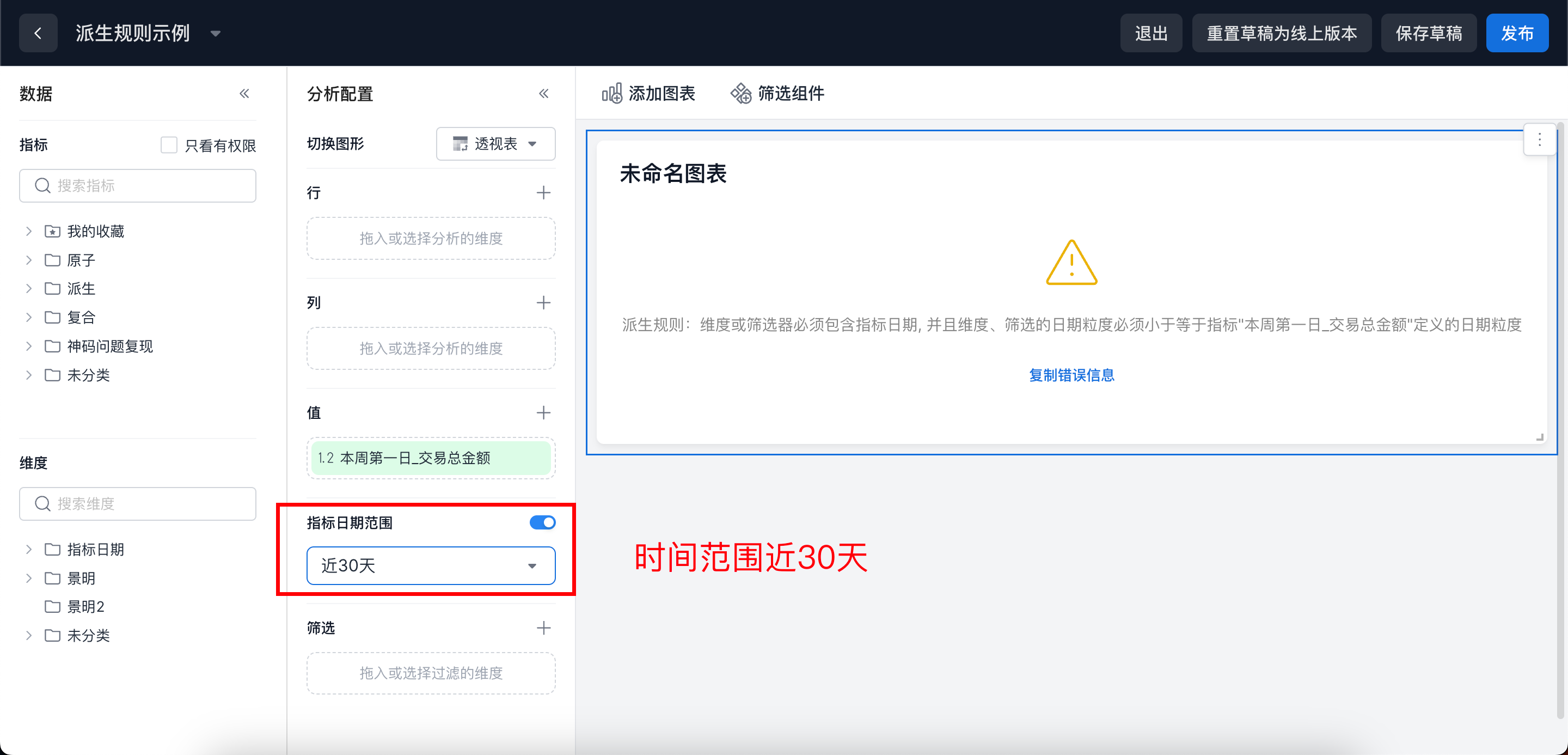
If the specified metric date range is a time period, it must be used together with metric date. The metric date granularity must be less than the time granularity defined in the metric's derivation time limit. The example below adds a metric date dimension with day granularity.