Guandata BI
This page explains how to connect Guandata BI to Aloudata CAN and create a dataset.
Procedure
Select a Connector
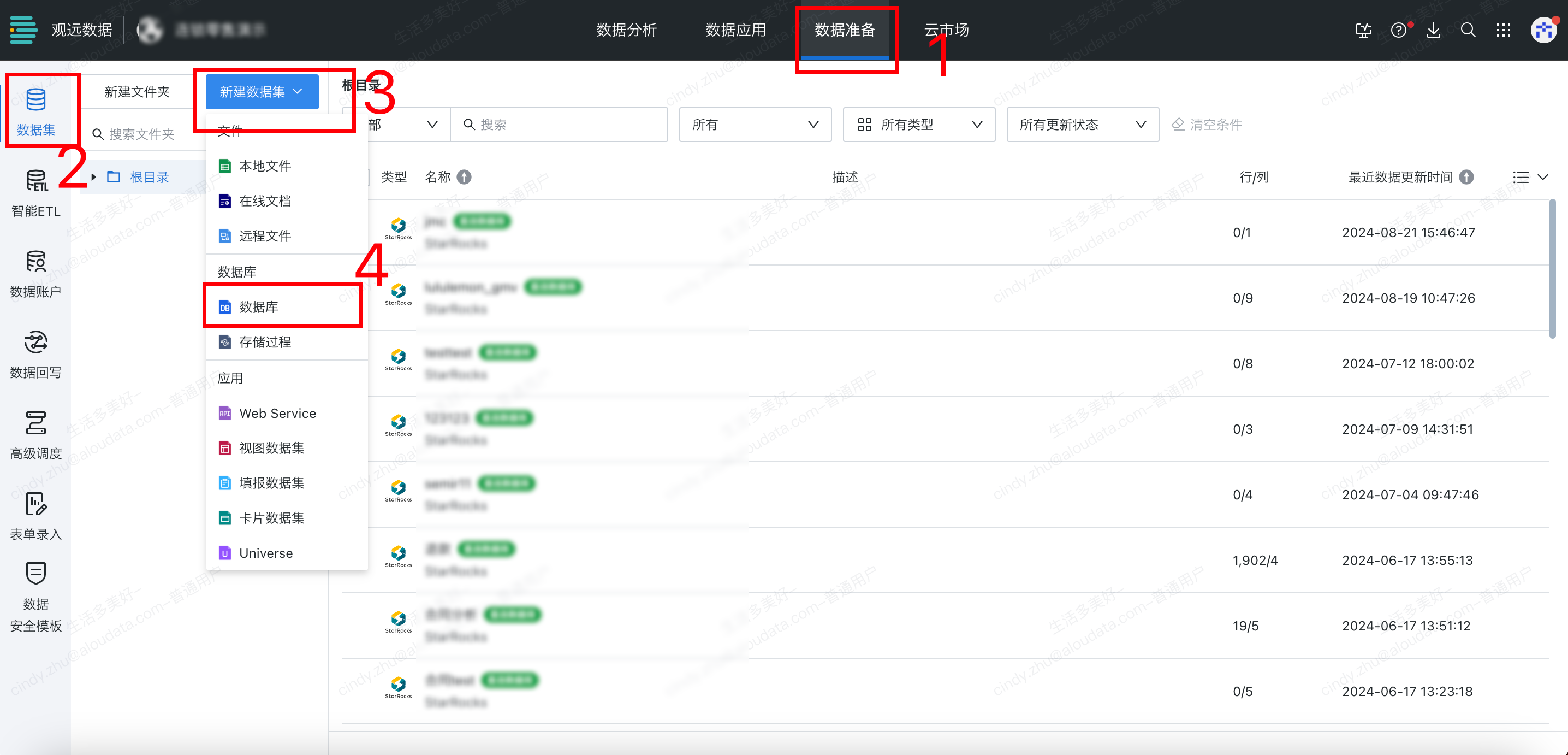
In the top navigation bar, choose Data Preparation, click Datasets in the left menu, hover over Create Dataset, and then click Database in the drop-down list.
Create an Account
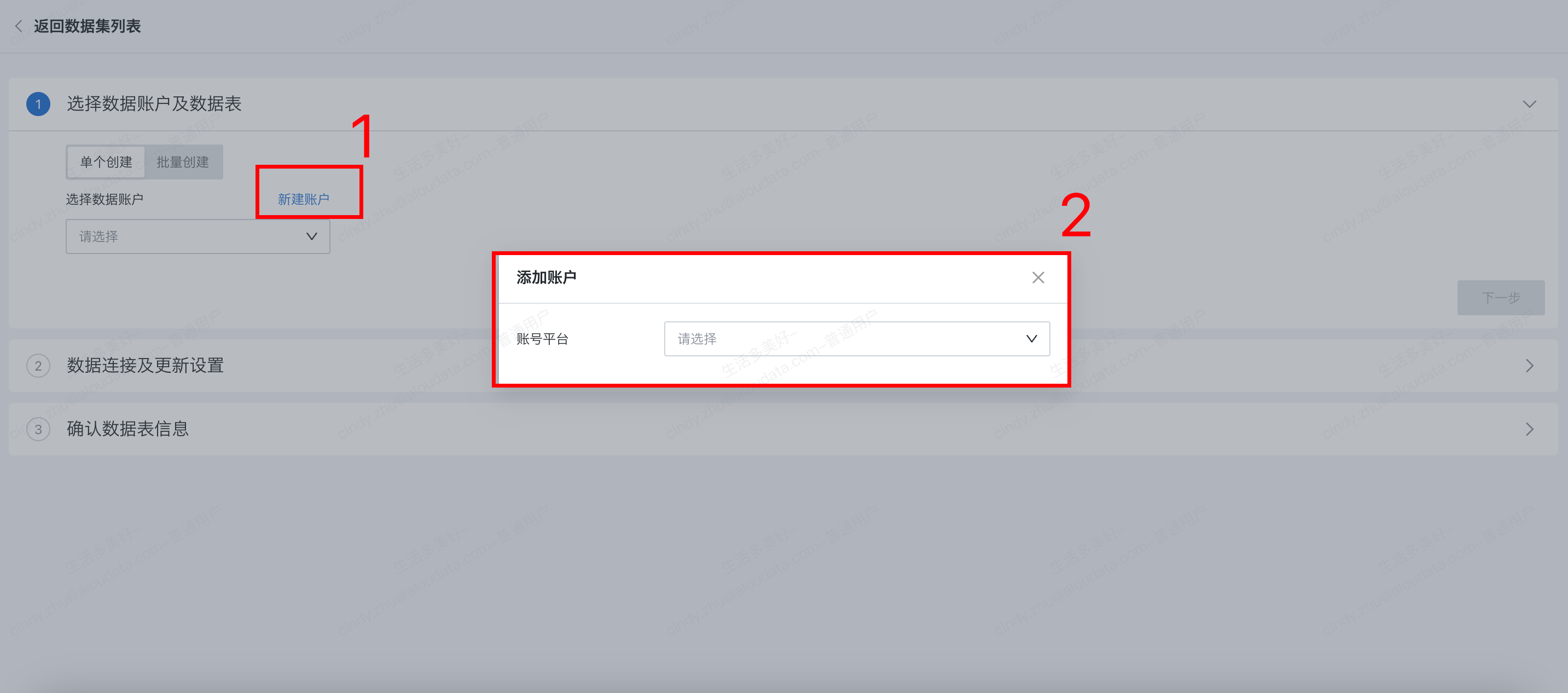
In the data account and data table selection area, click Create Account. In the Add Account dialog, select StarRocks/Doris/MySQL as the account platform.
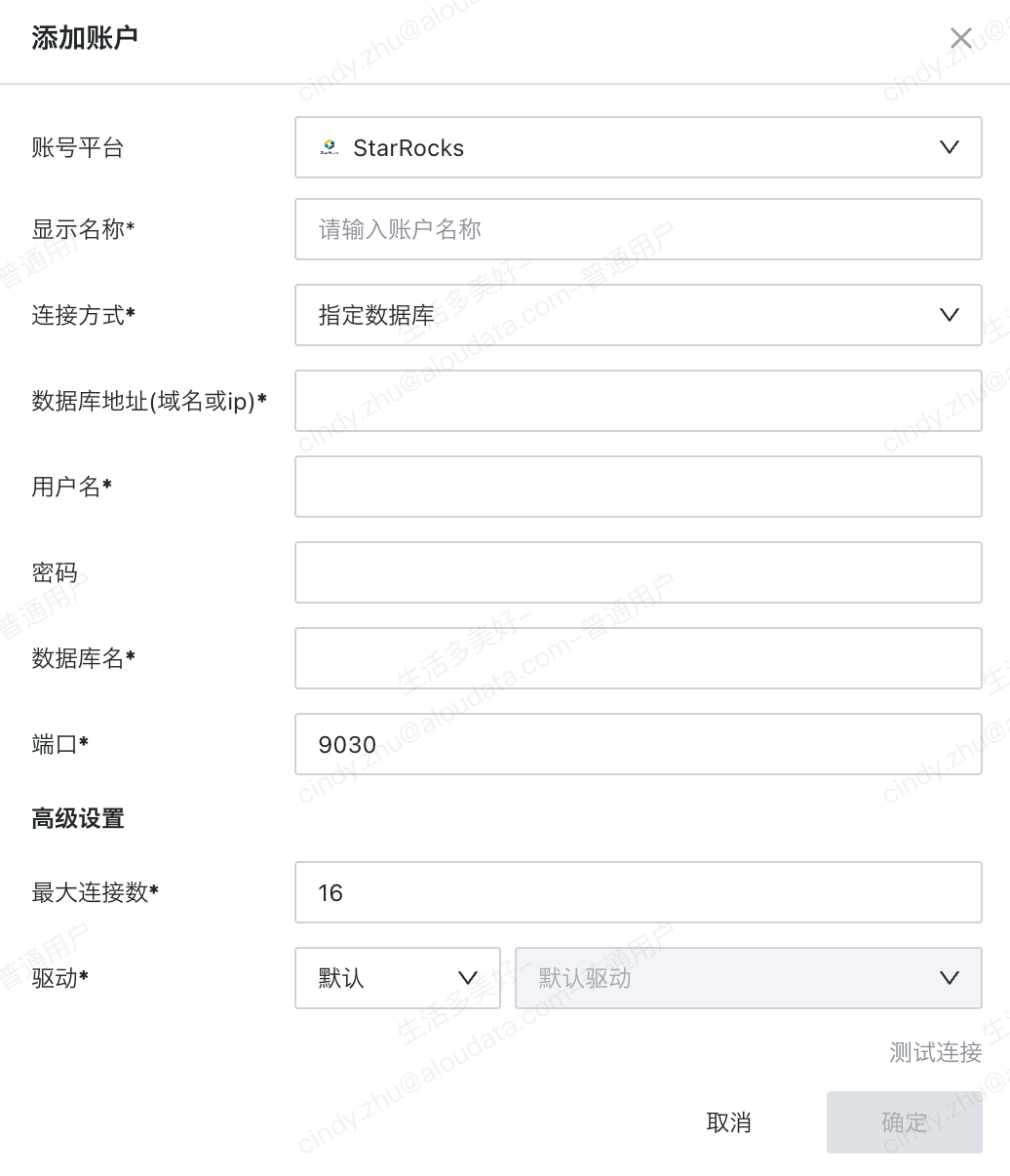
After selecting the account platform, follow the prompts to enter the database address, username, password, database name, port, and other information. After the connection test succeeds, you can create the new account. The example below uses StarRocks:
Tip
If the metric platform data source is Doris, you can select MySQL or Doris as the account platform. If the metric platform data source is StarRocks, you can select MySQL or StarRocks as the account platform.
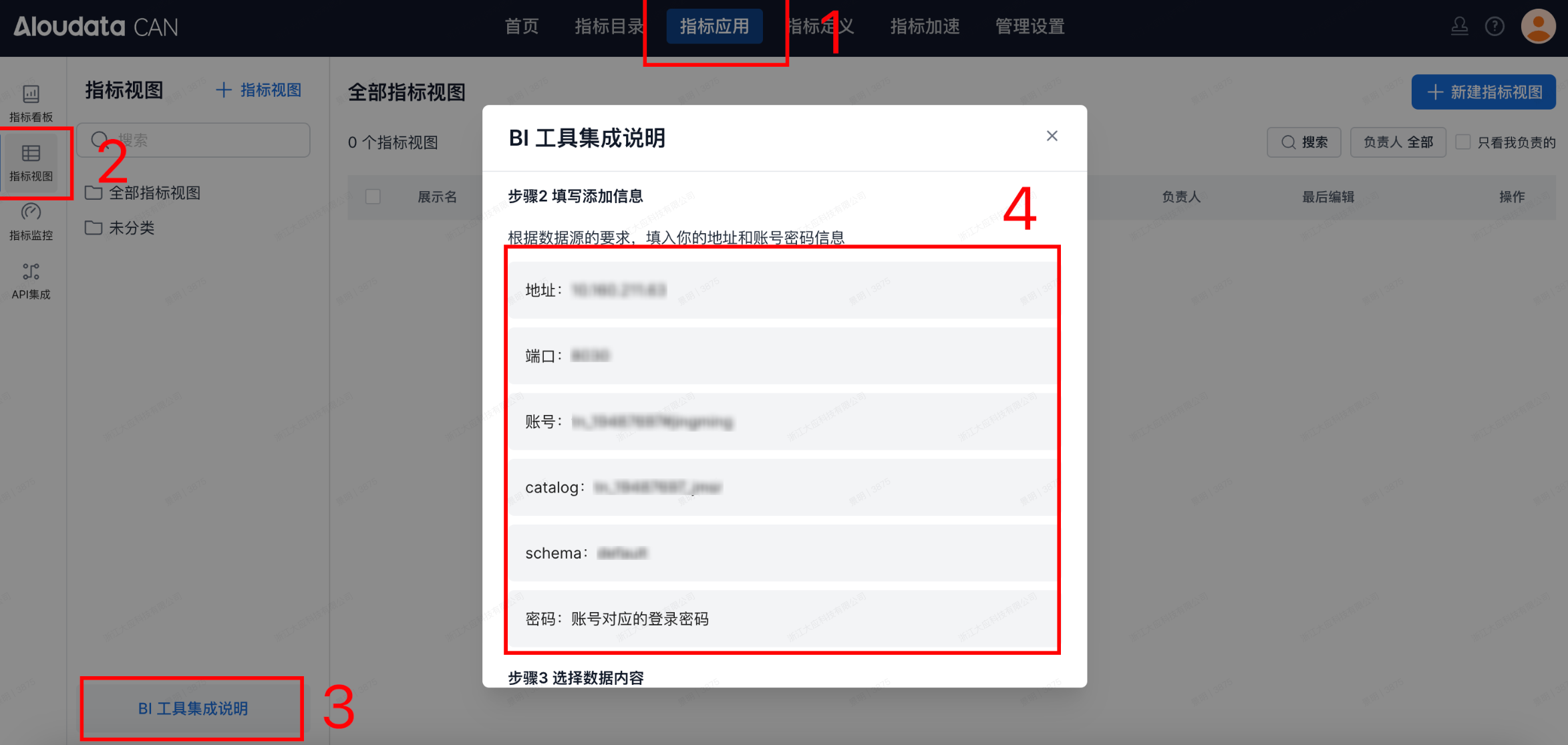
Obtain the configuration information in Aloudata CAN: choose Metric Applications in the top navigation bar, select Metric Views on the left, and click "BI Tool Integration Guide" in the lower-left corner of the metric views page. The guide provides the address, port, account, catalog, and schema, as shown below:
Description
The recommended database name format is catalog.schema. Make sure the connection URL uses the format address:port/catalog.schema.
The password is the password of the current Aloudata CAN login account.
Query the Database
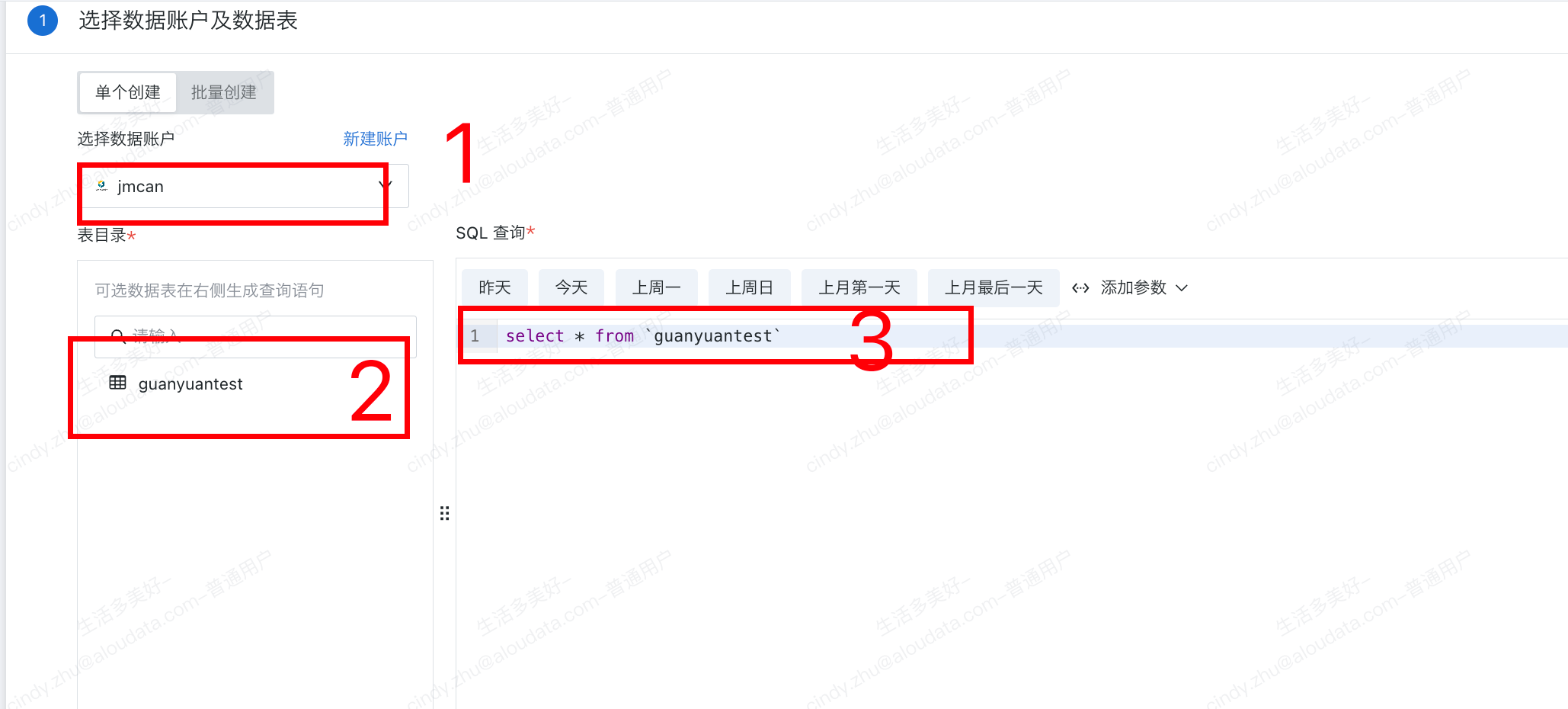
The left side shows the data tables in the currently connected database. Select a data table to quickly insert a SQL statement. You can also enter a query in the central SQL Query area as needed. After data preview succeeds, you can proceed to the next step.
Note
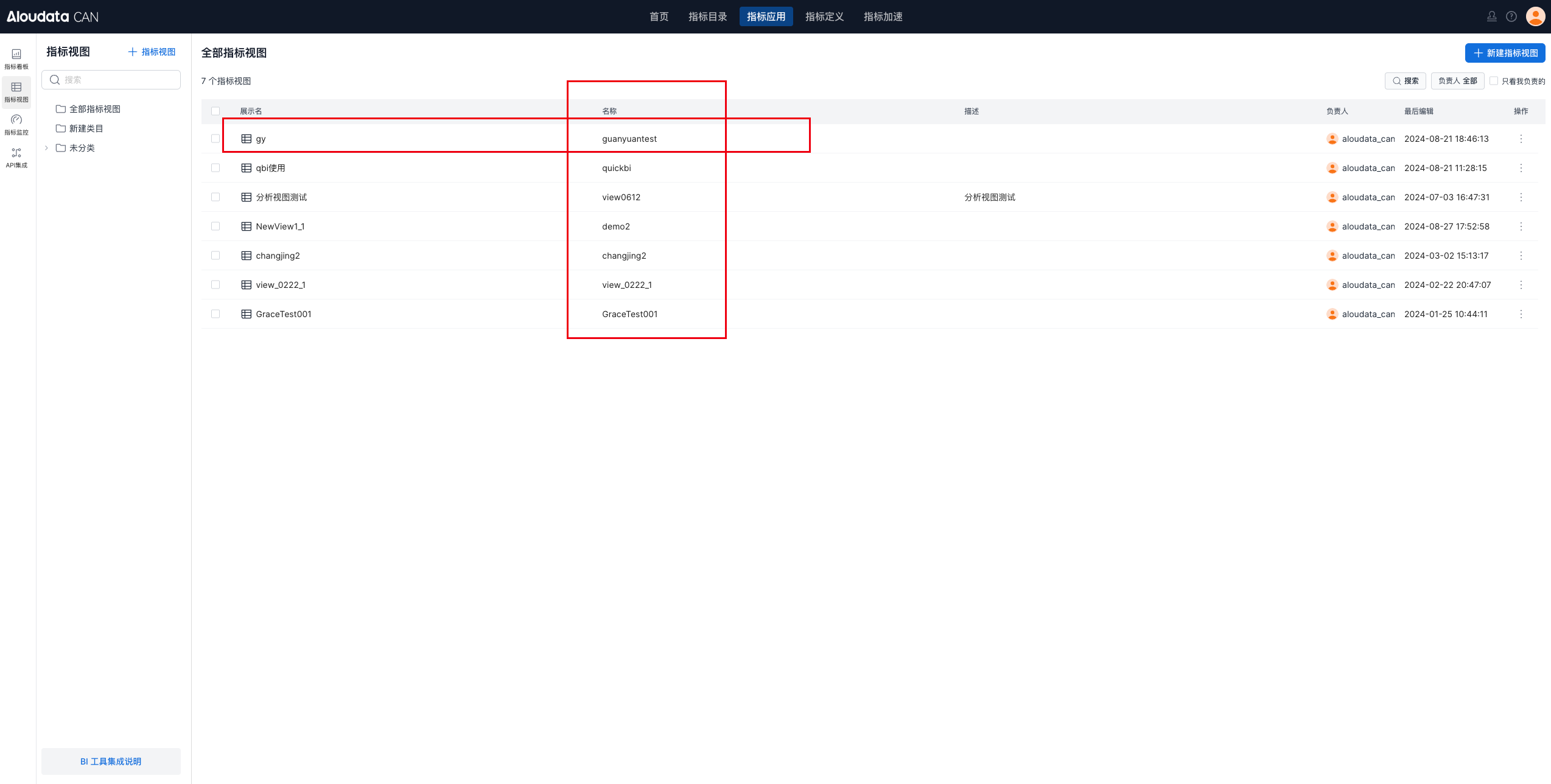
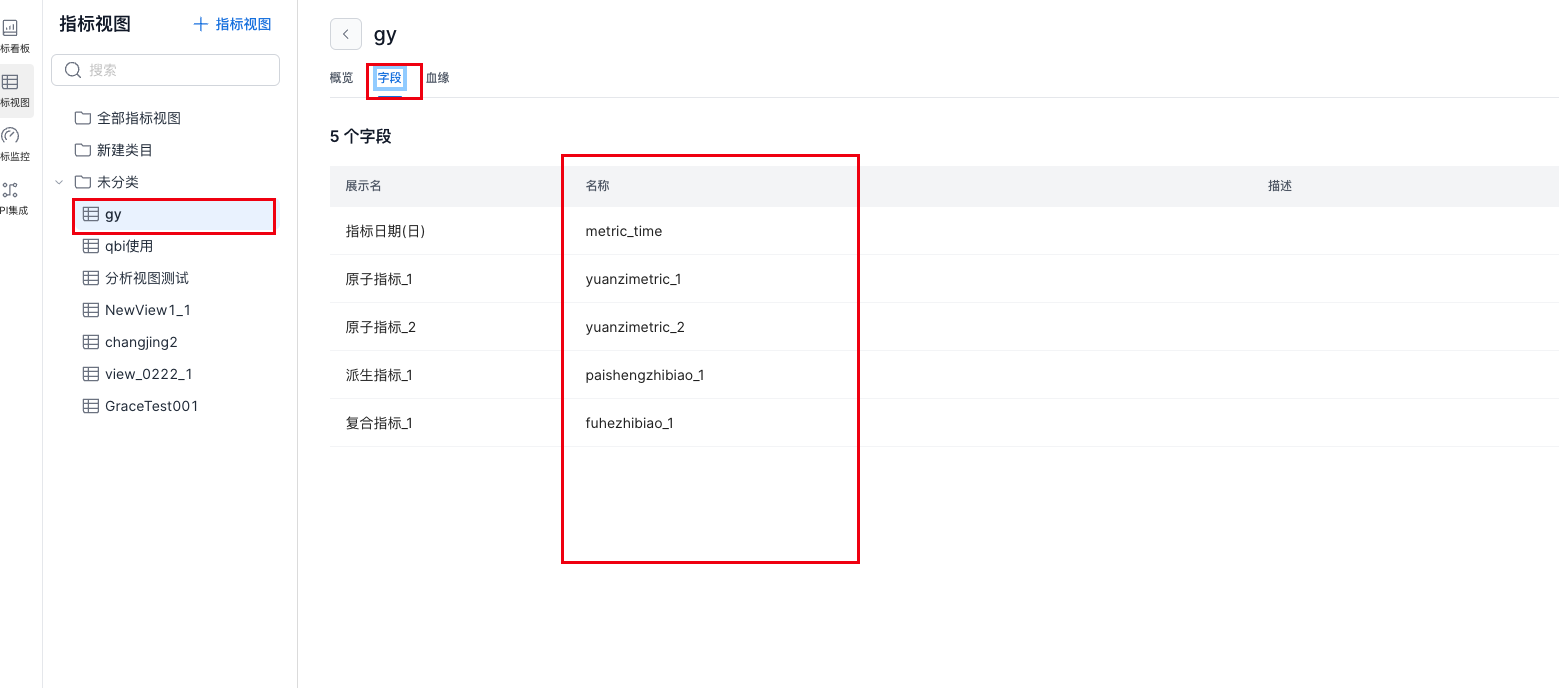
The tables obtained from the table catalog correspond one-to-one with the names in the metric view list.
Only views that the current account has permission to use in Aloudata CAN are displayed. In the example above, the account has usage permission only for the view named "guanyuantest", so the table catalog lists only "guanyuantest". If the account has permission for all metric views, all metric views are displayed. To add more metric views to Guandata BI, obtain user or administrator permission.
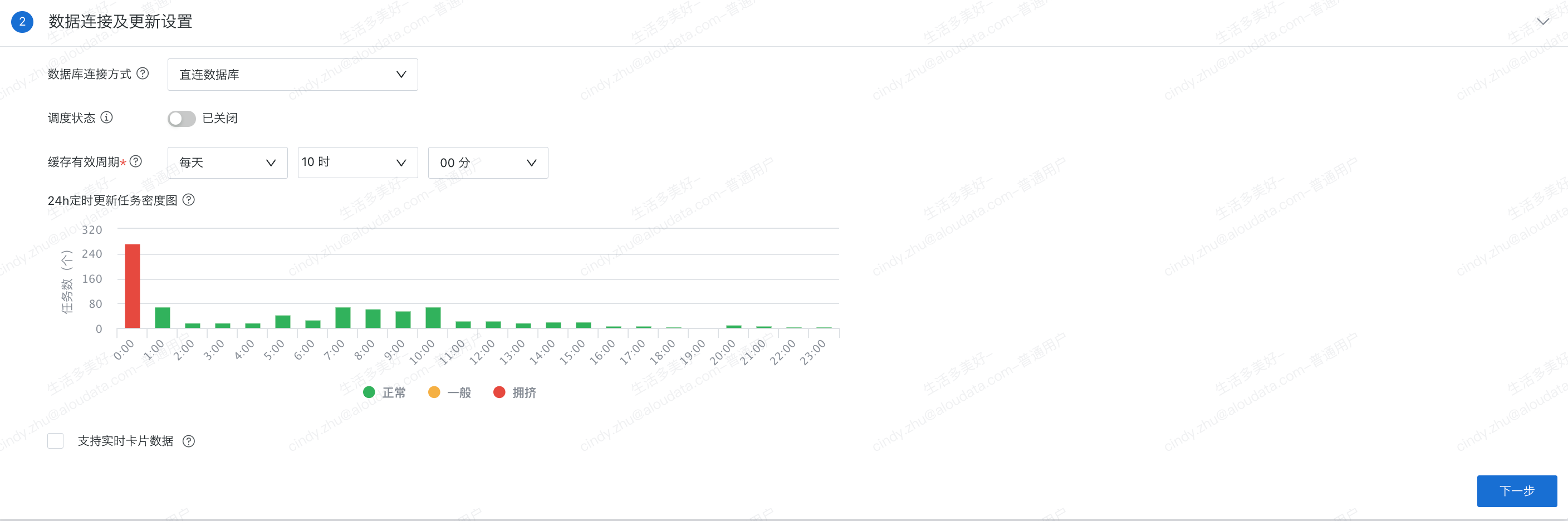
Select the Database Connection Method and Update Schedule
Click the database connection method selector, select Direct Database Connection or Extract, set the data update schedule, and specify whether real-time card data is supported. Then click Next.
Confirm Dataset Information
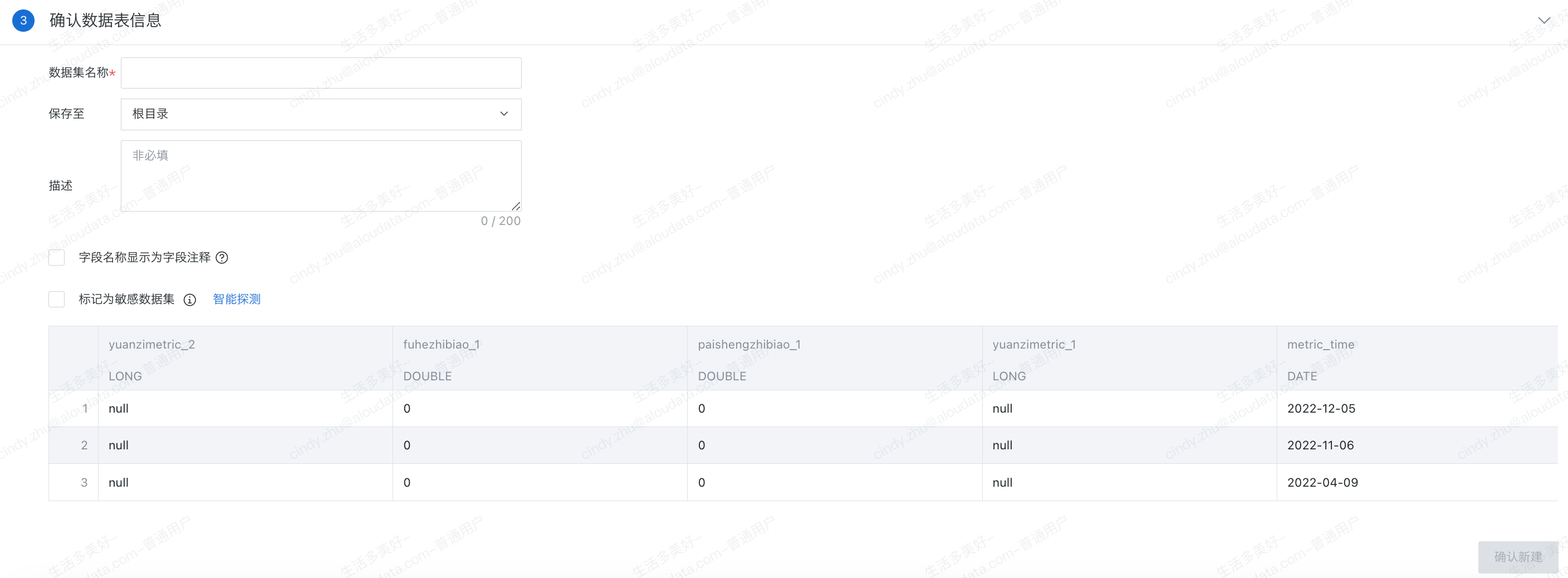
During table information confirmation, the obtained field names correspond one-to-one with the field names in the metric view.
Provide an easy-to-identify name for the dataset and specify the save location. After you click Confirm, the dataset is created and can be found under Data Preparation -> Datasets.
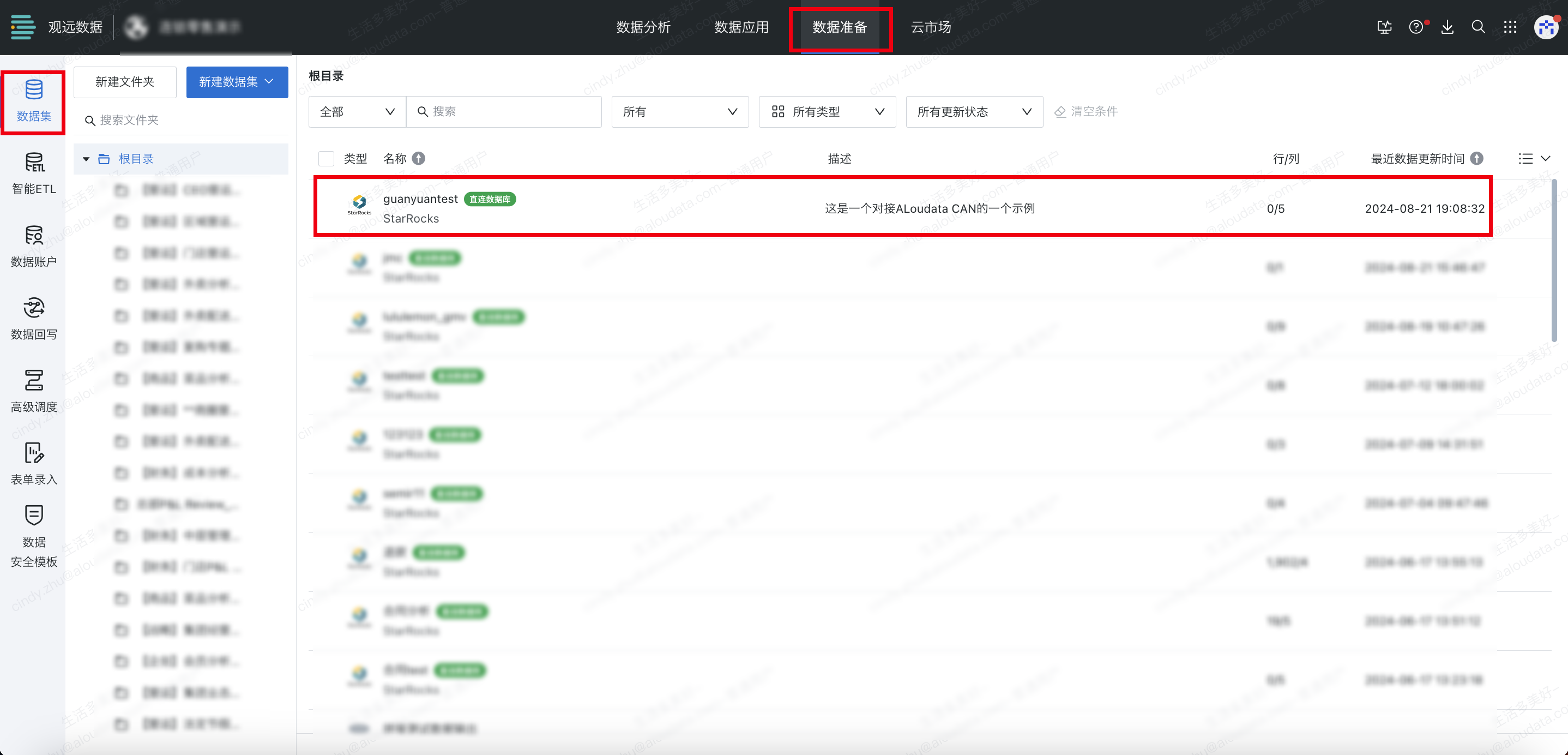
The Guandata BI connection to Aloudata CAN and dataset creation are now complete. You can use the data table for data visualization. For more guidance, see the Guandata BI official documentation.