Manage Metrics
This topic describes metric management operations, including creating, deleting, editing, transferring, authorizing, version management, and lineage viewing.
Create a Metric
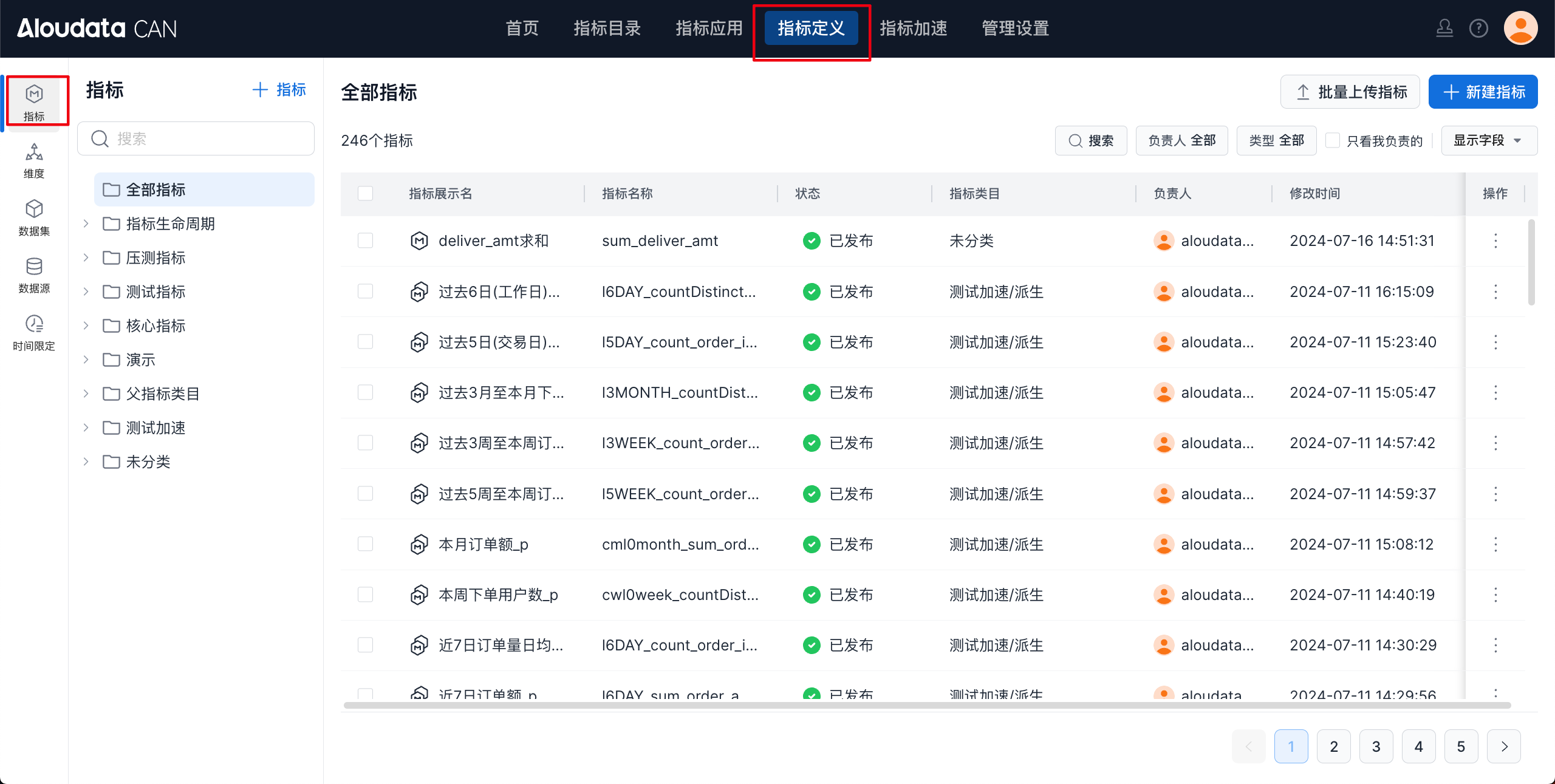
In the top navigation bar, select Metric Definition -> in the left navigation bar, select Metrics. Click New Metric in the upper-right corner. In the New Metric dialog, select the metric type to start creating a metric. For detailed steps, see Create a Metric.
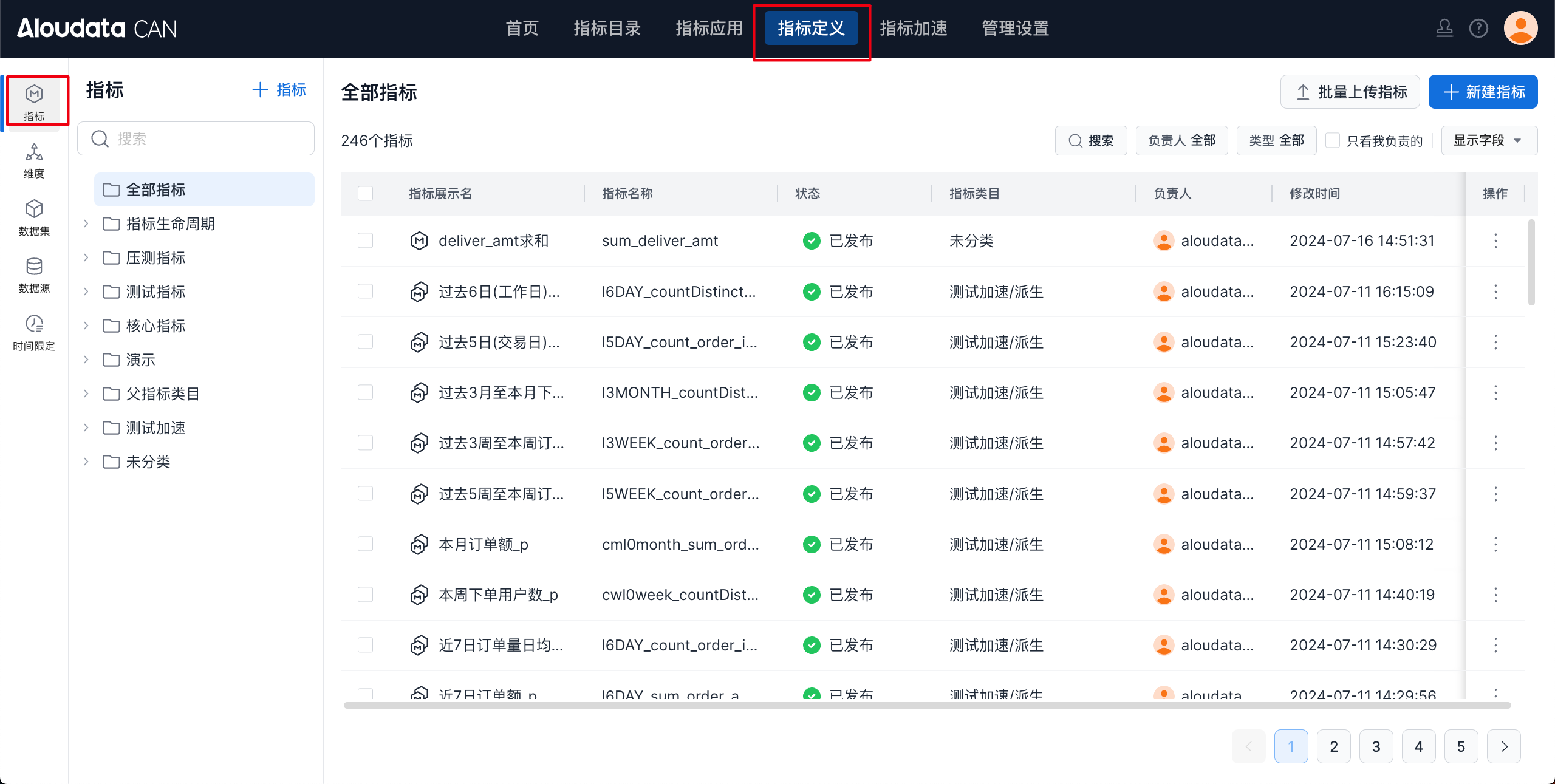
Metric Overview
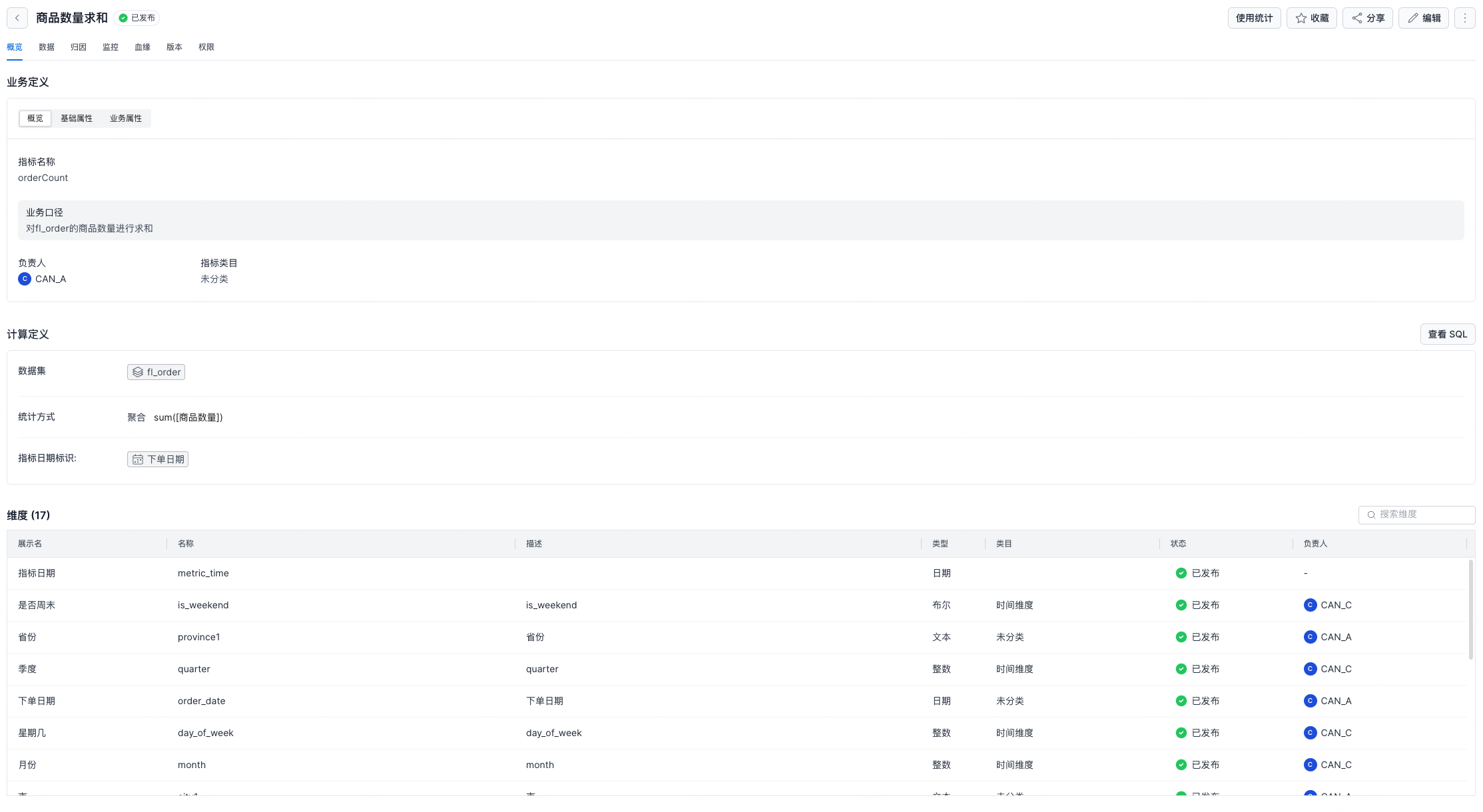
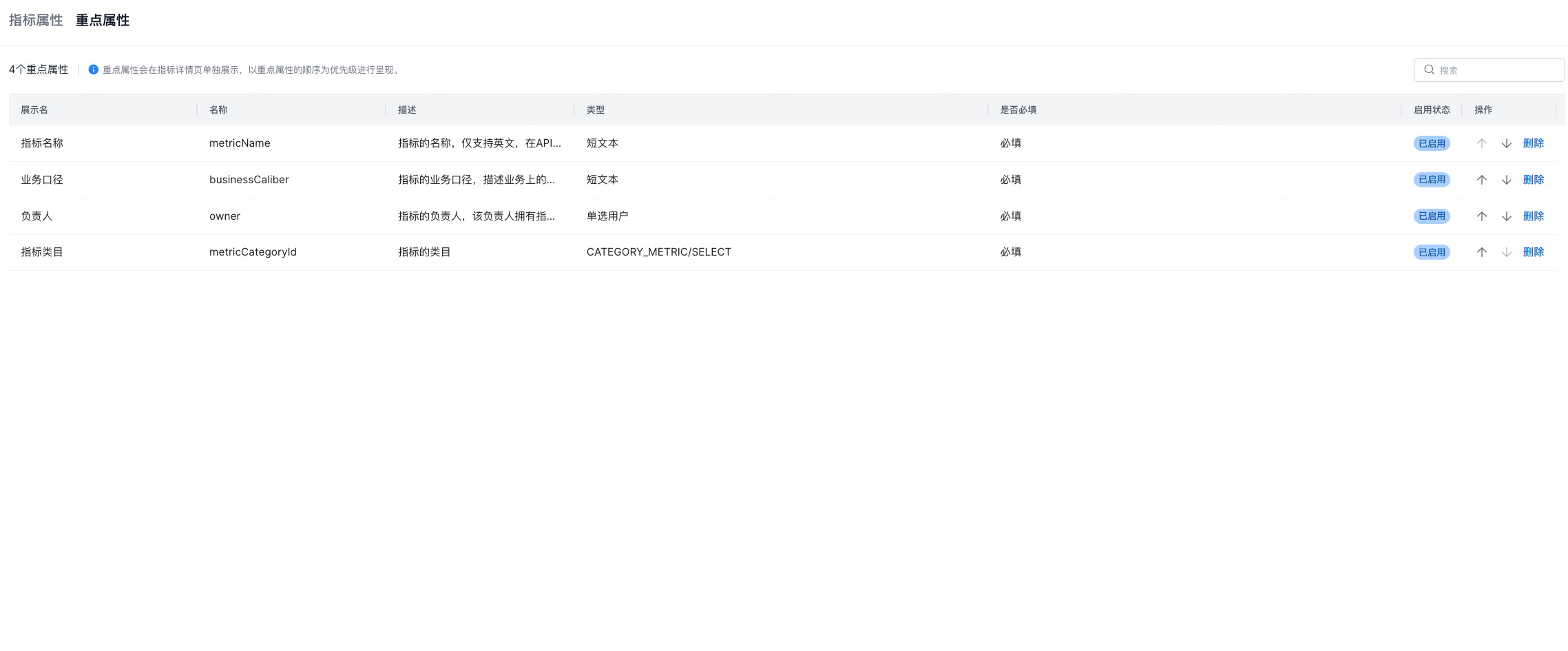
On the metric overview page, overview items in the Business Definition section can be prioritized by configuring key properties in metric properties.
Delete a Metric
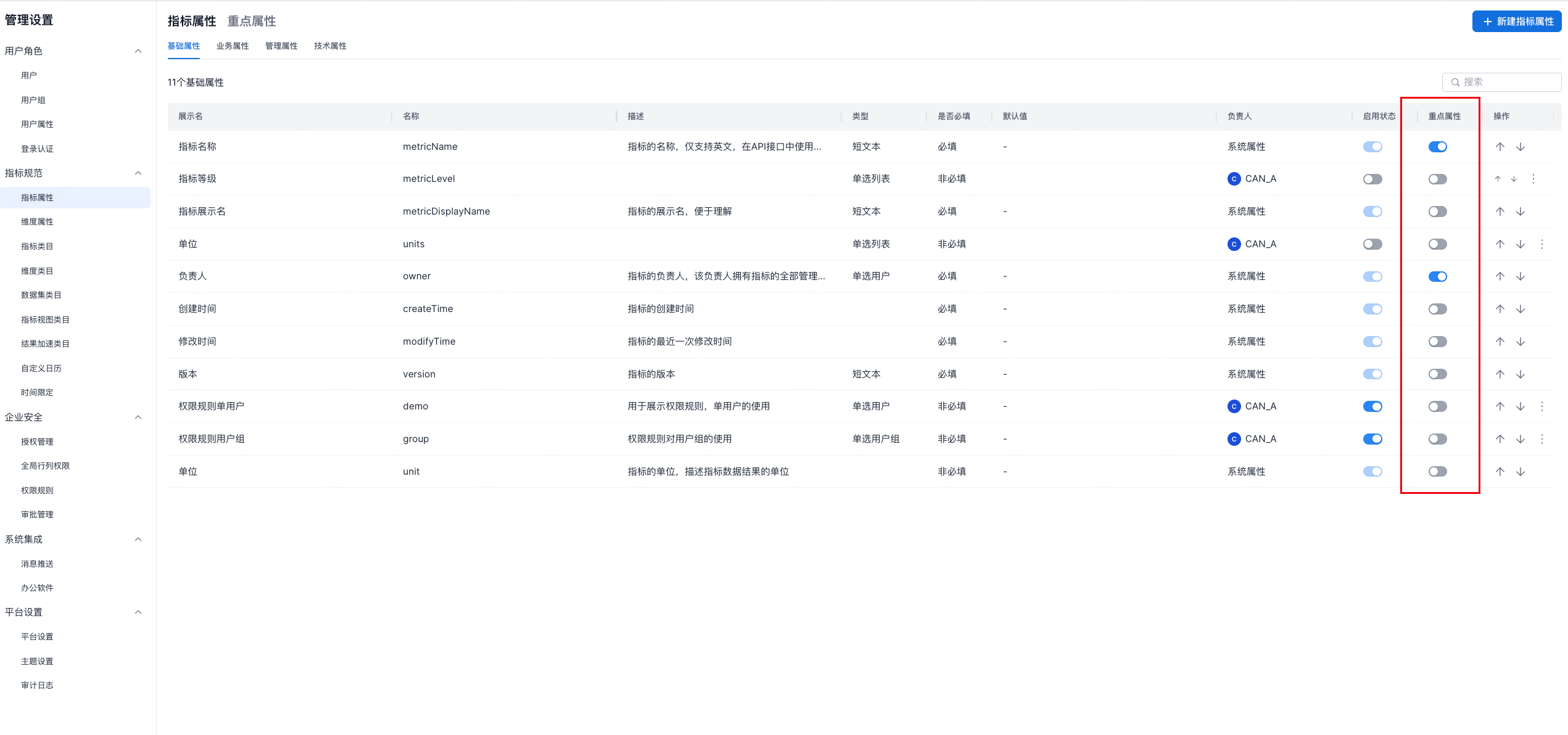
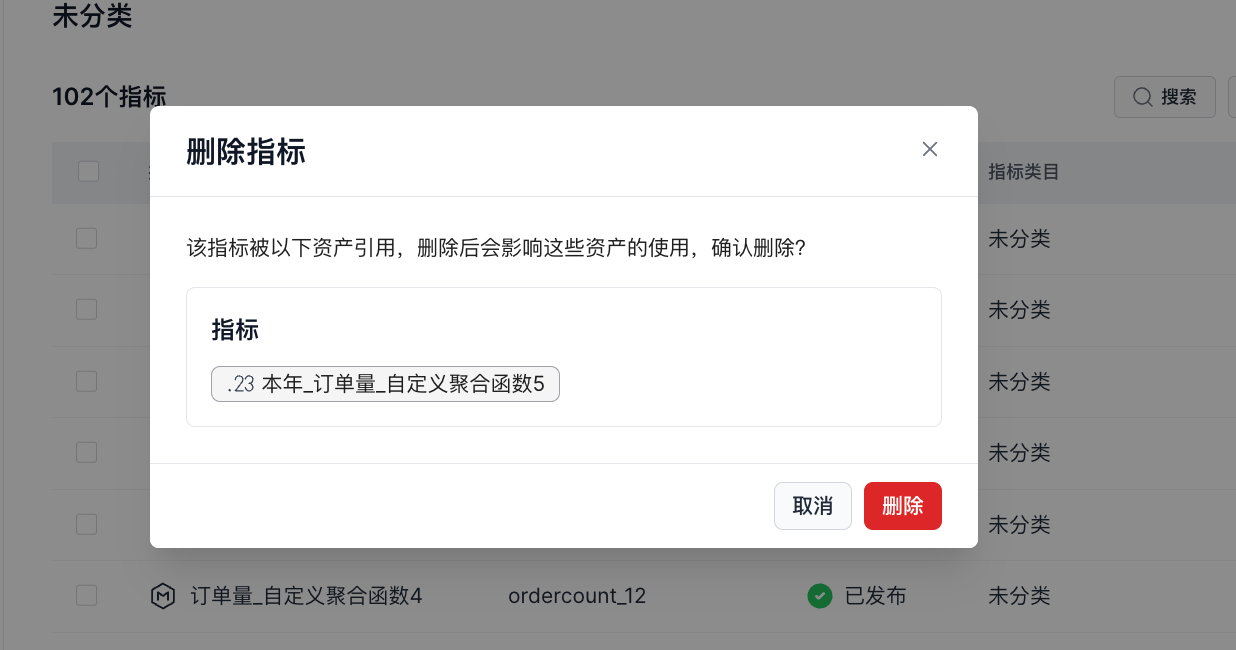
On the metric list page, click the ⋮ button on the right side of a metric, click Delete, then click Delete in the dialog.
Notice
If the metric is referenced by downstream metrics, the deletion dialog shows the names of the referenced metrics. Deleting the metric affects downstream assets, so proceed carefully.
Edit a Metric
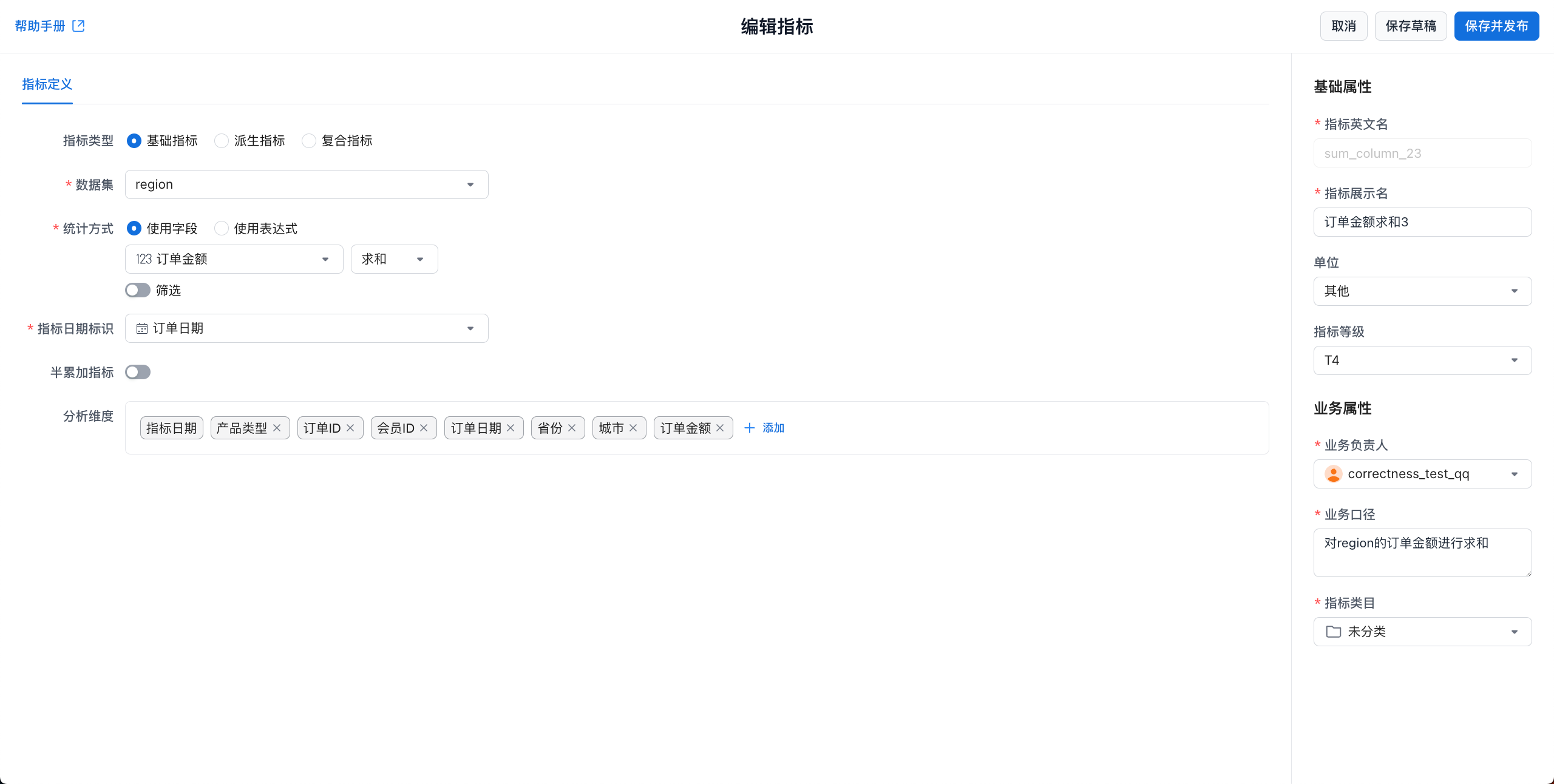
On the metric list page, click the ⋮ button on the right side of a metric, then click Edit to open the metric editing page. You can modify all content except the metric name. Editing is similar to creating a metric. For details, see the metric creation guide.
Metric Version Management
The Versions page displays published version information for a metric, as shown below.
| Status | Legend | Description |
|---|---|---|
| Unpublished |  |
An unpublished metric has only one version record and cannot be viewed. The metric list displays this status as Unpublished. |
| Published |  |
A published metric can have multiple versions, and one version is always marked as the current version. Historical versions can be viewed but cannot be deleted. The metric list displays this status as Published. |
| Draft | 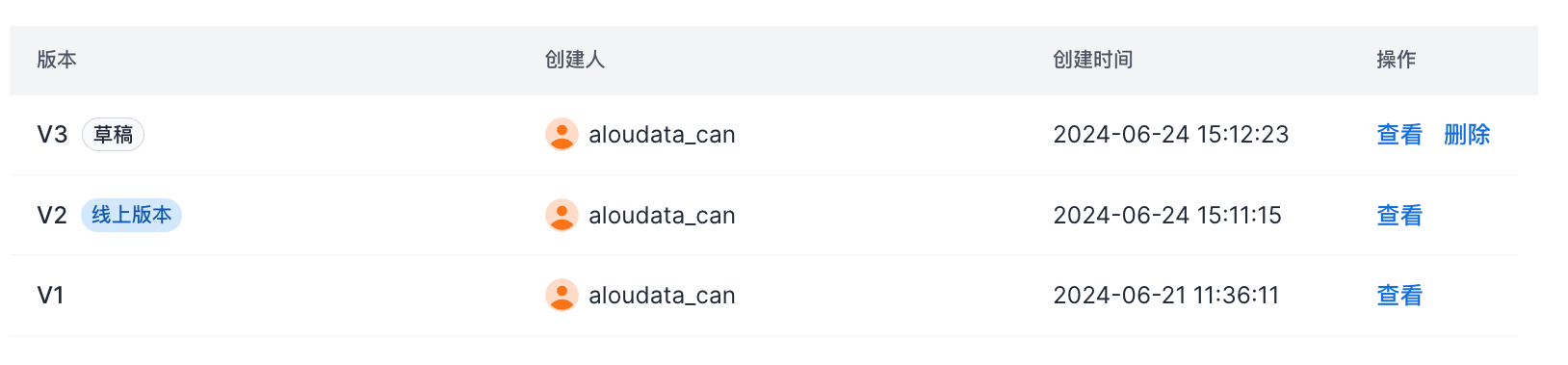 |
If a draft exists, the version is marked as Draft, and the draft can be deleted. The metric list displays this status as Saved, Not Published. |
Version Details
In the metric version list, click the View button on the right to open the version details page. Available actions differ by version status:
| Status | Legend | Actions |
|---|---|---|
| Online Version | 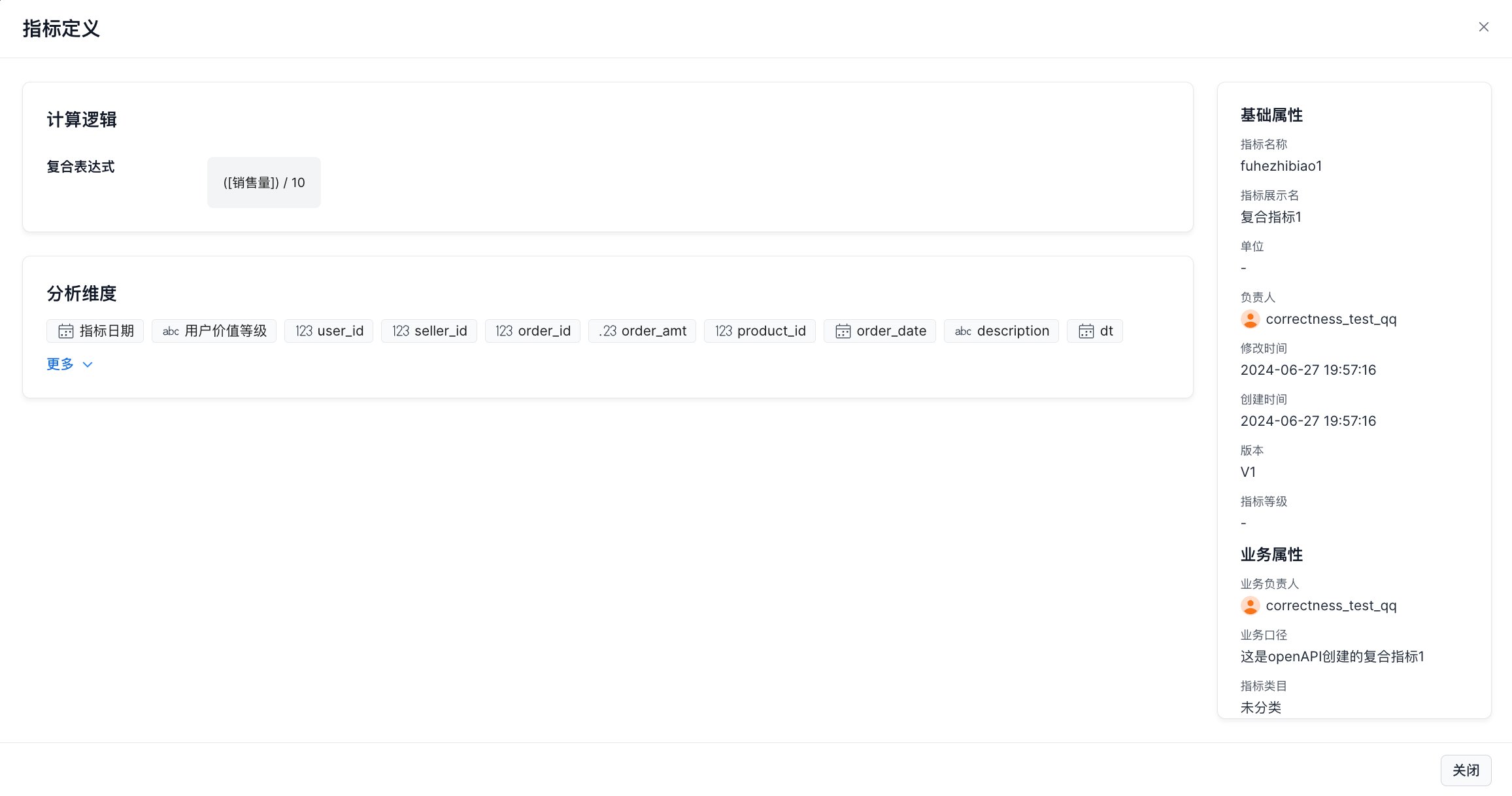 |
View metric calculation logic, analysis dimensions, and basic information. |
| Draft Version | 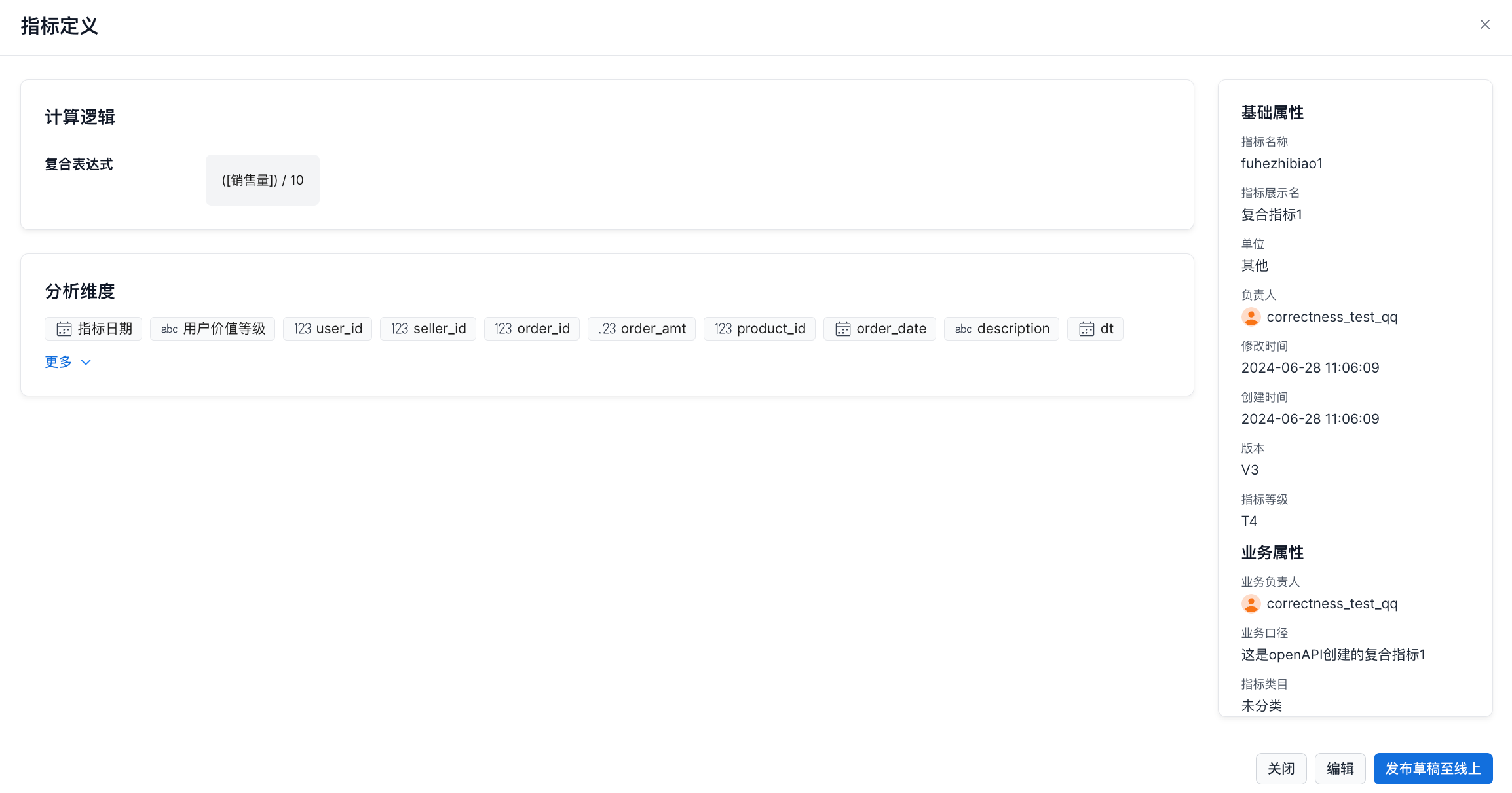 |
View metric calculation logic, analysis dimensions, and basic information. You can edit the draft version or publish the draft online. |
Transfer Asset
The transfer feature lets you transfer ownership of a metric to another user.
On the metric list page, click the ⋮ button in the Actions column, then click Transfer, as shown below.
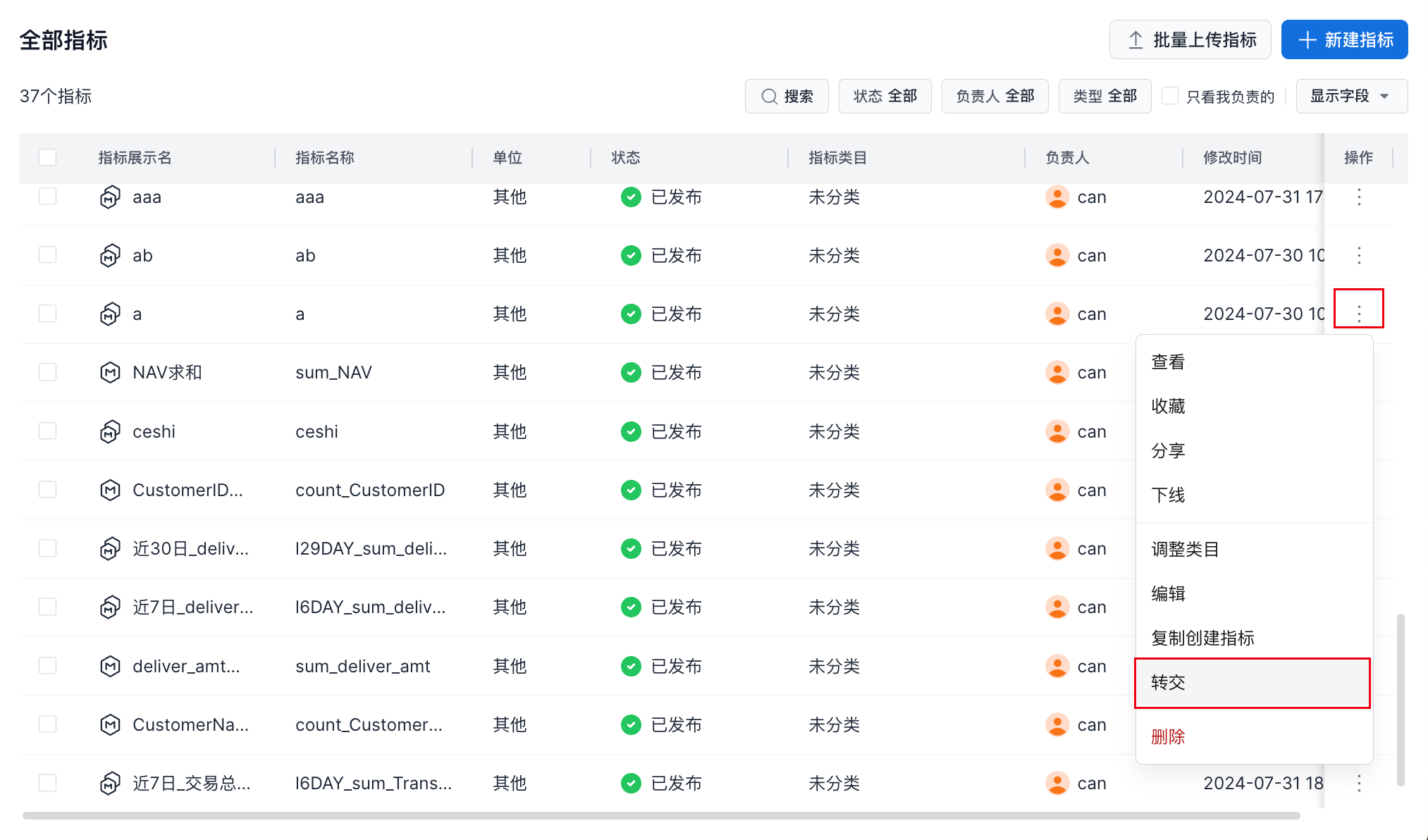
In the Transfer Metric dialog, select the user to transfer the asset to, then click Transfer to complete the ownership transfer.

View Lineage
This page shows lineage relationships between metrics.
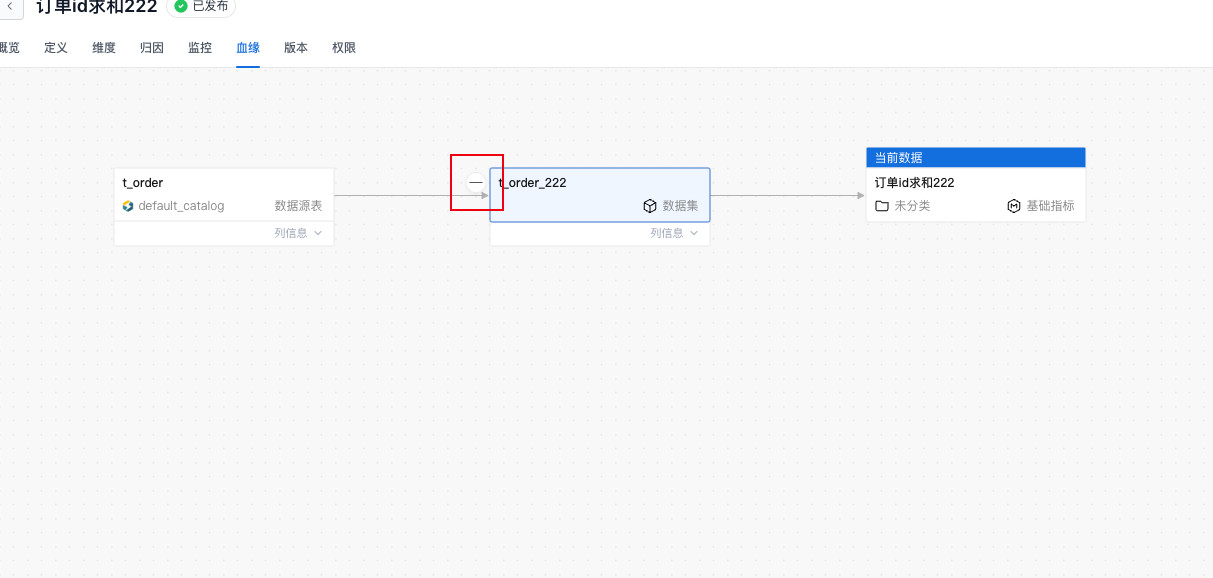
-
Expand or collapse lineage: click the + or - sign on an asset node to expand or collapse upstream and downstream lineage.
-
Asset details: click an asset to view its basic information in the side panel. Click View Details to go to the corresponding dataset or metric details page.