Create a Metric Dashboard
The Metric Dashboards module provides a workspace for metric analysis. This section explains how to create a metric dashboard.
| Item | Description |
|---|---|
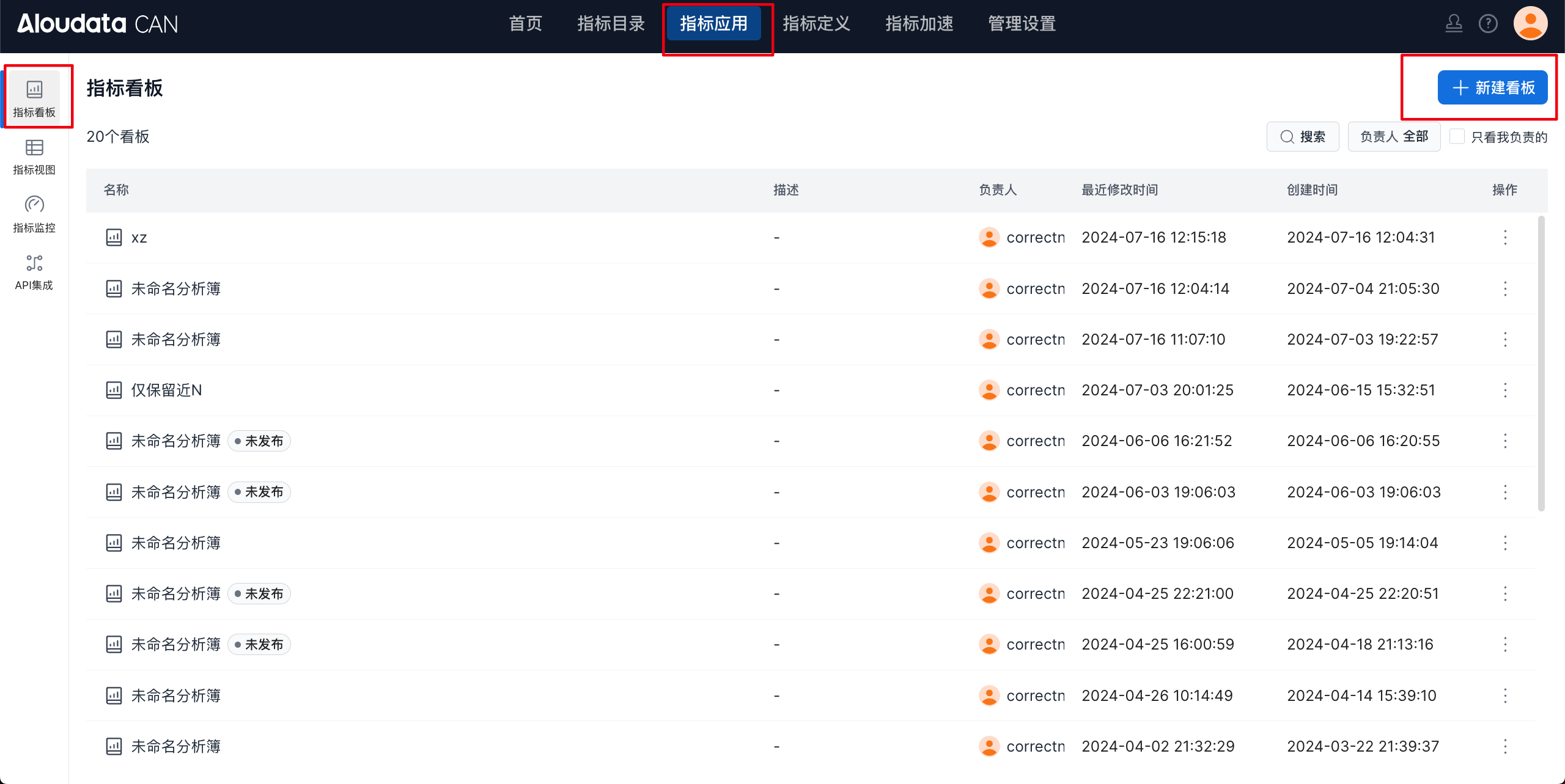
| Dashboard list | Displays the metric dashboards available to the current user. The user must have permission to use the dashboard. * Unpublished: An unpublished metric dashboard is the current user's temporary draft. It must be published before it can be shared with other users. |
| Create dashboard | After you click Create, the system creates an unnamed dashboard and saves it automatically. |
Steps
Entry Point
In the top navigation bar, choose Metric Applications -> Metric Dashboards. In the upper-right corner of the metric dashboard list, click Create Dashboard to go to the metric dashboard details page.
Page Details
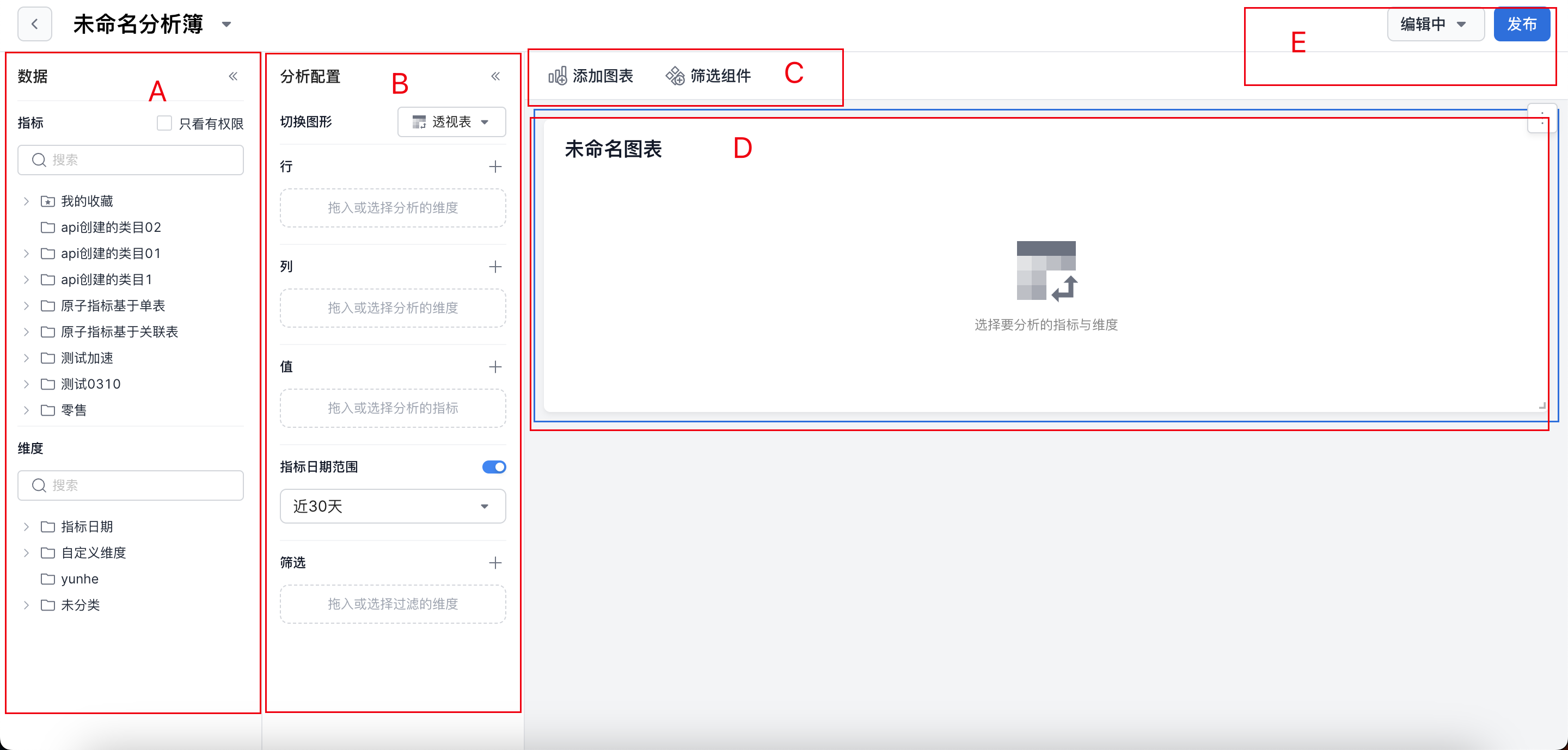
| Item | Description |
|---|---|
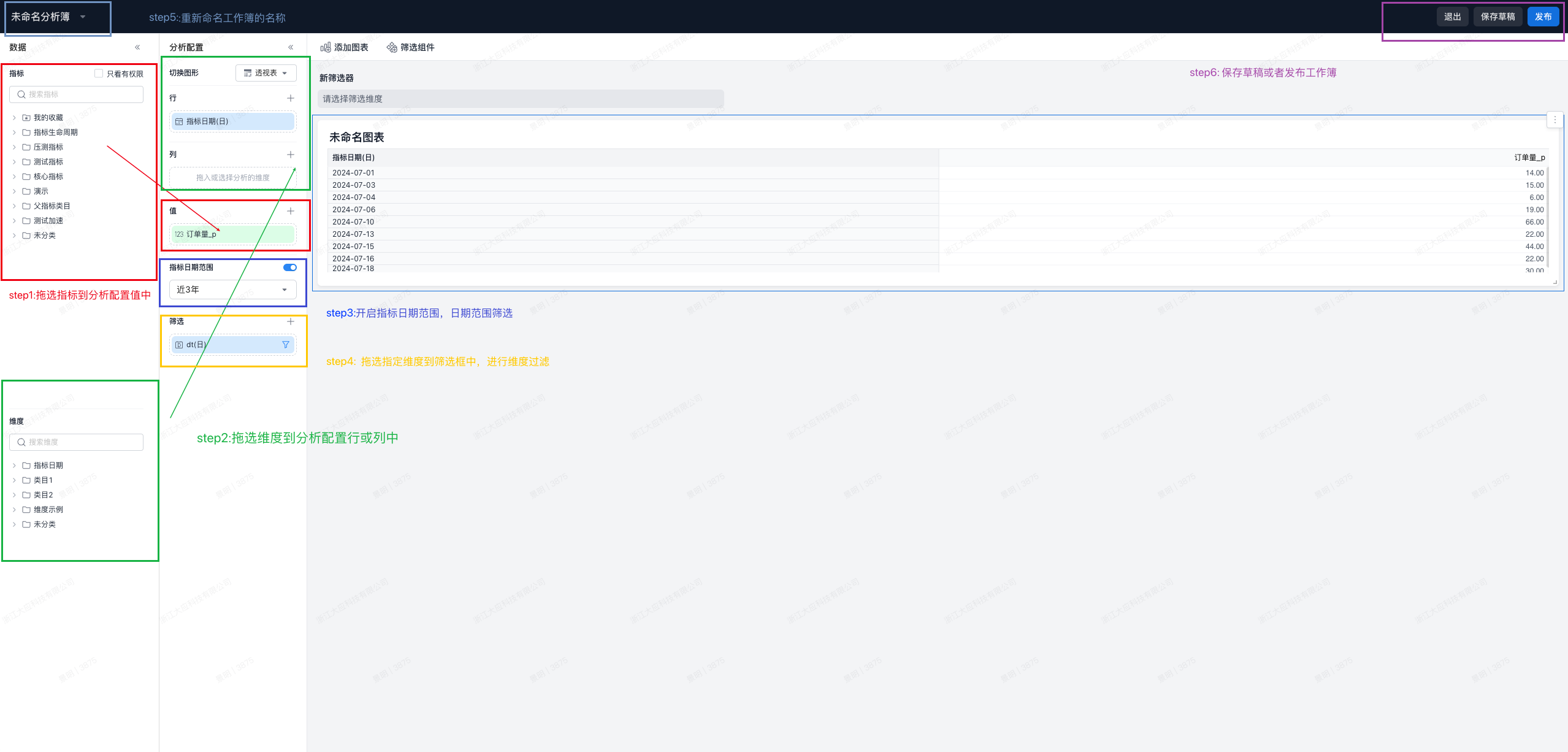
| A Data | The Data module displays all metrics and dimensions in the metric platform. * Collapse: Click the collapse button to collapse the Data module.  --- * Authorized only: Click Authorized only to filter out metrics that you do not have permission to use. --- * Authorized only: Click Authorized only to filter out metrics that you do not have permission to use.  --- * Metrics and dimensions list: Displays the metrics and dimensions in the current metric platform by the configured categories. --- * Metrics and dimensions list: Displays the metrics and dimensions in the current metric platform by the configured categories. |
| B Analysis Configuration | The Analysis Configuration module displays settings for the currently selected component. Components are divided into data components and filter components. * Collapse: Click the collapse button to collapse the Analysis Configuration module.  * Analysis configuration: Configure visualization settings for different chart types. * Analysis configuration: Configure visualization settings for different chart types. |
| C Add Component | Add chart components and filter components. |
| D Component Details | Displays the data content of the current component. * More actions: Refresh, download (downloads the first 100,000 rows), copy, and delete. 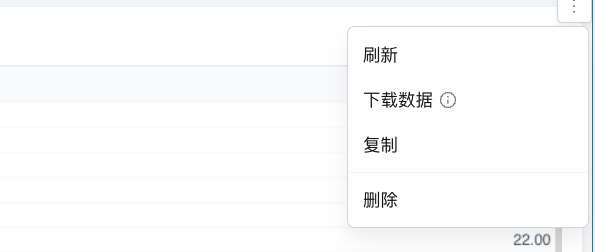 |
| E Metric Dashboard Actions | * Unpublished metric dashboard: An unpublished metric dashboard must be published before it can be shared. Metric dashboards are saved automatically.  * Published metric dashboard: Users with edit permission can share the metric dashboard with other users and edit its content. * Published metric dashboard: Users with edit permission can share the metric dashboard with other users and edit its content.  |
Chart Actions
Copy a Chart
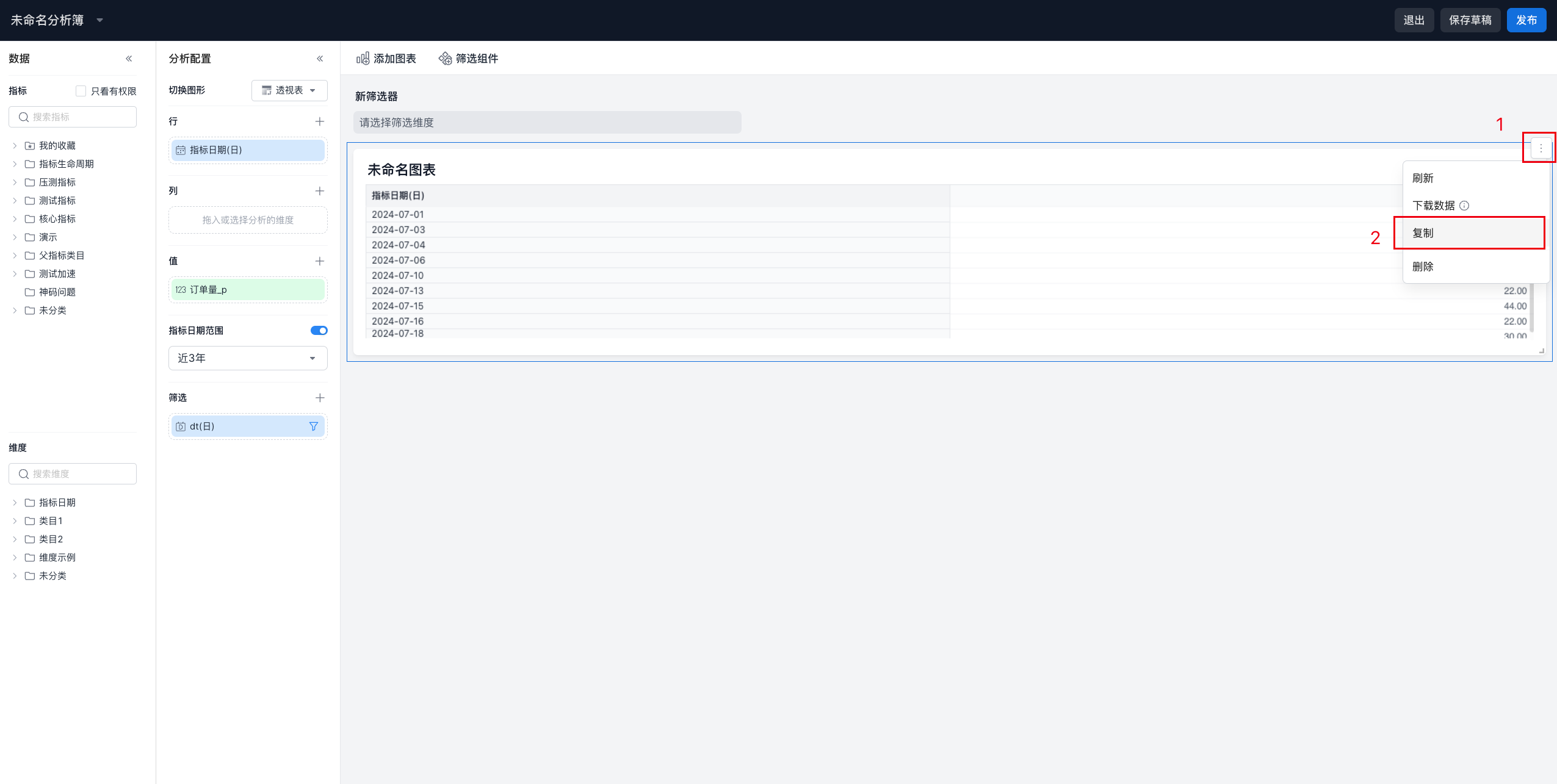
As shown below, click the ⋮ button in the upper-right corner of the chart, and then click Copy in the drop-down list. An identical chart is generated immediately below the current chart, improving reuse efficiency.